Document Properties Document Title Filtering, Sorting and Grouping
 Prepared for
NHS Connecting for Health
Version 1.0.0.0 Baseline
Prepared by
Clinical Applications and Patient Safety Project
NHS CUI Programme Team
Cuistakeholder.mailbox@hscic.gov.uk
Prepared for
NHS Connecting for Health
Version 1.0.0.0 Baseline
Prepared by
Clinical Applications and Patient Safety Project
NHS CUI Programme Team
Cuistakeholder.mailbox@hscic.gov.uk

PREFACE
- PREFACE
- 1 INTRODUCTION
- 2 GUIDANCE OVERVIEW
- 3 GUIDANCE DETAILS
- 3.1 Introduction
- 3.2 Principles
- 3.3 Common Features
- 3.4 Data Display
- 3.5 Guidelines – Controls
- 3.6 Guidelines – Filtering
- 3.6.1 Entering and Removing Filter Criteria
- 3.6.2 Entering Multiple Criteria
- 3.6.3 Attribute Selection Control
- 3.6.4 Operator Selection Control
- 3.6.5 Value Entry Control
- 3.6.6 Permitted Operators
- 3.6.7 Multiple Operators – Component Filter Expression
- 3.6.8 Removing Filters
- 3.6.9 Displaying Results
- 3.6.10 Filter Notification
- 3.7 Guidelines – Sorting
- 3.8 Guidelines – Grouping
- 4 DOCUMENT INFORMATION
- APPENDIX A USER RESEARCH EXECUTIVE SUMMARY
- PART I Abstract
- PART II Research Objectives
- PART III Research Design
- PART IV Results
- Respondent description
- UI terminology for sorting and filtering activities
- Conveying the outcome of progressive sorts
- Expectations and preferences for sorting by variables not currently displayed
- Conveying the impact of combining filter criteria
- Safely indicating the existence of filtered-out data and how to re-access it.
- REVISION AND SIGNOFF SHEET
Source PDF: filtering.pdf
Documents replaced by this document None Documents to be read in conjunction with this document Displaying Graphs and Tables – User Interface Design Guidance 2.0.0.0 Design Guide Entry – Date Display 3.0.0.0 Design Guide Entry – Time Display 3.0.0.0 Design Guide Entry – Date and Time Input 2.0.0.0 Design Guide Entry – Medications Management – Medications Views 2.0.0.0 Accessibility Checkpoints for NHS Applications 1.0.0.0 Accessibility for Clinical Applications 1.0.0.0 This document was prepared for NHS Connecting for Health which ceased to exist on 31 March 2013. It may contain references to organisations, projects and other initiatives which also no longer exist. If you have any questions relating to any such references, or to any other aspect of the content, please contact cuistakeholder.mailbox@hscic.gov.uk Patient Safety Process The development cycle for this design guide is compliant with the Clinical Safety Management System (CSMS) – the patient safety risk assessment and management process defined by NHS Connecting for Health (NHS CFH) in conjunction with the National Patient Safety Agency (NPSA). The design guide developers reviewed patient safety incidents arising from both current practice and existing systems for medications management. The resulting guidance points support mitigation of these known patient safety risks. In addition, the developers identified any potential new risks by applying a patient-safety risk-assessment process. The developers are assessing and managing all risks to support a Clinical Safety Case for this design guide. The Hazard Log records all hazards and risks raised to date and includes mitigation actions that, in some cases, will be applicable to you if you are an implementer or other user of this design guide. The Hazard Log is a live document and updates regularly whilst this design guide continues its development. Until this design guide has received full Clinical Authority to Release (CATR) from the NHS CFH Clinical Safety Group (CSG) – based on an approved Clinical Safety Case – there may be outstanding patient safety risks yet to be identified and mitigated. Therefore, it is essential that you review the relevant Hazard Log in conjunction with this design guide. Refer to NHS Common User Interface (N3 connection required) for all current patient safety documentation, including Hazard Logs and the current patient safety process status for this and other design guides.
1 INTRODUCTION
This document provides guidance for the design of application functionality to filter, sort and group any clinical data within a single patient record displayed in a tabular form. It describes the area of focus, lists mandatory and recommended guidance points with usage examples and explains the rationale behind the guidance.
The application of filtering, sorting and grouping covers a very broad range of functionality for a given data set. The functionality for these complex areas is set out in section 1.1. This design guidance covers only a limited area, as defined by the scope in section 1.3.
1.1 Definitions
Table 1 defines some of the key terms used throughout this document whose meaning is borne out by the user research conducted during the development of this guidance:
Filtering The selection of a subset of data so as to focus on the data that is relevant to the task at hand (in this case, the clinical task). The application of each filter criterion specifies a subset of data to keep in view.
Sorting To arrange elements of a sequence according to some criterion, such as alphabetically (A to Z), or numerically (1, 2, 3…). A clinical example is: ‘Show me all the medications this patient has ever been prescribed, in alphabetic order of medicine name’.
Grouping To arrange elements of a collection into different categories. A clinical example is: ‘Show me all of the patient’s current and past medicines, grouped separately by Type such as Antibiotics ’.
Table 1: Key Definitions
Important
The visual representations used within this document to display the guidance are illustrative only. They are simplified in order to support understanding of the guidance points. Stylistic choices, such as colours, fonts or icons are not part of the guidance and unless otherwise specified are not mandatory requirements for compliance with the guidance in this document.
1.2 Customer Need
Health care staff are routinely required to assimilate vast amounts of clinical patient data, gathered from different sources, such as from labs. In some settings, such as Intensive Therapy Units (ITUs), a lot of patient data may be collected over a very short period of time. In a general practice (GP) setting, patient data typically accumulates over many years. In all cases, health care staff need to analyse and interpret data so as to identify the key indicators and relationships.
In secondary care, clinical processes are still often paper-based. However, there are no universally accepted standards relating to paper-based processes, which results in varying formats. In contrast, in primary care, clinical systems have made huge inroads into GP practices. These systems must address other concerns, for example the problem that computer screens are not capable of displaying a foldable chart that can be easily expanded to see a long (and wide) table of data.
Whatever the care setting, clinical systems must provide functionality, such as filtering, sorting and grouping, to aid in the analysis and interpretation of information. It is acknowledged that at times there is a requirement to present data that is already filtered and presented in an optimal fashion so that clinicians are not required to perform further data manipulation. Where filtering, sorting and grouping are required, there is a need to support this functionality in a consistent manner across all clinical applications. The availability of such functionality in common non-clinical applications, such as email readers and spreadsheets, means that many standards are already in place and increasingly used by clinicians either at home or while performing administrative tasks. To mitigate
Page 1
Copyright ©2013 Health and Social Care Information Centre
HSCIC Controlled Document
any risk of a clinician misinterpreting a subset of data, system design must ensure that, where appropriate, the user is notified that a subset of data is displayed on a computer screen and not the complete set of data.
1.3 Scope
This section sets out the items that are in and out of scope in this design guidance.
1.3.1 Limitations
A very constrained subset of possible functionality in the areas of filtering, sorting and grouping has been considered in the development of this guidance. To the same extent, this guidance will only work with a subset of the kinds of data which will be typical. The limitations to functionality and data sets are described below.
For the purposes of generating this generic guidance around filtering, sorting and grouping functionality it has been assumed that guidance published for any specific data types, such as medications, will be considered in the development of those systems.
1.3.2 In Scope
The following items are in scope:
- Single patient record data accessed using computerised clinical systems in all care settings
(medications lists and test results were used in the development of this guidance)
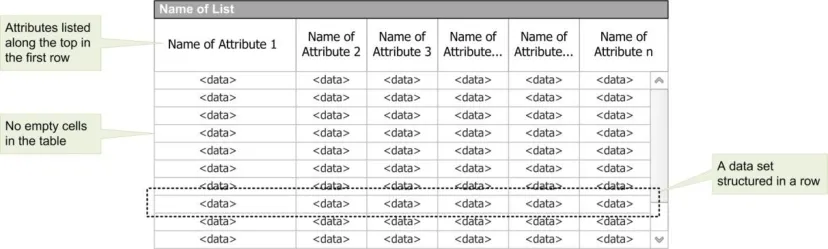
- Homogenous data sets in a tabular form where each data set appears in a row with
columns displaying the attributes of each data item. The tables have no empty cells and the data items in each row are for the same time point not a time range.
These aspects are illustrated Figure 1:
Figure 1: Example In-Scope Tabular Layout
1.3.3 Out of Scope
This section details items that are:
-
Out of scope for this guidance
-
Items not or only partially tested
We consider that the inclusion of these two lists correctly identifies a requirement for additional guidance when certain features or functionality are being included in designs.
The following items are out of scope:
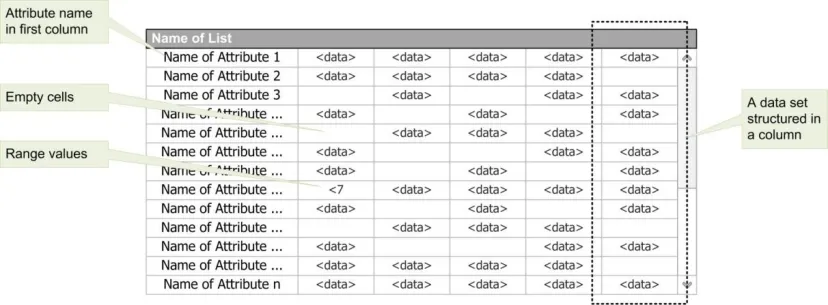
- Tables containing heterogeneous data sets, data in time ranges or empty cells and where
the data is ordered horizontally (that is, where the first entry in each row states the name of the attribute and the remaining cells in the row display the attribute’s values). These aspects are illustrated in Figure 2
Page 2
Copyright ©2013 Health and Social Care Information Centre
 HSCIC Controlled Document
- User interface (UI) aspects relating to a data view (such as default column widths, the
default order of columnar display and the Look-Ahead Scroll Bar as defined in Medications Management – Medications Views {R6})
- UI functions that manipulate the data view (such as resizing a table or moving columns
within a table)
-
Choosing which columns or attributes to view
-
Specific and system-defined sort orders, groups and filters (because these depend on the
data and on care settings and are externally generated)
-
Saving filter criteria for later use
-
Data entry and editing
-
Data comparison
-
Range values are out of scope when mixed with continuous data
Figure 2 illustrates the kind of tabular layout that is out of scope:
Figure 2: Example Out of Scope Tabular Layout
The following items are not or only partially tested:
-
Multi-patient records
-
Clinical Noting and Patient Lists
-
The unstructured (that is, free text) part of the patient record
-
Images
-
Mixed data types (that is, data types that are discrete or continuous that have a floor value
but which the test cannot be precise about, such as those which represent certain test results, for example, ‘<7’)
1.4 Assumptions
A1 The target audience comprises health care staff who need to view and analyse patient data within a single record
A2 A single user is logged on to the clinical application
A3 The format and database in which the underlying data is stored does not constrain, or is not relevant to, the data manipulation functions, namely filtering, sorting and grouping
Table 2: Assumptions
Page 3
Copyright ©2013 Health and Social Care Information Centre
 HSCIC Controlled Document
1.5 Dependencies
D1 Formats for displaying dates are dependent on Design Guide Entry – Date Display {R3}
D2 Formats for displaying times are dependent on Design Guide Entry – Time Display {R4}
D3 Formats for entry of dates and times are dependent on Design Guide Entry – Date and Time Input {R5}
D4 Formats for displaying tables are dependent on Displaying Graphs and Tables – User Interface Design Guidance {R2}
Table 3: Dependencies
Copyright ©2013 Health and Social Care Information Centre
Page 4
HSCIC Controlled Document
2 GUIDANCE OVERVIEW
2.1 Summary of Guidance
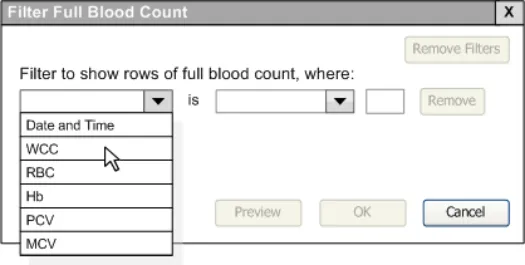
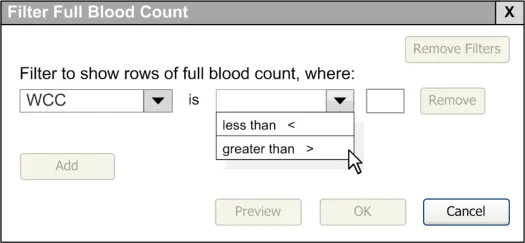
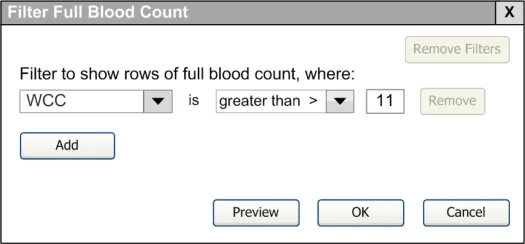
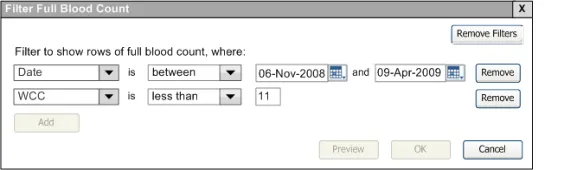
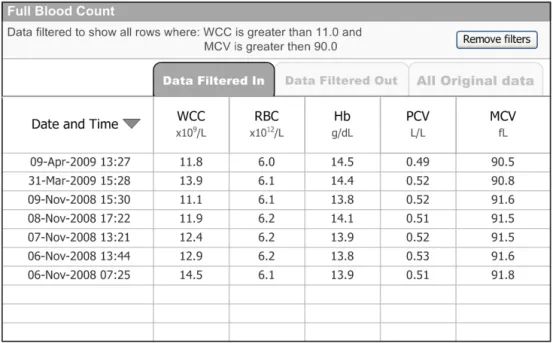
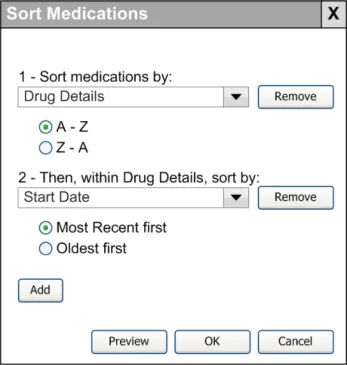
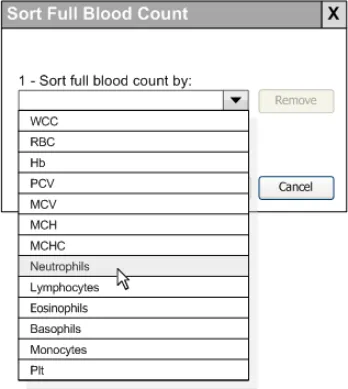
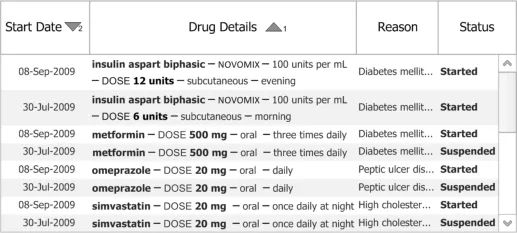
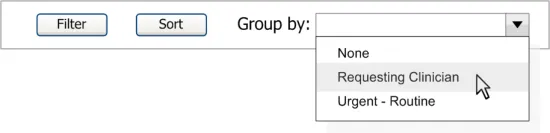
Table 4 provides excerpts of the guidance illustrations and identifies where in the guidance they are found:
3.5 Guidelines – Controls
3.6.1 Entering and Removing Filter Criteria
3.6.8 Removing Filters
3.6.2 Entering Multiple Criteria
3.6.3 Attribute Selection Control
3.6.4 Operator Selection Control
3.6.6 Permitted Operators
Page 5
Copyright ©2013 Health and Social Care Information Centre
 HSCIC Controlled Document
3.6.5 Value Entry Control
3.6.7 Multiple Operators – Component Filter Expression
3.6.9 Displaying Results
3.6.10 Filter Notification
3.7.1 Display
3.7.4 Sort Order Manipulation
3.7.5 Removing Sort
Page 6
Copyright ©2013 Health and Social Care Information Centre
 HSCIC Controlled Document
3.7.2 Attribute Selection Control
3.7.3 Sort Indicator
3.7.6 Progressive Sort
3.8 Guidelines – Grouping
Table 4: Summary of Guidance
Copyright ©2013 Health and Social Care Information Centre
Page 7
 HSCIC Controlled Document
3 GUIDANCE DETAILS
3.1 Introduction
The guidance provided in this document is based upon a programme of research, including:
-
One-to-one interviews with six health care professionals at two NHS Trusts
-
An Opening Risk Assessment with eight clinicians
-
A discussion with members of the Design Steering Group, a group of clinicians who meet
through Connecting for Health
-
Evaluation of all medications-related hazards recorded in the NHS CUI programme
-
A Web-based survey of 13 clinicians, administrative staff, and independent software
vendors
-
A Closing Risk Assessment with six clinicians
-
Regular consultation with members of the NHS Connecting for Health Specific Audience
3.2 Principles
The following key principles inform the guidance:
- Endeavouring to ensure the data manipulation functions of filtering, sorting and grouping
are patient-safe
- Where appropriate, applying UI standards and conventions from non-clinical application
software to the design of clinical applications
- Promoting consistent use of filtering, sorting and grouping for all users across clinical
applications and care settings
-
Grounding the development of generic guidance in clinically validated scenarios and data
-
Minimising opportunities for human error
3.3 Common Features
This document provides guidance on the application of filtering, sorting and grouping. This section addresses those attributes common to each of those functions, namely data types, filtering operators and sort orders.
The different ways in which data can be filtered or sorted depends on the characteristics of the data being processed. This section:
-
Describes the two classes of data values
-
Lists the data types in each of these classes
-
Identifies the permitted filter operators and sort orders for each data type.
Data can be considered to have either discrete values or continuous values. Within these classes of values, data is classified into distinct data types. The relevance of these value classes and data types differs depending on whether you are performing filtering or sorting actions.
3.3.1 Filtering
When filtering data, the clinical requirement is to select a subset of data so as to focus on the data that is relevant to the task at hand. Therefore the filtering task is one of framing a query that acts on the values of data (for example, whether a value is greater than a threshold or whether a reading
Page 8
Copyright ©2013 Health and Social Care Information Centre
HSCIC Controlled Document
was taken after a certain date). To facilitate the framing of unambiguous queries, a set of query operators is required for each class of data.
For filtering, Table 5 lists the different data types associated with discrete and continuous data values and the permitted filter operators that can be safely applied to them:
Discrete Integers less than less than or equal to equal to greater than or equal to greater than
Ordered set of symbols less than less than or equal to equal to greater than or equal to greater than
Unordered set of symbols (such as diagnosis or problem)
equals
String (free text) equals
Date on before on or before after on or after between (to include both the stated dates)
Continuous Real numbers less than greater than
Date and time before after between (to include both the stated dates)
Table 5: Permitted Filter Operators by Data Type
Note
The operators permitted for discrete numbers and for continuous numbers differ:
- Discrete numbers are whole numbers. They do not contain decimals or fractions. Therefore, this
guidance permits the use of the equality operator on discrete numbers.
- Continuous numbers are numbers expressed using decimals, such as 6.5 and 6.499. The precision
with which such numbers are stored on computers makes it mathematically inaccurate to ask whether a continuous value is exactly equal to another. Therefore, this guidance prohibits the use of the equality operator on continuous numbers.
Page 9
Copyright ©2013 Health and Social Care Information Centre
HSCIC Controlled Document
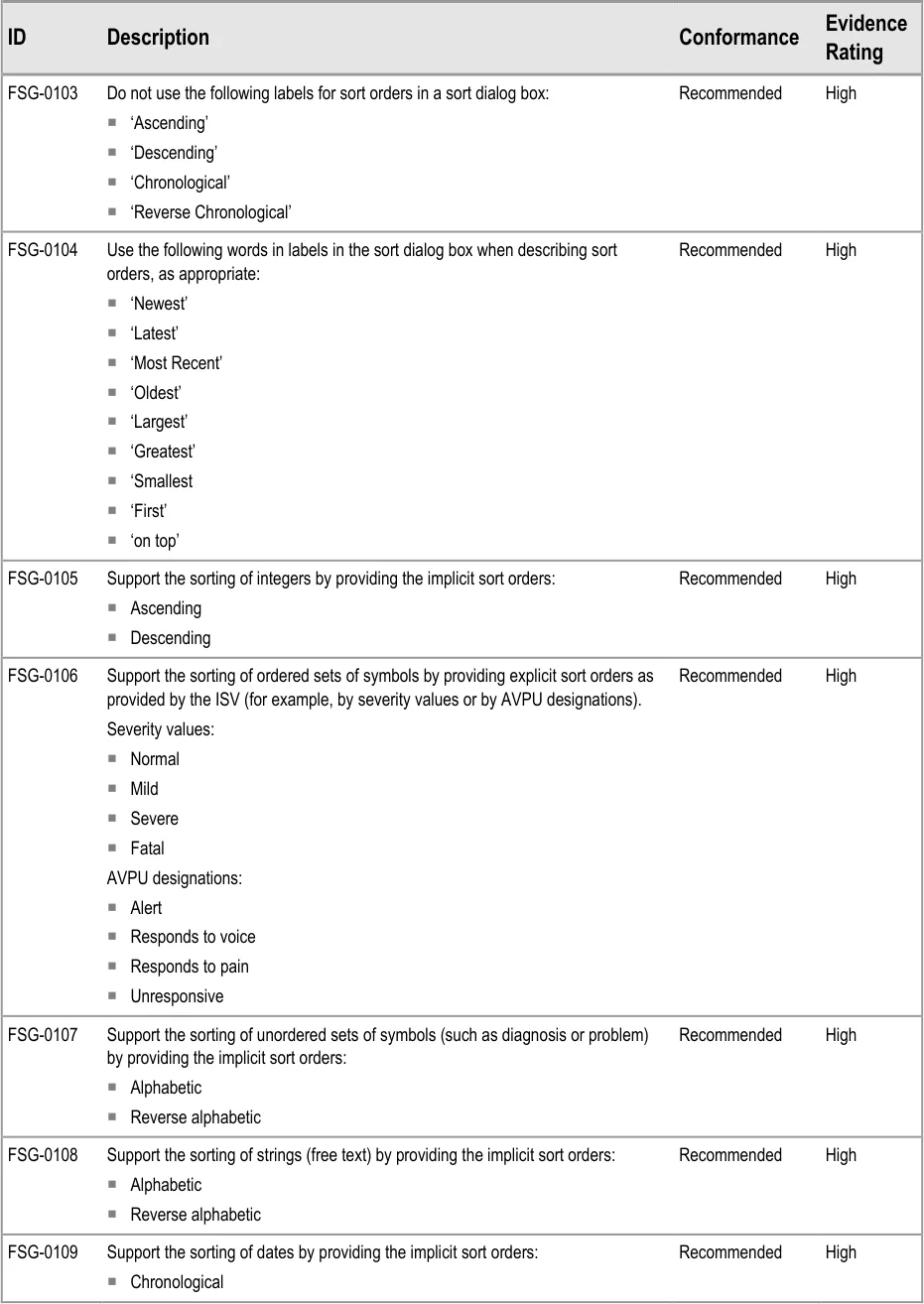
3.3.2 Sorting
For sorting, Table 6 lists the different data types associated with discrete and continuous data values and the sort orders applicable to them:
Value Type Data Type Sort Order
Discrete Integers Implicit Ascending Descending
Ordered set of symbols Explicit Supplied by Independent Software Vendor (ISV) For example, severity values ‘normal’, ‘mild’, ‘severe’, ‘fatal’, or responsiveness values ‘Alert’, ‘Responds to voice’, ‘Responds to pain’, ‘Unresponsive’ (AVPU designations)
Unordered set of symbols (such as diagnosis or problem)
Implicit Alphabetic Reverse alphabetic
String (free text) Implicit Alphabetic Reverse alphabetic
Date Implicit Chronological Reverse chronological
Continuous Real numbers Implicit Ascending Descending
Date and time Implicit Chronological Reverse chronological
Table 6: Permitted Sort Orders by Data Type
3.4 Data Display
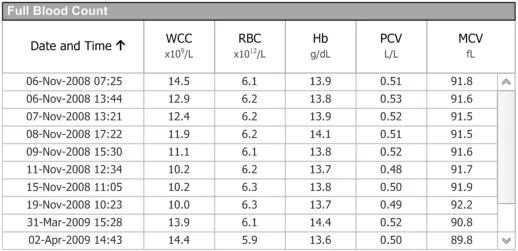
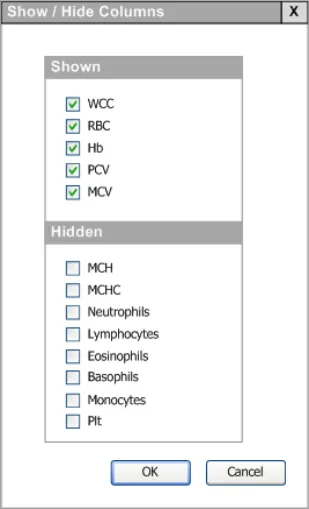
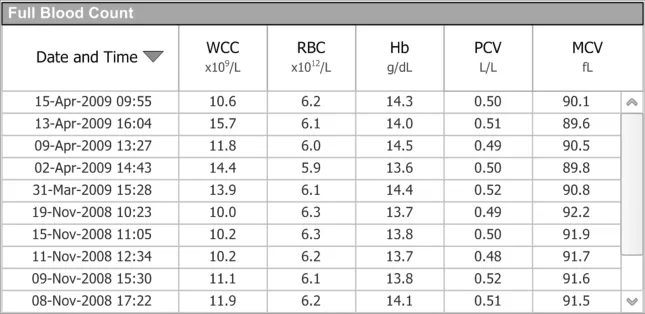
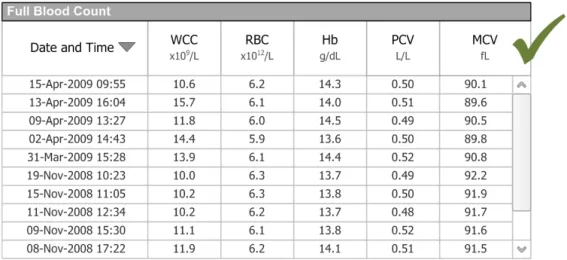
In this document, usage examples show data displays to demonstrate the application of the guidelines. These usage examples show elements of full blood count data. However, the examples present only a small number of attributes of the full blood count data on the basis that the user has already chosen to remove all other data for blood test results. The user can be regarded as having done this using a ‘column chooser’ function (such as that shown in Figure 3, which is provided for illustrative purposes only) resulting in the display of a table (such as shown in Figure 4):
Page 10
Copyright ©2013 Health and Social Care Information Centre
 HSCIC Controlled Document
Figure 3: Using a ‘Column Chooser’ Dialog Box to Select the Blood Count Data to View
Figure 4: Initial Data Display
Figure 4 therefore shows the initial data display that is the starting point for the examples of filtering, sorting and grouping described in this document.
Note
As discussed in section 1.3.3, table manipulation such as the ‘column chooser’ is out of scope of this guidance. It is referenced here to explain the context for later illustrations: namely, that the tabular data displayed in the usage examples has been selected by the user before filtering and sorting begins.
Page 11
Copyright ©2013 Health and Social Care Information Centre
 HSCIC Controlled Document
3.5 Guidelines – Controls
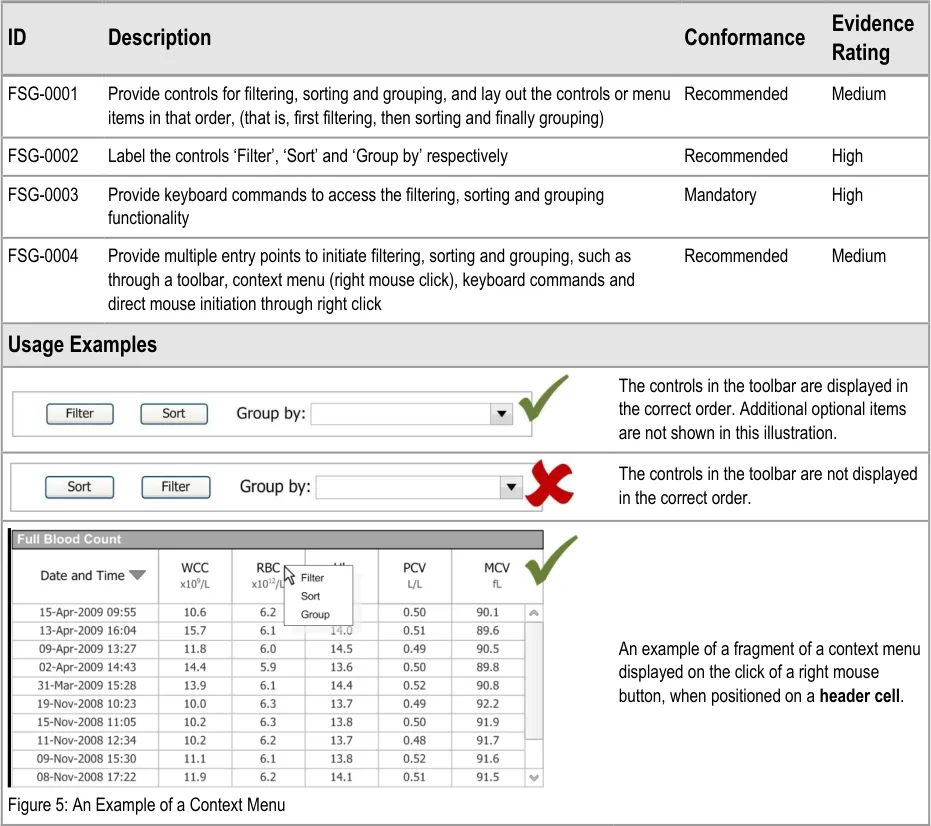
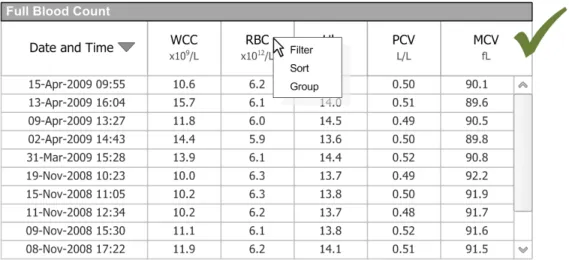
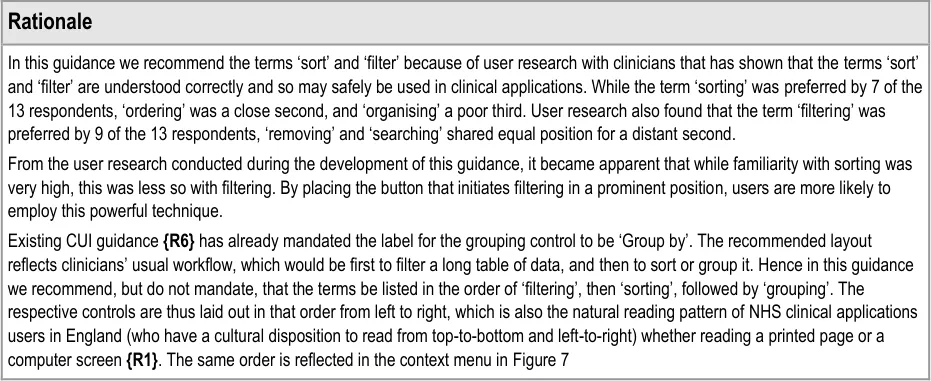
This section describes how to initiate the filtering, sorting and grouping functionality. Two methods for accessing the functions are described:
-
Buttons in a toolbar accompanying the table
-
Context menus
In addition to the buttons and context menus, compliance with CUI accessibility guidance {R10, R11} requires that keyboard commands are also provided. These are also likely to be required by those users who make frequent use of the filtering, sorting and grouping functionality. Keyboard tab orders should apply to the constituents of a dialog box but not to the Toolbar.
Additional methods for accessing the functionality, such as using other application toolbars or the keyboard, are not described in this guidance.
Note
The toolbar illustrations only show the controls that are discussed in this guidance. Additional controls may be placed in the toolbar, other NHS CUI guidance permitting.
Page 12
Copyright ©2013 Health and Social Care Information Centre
HSCIC Controlled Document
Page 13
Copyright ©2013 Health and Social Care Information Centre
HSCIC Controlled Document
3.6 Guidelines – Filtering
Filtering is the selection of a subset of data so as to focus on a subset of data that is relevant to the task at hand (in this case, the clinical task). The application of each filter criterion specifies a subset of data to keep in view. This section applies that action to clinical data.
3.6.1 Entering and Removing Filter Criteria
This section provides guidance relating to the entering and removing of filter criteria.
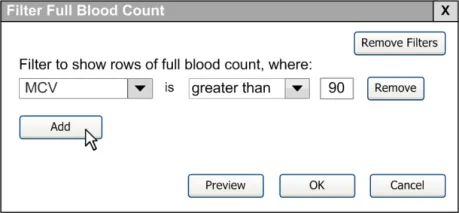
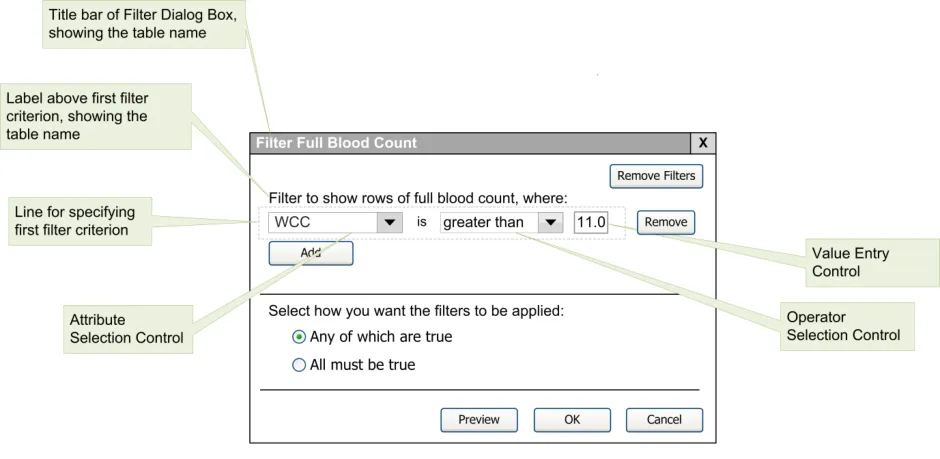
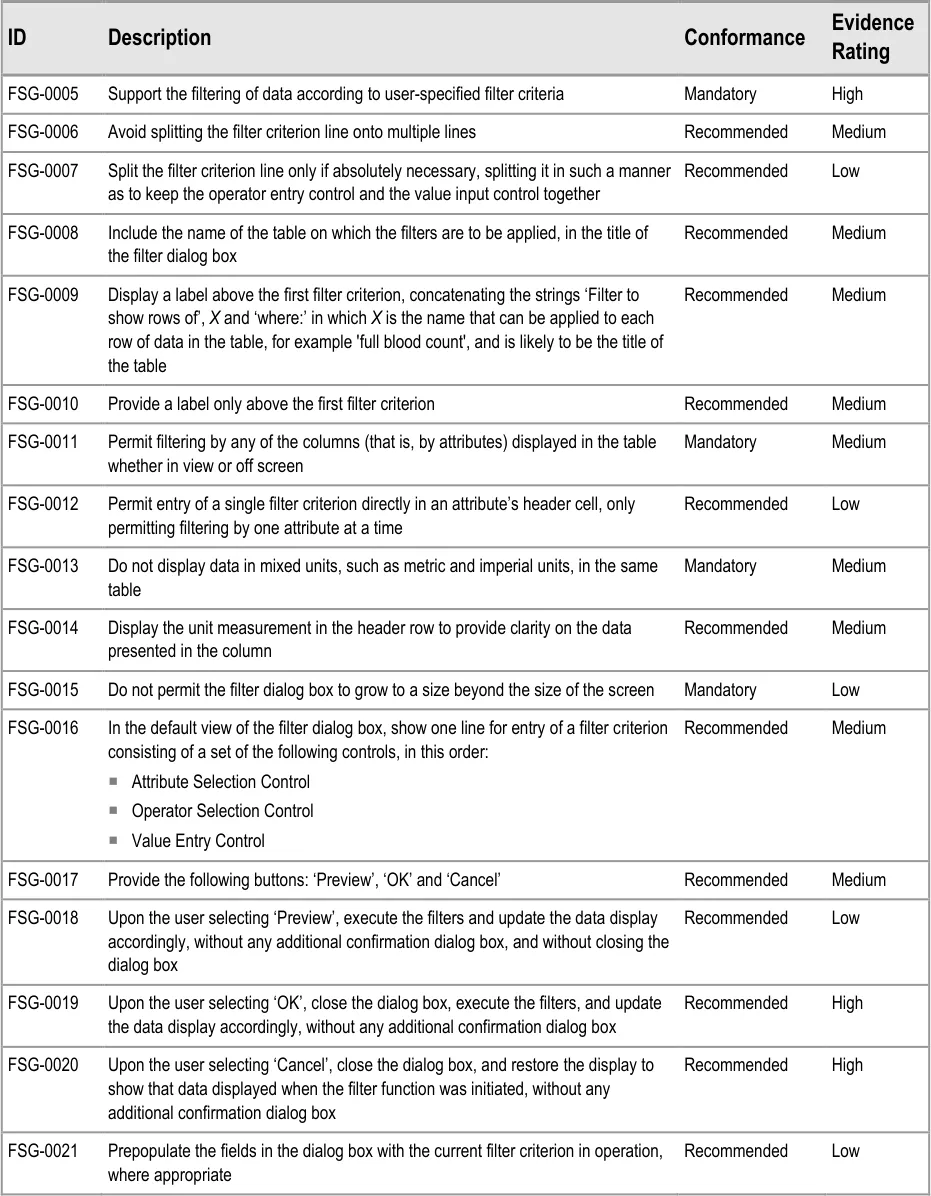
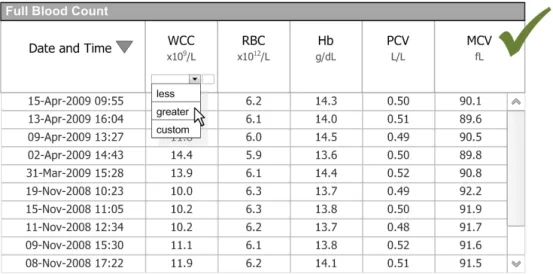
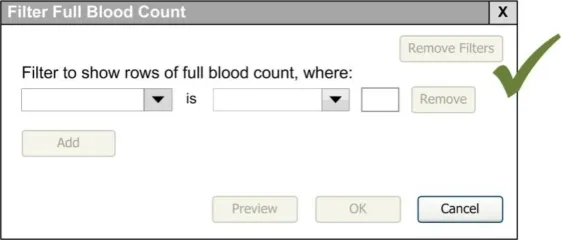
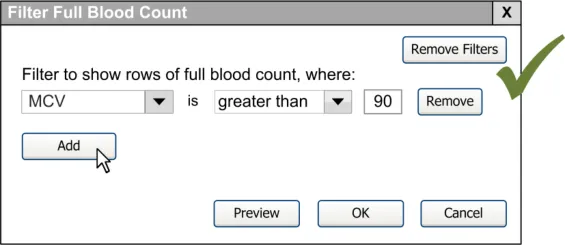
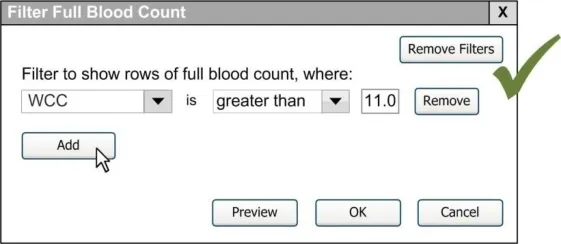
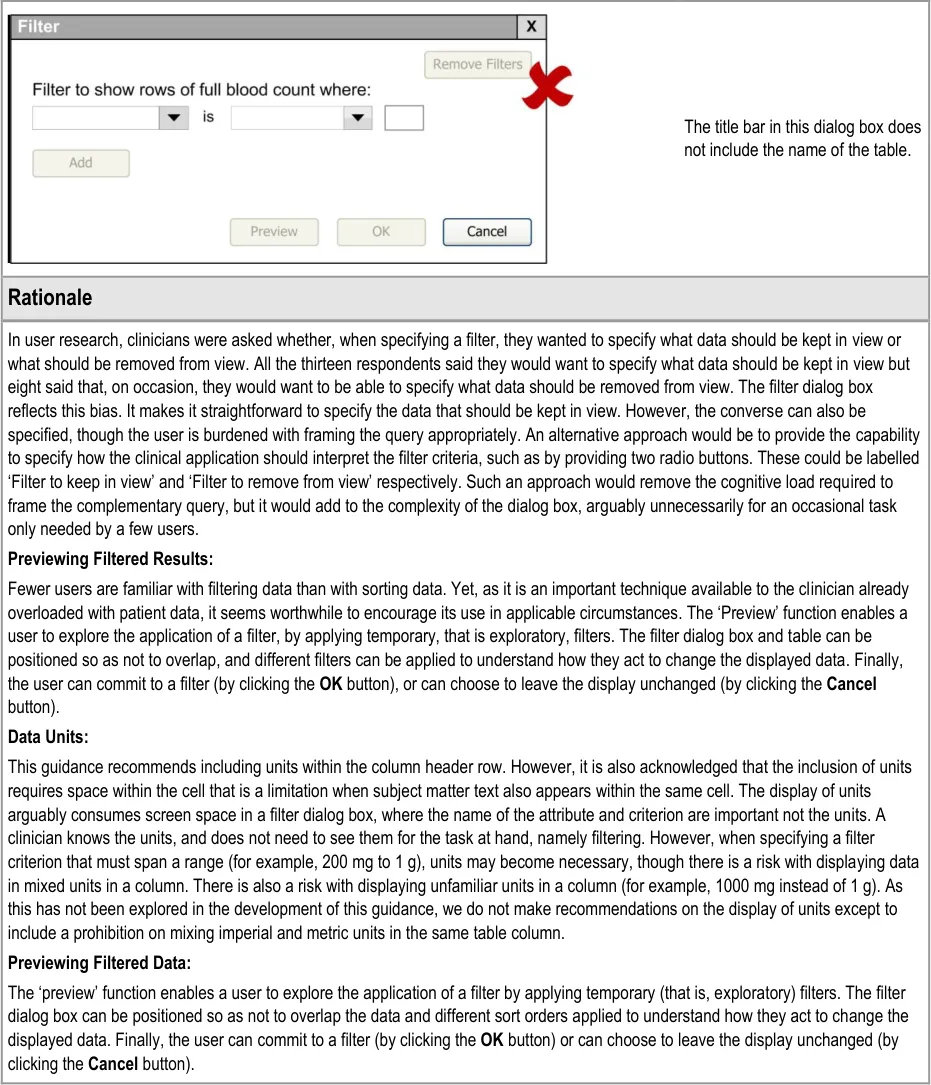
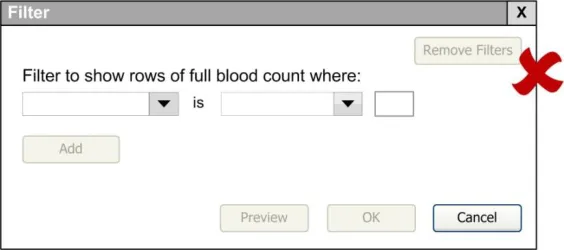
The filter dialog box, shown in Figure 6, facilitates the specification of both single and multiple filters. This section provides guidance on the layout and specification of the filter dialog box when applying a single filter criterion. Please refer to section 3.6.2 for guidance relating to building multiple filter criteria within the filter dialog box.
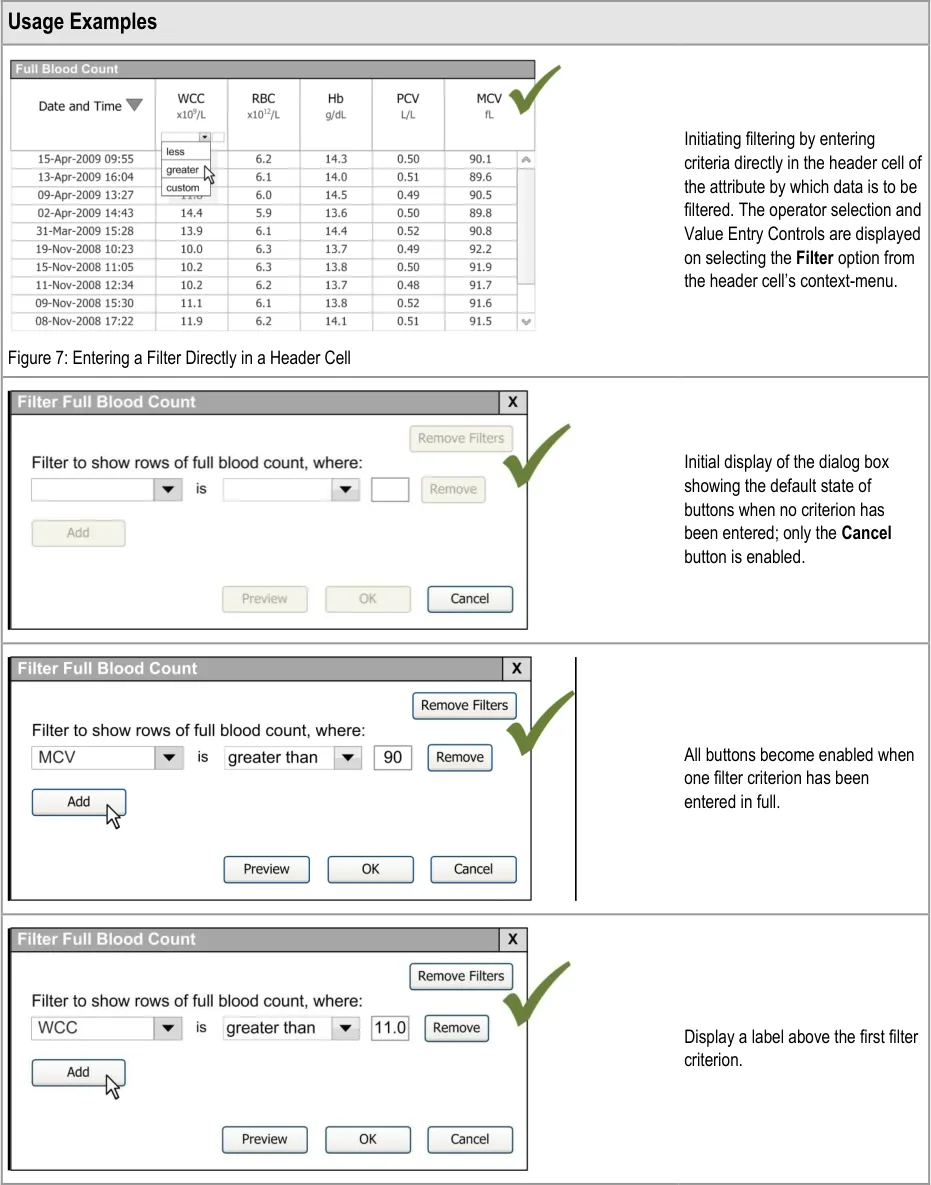
It is possible to set a single filter directly by use of the header cell’s context menu (as shown in Figure 6).
Figure 6: Filter Dialog Box
As Figure 6 illustrates, this guidance refers to a filter or a filter criterion as the combination of the following:
- An attribute (such as ‘WCC’) specified in an Attribute Selection Control (a control enabling
the user to select a particular filter attribute)
- An operator (such as ‘greater than’) specified in an Operator Selection Control (a control
enabling the user to select a particular filter operator)
- A value (such as ’11.0’) specified in a Value Entry Control (a control enabling the user to
select a particular filter value)
Page 14
Copyright ©2013 Health and Social Care Information Centre
 HSCIC Controlled Document
Page 15
Copyright ©2013 Health and Social Care Information Centre
HSCIC Controlled Document
Page 16
Copyright ©2013 Health and Social Care Information Centre
HSCIC Controlled Document
Page 17
Copyright ©2013 Health and Social Care Information Centre
HSCIC Controlled Document
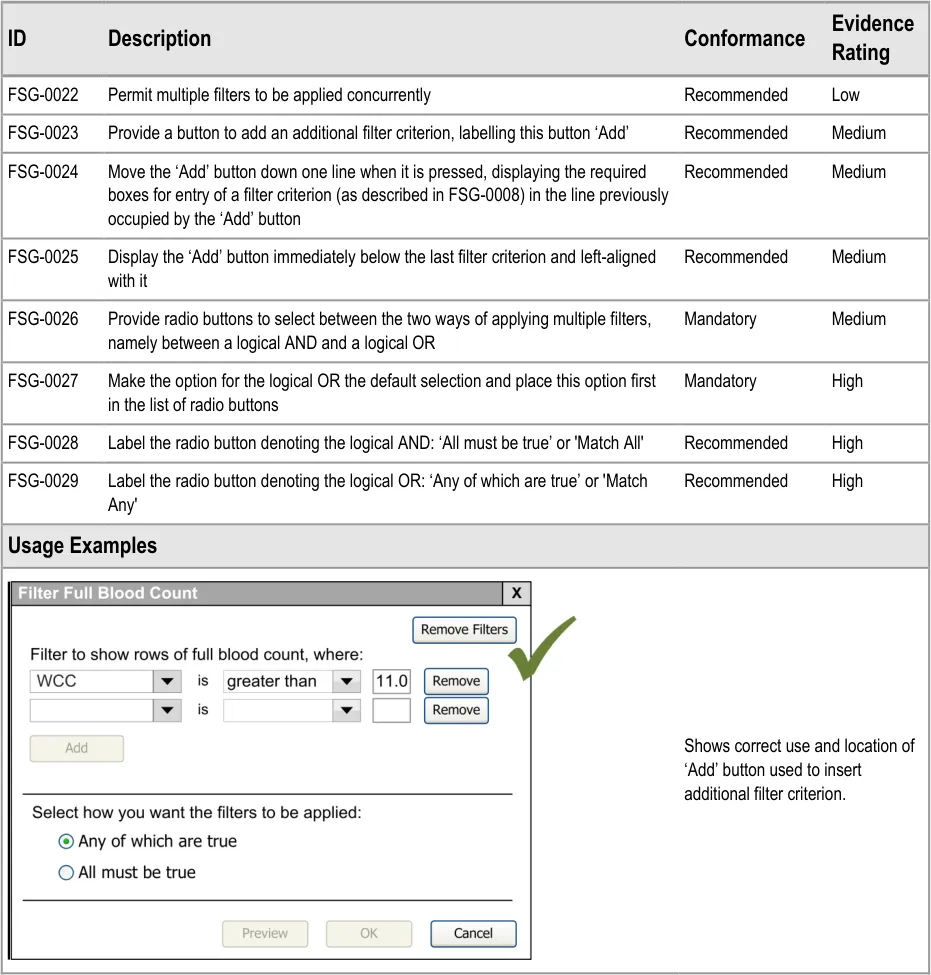
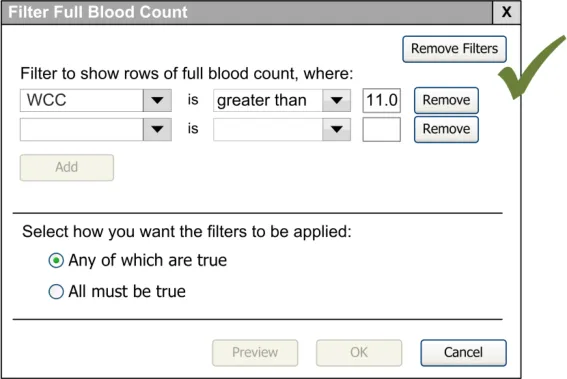
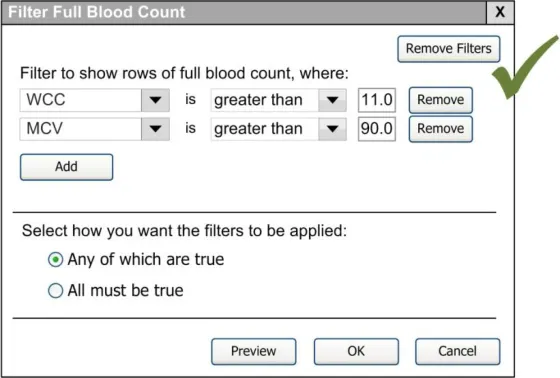
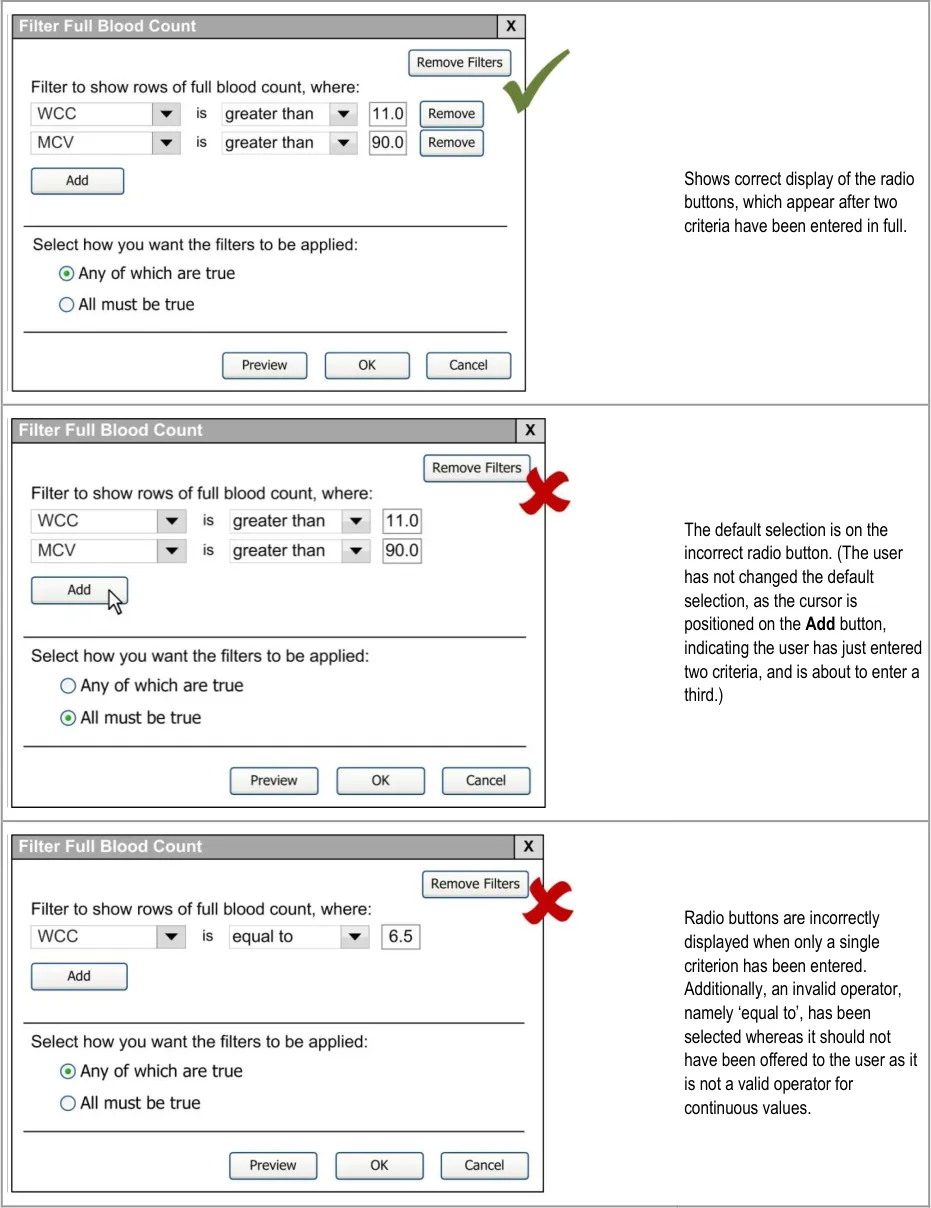
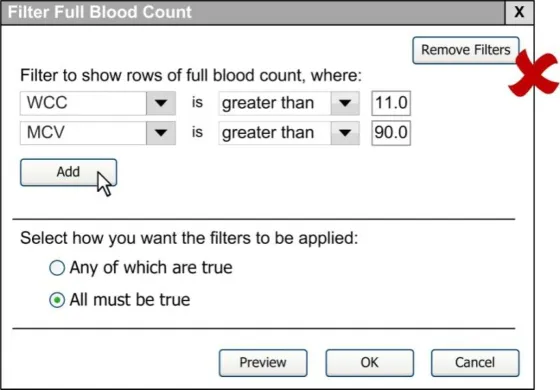
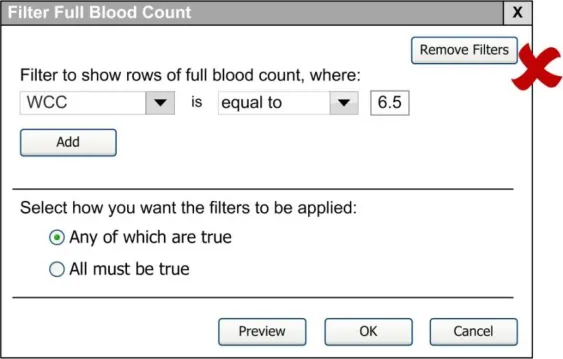
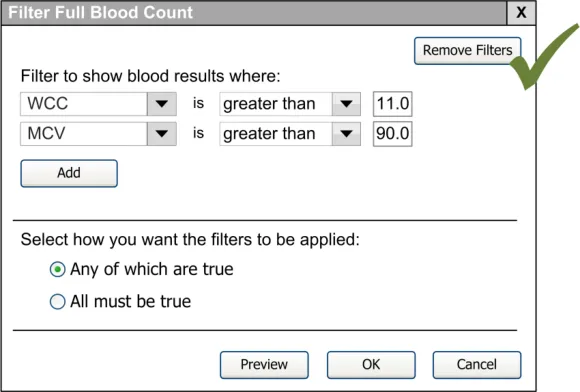
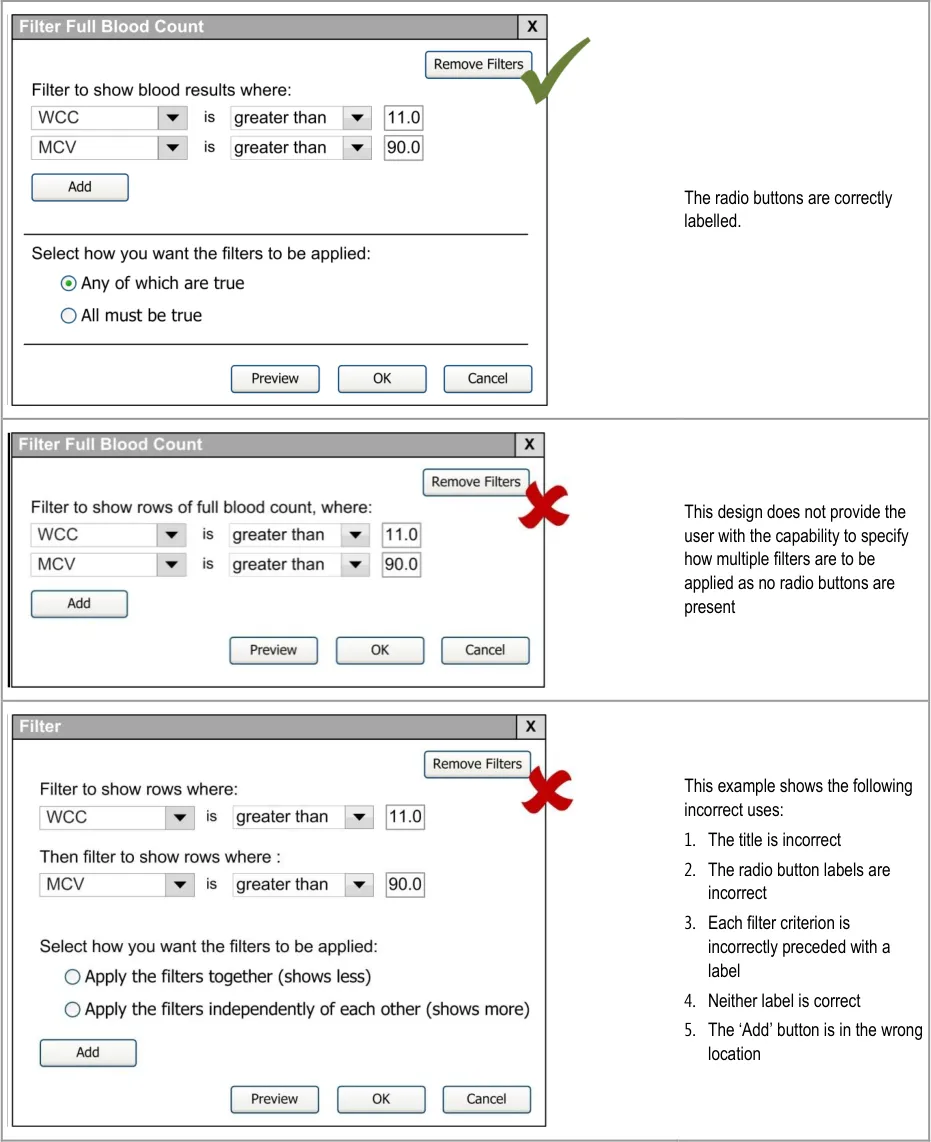
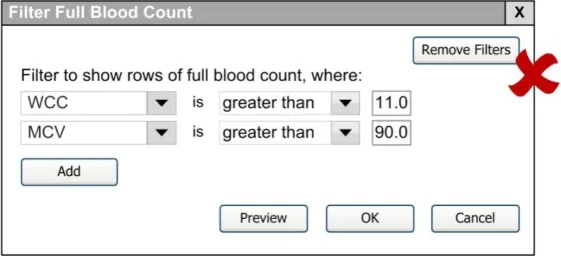
3.6.2 Entering Multiple Criteria
This section provides guidance on the entering of multiple filter criteria. Section 3.6.1 provides guidance on the layout and specification of the filter dialog box together with the application of a single filter criterion. The filter dialog box design also enables a user to enter multiple filter criteria.
Page 18
Copyright ©2013 Health and Social Care Information Centre
HSCIC Controlled Document
Page 19
Copyright ©2013 Health and Social Care Information Centre
 HSCIC Controlled Document
Page 20
Copyright ©2013 Health and Social Care Information Centre
 HSCIC Controlled Document
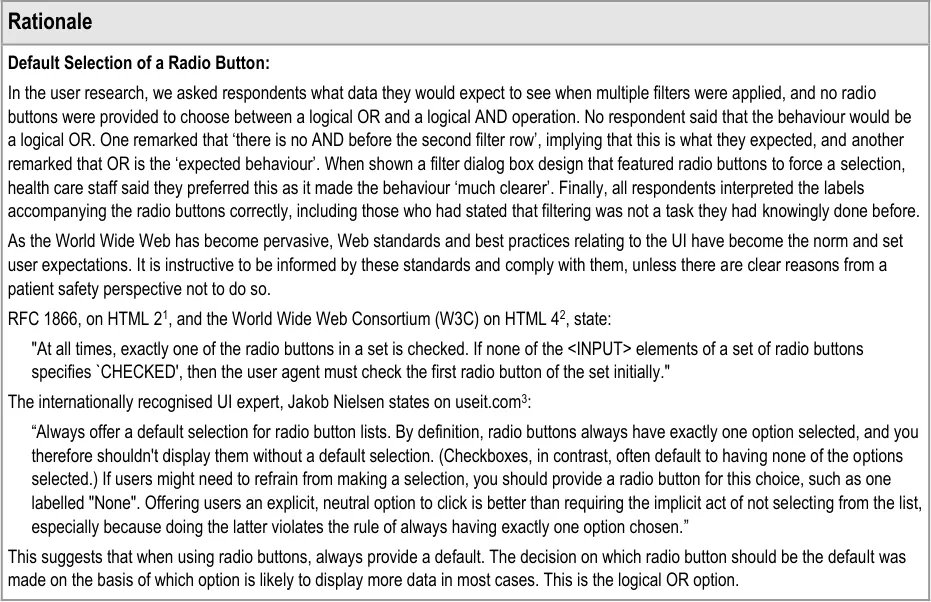
1 Hypertext Markup Language - 2.0 {R7} : http://www.ietf.org/rfc/rfc1866.txt
2 Control types – radio buttons {R8} : http://www.w3.org/TR/html4/interact/forms.html#radio
3 Checkboxes vs. Radio Buttons {R9} : http://www.useit.com/alertbox/20040927.html
Page 21
Copyright ©2013 Health and Social Care Information Centre
HSCIC Controlled Document
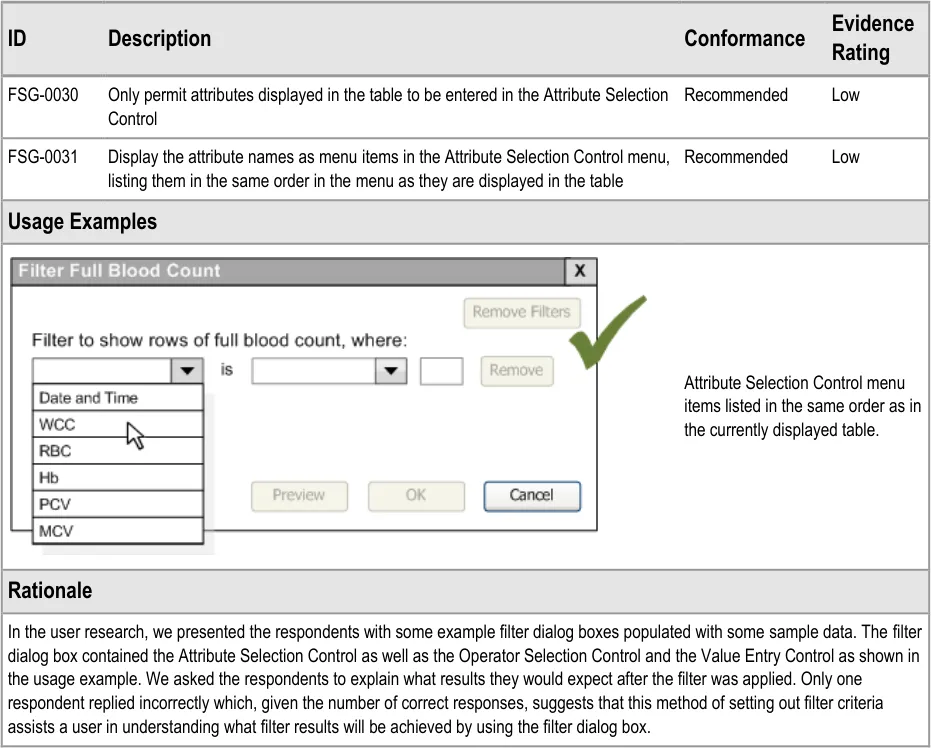
3.6.3 Attribute Selection Control
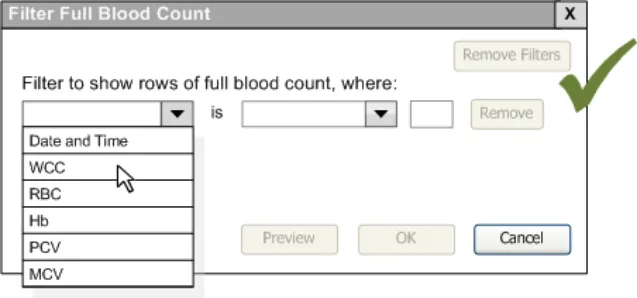
This section provides guidance on the use of the Attribute Selection Control. The Attribute Selection Control in the filter dialog box enables the user to select a particular attribute from the data set to which the filtering will be applied.
Page 22
Copyright ©2013 Health and Social Care Information Centre
HSCIC Controlled Document
3.6.4 Operator Selection Control
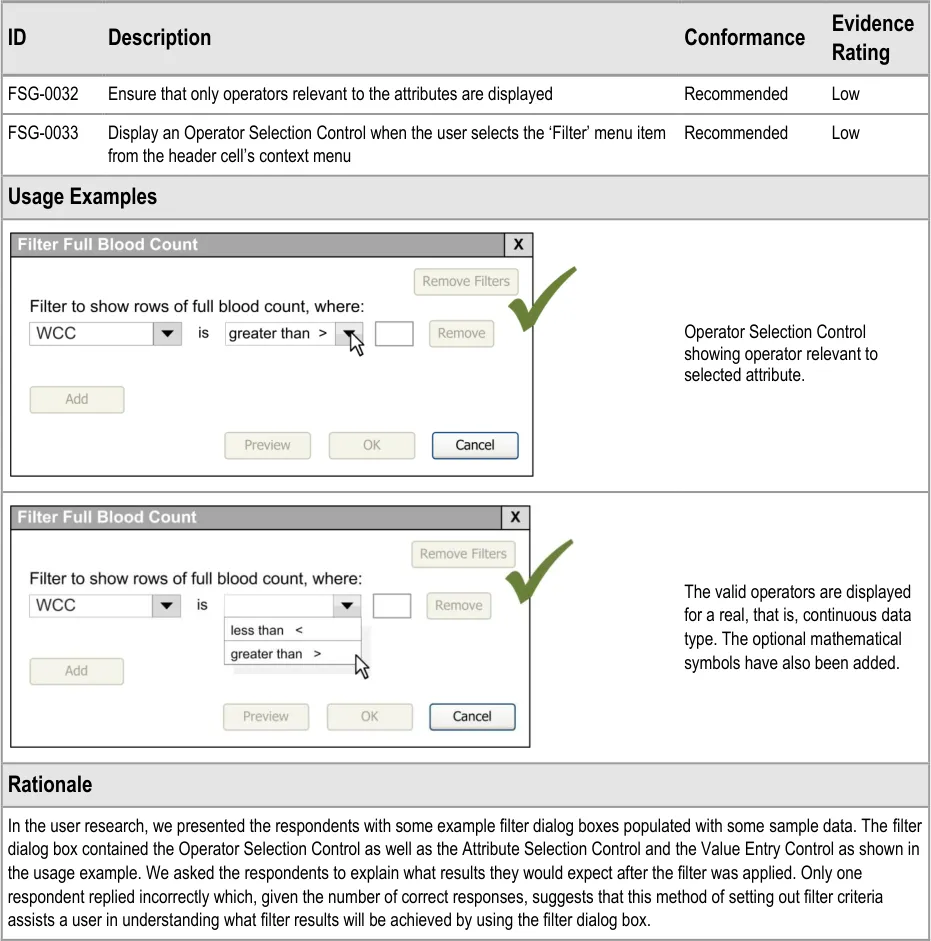
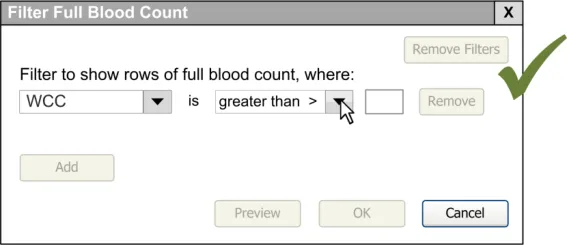
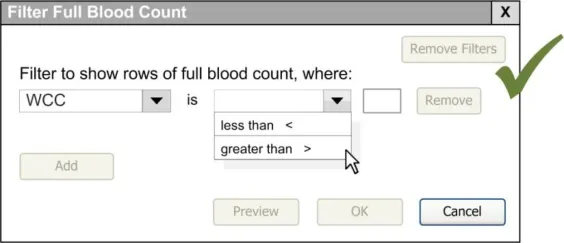
This section provides guidance on the use of the Operator Selection Control. The Operator Selection Control in the filter dialog box enables the user to select an operator relevant to the data to which the filter is being applied. The inclusion of the Operator Selection Control enables a user not only to search against an attribute but also narrow the filter to a value range.
Page 23
Copyright ©2013 Health and Social Care Information Centre
HSCIC Controlled Document
3.6.5 Value Entry Control
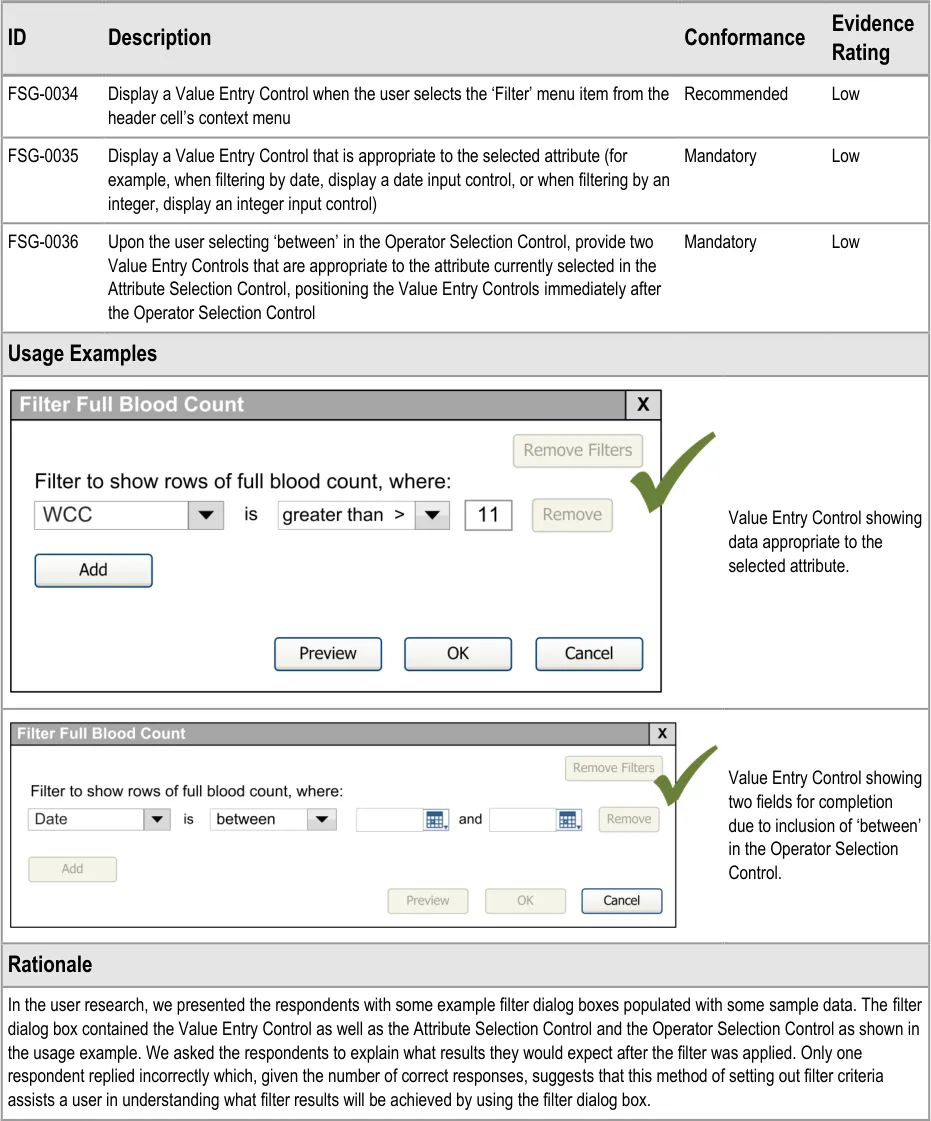
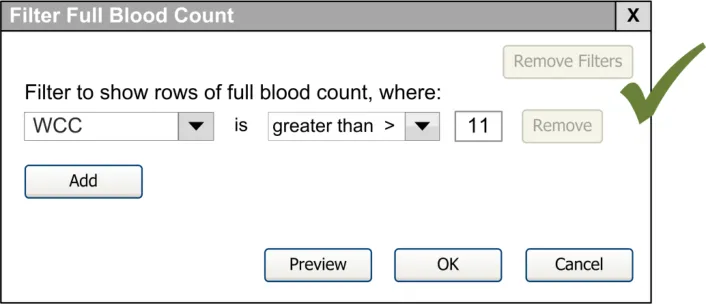
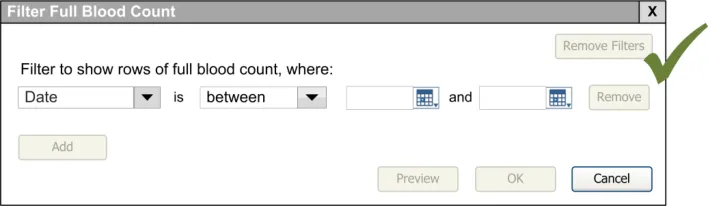
This section provides guidance on the use of the Value Entry Control within the filter dialog box. The Value Entry Control in the filter dialog box enables the user to select a particular filter value relevant to the attribute and operator previously selected within the filter dialog box. The value entry data is taken directly from the data upon which the filter is being applied.
Page 24
Copyright ©2013 Health and Social Care Information Centre
HSCIC Controlled Document
3.6.6 Permitted Operators
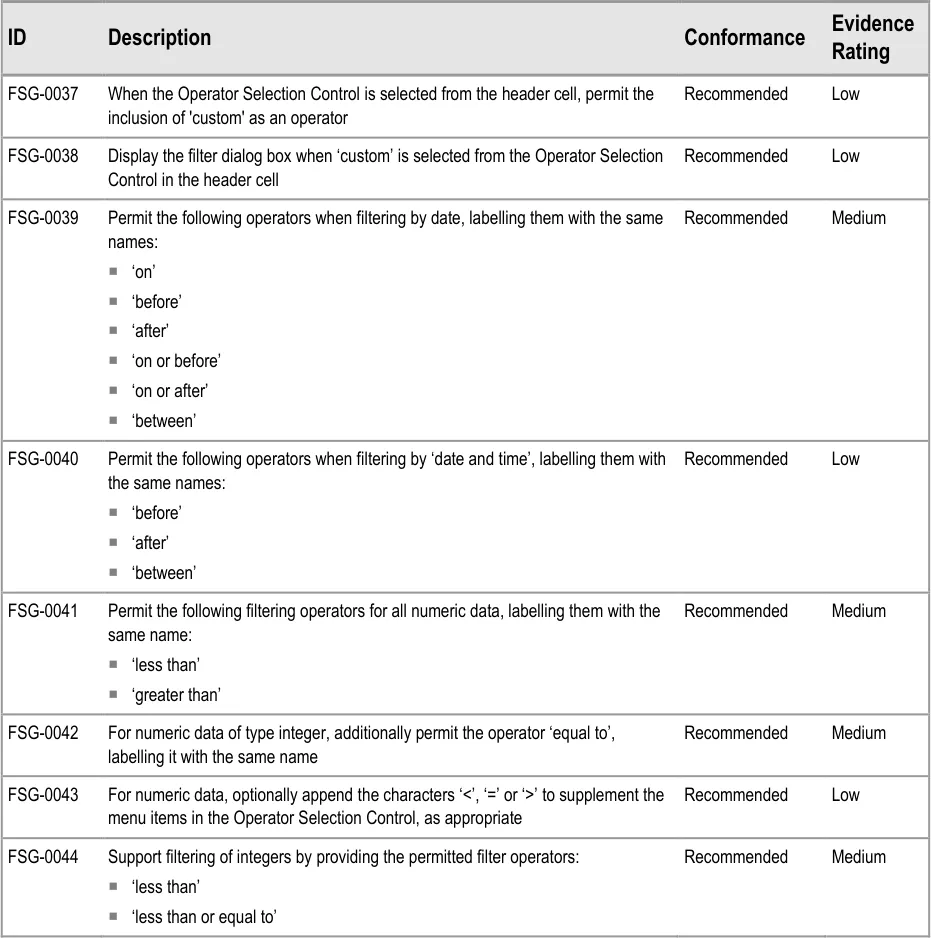
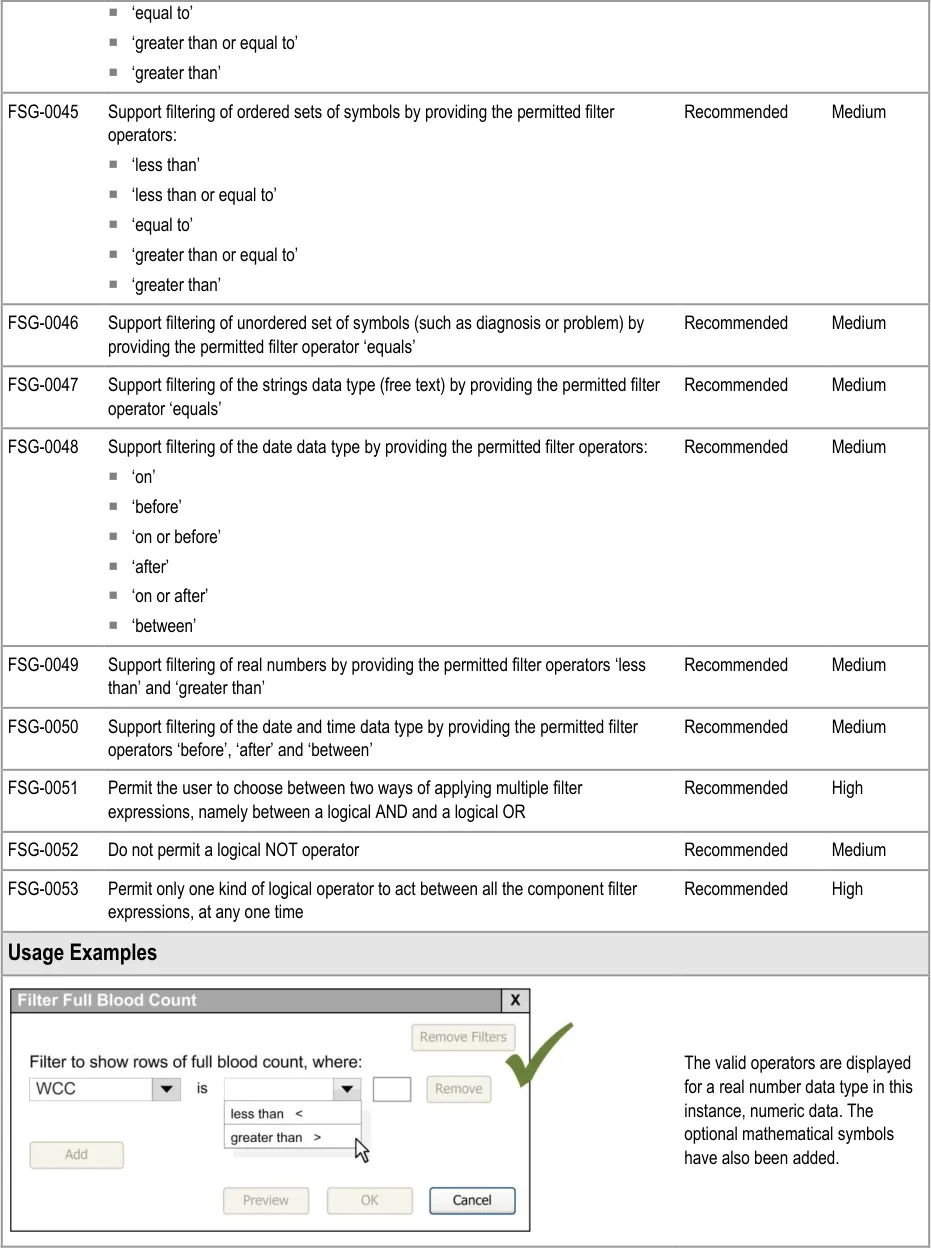
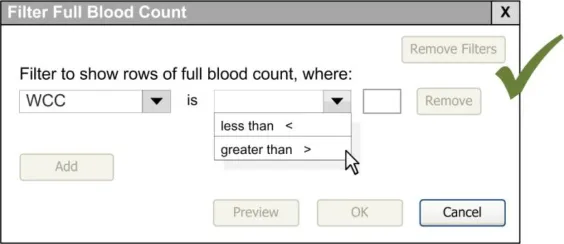
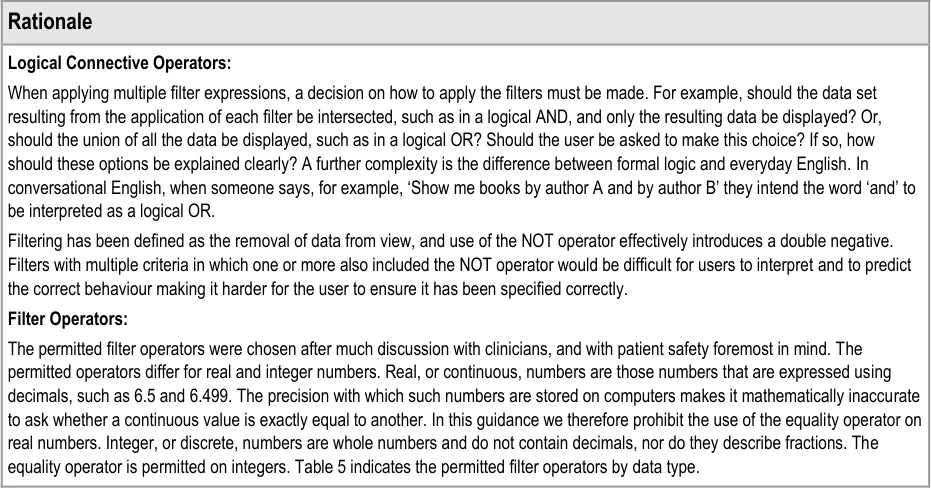
The filtering functionality can be applied on a number of different data types. Accordingly the filter dialog box must be flexible enough to vary in layout according to the data type in question. When combining multiple filter expressions, logical operators are required to connect the filters being applied.
Before progressing to the guidance, it is important to clarify the use and impact of logical operators when combining multiple filter expressions. In particular, the role of the logical operators ‘AND’ and ‘OR’ needs to be understood. Table 7 defines their meaning:
AND Returns True if all of its component filter expressions are true. Returns False if any of the component filter expressions are false.
OR Returns True if any of its component filter expressions are true. Returns False if all of its component expressions are false.
Table 7: Definition of AND and OR
Page 25
Copyright ©2013 Health and Social Care Information Centre
HSCIC Controlled Document
Page 26
Copyright ©2013 Health and Social Care Information Centre
HSCIC Controlled Document
Page 27
Copyright ©2013 Health and Social Care Information Centre
HSCIC Controlled Document
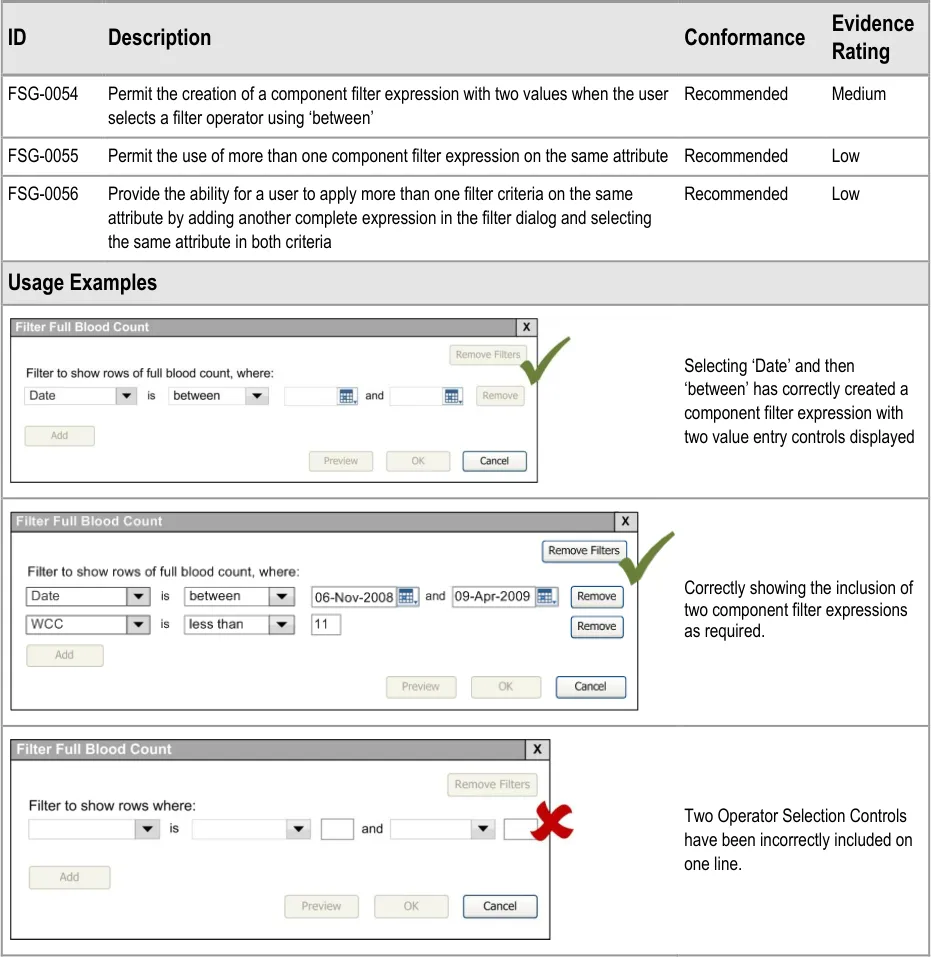
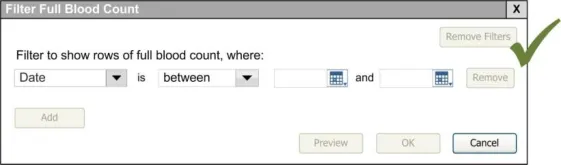
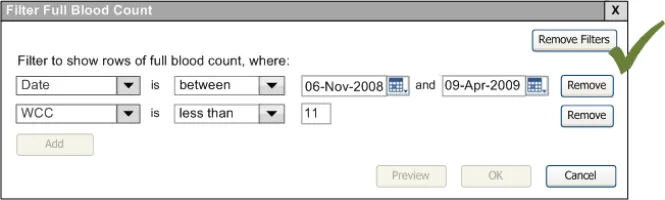
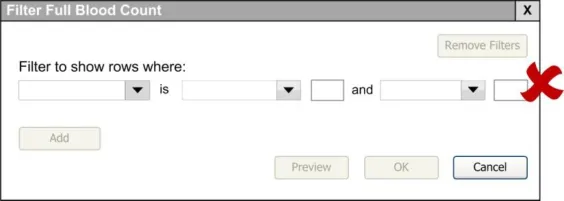
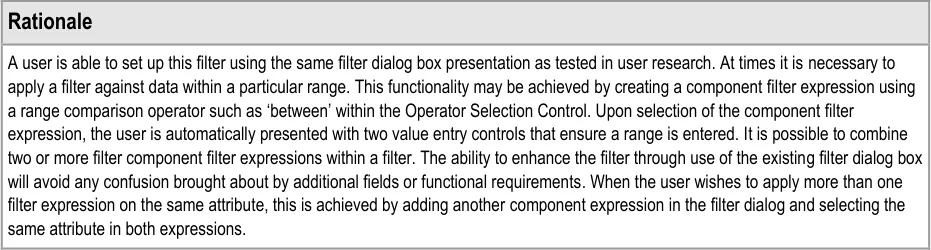
3.6.7 Multiple Operators – Component Filter Expression
This section provides guidance on the combined use of operators within the filter dialog box. There are two instances when this may occur:
- For certain data (indicated through use of the Operator Selection Control), it may be
necessary to create a single component filter expression with multiple values (for example, when the filter operator uses ‘between’ such as when selecting dates)
- It is also possible to use more than one component filter expression on the same attribute
This section provides guidance on presenting combined operators within the same dialog box using an example of date.
Page 28
Copyright ©2013 Health and Social Care Information Centre
HSCIC Controlled Document
Page 29
Copyright ©2013 Health and Social Care Information Centre
HSCIC Controlled Document
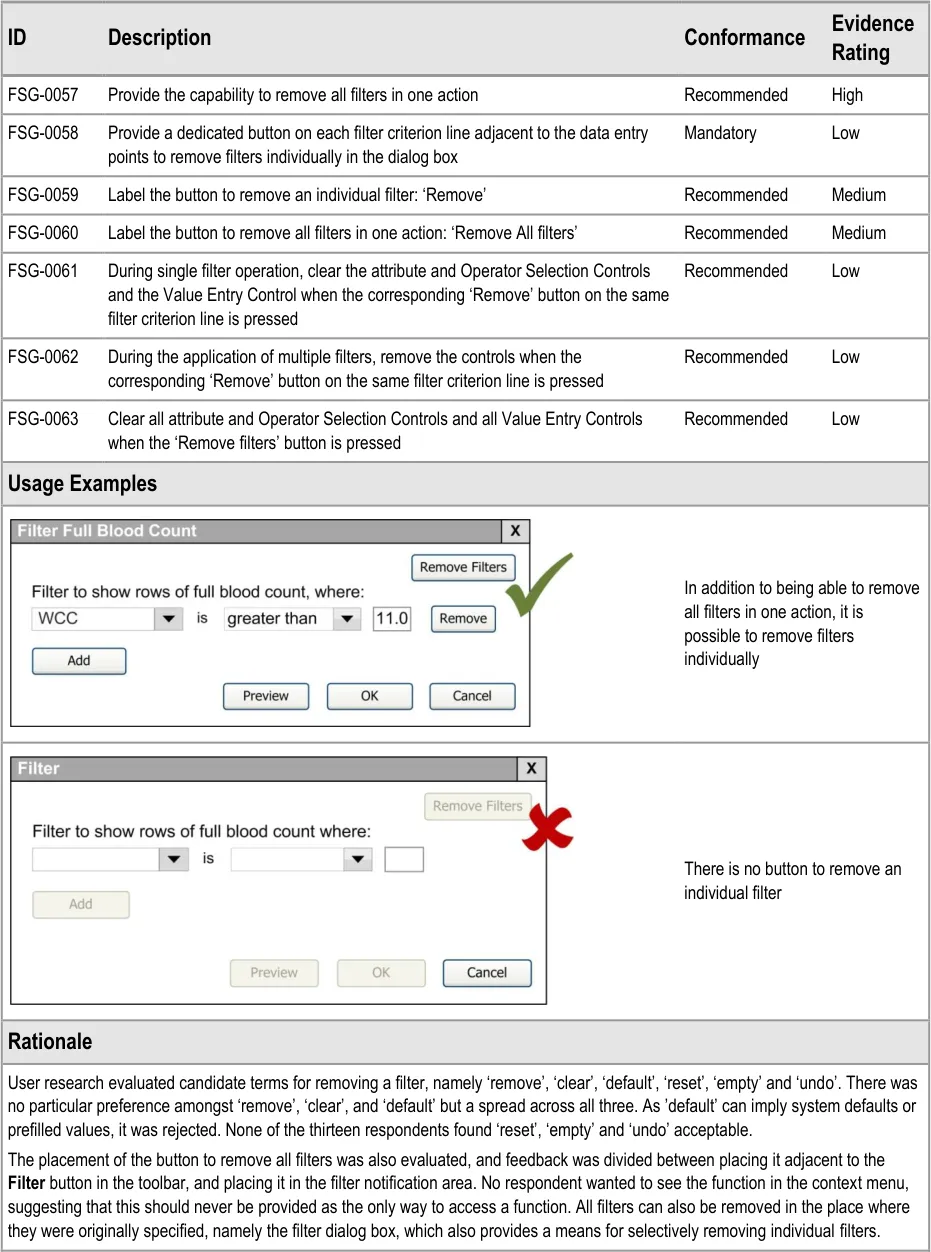
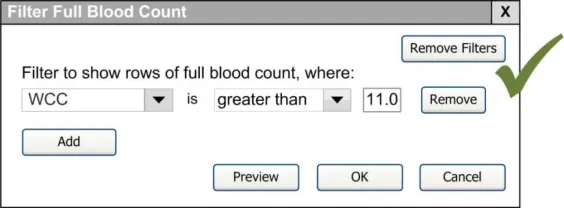
3.6.8 Removing Filters
This section provides guidance on the functionality requirements behind removing a filter criterion or all filter criteria from the filter dialog box.

Page 30
Copyright ©2013 Health and Social Care Information Centre
HSCIC Controlled Document
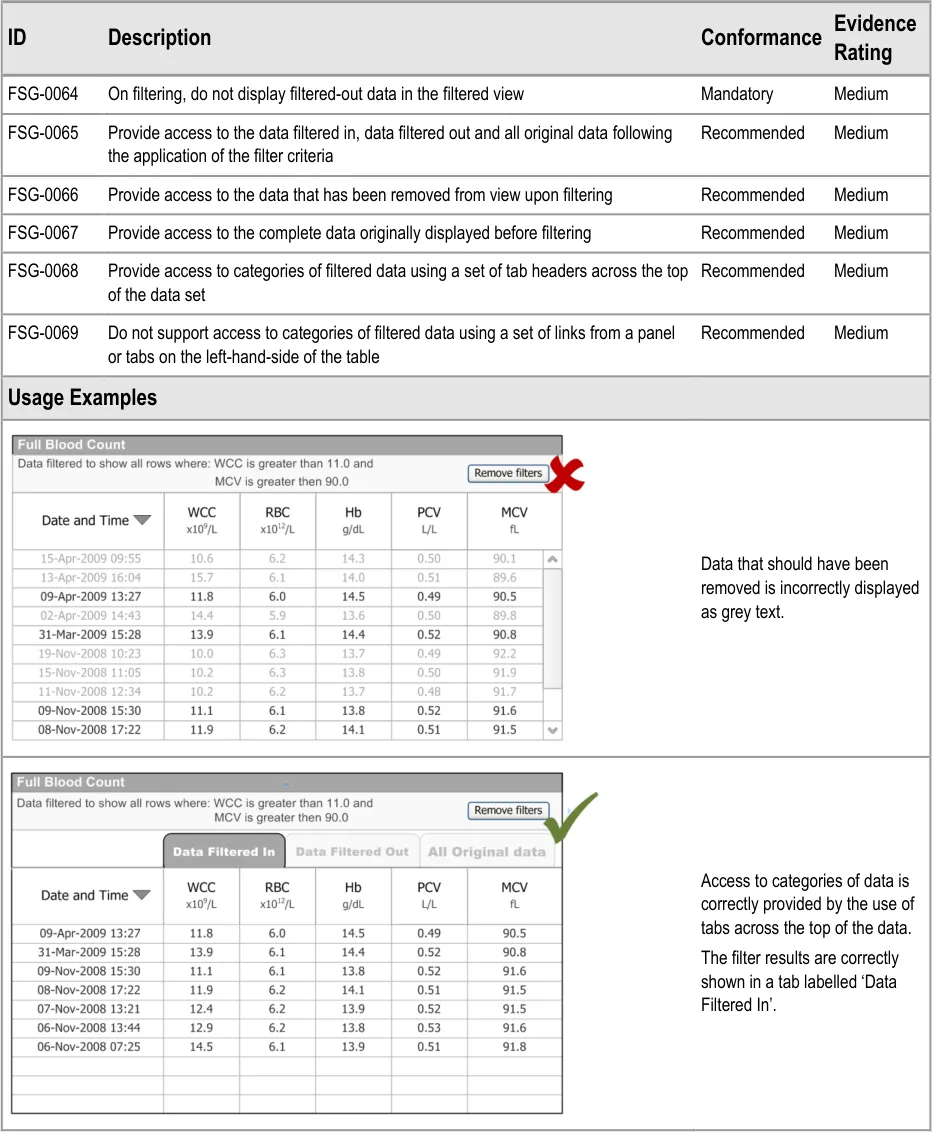
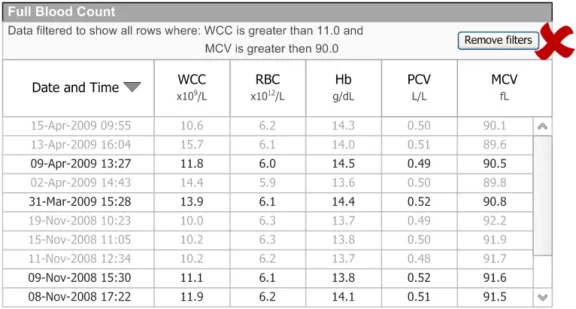
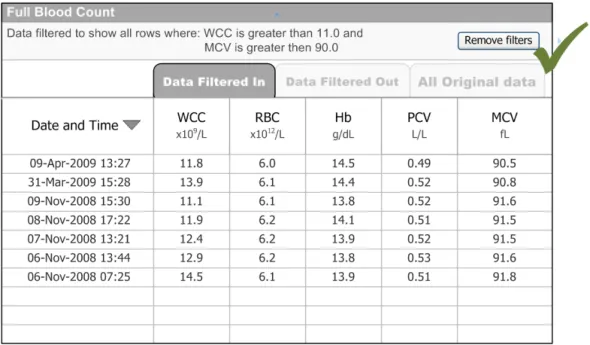
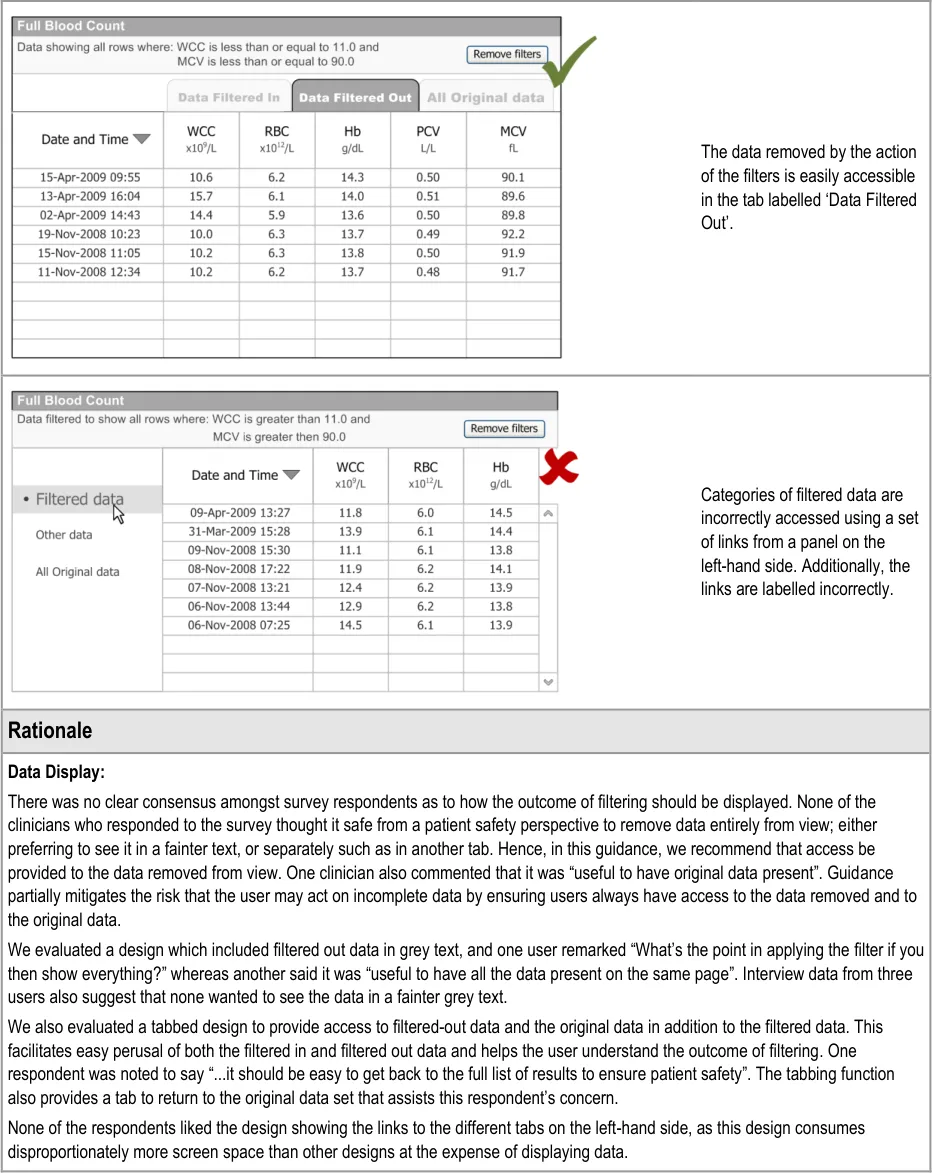
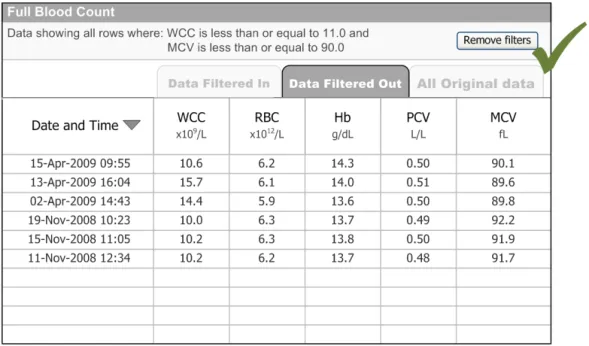
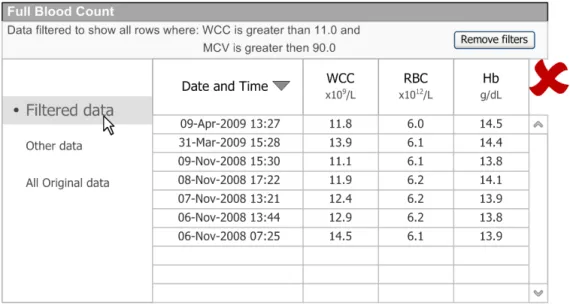
3.6.9 Displaying Results
This section provides guidance on the display of filtered data. The guidance relates to filtered-in and filtered-out data.
In addition to displaying the filtered data, there is a need to display the criteria on which the filtered data are based. The user will have entered these criteria in the filter dialog box or in the operator entry control directly in an attribute’s header cell, as described in section 3.6.3.
Page 31
Copyright ©2013 Health and Social Care Information Centre
HSCIC Controlled Document
Page 32
Copyright ©2013 Health and Social Care Information Centre
HSCIC Controlled Document
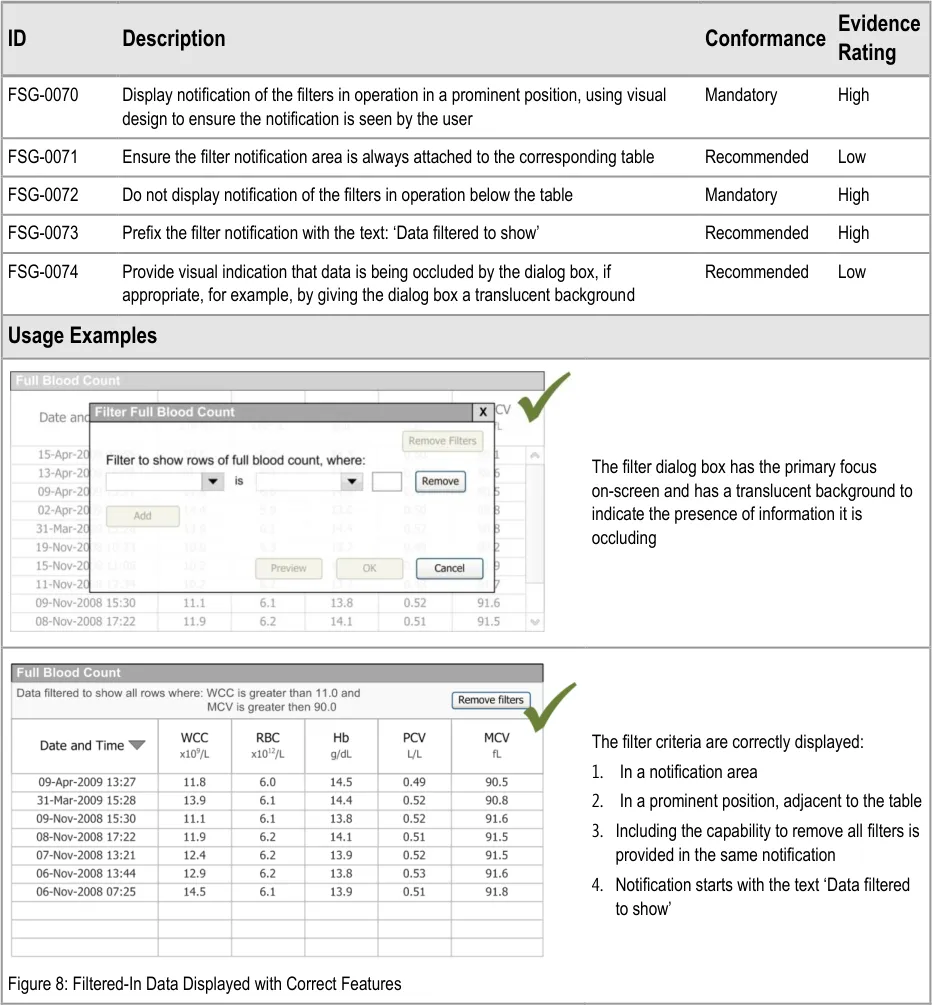
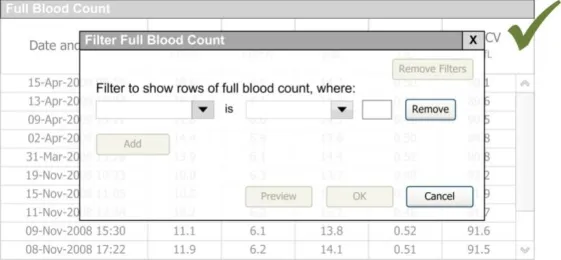
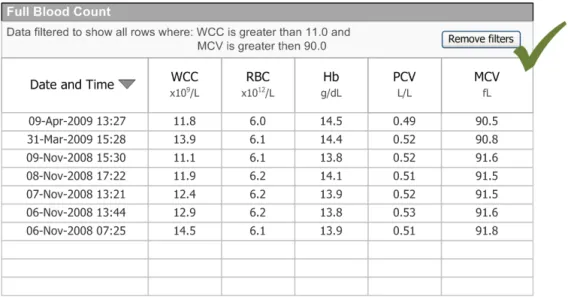
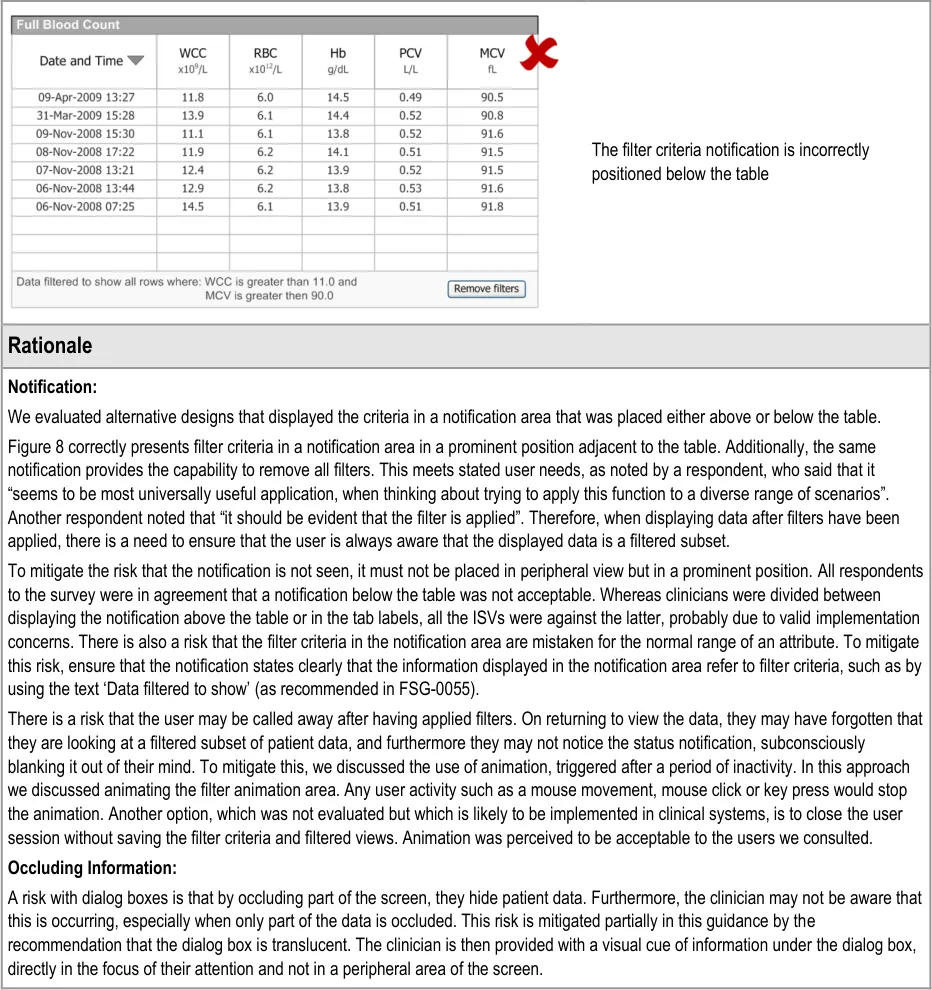
3.6.10 Filter Notification
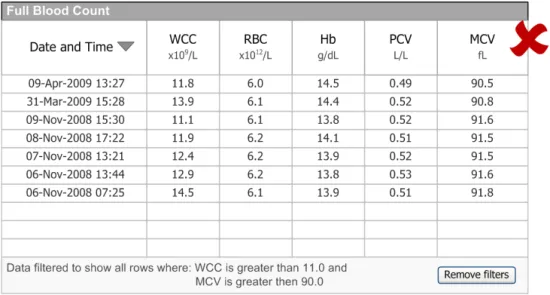
This section provides guidance on the notification to be present within the filter results. The notification provides a user with detail about the filter criteria that has been applied to the data leading to the results shown.
Page 33
Copyright ©2013 Health and Social Care Information Centre
HSCIC Controlled Document
Page 34
Copyright ©2013 Health and Social Care Information Centre
HSCIC Controlled Document
3.7 Guidelines – Sorting
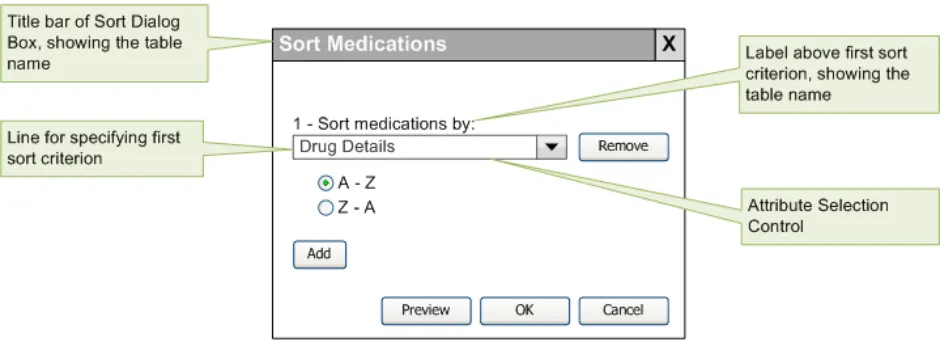
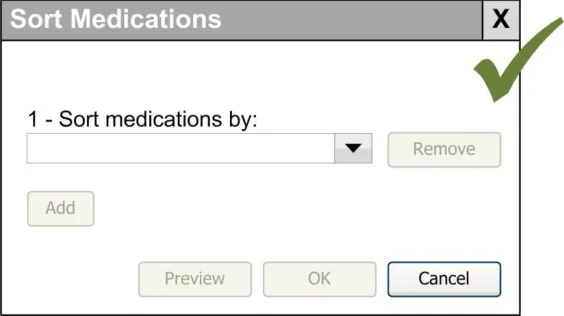
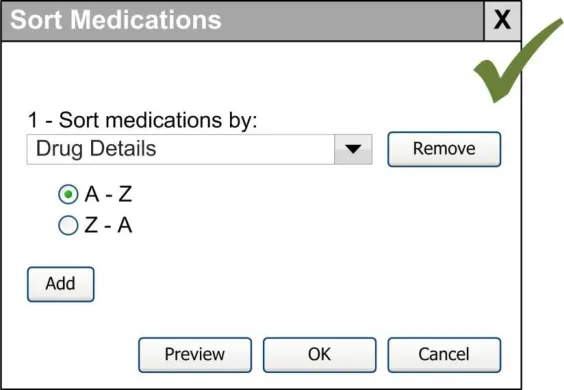
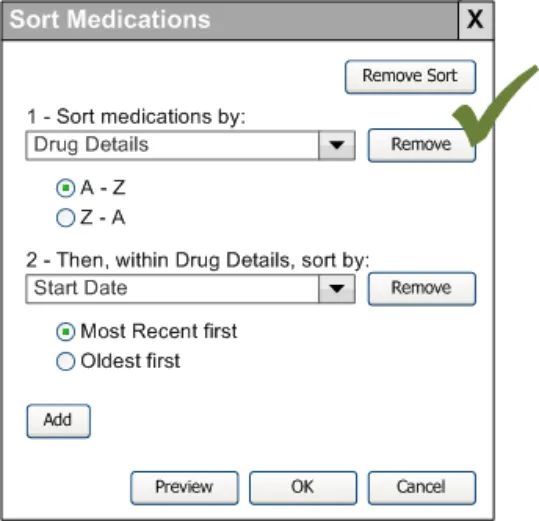
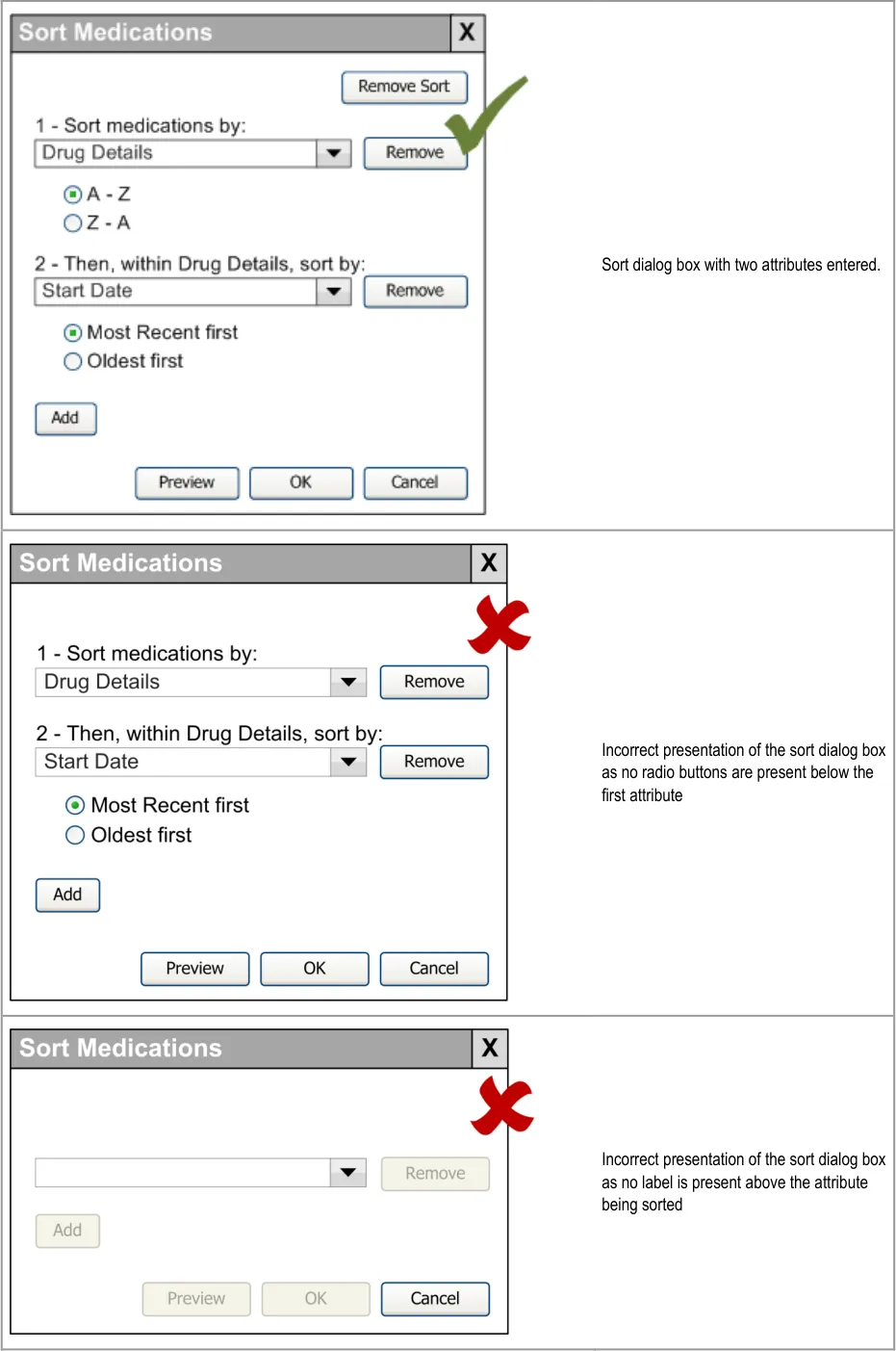
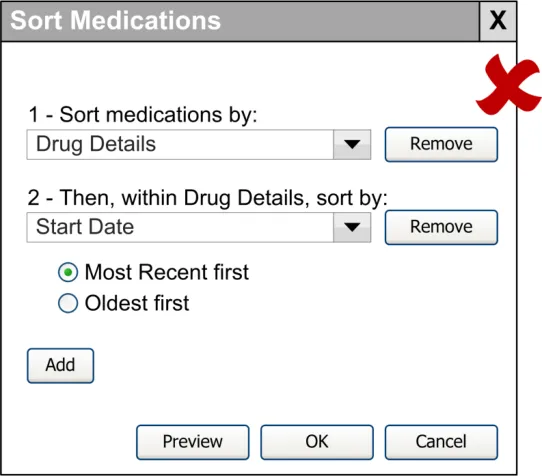
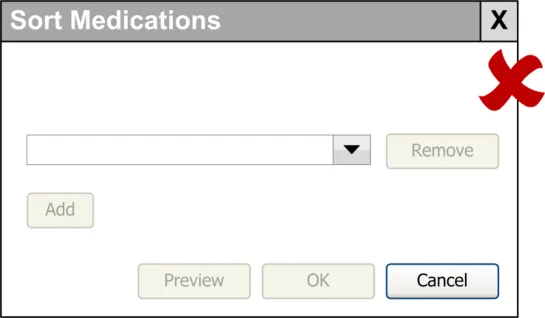
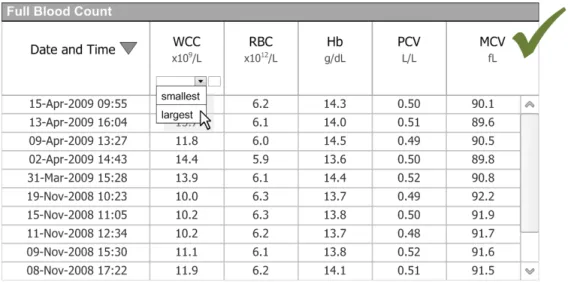
Sorting is the action of arranging elements of a sequence of data through the use of a sort operation applicable to the data set. This section describes guidance on sorting clinical data (for example, showing a list of medications prescribed to a particular patient within a specified timeframe). Single and multiple (that is, progressive) sorts are discussed.
The section also describes the sort dialog box in which the user-specified sort operation is performed, as shown in Figure 9:
Figure 9: Sort Dialog Box
3.7.1 Display
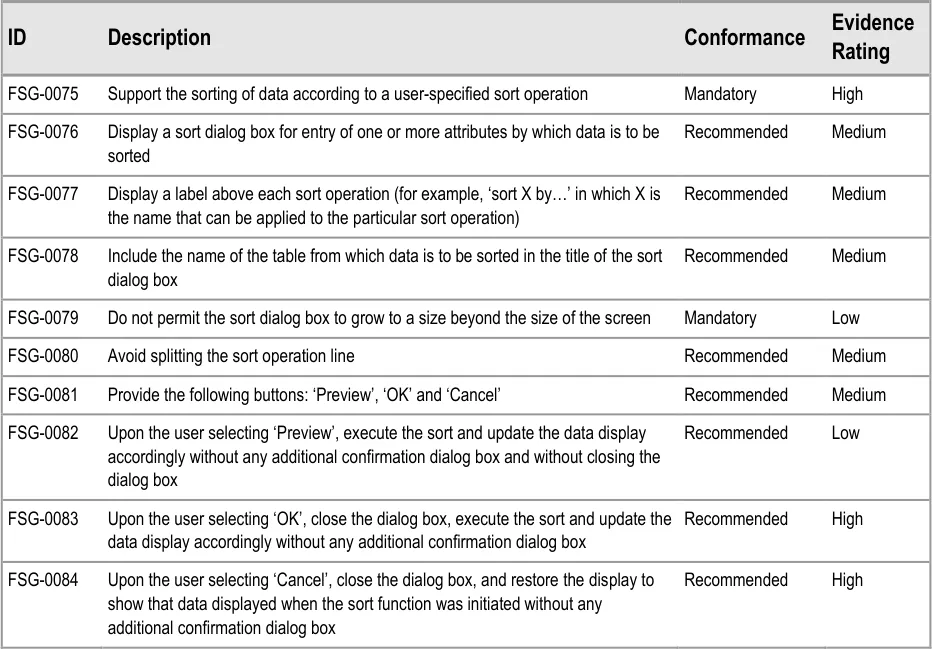
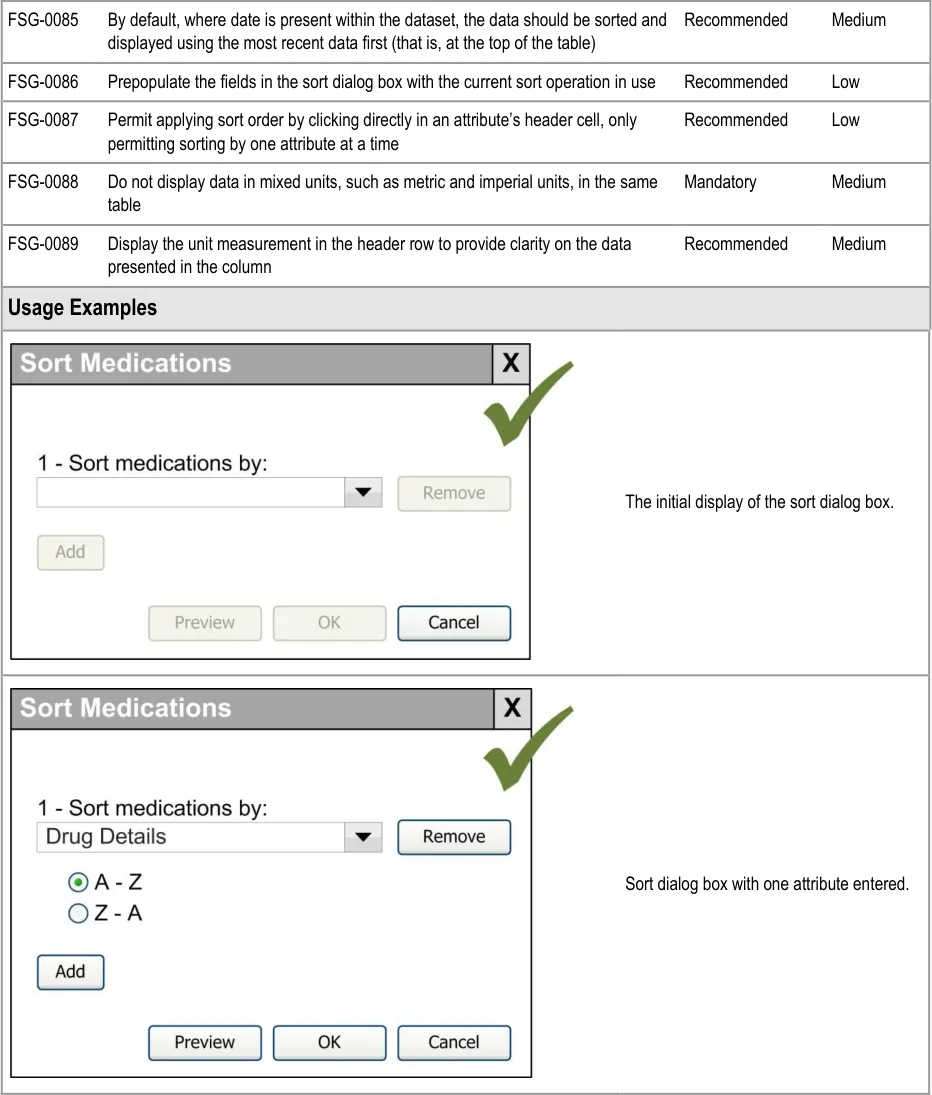
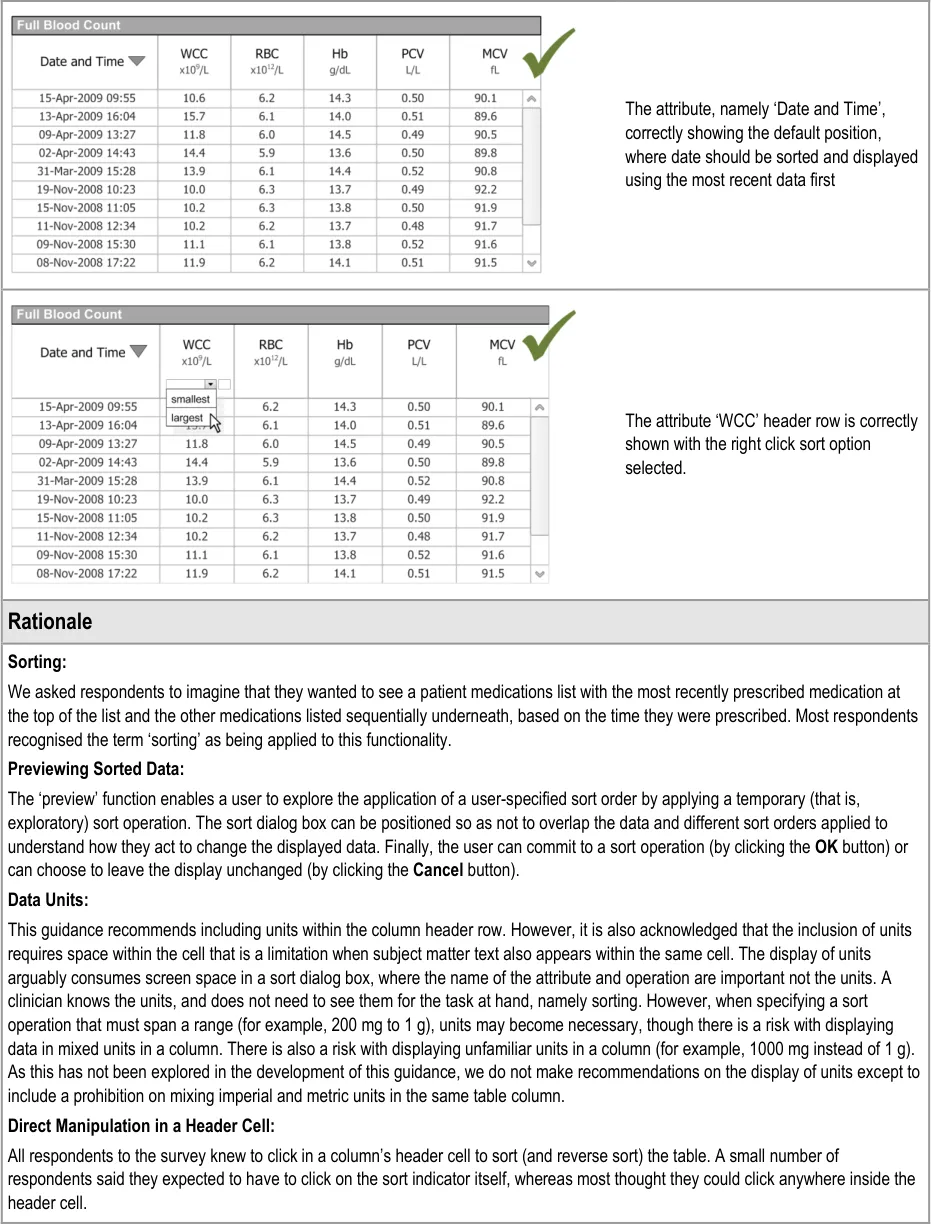
This section provides guidance relating to the presentation of the sort dialog box and initial data presentation.
Page 35
Copyright ©2013 Health and Social Care Information Centre
HSCIC Controlled Document
Page 36
Copyright ©2013 Health and Social Care Information Centre
 HSCIC Controlled Document
Page 37
Copyright ©2013 Health and Social Care Information Centre
 HSCIC Controlled Document
Page 38
Copyright ©2013 Health and Social Care Information Centre
HSCIC Controlled Document
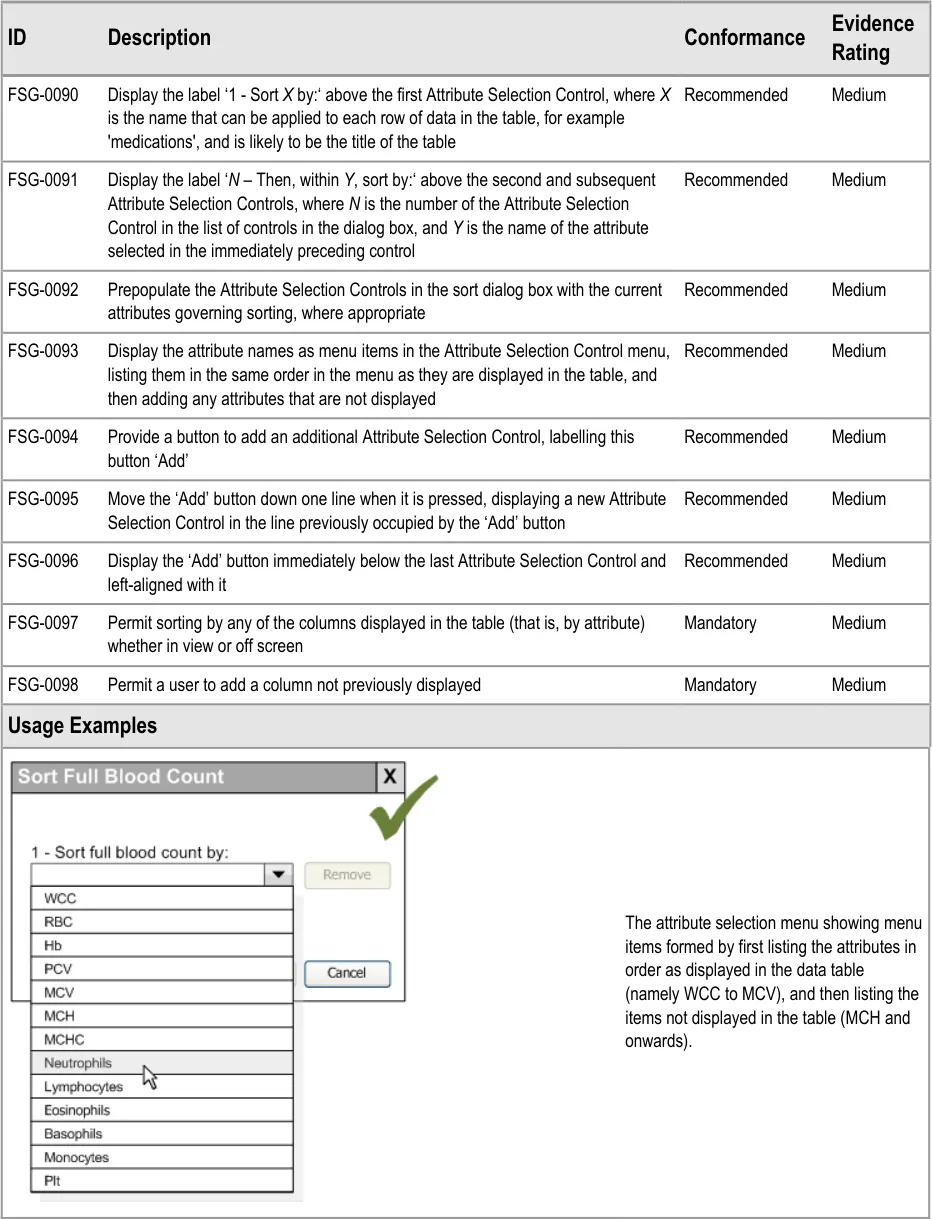
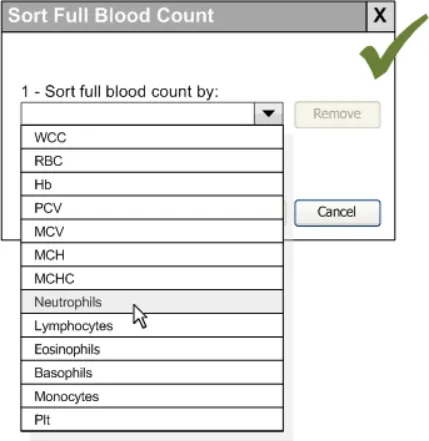
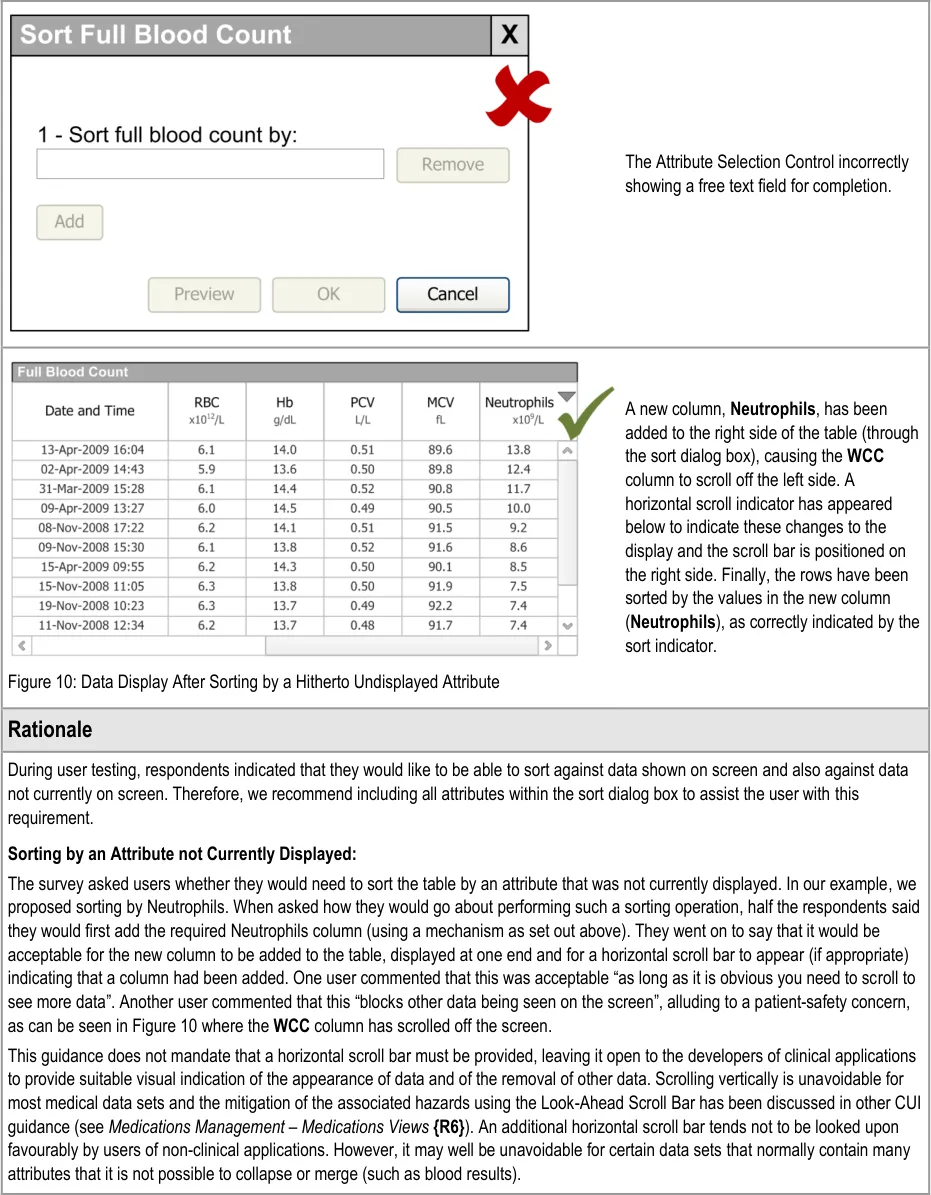
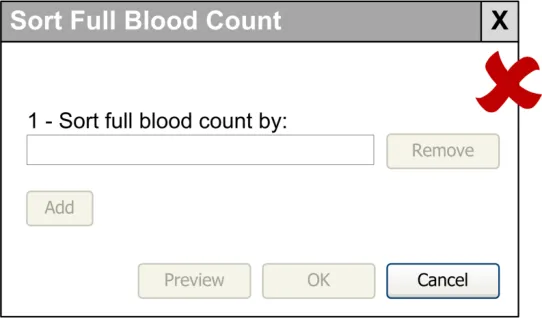
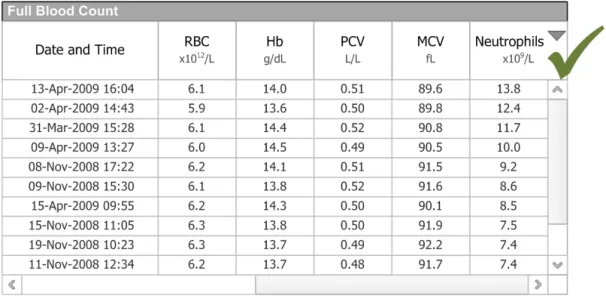
3.7.2 Attribute Selection Control
This section describes the Attribute Selection Control. The Attribute Selection Control in the sort dialog box enables the user to select a particular sort attribute.
Page 39
Copyright ©2013 Health and Social Care Information Centre
HSCIC Controlled Document
Page 40
Copyright ©2013 Health and Social Care Information Centre
HSCIC Controlled Document
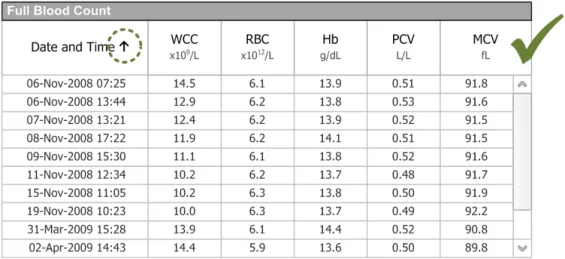
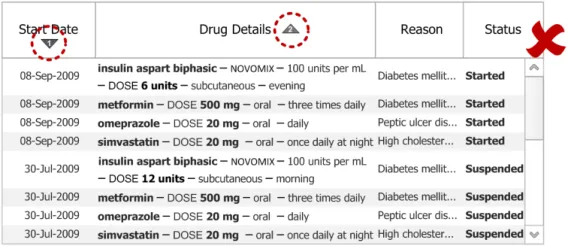
3.7.3 Sort Indicator
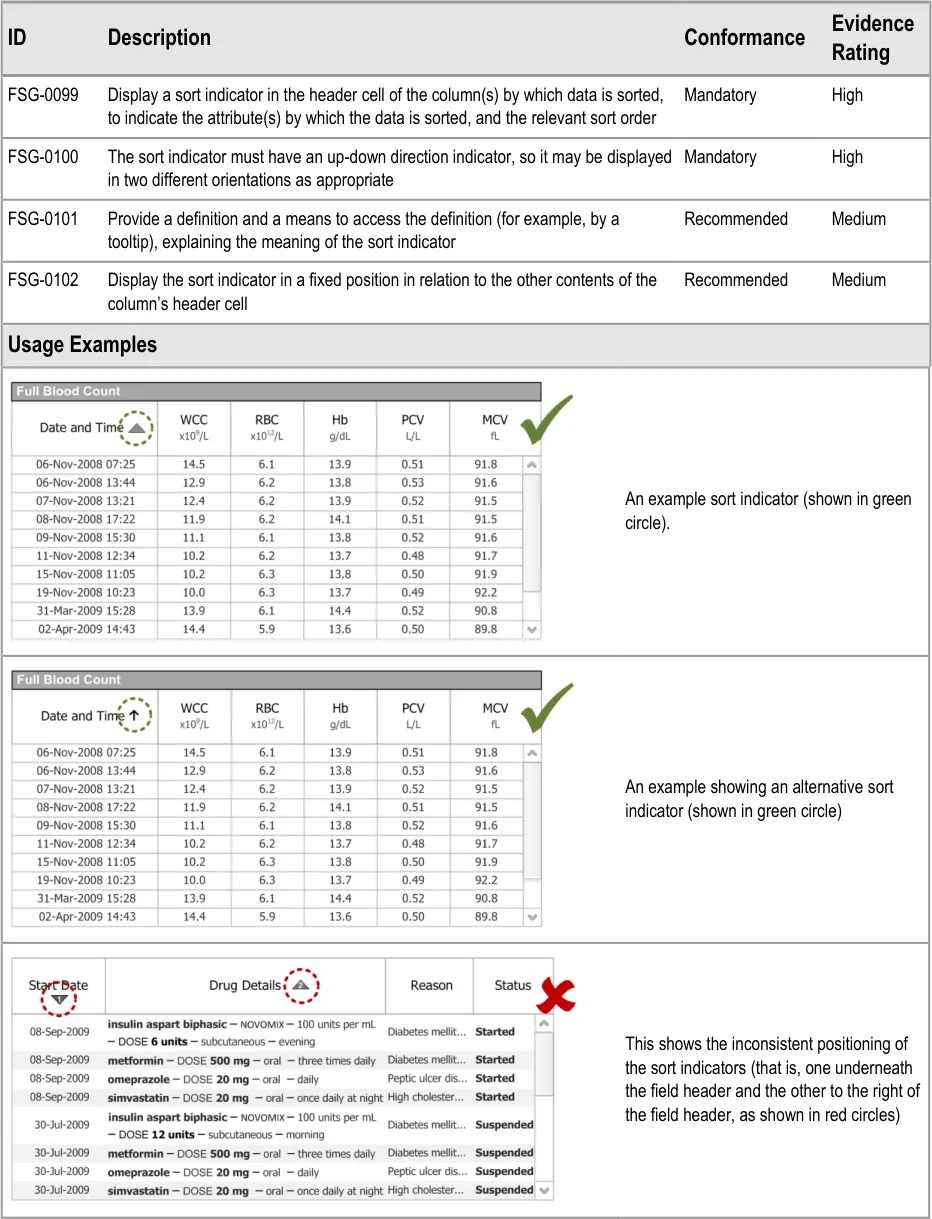
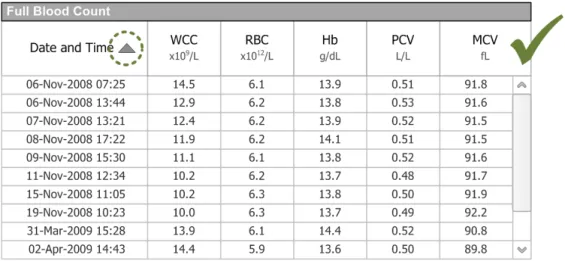
This section describes guidance on the sort indicators, including guidance relating to the location of, and detail on, their presentation.
Page 41
Copyright ©2013 Health and Social Care Information Centre
 HSCIC Controlled Document

Page 42
Copyright ©2013 Health and Social Care Information Centre
HSCIC Controlled Document
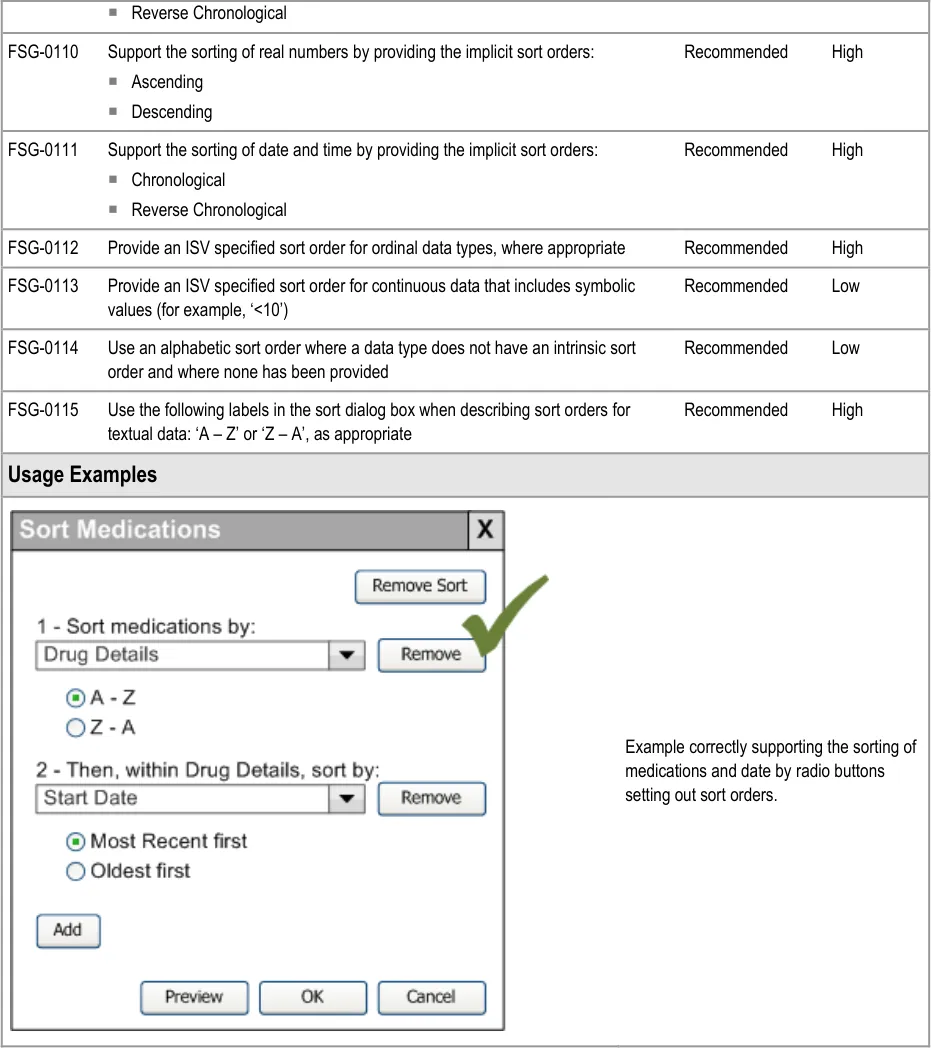
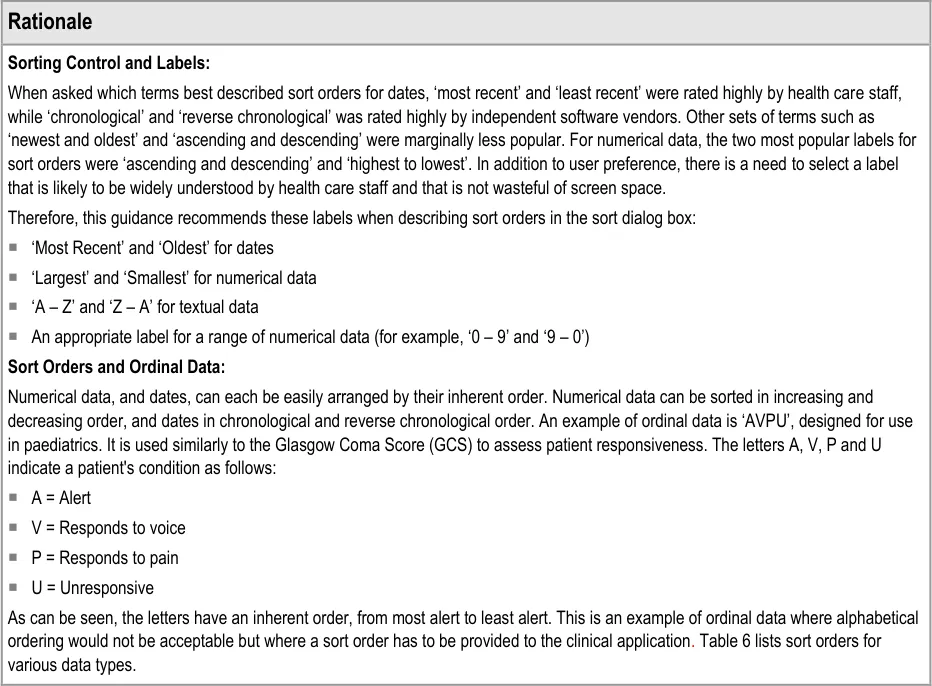
3.7.4 Sort Order Manipulation
This section describes guidance on sort order manipulation.
Page 43
Copyright ©2013 Health and Social Care Information Centre
HSCIC Controlled Document
Page 44
Copyright ©2013 Health and Social Care Information Centre
HSCIC Controlled Document
Page 45
Copyright ©2013 Health and Social Care Information Centre
HSCIC Controlled Document
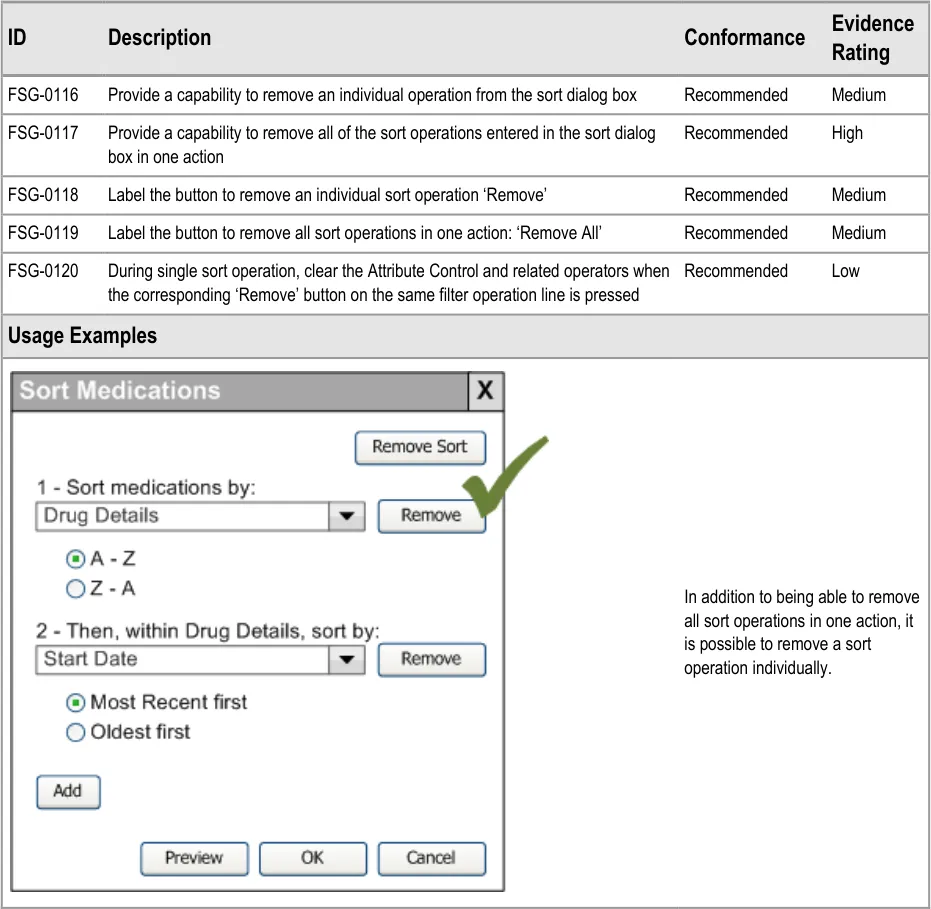
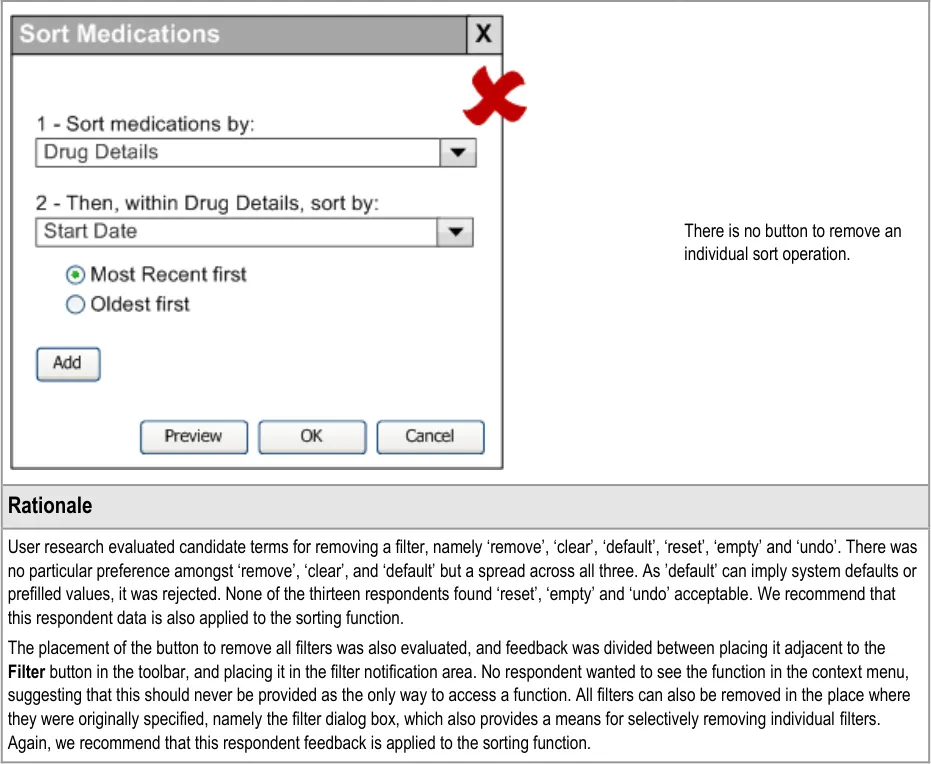
3.7.5 Removing Sort
This section provides guidance on how to remove a sort order. This functionality relates to the removal of both individual and all sort operations from the sort dialog box.
Page 46
Copyright ©2013 Health and Social Care Information Centre
HSCIC Controlled Document
Page 47
Copyright ©2013 Health and Social Care Information Centre
HSCIC Controlled Document
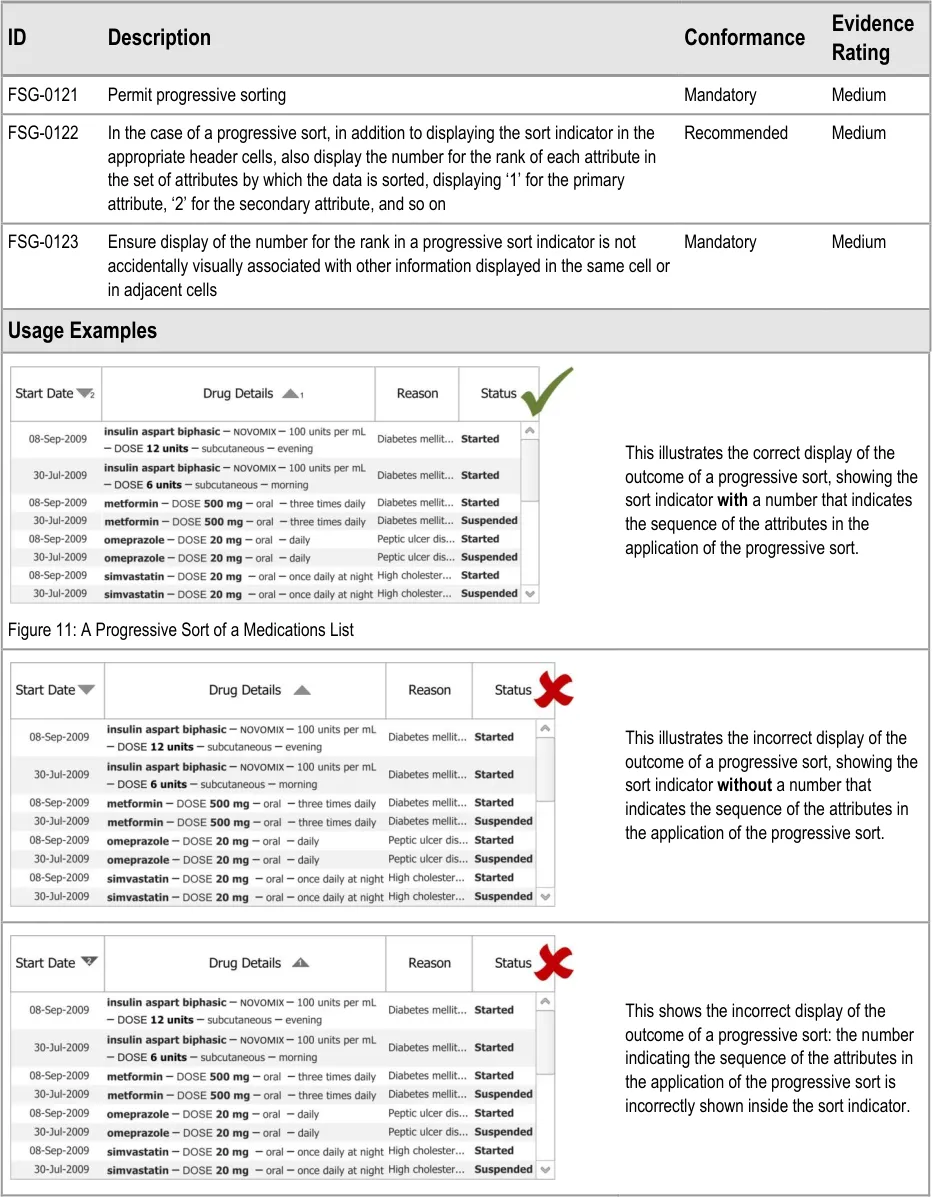
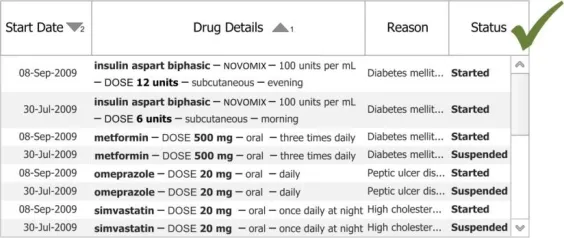
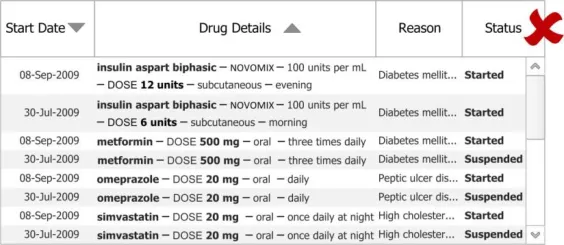
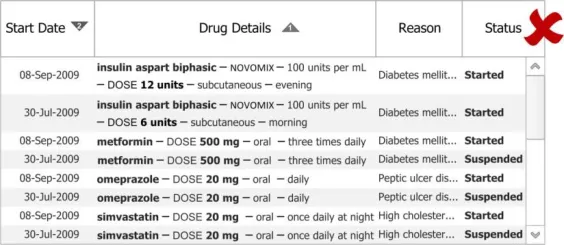
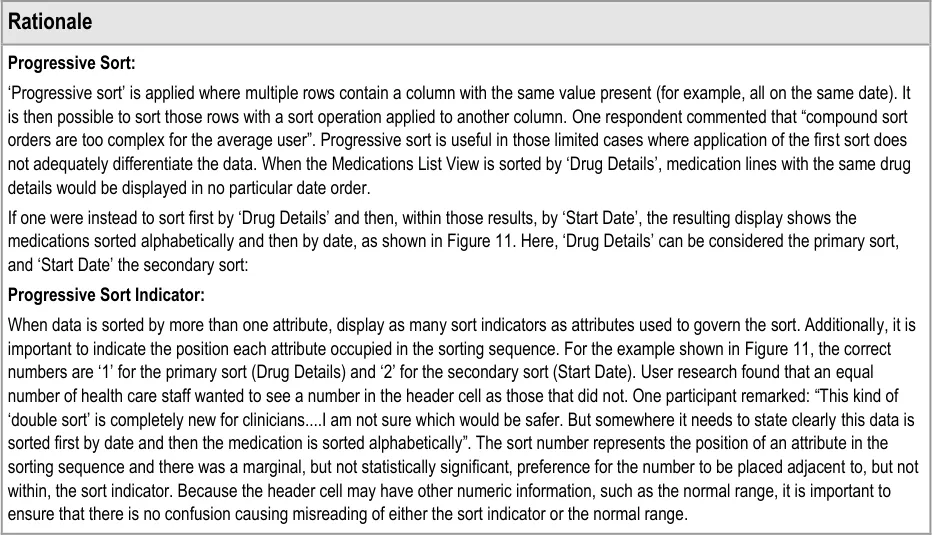
3.7.6 Progressive Sort
This section describes guidance on the progressive sort function (that is, where data is sorted by more than one attribute at the same time).
Page 48
Copyright ©2013 Health and Social Care Information Centre
HSCIC Controlled Document
Page 49
Copyright ©2013 Health and Social Care Information Centre
HSCIC Controlled Document
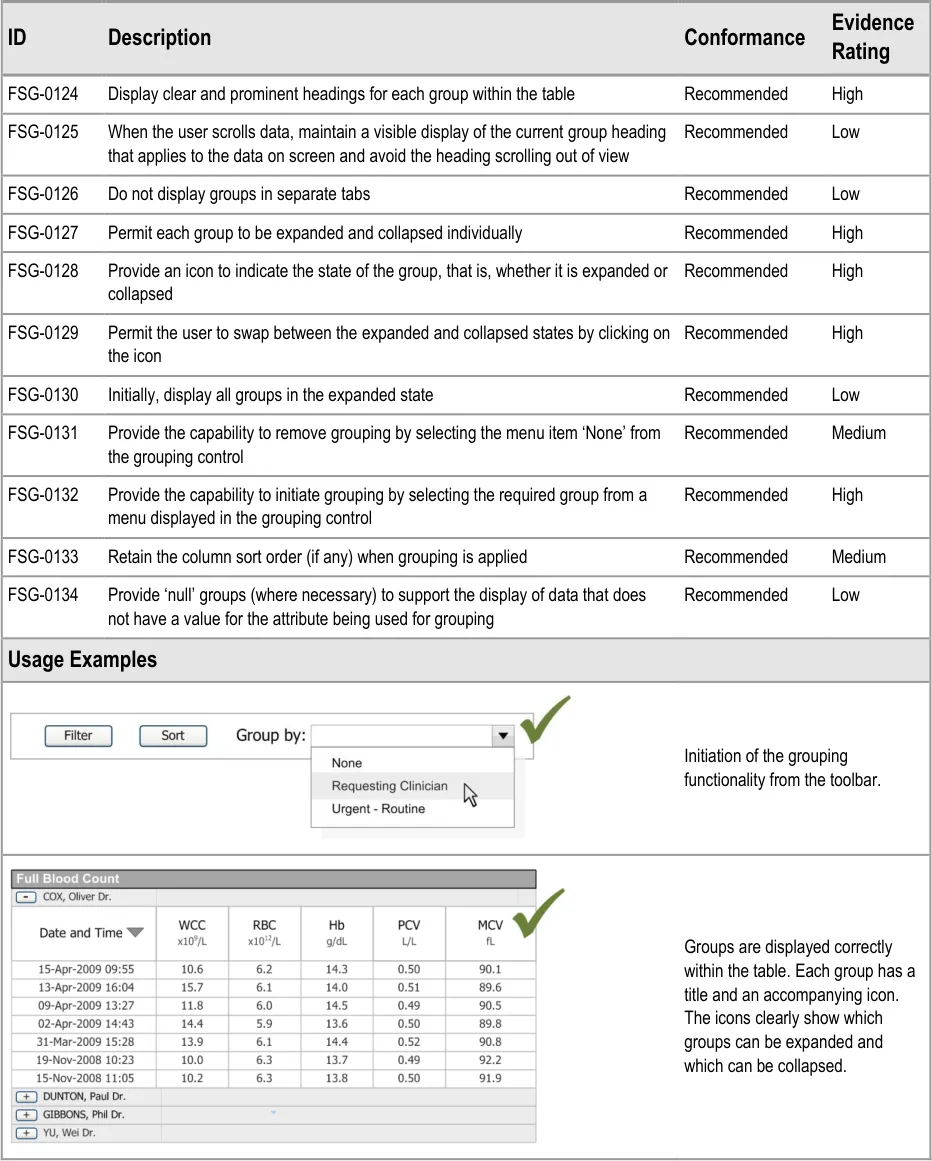
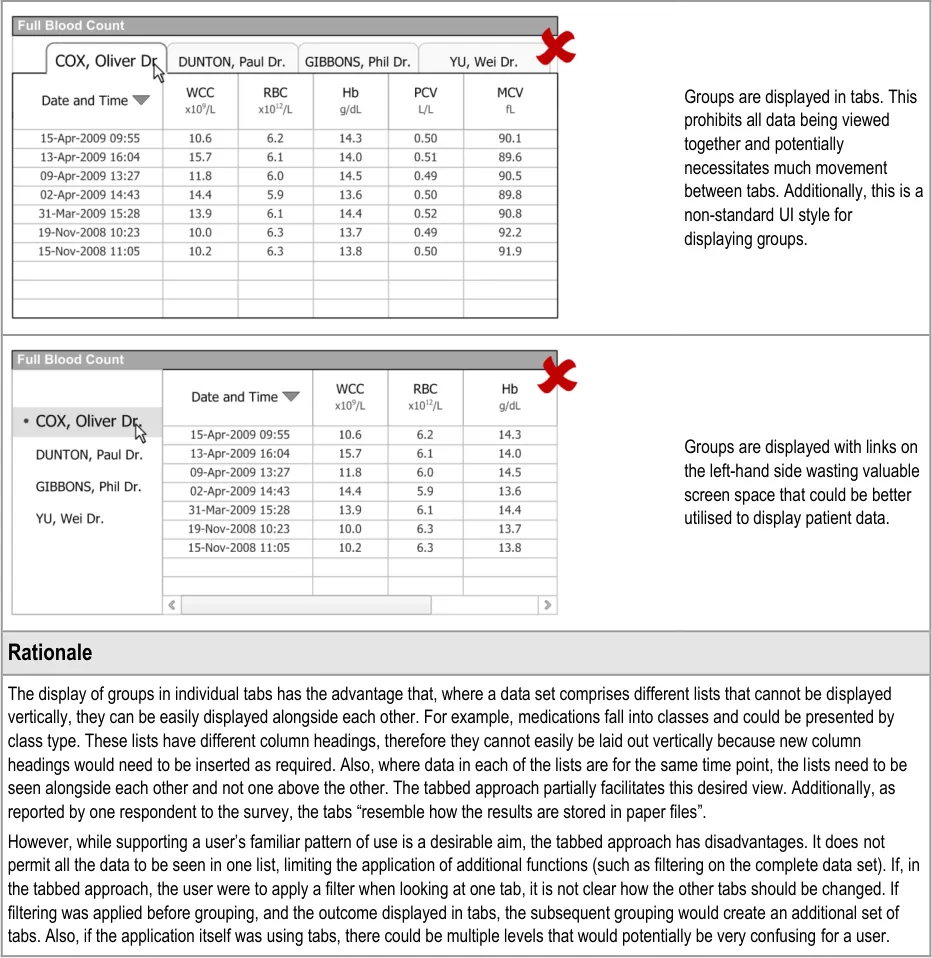
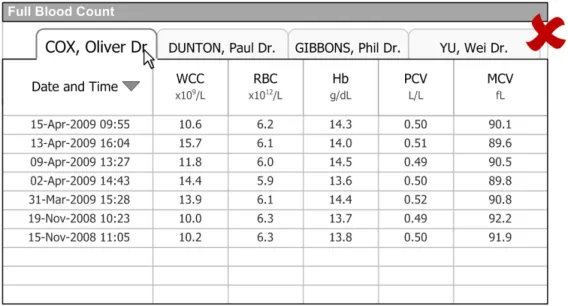
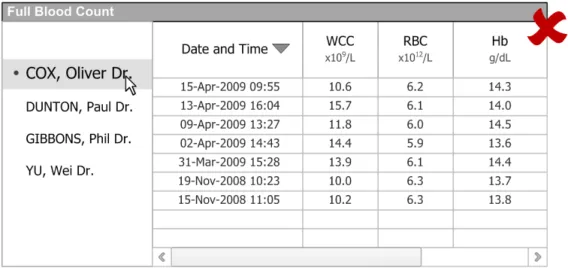
3.8 Guidelines – Grouping
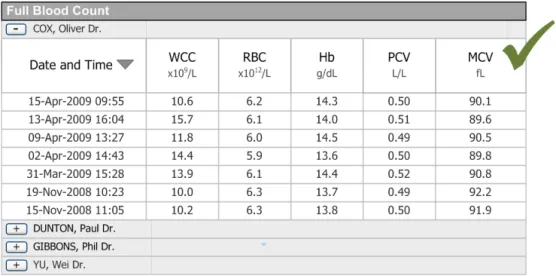
This section describes guidance on grouping. This is a sorting operation, where data is organised primarily into clusters instead of a sequential order.
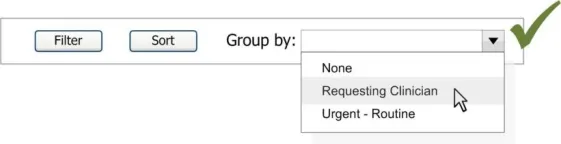
Grouping is particularly useful where one wants to view all data sharing the value of a certain attribute, such as all tests ordered by a certain clinician. Grouping is initiated by use of the grouping control on the toolbar, as discussed in section 3.5.
Page 50
Copyright ©2013 Health and Social Care Information Centre
HSCIC Controlled Document
Page 51
Copyright ©2013 Health and Social Care Information Centre
HSCIC Controlled Document
4 DOCUMENT INFORMATION
4.1 Terms and Abbreviations
CUI Common User Interface
GP General Practitioner
HCP Health Care Professional
ISV Independent Software Vendor
ITP Information Technology Professional
ITU Intensive Therapy Unit
NHS CFH NHS Connecting for Health
UI User Interface
W3C World Wide Web Consortium
Table 8: Terms and Abbreviations
4.2 Definitions
AND Returns True if all of its component filter expressions are true. Returns False if any of the component filter expressions are false
Attribute Selection Control A control in the filter dialog and sort dialog boxes that enables the user to select a particular filter or sort attribute.
Current best practice Current best practice is used rather than best practice, as over time best practice guidance may change or be revised due to changes to products, changes in technology, or simply the additional field deployment experience that comes over time.
Component filter expressions
Selected criteria built around a logical operator.
Filtering The removal of data from view, so as to focus on a subset of data that is relevant to the task at hand (in this case, the clinical task). The application of each filter criterion specifies a subset of data to keep in view.
Filter Operators Operators that can be applied to both discrete and continuous data values in the filter dialog box.
Grouping To arrange elements of a collection into different categories. A clinical example is: ‘Show me all of the patient’s current and past medicines, grouped separately by Type such as Antibiotics and so on’.
Logical Connective Operators
These operators are provided to unite logical data sets within the filter or sort criterion.
NHS Entity Within this document, defined as a single NHS organisation or group that is operated within a single technical infrastructure environment by a defined group of IT administrators.
Operator Selection Control A control in the filter dialog box that enables the user to select a particular filter operator.
OR A logical operator. Returns True if any of its operands are true. Returns False if all of its operands are false.
Progressive Sort A type of sort where data is sorted by more than one attribute at a time.
Page 52
Copyright ©2013 Health and Social Care Information Centre
HSCIC Controlled Document
Sorting To arrange elements of a sequence according to some criterion, such as alphabetically (A to Z), or numerically (1, 2, 3…). A clinical example is: ‘Show me all the medications this patient has ever been prescribed, in alphabetic order of medicine name’.
Value Entry Control A control in the filter dialog box that enables the user to select a particular filter value.
The Authority The organisation implementing the NHS National Programme for IT (currently NHS Connecting for Health).
Table 9: Definitions
4.3 Nomenclature
This section shows how to interpret the different styles used in this document to denote various types of information.
4.3.1 Body Text
Code Monospace
Script
Other markup languages
Interface dialog names Bold
Field names
Controls
Folder names Title Case
File names
Table 10: Body Text Styles
4.3.2 Cross References
Current document – sections Section number only
Current document – figures/tables Caption number only
Other project documents Italics and possibly a footnote
Publicly available documents Italics with a footnote
External Web-based content Italics and a hyperlinked footnote
Table 11: Cross Reference Styles
Page 53
Copyright ©2013 Health and Social Care Information Centre
HSCIC Controlled Document
4.4 References
R1. Koyani et al, Research-Based Web Design and Usability Guidelines: U.S. Department of Health and
Human Services: http://www.usability.gov/pdfs/guidelines.html
R2. NHS CUI Programme – Displaying Graphs and Tables – User Interface Design Guidance 2.0.0.0
R3. NHS CUI Programme – Design Guide Entry – Date Display 3.0.0.0
R4. NHS CUI Programme – Design Guide Entry – Time Display 3.0.0.0
R5. NHS CUI Programme – Design Guide Entry – Date and Time Input 2.0.0.0
R6. NHS CUI Programme – Design Guide Entry – Medications Management – Medications Views 2.0.0.0
R7. Hypertext Markup Language - 2.0: http://www.ietf.org/rfc/rfc1866.txt
R8. Control types – radio buttons: http://www.w3.org/TR/html4/interact/forms.html#radio
R9. Checkboxes vs. Radio Buttons: http://www.useit.com/alertbox/20040927.html
R10. NHS CUI Programme – Accessibility Checkpoints for NHS Applications 1.0.0.0
R11. NHS CUI Programme – Accessibility for Clinical Applications 1.0.0.0
Table 12: References
Page 54
Copyright ©2013 Health and Social Care Information Centre
HSCIC Controlled Document
APPENDIX A USER RESEARCH EXECUTIVE SUMMARY
PART I Abstract
The UK National Health Service (NHS) Common User Interface (CUI) programme is a partnership between Microsoft® and NHS Connecting for Health (NHS CFH), which is part the NHS National Programme for Information Technology (NPfIT).
As part of CUI, the Clinical Applications and Patient Safety (CAPS) project has the goal of ensuring that software applications used by the NHS enhance patient safety. To achieve this, CAPS provides software developers with user interface design guidelines derived through a user-centric development process that includes explicit patient-safety evaluations.
This summary describes the results of an online survey completed by 13 people including six Health Care Professionals (HCPs) and seven Health Care Information Technology Professionals (ITPs). All respondents were experienced with current computer based sorting behaviours. Two of the HCPs were not experienced with computer based filtering.
Purpose: to assess first iteration static wireframe design options for filtering, sorting and grouping lists within patient records. Method: to elicit user preferences, understandings and patient safety expertise through multiple choice questions.
Sorting results:
-
Preference for labelling date and numeric sort orders
-
Having the sort order of progressive sorts labelled with a number
-
Adding sort variables to show in the list display
-
Scrolling the screen to show recently added sort variables
Filtering results:
-
More respondents found filter-in rather than filter-out useful
-
Most respondents want to choose how filter criteria are combined (AND/OR)
-
No clearly preferred design for filter results display
-
More HCPs identified a tab-based filter results display design as patient safe
-
Respondents preferred models for feedback that a filter is applied where the feedback is
placed above the list and close to the filter remove mechanism.
Grouping results: a within-lists display of group was more popular than other designs.
PART II Research Objectives
This research study was designed to gather HCP preferences and patient safety assessments of low fidelity wireframe design options for filtering, sorting and grouping lists within patient records.
The specific objectives were to identify
-
Appropriate UI terminology for referring to sorting and filtering activities.
-
An effective design to convey the outcomes of progressive sorts.
-
User expectations and preferences for sorting by variables within a software application
data-model that are not displayed on screen by default.
- A design that effectively conveys the impact of combining filter criteria.
Page 55
Copyright ©2013 Health and Social Care Information Centre
HSCIC Controlled Document
- How to safely enable the user to know what data has been filtered out and how to re-access
that data.
PART III Research Design
An on-line survey was used to collate responses to gray-scale wireframe static designs. Survey questions were piloted and refined during 3 consecutive interviews with 3 HCP. These interviews ensured that the designs, data and questions were sufficiently realistic and could be understood by HCP. Multiple choice questions were used to collect clear quantitative data. Choice options were systematically randomised per respondent to remove any response biasing due to option ordering. Each multiple choice question was accompanied by an open-text box inviting the respondent to describe the reasons for their choice. CFH distributed the survey to NHS employees that had signed-up to participate via the CFH Events Management System. Recipients were able to forward the survey to colleagues. No remuneration supplied for completing the survey. The survey took 2040 minutes to complete.
PART IV Results
Respondent description
Thirteen people completed the survey between and Friday the 18 [th] and Monday 27 [th] October. Respondents had worked for the NHS for diverse time-frames from less than 1 year to between 25 and 19yrs and were based in diverse geographical locations. Respondents were predominantly Hospital based employees (8/13) and included four Junior Doctors, no nurses, no General Practitioners, no community based HCP and no health care administrative staff. Seven respondents were Information Technology Professionals (ITP), three of whom had no direct experience of employment within the NHS. Table 13: respondent descriptions, below, provides a summary of individual respondents job roles, NHS employment, workplace and main work location.
p1 Anaesthetist 20-24 years Hospital South West England
p2 Junior Doctor 1-4 years Hospital London
p3 Junior Doctor 1-4 years Hospital London
p4 Junior Doctor 1-4 years Hospital London
p5 Junior Doctor (Specific Audience) 1-4 years Hospital London
p6 Medical Consultant 5-9 years ISV, also clinician South West England
p7 Healthcare IT manager 25-29 years Hospital Yorkshire and Humber
p8 Senior Information Manager 20-24 years Hospital Yorkshire and Humber
p9 Software - analyst / advisor 10-14 years ISV Nationwide
p10 Software - analyst / advisor Less than 1 year Microsoft ISV London
p11 Software - analyst / advisor Not applicable ISV Other
p12 Software - UI designer / researcher Not applicable Hospital IT South West England
p13 Software - Technical Architect Not applicable ISV North West England
Table 13: respondent descriptions
Page 56
Copyright ©2013 Health and Social Care Information Centre
HSCIC Controlled Document
A set of standardised CUI project questions to assess respondents’ computer skills indicated that all respondents had installed or downloaded a program onto a computer. Two of the six HCP (p5 and p6) had experience of installing an operating system and changing a registry key. Three of the six HCP had written software code (p1, p5 and p6).
UI terminology for sorting and filtering activities
Sorting and filtering are appropriate terms for referring to the planned UI activities. Respondents were experienced with computer based sorting and filtering and identified preferences for sort-order descriptors.
All respondents reported having previously sorted a list on a computer, were able to identify which criteria (date) a list was sorted by and described a successful way to reverse the sort order, for example:
click on date and see if it would reverse for me (p2)
Click on the date arrow and it would arrange the list from least to most recent. (p3)
The term ‘Sorting’ was selected by respondents as the most popular word to describe a clinically based definition of sorting. Two other words were selected, ‘Ordering’ by 4 or the IT professionals and ‘Organising’ by 2 of the HCP.
When selecting from nine pairs of options the two most popular date sort order descriptors are
-
‘Most recent’ and ‘Least recent’ (6/13).
-
‘Chronological’ and ‘Reverse chronological’ (6/13) including one HCP.
The two most popular numeric sort-order descriptors are
-
‘Ascending and Descending’ (8/13), and
-
‘Highest to Lowest’ (7/13) including half of the HCP (3/6)
Eleven respondents reported having experience of using a computer to filter information. Respondents predominantly selected the word ‘Filtering’ (9/13) from a list of 9 options to describe the act of filtering. The three people that did not select the word filtering were one HCP that selected the word ‘Removing’ and two ITPs that selected the word ‘Showing’.
Conveying the outcome of progressive sorts
Respondents (7/13) preferred design options that indicated the sort-order with a number. Figure 13 was the most popular design (4/13). Several (3/13) respondents indicated that the sort order would be obvious from the table contents and selected Figure 1.
Figure 12: Sort columns are indicated by a triangle in the column header
Figure 13: Sort columns are indicated by a triangle in the column header. The order of the sort is indicated by a number adjacent to the triangle
Figure 14: Sort columns are indicated by a triangle in the column header. The order of the sort is indicated by a number within the triangle
Page 57
Copyright ©2013 Health and Social Care Information Centre
HSCIC Controlled Document
Expectations and preferences for sorting by variables not currently displayed
All the HCP (6/13) expected data relevant to their current analysis to already be displayed in the list. Two HCP explicitly stated that they would not try to sort by a variable that was not already showing in the list. The majority (10/13) of respondents wanted the variable that is used to sort the list to be displayed in a column within the list. In cases where the sort-order selected was based on data not currently shown in the list respondents (9/13) considered it acceptable to add the column and shift the view of the table to show the just-select sort-order.
Conveying the impact of combining filter criteria
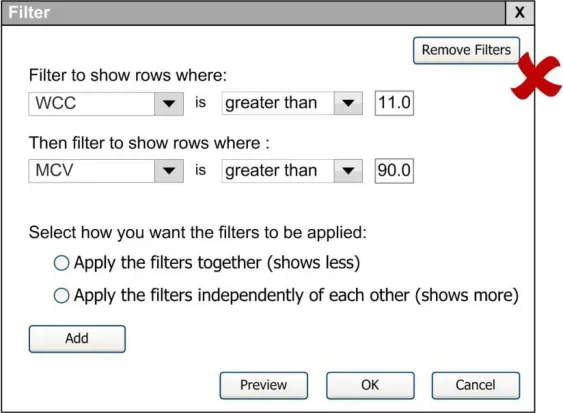
The majority of respondents preferred the design to provide them with a choice of combining filter criteria using a logical AND or a logical OR.
All 13 respondents agreed that it is useful to filter a list within a patient record by specifying the items of interest that they want to keep in the view. The majority of respondents (8/13) agreed that it is useful to filter a list within a patient record by specifying the information that they want to remove from view. Specifying what a filter should remove was viewed as a less frequently needed activity than specifying what a filter shows.
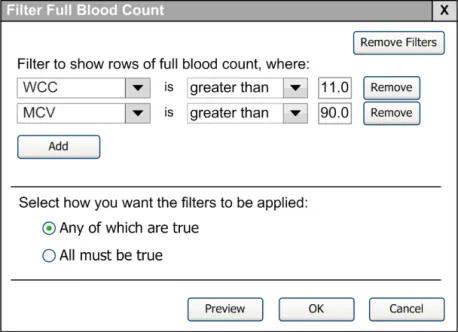
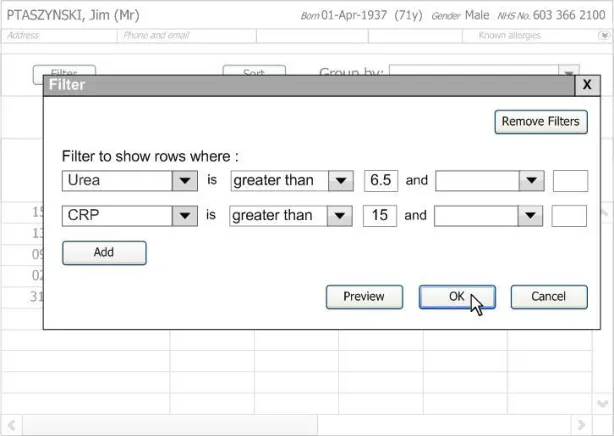
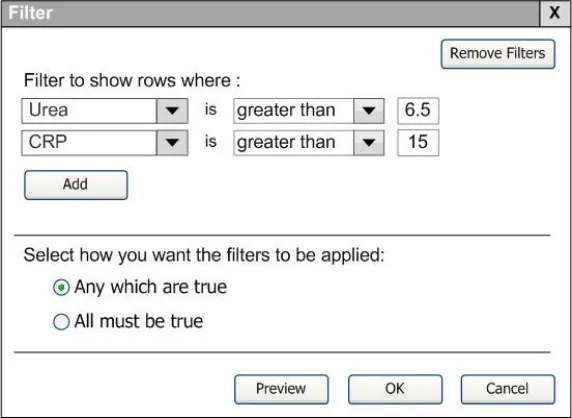
No respondents expected the combined filter in Figure 15 to show results that include either a Urea value greater than 6.5 or a CRP value greater than 15. i.e. a logical OR was not expected. No respondents wanted the filter to show results to combine filters with a logical OR.
Figure 15: Filter criteria dialog box (indicative illustration of study materials, not guidelines)
When subsequently shown Figure 16 all respondents were able to predict that the result of selecting an ‘all must be true’ filter was that the filter showed both a Urea value greater than 6.5 and a CRP value greater than 15. Most respondents (8/13) preferred the Figure 16 design because it made the action ‘ much clearer’ (p3) and provided them with a choice on how to combine the individual filters.
Page 58
Copyright ©2013 Health and Social Care Information Centre
 HSCIC Controlled Document
Figure 16: Filter criteria dialog box (indicative illustration of study materials, not guidelines)
Safely indicating the existence of filtered-out data and how to re-access it.
Respondents preferred designs where an indicator that data has been filtered-out, a status message, is above the data list columns headers.
There was no clear design option preferred by the HCP for safely indicating the existence of filtered-out data. None of the HCP believed that completely removing the data from view was a patient safe option while this was the option preferred by some ITPs (3/7).
No-one wanted a status message at the bottom of the application window. The most popular locations for a status message were a text-message placed above the column headings or using 3 horizontal tabs above the column headings one showing the results of applying the filter, one showing the remaining list contents, ’ and one showing all the original list contents.
The most popular design option to remove a filter was the use of a button either within a status message or adjacent to the ‘Filter’ button in the toolbar.
Page 59
Copyright ©2013 Health and Social Care Information Centre
 HSCIC Controlled Document
REVISION AND SIGNOFF SHEET
Change Record
05-Nov-2008 Ash Gupta 0.0.0.1 Initial draft for review/discussion
06-Nov-2008 Ash Gupta 0.0.1.0 Raised to working Baseline
10-Nov-2008 Simon Burnham 0.0.1.1 Initial copyedit complete
10-Dec-2008 Ash Gupta 0.0.1.2 CRS comments incorporated
11-Dec-2008 Mick Harney 0.0.1.3 Copyedit changes and highlight remaining questions
12-Dec-2008 Ash Gupta 0.0.1.4 Additions and response to questions
12-Dec-2008 Mick Harney 0.1.0.0 Raised to Baseline Candidate
19-Dec-2008 Ash Gupta 0.1.0.1 Incorporated CRS comments
30-Jan-2009 Rachel Eno 0.1.0.2 Further work responding to CRS comments
30-Jan-2009 Mick Harney 0.1.0.3 Interim copyedit
04-Feb-2009 Rachel Eno 0.1.0.4 Return to 0.1.0.2 to add intermediate restructure and revisions
04-Feb-2009 Mick Harney 0.1.0.5 Second interim copyedit
04-Feb-2009 Rachel Eno 0.1.0.6 Review and response to copyedit comments
05-Feb-2009 Mick Harney 0.1.0.7 Consolidation of comments and changes
05-Feb-2009 Mick Harney 0.2.0.0 Raised to Baseline Candidate #2
25-Feb-2009 Rachel Eno 0.2.0.1 Additions, restructuring, highlighting remaining questions
26-Feb-2009 Mick Harney 0.2.0.2 Copyedit pass
27-Feb-2009 Mick Harney 0.2.0.3 Included new figures. Other minor style corrections
02-Mar-2009 Mick Harney 0.2.0.4 Included visual summary
05-Mar-2009 Rachel Eno 0.2.0.5 Last updates to cover CRS and copyedit comments
05-Mar-2009 Mick Harney 0.2.0.6 Copyedit of latest updates
05-Mar-2009 Mick Harney 0.2.0.7 Added last wireframes.
05-Mar-2009 Rachel Eno 0.2.0.8 Final checks
05-Mar-2009 Mick Harney 0.3.0.0 Raised to Baseline Candidate #3
11-Mar-2009 Rachel Eno 0.3.0.1 Updated to respond to further CRS comments
11-Mar-2009 Mick Harney 0.3.0.2 Insert enhanced figures and copyedit CRS updates
13-Mar-2009 Rachel Eno 0.3.0.3 Last detail clarifications
13-Mar-2009 Mick Harney 0.4.0.0 Raised to Baseline Candidate #4
16-Mar-2009 Mick Harney 1.0.0.0 Raised to Baseline
Copyright ©2013 Health and Social Care Information Centre
Page 60
HSCIC Controlled Document
Document Status has the following meaning:
- Drafts 0.0.0.X - Draft document reviewed by the Microsoft CUI Project team and the
Authority designate for the appropriate Project. The document is liable to change.
- Working Baseline 0.0.X.0 - The document has reached the end of the review phase and
may only have minor changes. The document will be submitted to the Authority CUI Project team for wider review by stakeholders, ensuring buy-in and to assist in communication.
- Baseline Candidate 0.X.0.0 - The document has reached the end of the review phase and
it is ready to be frozen on formal agreement between the Authority and the Company.
- Baseline X.0.0.0 - The document has been formally agreed between the Authority and the
Company.
Note
Minor updates or corrections to a document may lead to multiple versions at a particular status.
Open Issues Summary
None
Audience
The audience for this document includes:
- Authority CUI Manager / Project Sponsor . Overall project manager and sponsor for the
NHS CUI project within the Authority.
- Authority Clinical Applications and Patient Safety Project Project Manager.
Responsible for ongoing management and administration of the Project.
- The Authority Project Team . This document defines the approach to be taken during this
assessment and therefore must be agreed by the Authority.
- Microsoft NHS CUI Team . This document defines the approach to be taken during this
assessment, including a redefinition of the Clinical Applications and Patient Safety Project strategy.
Reviewers
Mike Carey Toolkit Workstream Lead
Dee Hackett Clinical Advisor
Page 61
Copyright ©2013 Health and Social Care Information Centre
HSCIC Controlled Document
Distribution
Mike Carey Toolkit Workstream Lead
Tim Chearman UX Architect
Frank Cross Clinical Advisor
Jasdeep Gill Clinical Advisor
Dee Hackett Clinical Advisor
Peter Johnson Clinical Architect
Document Properties
Document Title Filtering, Sorting and Grouping User Interface Design Guidance
Author Clinical Applications and Patient Safety Project
Restrictions RESTRICTED – COMMERCIAL; MICROSOFT COMMERCIAL; Access restricted to: NHS CUI Project Team, Microsoft NHS Account Team
Creation Date 5 November 2008
Last Updated 23 June 2015
Copyright:
You may re-use this information (excluding logos) free of charge in any format or medium, under the terms of the Open Government Licence. To view this licence, visit nationalarchives.gov.uk/doc/open-government-licence or email psi@nationalarchives.gsi.gov.uk.
Page 62
Copyright ©2013 Health and Social Care Information Centre