Search and Prescribe

 Prepared for
NHS Connecting for Health
Version 4.0.0.0 Baseline
Prepared by
Clinical Applications and Patient Safety Project
NHS CUI Programme Team
Cuistakeholder.mailbox@hscic.gov.uk
Prepared for
NHS Connecting for Health
Version 4.0.0.0 Baseline
Prepared by
Clinical Applications and Patient Safety Project
NHS CUI Programme Team
Cuistakeholder.mailbox@hscic.gov.uk
PREFACE
- PREFACE
- 1 INTRODUCTION
- 2 SEARCH AND PRESCRIBE GUIDANCE OVERVIEW
- 3 GUIDANCE DETAILS FOR A PRESCRIBING AREA
- 4 GUIDANCE DETAILS FOR QUICK LISTS
- 5 GUIDANCE DETAILS FOR DRUG SEARCH
- 5.1 Introduction
- 5.2 Principles
- 5.3 Guidelines
- 5.3.1 Positioning the Search Text Input Box
- 5.3.2 Defining Text Input Box Behaviour
- 5.3.3 Displaying Results with Progressive Matching
- 5.3.4 Providing Feedback for a Progressive Search
- 5.3.5 Limiting the Height of a Search Results List
- 5.3.6 Extending the Search Results List
- 5.3.7 Matching Input Text to Results
- 5.3.8 Ordering Search Results
- 5.3.9 Using Groups to Limit Search Results
- 5.3.10 Supporting Spelling Matches and Synonyms
- 5.3.11 Co-Drugs and Their Ingredients
- 5.3.12 Prioritising Results
- 5.3.13 Shortcut Keys in Search Results
- 5.3.14 Formatting Commonly Mis-Selected Matches
- 5.3.15 Formatting Spelling Matches and Synonyms
- 5.3.16 Formatting Search Results Lists
- 5.3.17 Generic Drug Names and Brand Names
- 6 GUIDANCE DETAILS FOR CASCADING LISTS
- 7 GUIDANCE DETAILS FOR REQUIRED ATTRIBUTES
- 8 GUIDANCE DETAILS FOR PRESCRIPTION FORMS
- 9 GUIDANCE DETAILS FOR INPUT CONTROLS
- 10 GUIDANCE DETAILS FOR PREVIEW AND AUTHORISE
- 11 DOCUMENT INFORMATION
- APPENDIX A USABILITY PRINCIPLES
- APPENDIX B STUDY ID 69: EXECUTIVE SUMMARY
- APPENDIX C STUDY ID 68: EXECUTIVE SUMMARY
- APPENDIX D STUDY ID 67: EXECUTIVE SUMMARY
- APPENDIX E STUDY ID 46: EXECUTIVE SUMMARY
- APPENDIX F STUDY ID 37: EXECUTIVE SUMMARY
- REVISION AND SIGNOFF SHEET
Source PDF: searchpres.pdf
Documents replaced by this document Medications Management – Search and Prescribe – User Interface Design Guidance 1.0.0.0 [1] Design Guide Entry – Medications Management – Search and Prescribe 2.0.0.0 Design Guide Entry – Medications Management – Search and Prescribe 1.0.0.0 Documents to be read in conjunction with this document Medications Management – Medication Line – User Interface Design Guidance 2.0.0.0 Medications Management – Medications List – User Interface Design Guidance 1.0.0.0 Medications Management – Drug Administration – User Interface Design Guidance 4.0.0.0 Design Guide Entry – Time Display 4.0.0.0 Design Guide Entry – Date Display 5.0.0.0 Design Guide Entry – Date and Time Input 3.0.0.0 Design Guide Entry – Patient Banner 4.0.0.0 Design Guidance – Accessibility Checkpoints for NHS Applications 1.0.0.0 This document was prepared for NHS Connecting for Health which ceased to exist on 31 March 2013. It may contain references to organisations, projects and other initiatives which also no longer exist. If you have any questions relating to any such references, or to any other aspect of the content, please contact cuistakeholder.mailbox@hscic.gov.uk 1Previous baseline was incorrectly numbered v1.0.0.0 not v3.0.0.0. Hence, the current document is v4.0.0.0. Patient Safety Process The development lifecycle for this design guide includes an integrated patient / clinical safety risk assessment and management process. Known patient safety incidents relevant to this design guidance area have been researched and reviewed as part of ongoing development. The resulting guidance points aim to support mitigation of these known patient safety risks. In addition, the developers of this design guide have undertaken a patient safety risk assessment to identify new risks that could potentially be introduced by the guidance points in this document. Any potential risks identified have been assessed and managed to support the ongoing clinical safety case for this design guide. The Hazard Log records all the risks that have been identified during development and describes mitigatory actions that, in some cases, will need to be taken by users of this design guide. The Hazard Log is a live document that is updated as the design guide is developed and maintained. Until this design guide has received full Clinical Authority to Release (CATR) from the NHS Connecting for Health (CFH) Clinical Safety Group (CSG) – based on an approved Clinical Safety Case – there may be outstanding patient safety risks yet to be identified and mitigated. Additionally, users implementing applications that follow this design guide’s guidelines (for example, healthcare system suppliers) are expected to undertake further clinical safety risk assessments of their specific systems within their specific context of use. Refer to NHS Common User Interface for further information on the patient safety process and for the safety status and any relevant accompanying safety documentation for this design guide.
1 INTRODUCTION
This document provides guidance for the design of searching for and prescribing of individual medications for single patients. It describes the area of focus, lists mandatory and recommended guidance points with usage examples and explains the rationale behind the guidance.
Electronic prescribing is envisaged as being part of a clinical system that includes a series of views, some of which present medications information for each patient. Guidance for the display of a patient’s medications is defined in the document Medications Management – Medications List {R1} . Guidance for another medications view, the drug chart, is defined in the document Medications Management – Drug Administration {R2} .
More detailed guidance for the layout and formatting of individual medications is defined in the document Medications Management – Medication Line {R3} . This includes guidance that informs the selection of attributes and defines display formatting appropriate for the information used to express a single medication. (Later, this approach is referred to simply as ‘medication line’.)
The structure of the prescribing processes considered in the creation of this guidance has been informed by the NHS National Programme for Information Technology (NPfIT) document dm+d Implementation Guide (Secondary Care) [2]. This work describes a Prescribing Model that is designed to minimise the risk when prescribing (or ‘ordering’) medications in secondary care. It advocates a dose-based prescribing system in which:
-
A prescriber specifies a drug by its generic name plus dose, route and frequency
-
A nurse (for example) then selects the correct quantity of an actual product to give to the
patient
The Prescribing Model aims to provide the safeguards needed to ensure dose-based prescribing results in prescriptions without any unsafe ambiguities for those giving medicines to patients. NHS CFH requires software vendors to use the NHS Dictionary of Medicines and Devices [3] (referred to as ‘dm+d’), so the Prescribing Model has been designed based on concepts such as those used in the dm+d. The guidance in this document does not assume the use of the dm+d and is intended to work with any drug database that uses the concepts of generic drug name, which equates to Virtual Therapeutic Moiety (VTM) in the dm+d, and branded drug name, which equates to Trade Family Name (TFN) in the dm+d.
The guidance in this document focuses on supporting secondary care settings. Although all care settings have been considered as part of the analysis for this work, the guidance does not attempt to meet requirements for primary care or other requirements that are specialist or specific to settings outside of secondary care.
Alternative Design Solutions
Whilst many different design alternatives have been considered, researched and tested in the construction of this guidance document, it is acknowledged that there are already a significant number of working electronic prescribing systems which may have employed design approaches that have not been directly assessed.
Throughout this document, in sections where such alternatives are known to exist, the guidance document lists the key hazards that alternative design solutions must address. Within these sections, conformance ratings apply only where the guidance is followed by Independent Software Vendors (ISVs). Where the
2 NHS NPfIT – dm+d Implementation Guide (Secondary Care) {R4} : ePrescribing reference documents — NHS Connecting for Health
3 NHS – dictionary of medicines + devices {R5} : Welcome to the dm+d website — The NHS Dictionary of Medicines and Devices
Page 1
Copyright ©2013 Health and Social Care Information Centre
HSCIC Controlled Document
guidance is not followed it is the responsibility of the providers of alternative solutions to ensure that known risks are addressed.
To indicate their relative importance, each guideline in this document is ranked by Conformance and by Evidence Rating . Table 1 defines those terms:
Conformance Indicates the extent to which you should follow the guideline when defining your UI implementation. There are two levels:
Mandatory - An implementation should follow the guideline
Recommended - An implementation is advised to follow the guideline
Evidence Rating Summarises the strength of the research defining the guideline and the extent to which it mitigates patient safety hazards. There are three ratings (with example factors used to determine the appropriate rating):
Low :
Does not mitigate specific patient safety hazards
User research findings unclear and with few participants
Unreferenced usability principles indicate the design is not significantly better than alternatives
Medium :
Mitigates specific patient safety hazards
User research findings clear but with few participants
References old authoritative guidance (for example, from National Patient Safety Agency (NPSA),
Institute for Safe Medication Practices (ISMP) or World Health Organization (WHO)) that is potentially soon to be superseded
Referenced usability principles indicate the design is significantly better than alternatives
High :
Mitigates specific patient safety hazards
User research findings clear and with a significant number of participants
References recent authoritative guidance (for example, from NPSA, ISMP or WHO)
Referenced usability principles indicate the design is significantly better than alternatives
Table 1: Conformance and Evidence Rating Definitions
Note
Refer to section 11.2 for definitions of the specific terminology used in this document.
Sections 4, 7 and 9 contain guidance that has been added since the previous version of this guidance (Baseline version 1.0.0.0 dated 13-Aug-2008). All previous guidance points have been renumbered and some have been revised. Table 2 summarises the changes made by showing where the guidance points in each original section of the previous document have been moved to in this document:
3.3.1 Relating Drug Search to Context (two guidance points) 3.3.1 Relating Drug Search to Context
3.3.2 Positioning the Text Input Box (one guidance point) 3.3.3 Communicating the Scope of the Search (one guidance point)
3.3.4 Defining Text Input Box Behaviour (two guidance points) 3.3.5 Moving from text Input Box to Results List (two guidance points)
5.3.1 Positioning the Search Text Input Box
5.3.2 Defining Text Input Box Behaviour
3.3.6 Displaying Results with Progressive Matching (two guidance points) 5.3.3 Displaying Results with Progressive Matching
3.3.7 Providing Feedback for a Progressive Search (five guidance points) 3.3.10 Defining the Height of Search Results Lists (two guidance points)
5.3.4 Providing Feedback for a Progressive Search
Page 2
Copyright ©2013 Health and Social Care Information Centre
HSCIC Controlled Document
3.3.8 Limiting the Height of a Results List (three guidance points), 3.3.10 Defining the Height of Search Results Lists (one guidance point)
5.3.5 Limiting the Height of a Search Results List
3.3.9 Displaying a Longer Results List (three guidance points) 5.3.6 Extending the Search Results List
3.3.11 Providing Cascading Lists (three guidance points) 6.3.1 Providing Cascading Lists
3.3.12 Displaying Cascading Lists (three guidance points) 3.3.13 Displaying Selections in Cascading Lists (one guidance point)
6.3.2 Displaying Cascading Lists
3.3.13 Displaying Selections in Cascading Lists (one guidance point) 6.3.3 Contents of Cascading Lists
3.3.14 Matching Input Text to Results (three guidance points) 5.3.7 Matching Input Text to Results
3.3.15 Ordering the Results (one guidance point) 5.3.8 Ordering Search Results
3.3.16 Using Groups to Limit Search Results (two guidance points) 5.3.9 Using Groups to Limit Search Results
3.3.17 Supporting Spelling Matches (two guidance points) 5.3.10 Supporting Spelling Matches
3.3.18 Co-drugs and Their Ingredients (two guidance points) 5.3.11 Co-Drugs and Their Ingredients
3.3.19 Prioritising Results (five guidance points) and 3.3.20 Displaying Results without Prioritised Matches (one guidance point)
5.3.12 Prioritising Results
3.3.21 Defining Shortcut Keys for Prioritised Results (three guidance points) 5.3.13 Shortcut Keys in Search Results
3.3.22 Formatting Commonly Mis-Selected Matches (three guidance points) 5.3.14 Formatting Commonly Mis-Selected Matches
3.3.23 Formatting Spelling Matches (three guidance points) 5.3.15 Formatting Spelling Matches
3.3.24 Formatting List Results (three guidance points) 5.3.16 Formatting Search Results Lists
3.3.25 Generic Drug Names and Brand Names (four guidance points) 3.3.26 Supporting Selection of Brand Names (one guidance point)
Table 2: Changes Since the Last Baseline Version
1.1 Customer Need
5.3.17 Generic Drug Names and Brand Names
The first electronic prescribing systems generally evolved from individuals taking the initiative to develop software that could replace paper-based systems, improve reporting and auditing and help to reduce medication errors. Since these systems have evolved largely independently of one another, there is no commonly used standard for the design of electronic prescribing systems. The lack of a standard is itself a source of patient safety risk since clinical staff who work in more than one location and use more than one system have to cope with very different processes and different user interfaces for completing the same tasks.
Medications Incidents - In a study of safety incidents (that excluded non-preventable adverse drug reactions) in the NHS, the National Patient Safety Agency (NPSA) found that fifteen per cent of medication incidents reported between January 2005 and June 2006 were related to prescribing. To put this into perspective, the same study found that the majority of incidents related to the administration of medications (59.3 per cent), followed by incidents related to preparation and dispensing (17.8 per cent):
-
59.3 per cent – administration of medications
-
17.8 per cent – preparation and dispensing
-
15 per cent – prescribing
Page 3
Copyright ©2013 Health and Social Care Information Centre
HSCIC Controlled Document
These findings are published in the document Safety in doses: medication safety incidents in the NHS [4]. In summary, the document lists the following as the most common types of reported medication incidents, which together make up over half of all reported medication incidents:
-
Incorrect dose, strength or frequency
-
Omitted medication
-
Wrong medication (including medications prescribed as a result of a mis-selection error)
Existing Systems - Inpatient hospital care settings currently use multiple kinds of medications documents, in both paper-based and electronic formats. These documents differ depending on the medications that they are used for and, furthermore, they differ between care settings. The differences in the designs of these documents may well already impact patient safety, as care professionals move between hospitals and are faced with new prescribing processes while working in potentially time-pressured, high-stress environments. Differences in prescribing processes and the design of electronic prescription forms are an increasing safety concern as electronic systems are more widely adopted.
The Role of Electronic Prescribing - Research, in which extensive studies of medication-related errors were reviewed, suggests that the most powerful means of preventing medication-related errors are electronic prescribing and administration management, along with standards for processes and for the writing of prescriptions (see Medication Errors {R7}, To Err Is Human {R8} and Understanding Patient Safety {R9} ).
When paper-based systems are replaced with electronic systems, visual cues, such as the colour and thickness of a patient chart and the large surface area on which information can be displayed, are lost. To be an effective replacement, the electronic system must find a different way of presenting and communicating this information.
Whilst electronic prescribing is effective at mitigating some of the risks associated with paper-based prescribing, and is generally found to reduce prescribing errors overall, it also has the potential to introduce new kinds of errors (see The Extent and Importance of Unintended Consequences Related to Computerized Provider Order Entry {R10} ). Many of these errors are common to any human-computer interface and can be effectively mitigated by following current best practice usability principles.
The process of replacing a paper-based system with an electronic one inevitably also brings culture changes and changes to processes. Electronic systems that are perceived as being too restrictive are associated with loss of responsibility leading to complacency and over-reliance on the system. Inflexible prescribing systems may be effective at supporting the prescribing of common medications and the prevention of specific errors but the same inflexibility that supports these processes also introduces problems for prescribing non-standard medications (see Role of Computerised Physician Order Entry Systems in Facilitating Medication Errors {R11} ).
The provision of a highly flexible electronic prescribing process, which still brings the benefits of reducing errors, relies on a comprehensive system that can perform complex error checking across information such as the patients’ medications, diagnoses, demographics and test results.
4NPSA – Safety in doses: medication safety incidents in the NHS {R6} : http://www.npsa.nhs.uk/nrls/alerts-and-directives/directives-guidance/safety-in-doses/
Page 4
Copyright ©2013 Health and Social Care Information Centre
HSCIC Controlled Document
1.2 Scope
This guidance informs the design of a user interface for prescribing a medication for a single patient in a hospital ward environment.
1.2.1 In Scope
Users Hospital-based doctors, nurses and pharmacists who prescribe medications
Care settings Inpatient, hospital ward environment only
Tasks Prescribing individual medications
Medications Oral solids and liquids
Inhalers and sprays
Eye, ear and nose drops
Topical liquids
Creams, ointments and gels
Enemas and rectal solutions
Granules and powders
Suppositories and pessaries
Topical patches
Nebuliser solutions
Injections (insulin example only)
Unlicensed medications (chloramphenicol example only)
Finding a Drug Text entry searching for generic or brand name
Pick lists (called ‘Quick Lists’)
Search Results Differentiating between generic drugs and brand names in lists
Displaying, ordering and formatting search results lists
Navigating within and between search results lists
Interacting with search result list items
Indicating non-formulary drugs in search results lists
Template Prescriptions Presentation of lists of predefined prescriptions
Defining a Prescription Structure and layout of the prescription form
Presentation of required and optional attributes
Guidance for efficiently prescribing commonly prescribed medications
Guidance for prescribing less commonly prescribed and more detailed medications
Administration Schedules Selection from a predefined set of administration times or the definition of an individual administrative
event for a once only medication.
Previewing a Prescription Guidance for supporting the review of a prescription before it is authorised
Table 3: In Scope
1.2.2 Out of Scope
Note
Listing an item as out of scope does not classify it as unimportant. Project time and resource constraints inevitably restrict what can be in scope for a particular release. It is possible that items out of scope for this release may be considered for a future release.
Table 4 defines areas that are not covered in this guidance. Although there may be specific risks associated with these areas that are not addressed in this guidance, it is likely that the principles in this guidance will extend to the display of medication information in many of the areas listed below.
The patient as a user of clinical software is out of scope; the guidance is designed to inform the design of user interfaces used by clinicians. As such, it will therefore present information in formats that are appropriate for health care professionals. The display of medication information in views that are designed for patients is not addressed in this guidance.
Page 5
Copyright ©2013 Health and Social Care Information Centre
HSCIC Controlled Document
The guidance has been written in such as way that it should be adaptable for use with various display sizes and therefore does not make reference to specific dimensions for screen elements.
The care settings listed in Table 4 are out of scope because they have not been studied in depth in our research. Some of this guidance is likely to be relevant to these care settings, but there will be specific risks associated with each that have not been considered and therefore mitigated in this guidance.
There are many medication types listed in Table 4 because they have not been sufficiently researched to be able to make assumptions about the extent to which they are addressed by guidance.
Note
Since this guidance uses a dose-based prescribing approach, it is not directly appropriate for Primary Care or general practice.
Guidance Areas Details
Users Non-clinical staff, patients and other health care professionals not listed in the in scope section (that is, only hospital-based doctors, nurses and pharmacists are in scope).
Care settings Care settings other than inpatient, hospital ward environments, including: outpatients, clinics,
pharmacies, emergency services and departments, intensive care, High Dependency Unit (HDU), primary care, including general practice, community and home visits, ward management, multi-patient tasks
Paediatric prescribing
Tasks Any task other than prescribing individual medications, including:
Reviewing administration events to gain an understanding of the degree to which the medication has
been successfully administered
Relating medications to information elsewhere in the patient record, including the linking of information
in a plan or notes to medications
Medications reconciliation
Any task that follows authorisation of a prescription, such as editing or deleting a medication after it
has been prescribed
Creating links or associations between prescriptions or between prescriptions and other data (such as
test results)
Application Context The display of the prescribing area in relation to other medications and non-medications views
Interactions between and access to other views whilst prescribing
Entry and exit points for the prescribing process, including ‘Cancel’ or ‘Close’, except for the default
entry point, ‘initiate prescribing’
Page 6
Copyright ©2013 Health and Social Care Information Centre
HSCIC Controlled Document
Guidance Areas Details
Medications
These medications may have additional requirements or introduce specific risks that are not explicitly addressed by the guidance.
Enteral feeds
Dressings and devices
Implants and sticks
Intrauterine devices (IUDs)
Cements
Dialysis solutions
Injections (except insulin example)
Infusions and fluids (except by specific
examples)
Combination infusions
Total Parenteral Nutrition (TPN)
Gases
Blood and platelet products
Variable dose medications
Foams
Radioactive agents
Regimens and order sets
Advisory Committee on Borderline Substances
(ACBS) products
Over the counter (OTC) medications
Recreational drugs
Medications with titrating doses
Discharge medications – to take out (TTO)
Patient’s own drugs (PODs)
Epidurals and patient controlled analgesia
Extemporaneous prescriptions
Unlicensed medications (except
chloramphenicol example)
Controlled drugs
Prescription Types Medication administered or supplied as part of a Patient Group Direction (PGD)
Medication prescribed by supplementary prescribers
Corollary orders that require a view of additional patient-related information before and/or during
prescribing (for example, warfarin and International Normalized Ratio (INR) results).
Prescription Data Specific data fields for prescriptions, including which should be required and which optional
Values for data fields for prescriptions
Formularies Formulary management, including the definition of formularies and which medications belong to them
The selection of a formulary for use during a drug search for prescribing
Recommendations The definition of a draft prescription that is sent from one prescriber to another as a recommendation for the treatment of a particular patient.
Prescriptions with Conditions
Definition of conditions such as criteria that must be met before administration can begin, criteria that must be checked at each administration or criteria that determine when a medication should end.
Administration Schedules The definition and modification of individual administrative events (except for once only medications)
in an administration schedule
Addition of once only medications to supplement a regular medication with a first dose too far in the
future
Previewing a prescription The saving of completed medications in a list (similar to a ‘shopping cart’) such that they can be reviewed
both individually and as a set before they are authorised.
Changing Prescriptions The selection of a medication (such as in a Medications List or a Drug Administration view) and
modification of the prescription
The selection of a past medication for re-prescribing, such that the past medication is used as a
template for a new prescription
Discontinuing, suspending or restarting a medication
Retrospective Prescribing The recording of prescriptions for medications that have been or are being administered.
Partial Prescriptions Saving of partially completed prescriptions for review and authorisation at another time.
Permissions Limiting access to individual controls (such as command buttons or input controls) and options available within them (such as list items in a drop-down list) based on permissions (associated with login).
Input Forms Structure and layout that would apply to standard forms
Validation and error handling
Truncation and abbreviation
Page 7
Copyright ©2013 Health and Social Care Information Centre
HSCIC Controlled Document
Guidance Areas Details
Dose Calculation Automatic calculation of doses
Display and input of height, weight and mass
Authorisation Any part of the user interface process that follows the activation of a control that authorises a
prescription
Cancelling, closing or otherwise exiting a prescription before it is complete
Decision and knowledge support
Decision support alerting for allergies
Decision support for drug-to-drug interactions
Decision support alerting based on patient medical history, demographics or other information held in
the patient record
Knowledge support for browsing drugs by classification
Knowledge support for looking up information about medications.
Allergies The display and recording of allergy information and adverse drug reaction risks is covered in a separate guidance document.
Patient consent and preference
Patient preference, such as for a particular drug form. Patient consent, particularly in a mental health context.
Other Sealed envelopes
Supply and dispensing
Guidance (other than notifications) that might be needed for when a patient is ‘Nil by Mouth’
Table 4: Out of Scope
1.3 Assumptions
A1 The majority of medications prescribed by any given clinician will come from a short list of medications that are regularly prescribed by that clinician.
A2 The majority of prescriptions (about 80%) can be prescribed by selecting a predefined template prescription.
A3 When prescribers initiate the prescribing process, they know what they want to prescribe and are ready to prescribe it.
A4 When using the prescribing interface, the Common User Interface (CUI) Patient Banner remains visible throughout the prescribing process.
A5 In general (with known exceptions) prescribing by generic drug name should be encouraged in preference to prescribing by products or brand names.
Table 5: Assumptions
1.4 Dependencies
D1 This guidance is informed by the NHS NPfIT dm+d Implementation Guide (Secondary Care) {R4}
D2 This guidance is informed by the NHS NPfIT ePrescribing Functional Specification [5]
5 NHS NPfIT – ePrescribing Functional Specification {R12} : http://www.connectingforhealth.nhs.uk/newsroom/news-stories/eprescfunctspec
Page 8
Copyright ©2013 Health and Social Care Information Centre
HSCIC Controlled Document
D3 This guidance uses the concepts ‘generic drug’ and ‘brand name’ and depends on access to, or creation of, a database or dictionary, that can support these concepts. In the Dictionary of Medicines and Devices {R5} (known as ‘dm+d’), the concept Virtual Therapeutic Moiety (VTM) equates to generic drug name and the recently created Trade Family Name (TFN) equates to brand name.
D4 The display of drug names and medications is defined by the document Medications Management – Medication Line {R3} .
D5 The display and entry of dates is defined by the documents Time Display {R13}, Date Display {R14} and Date and Time Input {R15}
Table 6: Dependencies
Page 9
Copyright ©2013 Health and Social Care Information Centre
HSCIC Controlled Document
2 SEARCH AND PRESCRIBE GUIDANCE OVERVIEW
The guidance is divided into sections that are organised such that they follow the prescribing process from initiation through to authorisation. Within each section are a number of tables containing guidance points, usage examples and rationale for specific aspects of the user interface.
The guidance assumes a flexible prescribing process that can support both a quick prescribing process for the most commonly prescribed drugs and a more detailed prescribing process for less common prescribing practices, whilst mitigating known risks and meeting a high standard of patient safety.
Important
The visual representations used within this document to display the guidance are illustrative only. They are simplified in order to facilitate understanding of the guidance points. Stylistic choices, such as colours, fonts or icons are not part of the guidance and unless otherwise specified are not mandatory requirements for compliance with the guidance in this document.
The usage examples in this document include examples of sets of fields, some of which are shown as required and some as optional. These examples are illustrative only and are not intended to provide guidance on which fields should be available for specific types of medication nor which fields should be required or optional.
Page 10
Copyright ©2013 Health and Social Care Information Centre
HSCIC Controlled Document
| Col1 | Col2 | Col3 |
|---|---|---|
| drug | route | option 1 option 2 option 3 |
| drug | route | other… |
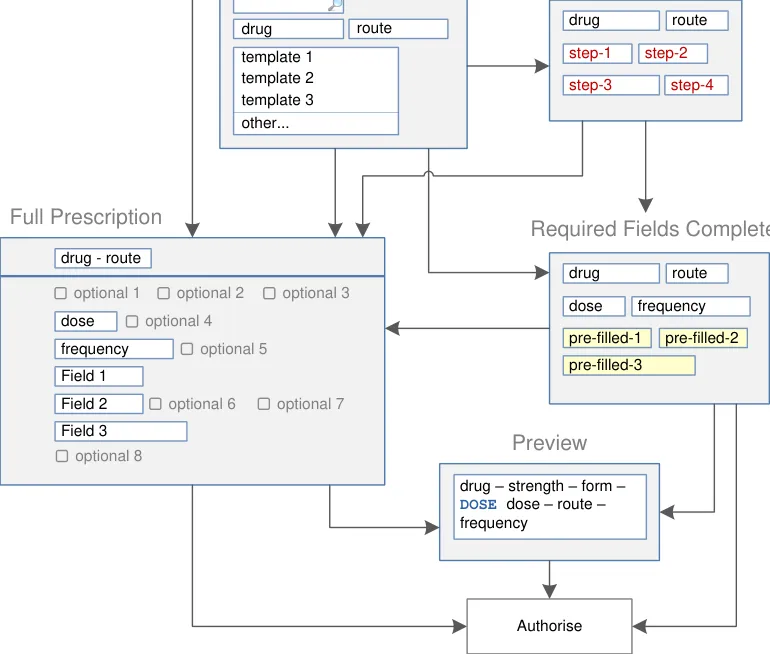
| Figure 1 and Figure 2 show an example of a prescribing process. The process itself does not form part of this guidance. The illustration shows how each section of the guidance can potentially relate o the previous and the next steps in the prescribing process. It thus shows a subset of the many valid alternative paths through the process of prescribing. | Col2 | Col3 | Col4 | Col5 | Col6 | Col7 | Col8 |
|---|---|---|---|---|---|---|---|
| Start Prescribing | Start Prescribing | Start Prescribing | Start Prescribing | Start Prescribing | Start Prescribing | Start Prescribing | Start Prescribing |
| Start Prescribing | Start Prescribing | Start Prescribing | Start Prescribing | ||||
| Select from the Quick List | Select from the Quick List | Select from the Quick List | Select from the Quick List | Select from the Quick List | Select from the Quick List | drug 1 Ctrl + 1 Ctrl + 2 drug 2 drug 3 drug 4 drug 5 drug 6 Ctrl + 3 Ctrl + 4 Ctrl + 5 Ctrl + 6 Commonly Prescribed Select from Quick List | drug 1 Ctrl + 1 Ctrl + 2 drug 2 drug 3 drug 4 drug 5 drug 6 Ctrl + 3 Ctrl + 4 Ctrl + 5 Ctrl + 6 Commonly Prescribed Select from Quick List |
| Results Search and select from results Search and select from results | Results Search and select from results Search and select from results | Results Search and select from results Search and select from results | Results Search and select from results Search and select from results | Results Search and select from results Search and select from results | Results Search and select from results Search and select from results | Results Search and select from results Search and select from results | Results Search and select from results Search and select from results |
| Select from Cascading Lists drug route option 1 option 2 option 3 other… Select other fields These selections allow the system to work out which fields to display in a Full Prescription Form | Select from Cascading Lists drug route option 1 option 2 option 3 other… Select other fields These selections allow the system to work out which fields to display in a Full Prescription Form | Select from Cascading Lists drug route option 1 option 2 option 3 other… Select other fields These selections allow the system to work out which fields to display in a Full Prescription Form | Select from Cascading Lists drug route option 1 option 2 option 3 other… Select other fields These selections allow the system to work out which fields to display in a Full Prescription Form | Select from Cascading Lists drug route option 1 option 2 option 3 other… Select other fields These selections allow the system to work out which fields to display in a Full Prescription Form | Select from Cascading Lists drug route option 1 option 2 option 3 other… Select other fields These selections allow the system to work out which fields to display in a Full Prescription Form | Select from Cascading Lists drug route option 1 option 2 option 3 other… Select other fields These selections allow the system to work out which fields to display in a Full Prescription Form | Select from Cascading Lists drug route option 1 option 2 option 3 other… Select other fields These selections allow the system to work out which fields to display in a Full Prescription Form |
| template 1 template 2 template 3 other… drug route Select a Template Prescription Select a Template Prescription Skip to Full Prescription Form | template 1 template 2 template 3 other… drug route Select a Template Prescription Select a Template Prescription Skip to Full Prescription Form | template 1 template 2 template 3 other… drug route Select a Template Prescription Select a Template Prescription Skip to Full Prescription Form | template 1 template 2 template 3 other… drug route Select a Template Prescription Select a Template Prescription Skip to Full Prescription Form | template 1 template 2 template 3 other… drug route Select a Template Prescription Select a Template Prescription Skip to Full Prescription Form | template 1 template 2 template 3 other… drug route Select a Template Prescription Select a Template Prescription Skip to Full Prescription Form | template 1 template 2 template 3 other… drug route Select a Template Prescription Select a Template Prescription Skip to Full Prescription Form | template 1 template 2 template 3 other… drug route Select a Template Prescription Select a Template Prescription Skip to Full Prescription Form |
| Fields presented one by one drug route step-1 step-2 step-3 step-4 Complete fields Step by Step | Fields presented one by one drug route step-1 step-2 step-3 step-4 Complete fields Step by Step | Fields presented one by one drug route step-1 step-2 step-3 step-4 Complete fields Step by Step | |||||
| See next Figure |
Skip to Full Prescription
Form
Required
fields completed
| Col1 | Col2 |
|---|---|
| drug | route |
Figure 1: Overview of the Prescribing Process and Corresponding User Interface Prescribing Steps (Part 1 of 2)
Copyright ©2013 Health and Social Care Information Centre
Page 11
HSCIC Controlled Document
| Prescription complete with the minimum information drug route Skip to Full Required Prescription fields dose frequency Form completed pre-filled-1 pre-filled-2 pre-filled-3 | Col2 | Col3 | Col4 | Col5 | Col6 |
|---|---|---|---|---|---|
| drug route dose frequency pre-filled-1 pre-filled-2 pre-filled-3 Prescription complete with the minimum information Required fields completed Skip to Full Prescription Form | drug route dose frequency pre-filled-1 pre-filled-2 pre-filled-3 Prescription complete with the minimum information Required fields completed Skip to Full Prescription Form | ||||
| Full Prescription Form | Full Prescription Form | Full Prescription Form | Full Prescription Form | drug - route dose frequency Field 1 Field 2 Field 3 optional 1 optional 2 optional 3 optional 4 optional 5 optional 6 optional 7 optional 8 Full Prescription Form | |
drug – strength – form –DOSE dose – route –frequency Preview Preview | drug – strength – form –DOSE dose – route –frequency Preview Preview | drug – strength – form –DOSE dose – route –frequency Preview Preview | drug – strength – form –DOSE dose – route –frequency Preview Preview | drug – strength – form –DOSE dose – route –frequency Preview Preview | drug – strength – form –DOSE dose – route –frequency Preview Preview |
| Select a Template Prescription Complete fields Step by Step | Col2 | Col3 | Col4 |
|---|---|---|---|
| Complete fields Step by Step Select a Template Prescription | |||
Authorise
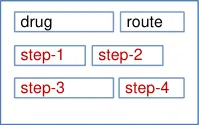
Fields presented one by one
See previous Figure
Figure 2: Overview of the Prescribing Process and Corresponding User Interface Prescribing Steps (Part 2 of 2)
Note
Validation and error handling is out of scope (see section 1.2.2).
The process of creating a prescription can begin with a new, blank prescription. It may also begin by selecting an item, such as a drug name, elsewhere in the application and using it to begin the prescribing process.
Page 12
Copyright ©2013 Health and Social Care Information Centre
HSCIC Controlled Document
For example, prescribing may be started by:
- Selecting a drug name from a reference tool (for example, the British National
Formulary [6] (BNF))
- Selecting a drug name from a care plan or care pathway
By selecting a drug name elsewhere in the application, the first part of the prescribing process (in which a drug is selected from a list) can be skipped. When a medication is selected from a list of current or past medications for the current patient, the drug name and other attributes can be carried through to the prescribing process, thus allowing other steps to be skipped. Although some of these tasks may be performed in the view from which they were selected, other tasks may open the medication in the prescribing area:
-
Creating a prescription after one or more doses have been administered
-
Modifying a prescription
-
Suspending or restarting a prescription
-
Discontinuing (stopping) a prescription
-
Re-prescribing a past medication
Figure 3 shows these entry points in relation to (a simplified) prescribing process. Guidance relating to these alternative entry points for the prescribing process is provided in section 3.
| Default Entry Point Create a prescription | Col2 |
|---|---|
| Default Entry Point Create a prescription |
| Select from a Drug Dictionary Drug name | Col2 |
|---|---|
| Select from a Drug Dictionary Drug name |
| Select route | Col2 |
|---|---|
| Select from a Care Pathway Drug name Part or wholly defined prescription | Col2 |
|---|---|
| Select from a Care Pathway Part or wholly defined prescription Drug name |
| Define other attributes | Col2 |
|---|---|
Complete prescription
| Select from a Medications View Modify Change a wholly defined Suspend prescription Re-prescribe Restart a wholly defined prescription Discontinue | Col2 |
|---|---|
| Select from a Medications View Re-prescribe a wholly defined prescription Change a wholly defined prescription Modify Suspend Restart Discontinue | |
| Select from a Medications View Re-prescribe a wholly defined prescription Change a wholly defined prescription Modify Suspend Restart Discontinue |
Figure 3: Entry Points
6British National Formulary {R16} : http://www.bnf.org/bnf/
Copyright ©2013 Health and Social Care Information Centre
Page 13
HSCIC Controlled Document
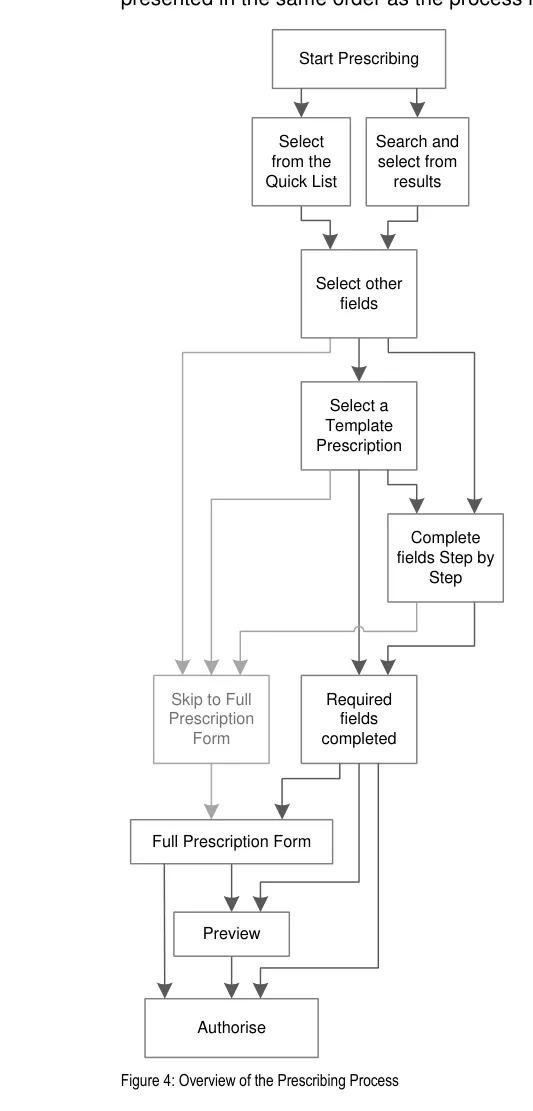
Figure 4 represents the user interface process for prescribing. The sections in this document are
Page 14
Copyright ©2013 Health and Social Care Information Centre
HSCIC Controlled Document
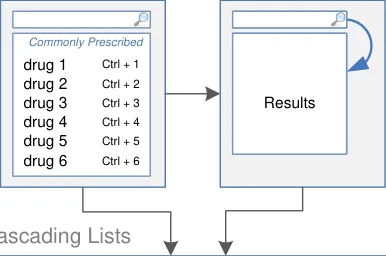
Figure 5 shows the specific user interface areas for which there is guidance in this document. They are displayed in the same order as the steps in the prescribing process illustrated in Figure 4.
Quick List Search Results
Step by Step
| drug | route | option 1 option 2 option 3 |
|---|---|---|
| drug | route | other… |

| drug | route |
|---|---|
| template 1 template 2 template 3 | template 1 template 2 template 3 |
| other… | other… |
Figure 5: User Interface Prescribing Steps
Copyright ©2013 Health and Social Care Information Centre
Page 15
HSCIC Controlled Document
2.1 Rationale Summary
Each table of guidance includes a rationale that summarises the design analysis, provides a brief account of related primary and secondary research and lists the key patient safety hazards for the guidance points in that table. The design analysis describes the deciding factors in the assessment of alternative approaches to the user interface design and lists the usability principles that are most pertinent. The desk research section lists the publications that have informed the guidance. The patient safety section lists the hazards that are mitigated by the guidance and provides a brief description of how those hazards have been mitigated. Finally, the user research section describes findings from user feedback and user testing sessions that were used to inform the iterative design process.
The following principles and existing standards provided benchmarks throughout the process of developing the guidance:
Usability Principles (specifically for Search and Prescribe):
-
Mitigate the risks of mis-selection and misinterpretation
-
Increase efficiency by prioritising the prescription of commonly prescribed medications over
less commonly prescribed medications
- Maximise safety in the absence of decision support systems by designing for the reduction
of errors from invalid or inappropriate selections or entries
- Encourage simplicity of design by promoting user interface approaches that help to avoid
overly complex displays and interactions that require many controls
- Ensure that the prescribing process can be supported in multiple layouts and is flexible
enough to be presented in different screen dimensions
- Maximise scalability such that the prescribing process can be modified to accommodate
additional information, steps or shortcuts
- Manage users expectations and improve their efficiency by providing a clear framework
with consistent logic for the placement of user interface elements and the interactions that they support
-
Minimise the potential for important information to be hidden from view
-
Adhere to a user interface strategy that gives the impression of making progress within a
single space (that has all the necessary information immediately or readily available) and avoids the impression of needing to move between many different spaces.
General Usability Principles (see APPENDIX A):
-
Jakob Nielsen’s Ten Usability Heuristics [7]
-
Ben Shneiderman’s eight golden rules of interface design {R18}
-
ISO 9241: Presentation of information {R19}
7 Nielsen, J – Ten Usability Heuristics {R17} : http://www.useit.com/papers/heuristic_list.html
Page 16
Copyright ©2013 Health and Social Care Information Centre
HSCIC Controlled Document
Existing Guidance:
-
NHS NPfIT – ePrescribing Functional Specification {R12}
-
NHS NPfIT – Guidelines for the Design and Presentation of Medication Elements Required
in Electronic Prescribing or Medication Ordering Systems {R20}
-
ISMP – Draft Guidelines for Safe Electronic Communication of Medication Orders [8]
-
NHS NPfIT – dm+d Implementation Guide (Secondary Care) {R4}
2.2 Summary of Guidance
Table 7 summarises the content of this document by outlining each area of guidance (along with a cross reference to the relevant section) and providing a visual example to illustrate how it might be implemented:
Section 3 Prescribing Area
Section 4 Quick Lists
Section 5 Drug Search
Section 6 Cascading Lists
| Patient Banner | Col2 |
|---|---|
| Medications List Toolbar | Medications List Toolbar |
| Prescribing Area | Medications List |
| Col1 | Col2 |
|---|---|
| drug 1 Ctrl + 1 Ctrl + 2 drug 2 drug 3 drug 4 drug 5 drug 6 Ctrl + 3 Ctrl + 4 Ctrl + 5 Ctrl + 6 Commonly Prescribed | drug 1 Ctrl + 1 Ctrl + 2 drug 2 drug 3 drug 4 drug 5 drug 6 Ctrl + 3 Ctrl + 4 Ctrl + 5 Ctrl + 6 Commonly Prescribed |
| abc | Col2 |
|---|---|
| abcd xyz - ABC Ctrl + 1 Ctrl + 2 Label | abcd xyz - ABC Ctrl + 1 Ctrl + 2 Label |
| abca abcb abc abc adc co-xxxxx Label | abca abcb abc abc adc co-xxxxx Label |
8 ISMP – ISMP MedicationSafetyAlert! – It’s Time for Standards to Improve Safety with Electronic Communication of Medication Orders – Draft Guidelines for Safe Electronic Communication of Medication Orders {R21} : http://www.ismp.org/Newsletters/acutecare/articles/20030220.asp
Copyright ©2013 Health and Social Care Information Centre
Page 17
HSCIC Controlled Document
Section 7 Required Attributes
| drug route dose frequency xxxxxx item 1 | Col2 | Col3 |
|---|---|---|
| drug route dose frequency item 1 xxxxxx | xxxxxx | xxxxxx |
| drug route dose frequency item 1 xxxxxx | item 1 | item 1 |
item 2 | ||
| item 3 | item 3 | |
| other… | other… |
Section 8 Prescription Forms
Section 9 Input Controls
Section 10 Preview and Authorise
Table 7: Summary of Guidance
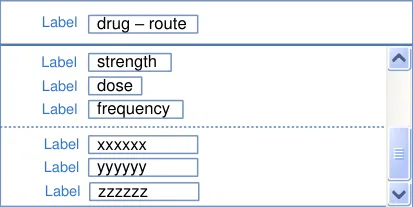

linked
linked
| xxxxxx | Col2 |
|---|---|
| item 1 item 2 item 3 item 4 | item 1 item 2 item 3 item 4 |
| abc 12 uu | abc 12 uu |
| Option 1 | Option 1 |
| other… | other… |
| Label drug Label route Dose dose Label PRN Label give when… Label start Label duration | Col2 |
|---|---|
| drug route dose PRN start duration Label Label Dose Label Label Label give when… Label | |
| drug route dose PRN start duration Label Label Dose Label Label Label give when… Label |
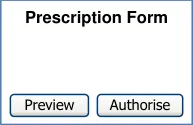

Page 18
Copyright ©2013 Health and Social Care Information Centre
HSCIC Controlled Document
3 GUIDANCE DETAILS FOR A PRESCRIBING AREA
3.1 Introduction
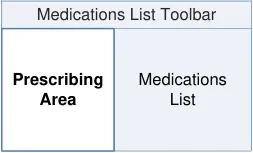
When the prescribing process is initiated, an area will be presented in which the controls for prescribing are displayed. Although the dimensions and layout of this area are dictated by the design and technology of the specific clinical application, guidance is provided to ensure consistency in areas where there are potential patient safety hazards. The guidance in this section mitigates specific hazards relating to how the prescribing area may interact with other views, such as a list of a patient’s medications, and how the display of that list may interact with other user interface elements, such as the patient banner.
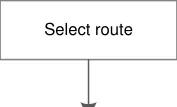
Figure 6 shows entry points for the prescribing process. The right-hand side of the diagram is a simplified version of the process illustrated in Figure 4. The left-hand side of the diagram illustrates some of the possible ways in which prescribing can be started, including some examples of drug names and medications that can be selected elsewhere in the application and carried forward into the prescribing process. The guidance in this section relates to the context in which the prescribing process is launched.
| Default Entry Point Create a prescription | Col2 |
|---|---|
| Default Entry Point Create a prescription |
| Select drug | Col2 |
|---|---|
| Select from a Drug Dictionary Drug name | Col2 |
|---|---|
| Select from a Drug Dictionary Drug name |
| Select from a Care Pathway Drug name Part or wholly defined prescription | Col2 |
|---|---|
| Select from a Care Pathway Part or wholly defined prescription Drug name |
| Define other attributes | Col2 |
|---|---|
Complete prescription
| Select from a Medications View Modify Change a wholly defined Suspend prescription Re-prescribe Restart a wholly defined prescription Discontinue | Col2 |
|---|---|
| Select from a Medications View Re-prescribe a wholly defined prescription Change a wholly defined prescription Modify Suspend Restart Discontinue | |
| Select from a Medications View Re-prescribe a wholly defined prescription Change a wholly defined prescription Modify Suspend Restart Discontinue |
Figure 6: The Prescribing Process – Entry Points
Copyright ©2013 Health and Social Care Information Centre
Page 19
HSCIC Controlled Document
3.2 Principles
All guidance is informed by all of the principles for search and prescribe listed in section 2.1. The following are particularly relevant to this section:
- Ensure that the prescribing process can be supported in multiple layouts and is flexible
enough to be presented in different screen dimensions:
Guidance does not specify the shape or dimensions of the prescribing area so that it
can remain flexible and can be displayed alongside other views
- Manage users expectations and improve their efficiency by providing a clear framework
with consistent logic for the placement of user interface elements and the interactions that they support:
The consistent placement of toolbars that are part of medications views and of the
patient banner ensure that prescribers know where to look for specific information
3.3 Guidelines
3.3.1 Relating Prescribing to Context
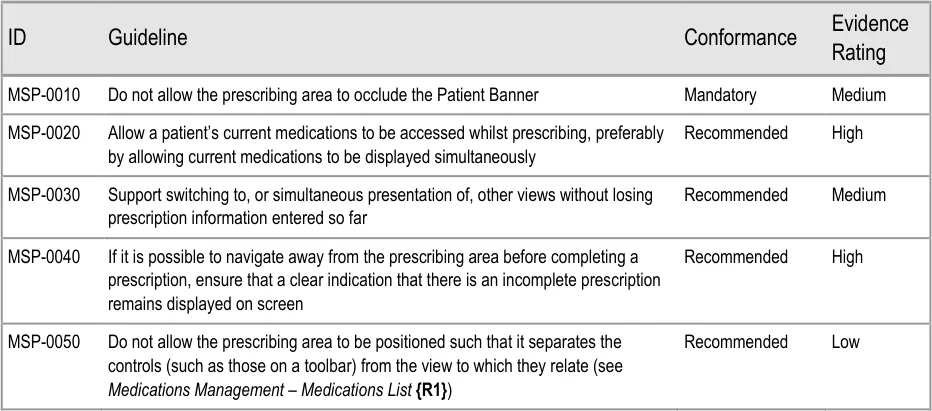
This section describes important considerations when accessing other views whilst entering information into a prescription form. For example, views such as those for checking other medications, current diagnoses, allergies and test results (to name a few) may be essential to inform the prescribing process.
Views that are displayed concurrently with prescribing should be assessed to check for patient safety risks introduced by the interactions (or perceived interactions) between the two views and by the impact of restricting the dimensions of any view that would normally be displayed full screen.
Page 20
Copyright ©2013 Health and Social Care Information Centre
HSCIC Controlled Document
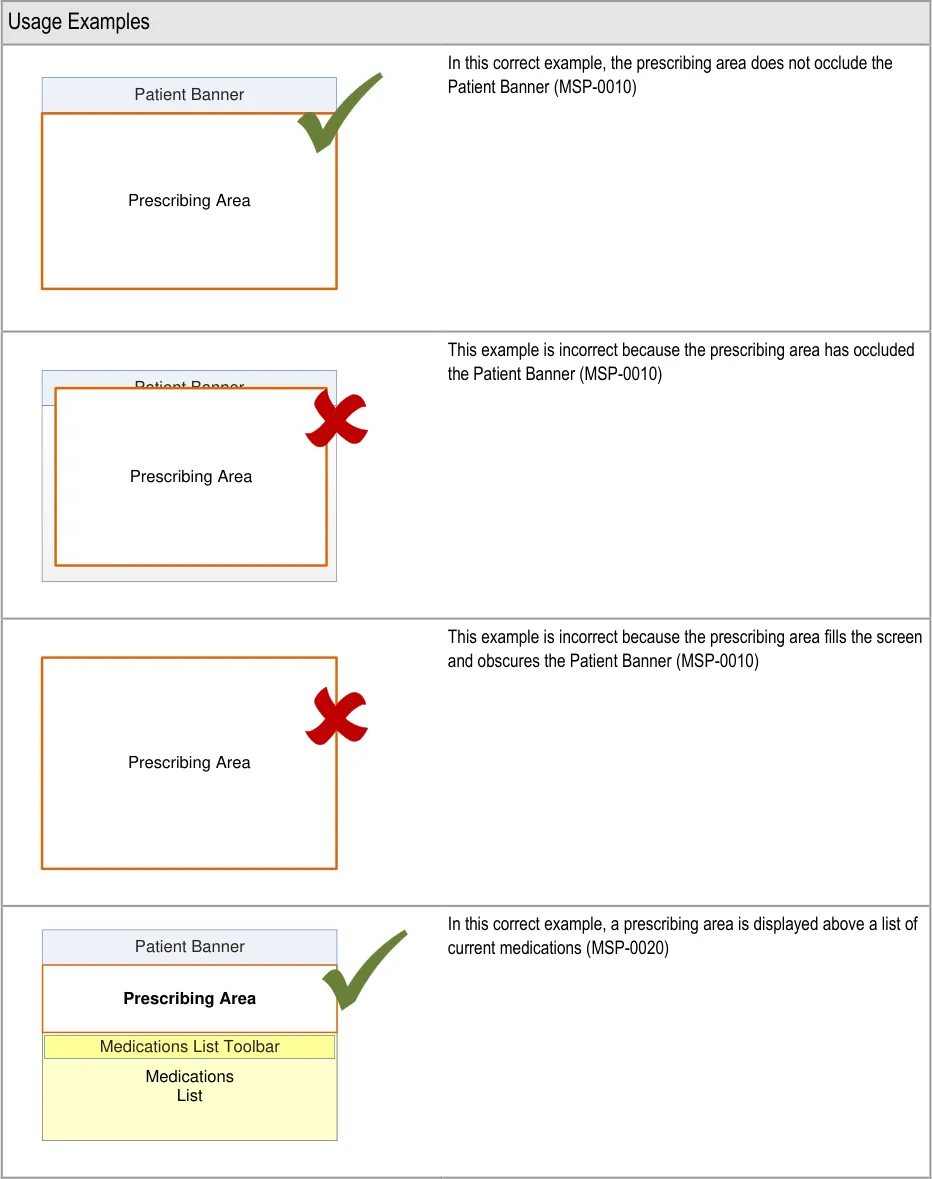
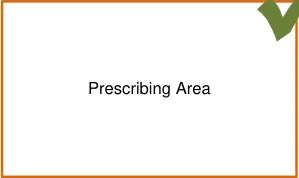
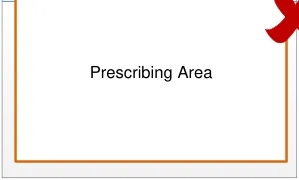
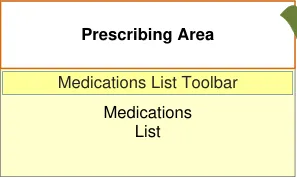
| Col1 | Col2 |
|---|---|
| Pres | cribing Area |
Page 21
Copyright ©2013 Health and Social Care Information Centre
HSCIC Controlled Document
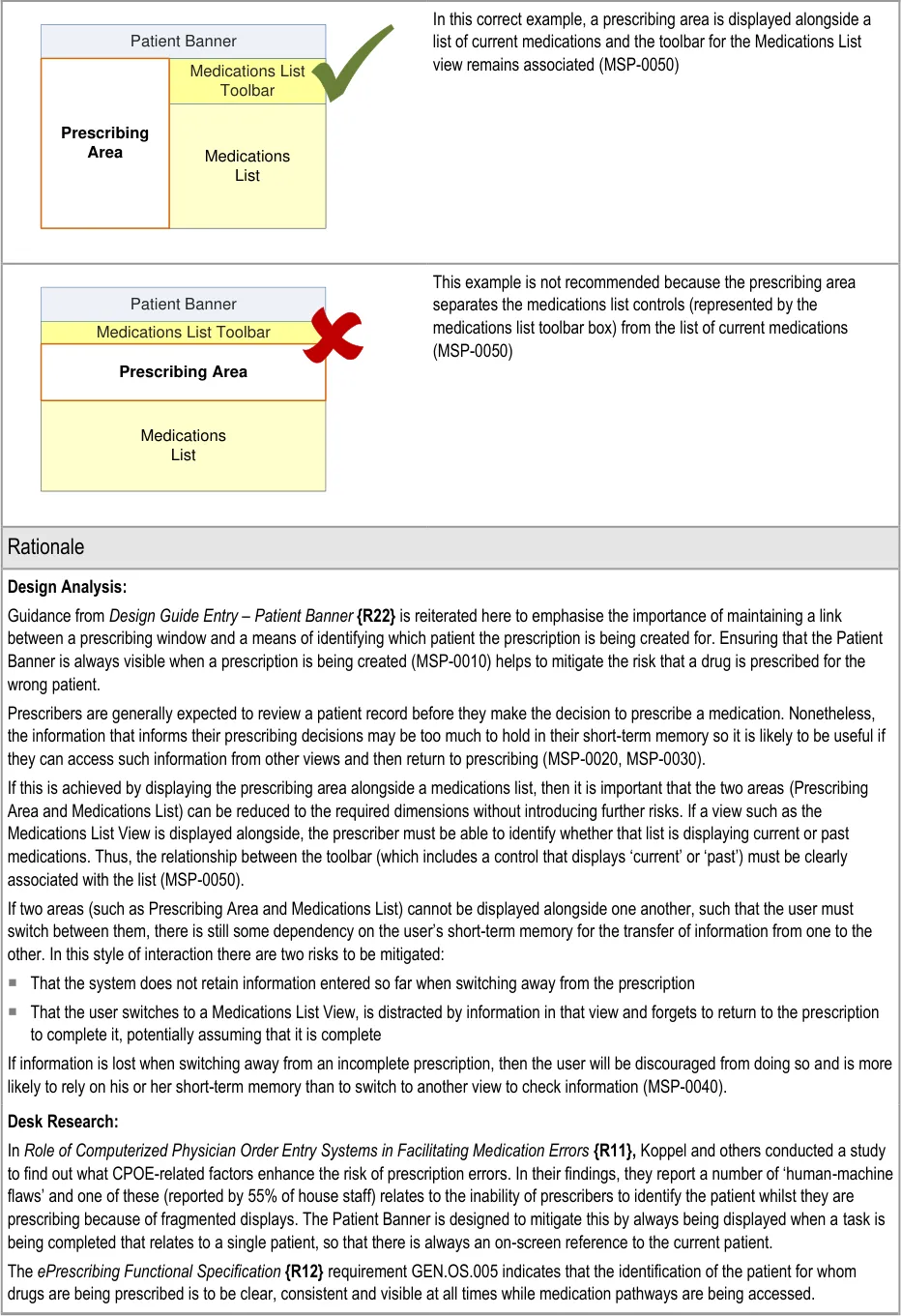
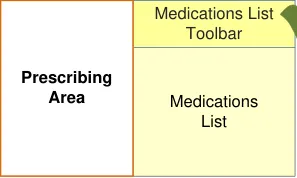
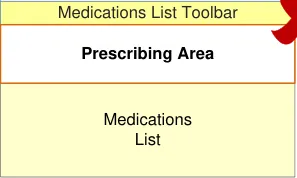
| Patient Banner | Col2 |
|---|---|
| Prescribing Area | Medications List Toolbar |
| Prescribing Area | Medications List |
Page 22
Copyright ©2013 Health and Social Care Information Centre
HSCIC Controlled Document
Guidance in this section is informed by the following Nielsen heuristics {R17} :
Visibility of system status – The Patient Banner clearly communicates the patient for whom the drug is being prescribed and, if the
prescriber switches away from this view, the system maintains a notification on screen so that the prescriber knows that there is an incomplete prescription still open
Recognition rather than recall – By allowing the prescriber to refer to information outside of the prescribing area, there is no need to
rely on recall of any information available in other views
Error prevention – Ensuring that the patient banner is always visible makes it less likely that a drug can be prescribed for the wrong
patient
User control and freedom – If prescribers begin the prescribing process and then find that they need to refer to other information,
such as a test result, during the prescribing process, a system that allows them access to other views during prescribing prevents the need to cancel the prescription and start again
User Research:
In Study ID 69 (see APPENDIX B) the study participants indicated that access to current medications was important during prescribing and that the ability to access this information without having to switch views is preferable.
Page 23
Copyright ©2013 Health and Social Care Information Centre
HSCIC Controlled Document
4 GUIDANCE DETAILS FOR QUICK LISTS
4.1 Introduction
The process of prescribing begins with the selection of a drug to prescribe. Drugs are presented in a Quick List and in search results. The Quick List is displayed when the prescribing process is started and search results are displayed when text is entered into a search text entry box. This section provides guidance for Quick Lists and section 5 provides guidance for searching for drug names.
The guidance in this section is part of the first step in the prescribing process, which is shown with
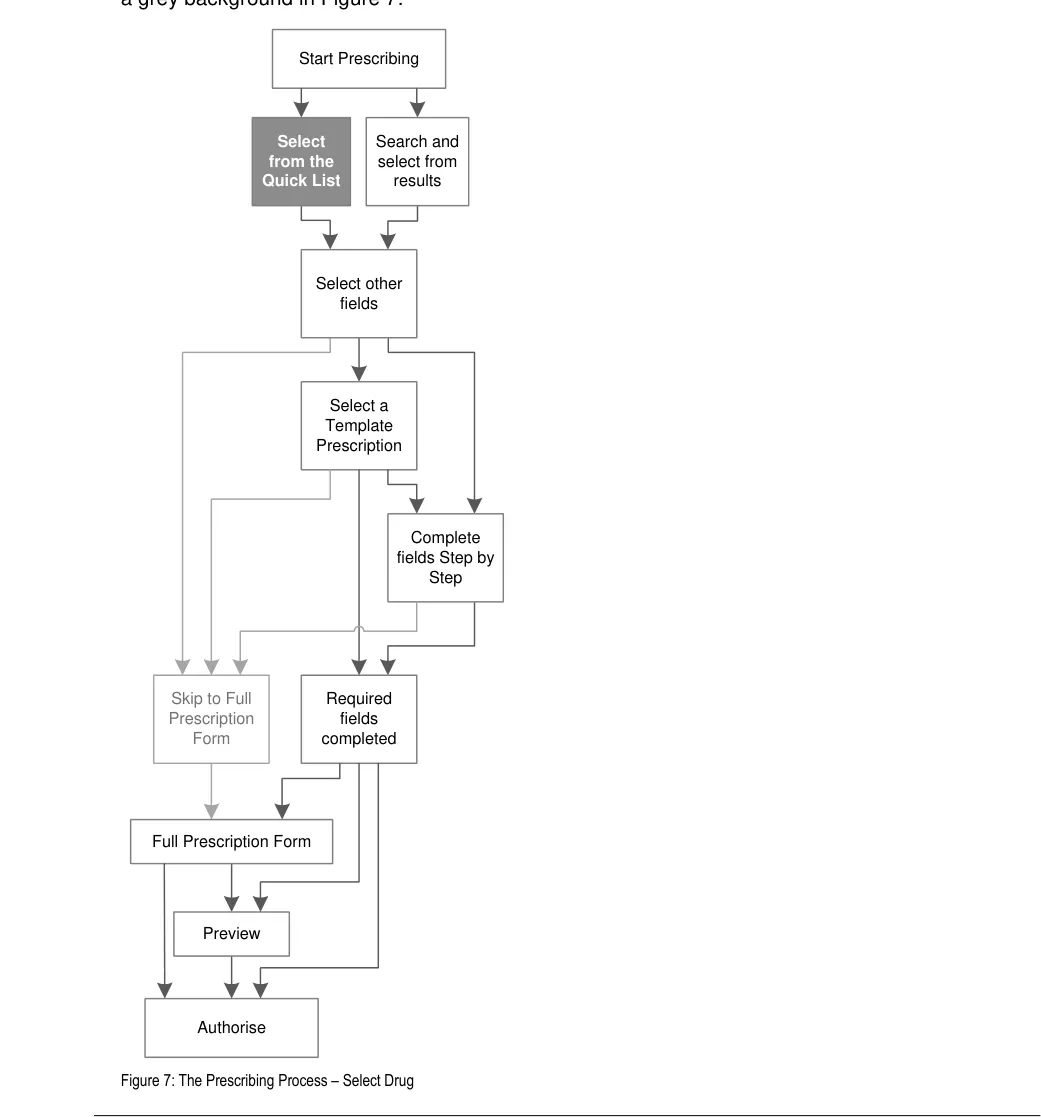
Page 24
Copyright ©2013 Health and Social Care Information Centre
HSCIC Controlled Document
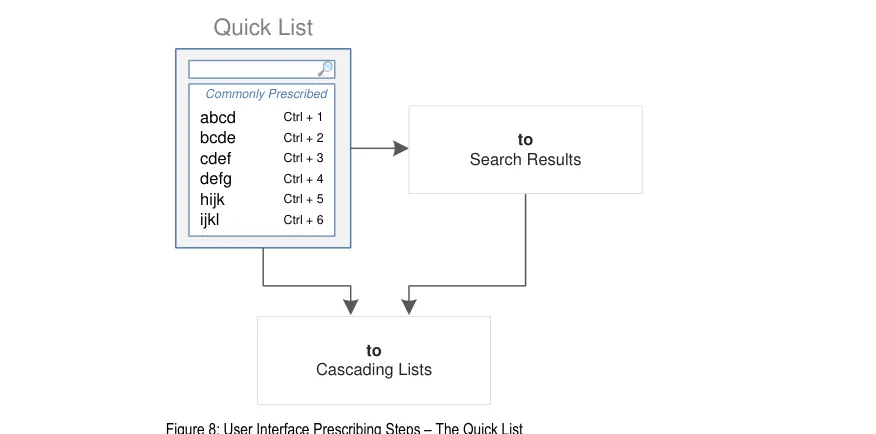
Figure 8 is an extract from Figure 5 to illustrate the user interface prescribing steps covered in this section showing the Quick List step and links to other steps:
4.2 Principles
All guidance is informed by all of the principles for search and prescribe listed in section 2.1. The following are particularly relevant to this section:
- Mitigate the risks of mis-selection and misinterpretation:
Mitigate the risk of incorrect selection of a drug name from the Quick List
Mitigate the potential for the Quick List to be mistaken as a suggested list of drugs to
prescribe
Mitigate the risk of misinterpretation of the Quick List itself and the list items within it
- Maximise safety in the absence of decision support systems by designing for the reduction
of errors from invalid or inappropriate selections or entries:
The Quick List allows drug names to be presented at the start of the prescribing
process
Page 25
Copyright ©2013 Health and Social Care Information Centre
HSCIC Controlled Document
4.3 Guidelines
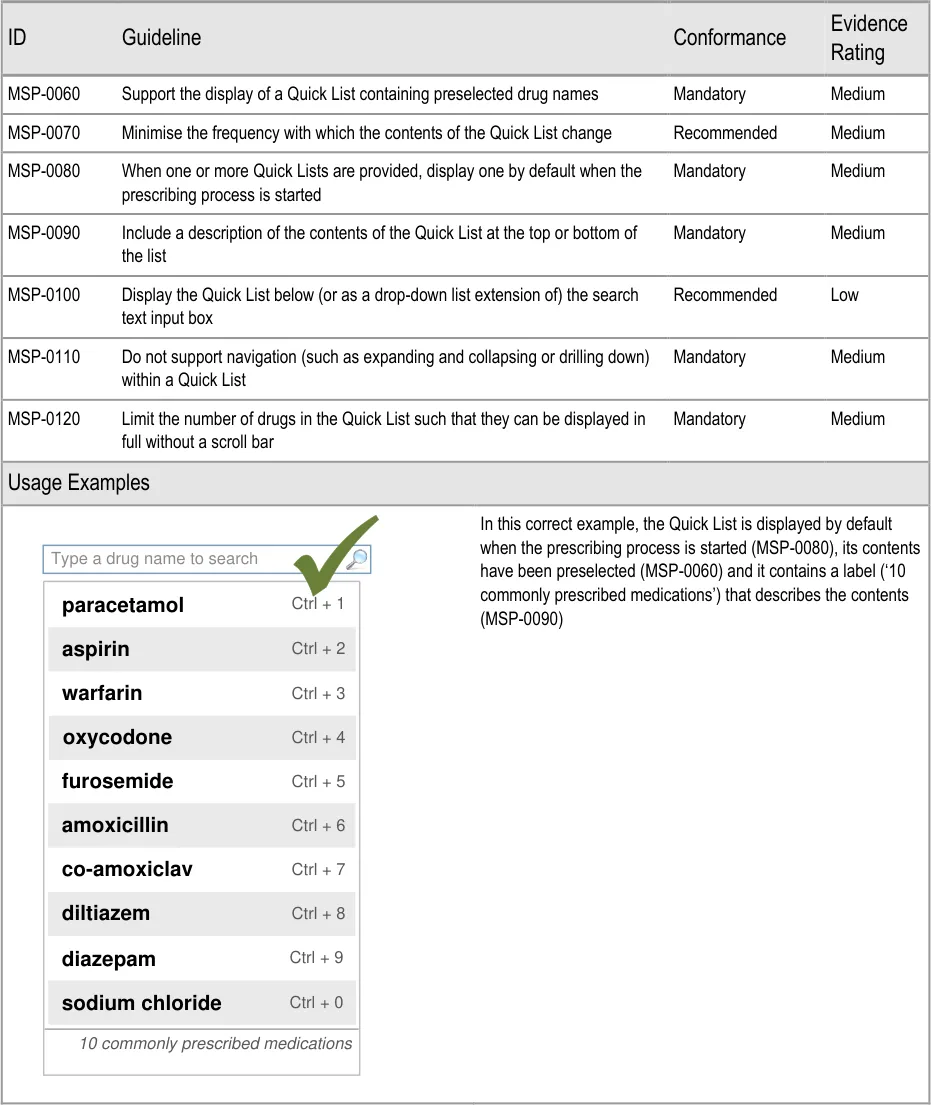
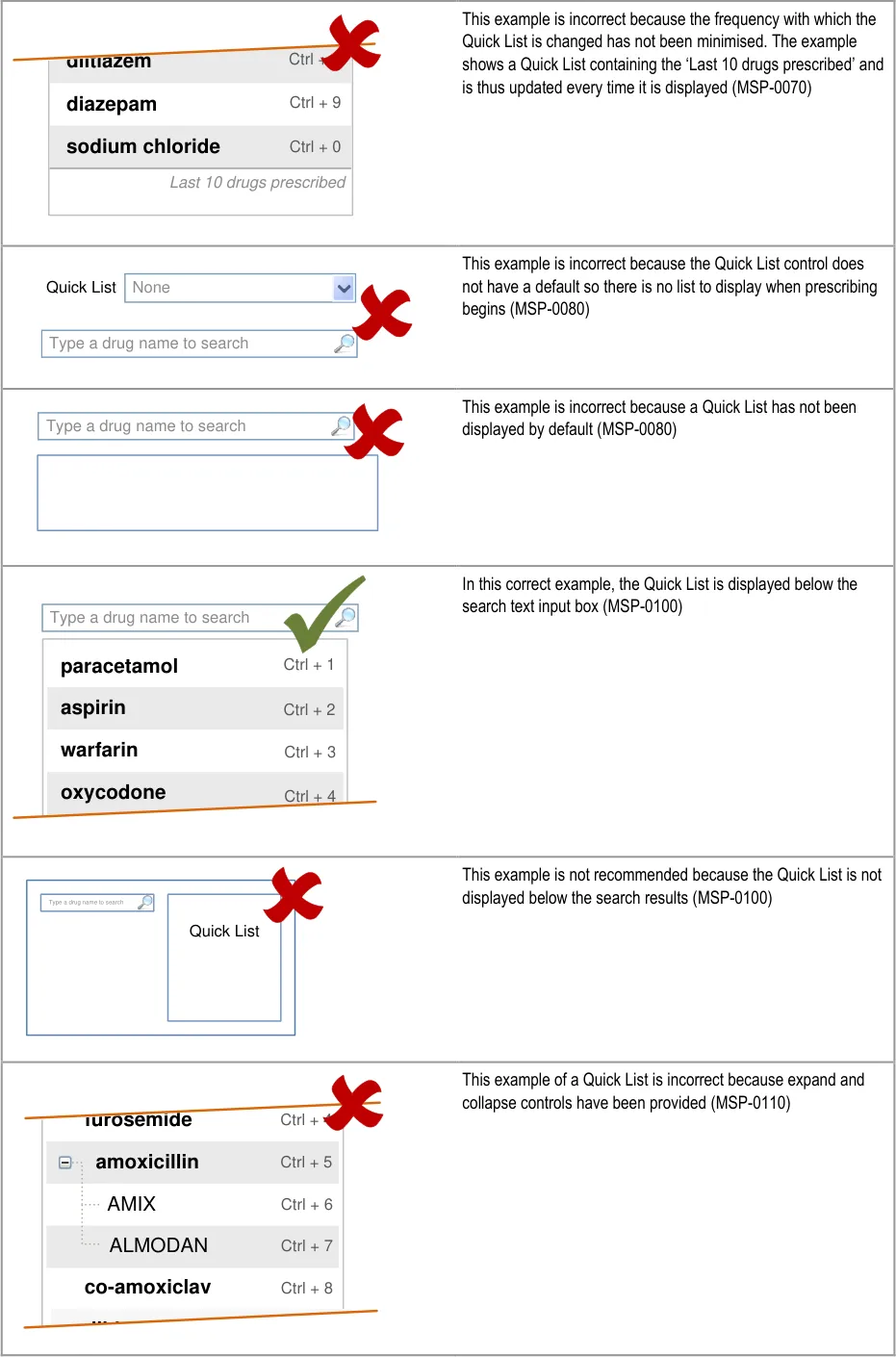
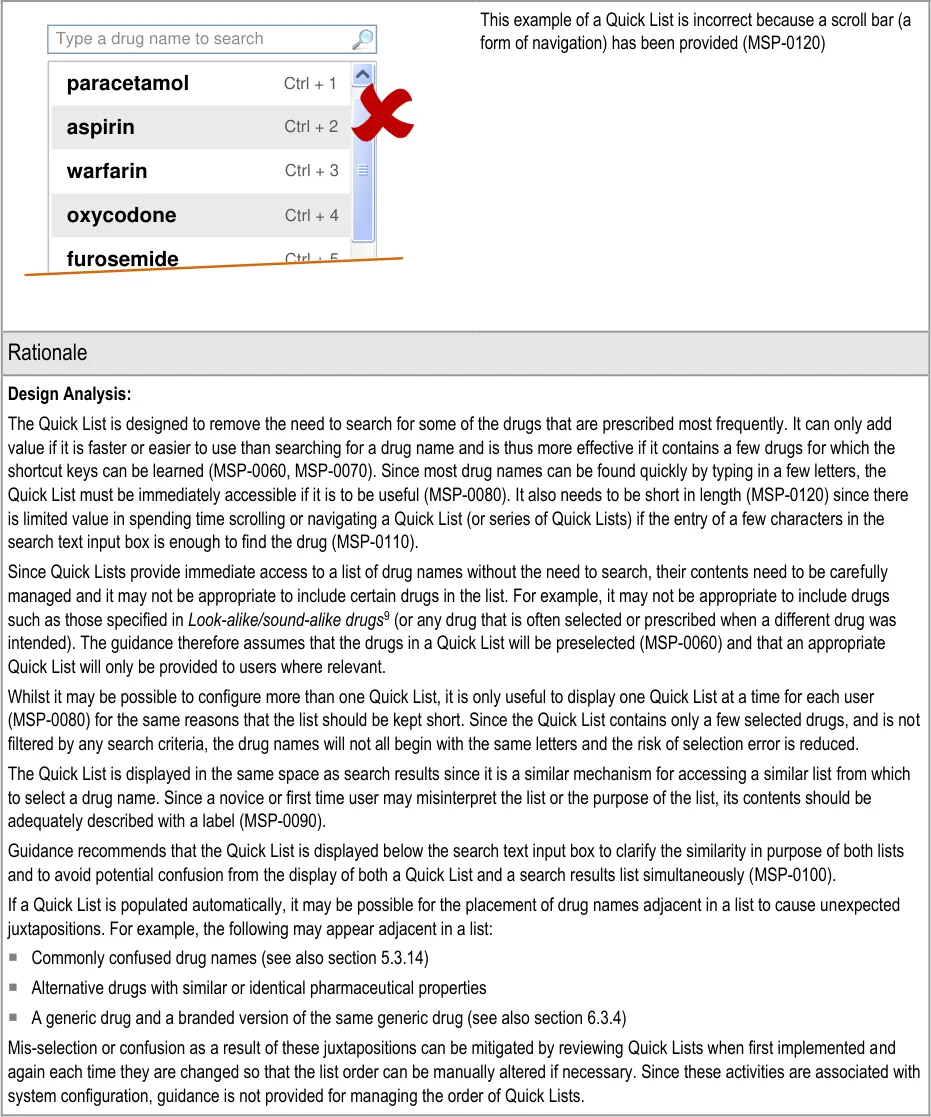
4.3.1 Displaying a Quick List
Page 26
Copyright ©2013 Health and Social Care Information Centre
HSCIC Controlled Document
Page 27
Copyright ©2013 Health and Social Care Information Centre
HSCIC Controlled Document

9 The Joint Commission – National Patient Safety Goals – NPSG.03.03.01 – Look-alike/sound-alike drugs {R23} : http://www.jointcommission.org/AccreditationPrograms/BehavioralHealthCare/Standards/09_FAQs/NPSG/Medication_safet y/NPSG.03.03.01/look_alike_sound_alike_drugs.htm
Page 28
Copyright ©2013 Health and Social Care Information Centre
HSCIC Controlled Document
Desk Research:
The ePrescribing Functional Specification {R12} includes a requirement (GEN.OS.082) in which it is stated that lists of favourite drugs should not be produced by individual users without their contents being reviewed and potentially updated centrally. Guidance for the Quick List (MSP-0060) reflects this principle of maintaining central control.
Guidance in this section is informed by the following Nielsen heuristic {R17} :
Flexibility and efficiency of use – A Quick List allows the prescriber to select a drug from a list instead of having to search for it,
without impacting the efficiency of the process of searching for a drug. (The Quick List is displayed by default and no extra steps are needed to dismiss it before starting a drug search.)
User Research:
In Study ID 37 (see APPENDIX F), participants who were asked about the Quick List considered it to be useful providing it contained drugs that were relevant to them. The participants estimated that a trust-wide list of commonly prescribed drugs would not be as useful as a list constructed for their specific context or specialty.
Hazard Risk Analysis Summary:
From our Patient Safety Risk Assessment analyses, we identified a number of potential hazards, including the following key risks which are mitigated by the guidance:
Potential Hazards:
The presence of a Quick List
influences the choice of drug inappropriately for inexperienced users
The user thinks that the Quick List is
all there is
Mitigations:
This guidance document includes an assumption (see section 1.3) that prescribers
know what they want to prescribe before they initiate the prescribing process
The limited length of the Quick List (MSP-0120) reduces the number of available
choices. This reduces the likelihood that there will be a drug in the Quick List that is similar to or an alternative for the one that the prescriber has in mind and thus reduces the likelihood that the presence of such a drug may influence choice
If a progressive search is supported (see section 5.3.3), some inexperienced users
may find it easier to type in letters than to read the contents of a Quick List. (It is expected that a Quick List would become more useful over time as users become more familiar with its contents)
Text labels at the top or bottom of the search results list are used to describe the
contents of the list (MSP-0090)
The presence of the search text input box and the in-field prompt within it (see
section 5.3.1) mitigate this risk by clearly indicating that it is possible to search for a drug
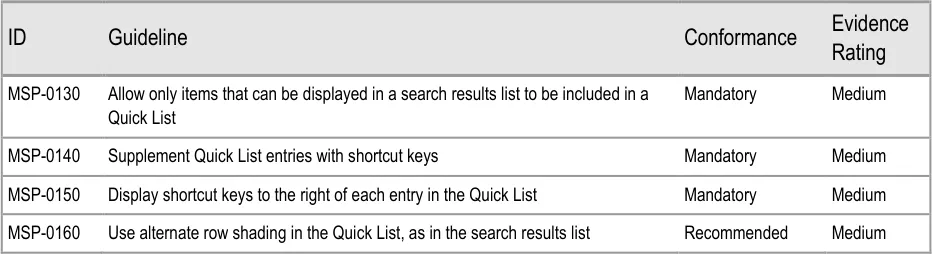
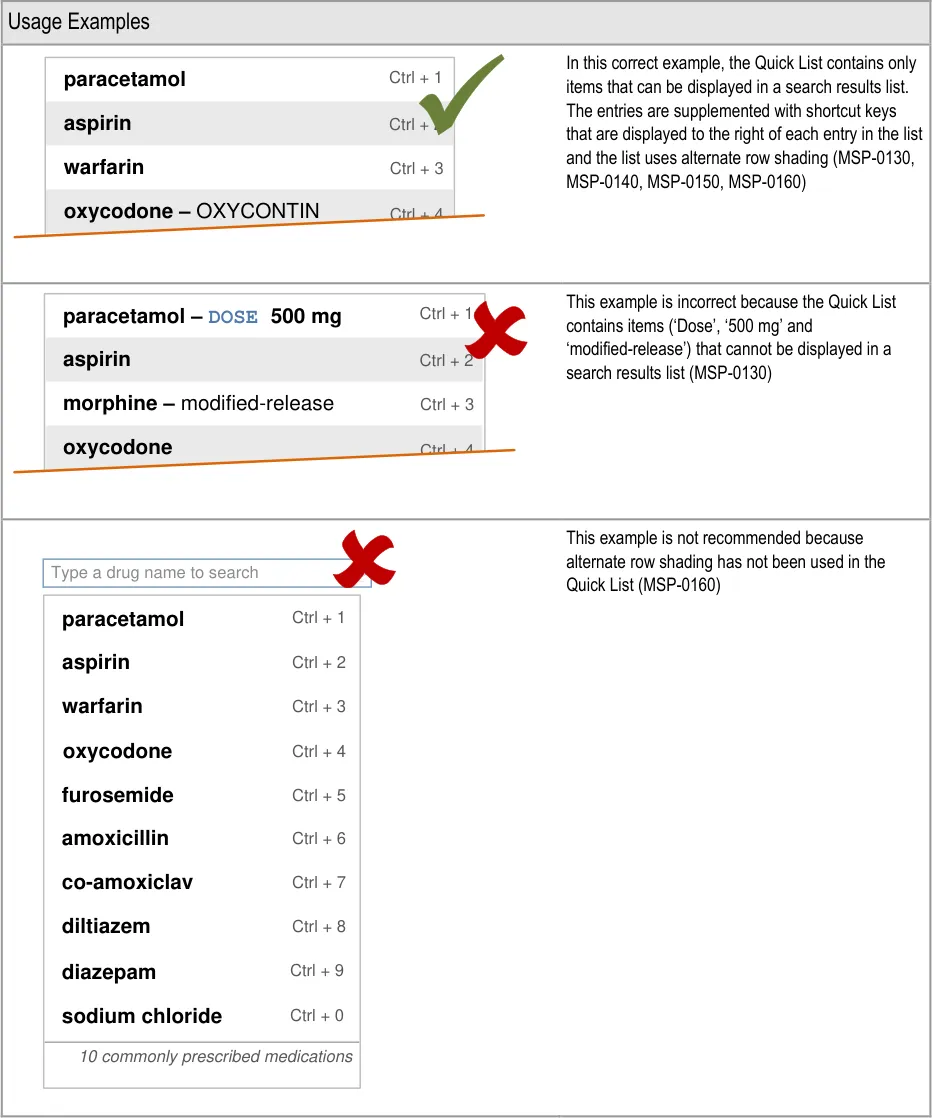
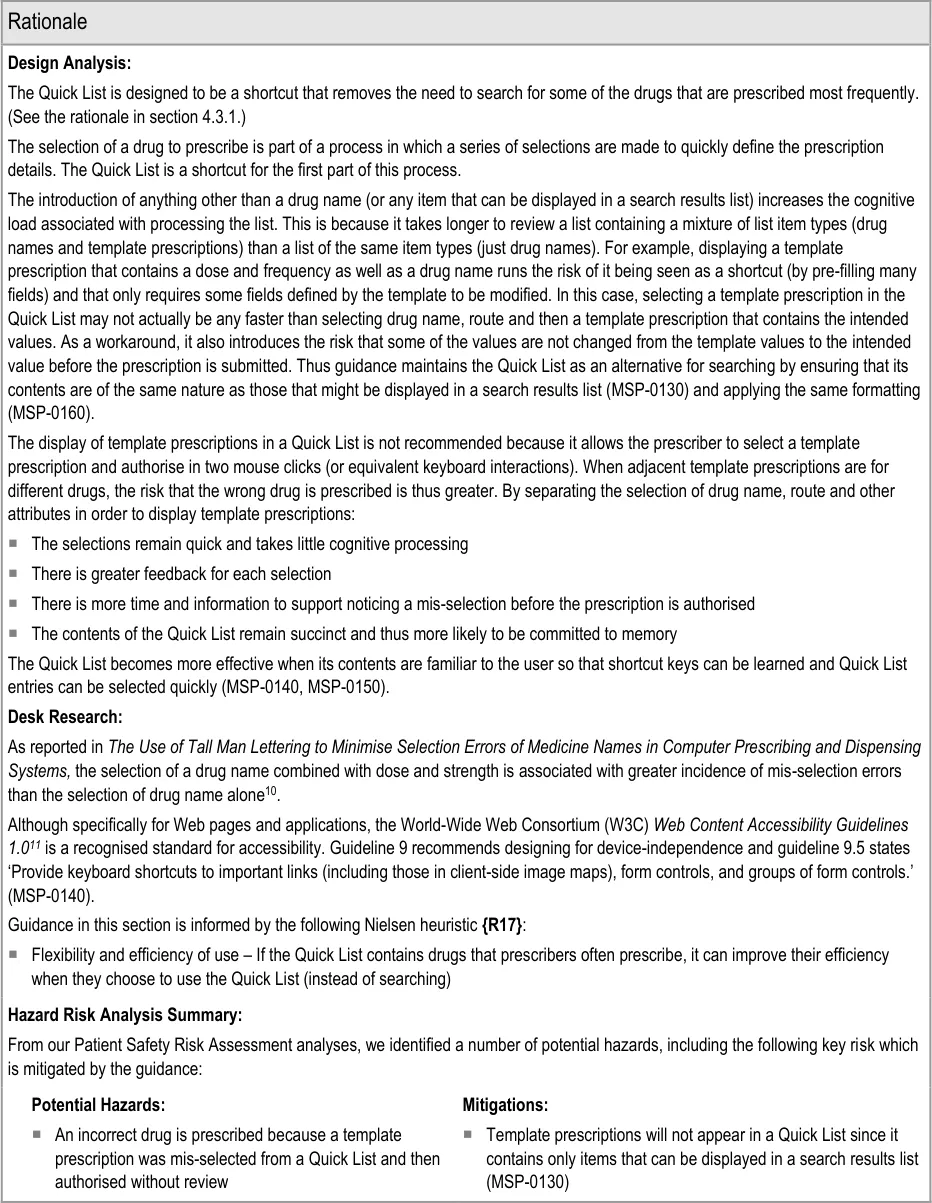
4.3.2 Quick List Contents
Important
This section contains guidance for which there may be alternative solutions. Accordingly, the conformance ratings in this section apply only where the guidance is adopted.
The Rationale section contains a summary of the known risks which are addressed in this section and which must be addressed by any alternative solution. For more information, see the Alternative Design Solutions note in section 1.
Page 29
Copyright ©2013 Health and Social Care Information Centre
HSCIC Controlled Document
Page 30
Copyright ©2013 Health and Social Care Information Centre
HSCIC Controlled Document
10 The Use of Tall Man Lettering to Minimise Selection Errors of Medicine Names in Computer Prescribing and Dispensing Systems {R24} : http://www.ccforpatientsafety.org/patient-safety-solutions/
11 Web Content Accessibility Guidelines 1.0 {R25} : http://www.w3.org/TR/WAI-WEBCONTENT/
Page 31
Copyright ©2013 Health and Social Care Information Centre
HSCIC Controlled Document
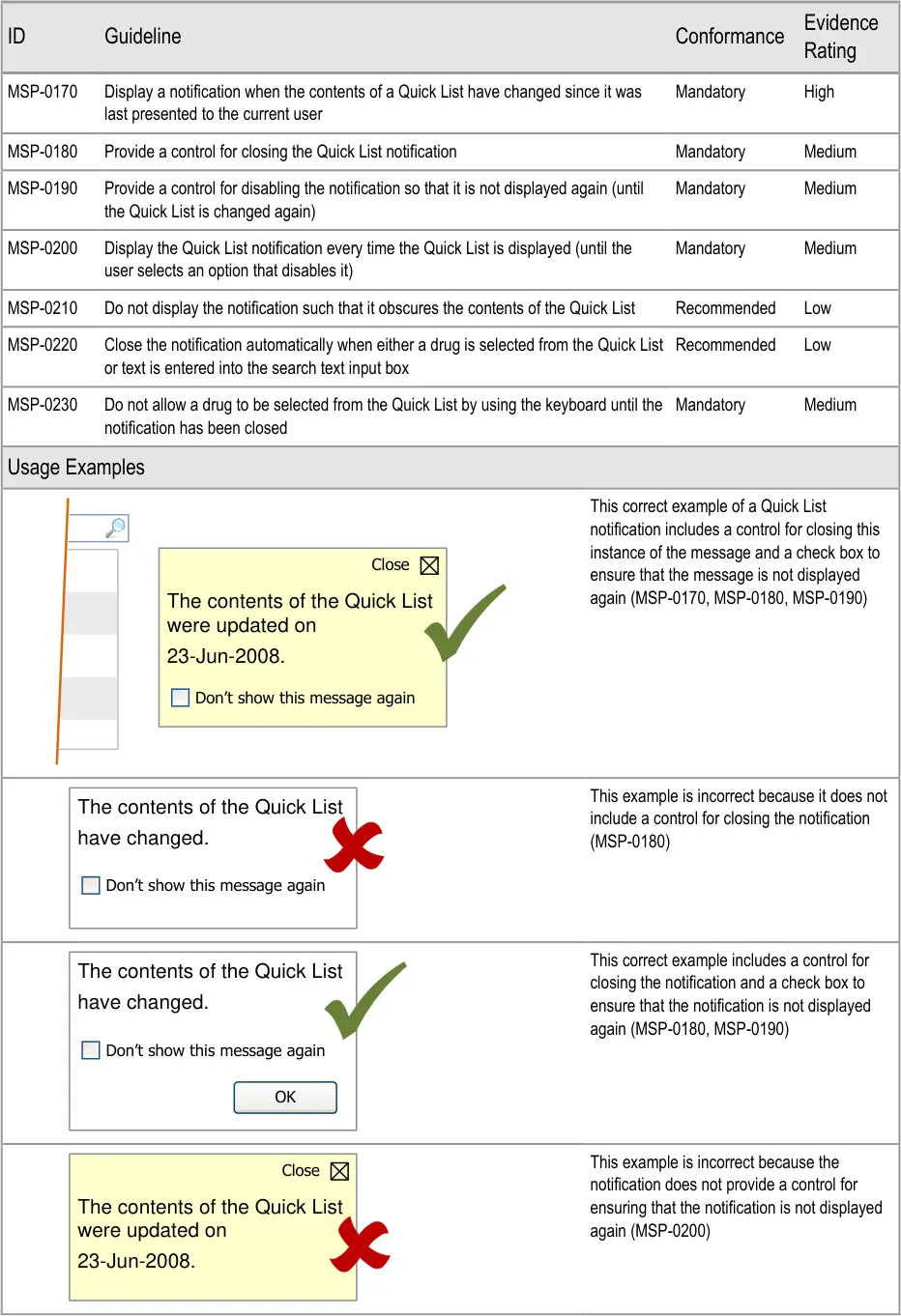
4.3.3 Notifying When a Quick List Has Changed
Page 32
Copyright ©2013 Health and Social Care Information Centre
HSCIC Controlled Document
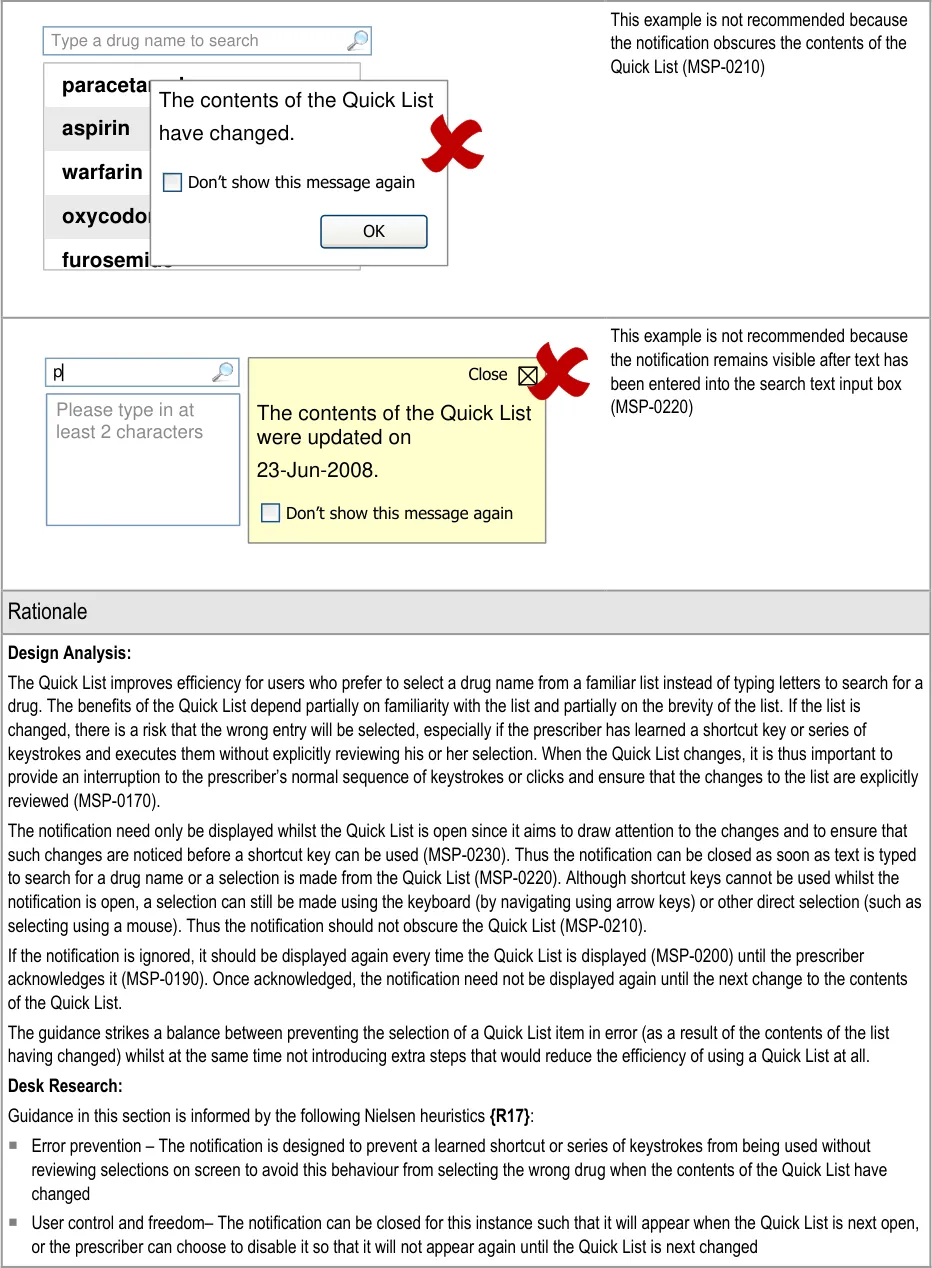
| Type a drug name to search | Col2 | Col3 |
|---|---|---|
| aspirin oxycodone furosemide paracetamol warfarin The contents of the Q have changed. Don’t show this messag | aspirin oxycodone furosemide paracetamol warfarin The contents of the Q have changed. Don’t show this messag | aspirin oxycodone furosemide paracetamol warfarin The contents of the Q have changed. Don’t show this messag |
| aspirin oxycodone furosemide paracetamol warfarin The contents of the Q have changed. Don’t show this messag | ne de mol The contents of the Q have changed. Don’t show this messag | uick List e again OK |
Page 33
Copyright ©2013 Health and Social Care Information Centre
HSCIC Controlled Document
Hazard Risk Analysis Summary:
From our Patient Safety Risk Assessment analyses, we identified a number of potential hazards, including the following key risk which is mitigated by the guidance:
Potential Hazards:
The user becomes over-reliant on
shortcut keys (or sequences of key strokes) and the Quick List has changed
Mitigations:
A notification is displayed when the contents of the Quick List has changed (MSP-0170)
Whilst a notification is displayed, shortcut keys or sequence of key strokes do not result
in the selection of a Quick List entry (MSP-0230)
4.3.4 Accommodating Multiple Quick Lists
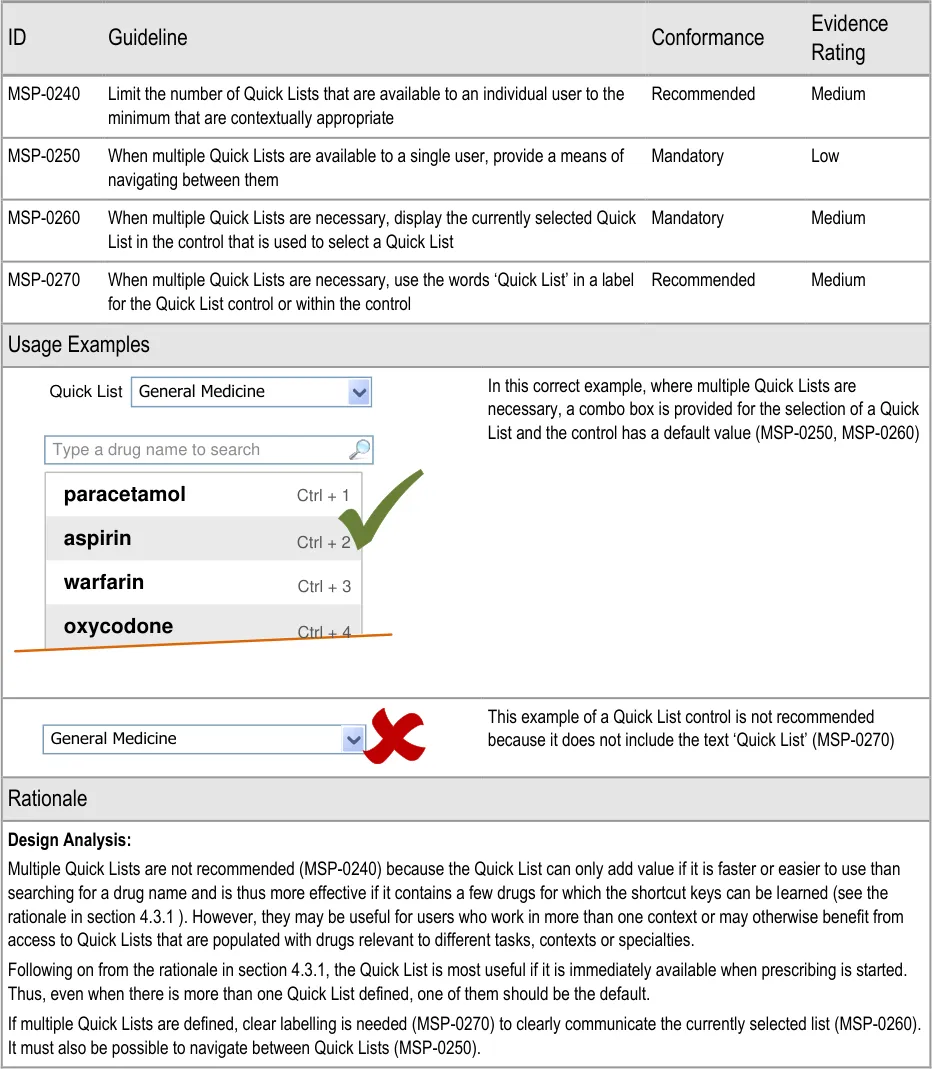
Page 34
Copyright ©2013 Health and Social Care Information Centre
HSCIC Controlled Document
Desk Research:
The ePrescribing Functional Specification {R12} includes a requirement (GEN.OS.082) to support the display of different formularies for specific users, groups of users, specialties or locations. Whilst formularies are out of scope, the principle of providing access to multiple manually defined lists is reflected by the guidance in this section.
Guidance in this section is informed by the following Nielsen heuristic {R17} :
Flexibility and efficiency of use – Access to more than one Quick List avoids an inappropriately constrained Quick List
User Research:
All participants in Study ID 37 (see APPENDIX F) considered the Quick List to be useful for specific areas (such as on a post-operative cardiac ward or for the management of anaemia) in which there can be relatively small variation in prescribing. However, participants also pointed out that some staff work in a variety of situations that might require different lists. For these situations, it may be relevant to allow the context to define which Quick List is displayed or to allow the user to select an appropriate Quick List (that may then remain the default for that session).
Page 35
Copyright ©2013 Health and Social Care Information Centre
HSCIC Controlled Document
5 GUIDANCE DETAILS FOR DRUG SEARCH
5.1 Introduction
This section and section 4 provide guidance for the selection of a drug to prescribe (from a Quick List or from search results). Section 4 provides guidance for Quick Lists. This section provides guidance for searching for drug names, displaying a list of search results and selecting a drug to prescribe.
The guidance in this section is part of the first step in the prescribing process, which is shown with
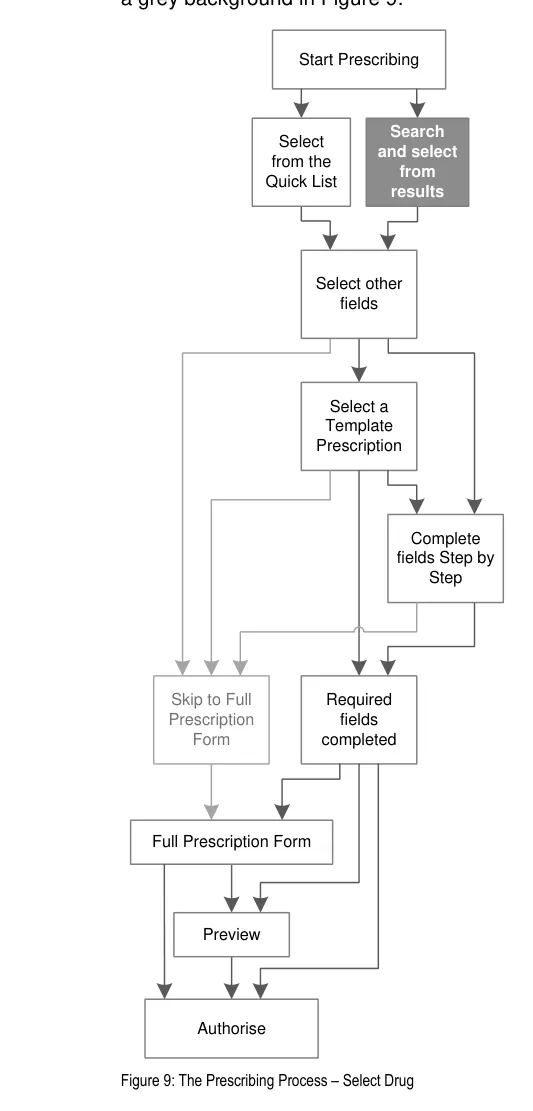
Page 36
Copyright ©2013 Health and Social Care Information Centre
HSCIC Controlled Document
The following prescribing tasks were used to inform assessment of design alternatives in order to maintain an appropriate focus during the development of guidance:
-
Find a drug that I prescribe every day
-
Find a drug when I only know the brand name
-
Find a drug that contains more than one ingredient and I only know one of them
-
Find a drug to prescribe when the name of the drug has changed or is misspelled
-
Select a medication from a list of search results containing medications that are easily
misread or confused with another drug name
These prescribing tasks address specific known patient safety hazards associated with electronic prescribing and ensure that guidance is user-focused.
The following tasks were used as a checklist during the creation of the guidance to ensure that it remained sufficiently flexible:
- Prescribing very long drug names with an unusually large number of characters (for
example, ‘Diphtheria + Haemophilus influenzae type B + Pertussis + Poliomyelitis + Tetanus vaccine’)
- Less common prescribing practices requiring greater user control (for example, prescribing
a medication with an unusual or unlicensed route)
- Defining search criteria which have a large number of matches to display in the search
results
- Working with a prescribing area when screen space is limited
This guidance aims to mitigate the following patient safety hazards:
-
Risk of mis-selection when drug names that look or sound similar are displayed in a list
-
Risks associated with lack of familiarity with combination drugs (co-drugs)
-
Risks associated with the display of, and navigation within, long lists
Figure 10 is an extract from Figure 5 and illustrates the user interface prescribing steps that are covered in this section showing the drug search step and links to and from other steps:
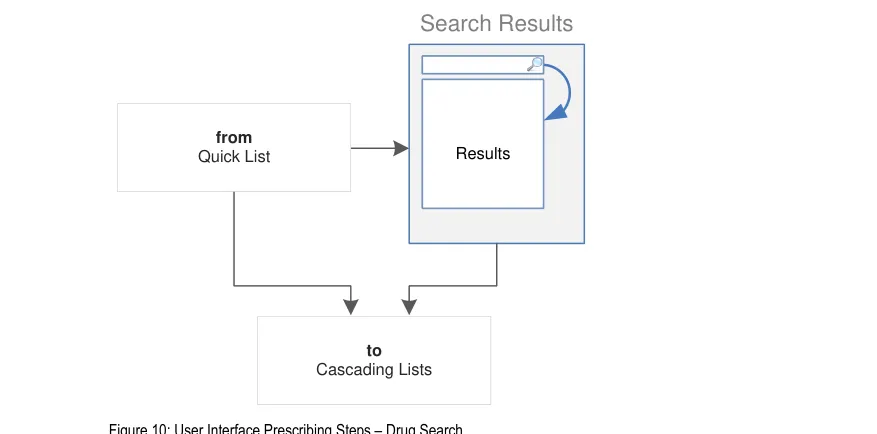
Copyright ©2013 Health and Social Care Information Centre
Page 37
HSCIC Controlled Document
5.2 Principles
All guidance is informed by all of the principles for search and prescribe listed in section 2.1. The following are particularly relevant to this section:
- Mitigate the risks of incorrect selection and misinterpretation:
A limited list height, coupled with progressive searching (the progressive updating of search results as more letters are typed) encourages selection of drug names from shorter lists
Formatting of drug names that are known to be mis-selected and the use of supplementary text in search results helps to avoid potential misinterpretation
The potential for misinterpretation is mitigated by encouraging a simple user interface in which the need for copious or complex user interface elements (such as controls and labels) is minimised
- Increase efficiency by prioritising the prescription of commonly prescribed medications over
less commonly prescribed medications:
Guidance for drug search results lists encourages the prioritisation of results so that commonly prescribed medications can appear higher in the list
- Maximise safety in the absence of decision support systems by designing for the reduction
of errors from invalid or inappropriate selections or entries:
Search results can be formatted and supplemented with additional text (such as the
ingredients of a co-drug) to help avoid inappropriate selections
Handling of generic and brand names ensures that a brand name cannot be prescribed
without the generic name being displayed, allowing generic equivalents to be prescribed and encouraging generic prescribing
- Adhere to a user interface strategy that gives the impression of making progress within a
single space (which has all the necessary information immediately or readily available) and avoids the impression of needing to move between many different spaces:
When search results lists are extended (so that all results can be seen instead of only
the first page), the list is expanded in context
The search results are displayed such that they replace the Quick List
Page 38
Copyright ©2013 Health and Social Care Information Centre
HSCIC Controlled Document
5.3 Guidelines
5.3.1 Positioning the Search Text Input Box
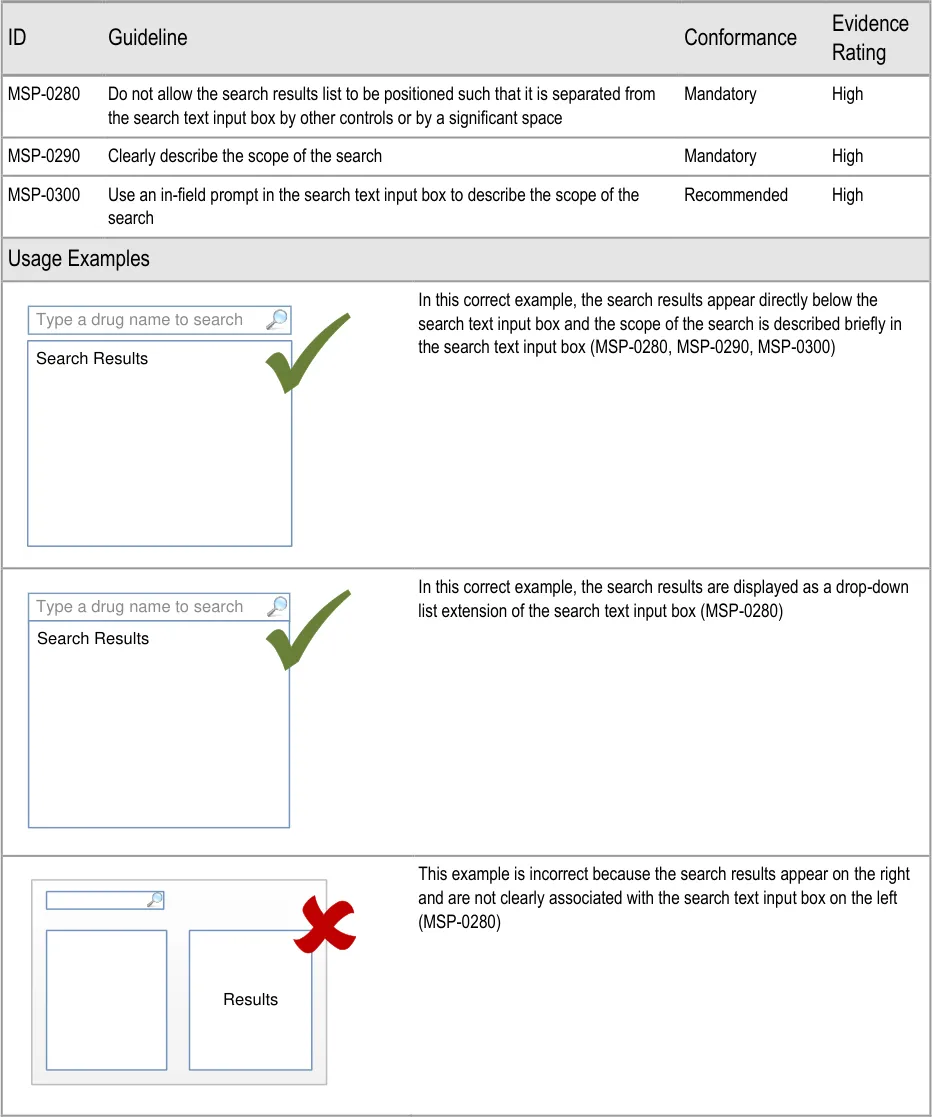
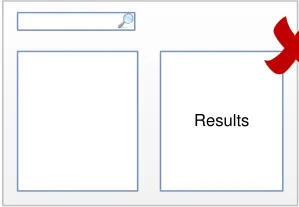
Page 39
Copyright ©2013 Health and Social Care Information Centre
HSCIC Controlled Document
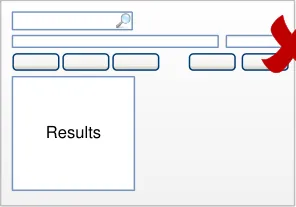
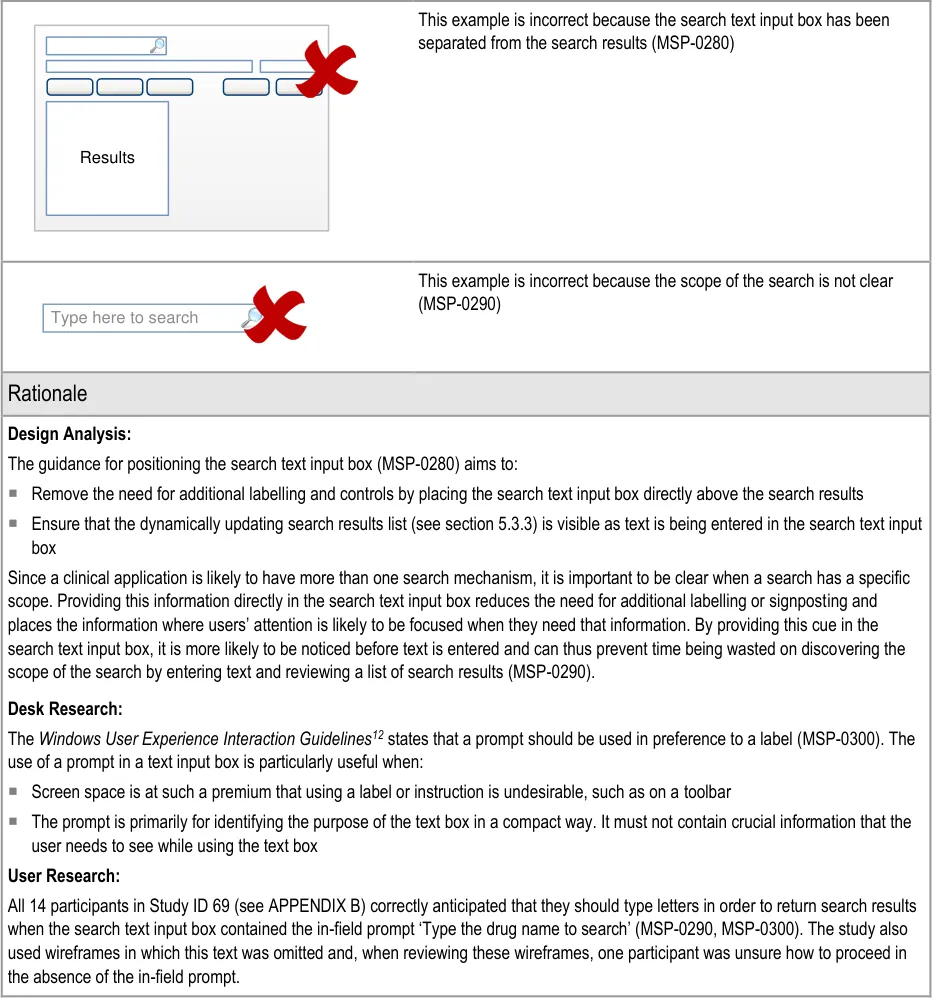
12 Microsoft – Windows User Experience Interaction Guidelines – Guidelines, Controls, Command Buttons {R26} : http://msdn.microsoft.com/en-us/library/aa511453.aspx#defaults
Page 40
Copyright ©2013 Health and Social Care Information Centre
HSCIC Controlled Document
5.3.2 Defining Text Input Box Behaviour
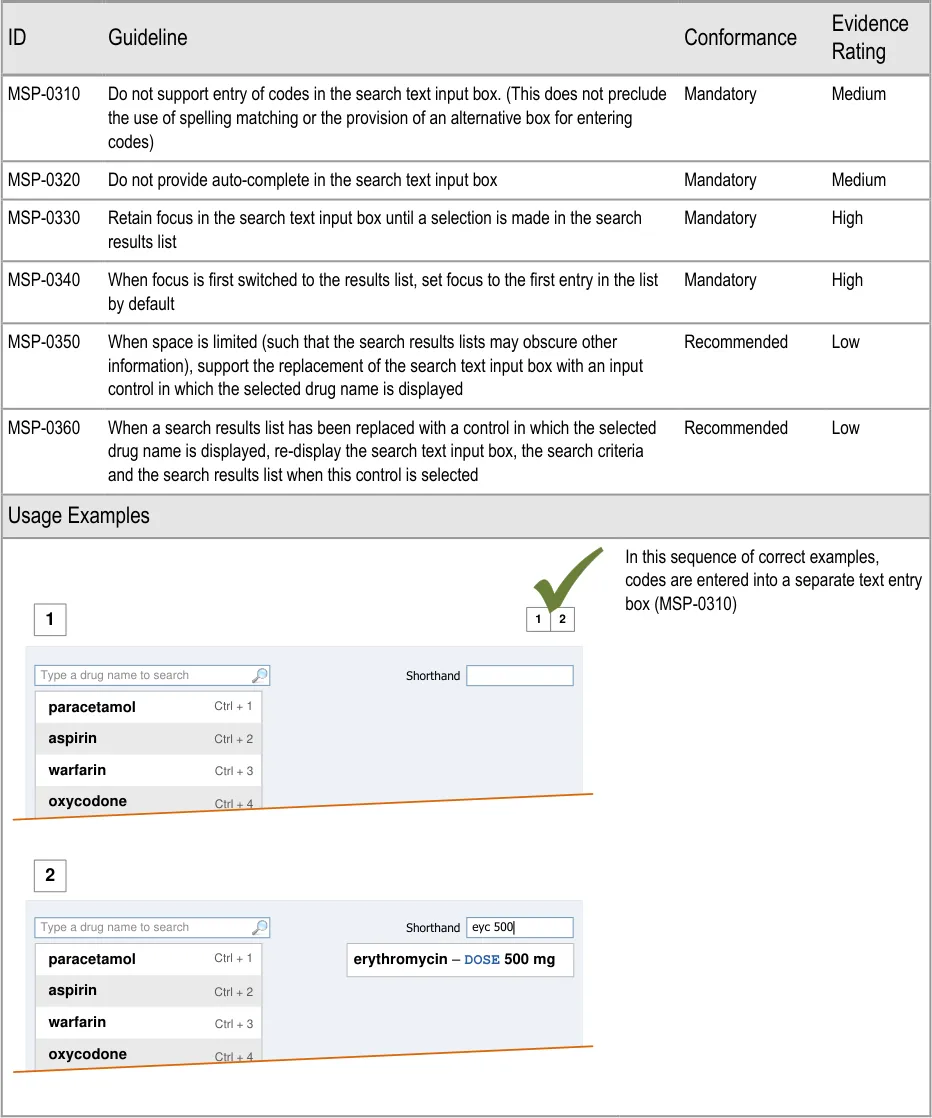
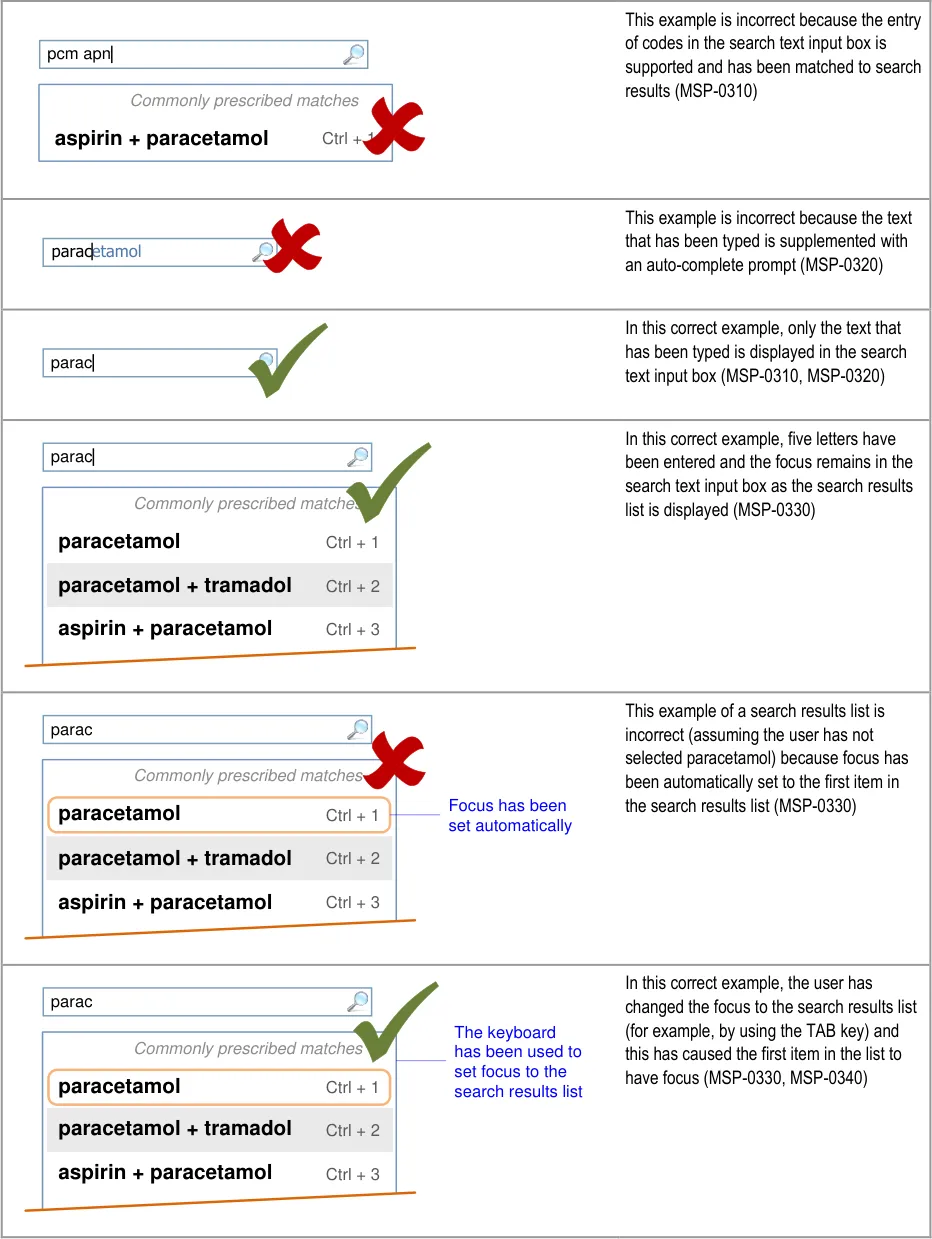
This section includes guidance that refers to the use of codes to search for drugs. Codes are arbitrary or ad-hoc sets of numbers or letters that are typed into a search text input box in order to quickly access a specific drug name.
Page 41
Copyright ©2013 Health and Social Care Information Centre
HSCIC Controlled Document
Page 42
Copyright ©2013 Health and Social Care Information Centre
HSCIC Controlled Document
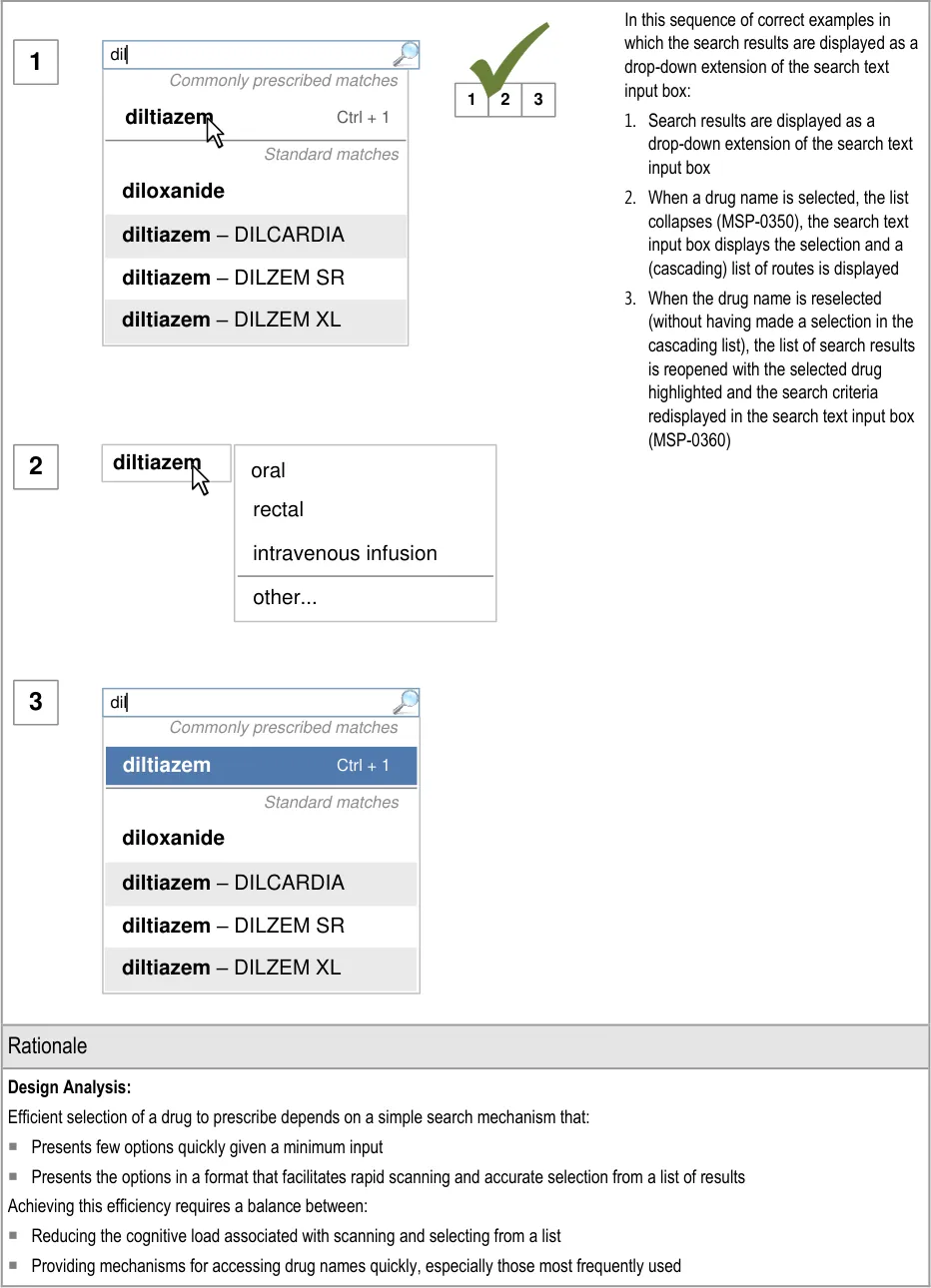
| diltiazem | oral rectal intravenous infusion |
|---|---|
| diltiazem | other… |
Copyright ©2013 Health and Social Care Information Centre
Page 43
HSCIC Controlled Document
Design Analysis for Coded Entry versus Progressive Search:
The guidance is informed by a limited analysis using Keyboard-Level Model — Goals, Objects, Methods and Selection (KLM-GOMS) {R27} of alternative mouse and keyboard focused approaches. This included the use of both coded entry and cascading selection (see section 6). Whilst the analysis was not detailed enough to predict times taken to select a drug in each design, it suggested that the use of coded entry could be about one second faster than cascading selection using keyboard shortcuts. However, coded entry is not without potential problems (see paragraphs below).
Coded entry is a mechanism for quick prescribing that depends on recall of codes for a limited number of drugs. It speeds up the process of prescribing by minimising the need to read, navigate and select from lists, especially for frequently prescribed medications. Coded entry is useful in a system that presents long lists from which selections need to be made or have complex processes for finding a drug to prescribe.
This guidance presents a framework that provides alternative mechanisms for search and selection that help to:
Reduce the lengths of lists
Prioritise commonly prescribed drugs
Minimise characters needed in the search text input box
Provide additional alternative accelerators for quick access to commonly prescribed drugs and predefined prescriptions
When these mechanisms are combined, they help to reduce the cognitive load of the user, are comparable to coded entry for frequently prescribed drugs and provide additional benefits for finding all drugs.
However, when combined with spelling matching, coded entry may increase the risks of misinterpretation and mis-selection, since the relationship between codes entered and matches in the results list is difficult to communicate with clarity. Other issues with coded entry include:
The need to create and maintain a list of codes
Ensuring consistency in the creation of codes
Providing an effective mechanism for alerting users when codes have changed
Avoiding clashes between codes and spelling matches
If coded entry is used, a separate control or area is needed for entering codes to provide support for feedback as codes are being entered. The provision of a control for entering codes must be separate from the search text input box (MSP-0310). This allows feedback to be provided as codes are entered and can be used to mitigate issues such as misinterpretation, mis-selection and ‘clashes’ between codes and spelling matches.
Design Analysis for Auto-Completion :
Auto-completion is effective for minimising the number of letters that need to be typed before a specific result is found and selected but may increase the risk of mis-selection. A progressive search achieves similar benefits (see section 5.3.3), but instead of providing a single match, like auto-complete, it requires a selection to be made from a list. Auto-complete introduces the risk that:
An auto-completed drug name is accepted unintentionally
The auto-complete suggestion may inappropriately influence the prescriber’s choice
Unlike a static search (that requires the text to be submitted before results are displayed), entering additional characters in progressive matching reduces the number of search results. Editing those characters also changes the search results. Efficient editing of the search text requires that the focus remains in the search text entry box. This avoids the need to navigate from the search results list back to the search text input box before additional text can be typed or existing text edited (MSP-0320).
Desk Research:
Guidance in this section is informed by the following Nielsen heuristic {R17} :
Error prevention – Avoiding typing codes into a search text input box, reduces the potential for display of unintended matches in a
search results list
Hazard Risk Analysis Summary:
From our Patient Safety Risk Assessment analyses, we identified a number of potential hazards, including the following key risk which is mitigated by the guidance:
Potential Hazards:
Auto-complete prompts the user to select
inappropriately
Mitigations:
MSP-0320 mandates that auto-complete is not used in a drug search
text entry box
Page 44
Copyright ©2013 Health and Social Care Information Centre
HSCIC Controlled Document
5.3.3 Displaying Results with Progressive Matching
| Col1 | Evidence ID Guideline Conformance Rating |
|---|---|
| MSP-0370 Display results using progressive matching where possible Recommended Medium | |
| MSP-0380 In the absence of progressive matching, provide a static search that submits text in the search text input box by pressing the ENTER key and/or activating a control (such as a button) to submit the search Recommended High | |
| Usage Examples | |
In this correct example, the search results list shortens as more letters are typed in so that there are fewer matches (MSP-0370) 1 2 fi filgrastim filnar morphine– FILNARINE morphine– FILNARINE 1 2 | |
In this correct example of a search that does not have progressive matching; a button has been provided for displaying the search results (MSP-0380) fi filgrastim morphine– FILNARINE Search | |
| Rationale | |
| Design Analysis: Guidance on the search results list (and Quick List) aims to: Encourage a search-based approach to finding drug names Support only limited browsing Limit the cognitive steps for selecting a drug to prescribe A progressive search (MSP-0370) improves the efficiency of the user by supporting strategies, such as typing in letters, until the search results are short enough for the desired result to be noticeable in the search results list. This helps the user make the selection quickly and easily. This approach allows attention to move quickly between the search text input box and the search results. This is considered to be more efficient than a static search in which attention shifts from the text input box to search results and back in a more sequential way. Selection of all the text entered in the search text input box is easier in a static search, since returning focus to the search text input box automatically selects the whole contents and allows it to be replaced with new text. The need to retain focus in the search text input box to support adding and correcting of individual letters is a more common need than to replace the entire contents of the search text input box. Where technology cannot support a progressive search, a static search may be provided in which search criteria are submitted by using a button (MSP-0380). This approach is less effective as a tool for accessing shorter lists since the prescriber must make a decision about how many letters to enter before submitting the search results (rather than responding to the changing list length that is visible in a progressive search). Note A progressive search may support the use of the ENTER key to submit the search criteria in addition to presenting the results automatically (but with a slight delay). |
Page 45
Copyright ©2013 Health and Social Care Information Centre
HSCIC Controlled Document
Desk Research:
Guidance in this section is informed by the following Nielsen heuristic {R17} :
Flexibility and efficiency of use – The progressive search allows users to access a short list of search results faster. The short list
reduces cognitive load thus reducing the time it takes for them to find and select the drug to prescribe
Hazard Risk Analysis Summary:
From our Patient Safety Risk Assessment analyses, we identified a number of potential hazards, including the following key risks, some of which are mitigated and some partially mitigated by the guidance:
Potential Hazards:
A drug name is mis-selected in
the search results list
A drug name is mis-selected
because it appears next to or in the same list as a look-alike or sound-alike drug name
The scroll bar in a list of search
results is not noticed and the prescribers assume that the drug they want is not available for prescribing
A long list of search results is
returned and an inappropriate selection is made in preference to navigating further through the list
Alternate row shading is mistaken
for selection or highlighting when there are only two or three list items in a list or section
Mitigations:
This risk is not wholly mitigated by guidance
Search results are prioritised (see section 5.3.12) and listed in matched order before
alphabetical order to maximise logical grouping (see section 5.3.8)
The list is limited in length (see section 5.3.5) and progressive matching is
recommended (MSP-0370) to encourage selection from shorter lists
Progressive matching encourages the typing of more letters for shorter lists of search
results (MSP-0370)
Search results lists are limited in height (see section 5.3.5)
Drugs are displayed by searching and search results are matched to the beginnings of
words so search results share the same initial letters (see section 5.3.7)
Search results are ordered such that generic names are listed before brand names (see
section 5.3.8)
Search results are displayed in matched order and then alphabetically (see
section 5.3.8)
Search results are prioritised (see section 5.3.12)
Brand names are supplemented with generic names (when they exist) (see
section 5.3.17)
Brand names are displayed after the generic name (when they exist) in a single list item
(see section 5.3.17)
If Medications Management – Medication Line {R3} guidance is followed, brand names
are differentiated by displaying them in capital letters
The limited list length avoids the use of a scroll bar so that it is clearer when there are
further results off screen (see section 5.3.5)
The provision of a progressive search for achieving fewer search results (MSP-0370)
A clear, noticeable and consistent way of communicating the extent of the search
results, including the provision of text such as ‘Showing 10 of 40 matches’ at the end of a list of search results and the provision of a control such as a button labelled ‘Show All’ at the end of a list of search results (see section 5.3.5)
The list is limited in length and the length remains consistent (see section 5.3.5)
A progressive search provides a mechanism for achieving fewer search results and puts
the users in control of the length of the search results list by allowing them to type in additional letters and see the list updated as they type (MSP-0370).
This risk is not wholly mitigated by guidance
Alternate row shading should be subtle (see section 5.3.16)
When results are displayed using progressive matching (MSP-0370) the initial list of
results is more likely to contain greater than three drugs in any one section of the list and the user is thus familiar with presence and meaning of the alternate row shading before the list is shortened such that this risk is introduced
Page 46
Copyright ©2013 Health and Social Care Information Centre
HSCIC Controlled Document
5.3.4 Providing Feedback for a Progressive Search
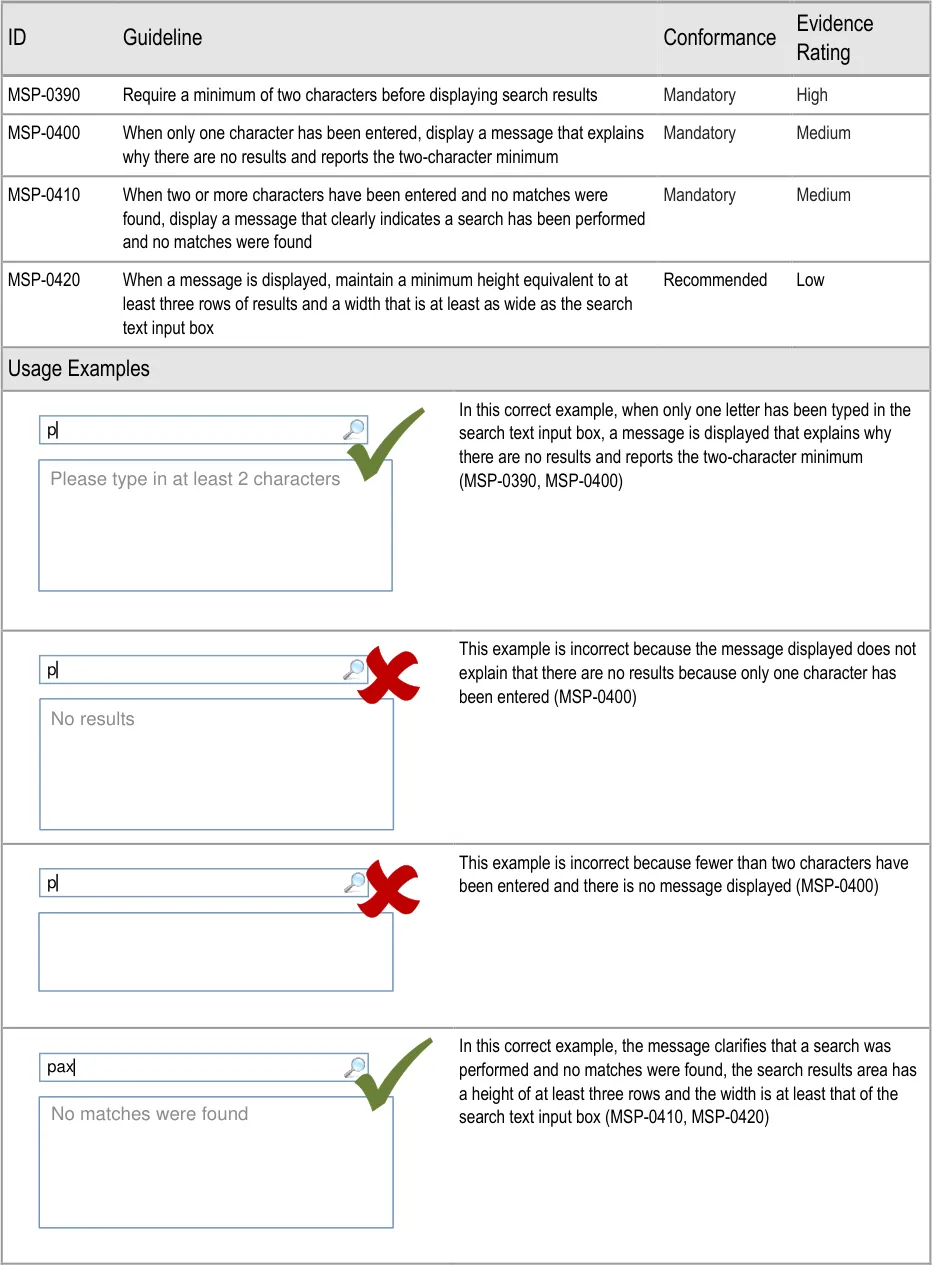
Page 47
Copyright ©2013 Health and Social Care Information Centre
HSCIC Controlled Document
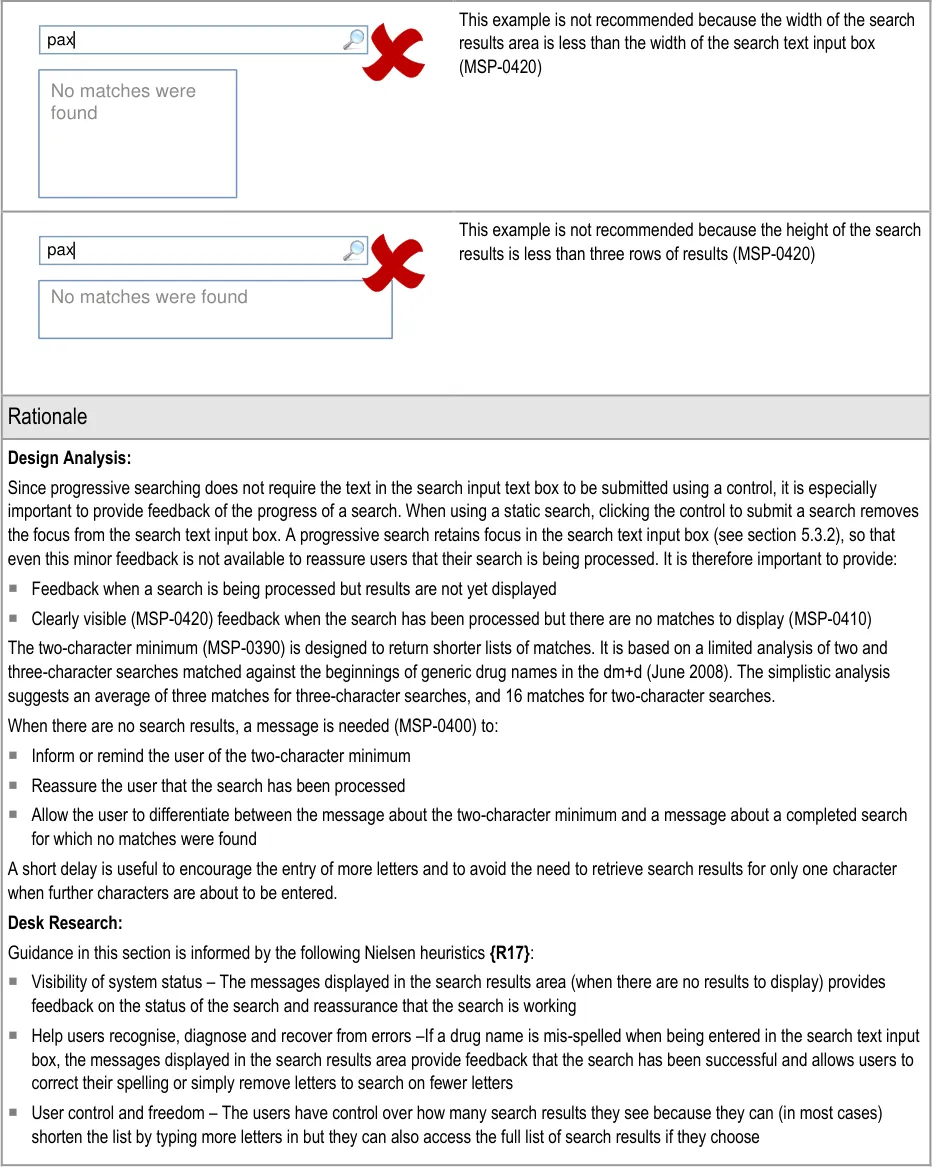
Page 48
Copyright ©2013 Health and Social Care Information Centre
HSCIC Controlled Document
5.3.5 Limiting the Height of a Search Results List
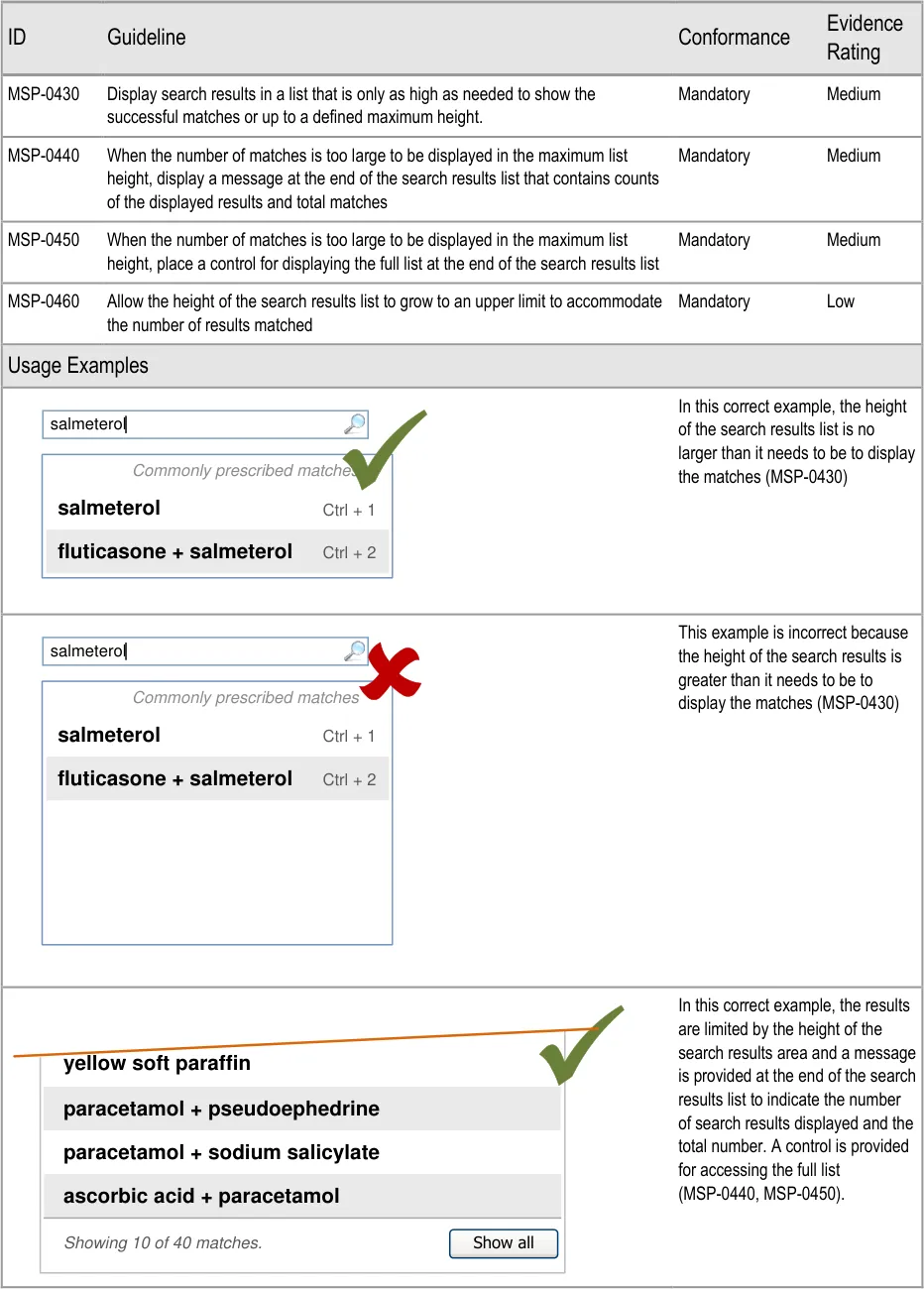
Page 49
Copyright ©2013 Health and Social Care Information Centre
HSCIC Controlled Document
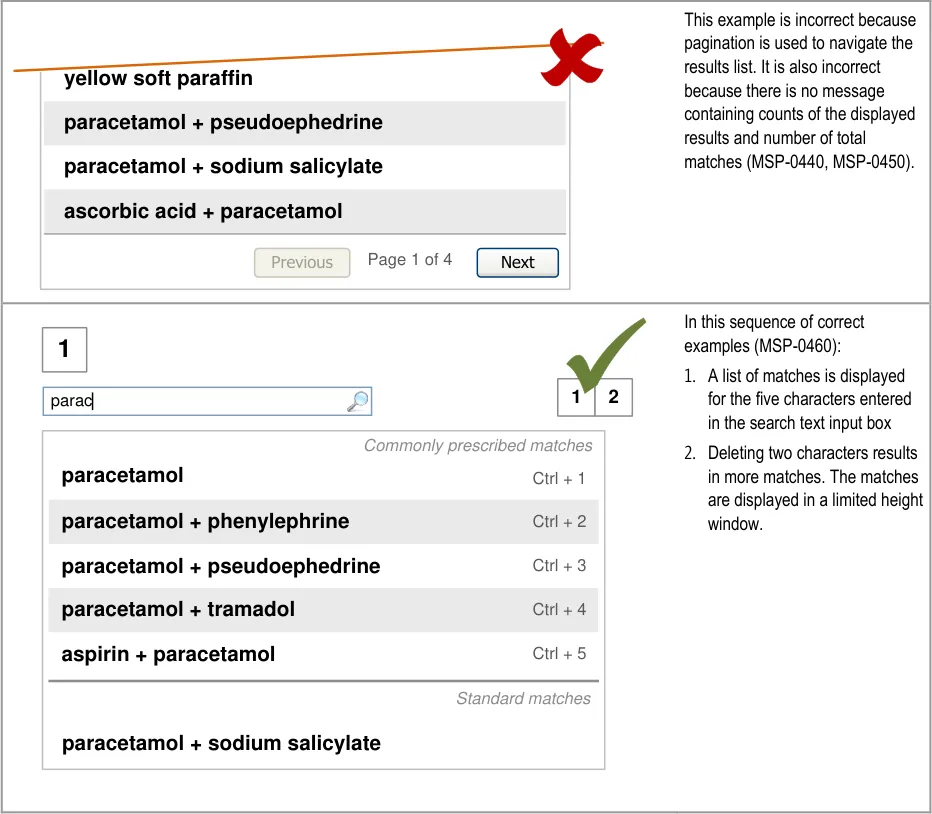
Page 50
Copyright ©2013 Health and Social Care Information Centre
HSCIC Controlled Document
| Col1 | 2 par Commonly prescribed matches paracetamol Ctrl + 1 paroxetine Ctrl + 2 paracetamol + phenylephrine Ctrl + 3 paracetamol + pseudoephedrine Ctrl + 4 paracetamol + tramadol Ctrl + 5 aspirin + paracetamol Ctrl + 6 Standard matches paraldehyde parathyroid hormone parecoxib paracetamol + sodium salicylate Showing 10 of 40 matches. Show all |
|---|---|
| Rationale | |
| Design Analysis: The search results list length is limited (MSP-0430) in order to encourage the entry of more letters so that a shorter results list can be returned. A shorter results list will be immediately noticeable since the window shrinks in height to fit the results. This approach is one that promotes searching over browsing on the basis that: Searching is expected to be more efficient when looking for a specific drug name Browsing is more appropriate when it is important to expose the user to more options in a way that also communicates the structure of those options One of the benefits of a progressive search is that it effectively supports the strategy of typing in enough letters to get a single match or short list of matches. By allowing the height of the search results list to change as the length of the results list changes, the changes in length can be picked up by peripheral vision, which allows the user’s attention to remain on typing in the search text input box. With a background that is different in tone to the colours used in the search results list, this visual cue is an even stronger indication of the changing search results list height. Alternative design solutions that were assessed include: An unlimited search results list that is displayed with a scroll bar when necessary Search results lists broken down into pages with navigation controls for moving between the pages Those two approaches are less effective than the recommended approach at achieving the following benefits: Encourage the typing of more letters to avoid the user having to use a control to access a longer list of search results Avoid longer lists to reduce the chances of mis-selection errors Avoid longer lists to speed up selection from a list with fewer choices Reduce the cognitive load associated with reviewing and selecting from a longer list Discourage the use of the prescribing tool as a drug dictionary (for browsing or for entering brand names to look up the generic name) By allowing the full list of search results to be displayed, the drug search supports an approach to finding a medication that is closer to browsing than searching whilst still encouraging the use of the progressive search to access and therefore select from shorter lists. |
Page 51
Copyright ©2013 Health and Social Care Information Centre
HSCIC Controlled Document
Desk Research:
Guidance in this section is informed by the following Nielsen heuristics {R17} :
Aesthetic and minimalist design – Limiting the height of the search results list keeps the drug search interface simple and removes
the need for navigation controls that are unnecessary in an efficient progressive search that returns only drug names (and synonyms)
Error prevention – Limiting the height of a search results lists limits the number of results immediately available for selection and
thus reduces opportunity for mis-selection
Flexibility and efficiency of use – The limited height of search results encourages the use of the progressive drug search and this is
considered to be more efficient at supporting the task of finding a specific drug than browsing
User control and freedom – Although the list of search results is limited, users still have the choice of extending the list so that they
can browse a larger set of search results
Hazard Risk Analysis Summary:
From our Patient Safety Risk Assessment analyses, we identified a number of potential hazards, including the following key risks, some of which are mitigated and some partially mitigated by the guidance:
Potential Hazards:
The scroll bar in a list of search
results is not noticed and the prescribers assume that the drug they want is not available for prescribing
A long list of search results is
returned and an inappropriate selection is made in preference to navigating further through the list
A drug name is mis-selected in
the search results list
A drug name is mis-selected
because it appears next to or in the same list as a look-alike or sound-alike drug name
Mitigations:
The limited list length (MSP-0430) avoids the use of a scroll bar so that it is clearer when
there are further results off screen
The provision of a progressive search for achieving fewer search results (see
section 5.3.3)
A clear, noticeable and consistent way of communicating the extent of the search results,
including the provision of text such as ‘Showing 10 of 40 matches’ at the end of a list of search results (MSP-0440) and the provision of a control such as a button labelled ‘Show All’ at the end of a list of search results (MSP-0450)
The list is limited in length and the length remains consistent (MSP-0430)
A progressive search provides a mechanism for achieving fewer search results and puts
the users in control of the length of the search results list by allowing them to type in additional letters and see the list updated as they type (see section 5.3.3).
This risk is not wholly mitigated by guidance
The list is limited in length (MSP-0430) and progressive matching is recommended (see
section 5.3.3) to encourage selection from shorter lists
Search results are prioritised (see section 5.3.12) and listed in matched order before
alphabetical order to maximise logical grouping (see section 5.3.8)
Progressive matching encourages the typing of more letters for shorter lists of search
results see section 5.3.3)
Search results lists are limited in height (MSP-0430)
Drugs are displayed by searching and search results are matched to the beginnings of
words so search results share the same initial letters (see section 5.3.7)
Search results are ordered such that generic names are listed before brand names (see
section 5.3.8)
Search results are displayed in matched order and then alphabetically (see section 5.3.8)
Search results are prioritised (see section 5.3.12)
Brand names are supplemented with generic names (when they exist) (see section 5.3.17)
Brand names are displayed after the generic name (when they exist) in a single list item
(see section 5.3.17)
If Medications Management – Medication Line {R3} guidance is followed, brand names
are differentiated by displaying them in capital letters
Page 52
Copyright ©2013 Health and Social Care Information Centre
HSCIC Controlled Document
5.3.6 Extending the Search Results List
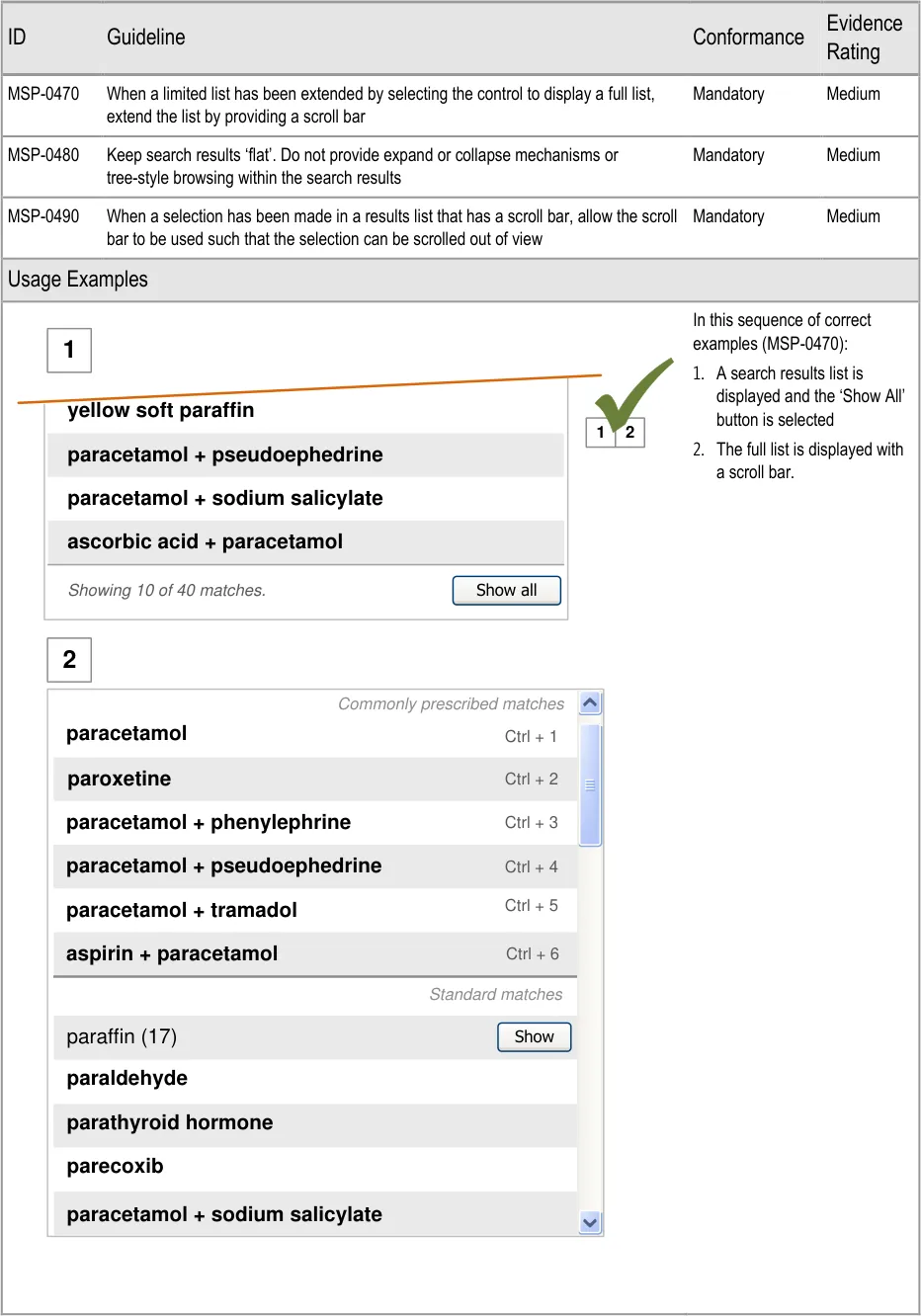
Page 53

Copyright ©2013 Health and Social Care Information Centre
HSCIC Controlled Document
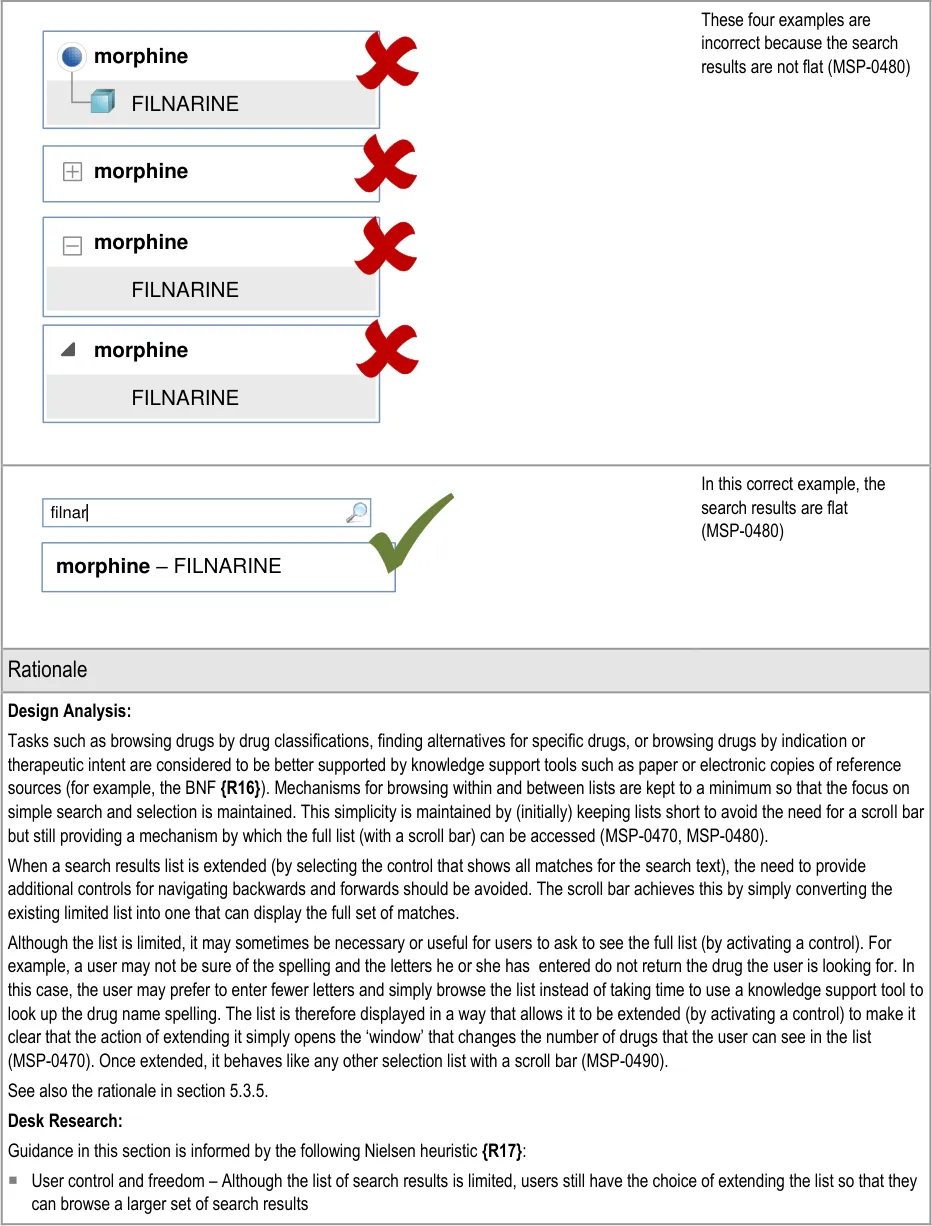
Page 54
Copyright ©2013 Health and Social Care Information Centre
HSCIC Controlled Document
5.3.7 Matching Input Text to Results
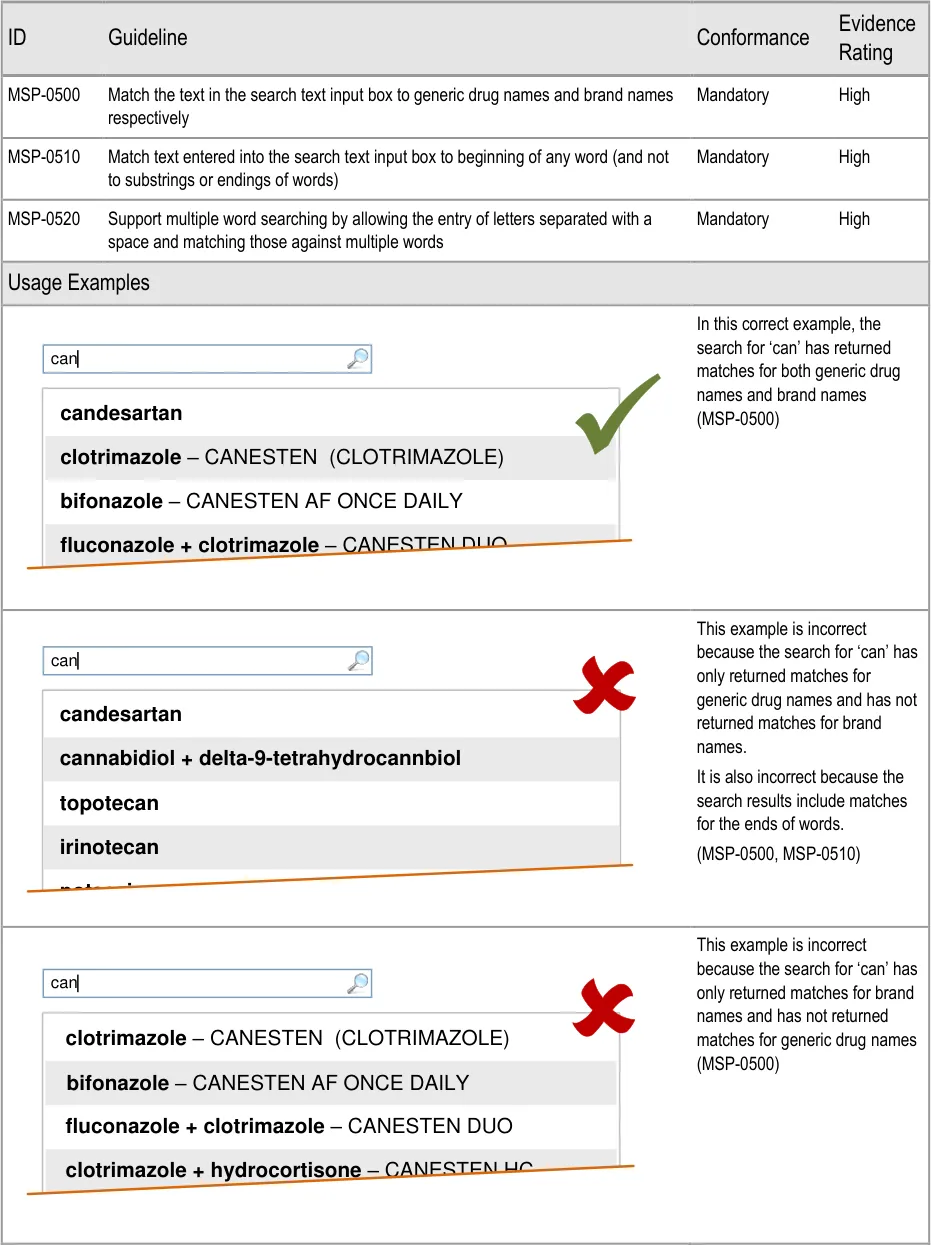
Page 55
Copyright ©2013 Health and Social Care Information Centre
HSCIC Controlled Document
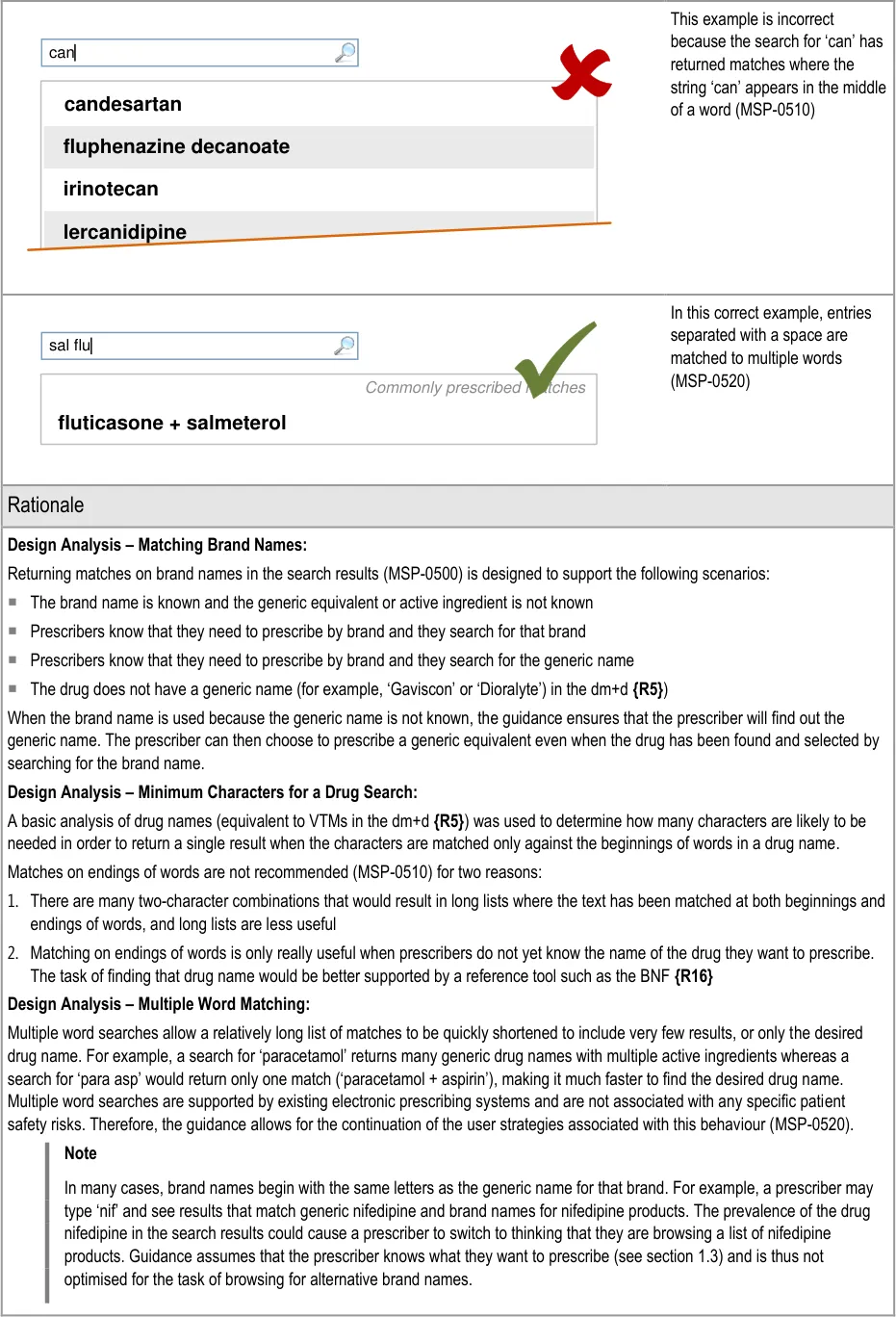
Page 56
Copyright ©2013 Health and Social Care Information Centre
HSCIC Controlled Document
Desk Research:
Guidance in this section is informed by the following Nielsen heuristics {R17} :
Flexibility and Efficiency – Multiple word searches allow the user to type in only four characters (two sets of two characters
separated by a space) that are likely to result in a single match
Aesthetic and minimalist design – The combination of matching letters to both generic names and to multiple words provides an
effective search mechanism that produces a simple list of matches
User Research:
Feedback from participants involved in Study ID 37 (see APPENDIX F) suggests that prescribers often know the brand name and not the generic name. Participants confirmed that it would be useful to be able to find a generic drug name by searching for the brand name.
Hazard Risk Analysis Summary:
From our Patient Safety Risk Assessment analyses, we identified a number of potential hazards, including the following key risks, some of which are mitigated and some partially mitigated by the guidance:
Potential Hazards:
A list of search results happens
to include more than one brand name for the same generic drug. The prescriber expects to see all the brands for that generic drug.
A list item is mis-selected
because a drug name appears more than once in a list
A drug name is mis-selected
because it appears next to or in the same list as a look-alike or sound-alike drug name
Mitigations:
This risk is not mitigated by the guidance
Since guidance assumes that prescribers know the name of the generic drug or brand
name that they are looking for (see section 1.3), prescribers are not expected to be browsing the list to choose a brand name
Search results lists contain only drug names (generic and brand) (MSP-0500)
Results are ordered such that a brand drug is less likely to appear next to an equivalent
generic drug (see section 5.3.8)
Cascading lists are not displayed until a drug name has been selected (see
section 6.3.1)
Progressive matching encourages the typing of more letters for shorter lists of search
results (see section 5.3.3)
Search results lists are limited in height (see section 5.3.5)
Drugs are displayed by searching and search results are matched to the beginnings of
words so search results share the same initial letters (MSP-0510)
Search results are ordered such that generic names are listed before brand names (see
section 5.3.8)
Search results are displayed in matched order and then alphabetically (see
section 5.3.8)
Search results are prioritised (see section 5.3.12)
Brand names are supplemented with generic names (when they exist) (see
section 5.3.17)
Brand names are displayed after the generic name (when they exist) in a single list item
(see section 5.3.17)
If Medications Management – Medication Line {R3} guidance is followed, brand names
are differentiated by displaying them in capital letters
Page 57
Copyright ©2013 Health and Social Care Information Centre
HSCIC Controlled Document
5.3.8 Ordering Search Results
Important
This section contains guidance for which there may be alternative solutions. Accordingly, the conformance ratings in this section apply only where the guidance is adopted.
The Rationale section contains a summary of the known risks which are addressed in this section and which must be addressed by any alternative solution. For more information, see the Alternative Design Solutions note in section 1.
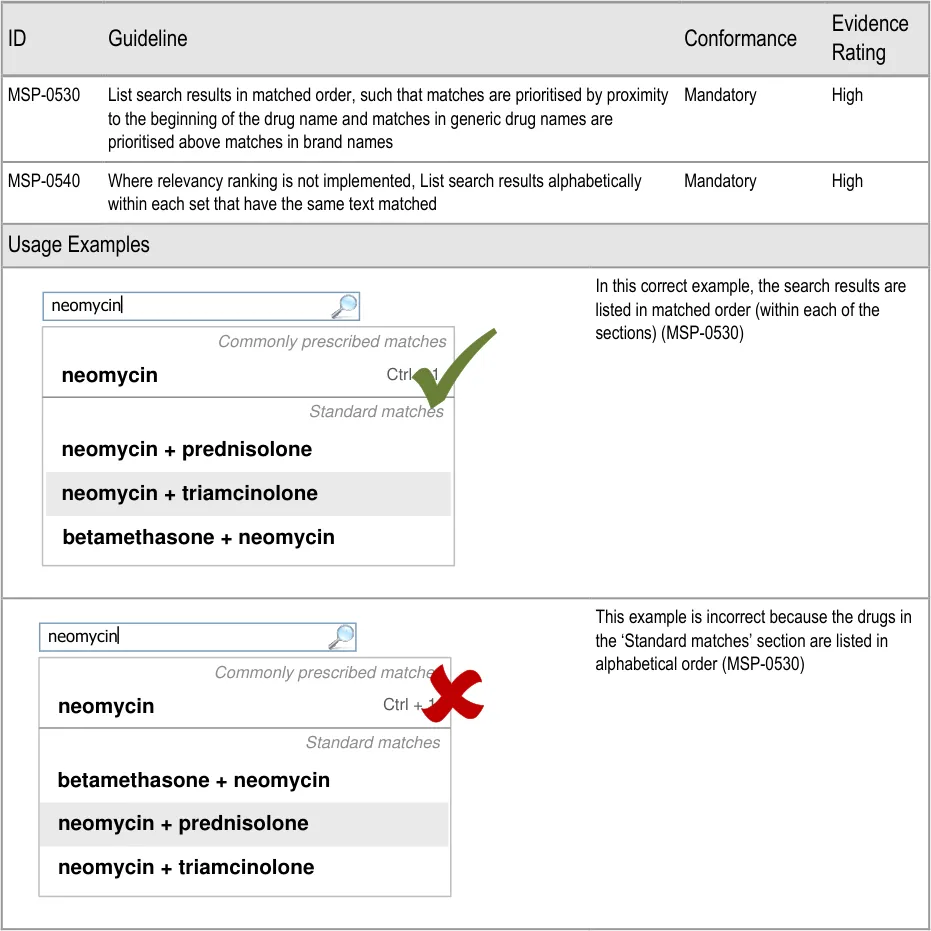
Page 58
Copyright ©2013 Health and Social Care Information Centre
HSCIC Controlled Document
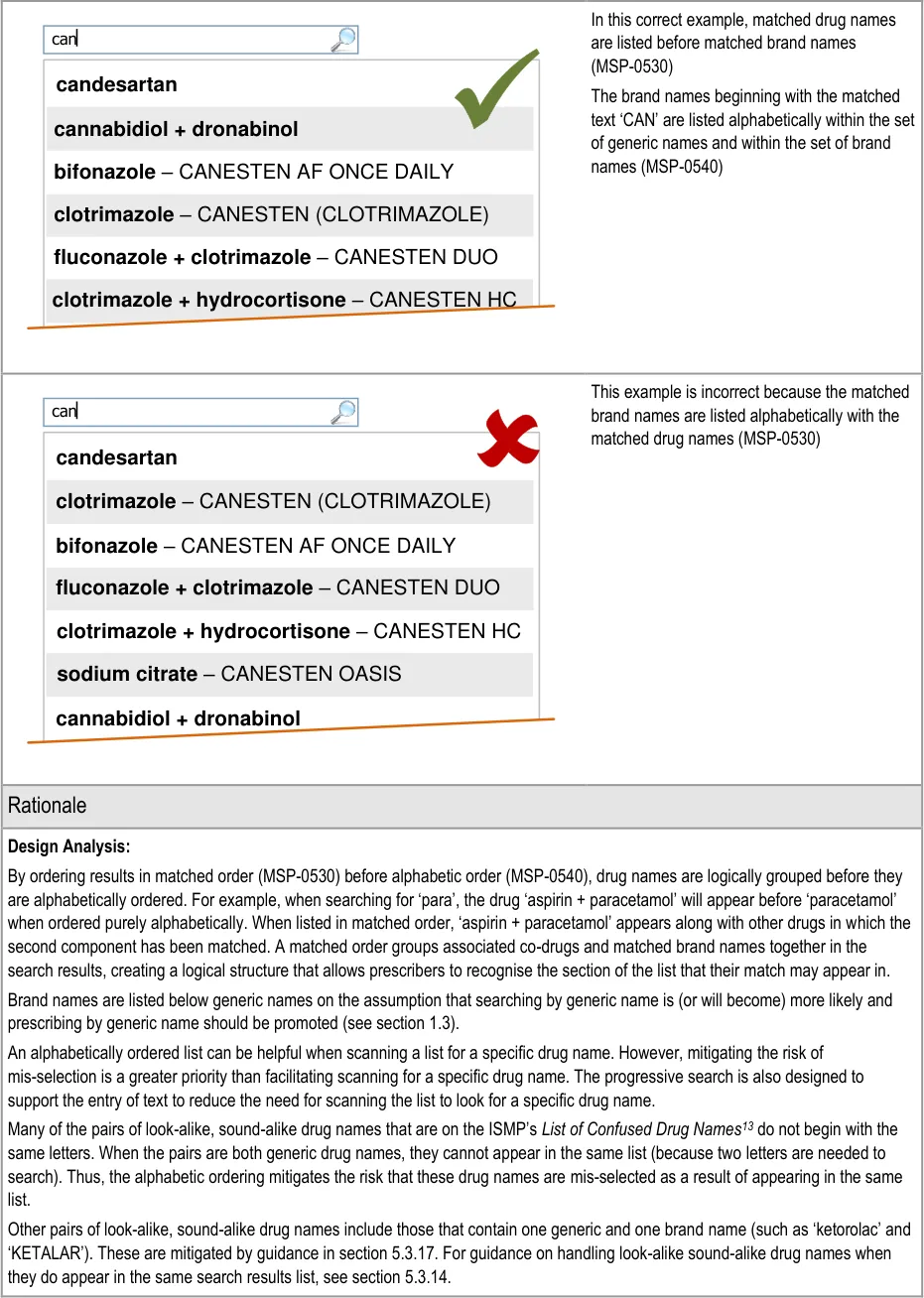
13 ISMP – List of Confused Drug Names {R28} : http://www.ismp.org/tools/confuseddrugnames.pdf
Page 59
Copyright ©2013 Health and Social Care Information Centre
HSCIC Controlled Document
Desk Research:
The ePrescribing Functional Specification {R12} includes a guideline (GEN.OS.40) that refers to the need to be able to search by brand name and a guideline (GEN.DR.003) that refers to the need for a generic name to be included when a brand name is displayed.
Guidance in this section is informed by the following Nielsen heuristic {R17} :
Match between system and the real world – The list order is designed to display the search results in an order that appears natural
and logical (based on the task of prescribing, the search criteria entered and the scope of the search results list)
Hazard Risk Analysis Summary:
From our Patient Safety Risk Assessment analyses, we identified a number of potential hazards, including the following key risks, some of which are mitigated and some partially mitigated by the guidance:
Potential Hazards:
A drug name is mis-selected
in the search results list
A list item is mis-selected
because a drug name appears more than once in a list
A drug name is mis-selected
because it appears next to or in the same list as a lookalike or sound-alike drug name
Mitigations:
This risk is not wholly mitigated by guidance
Search results are prioritised (see section 5.3.12) and listed in matched order before
alphabetical order to maximise logical grouping (MSP-0530)
The list is limited in length (see section 5.3.5) and progressive matching is recommended
(see section 5.3.3) to encourage selection from shorter lists
Search results lists contain only drug names (generic and brand) (see section 5.3.7)
Results are ordered such that a brand drug is less likely to appear next to an equivalent
generic drug (MSP-0530, and see section 5.3.17)
Cascading lists are not displayed until a drug name has been selected (see section 6.3.1)
Progressive matching encourages the typing of more letters for shorter lists of search results
(see section 5.3.3)
Search results lists are limited in height (see section 5.3.5)
Drugs are displayed by searching and search results are matched to the beginnings of
words so search results share the same initial letters (see section 5.3.7)
Search results are ordered such that generic names are listed before brand names
(MSP-0530)
Search results are displayed in matched order and then alphabetically (MSP-0540)
Search results are prioritised (see section 5.3.12)
Brand names are supplemented with generic names (when they exist) (see section 5.3.17)
Brand names are displayed after the generic name (when they exist) in a single list item
(see section 5.3.17)
If Medications Management – Medication Line {R3} guidance is followed, brand names are
differentiated by displaying them in capital letters
Page 60
Copyright ©2013 Health and Social Care Information Centre
HSCIC Controlled Document
5.3.9 Using Groups to Limit Search Results
| Col1 | Evidence ID Guideline Conformance Rating |
|---|---|
| MSP-0550 For specific searches that return significantly more results (most of these will be three or four character searches), support the display of groups in the search results list Recommended Medium | |
| MSP-0560 When a group is displayed in a search results list, provide a control (such as a button) that, when selected, replaces the original text in the search text input box with the full title of the group and replaces the original search results with the results within the group. Recommended Medium | |
| Usage Examples | |
In this correct example, a group has been created for matches containing ‘paraffin’ for a context in which paraffin is less commonly prescribed (MSP-0550) paracetamol paracetamol + pseudoephedrine par Show paraffin (17) paracetamol + phenylephrine Commonly prescribed matches aspirin + paracetamol Standard matches Ctrl + 2 Ctrl + 1 Ctrl + 4 Ctrl + 3 parecoxib paroxetine paracetamol + sodium salicylate paracetamol + tramadol | |
This example of a search results used in a context in which paraffin is rarely or never prescribed is not recommended because the list contains many matches for paraffin.(MSP-0550) paracetamol paracetamol + pseudoephedrine par paracetamol + sodium salicylate paracetamol + phenylephrine Commonly prescribed matches aspirin + paracetamol Standard matches paracetamol + tramadol Ctrl + 2 Ctrl + 1 Ctrl + 4 Ctrl + 3 paraffin hard soft paraffin + wool fat hard paraffin + liquid paraffin + soft paraffin + wood alchohols |
Page 61
Copyright ©2013 Health and Social Care Information Centre
HSCIC Controlled Document
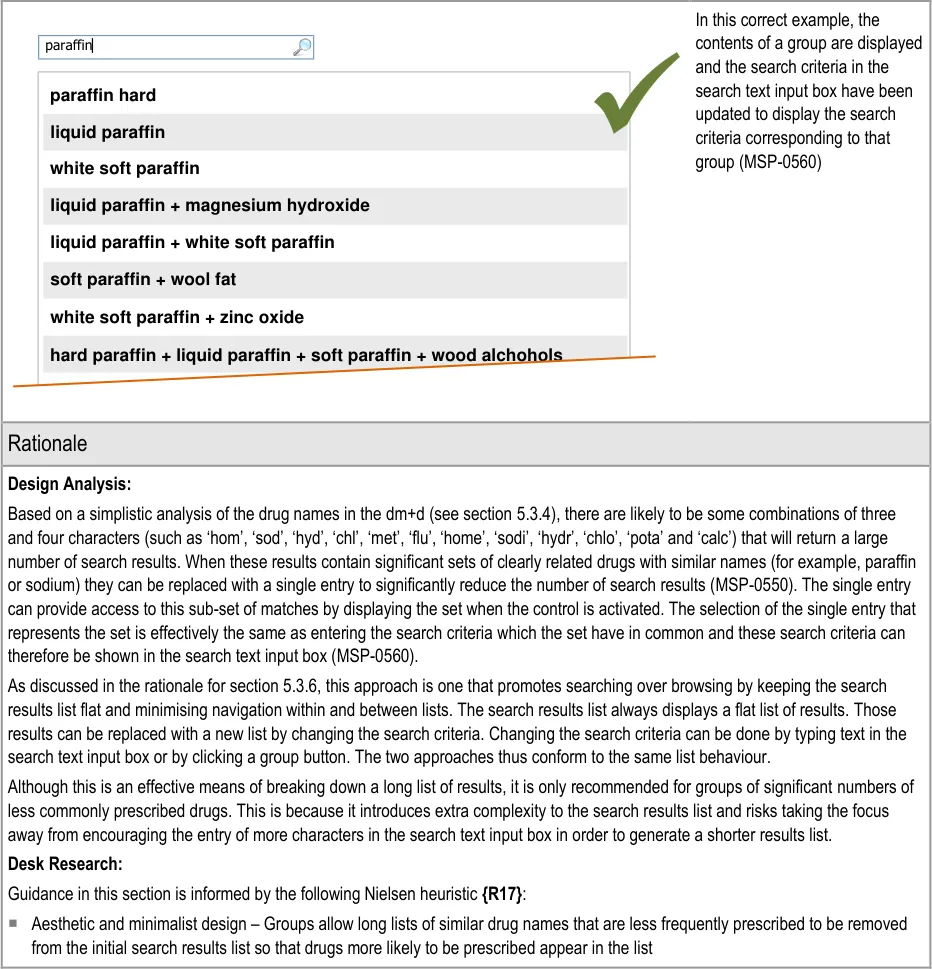
Page 62
Copyright ©2013 Health and Social Care Information Centre
HSCIC Controlled Document
5.3.10 Supporting Spelling Matches and Synonyms
See section 5.3.15 for guidance on formatting spelling matches and synonyms in the search results lists.
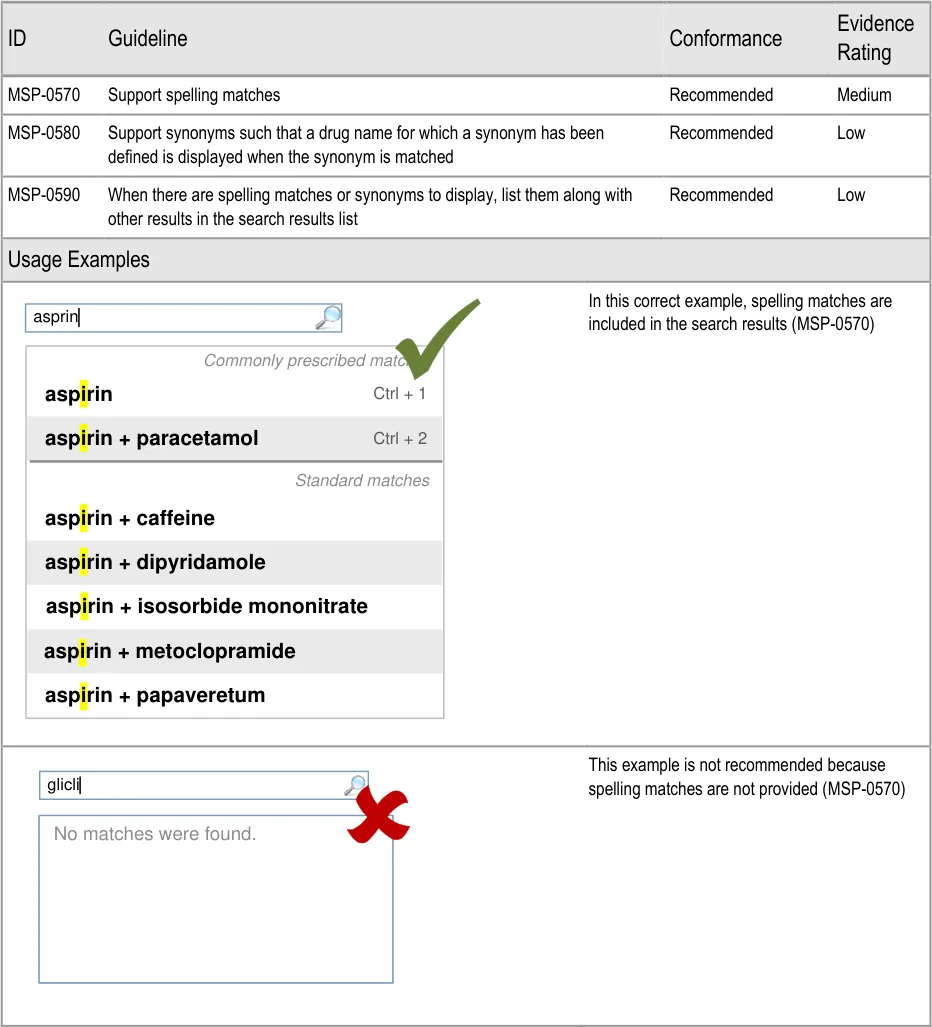
Page 63
Copyright ©2013 Health and Social Care Information Centre
HSCIC Controlled Document
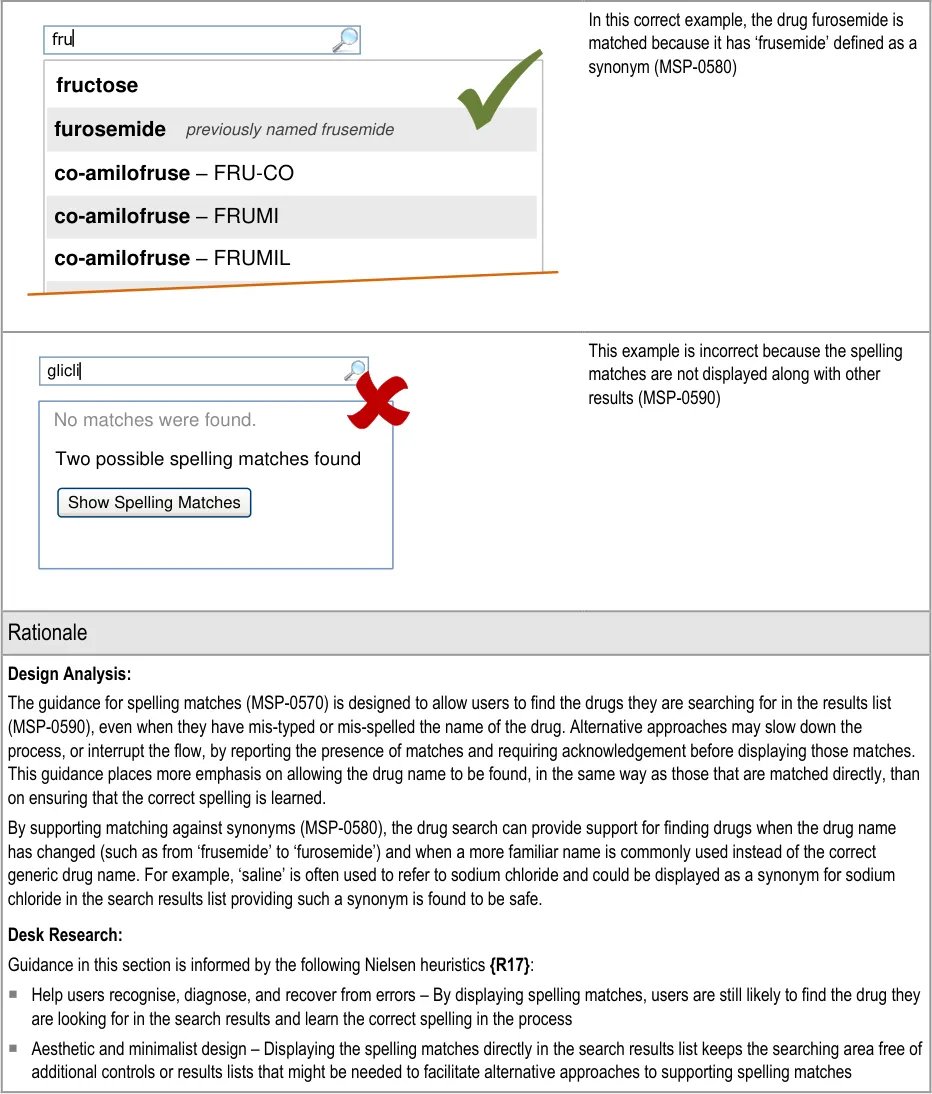
Page 64
Copyright ©2013 Health and Social Care Information Centre
HSCIC Controlled Document
5.3.11 Co-Drugs and Their Ingredients
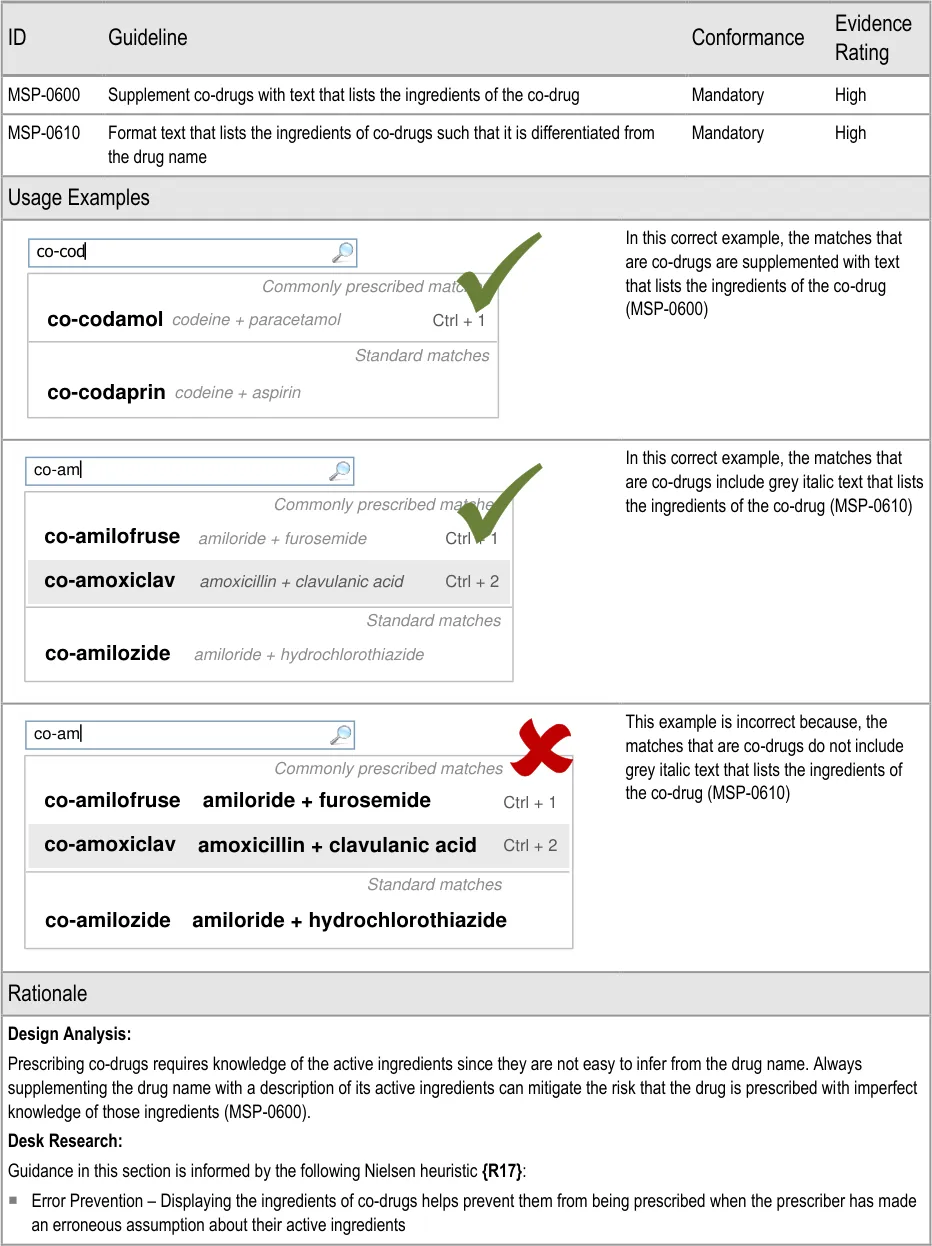
Page 65
Copyright ©2013 Health and Social Care Information Centre
HSCIC Controlled Document
Hazard Risk Analysis Summary:
From our Patient Safety Risk Assessment analyses, we identified a number of potential hazards, including the following key risk which is mitigated by the guidance:
Potential Hazards:
A prescriber is unfamiliar with a co-drug and makes an
incorrect assumption about its ingredients
5.3.12 Prioritising Results
Mitigations:
Co-drugs are supplemented with text that describes their
active ingredients (MSP-0600)
Drug search results, cascading lists (see section 6) and other selection lists can be divided into sections in order to bring prioritised list items to the top of a list. See section 6.3.3 for guidance on prioritisation within cascading lists and section 9.3.3 for guidance on prioritisation within selection lists used as input controls.
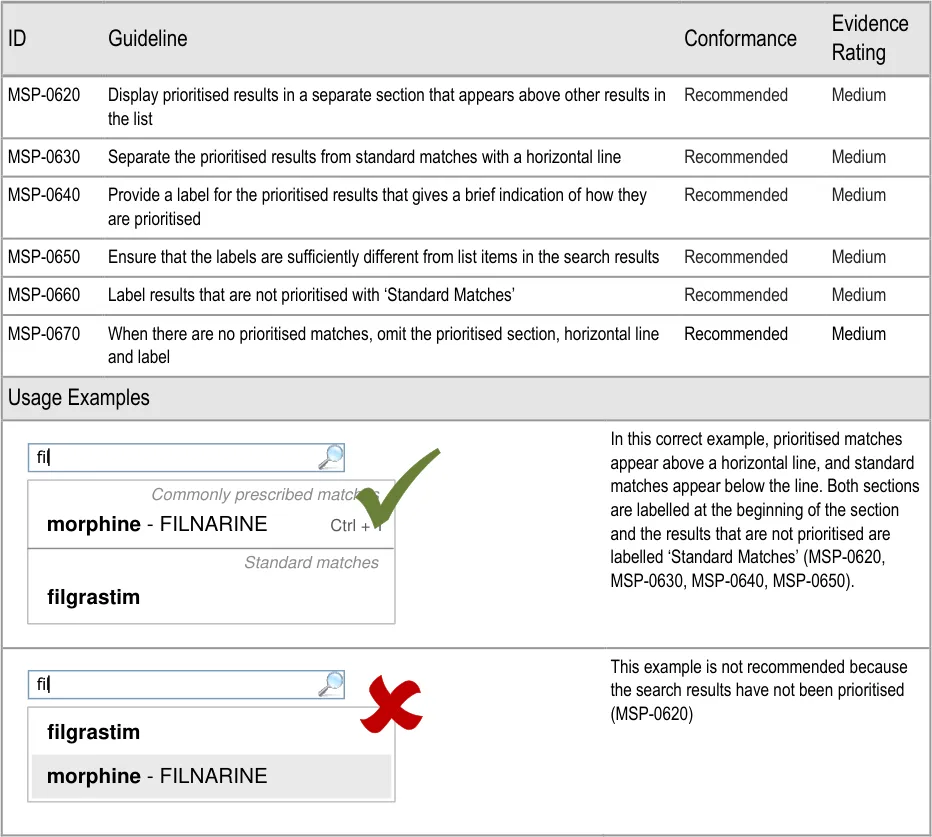
Page 66
Copyright ©2013 Health and Social Care Information Centre
HSCIC Controlled Document
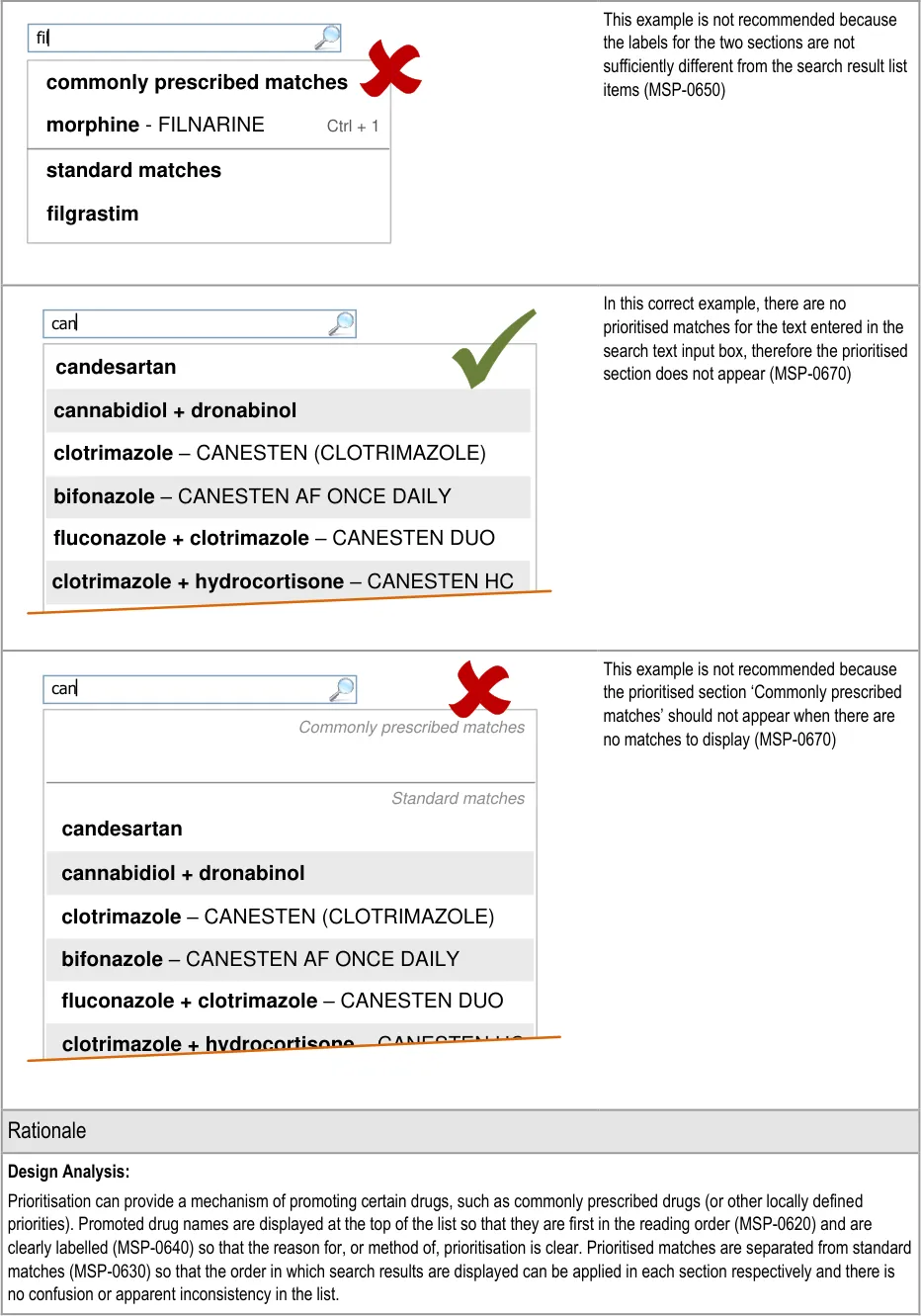
Page 67
Copyright ©2013 Health and Social Care Information Centre
HSCIC Controlled Document
There are alternative approaches to prioritising drugs that may have different merits depending on the context in which they are used. The matches that appear in the prioritised section could be those that are prescribed most frequently by an individual or by a specific location or trust or by manually maintaining a list. In some cases, it may be appropriate to use the prioritised section to promote the use of medications that are on formulary and demote those that are off-formulary. Further analysis would have to be completed before guidance could recommend the use of a particular approach to prioritisation.
The prioritised section is only needed when there are prioritised matches to be displayed (MSP-0670). Similarly, the label for the standard matches section is only needed to differentiate it from the prioritised section and is thus not needed when there are no prioritised matches (MSP-0660).
The guidance is designed to promote clear differentiation between the labels and the drug names in the search list so that the list can be scanned without additional information (for example, no labels or warnings interrupting the scanning of the list (MSP-0650)).
Desk Research:
Guidance in this section is informed by the following Nielsen heuristics {R17} :
Flexibility and efficiency of use – Accelerators are provided for prioritised medications so that they remain at the top of the list and
are easier to find and select
Aesthetic and minimalist design – Ensuring that the search results are most prominent (reducing both the presence of, and
emphasis on, other elements of the search results lists) minimises distractions from scanning the drug names and maximises the emphasis on the drug names
Hazard Risk Analysis Summary:
From our Patient Safety Risk Assessment analyses, we identified a number of potential hazards, including the following key risks, some of which are mitigated and some partially mitigated by the guidance:
Potential Hazards:
A drug name is mis-selected in
the search results list
A drug name is mis-selected
because it appears next to or in the same list as a look-alike or sound-alike drug name
Mitigations:
This risk is not wholly mitigated by guidance
The list is limited in length (see section 5.3.5) and progressive matching is
recommended (see section 5.3.3) to encourage selection from shorter lists
Search results are prioritised (MSP-0620) and listed in matched order before
alphabetical order to maximise logical grouping (see section 5.3.8)
Progressive matching encourages the typing of more letters for shorter lists of search
results (MSP-0370)
Search results lists are limited in height (see section 5.3.5)
Drugs are displayed by searching and search results are matched to the beginnings of
words so search results share the same initial letters (see section 5.3.7)
Search results are ordered such that generic names are listed before brand names (see
section 5.3.8)
Search results are displayed in matched order and then alphabetically (see
section 5.3.8)
Search results are prioritised (MSP-0620)
Brand names are supplemented with generic names (when they exist) (see
section 5.3.17)
Brand names are displayed after the generic name (when they exist) in a single list item
(see section 5.3.17)
If Medications Management – Medication Line {R3} guidance is followed, brand names
are differentiated by displaying them in capital letters
Page 68
Copyright ©2013 Health and Social Care Information Centre
HSCIC Controlled Document
5.3.13 Shortcut Keys in Search Results
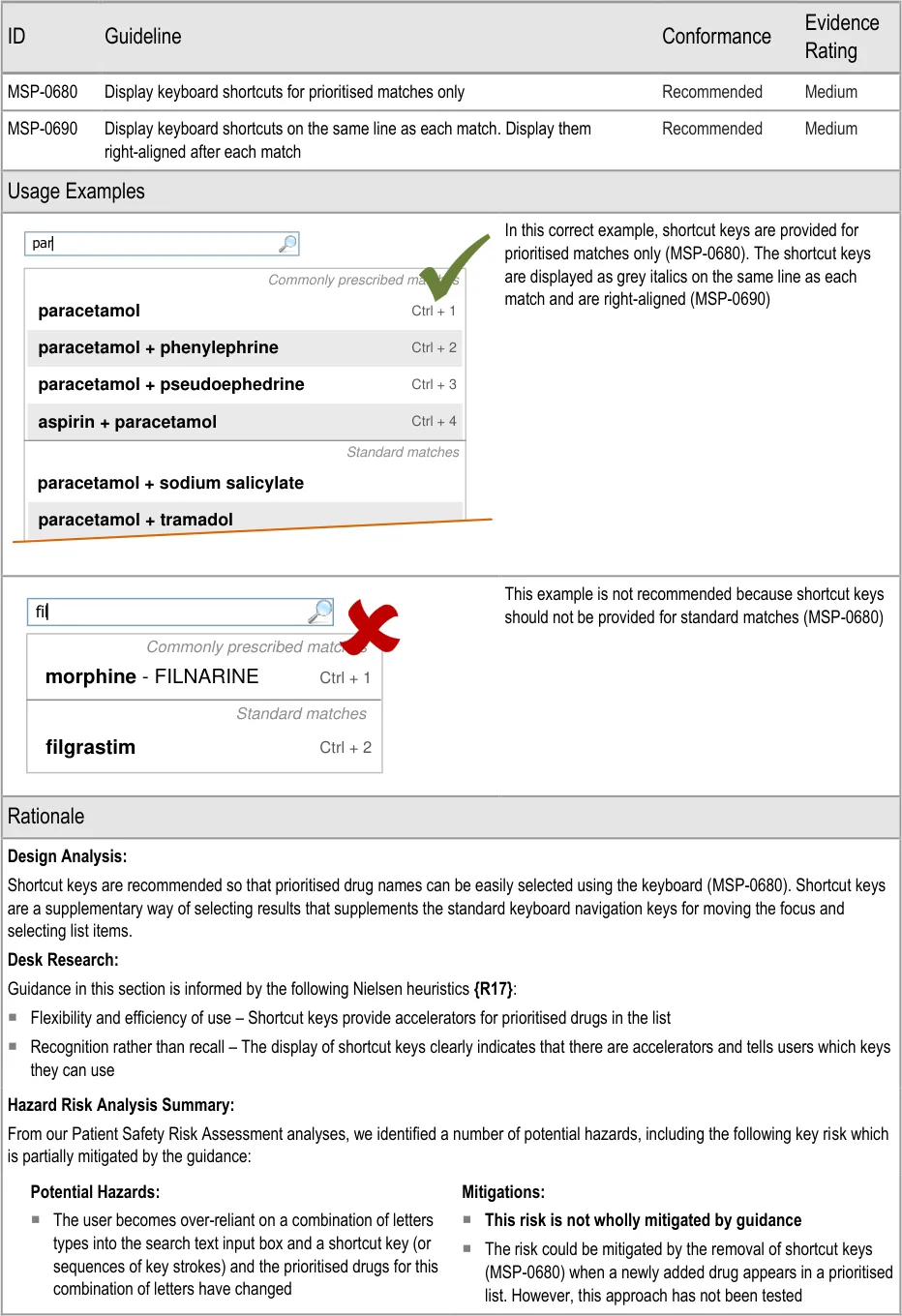
Page 69
Copyright ©2013 Health and Social Care Information Centre
HSCIC Controlled Document
5.3.14 Formatting Commonly Mis-Selected Matches
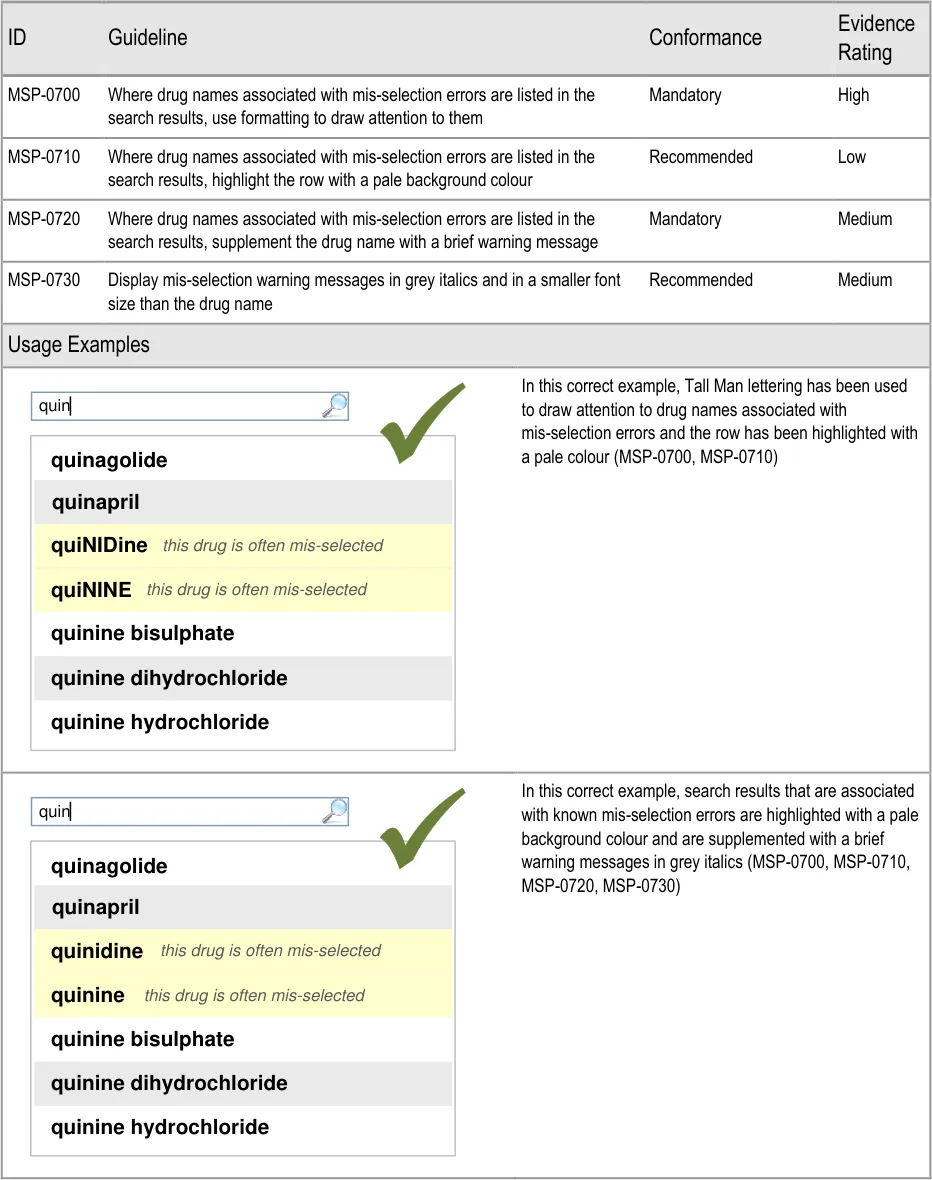
Page 70
Copyright ©2013 Health and Social Care Information Centre
HSCIC Controlled Document
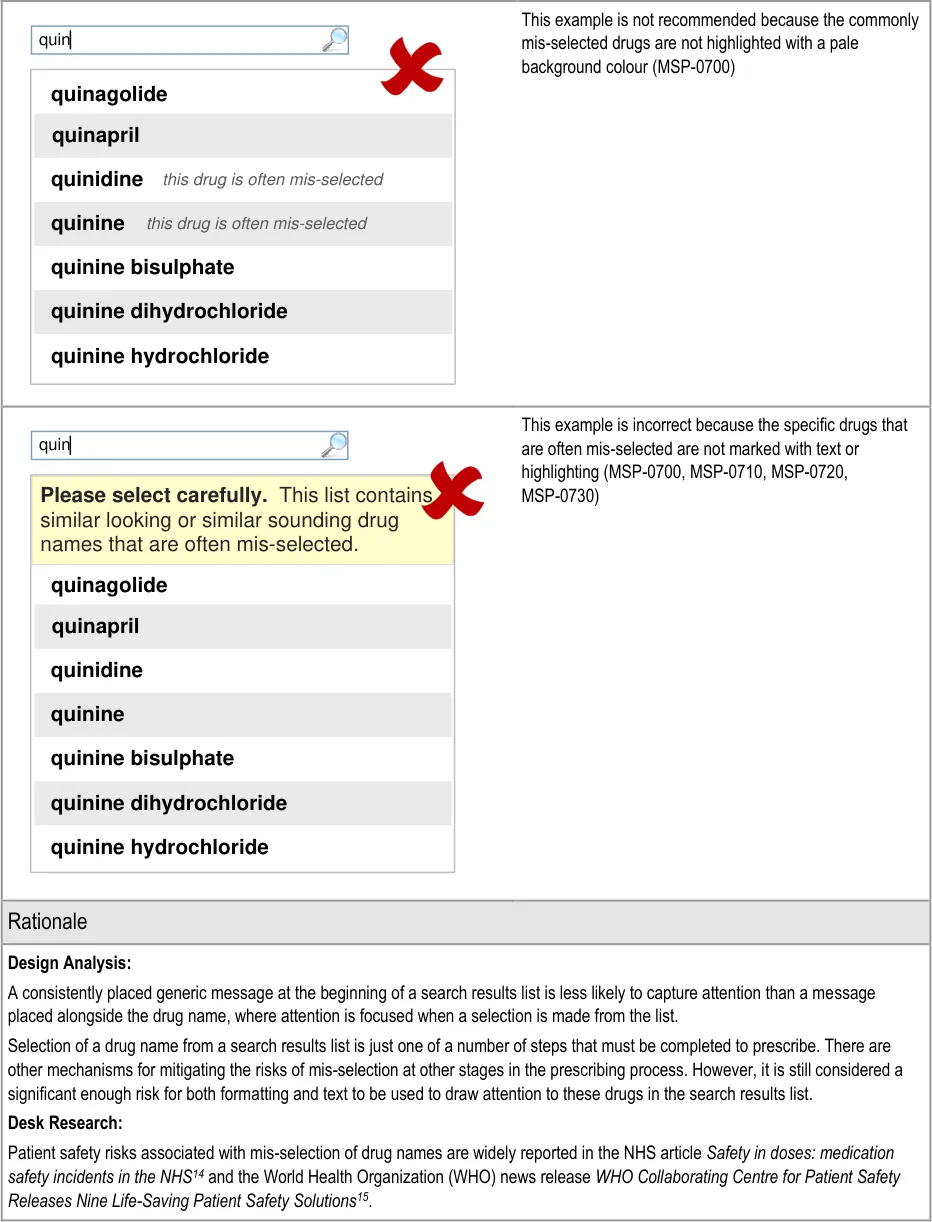
14 NHS NPSA – The fourth report from the Patient Safety Observatory – PSO/4 – Safety in doses: medication safety incidents in the NHS {R6} : http://www.nrls.npsa.nhs.uk/favicon.ico
15The Joint Commission International – WHO Collaborating Centre for Patient Safety Releases Nine Life-Saving Patient Safety Solutions {R29} : http://www.ccforpatientsafety.org/patient-safety-solutions/
Page 71
Copyright ©2013 Health and Social Care Information Centre
HSCIC Controlled Document
The US Food and Drug Administration (FDA) Office of Generic Drugs Name Differentiation Project [16] requested manufacturers of 16 look-alike drug names to use a system known as ‘Tall Man’ lettering to mitigate the risk that they are mistaken for similar looking drug names. However, as reported in The Use of Tall Man Lettering to Minimise Selection Errors of Medicine Names in Computer Prescribing and Dispensing Systems {R24}, findings from studies of Tall Man lettering are not conclusive and Tall Man lettering has been statistically proven to be useful in only very specific circumstances. The only experiment within this study that tested the selection of drug names within a selection list also included dose and formulation as part of that selection list and noted that error was more related to dose and formulation or a combination of these than with look-alike medication names. The most effective of the three Tall Man lettering variants used in the study was also found to significantly affect the time for the action of selecting a medication.
Tall Man lettering has been found to be useful when:
Distinguishing names in same-different judgement tasks when participants understood the purpose of Tall Man lettering
Improving recognition memory by increasing attention (and slowing down reading speed)
Improving selection from an array when lettering is simulated as packaging
In short, there is no conclusive evidence that Tall Man lettering is effective at mitigating selection errors in lists of drug names when presented as part of a prescribing process that builds the prescription step by step. Therefore, this guidance recommends the use of other mechanisms for drawing attention to the potential for mis selection. Unlike Tall Man lettering, these mechanisms are specific to the selection of a drug name from a list of drug names and are not expected to be implemented throughout a prescribing system to appear whenever the drug name is displayed.
The ePrescribing Functional Specification {R12} includes a requirement (GEN.OS.94) to specifically address the risk of mis-selection when drugs that are known to be mis-selected are displayed in selection lists.
Guidance in this section is informed by the following Nielsen heuristic {R17} :
Error prevention – Formatting of commonly mis-selected matches helps to prevent the mis-selection of an unintended drug in the
list
Hazard Risk Analysis Summary:
From our Patient Safety Risk Assessment analyses, we identified a number of potential hazards, including the following key risk which is mitigated by the guidance:
Potential Hazards:
A look-alike or sound-alike drug is
selected in error
Mitigations:
Formatting (MSP-0700) and supplementary text warnings (MSP-0720) are used to
mark look-alike sound-alike drugs at the point of selection
5.3.15 Formatting Spelling Matches and Synonyms
This section includes guidance for formatting spelling matches and synonyms when they appear in a search results list. See section 5.3.10 for guidance on supporting spelling matching and synonyms.
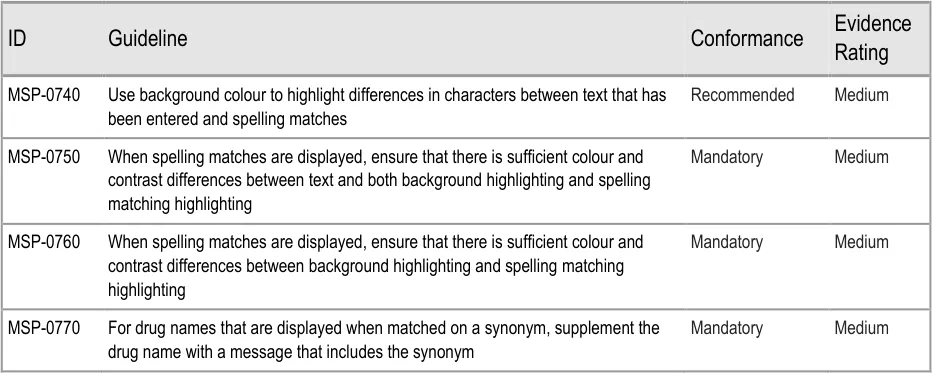
16 US Federal Drug Administration (FDA) Center for Drug Evaluation and Research (CDER) – Name Differentiation Project {R30} : http://www.fda.gov/Drugs/DrugSafety/MedicationErrors/ucm164587.htm
Page 72
Copyright ©2013 Health and Social Care Information Centre
HSCIC Controlled Document
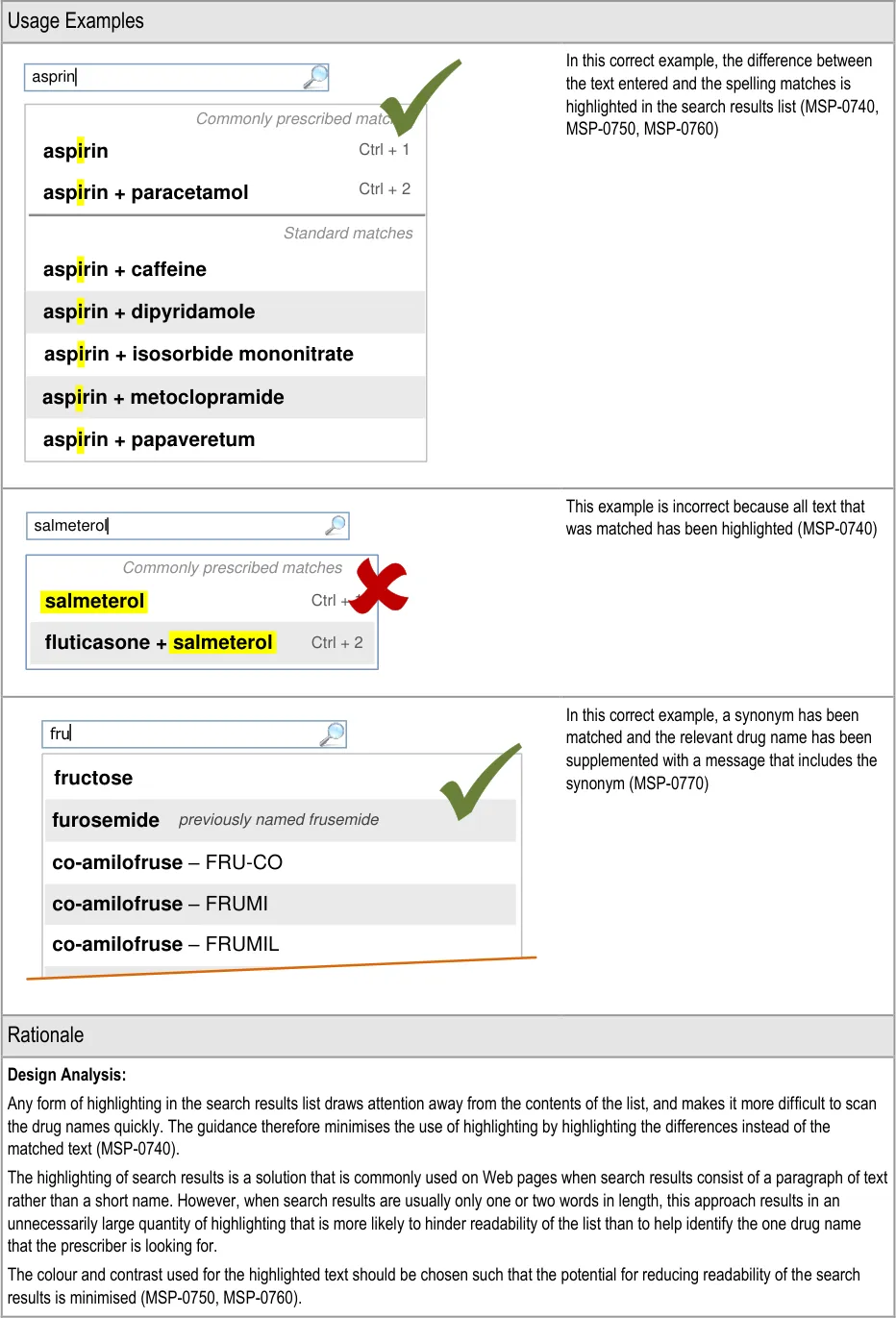
Page 73
Copyright ©2013 Health and Social Care Information Centre
HSCIC Controlled Document
When a search is tightly scoped:
The matched text is easier to see and predict
The expectation is that one result will be exactly what is being searched for
Highlighting all matches is not likely to help draw attention to the drug name that is being searched for
In this guidance, only the results that are exceptions to the rules are highlighted. By restricting highlighting to the differences between the text entered in the search text input box and the spelling matches in the list, the highlights draw attention to exceptional matches, as well as communicating the specific difference in spelling.
Desk Research:
Guidance in this section is informed by the following Nielsen heuristic {R17} :
Help users recognise, diagnose and recover from errors – The formatting draws attention to the specific differences between the
text entered and the ‘spelling matches’ thus allowing users to recognise that they (potentially) mis-spelled the drug name and to identify the correct spelling
5.3.16 Formatting Search Results Lists
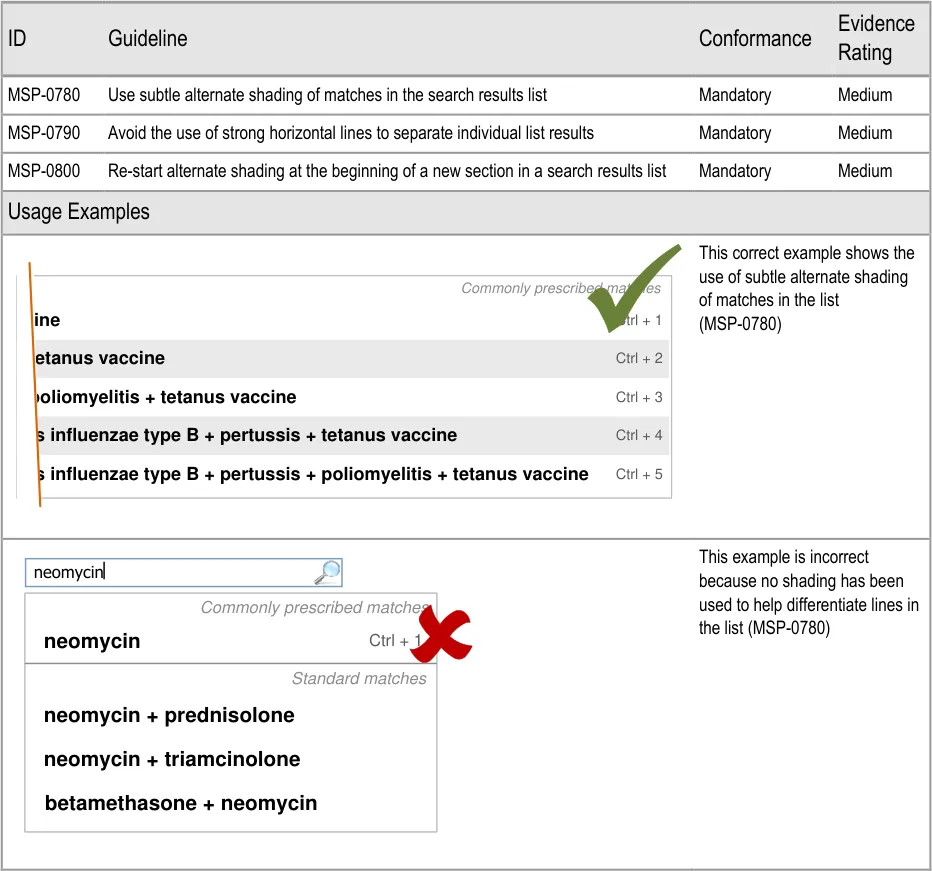
Page 74
Copyright ©2013 Health and Social Care Information Centre
HSCIC Controlled Document
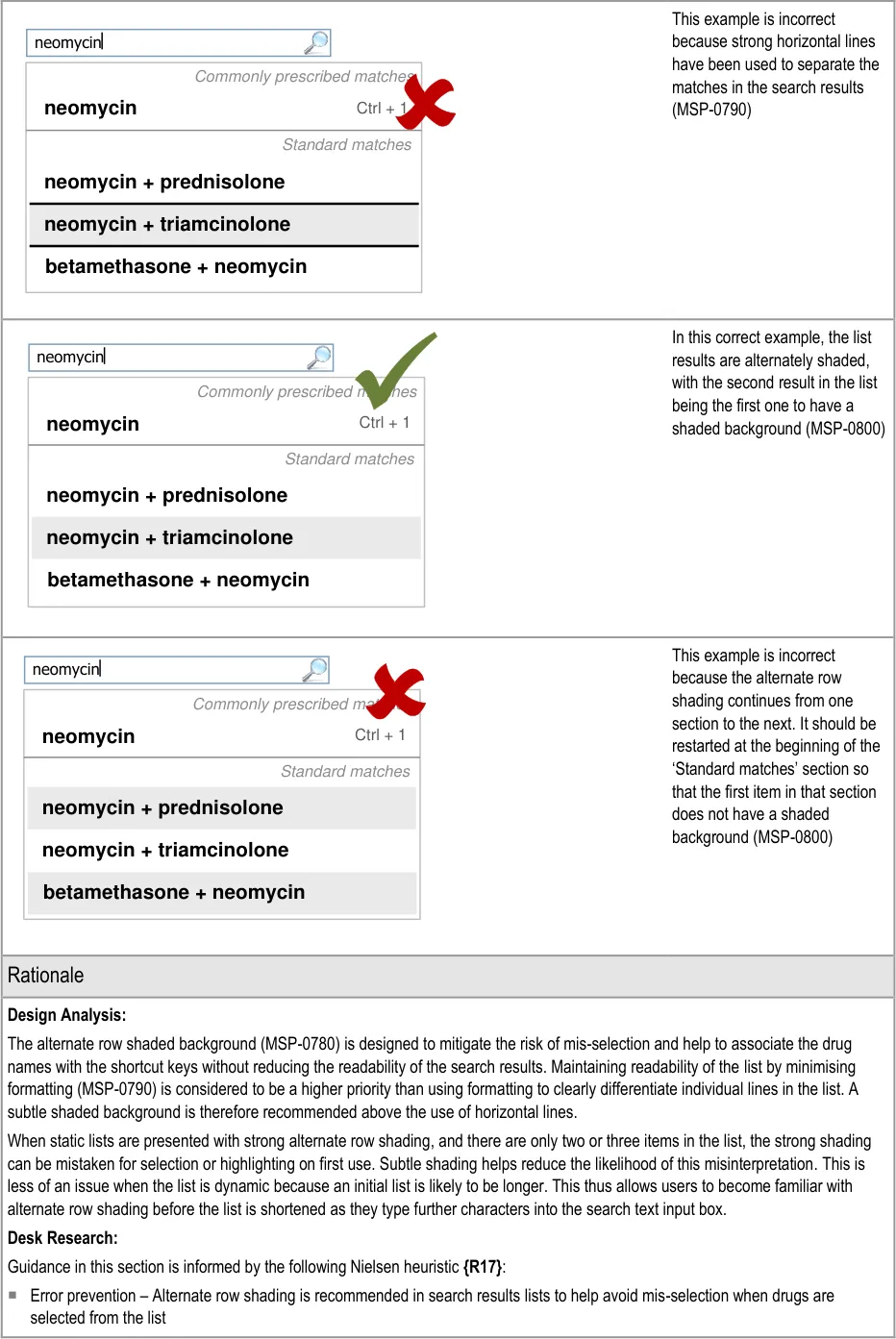
Page 75
Copyright ©2013 Health and Social Care Information Centre
HSCIC Controlled Document
Hazard Risk Analysis Summary:
From our Patient Safety Risk Assessment analyses, we identified a number of potential hazards, including the following key risk which is partially mitigated by the guidance:
Potential Hazards:
Alternate row shading is mistaken
for selection or highlighting when there are only two or three list items in a list or section
Mitigations:
This risk is not wholly mitigated by guidance
Alternate row shading should be subtle (MSP-0780)
When results are displayed using progressive matching (see section 5.3.3), the initial
list of results is more likely to contain greater than three drugs in any one section of the list. The user is thus familiar with the presence and meaning of the alternate row shading before the list is shortened such that this risk is introduced
5.3.17 Generic Drug Names and Brand Names
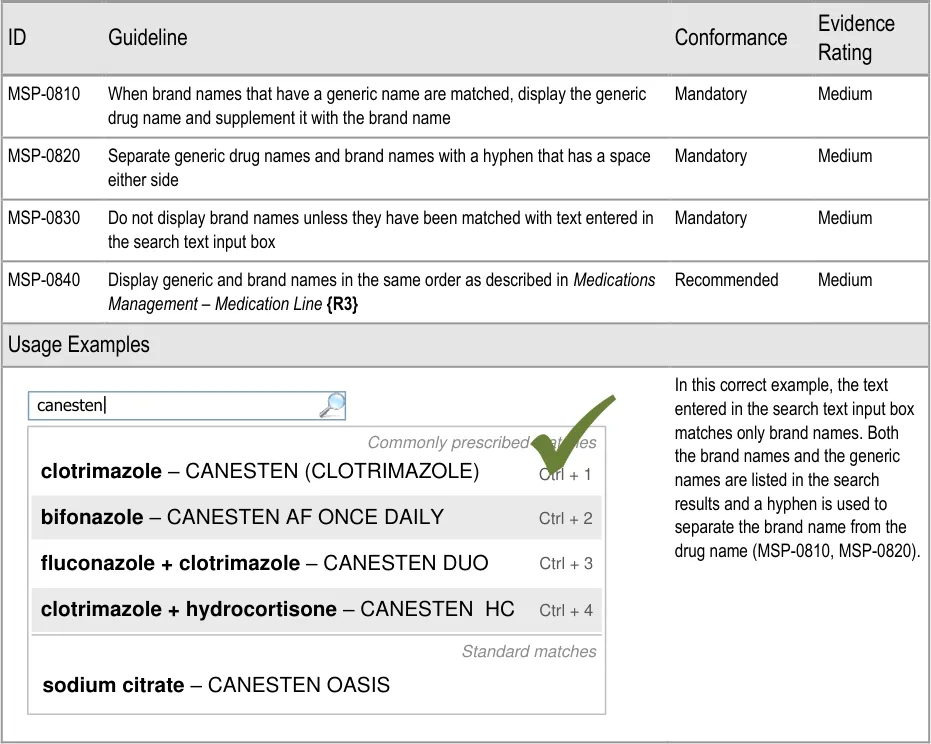
Page 76
Copyright ©2013 Health and Social Care Information Centre
HSCIC Controlled Document
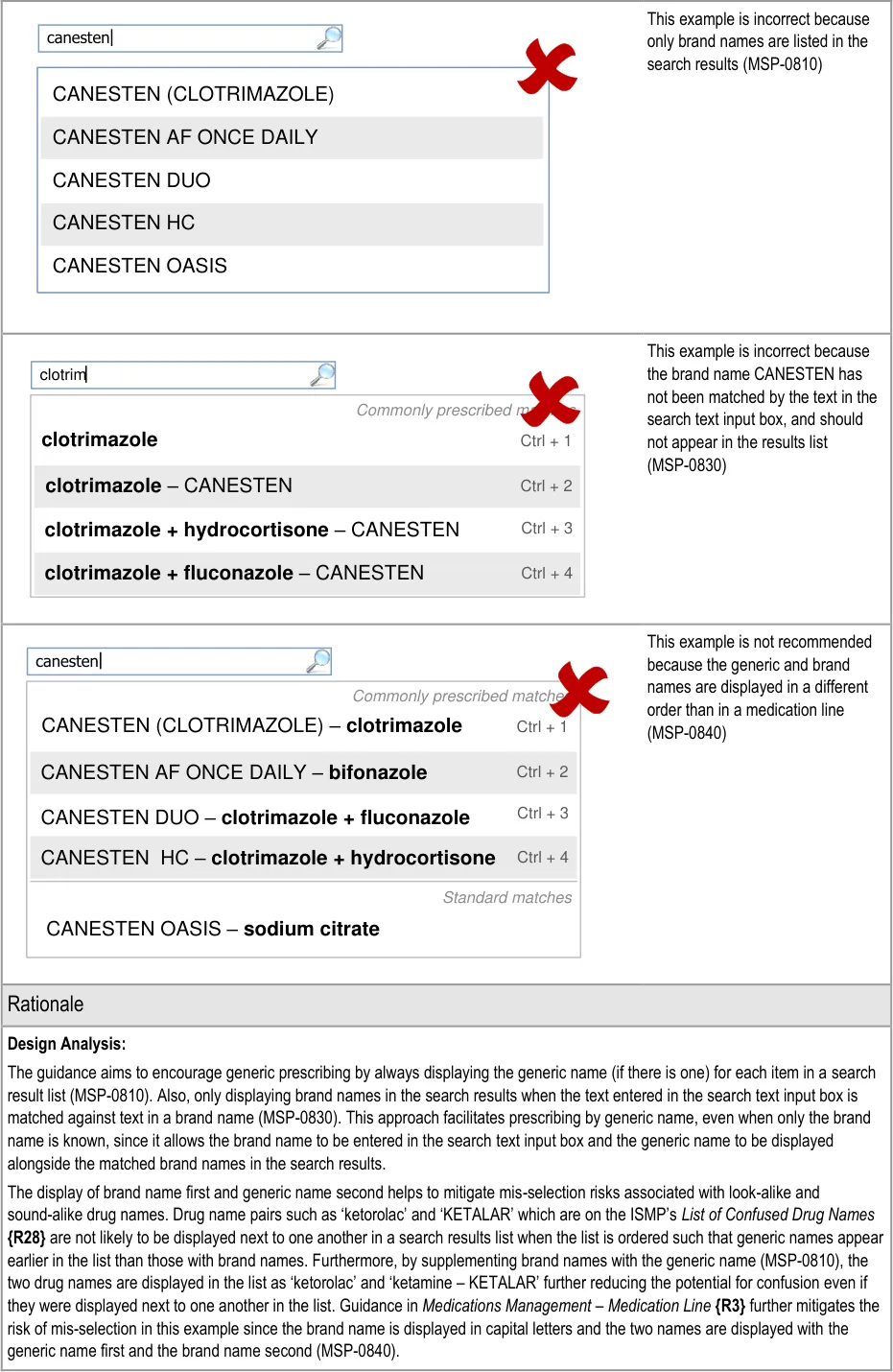
Page 77
Copyright ©2013 Health and Social Care Information Centre
HSCIC Controlled Document
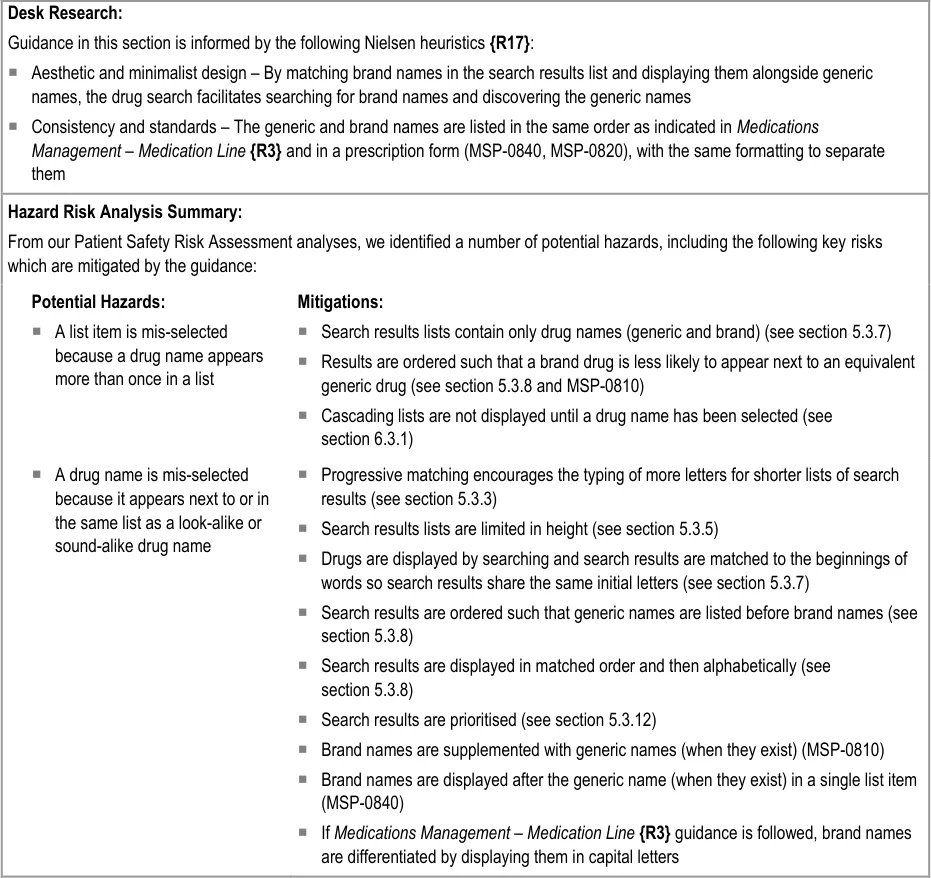
Page 78
Copyright ©2013 Health and Social Care Information Centre
HSCIC Controlled Document
6 GUIDANCE DETAILS FOR CASCADING LISTS
6.1 Introduction
After a drug has been selected, either from the Quick List or a list of search results, a number of other attributes are needed to determine the type of medication that is being prescribed. This section provides guidance for cascading lists as a means of facilitating the definition of those attributes.
Figure 11 shows the full user interface prescribing process in which the steps covered in this
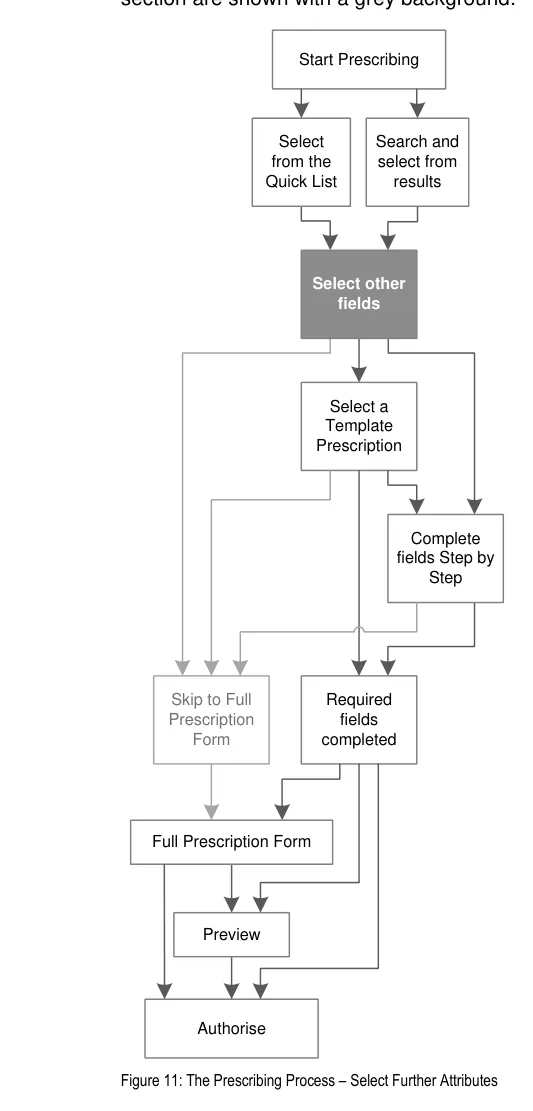
Page 79
Copyright ©2013 Health and Social Care Information Centre
HSCIC Controlled Document
Figure 12 is an extract from Figure 5 to illustrate the user interface prescribing steps covered in this section showing the cascading list step and links to and from other steps:
Cascading Lists
| drug | route | option 1 option 2 option 3 |
|---|---|---|
| drug | route | other… |
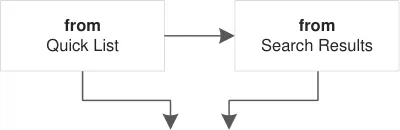
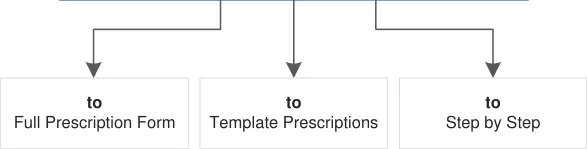
Figure 12: User Interface Prescribing Steps – Cascading Lists
6.2 Principles
All guidance is informed by all of the principles for search and prescribe listed in section 2.1. The following are particularly relevant to this section:
- Mitigate the risks of mis-selection and misinterpretation:
Lists can be kept open so that feedback for selections is maximised
The contents of lists are limited by the previous selection, so a mis-selection is more likely to be noticed because of the contents of the following list
- Encourage simplicity of design by promoting user interface approaches that help to avoid
overly complex displays and interactions that require many controls:
Cascading lists allow the majority of a prescription to be defined using a series of
identical user input controls
- Ensure that the prescribing process can be supported in multiple layouts and is flexible
enough to be presented in different screen dimensions:
Cascading lists can be displayed opened or closed depending on the available space
and can wrap onto a new line if necessary
- Adhere to a user interface strategy that gives the impression of making progress within a
single space (which has all the necessary information immediately or readily available) and avoids the impression of needing to move between many different spaces:
Cascading lists are presented within the same space, with each list supplementing the
last
Page 80
Copyright ©2013 Health and Social Care Information Centre
HSCIC Controlled Document
6.3 Guidelines
6.3.1 Providing Cascading Lists
Important
This section contains guidance for which there may be alternative solutions. Accordingly, the conformance ratings in this section apply only where the guidance is adopted.
The Rationale section contains a summary of the known risks which are addressed in this section and which must be addressed by any alternative solution. For more information, see the Alternative Design Solutions note in section 1.
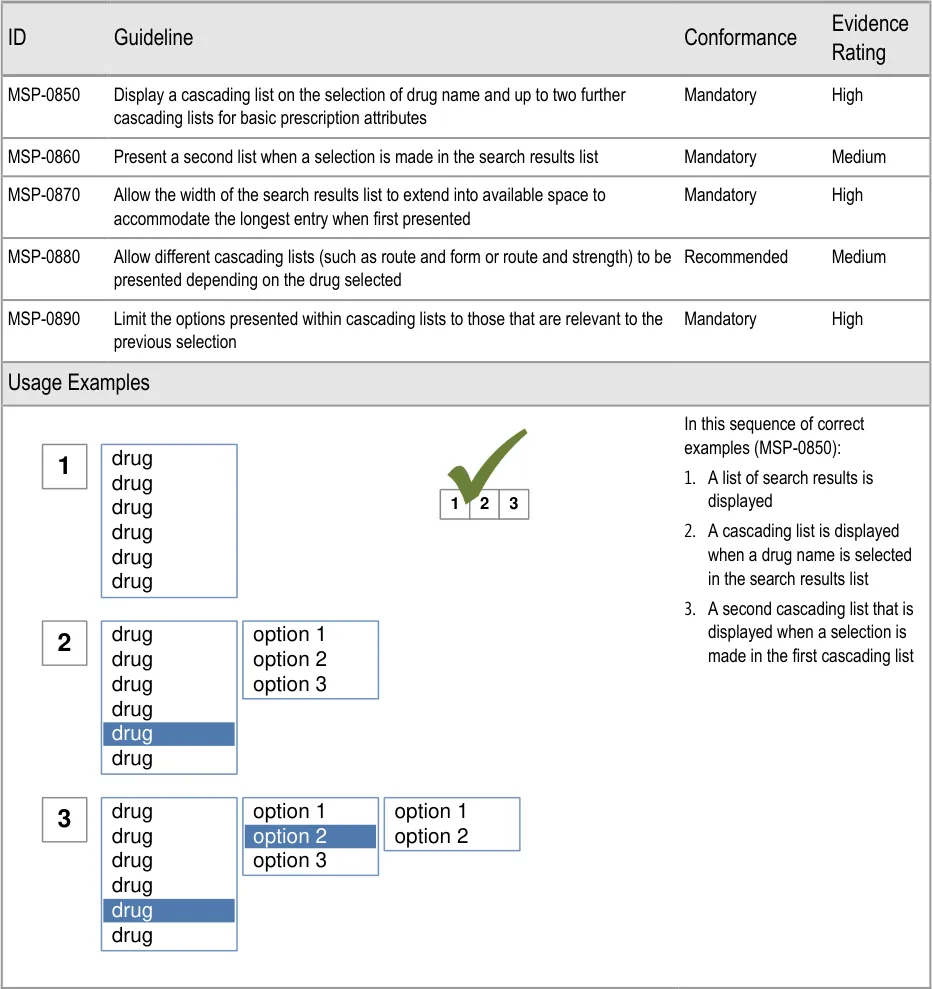
Page 81
Copyright ©2013 Health and Social Care Information Centre
HSCIC Controlled Document
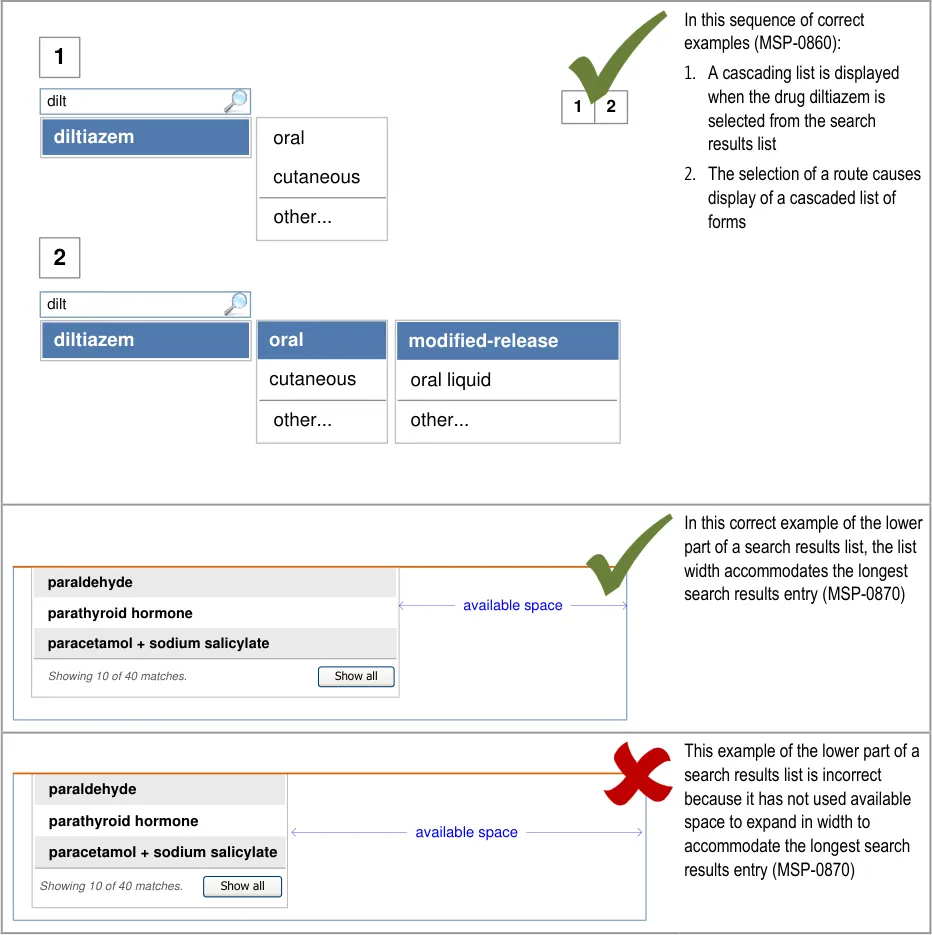
Page 82
| dilt | Col2 |
|---|---|
| diltiazem | cutaneous oral |
| diltiazem | other… |
| dilt | Col2 |
|---|---|
| diltiazem | oral cutaneous |
| diltiazem | other… |
| paraldehyde oavailable spaceo parathyroid hormone paracetamol + sodium salicylate Showing 10 of 40 matches. Show all | paraldehyde parathyroid hormone paracetamol + sodium salicylate | oavailable spaceo |
|---|---|---|
| paracetamol + sodium salicylate paraldehyde parathyroid hormone Show all Showing 10 of 40 matches. | Show all Showing 10 of 40 matches. | Show all Showing 10 of 40 matches. |
| Col1 | Col2 | Col3 |
|---|---|---|
| paracetamol + sodium salicylate paraldehyde parathyroid hormone Show all Showing 10 of 40 matches. | paracetamol + sodium salicylate paraldehyde parathyroid hormone | |
| paracetamol + sodium salicylate paraldehyde parathyroid hormone Show all Showing 10 of 40 matches. | Show all Showing 10 of 40 matches. | Show all Showing 10 of 40 matches. |
Copyright ©2013 Health and Social Care Information Centre
HSCIC Controlled Document
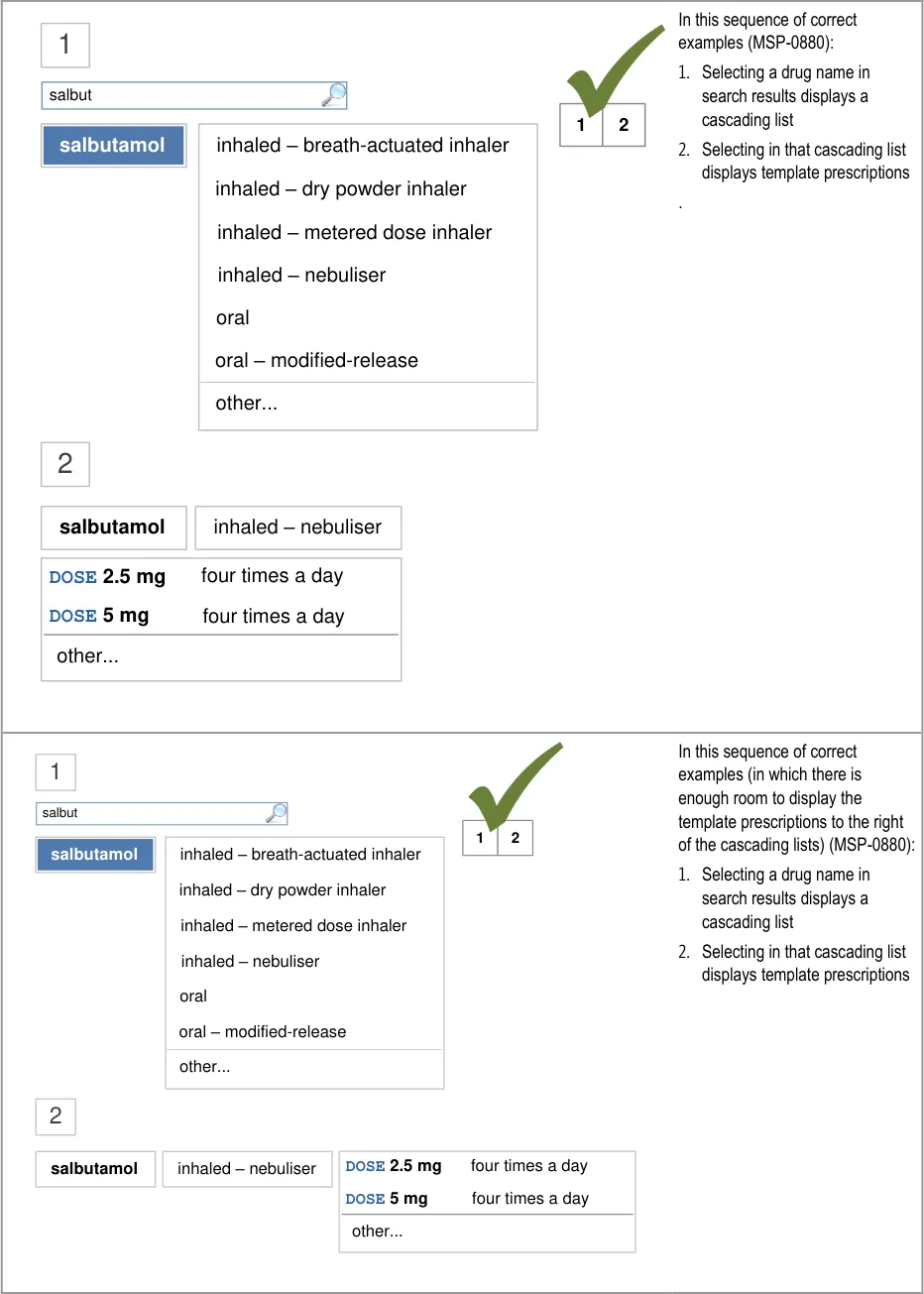
Page 83
Copyright ©2013 Health and Social Care Information Centre
HSCIC Controlled Document
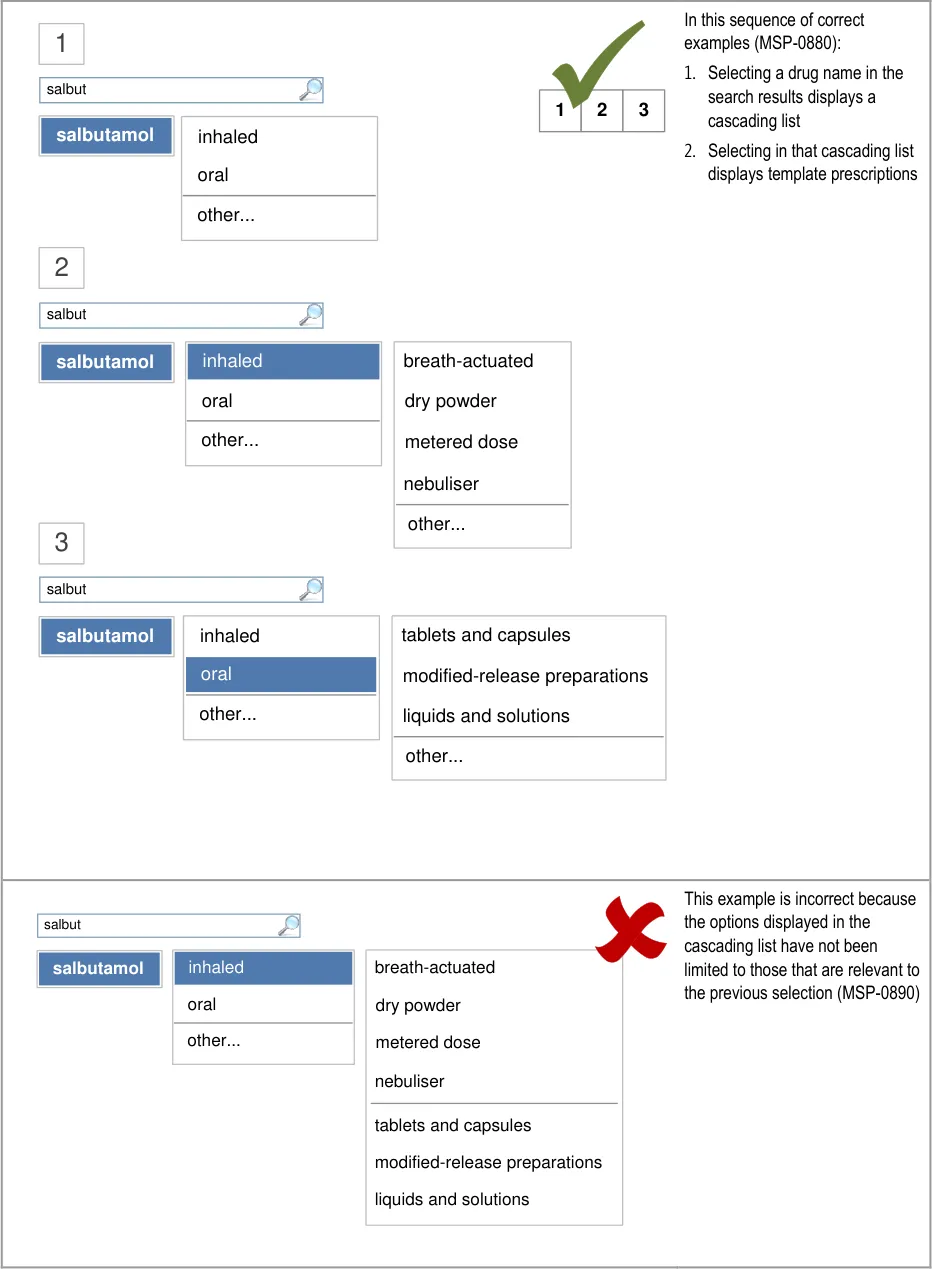
Page 84
Copyright ©2013 Health and Social Care Information Centre
HSCIC Controlled Document
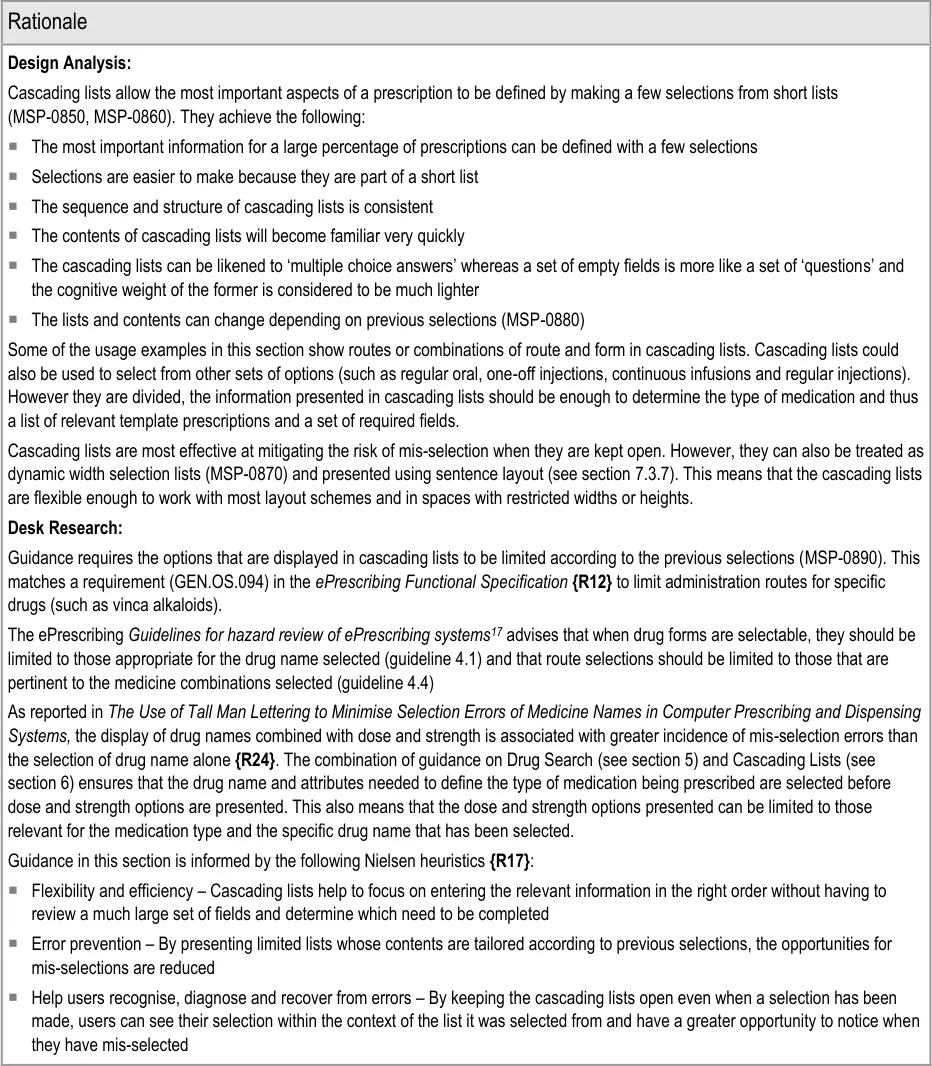
17 NHS ePrescribing: Guidelines for hazard review of ePrescribing systems {R31} : http://www.connectingforhealth.nhs.uk/systemsandservices/eprescribing/hazard_framework.pdf
Page 85
Copyright ©2013 Health and Social Care Information Centre
HSCIC Controlled Document
Hazard Risk Analysis Summary:
From our Patient Safety Risk Assessment analyses, we identified a number of potential hazards, including the following key risks, some of which are mitigated and some partially mitigated by the guidance:
Potential Hazards:
The name of the drug being
prescribed is not noticed at the top of the form and is not the intended drug
Selections in the search results
list and cascading lists are misinterpreted because they are not (or may not be) horizontally aligned
A list item is mis-selected
because a drug name appears more than once in a list
Mitigations:
The options presented after a drug is selected are filtered to be relevant to that drug
(MSP-0850)
The drug name remains at the top of the form when switching to a detailed prescription
and is visible throughout, even when the prescription is long enough to need a scroll bar (see section 8.3.3)
This risk is not wholly mitigated by guidance
The cascading list that is displayed on selection contains only options that are relevant to
the selection and thus may not contain the expected options (MSP-0880, MSP-0890) in the event of a mis-selection
Cascading lists are presented one at a time after a selection has been made in the
previous list (MSP-0860)
When space is limited such that cascading lists obscure other information, the list
collapses (see section 6.3.2)
Search results lists contain only drug names (generic and brand) (see section 5.3.7)
Results are ordered such that a brand drug is less likely to appear next to an equivalent
generic drug (see section 5.3.8)
Cascading lists are not displayed until a drug name has been selected (MSP-0850)
6.3.2 Displaying Cascading Lists
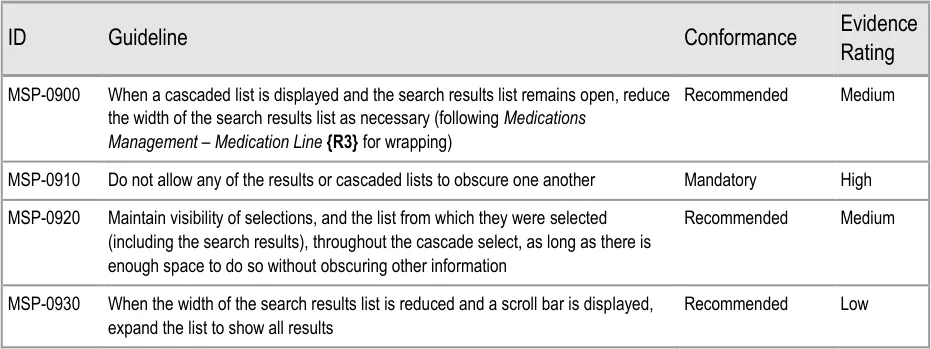
Page 86
Copyright ©2013 Health and Social Care Information Centre
HSCIC Controlled Document
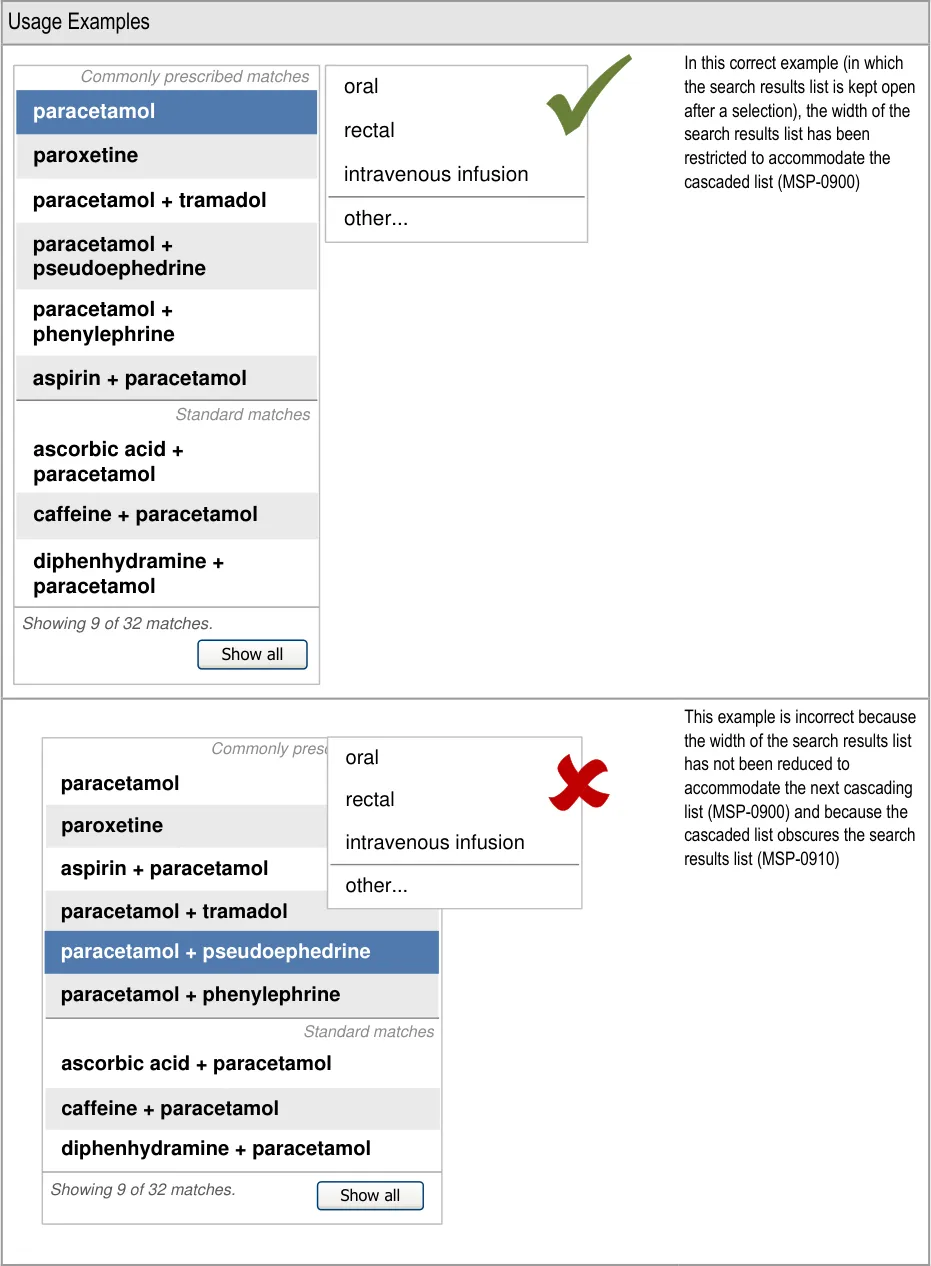
| Commonly prescribed matches paracetamol paroxetine paracetamol + tramadol paracetamol + pseudoephedrine paracetamol + phenylephrine aspirin + paracetamol Standard matches ascorbic acid + paracetamol caffeine + paracetamol diphenhydramine + paracetamol | oral rectal intravenous infusion |
|---|---|
| paracetamol paracetamol + phenylephrine paracetamol + pseudoephedrine paracetamol + tramadol Commonly prescribed matches Standard matches ascorbic acid + paracetamol diphenhydramine + paracetamol paroxetine aspirin + paracetamol caffeine + paracetamol | other… |
| Showing 9 of 32 matches. Show all | Showing 9 of 32 matches. Show all |
Page 87
| Commonly prescribed matches oral paracetamol rectal paroxetine intravenou aspirin + paracetamol other… paracetamol + tramadol paracetamol + pseudoephedrine paracetamol + phenylephrine | cribed matches oral rectal intravenou other… | s infusion |
|---|---|---|
| Commonly prescribed matches paracetamol paracetamol + pseudoephedrine paracetamol + phenylephrine paracetamol + tramadol aspirin + paracetamol rectal oral intravenou other… paroxetine | _ cribed matches_ rectal oral intravenou other… | |
| Standard matches ascorbic acid + paracetamol diphenhydramine + paracetamol caffeine + paracetamol | Standard matches ascorbic acid + paracetamol diphenhydramine + paracetamol caffeine + paracetamol | Standard matches ascorbic acid + paracetamol diphenhydramine + paracetamol caffeine + paracetamol |
| Showing 9 of 32 matches. Show all | Showing 9 of 32 matches. Show all | Showing 9 of 32 matches. Show all |
Copyright ©2013 Health and Social Care Information Centre
HSCIC Controlled Document
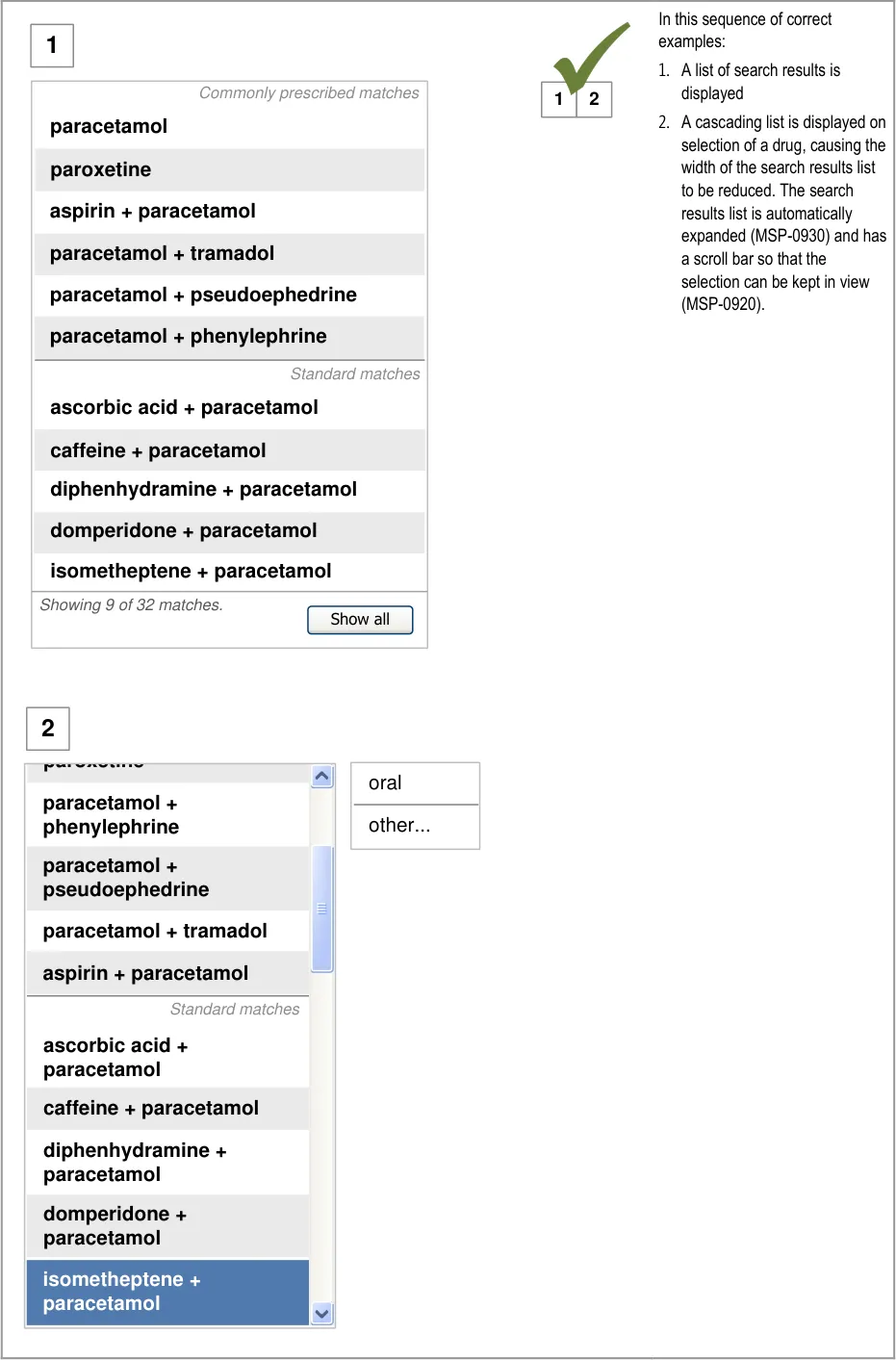
Page 88

Copyright ©2013 Health and Social Care Information Centre
HSCIC Controlled Document

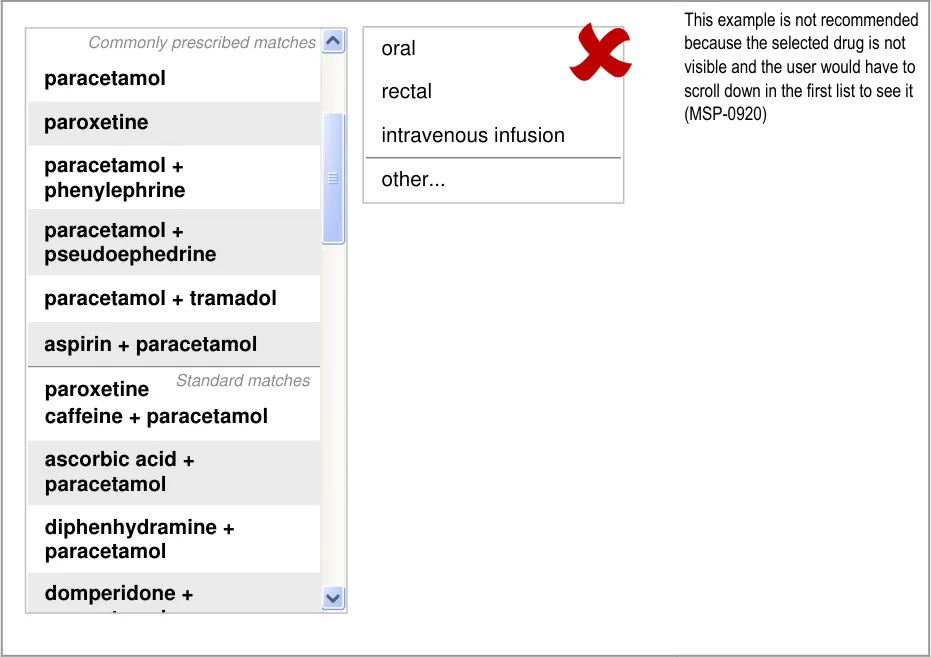
Page 89
Copyright ©2013 Health and Social Care Information Centre
HSCIC Controlled Document
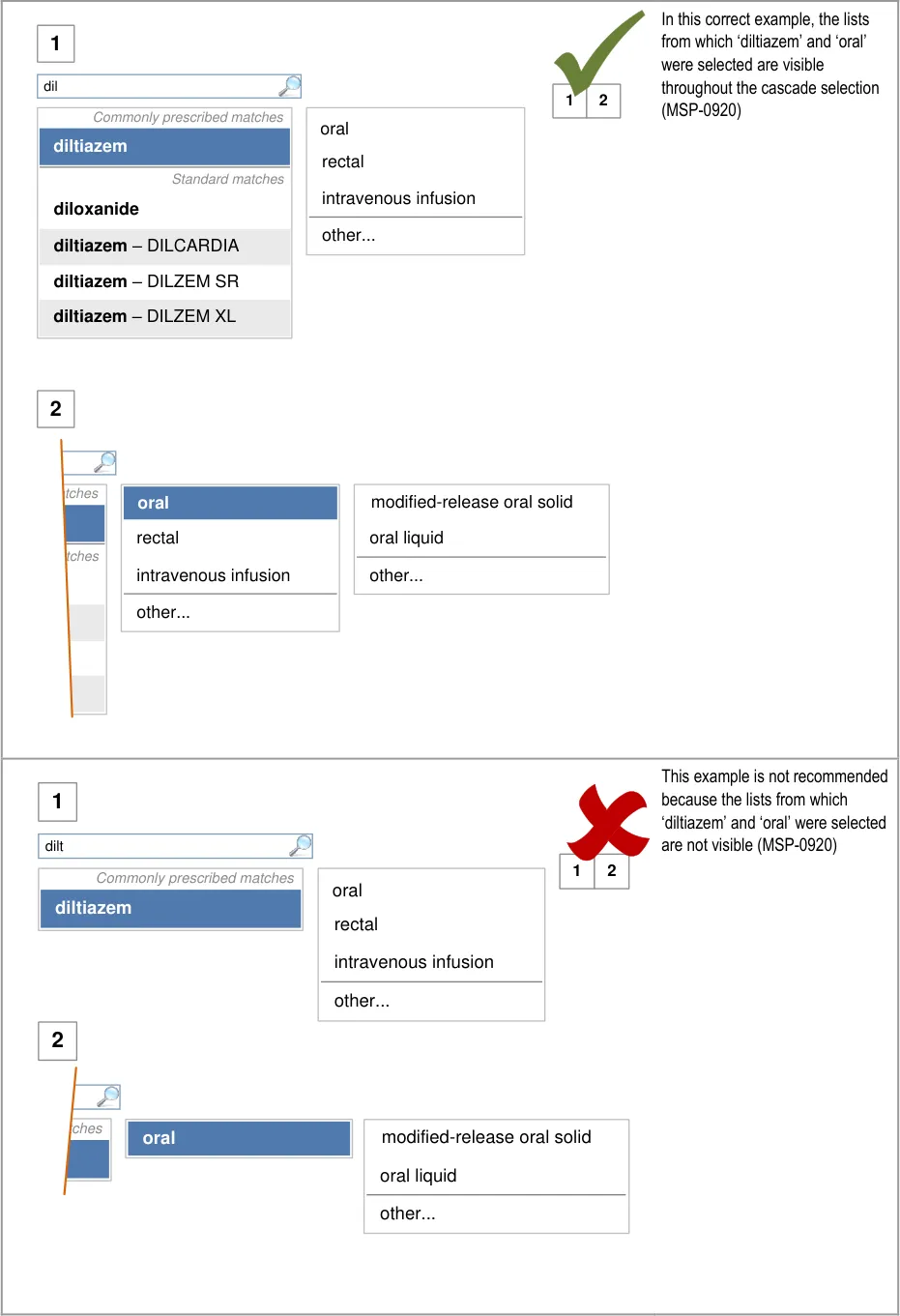
Page 90
Copyright ©2013 Health and Social Care Information Centre
HSCIC Controlled Document
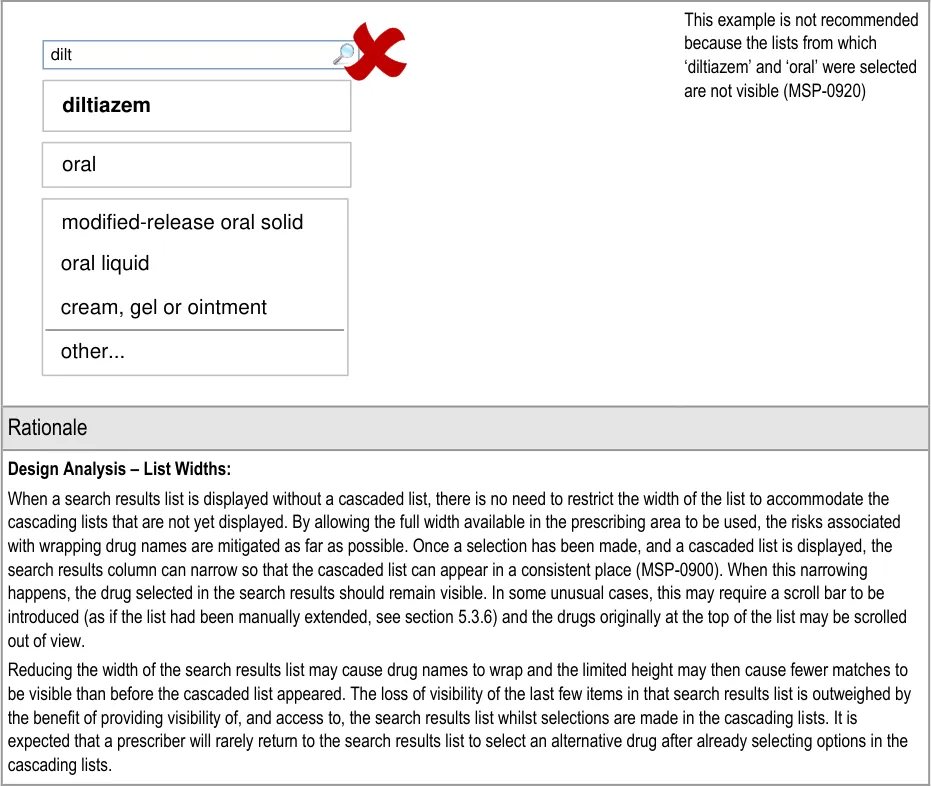
Page 91
Copyright ©2013 Health and Social Care Information Centre
HSCIC Controlled Document
This approach to managing the width of the search results lists avoids the following potential risks:
Truncation of drug names (see Medications Management – Medication Line {R3} ) or items in cascading lists
The unnecessary partial display (partially off-screen) of a cascading list as a result of limited screen space, when a reduced width
search results list would bring the cascading list back into view
When a cascading list is presented with options that are not expected (because of a mis-selection) the intended selection is still visible, thus allowing the mistakes to be confirmed
Design Analysis – Maintaining Visibility of Selections:
Keeping the selection lists open as prescribers make their selections allows them to continue seeing their selections in context (MSP-0910, MSP-0920). Visibility of both the list and their selection may improve the speed at which prescribers notice when they have mis-selected. The list that is presented after a selection has been made is also providing visual feedback. When this list does not present the options expected, it is even more likely to help the prescriber spot a mis-selection.
Keeping the cascading lists open so that selections are displayed within the list from which they were selected achieves the following:
Provides positive feedback for the selection
Improves feedback for mis-selections since the intended selection is still visible (but not selected or highlighted)
When a cascading list is presented with options that are not expected (because of a mis-selection) the intended selection is still
visible, thus allowing the mistakes to be confirmed and corrected quickly
Cascading lists also enhance a sense of place and provide feedback for progress through the simple two to three-step selections
The cascade select approach is designed to keep the right balance between:
A system that allows medications to be prescribed with an absolute minimum of interaction
A system that mitigates the risks of being able to complete a prescription without paying enough attention to the details
Cascading lists guide selections in such a way that reduces the potential for mistakes and inappropriate selections.
Desk Research:
Guidance in this section is informed by the following Nielsen heuristic {R17} :
Help users recognise, diagnose and recover from errors – By retaining the cascading lists open even when a selection has been
made, and ensuring that they are not obscured, users can see their selection within the context of the list it was selected from and have a greater opportunity to notice when they have mis-selected
Hazard Risk Analysis Summary:
From our Patient Safety Risk Assessment analyses, we identified a number of potential hazards, including the following key risks, some of which are mitigated and some partially mitigated by the guidance:
Potential Hazards:
A prescriber mis-selects a prescription
element because lists contain too many similar options
A selection list in the prescribing area
may obscure important information in a list of current medications
Selections in the search results list and
cascading lists are mis-interpreted because they are not (or may not be) horizontally aligned
Mitigations:
MSP-0920 requires that selections in cascading lists remain visible until the last
cascading list (until template prescriptions are presented or fields are presented step by step)
Pressing the ESC key or clicking outside of a list are mechanisms that can be
used to close a list without making a selection (see section 9.3.1)
Selection lists can collapse once a selection has been made if necessary to
preserve visibility of other information (MSP-0920)
This risk is not wholly mitigated by guidance
The cascading list that is displayed on selection contains only options that are
relevant to the selection and thus may not contain the expected options (see section 6.3.1) in the event of a mis-selection
Cascading lists are presented one at a time after a selection has been made in
the previous list (see section 6.3.1)
When space is limited such that cascading lists obscure other information, the list
collapses (MSP-0920)
Page 92
Copyright ©2013 Health and Social Care Information Centre
HSCIC Controlled Document
6.3.3 Contents of Cascading Lists
Drug search results, cascading lists and other selection lists can be divided into sections in order to bring prioritised list items to the top of a list. See section 5.3.12 for guidance on prioritisation within a search results list and section 9.3.3 for guidance on prioritisation within selection lists used as input controls.
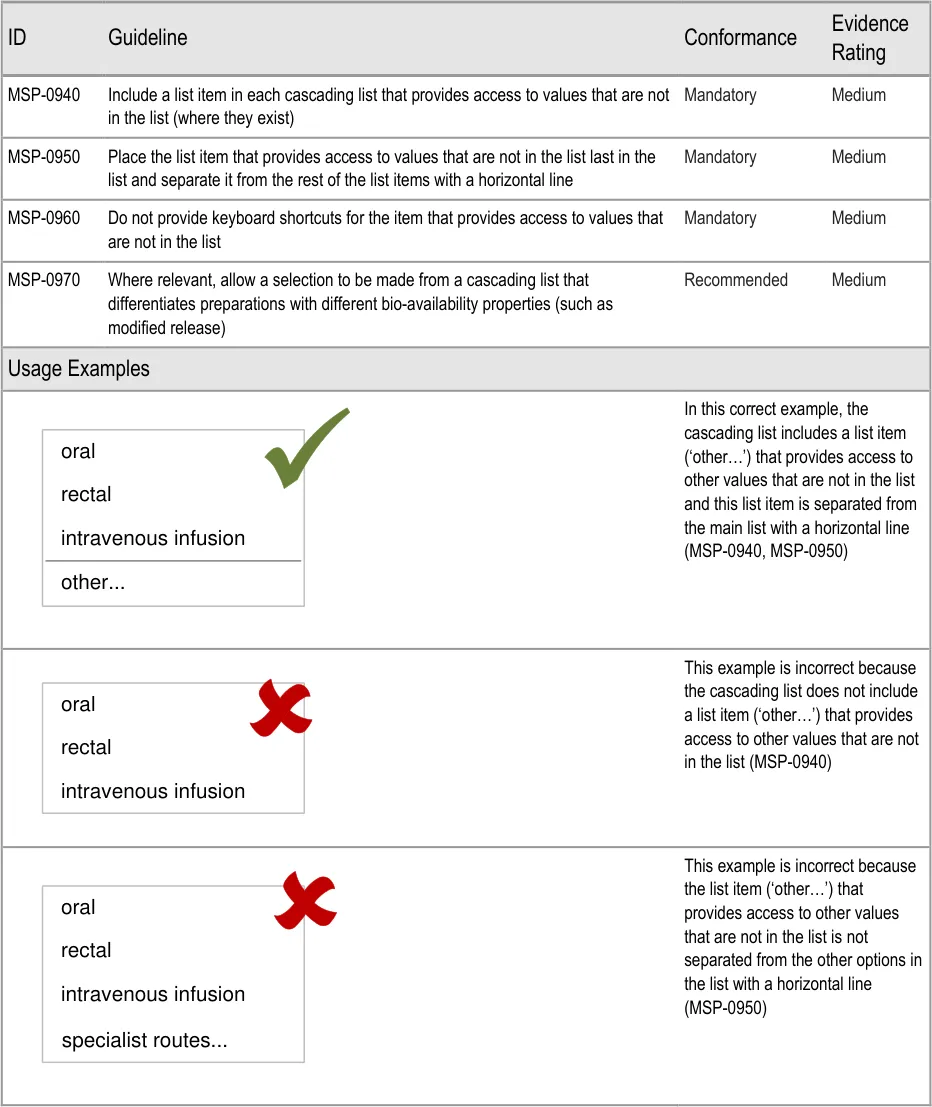
Page 93
Copyright ©2013 Health and Social Care Information Centre
HSCIC Controlled Document
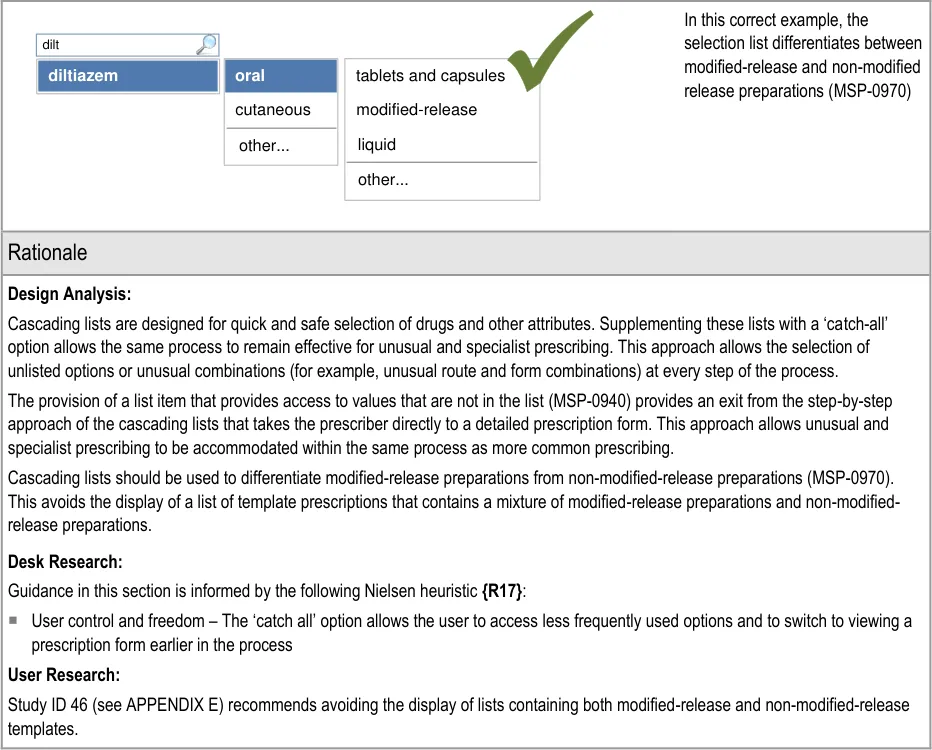
| dilt | Col2 |
|---|---|
| diltiazem | oral cutaneous |
| diltiazem | other… |
6.3.4 Providing Cascading Lists for Brands
When a prescriber selects a brand name from a search results list, there are three possible types of match that affect the options that should be available from the subsequent cascading list:
- On selection of a brand name that does not have a generic name (such as DIORALYTE or
GAVISCON) cascading lists (such as route and form) will be displayed in the same way as those presented for generic drugs. A cascading list may not need to be presented if the brand name is for a single drug or group of drugs that do not need further attributes in order to determine the type of medication (and thus which fields are required). See Figure 13
- On selection of a brand name that does have a generic equivalent, a cascading list
containing both the brand selected and generic equivalents should be displayed. See Figure 14
- On selection of a brand name for which the display (and selection) of a generic equivalent
is not recommended (for example, because an equivalent may not be truly bioequivalent), cascading lists will be displayed for the brand only. See Figure 15
Page 94
Copyright ©2013 Health and Social Care Information Centre
HSCIC Controlled Document
These three cases are illustrated in Figure 13, Figure 14 and Figure 15:
dio
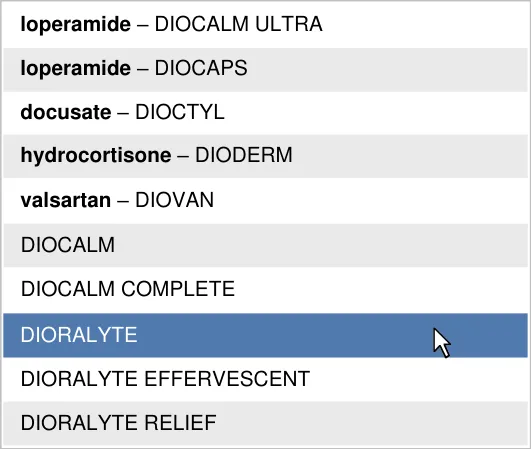
Figure 13: Selection of a Brand Name That Does Not Have a Generic Name
teno
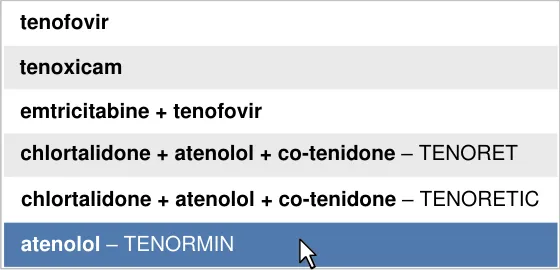
other…
atenolol - oral
TENORMIN - oral
other…
Figure 14: Selection of a Brand Name That Has a Generic Equivalent (That Is Recommended to Display)
dil
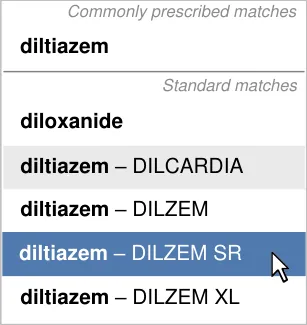
DILZEM SR - oral - modified-release
other…
Figure 15: Selection of a Brand Name for Which There Are No Generic Equivalents (That Are Recommended to Display)
Copyright ©2013 Health and Social Care Information Centre
Page 95
HSCIC Controlled Document
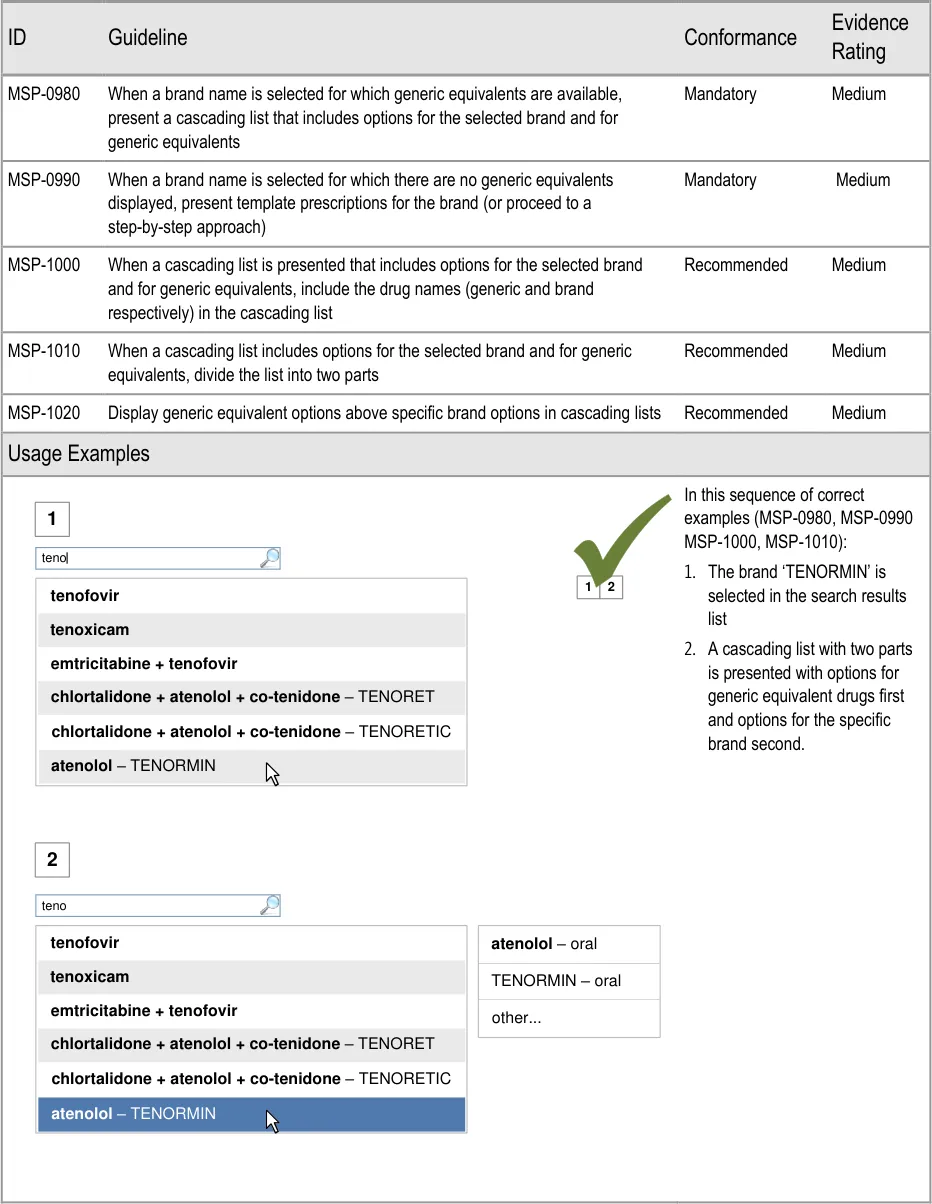
Page 96
Copyright ©2013 Health and Social Care Information Centre
HSCIC Controlled Document
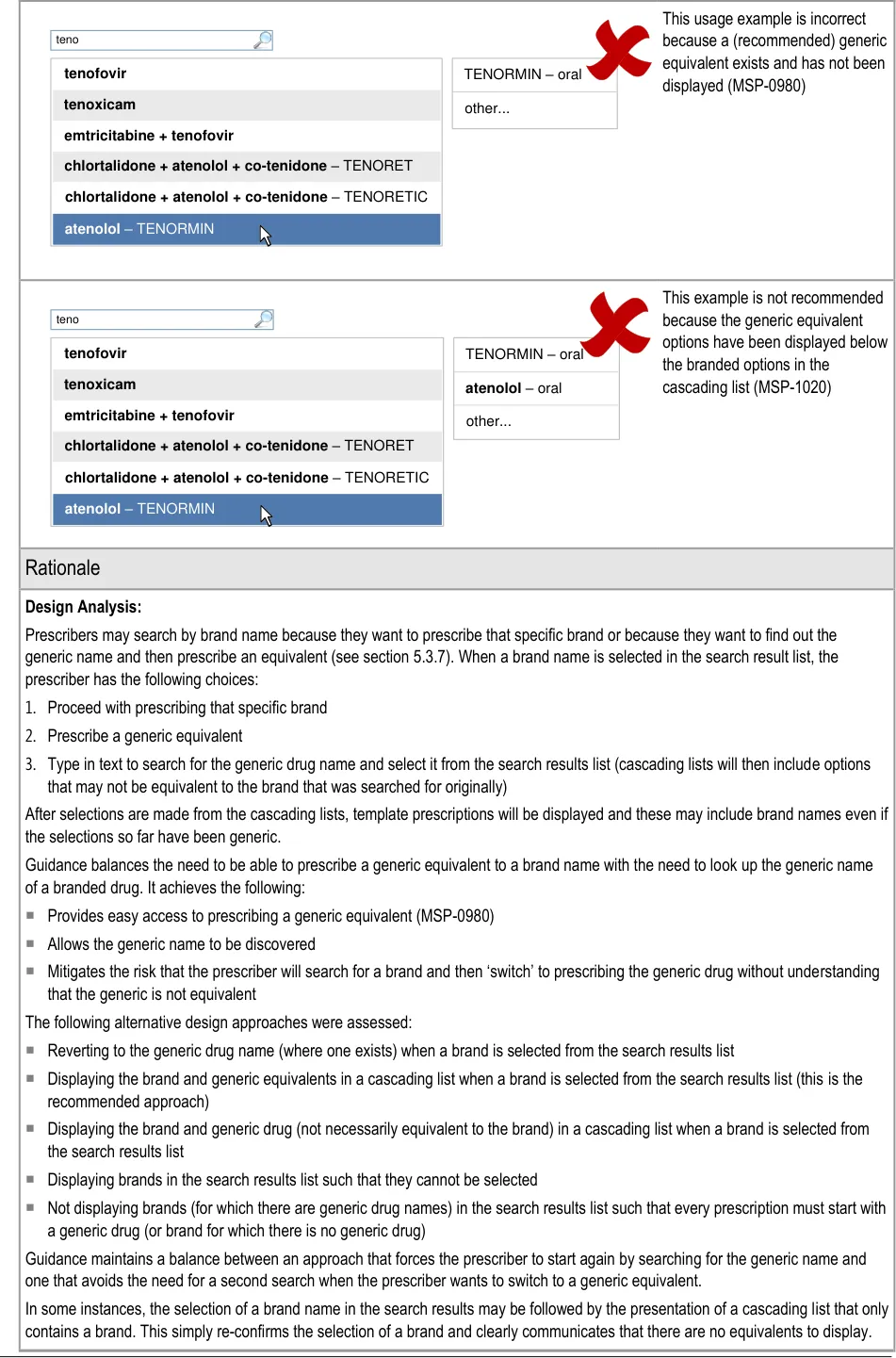
Page 97
Copyright ©2013 Health and Social Care Information Centre
HSCIC Controlled Document
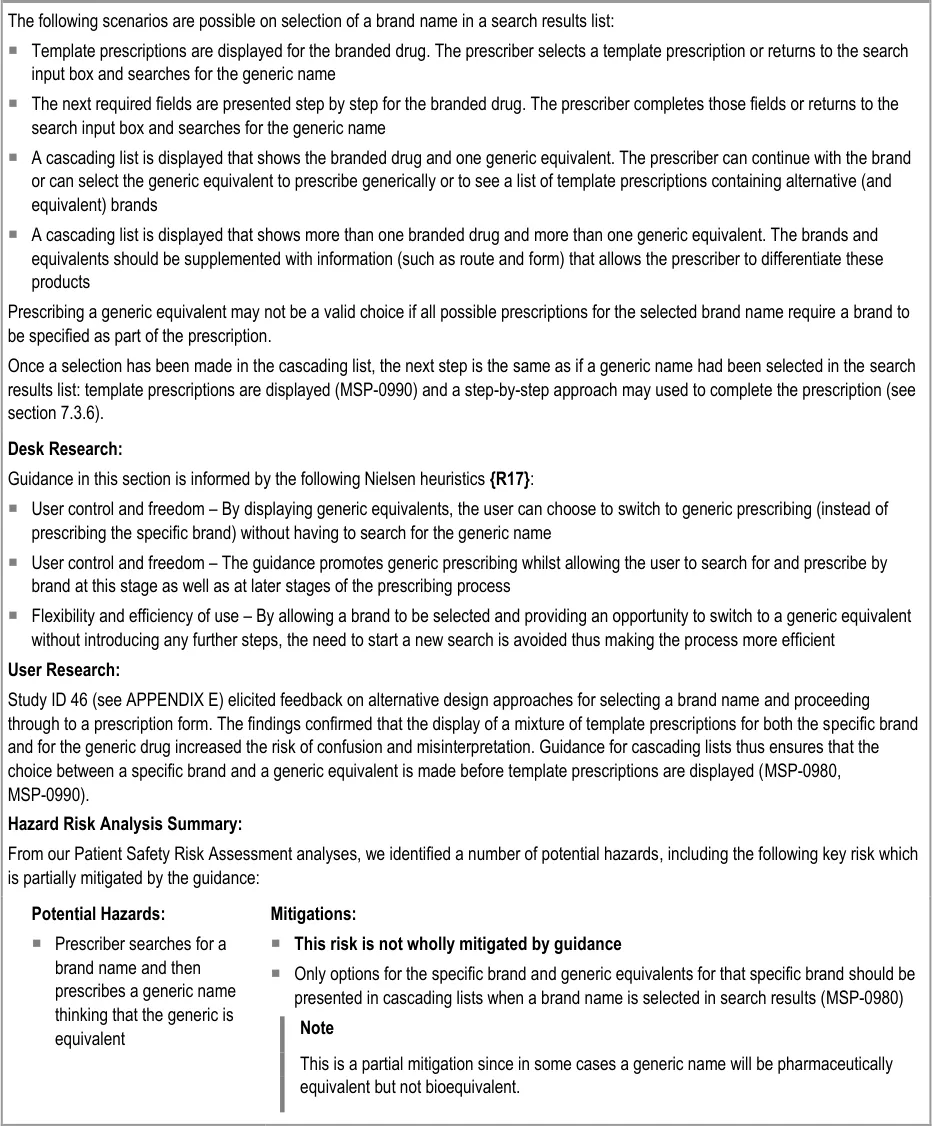
Page 98
Copyright ©2013 Health and Social Care Information Centre
HSCIC Controlled Document
7 GUIDANCE DETAILS FOR REQUIRED ATTRIBUTES
7.1 Introduction
The selection of a drug name and some other attributes in cascading lists allows the system to determine the type of drug being prescribed. The definition of the remaining required attributes can be made easier by presenting options that are only relevant to the selected drug type. Template prescriptions (order sentences) are predefined and partially completed prescriptions that allow several attributes to be defined with a single selection from a list.
In the absence of template prescriptions, a prescription can be defined using the step-by-step approach or the full prescription form. In a step-by-step approach some or all of the remaining required fields are presented and completed one by one. Guidance for the step-by-step approach and the remaining steps is covered in section 9.
Figure 16 shows the full user interface prescribing process in which the steps covered in this
| Start Prescribing Select Search and from the select from Quick List results Select other fields Select a Template Prescription Complete fields Step by Step Skip to Full Required Prescription fields Form completed Full Prescription Form Preview Authorise | Col2 |
|---|---|
Start Prescribing Authorise Select from the Quick List Search and select from results Complete fields Step by Step Select a Template Prescription Required fields completed Skip to Full Prescription Form Full Prescription Form Select other fields Preview | Page 99 |
Copyright ©2013 Health and Social Care Information Centre
HSCIC Controlled Document
Figure 16: The Prescribing Process – Select a Template Prescription
Figure 17 is an extract from Figure 5 to illustrate the user interface prescribing steps that are covered in this section showing the template prescriptions step and links to and from other steps:
Template Prescriptions
Step by Step
| Col1 | Col2 |
|---|---|
| drug | route |
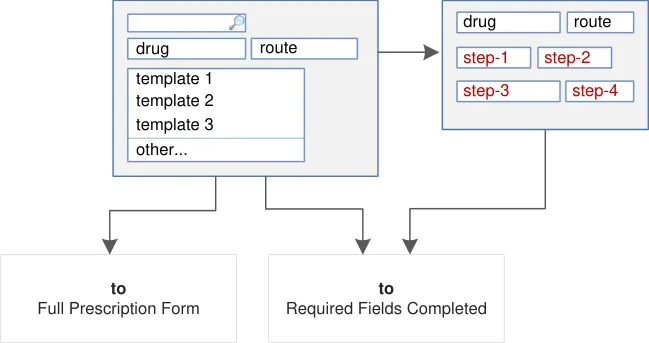
Figure 17: User Interface Prescribing Steps for Completing Required Fields – Template Prescriptions and Step by Step
7.2 Principles
All guidance is informed by all of the principles for search and prescribe listed in section 2.1. The following are particularly relevant to this section:
- Increase efficiency by prioritising the prescription of commonly prescribed medications over
less commonly prescribed medications:
Template prescriptions are a means of defining commonly prescribed regimens so that many prescription values can be defined with a single selection
- Maximise safety in the absence of decision support systems by designing for the reduction
of errors from invalid or inappropriate selections or entries:
The provision of template prescriptions reduces the number of individual selections
that need to be made for a prescription and provides access to combinations of values that are unlikely to be invalid
Template prescriptions can be used to display standard regimens that an organisation
may wish to promote
- Encourage simplicity of design by promoting user interface approaches that help to avoid
overly complex displays and interactions that require many controls:
Template prescriptions allow several values to be selected at once and those options
are displayed in a format similar to a final prescription
- Maximise scalability such that the prescribing process can be modified to accommodate
additional information, steps or shortcuts:
Page 100
Copyright ©2013 Health and Social Care Information Centre
HSCIC Controlled Document
Template prescriptions can contain whichever values are most useful or relevant and
can be supplemented with descriptive text if necessary
- Adhere to a user interface strategy that gives the impression of making progress within a
single space (which has all the necessary information immediately or readily available) and avoids the impression of needing to move between many different spaces:
As with drug search results and cascading lists, template prescriptions are presented
within the same space as a prescription is built up
7.3 Guidelines
7.3.1 Displaying Template Prescriptions
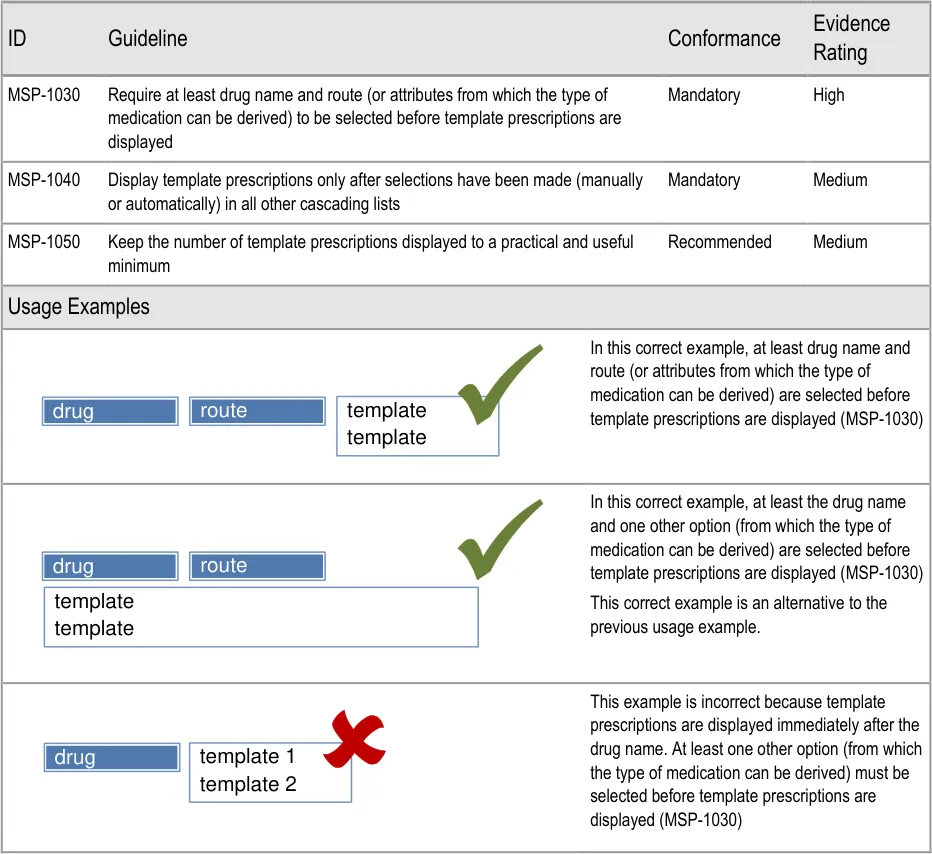
Page 101
Copyright ©2013 Health and Social Care Information Centre
HSCIC Controlled Document
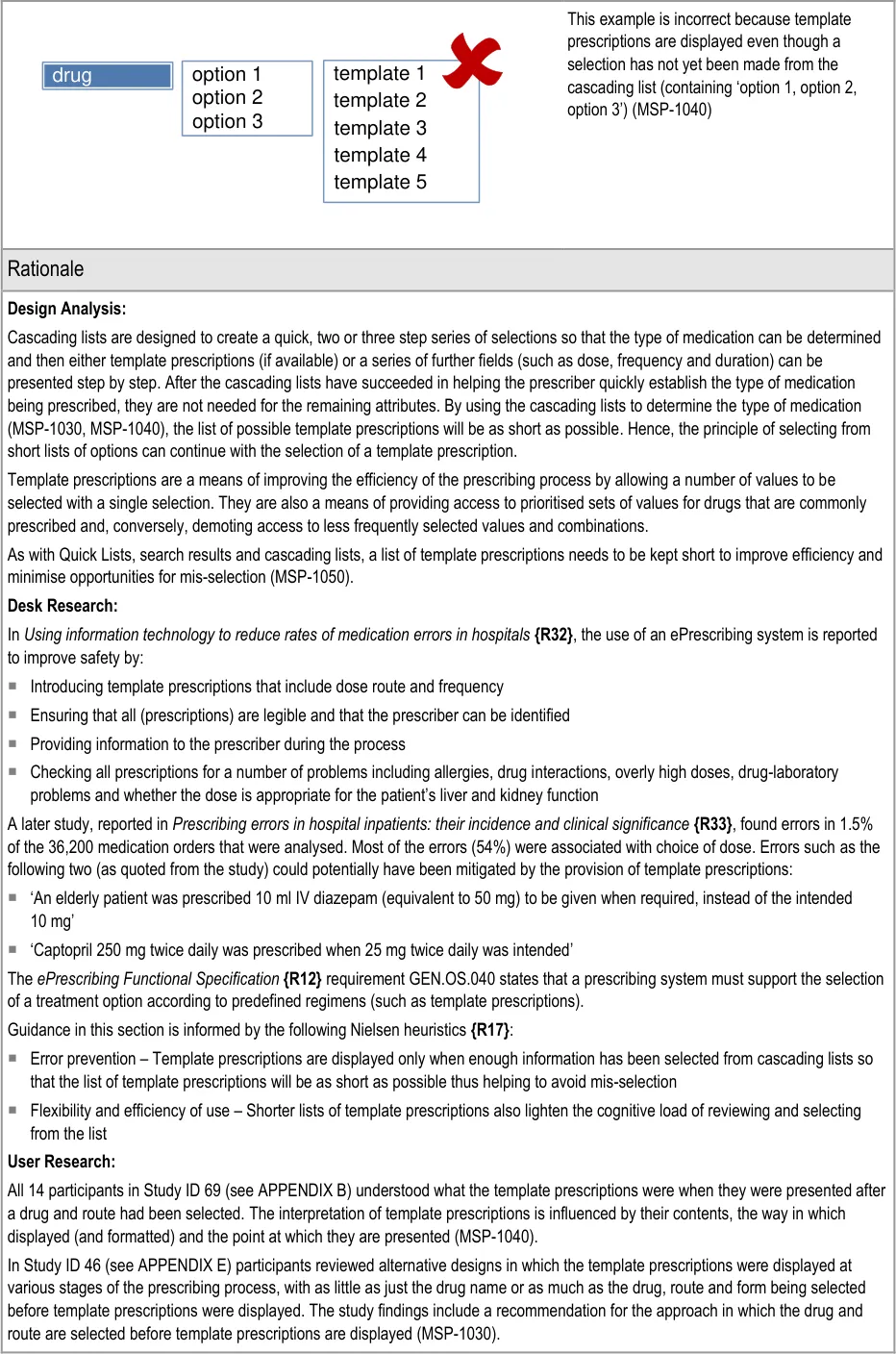
Page 102
Copyright ©2013 Health and Social Care Information Centre
HSCIC Controlled Document
Hazard Risk Analysis Summary:
From our Patient Safety Risk Assessment analyses, we identified a number of potential hazards, including the following key risks, some of which are mitigated and some partially mitigated by the guidance:
Potential Hazards:
A template prescription with an unlicensed dose is
selected and prescribed inappropriately
A large number (such as 25) of template prescriptions
causes a prescriber to select the first one in the list without reading the full list
A prescriber selects an inappropriate template
prescription on the assumption that the template prescriptions presented have been validated against information (such as age, weight, test results, diagnoses and so on available in the patient record
A prescriber selects the template prescription from
the top of the list without reviewing the alternatives
Mitigations:
This risk is not mitigated by guidance
The number of template prescriptions presented in one list is limited
by the selection of drug name and further attributes (that define the type of medication) in cascading lists (MSP-1030, MSP-1040)
MSP-1050 requires the number of templates prescriptions in a list to
be limited
This risk is not mitigated by guidance
Mitigations for this risk are out of scope, see section 1.2.2
This risk is not mitigated by guidance
7.3.2 Displaying a Selection Trail
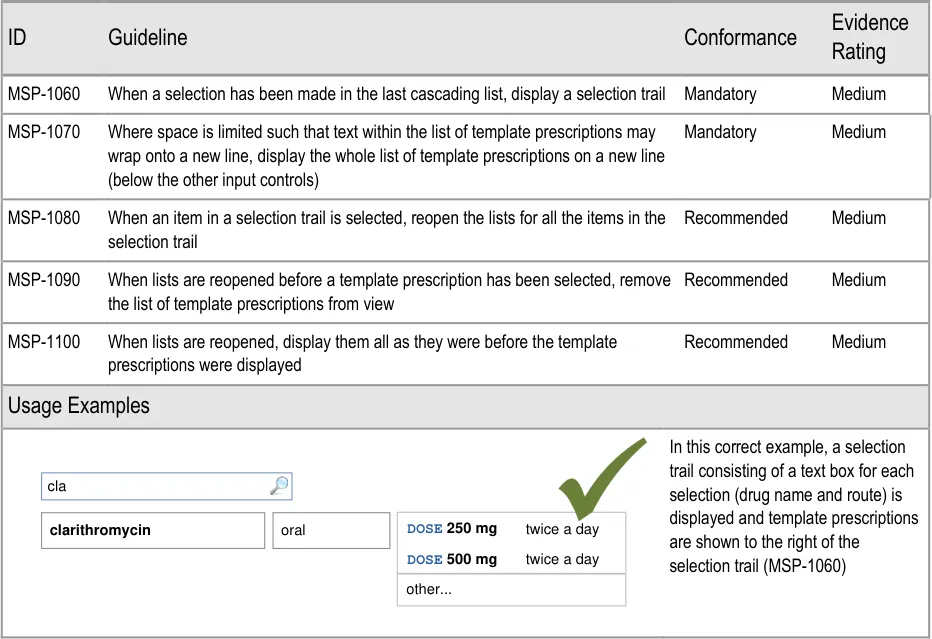
Page 103
Copyright ©2013 Health and Social Care Information Centre
HSCIC Controlled Document
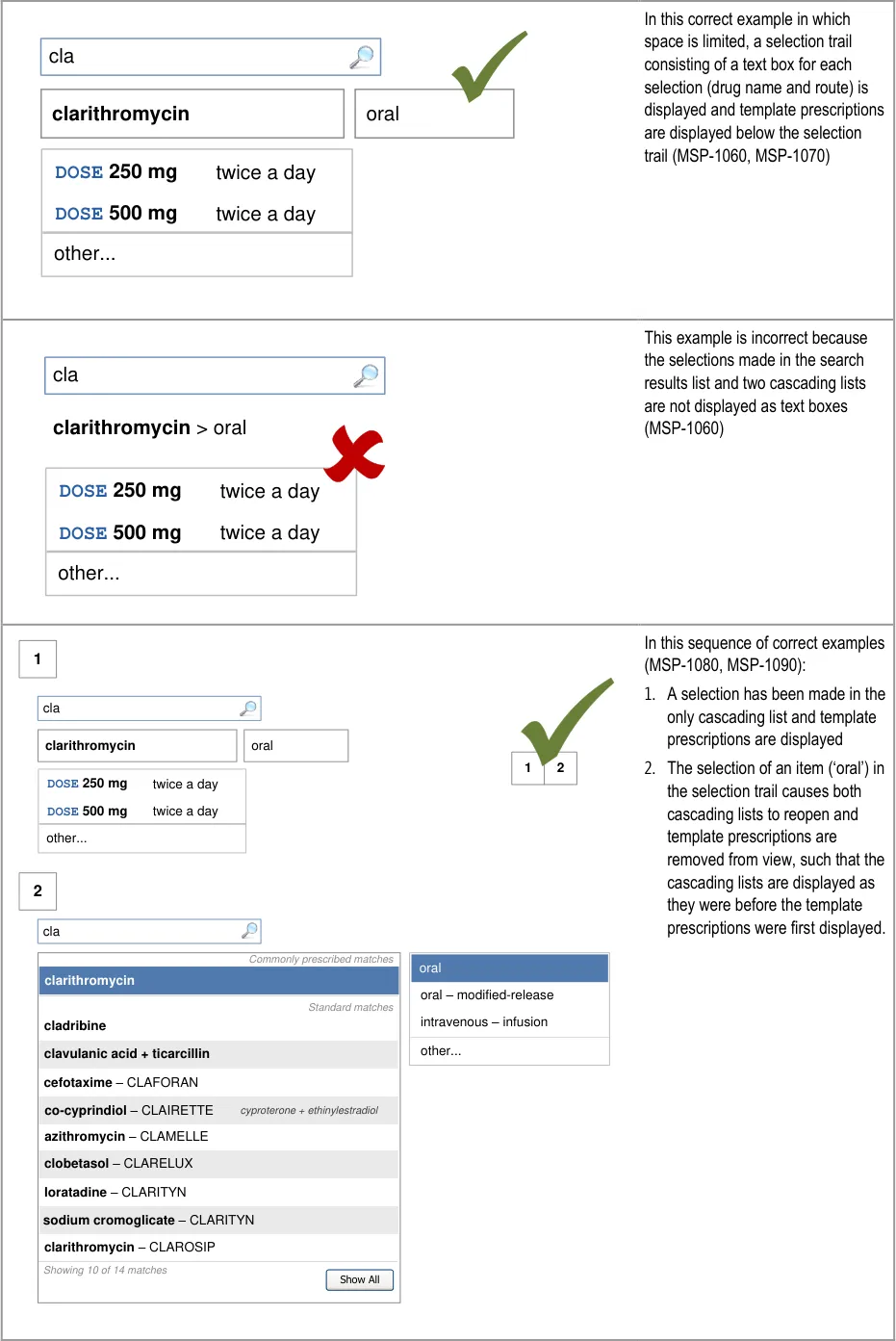
Page 104
Copyright ©2013 Health and Social Care Information Centre
HSCIC Controlled Document
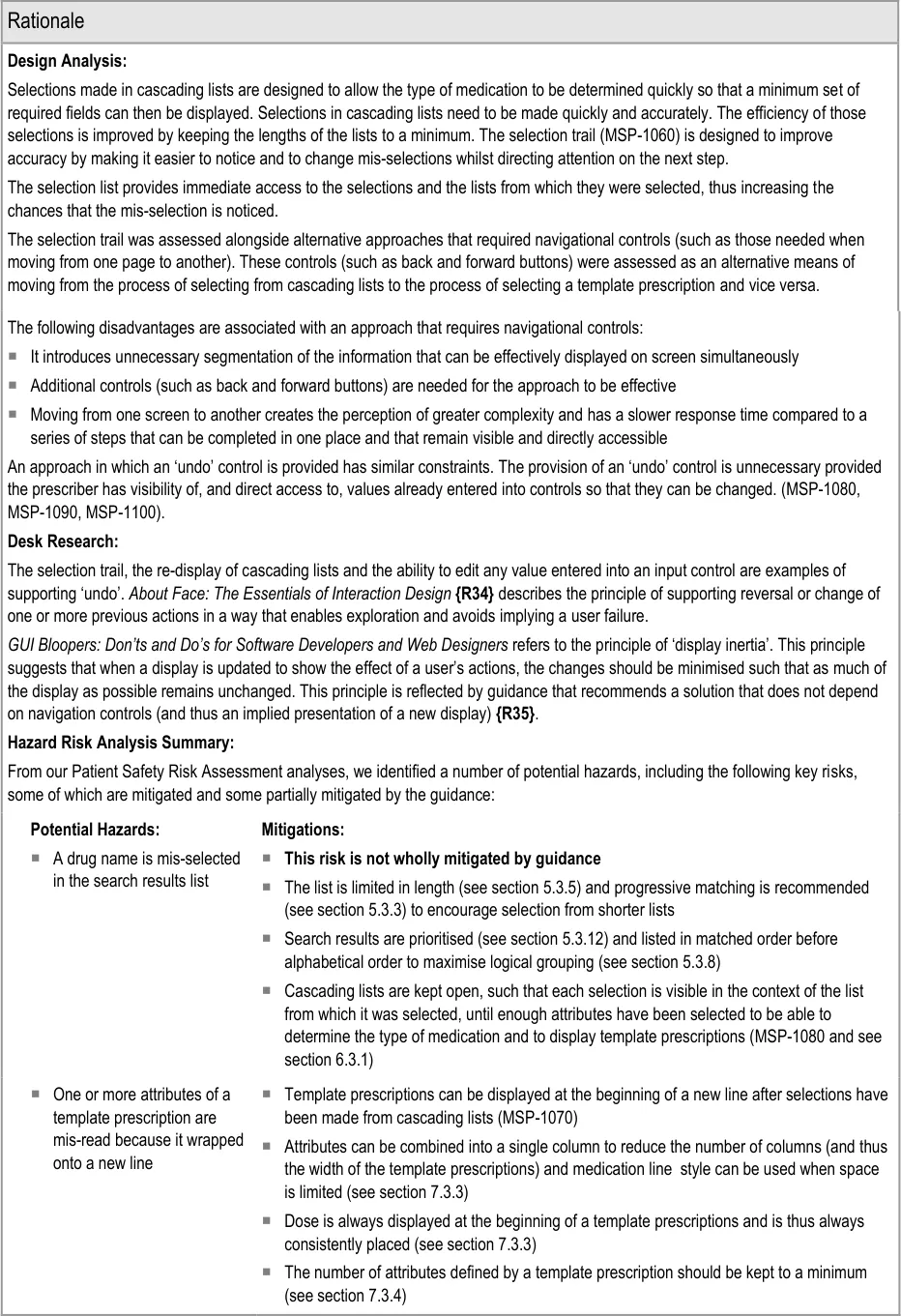
Page 105
Copyright ©2013 Health and Social Care Information Centre
HSCIC Controlled Document
7.3.3 Template Prescription Layout
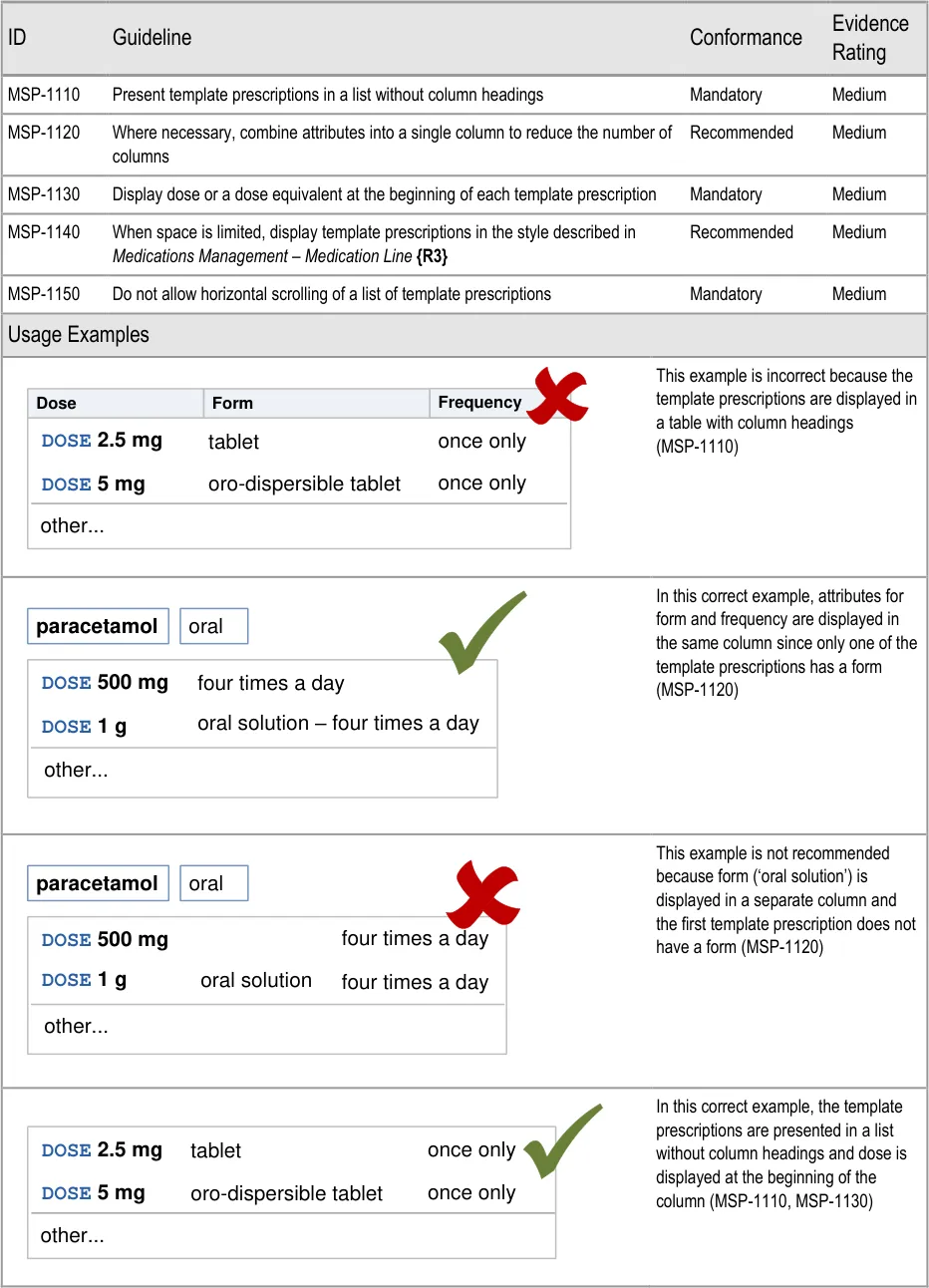
Page 106
| Dose | Form | Frequency |
|---|---|---|
DOSE 5 mgoro-dispersible tablet DOSE 2.5 mg tablet once only once only | DOSE 5 mgoro-dispersible tablet DOSE 2.5 mg tablet once only once only | DOSE 5 mgoro-dispersible tablet DOSE 2.5 mg tablet once only once only |
| other… | other… | other… |
Copyright ©2013 Health and Social Care Information Centre
HSCIC Controlled Document
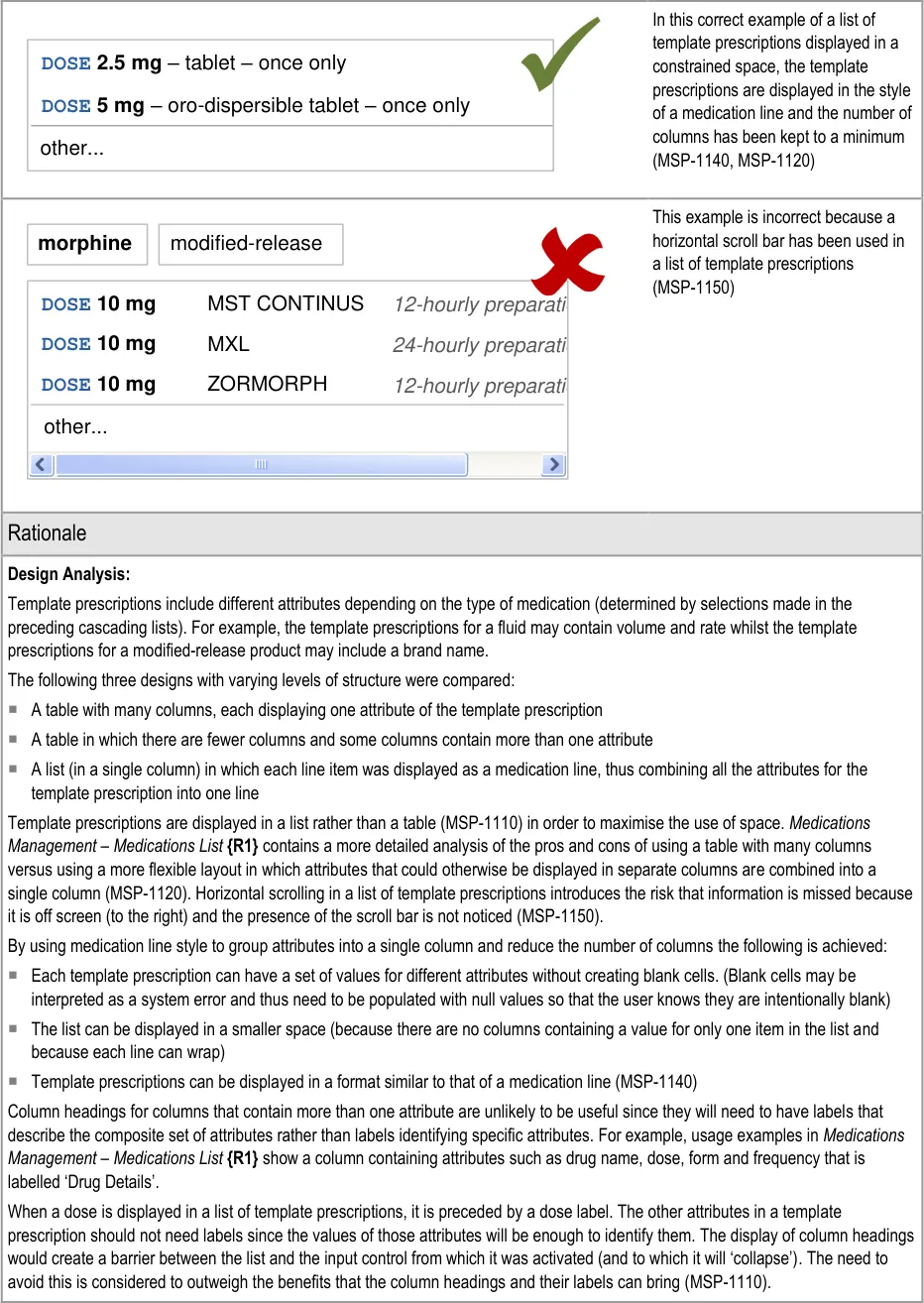
Page 107
Copyright ©2013 Health and Social Care Information Centre
HSCIC Controlled Document
Desk Research:
Guidance in this section is informed by the following Nielsen heuristics {R17} :
Flexibility and efficiency of use – By using the medication line format to display template prescriptions the display is both more
compact and more flexible (it can wrap) so less space is needed to display them
Consistency and standards – Each template prescription begins with the dose (or equivalent) and it is recommended that template
prescriptions are displayed following the same format as a medication line
User Research:
Study ID 46 (see APPENDIX E) found that the use of a table with many columns was preferred. The preference appears to come from the need to compare attributes between template prescriptions and to pick out specific information (such as dose) more easily. The examples used for testing showed template prescriptions in five columns and each template prescription included a minimum of four attributes and a maximum of six. The need to compare across template prescriptions may have been a reflection of the large number of columns and attributes in the template prescriptions used for testing.
The display of dose first (MSP-1140) helps to mitigate the concern that it may be difficult to compare important information between template prescriptions. Guidance allows the use of a limited number of columns so that attributes, such as dose, can be placed at the beginning of the text in a column and thus easily compared across template prescriptions.
Hazard Risk Analysis Summary:
From our Patient Safety Risk Assessment analyses, we identified a number of potential hazards, including the following key risks which are mitigated by the guidance:
Potential Hazards:
A template prescription is selected
from a list with a horizontal scroll bar and one of the attributes being defined was missed because it was off screen
A template prescription is selected
based on reading the contents of a single column (for example, the dose column)
A prescription is not wholly reviewed
because the information is displayed in different formats, split across many different controls
One or more attributes of a template
prescription are mis-read because it wrapped onto a new line
Mitigations:
A horizontal scroll bar should not be used for lists of template prescriptions
(MSP-1150)
Template prescriptions are presented without column headings (MSP-1110)
The number of columns is kept to a minimum (MSP-1130)
Template prescriptions are displayed in the style of a medication line (MSP-1140)
The number of attributes in a template prescription is kept to a minimum (see
section 7.3.4)
Guidance recommends that the number of different types of controls are minimised,
which reduces the different display formats (see section 8.1)
Selection lists are used to combine values (such as those in a template
prescription) and display them a format similar to that displayed in a medication line (MSP-1140)
Guidance recommends combining controls into a single control (see section 9.3.1)
Template prescriptions can be displayed at the beginning of a new line after
selections have been made from cascading lists (see section 7.3.2)
Attributes can be combined into a single column to reduce the number of columns
(and thus the width of the template prescriptions) and medication line style can be used when space is limited (MSP-1120 and MSP-1140)
Dose is always displayed at the beginning of a template prescriptions and is thus
always consistently placed (MSP-1130)
The number of attributes defined by a template prescription should be kept to a
minimum (see section 7.3.4)
Page 108
Copyright ©2013 Health and Social Care Information Centre
HSCIC Controlled Document
7.3.4 Contents of a Template Prescription
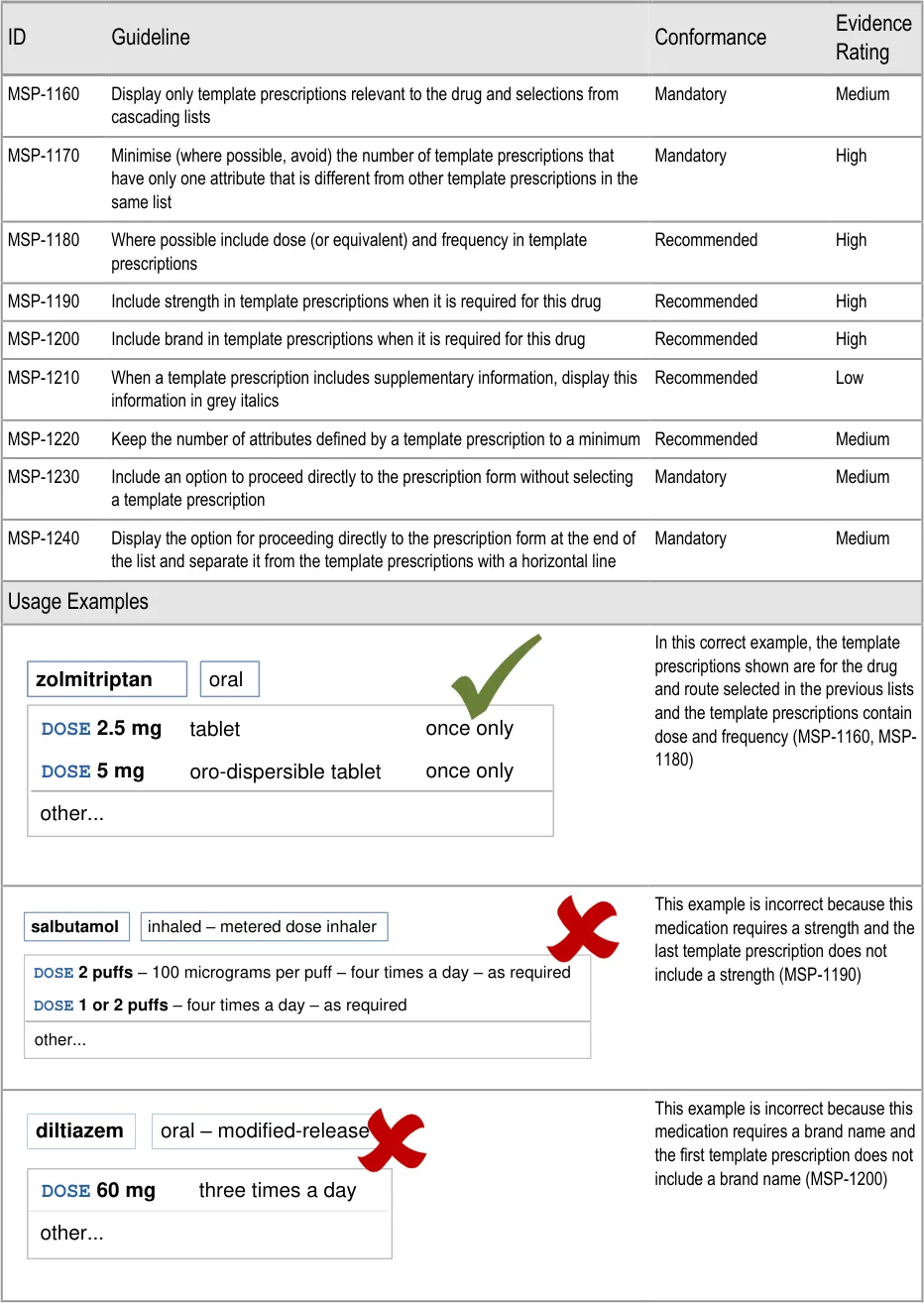
Page 109
Copyright ©2013 Health and Social Care Information Centre
HSCIC Controlled Document
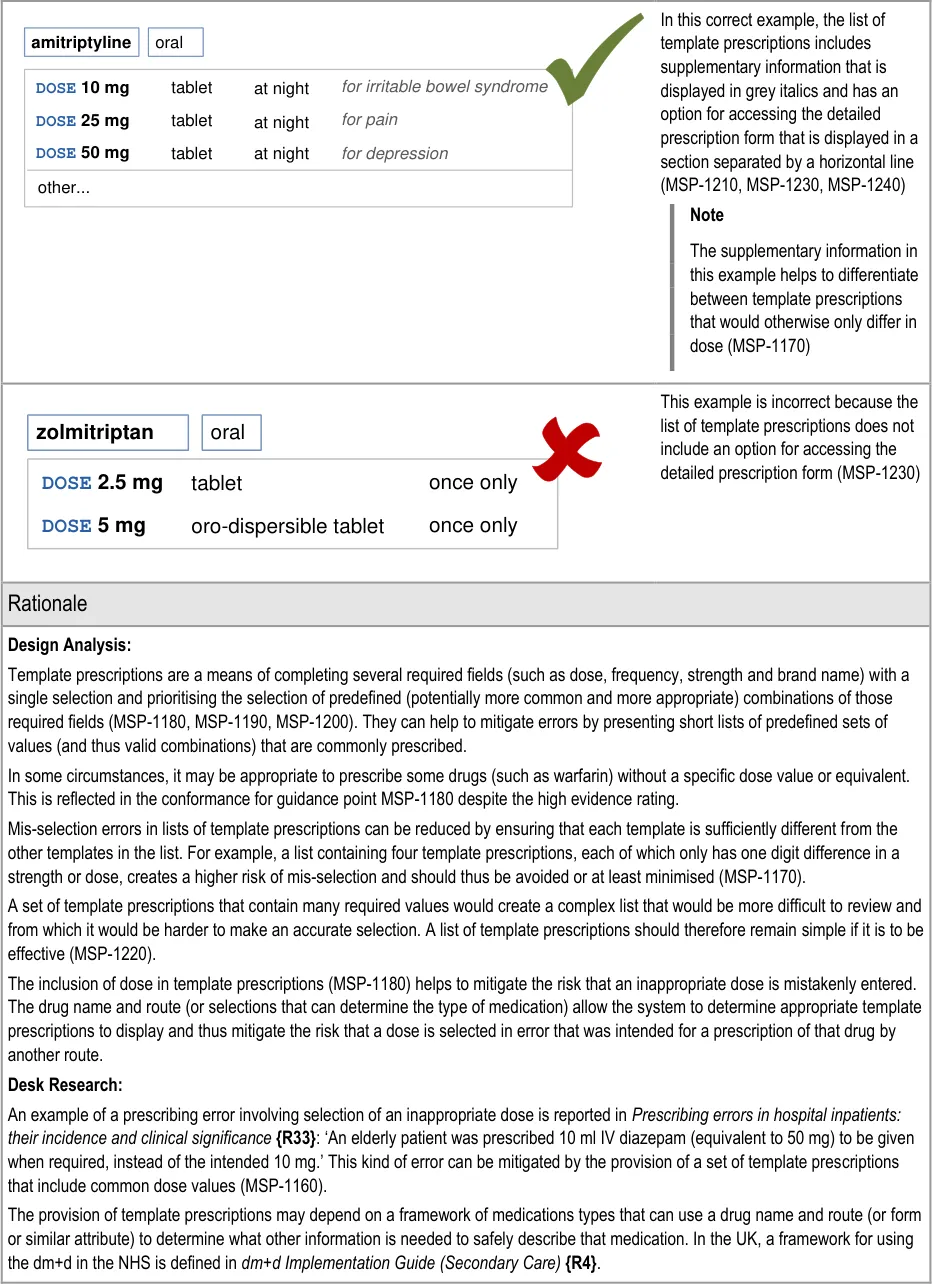
Page 110
Copyright ©2013 Health and Social Care Information Centre
HSCIC Controlled Document
Guidance in this section is informed by the following Nielsen heuristics {R17} :
Flexibility and efficiency of use – Template prescriptions contain values for required fields in such a way that several required fields
can be completed with a single selection
Error prevention – The provision of template prescriptions for commonly prescribed sets of values may help to reduce mis-selection
errors and mistaken combinations
User controls and freedom – As with cascading lists, the user is not forced to select a template prescription and may choose to
access a detailed prescription form instead of selecting a template prescription (MSP-1230)
User Research:
Study ID 46 (see APPENDIX E) included findings that relate to the display of modified-release and non-modified-release options in cascading lists and in template prescriptions. The findings included a suggestion to consider clarification of release times when displayed modified-release preparations. The use of supplementary text (MSP-1210) provides a means of achieving this.
Hazard Risk Analysis Summary:
From our Patient Safety Risk Assessment analyses, we identified a number of potential hazards, including the following key risks which are mitigated by the guidance:
Potential Hazards:
A template prescription is selected
from a list of very similar template prescriptions
A template prescription is selected
based on reading the contents of a single column (for example, the dose column)
An input control for a dose is
displayed adjacent to an input control for a strength and causes the dose value to be interpreted as the strength or vice versa
One or more attributes of a template
prescription are mis-read because it wrapped onto a new line
Mitigations:
Template prescriptions that have only one attribute that is different from other
template prescriptions in the same list should be minimised and where possible, avoided (MSP-1170)
Template prescriptions are presented without column headings (see section 7.3.3)
The number of columns is kept to a minimum (see section 7.3.3)
Template prescriptions are displayed in the style of a medication line (see
section 7.3.3)
The number of attributes in a template prescription is kept to a minimum
(MSP-1220)
Dose and strength can be entered by selecting a template prescription (MSP-1180,
MSP-1190) or by selecting values for individual fields that are presented in sequence (see section 7.3.6). Thus they only appear adjacent after they have already been completed
In sentence layout (when dose and strength are most likely to appear adjacent),
guidance recommends that labels are incorporated into fields, so the dose label immediately precedes the dose value (see section 7.3.7)
Guidance recommends that labels are used for all fields whose contents could be
interpreted as belonging to a different control (see section 7.3.7)
The dose field is always labelled (see section 9.3.6)
Template prescriptions can be displayed at the beginning of a new line after
selections have been made from cascading lists (see section 7.3.2)
Attributes can be combined into a single column to reduce the number of columns
(and thus the width of the template prescriptions) and medication line style can be used when space is limited (see section 7.3.3)
Dose is always displayed at the beginning of a template prescriptions and is thus
always consistently placed (see section 7.3.3)
The number of attributes defined by a template prescription should be kept to a
minimum (see section MSP-1220)
Page 111
Copyright ©2013 Health and Social Care Information Centre
HSCIC Controlled Document
7.3.5 Maintaining Access to Template Prescriptions
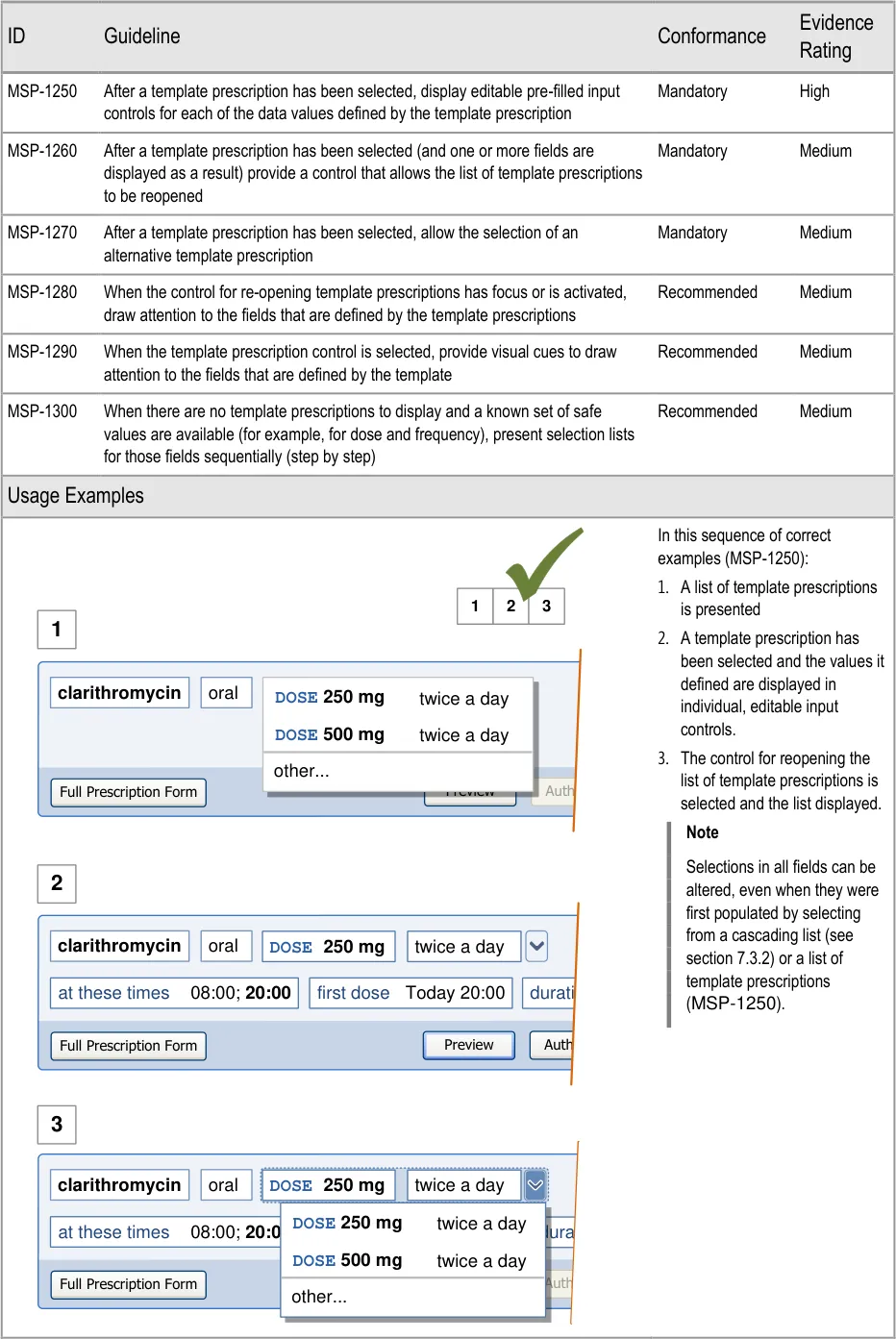
Page 112
| DOSE 250 mg | Col2 | Col3 | twice a day | Col5 |
|---|---|---|---|---|
DOSE 250 mg | 0 Today 20:00 first dose d DOSE 500 mgtwice a day DOSE 250 mg twice a day | 0 Today 20:00 first dose d DOSE 500 mgtwice a day DOSE 250 mg twice a day | 0 Today 20:00 first dose d DOSE 500 mgtwice a day DOSE 250 mg twice a day | 0 Today 20:00 first dose d DOSE 500 mgtwice a day DOSE 250 mg twice a day |
DOSE 250 mg | other… | other… | other… | other… |
Copyright ©2013 Health and Social Care Information Centre
HSCIC Controlled Document
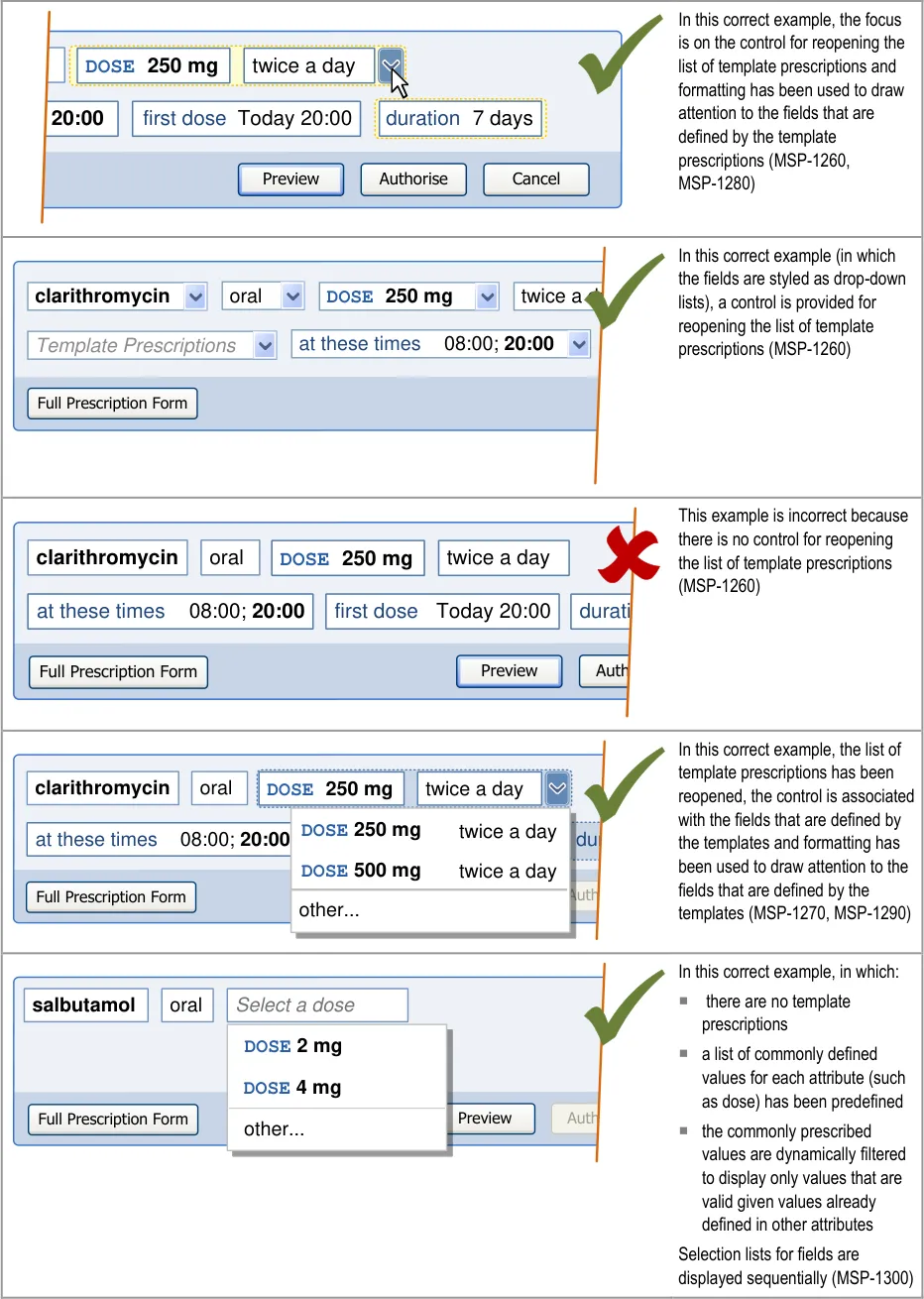
Page 113
| DOSE 250 mg | Col2 | Col3 | twice a day | Col5 |
|---|---|---|---|---|
DOSE 250 mg | Today 20:00 first dose DOSE 500 mgtwice a day DOSE 250 mg twice a day | Today 20:00 first dose DOSE 500 mgtwice a day DOSE 250 mg twice a day | Today 20:00 first dose DOSE 500 mgtwice a day DOSE 250 mg twice a day | Today 20:00 first dose DOSE 500 mgtwice a day DOSE 250 mg twice a day |
DOSE 250 mg | other… | other… | other… | other… |
Copyright ©2013 Health and Social Care Information Centre
HSCIC Controlled Document
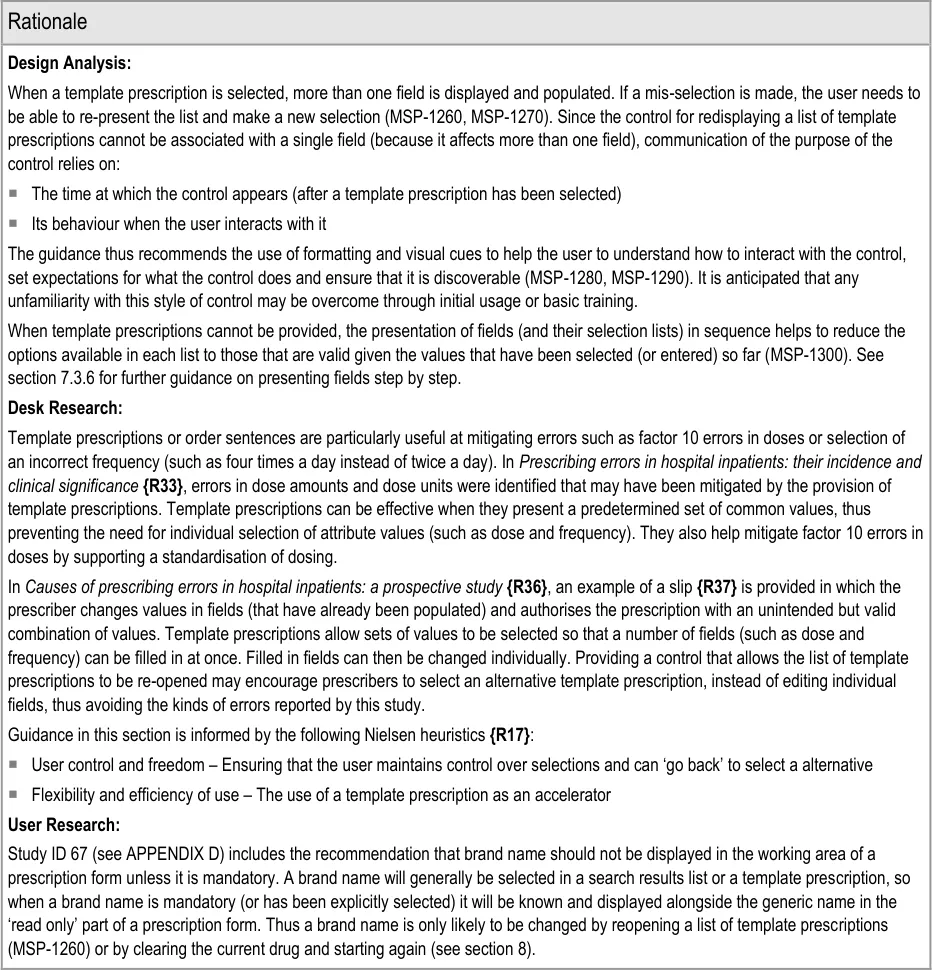
Page 114
Copyright ©2013 Health and Social Care Information Centre
HSCIC Controlled Document
7.3.6 Presenting Fields Step by Step
Prescribing begins with the selection of a drug to prescribe and continues with further selections (from cascading lists and template prescriptions) to define the required attributes of the prescription. Once sufficient information has been defined to determine the type of medication being prescribed (and thus determine which other attributes will be needed), a more detailed prescription form can be displayed.
Figure 18 illustrates the process by which a system identifies which fields should appear in a prescription form:
1
2
3
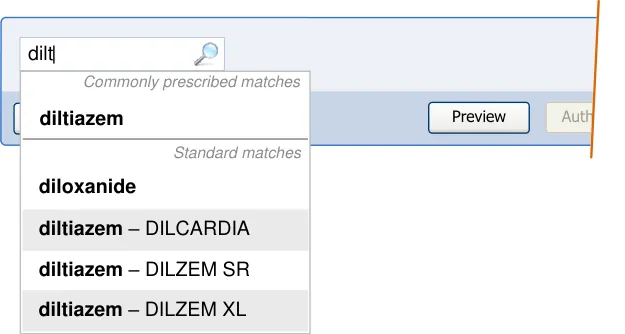
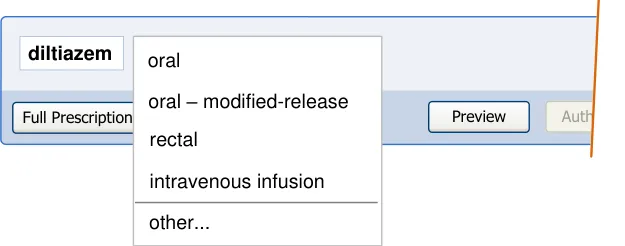
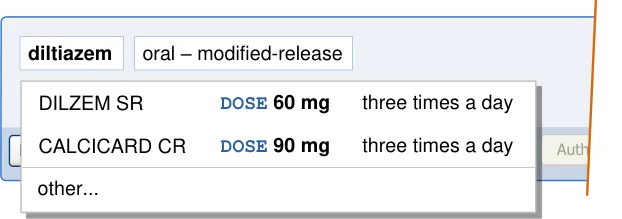
4
| Col1 | Col2 | Col3 | Col4 |
|---|---|---|---|
| at these times 08:00; 14:00;20:00 first do oral – modified-release Autho Preview Full Prescription Form diltiazem DOSE 60 mg twice a d DILZEM SR | at these times 08:00; 14:00;20:00 first do oral – modified-release Autho Preview Full Prescription Form diltiazem DOSE 60 mg twice a d DILZEM SR | ||
| at these times 08:00; 14:00;20:00 first do oral – modified-release Autho Preview Full Prescription Form diltiazem DOSE 60 mg twice a d DILZEM SR | twice a d | a | y |
| at these times 08:00; 14:00;20:00 first do oral – modified-release Autho Preview Full Prescription Form diltiazem DOSE 60 mg twice a d DILZEM SR | twice a d | s r | e |
| at these times 08:00; 14:00;20:00 first do oral – modified-release Autho Preview Full Prescription Form diltiazem DOSE 60 mg twice a d DILZEM SR | twice a d |
Figure 18: User Interface Example for Identifying Required Fields
Copyright ©2013 Health and Social Care Information Centre
Page 115
HSCIC Controlled Document
The sequence of events shown in Figure 18 is as follows
-
A drug name is selected
-
A list of other attributes relevant to that drug (including a route) are displayed in a
cascading list
- Using the drug name and selection in the cascading list, the system can determine the
type of medication (such as ‘oral — modified-release’) and use this to display available template prescriptions (if there are any)
- When enough attributes have been defined by selecting a template prescription (or by
completing fields such as dose and frequency step by step), the remaining required fields can be presented. The required fields are determined based on the type of medication. For example, an ‘oral — modified-release’ medication may have the following required fields:
a. Drug name
b. Brand name
c. Route
d. Dose
e. Frequency
f. Administration times
g. Time of first dose
h. Duration
Table 8 shows a notional example of the different sets of required fields that might be identified for four types of medication. The four types are determined by the combination of drug name and selections made in cascading lists.
Generic Drug Name Required Required Required Required
Brand name Optional Required Optional Optional
Route Required Required Required Required
Strength Optional Optional Required Required
Dose Required Required Required Required
Method N/A N/A N/A Required
Frequency Required Required Required Required
Administration Times Required Required Required N/A
Time of First Dose Required Required Required N/A
Start Date and Time N/A N/A N/A Required
Duration Required Required Required Optional
Table 8: Examples of Required Fields for Four Notional Types of Medication
Page 116
Copyright ©2013 Health and Social Care Information Centre
HSCIC Controlled Document
The majority of prescriptions have only a few required fields and thus, in most cases, a prescription can be completed in a small number of steps. A more detailed prescription is only necessary when additional (optional) information or a less common set of attributes needs to be defined.
In most cases, a template prescription can be selected and the set of required fields can then be displayed. However, in the absence of template prescriptions, a step-by-step process can be used to encourage the selection of important attributes (such as dose) from predefined, limited lists.
Important
This section contains guidance for which there may be alternative solutions. Accordingly, the conformance ratings in this section apply only where the guidance is adopted.
The Rationale section contains a summary of the known risks which are addressed in this section and which must be addressed by any alternative solution. For more information, see the Alternative Design Solutions note in section 1.
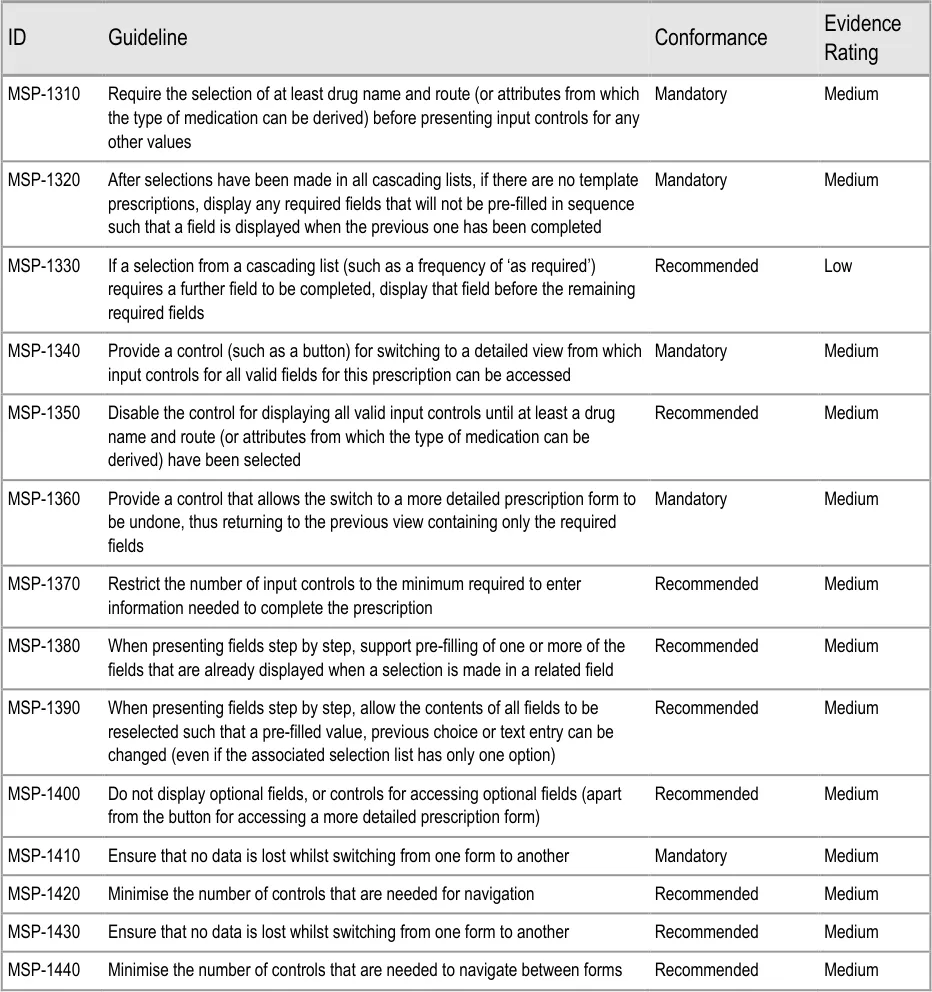
Page 117
Copyright ©2013 Health and Social Care Information Centre
HSCIC Controlled Document
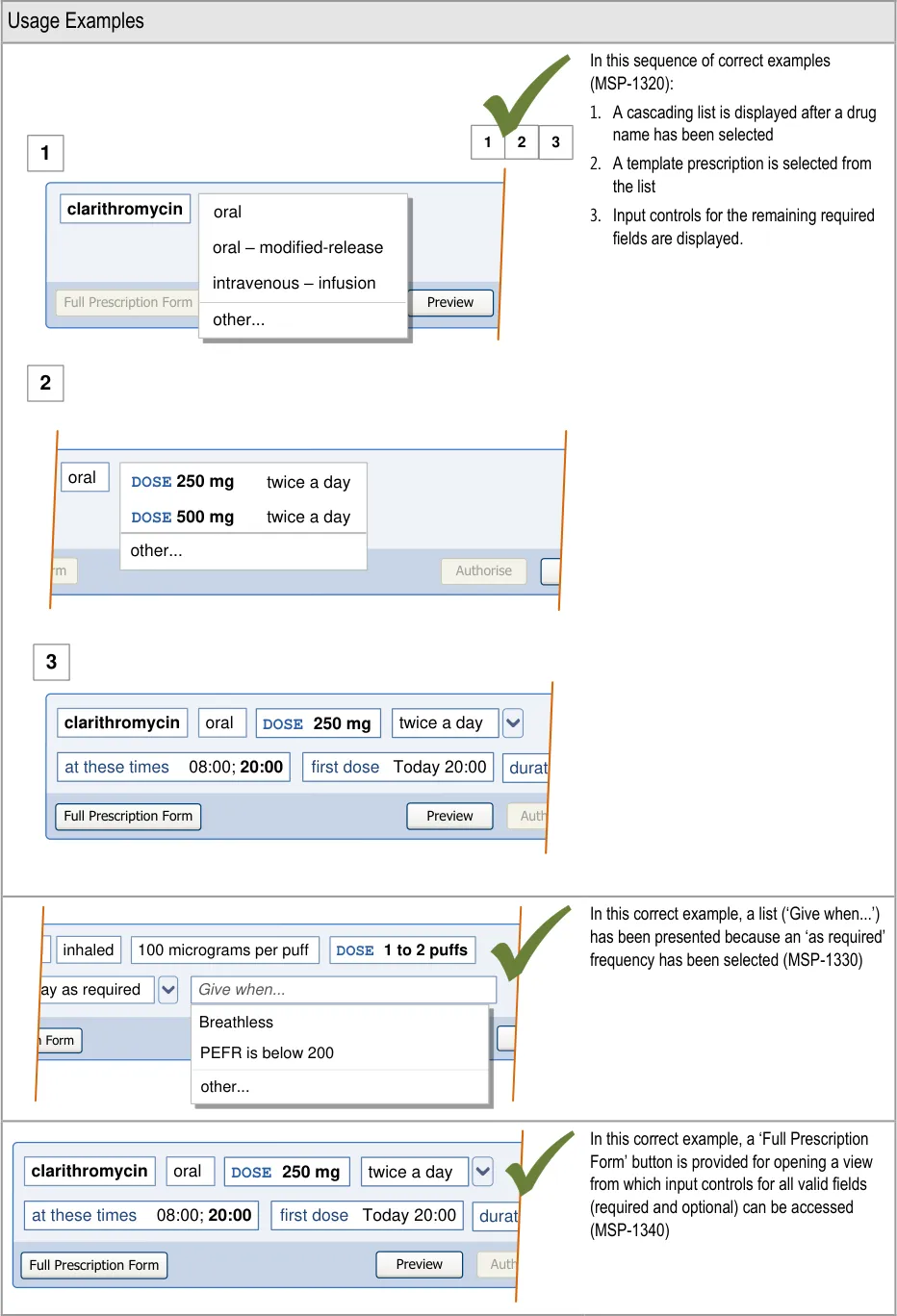
Page 118
| clarithromycin | poraarlacetamol oral – modified-release intravenous – infusion |
|---|---|
| clarithromycin | other… |
Copyright ©2013 Health and Social Care Information Centre
HSCIC Controlled Document
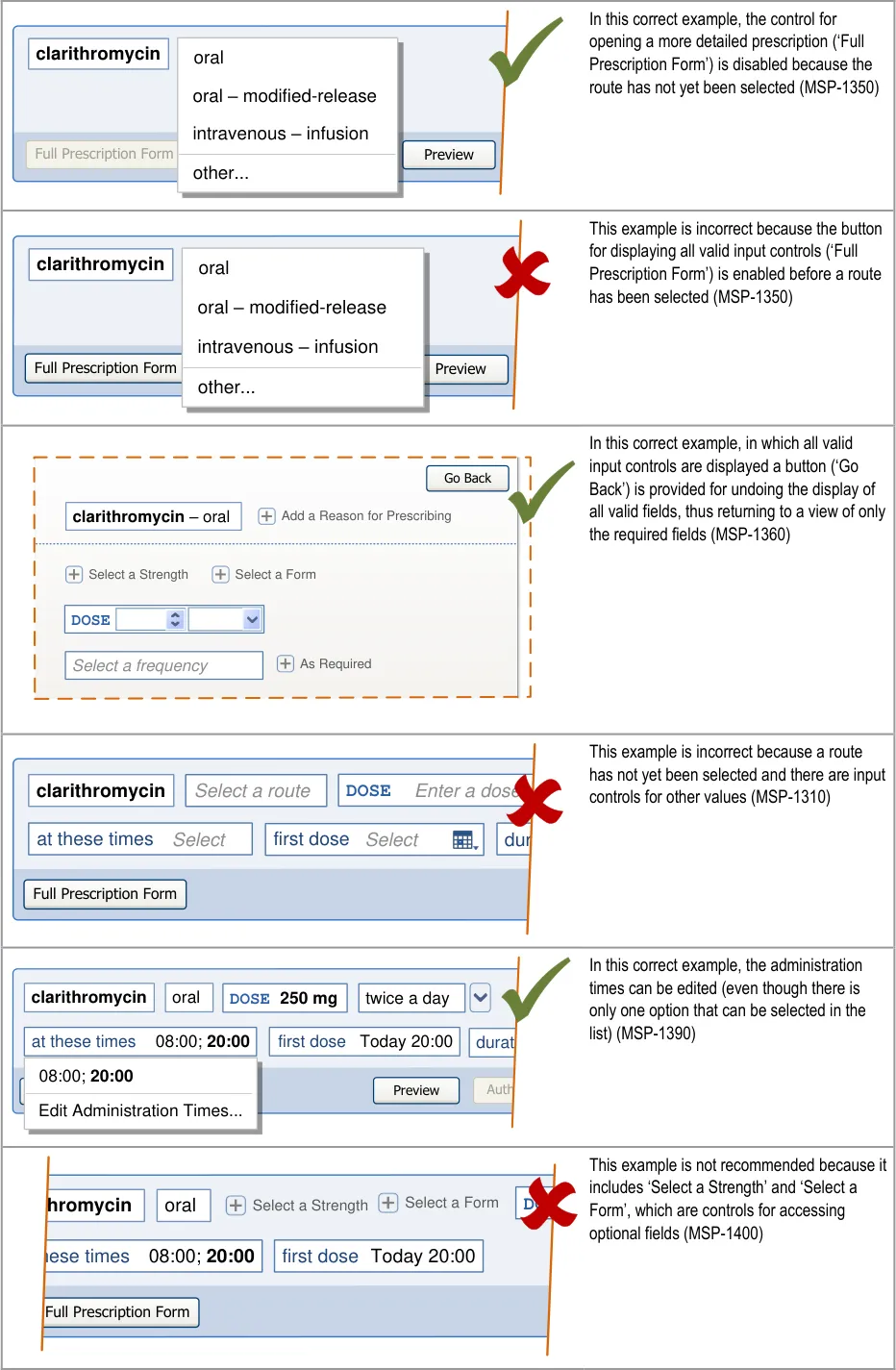
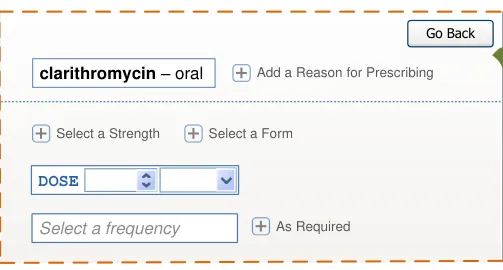
Page 119
Copyright ©2013 Health and Social Care Information Centre
HSCIC Controlled Document
Page 120
Copyright ©2013 Health and Social Care Information Centre
HSCIC Controlled Document
Desk Research:
The paper The Impact of Computerized Physician Order Entry on Medication Error Prevention {R38} reports the findings of a study of medications errors before and after implementation of an electronic prescribing system . The study (which excluded ‘missed dose’ errors from its analysis) reported a significant reduction (80%) in medication errors. Three quarters of this reduction was achieved with a relatively simple system that structured the entry of prescriptions (the paper refers to them as ‘orders’) and included rudimentary ‘order checking’. The default prescription form reduces the possibility of errors by providing a highly structured approach to entering prescriptions and reducing the possibilities for error by limiting the options available based on values that must be entered in a particular order, thus providing a more pro-active approach to ‘order checking’.
An earlier study, Effect of Computerised Physician Order Entry and a Team Intervention on Prevention of Serious Medication Errors {R39} reports that implementing even a modest electronic prescribing system can result in important error reduction if the system includes a dose selection menu, simple drug-allergy and drug-drug checking and the requirement that clinicians indicate the route and frequency of drug doses. The prescription form first presents doses as part of a template prescription or as a selection menu when there are no template prescriptions. (A more detailed prescription form can then also present doses within a selection menu but may in some cases support the entry of a dose amount in figures, see section 9.3.1.)
The provision of a default prescription form that only presents fields that are relevant to the selections made so far, depends on the availability of a framework of medications types that can use a drug name and route (or form or similar attribute) to determine what other information is needed to safely describe that medication. In the UK, a framework for using the dm+d in the NHS is defined in dm+d Implementation Guide (Secondary Care) {R4} .
Guidance in this section is informed by the following Nielsen heuristics {R17} :
User control and freedom – The provision of a control that allows the user to switch to a more detailed prescription form as soon as
possible (MSP-1340) allows the user to decide whether to continue with the default prescription form or to switch to a detailed approach to prescribing. MSP-1360 ensures that the user can undo the action of switching from default to more detailed prescription forms without losing any information entered or selected so far
Flexibility and efficiency of use – By presenting a step-by-step prescription form first (MSP-1320), efficiency is improved for most
prescriptions whilst also providing the flexibility needed to prescribed more detailed prescriptions
Aesthetic and minimalist design – In the default prescription form, input controls are kept to a minimum, are presented one at a
time for critical information and are presented such that information that is rarely needed is hidden, thus increasing the relative visibility of important information
Hazard Risk Analysis Summary:
From our Patient Safety Risk Assessment analyses, we identified a number of potential hazards, including the following key risks which are mitigated by the guidance:
Potential Hazards:
The system presents a prescription
form complete with default values and the prescriber is unaware of other prescription regimens
Individual administration times have to
be defined by the prescriber and result in non-standard times
A prescription is authorised with a
value that was not the intended value because it had been automatically updated when a value was defined in another field
Mitigations:
MSP-1320 ensures that explicit selections are made for the most important parts of
a prescription (and see section 6 for selections in cascading lists)
Template prescriptions (see section 7) are presented as a list so that the prescriber
can see commonly prescribed regimens
Where appropriate, pre-fill one or more fields when a selection is made in a related
field (MSP-1380)
Pre-filling administration times when the frequency is defined (see section 9.3.5)
Providing a selection list of (common) administration schedules (see section 9.3.6)
Restricting the definition of individual administration event times to a more detailed
view (see section 9.3.6)
The contents of all fields can be changed such that a pre-filled value can be
changed (MSP-1390)
Guidance requires the use of formatting to draw attention to a field whose contents
have changed automatically (see section 9.3.5)
Page 121
Copyright ©2013 Health and Social Care Information Centre
HSCIC Controlled Document
An input control for a dose is
displayed adjacent to an input control for a strength and causes the dose value to be interpreted as the strength or vice versa
A prescriber selects a template
prescription in order to avoid using the more detailed prescription form because it is too complicated
Dose and strength can be entered by selecting a template prescription (see
section 7.3.4) or by selecting values for individual fields that are presented in sequence (MSP-1320). Thus they only appear adjacent after they have already been completed
In sentence layout (when dose and strength are most likely to appear adjacent),
guidance recommends that labels are incorporated into fields, so the dose label immediately precedes the dose value (see section 7.3.7)
Guidance recommends that labels are used for all fields whose contents could be
interpreted as belonging to a different control (see section 7.3.7)
The dose field is always labelled (see section 9.3.6)
When there are no template prescriptions, the required fields can be presented and
completed one by one (MSP-1320)
7.3.7 Using Sentence Layout
Sentence layout is the display of input fields as if they were words in a sentence. Display rules (such as those for width and wrapping) that might apply to words in a sentence are applied to the dynamic display of input fields. This means that input fields can grow in width as values are entered into them and wrap onto a new line as necessary. Figure 19 illustrates wrapping in sentence layout, showing the wrapping of an input control such that it is placed at the beginning of a new line and followed by the next input control:
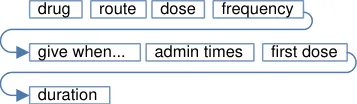
Figure 19: Wrapping in Sentence Layout
Figure 20 shows a sequence of steps in which values are typed into two dynamic width input controls. In steps 3 and 6 the input controls grow in width to accommodate the values that have been typed into them.
1
2
fir
4
first field
5 first field sec
Figure 20: Dynamic Width Input Controls
Important
This section contains guidance for which there may be alternative solutions. Accordingly, the conformance ratings in this section apply only where the guidance is adopted.
The Rationale section contains a summary of the known risks which are addressed in this section and which must be addressed by any alternative solution. For more information, see the Alternative Design Solutions note in section 1.
Page 122
Copyright ©2013 Health and Social Care Information Centre
HSCIC Controlled Document
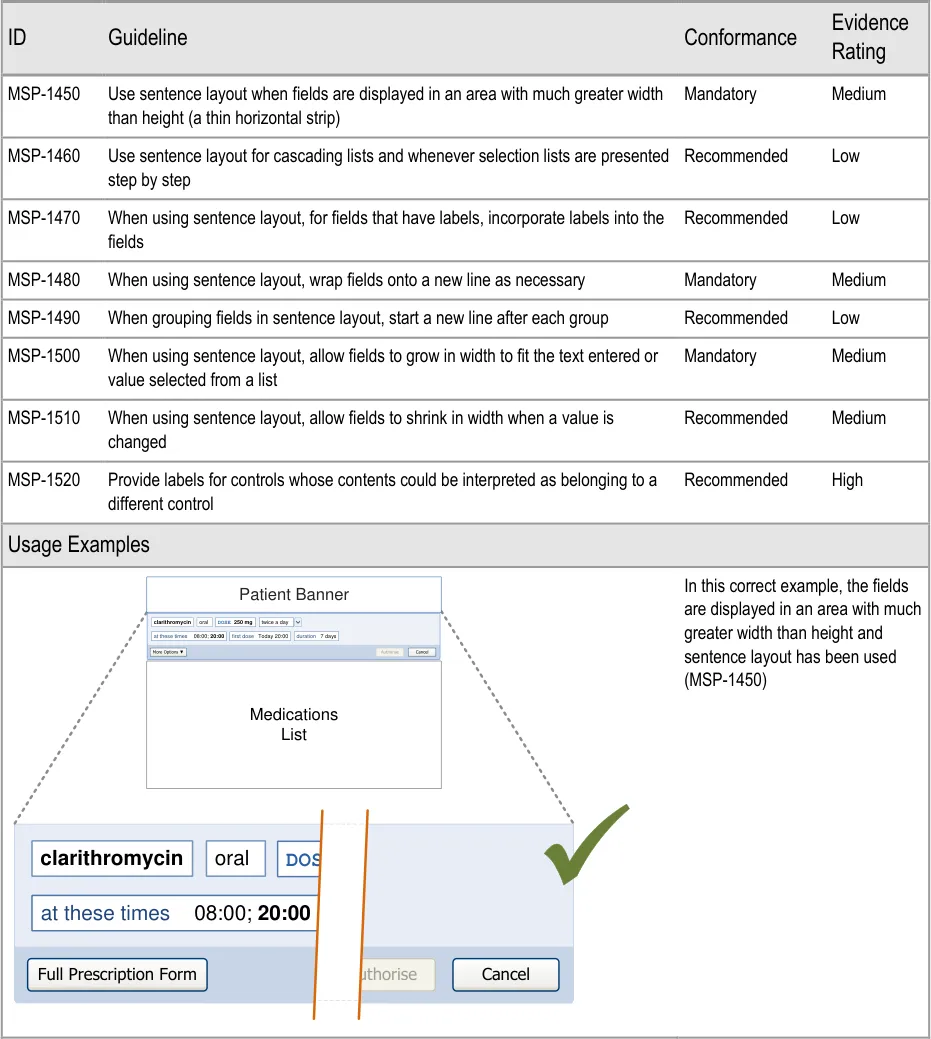
Page 123
| Patient Banner | Col2 | Col3 | Col4 | Col5 | Col6 |
|---|---|---|---|---|---|
| clarithromycin | oral | DOSE 250 mg | DOSE 250 mg | twice a day | twice a day |
| 08:00;20:00 at these times | 08:00;20:00 at these times | 08:00;20:00 at these times | Today 20:00 first dose | Today 20:00 first dose | 7 days duration |
Copyright ©2013 Health and Social Care Information Centre
HSCIC Controlled Document
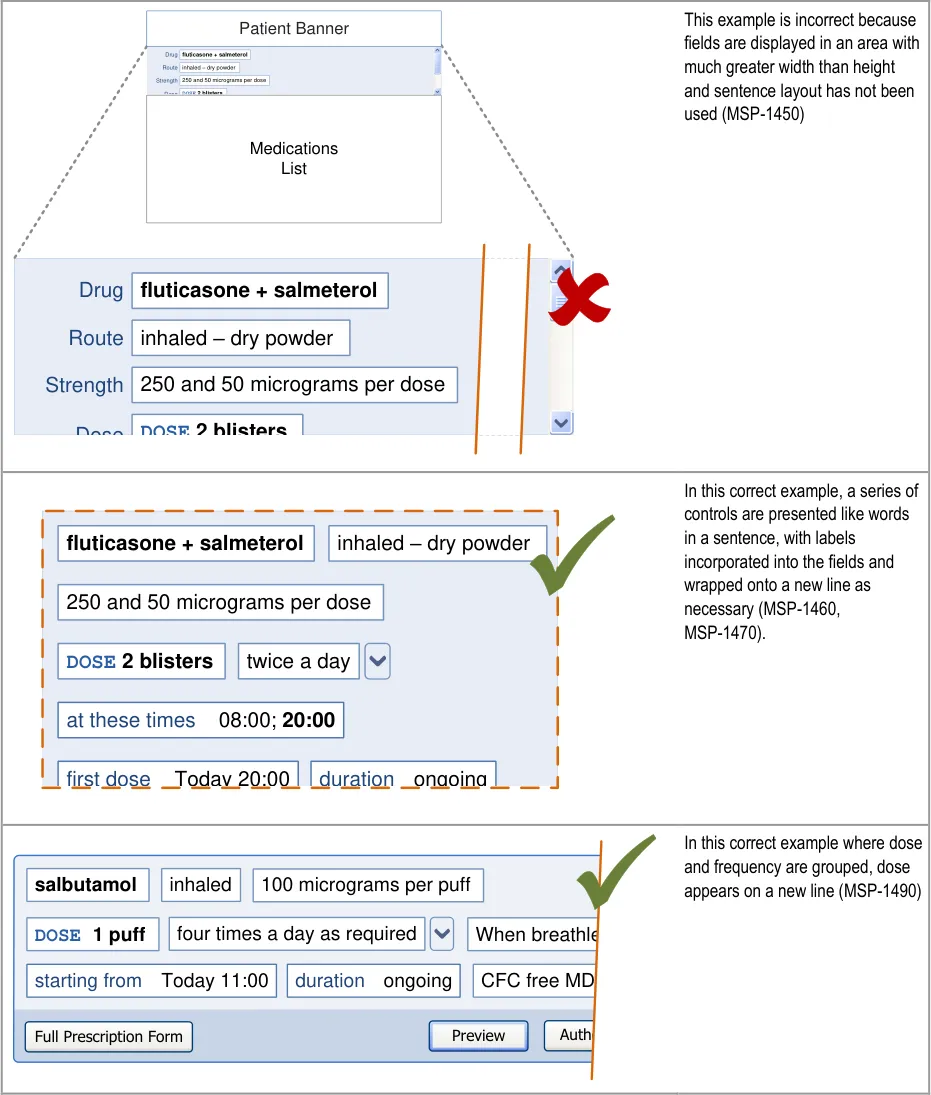
| Patient Banner Drugfluticasone + salmeterol | Col2 |
|---|---|
| Route Strength | inhaled – dry powder |
DOSE 2 blistersDose Medications List | DOSE 2 blistersDose Medications List |

Page 124
Copyright ©2013 Health and Social Care Information Centre
HSCIC Controlled Document
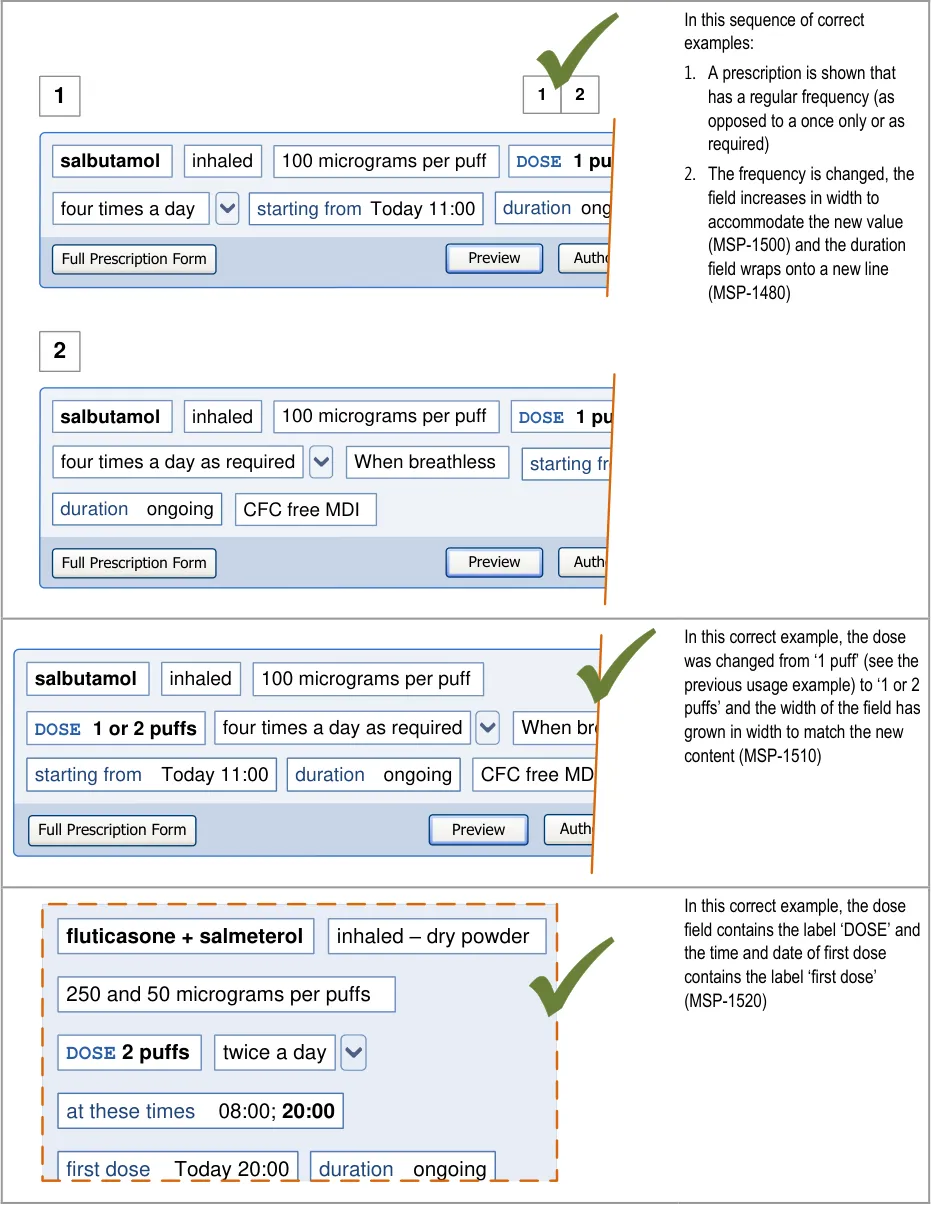
Page 125
Copyright ©2013 Health and Social Care Information Centre
HSCIC Controlled Document
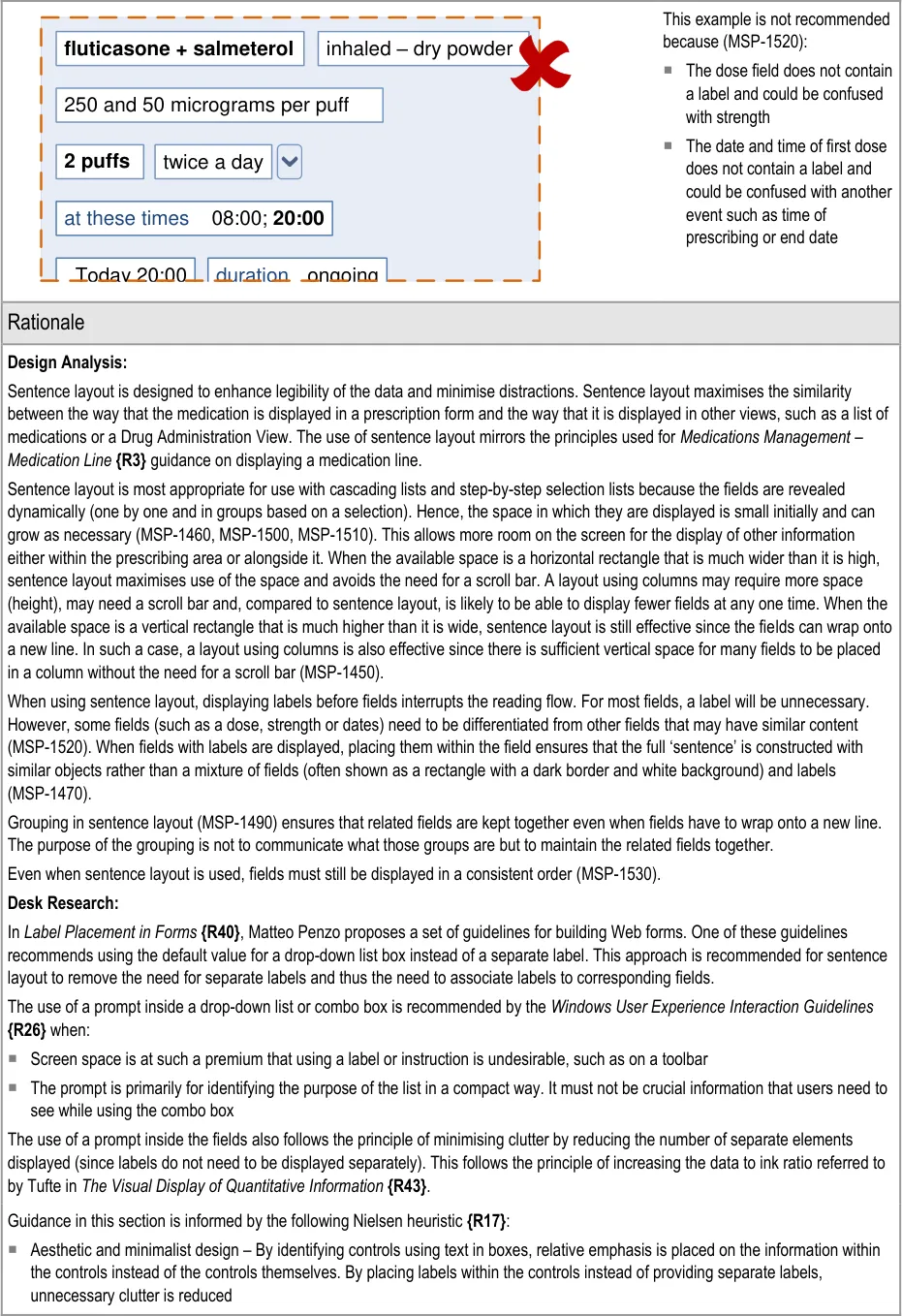
Page 126
Copyright ©2013 Health and Social Care Information Centre
HSCIC Controlled Document
Hazard Risk Analysis Summary:
From our Patient Safety Risk Assessment analyses, we identified a number of potential hazards, including the following key risk which is partially mitigated by the guidance:
Potential Hazards:
An input control for a dose is
displayed adjacent to an input control for a strength and causes the dose value to be interpreted as the strength or vice versa
Mitigations:
This risk is not wholly mitigated by guidance
Dose and strength can be entered by selecting a template prescription (see section
7.3.4) or by selecting values for individual fields that are presented in sequence (see section 7.3.6). Thus they only appear adjacent after they have already been completed
In sentence layout (when dose and strength are most likely to appear adjacent),
guidance recommends that labels are incorporated into fields, so the dose label immediately precedes the dose value (MSP-1470)
Guidance recommends that labels are used for all fields whose contents could be
interpreted as belonging to a different control (MSP-1520)
The dose field is always labelled (see section 9.3.6)
Page 127
Copyright ©2013 Health and Social Care Information Centre
HSCIC Controlled Document
8 GUIDANCE DETAILS FOR PRESCRIPTION FORMS
8.1 Introduction
It is assumed (see section 1.3) that the majority of prescriptions will be completed by selecting a template prescription and entering values for any remaining required fields. However, in some cases, additional specific fields or more detailed prescriptions may be needed and forms with a larger number of fields would be required to support these.
Figure 21 shows the full user interface prescribing process in which the step covered in this section
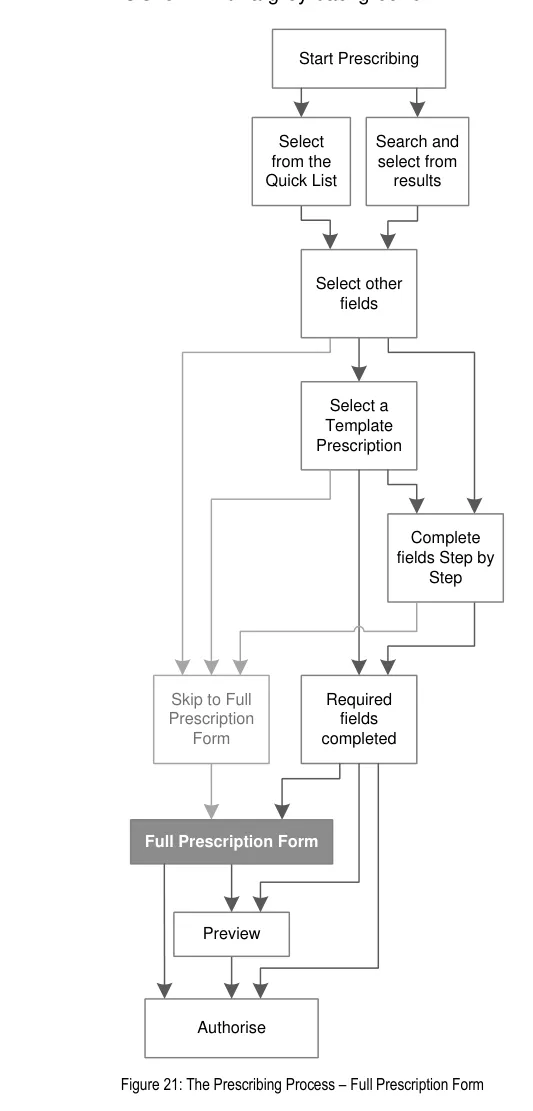
Page 128
Copyright ©2013 Health and Social Care Information Centre
HSCIC Controlled Document
Figure 22 is an extract from Figure 21 to illustrate the user interface prescribing steps covered in
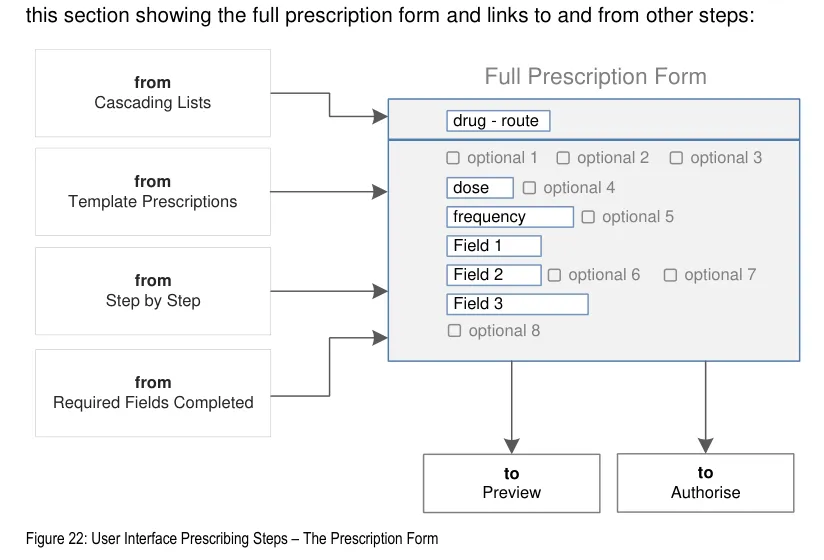
8.2 Principles
All guidance is informed by all of the principles for search and prescribe listed in section 2.1. The following are particularly relevant to this section:
- Encourage simplicity of design by promoting user interface approaches that help to avoid
overly complex displays and interactions that require many controls:
The number of input controls for a detailed prescription form is kept to a minimum
The need to navigate between sections of a detailed prescription form is kept to a
minimum by displaying a view containing required fields and input controls for common optional fields by default
- Ensure that the prescribing process can be supported in multiple layouts and is flexible
enough to be presented in different screen dimensions:
Guidance supports (and usage examples illustrate) multiple approaches to layout,
including using columns to show labels and input controls and using sentence layout for input controls
- Maximise scalability such that the prescribing process can be modified to accommodate
additional information, steps or shortcuts:
Guidance supports alternative means providing access to individual optional fields,
groups of optional fields and views with larger sets of fields
The process by which the prescriber arrives at a prescription form can incorporate
additional steps
The prescription form can include controls that add further steps to be completed
before the prescription can be authorised
Page 129
Copyright ©2013 Health and Social Care Information Centre
HSCIC Controlled Document
- Manage users expectations and improve their efficiency by providing a clear framework
with consistent logic for the placement of user interface elements and the interactions that they support:
Efficiency is improved by presenting input controls for the fields that must be
completed and ensuring quick access to those that are most likely to be needed
Input controls (and controls for accessing some optional controls) are placed in a
consistent order
- Minimise the potential for important information to be hidden from view:
Placement of the drug name and design of the form ensures that the drug name
cannot be scrolled out of view
8.3 Guidelines
8.3.1 Presentation and Layout of Prescription forms
This section provides guidance for layout of input controls. Although most relevant for a more detailed prescription form, the guidance in this section applies to all stages of a prescription form, from cascading lists, template prescriptions and step-by-step required fields. See section 9 for guidance specifically for input controls.
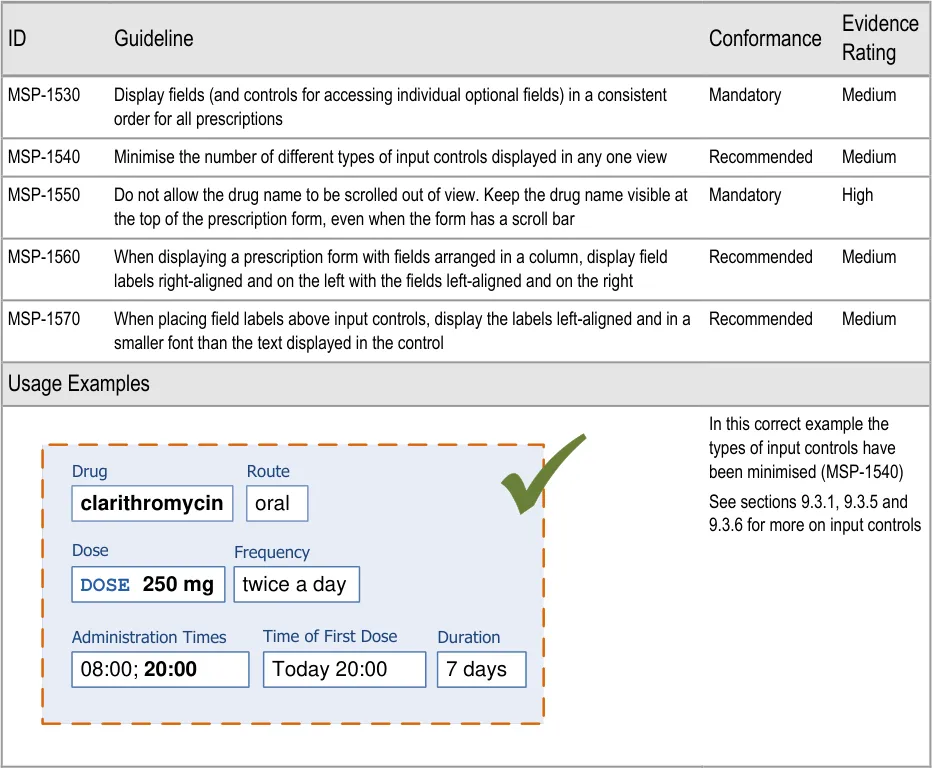
Page 130
Copyright ©2013 Health and Social Care Information Centre
HSCIC Controlled Document
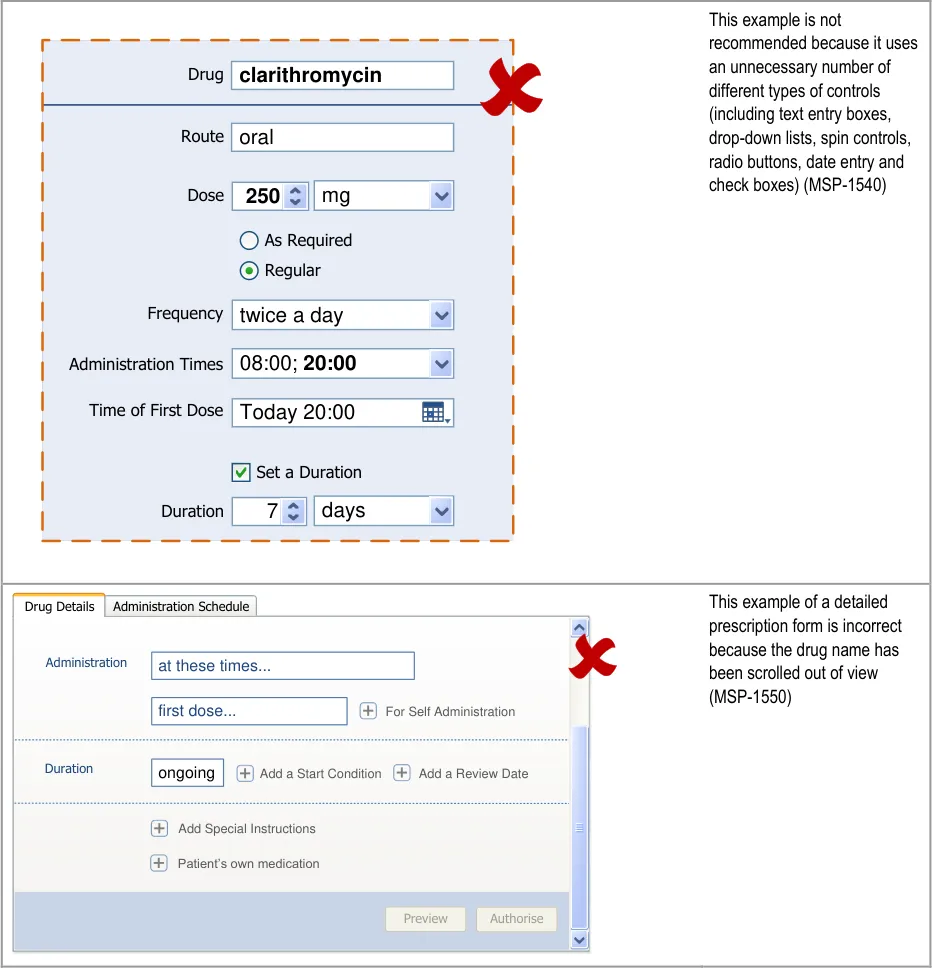
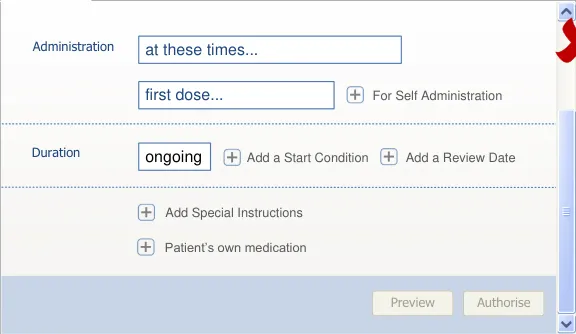


Page 131
Copyright ©2013 Health and Social Care Information Centre
HSCIC Controlled Document
| Col1 | In this correct example, the fields are arranged in a column, the labels are right aligned and Drug Name clarithromycin the fields are left aligned (MSP-1560) This example also illustrates Route oral the use of more than one type of input control where necessary (where dictated by Dose 250 mg system constraints) whilst still using the minimum possible Frequency twice a day number of input controls (MSP-1540) Administration Times 08:00; 20:00 First Dose 02-Apr-2010 20:00 Duration 7 days Full Prescription Form Preview Authorise Cancel |
|---|---|
This example with fields arranged in a column is not recommended because the labels are left aligned (MSP-1560) Drug Name clarithromycin oral Route 250 Dose mg twice a day Frequency 02-Apr-2010 20:00 First Dose 7 days Duration Administration Times 08:00;20:00 Cancel Authorise Preview Full Prescription Form | |
In this correct example, the labels above the controls are left aligned and in a smaller font than the text in the control (MSP-1570) clarithromycin oral Today 20:00 DOSE 250 mgtwice a day 08:00;20:00 Administration Times Time of First Dose 7 days Duration Frequency Drug Route Dose |
Page 132
Copyright ©2013 Health and Social Care Information Centre
HSCIC Controlled Document
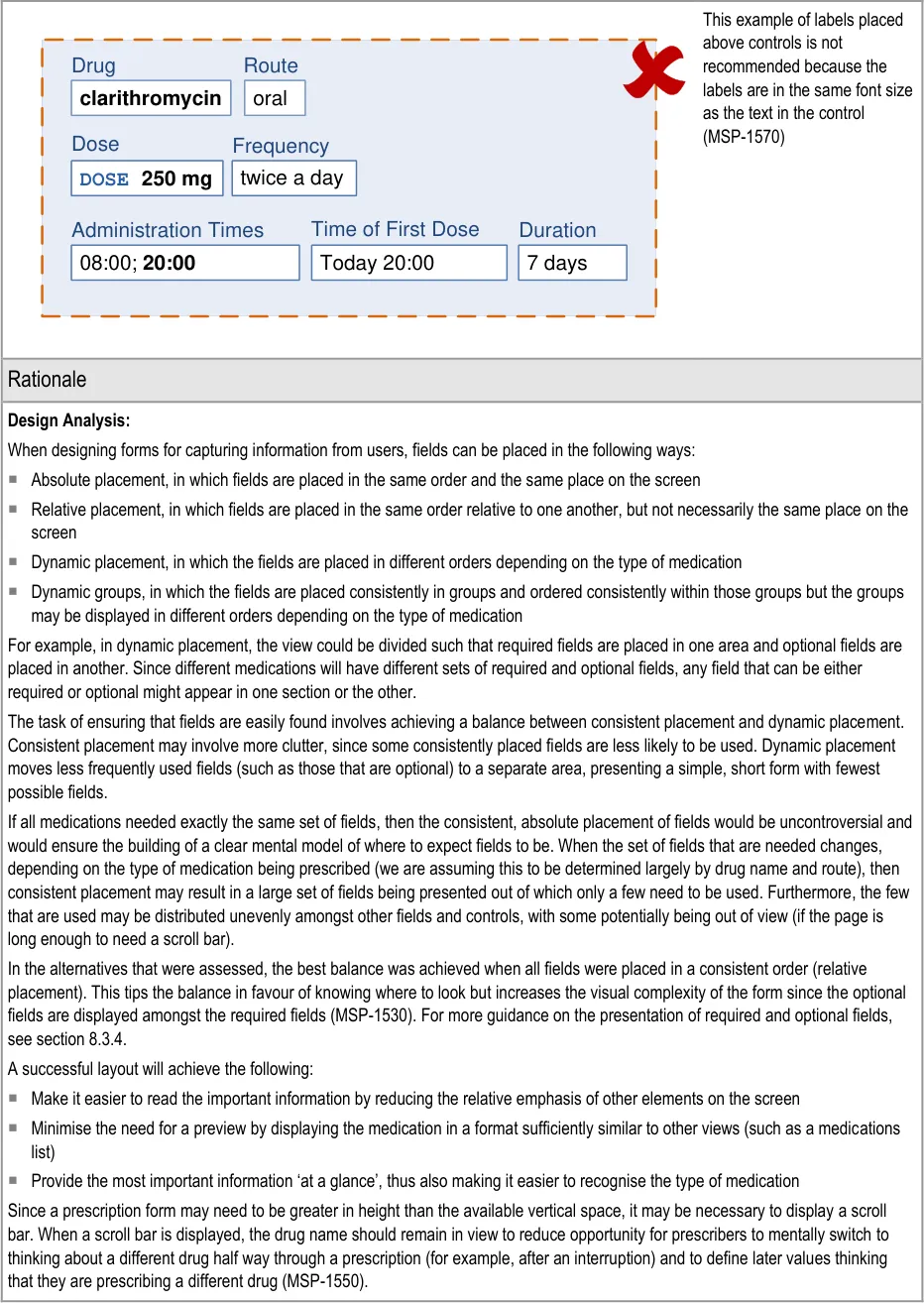
Page 133
Copyright ©2013 Health and Social Care Information Centre
HSCIC Controlled Document
Desk Research:
The paper, Label Placement in Forms [18] examined eye-tracking to assess the relative cognitive load of Web forms with different label placement and alignment and different input controls. In this paper, Matteo Penzo confirmed findings from a previous study that drop-down controls are the most eye-catching of (Web) form elements. In this study, he finds that they are more eye-catching than both text-input controls and buttons. Penzo attributes this to the success of the form element in conveying its meaning and how the user must interact with it. Since each different input control conveys meaning and how the user should interact with it differently, the introduction of different types of controls increases the ‘competition’ for attention and understanding. This does not happen if all input controls convey their meaning in the same way and exhibit the same interactions. This finding is relevant to MSP-1540 since it refers to the general principle of reducing the visual noise introduced by controls.
The paper, Should I use a drop-down? [19] , focuses on the use of drop-down controls in Web forms. Miller and Jarrett suggest a four-step process for choosing form elements. The third is ‘Third, look at the impact of your choice on the form as a whole. Choose a sensible order for the options, keep the options short and avoid too many different input methods.’ This is reflected in MSP-1540.
MSP-1560 and MSP-1570 refer to the placement of labels in relation to forms when the fields have been arranged in a column. In Label Placement in Forms – What’s Best {R42}, Caroline Jarrett concludes that appropriate placement of field labels depends on the users, task and specific design. Both Jarrett (in Label Placement in Forms – What’s Best {R42} ) and Penzo (in Label Placement in Forms {R40} ) point out that the placement of a label depends on whether the labels are needed to:
Understand the whole form . In which case, they should be placed so that they can be scanned independently of the fields
Work out what to fill in and what to leave blank . This is relevant when only some of the fields are required and the user wants to
provide the minimum information
Understand what information is needed . This is relevant when the user is not familiar with the form as a whole or not familiar
with the information needed in one or more specific fields
These tasks reflect the focus of Jarrett and Penzo’s papers on the design of Web forms and are less relevant to the task of prescribing using a more sophisticated interface than a simple Web form since:
Users will already be familiar with the prescription form (and many will use it regularly)
There is no need to determine which fields should be filled in since required fields are displayed and the display of optional fields is
significantly discouraged
When watermark text is used as a prompt within the fields, there is no need to read a separate label to determine what the field is
for
The pattern of the prescription form is likely to be familiar
The options presented in selection lists when a field is active also tells the user what the input control is for
Whilst usability references for the design of Web forms can inform the design of application forms as well, there are some differences that are important in this context. One of the most significant differences is that, in general, studies on Web forms indicate they are designed for users who will encounter that form rarely and probably only once. This impacts findings that relate to orientation when viewing a form for the first time and the need to scan all labels in order to build up a picture of what the form covers and what must be filled in. These usage examples are far less relevant to the design of a form that is expected to be used regularly by trained users.
The visual design principle ‘data to ink ratio’, coined by Edward Tufte in The Visual Display of Quantitative Information {R43}, is informed by his analysis of many examples of visual design in artefacts that are widely considered to be exemplary at efficient and effective communication. His principle holds that the quantity of ink (in a printing metaphor) needed for the display of information should exceed that which is used to display supporting visual structures and embellishments.
Guidance in this section is informed by the following Nielsen heuristics {R17} :
Consistency and standards – Input controls for fields (both required and optional) are displayed in a consistent (relative) order
(MSP-1530)
Aesthetic and minimalist design – The number of different input controls is limited, thus also limiting the number of different
interactions required to input information (MSP-1540)
18 Penzo, M – Label Placement in Forms {R40} : http://www.uxmatters.com/mt/archives/2006/07/label-placement-in-forms.php
19 Miller S, Jarrett C – Should I use a drop-down? Four steps for choosing form elements on the Web {R41} : http://www.formsthatwork.com/files/Articles/dropdown.pdf
Page 134
Copyright ©2013 Health and Social Care Information Centre
HSCIC Controlled Document
Hazard Risk Analysis Summary:
From our Patient Safety Risk Assessment analyses, we identified a number of potential hazards, including the following key risks which are mitigated by the guidance:
Potential Hazards:
A prescription is not wholly reviewed
because the information is displayed in different formats, split across many different controls
Optional information is missed from a
prescription because the prescriber could not find the control for accessing optional fields or other areas of a detailed prescription form
Mitigations:
MSP-1540 recommends that the number of different types of controls are
minimised, which reduces the different formats used to display it
Selection lists are used so that the combined list items can be displayed in a
format similar to that of a medication line (see section 7.3.3)
Guidance in section 9.3.1 recommends combining controls into a single control
Controls for accessing optional fields are displayed in a consistent order
(MSP-1530)
Controls for optional fields are displayed alongside required fields (see
section 8.3.2)
Controls should be provided for all areas of a detailed prescription form such that
there is no area that can only be accessed by selecting an item from a selection list (see section 8.3.2)
Controls for accessing optional fields are placed where the optional field appears
when it is displayed (see section 8.3.4)
8.3.2 Presenting a Detailed Prescription Form
Some prescriptions may be defined using template prescriptions or completing the required fields step by step. When prescribers need to be more specific or to enter more (and optional) information, they need access to a more detailed prescription form. This section contains guidance for presenting such a prescription form.
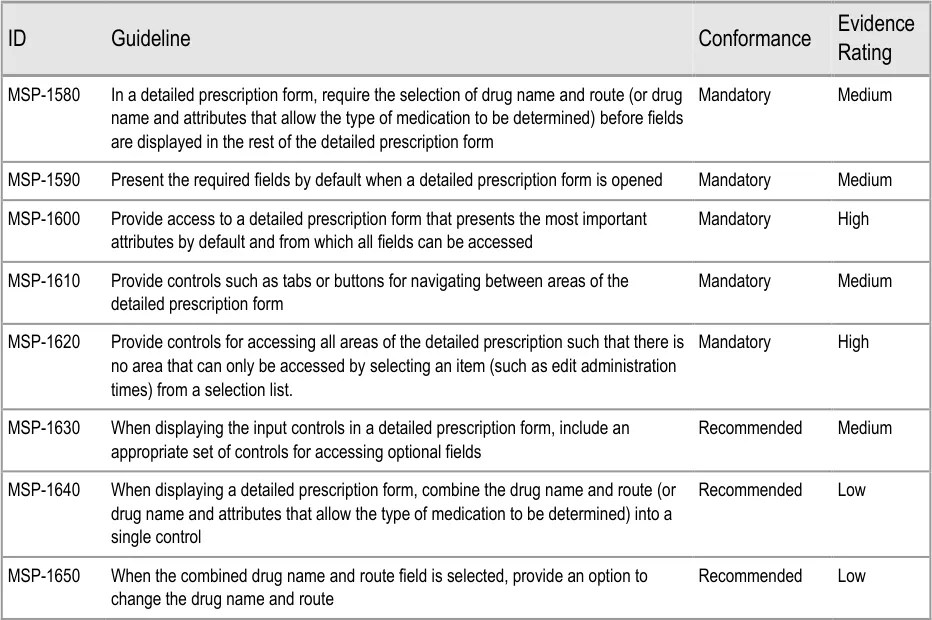
Page 135
Copyright ©2013 Health and Social Care Information Centre
HSCIC Controlled Document
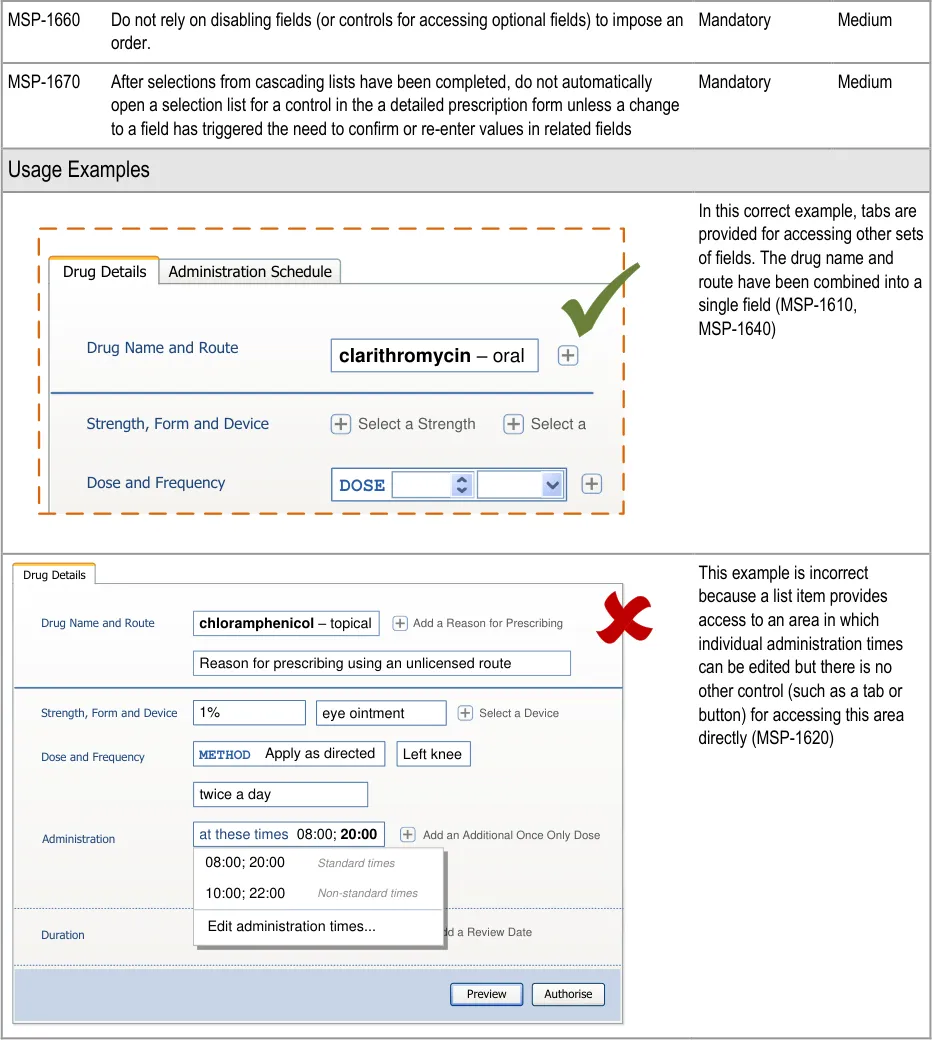
Page 136
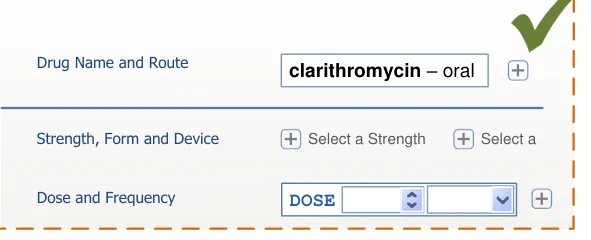
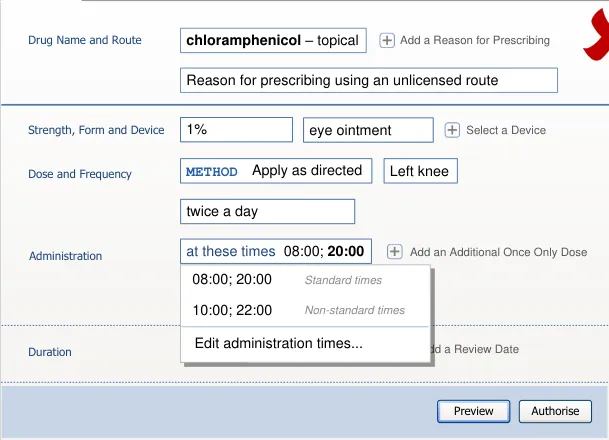
Copyright ©2013 Health and Social Care Information Centre
HSCIC Controlled Document
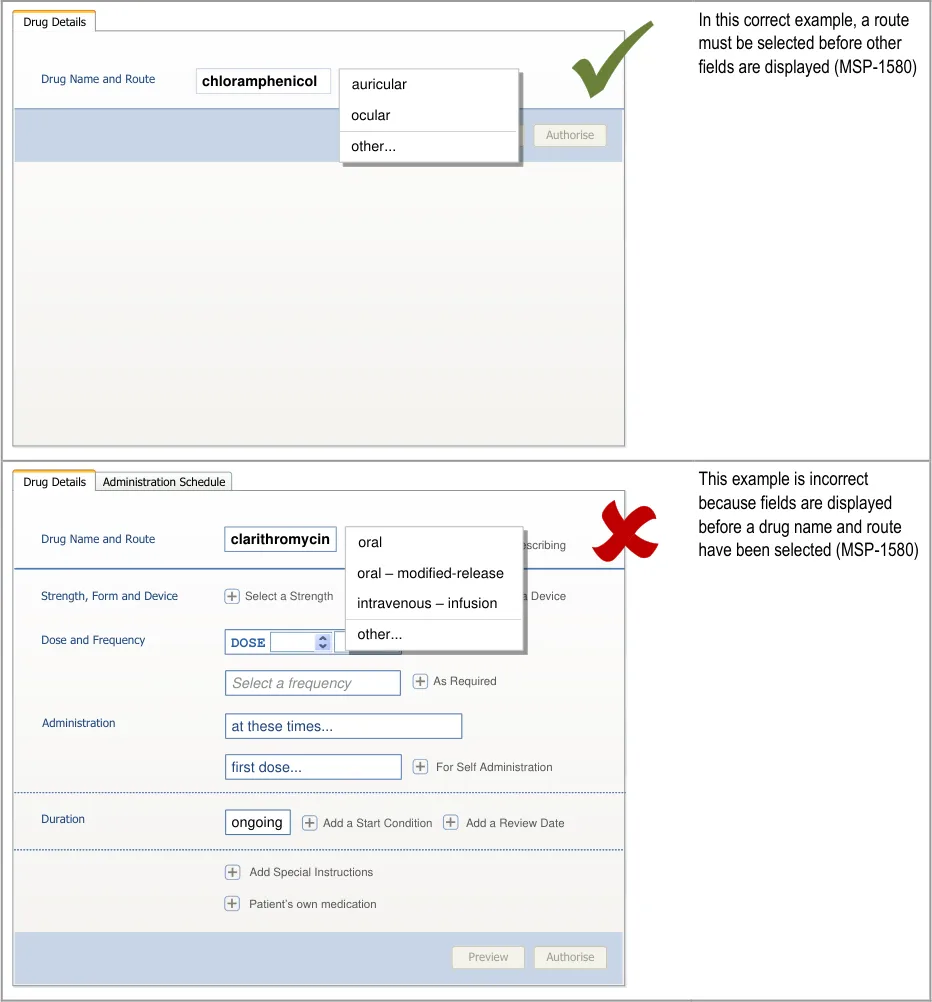
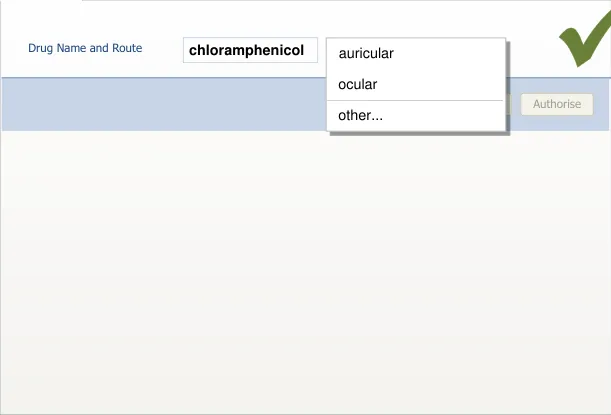
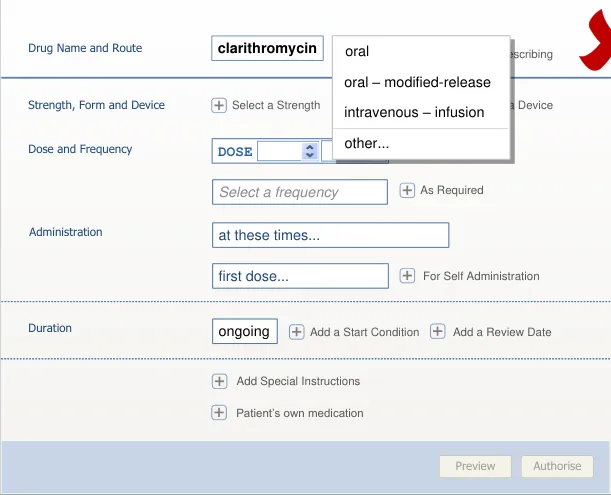
Page 137
Copyright ©2013 Health and Social Care Information Centre
HSCIC Controlled Document
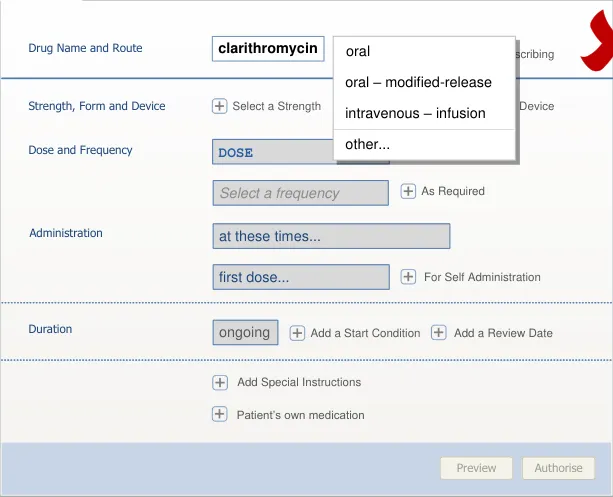
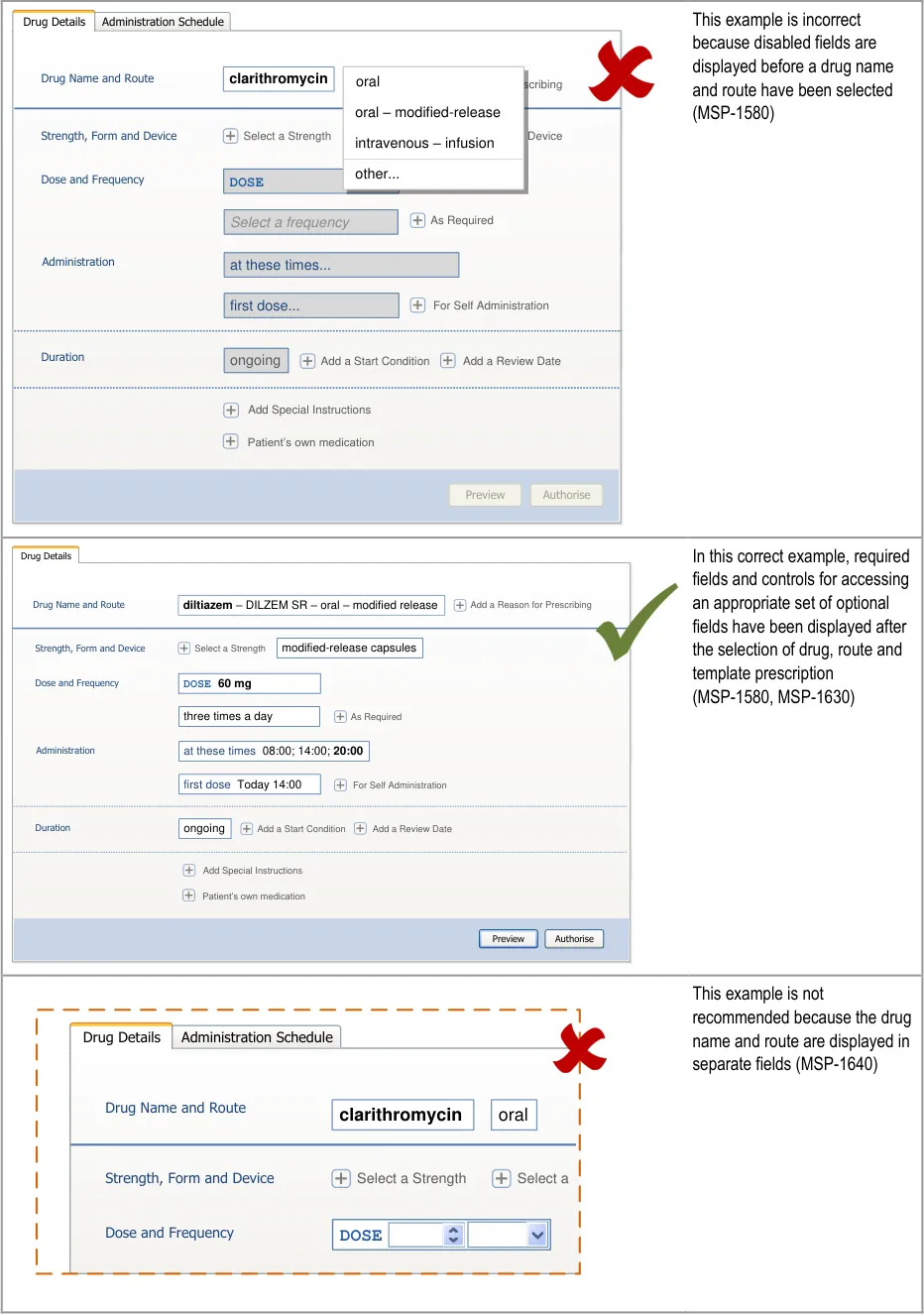
| Col1 | oral Add a Reason for Pre |
|---|---|
| Select a Select a Form intravenous – infusion | |
| Enter a Site other… | |
DOSE | other.. |
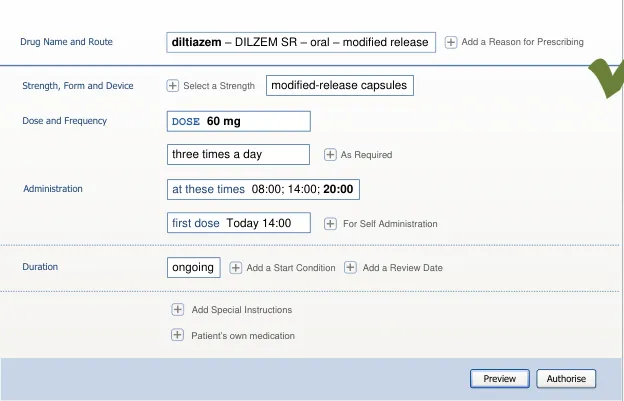
Page 138
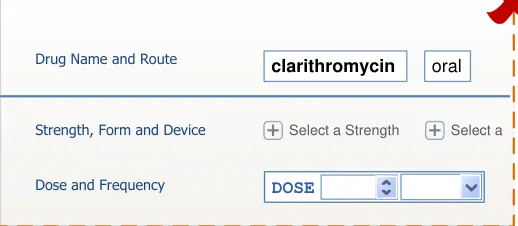
Copyright ©2013 Health and Social Care Information Centre
HSCIC Controlled Document
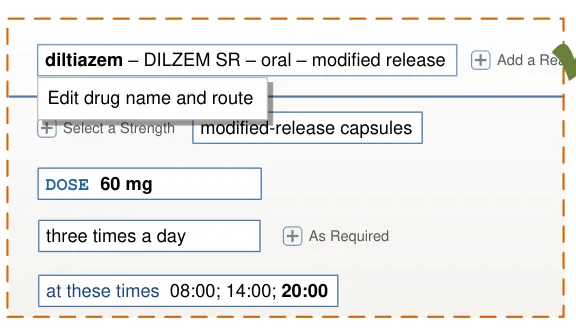
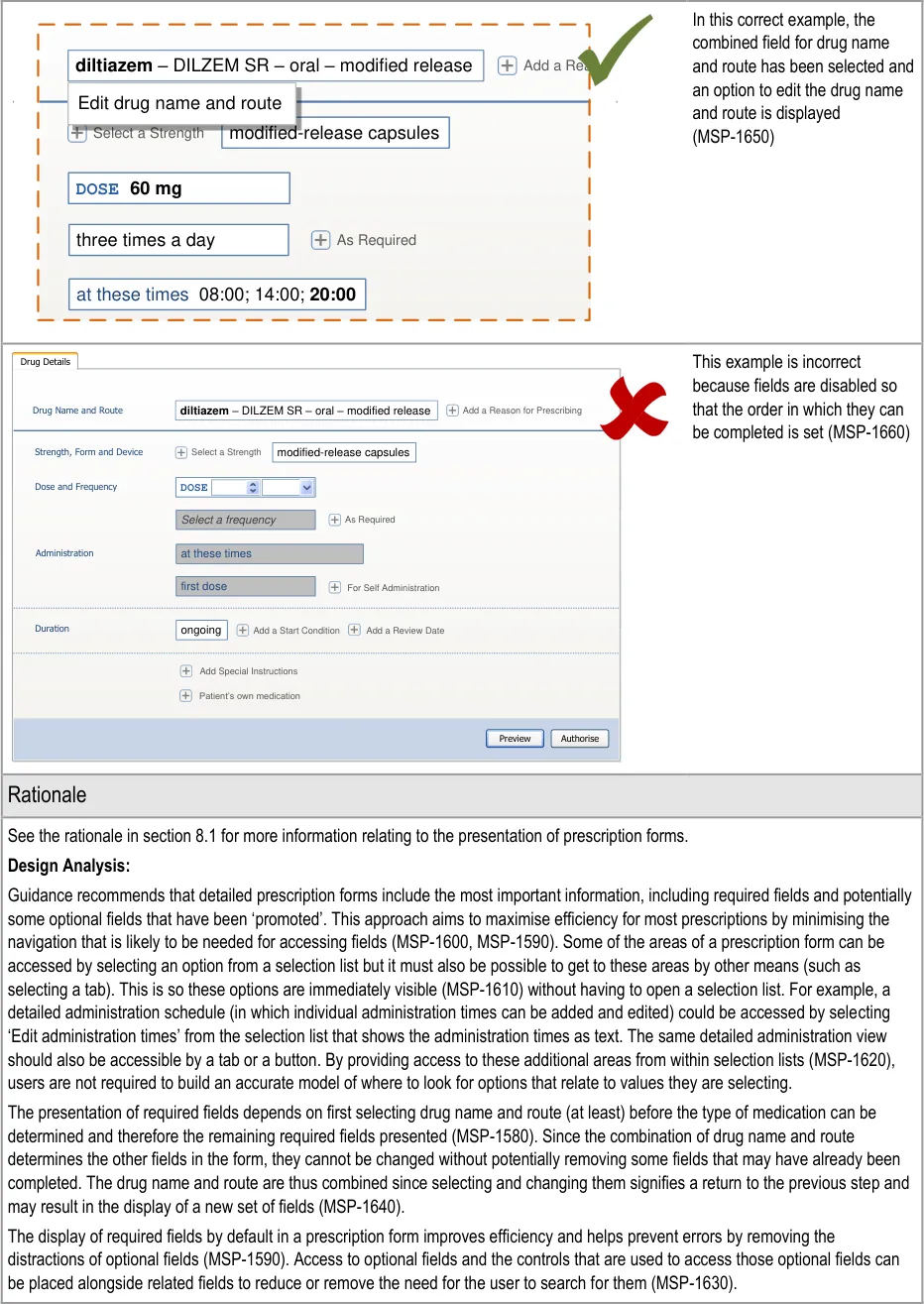
| diltiazem – DILZEM SR – oral – modified release | Col2 |
|---|---|
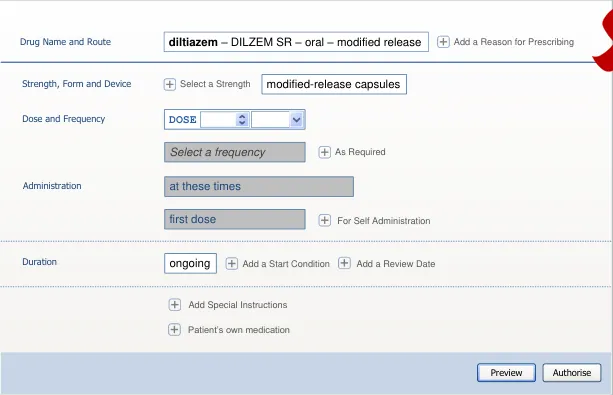
Page 139
Copyright ©2013 Health and Social Care Information Centre
HSCIC Controlled Document
Unlike the step by step, cascading list or template prescription parts of the prescribing process, a detailed prescription does not impose an order on the entry of information in fields. A detailed prescription form is more likely to be used when a less common prescription is being defined. Some of the fields are inter-related so the optimal way of completing a prescription may be different from one prescription to another. Imposing an order would remove this flexibility and thus also remove the opportunity for a more efficient way of completing the prescription (MSP-1660, MSP-1670).
Desk Research:
The guidance for a detailed prescription form follows the user interface principles of ‘chunking’ and prioritising (see the rationale in section 9.3.3).
Guidance in this section is informed by the following Nielsen heuristics {R17} :
Flexibility and efficiency of use – A detailed prescription presents as little information as possible to focus attention on what needs
to be completed and removes distractions
User control and freedom – Although input controls for only the required fields are displayed by default, the prescriber has access
to optional attributes and additional fields. The prescriber may also choose to complete the input controls in a different order to the one in which they are presented
User Research:
Study ID 67 (see APPENDIX D) includes the recommendation that brand name should not be displayed in the working area of a prescription form unless it is mandatory. A brand name will generally be selected in a search results list or a template prescription so when a brand name is mandatory (or has been explicitly selected) it will be known and displayed alongside the generic name in a prescription form. Thus, a brand name is only likely to be changed by reopening a list of template prescriptions (see section 7.3.5) or by clearing the current drug and starting again (MSP-1650).
Study ID 68 (see APPENDIX C) identified the need to limit optional fields that are presented by default (so that they are less likely to be filled in unnecessarily) and to allow easy access to an appropriate set of optional fields.
Hazard Risk Analysis Summary:
From our Patient Safety Risk Assessment analyses, we identified a number of potential hazards, including the following key risks which are mitigated by the guidance:
Potential Hazards:
The name of the drug being prescribed
is not noticed at the top of the form and is not the intended drug
The prescriber cannot tell which fields
are required and which are optional
Optional information is missed from a
prescription because the prescriber could not find the control for accessing optional fields or other areas of the detailed prescription
Mitigations:
The options presented after a drug is selected are filtered to be relevant to that
drug (see section 6.3.1)
The drug name remains at the top of the form when switching to a detailed
prescription and is visible throughout, even when the prescription is long enough to need a scroll bar (see section 8.3.3)
In principle, the prescription form only shows required fields (MSP-1590)
Optional fields are accessed by clicking on a different style of control (see
section 8.3.4)
Controls for accessing optional fields are displayed in a consistent order (see
section 8.3.1)
Controls should be provided for all areas of a detailed prescription form such that
there is no area that can only be accessed by selecting an item from a selection list (MSP-1620)
Controls for optional fields are displayed alongside required fields (MSP-1630)
Controls for accessing optional fields are placed where the optional field appears
when it is displayed (see section 8.3.4)
Page 140
Copyright ©2013 Health and Social Care Information Centre
HSCIC Controlled Document
8.3.3 Structuring a Detailed Prescription
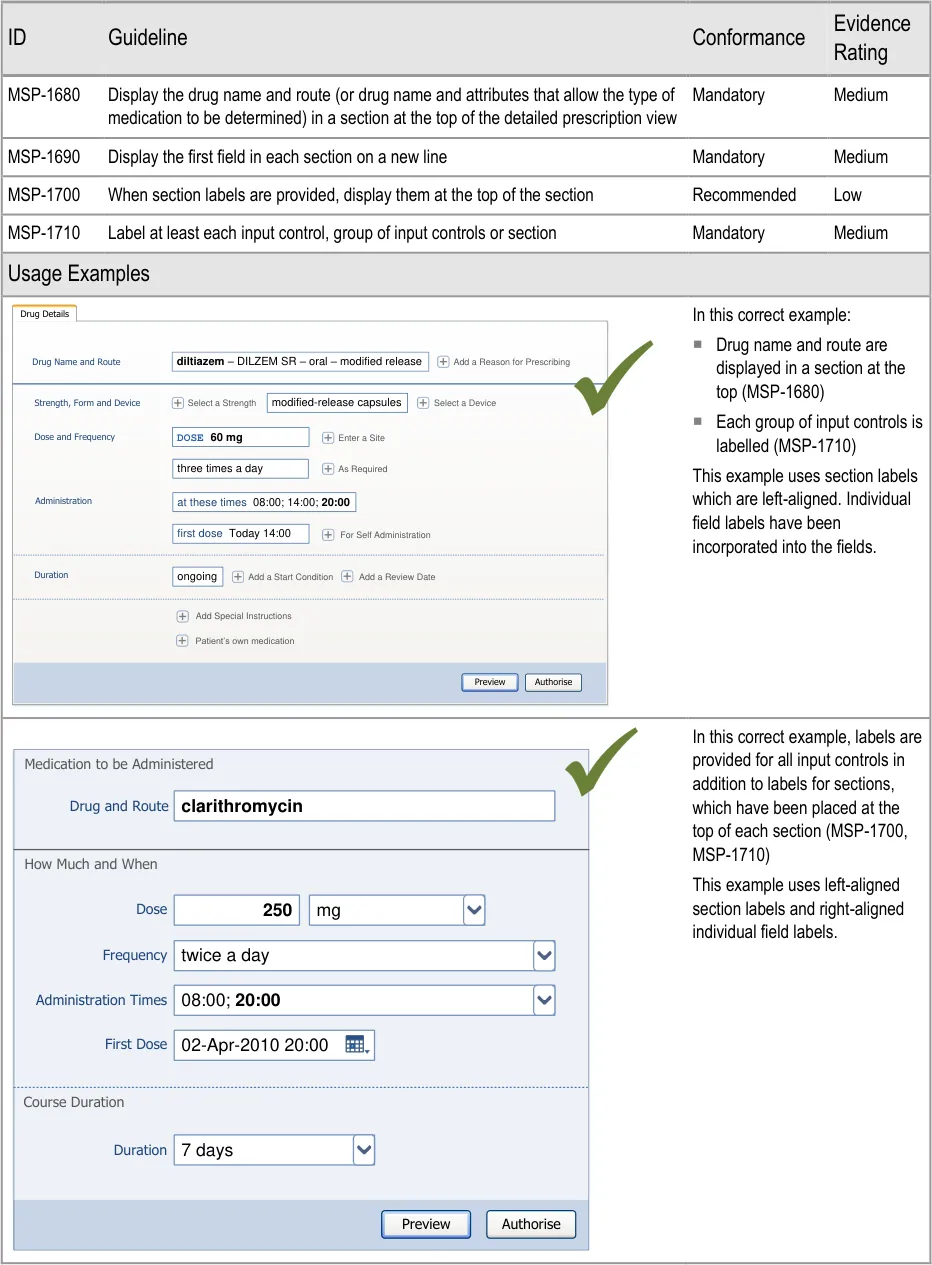
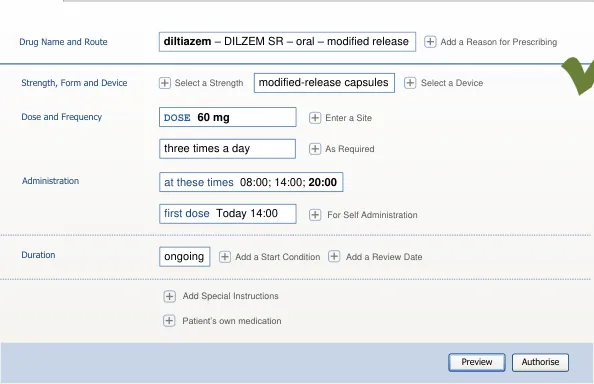
Page 141
Copyright ©2013 Health and Social Care Information Centre
HSCIC Controlled Document
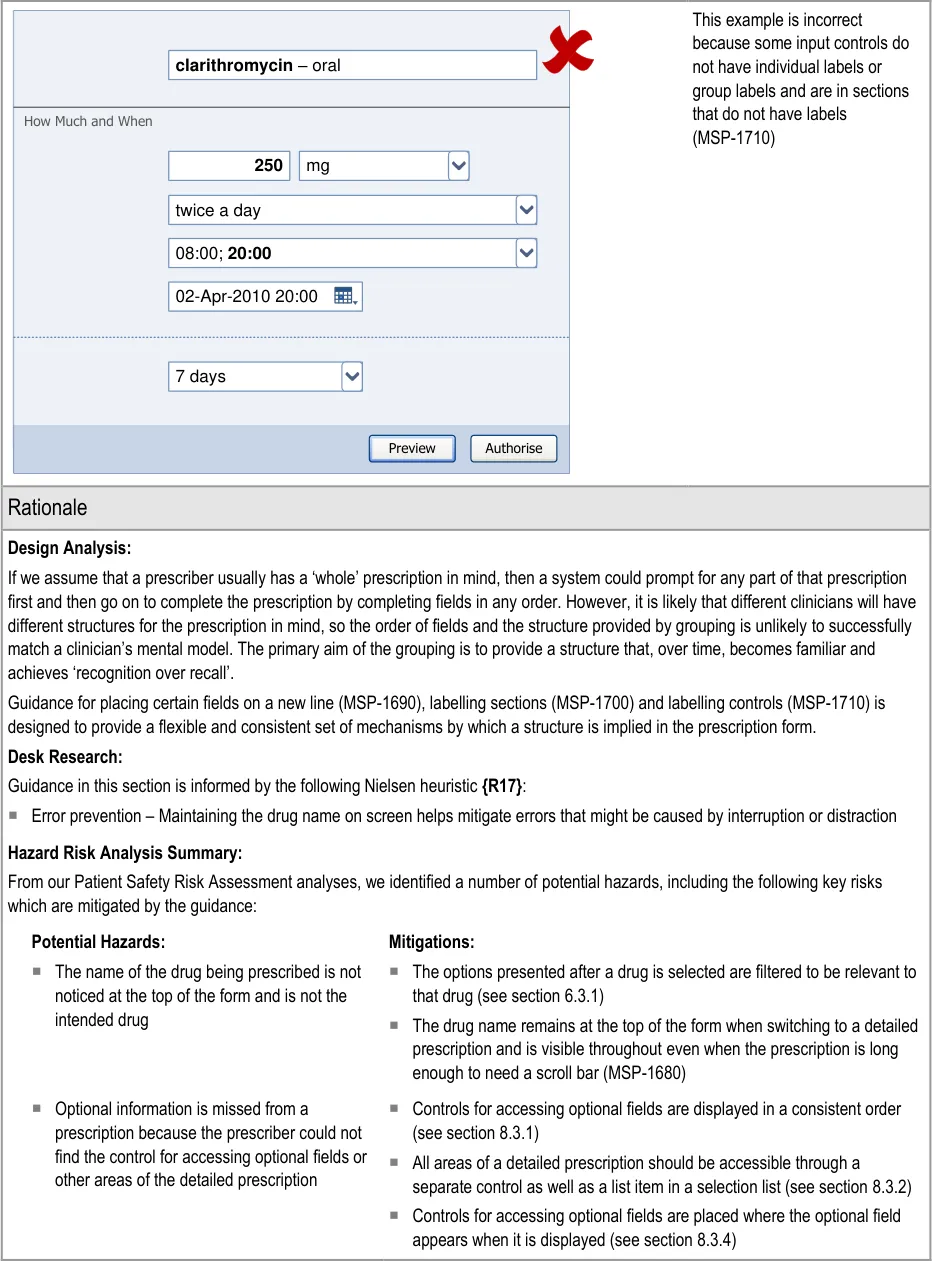
Page 142
Copyright ©2013 Health and Social Care Information Centre
HSCIC Controlled Document
8.3.4 Displaying Required and Optional Fields
This section includes guidance for how to display required and optional fields and to communicate which fields must be completed before a prescription can be authorised.
When a detailed prescription form is presented, the required fields are displayed by default. Also displayed are controls for accessing optional fields and, when those controls are selected, the optional fields appear alongside the required fields. This approach is based on the assumption (see section 1.3) that the majority of prescriptions will be completed using template prescriptions and that most of the time only a few optional fields may be needed. However, in some cases, additional specific fields or more detailed prescriptions may be needed and forms with a larger number of fields would be required to support these.
This section refers to three types of control:
- Controls for accessing individual (or very small groups) of optional fields. These controls
are defined by guidance in this section
-
Controls for accessing small sets of fields (see Figure 23)
-
Controls (such as tabs or buttons) for accessing large sets of fields (see Figure 24 and
Figure 25).
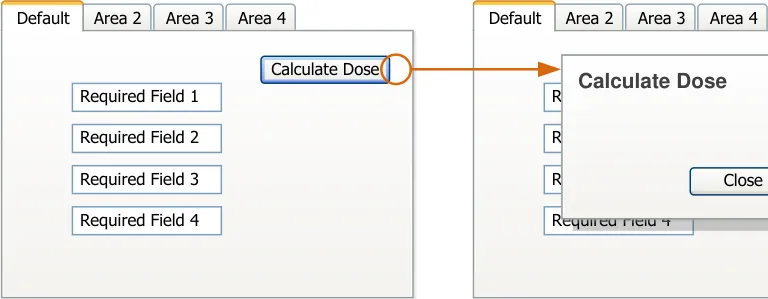
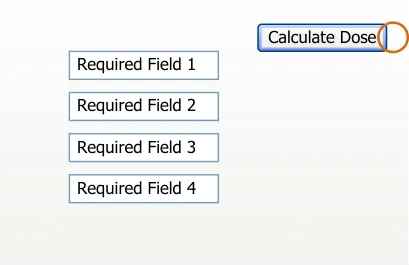
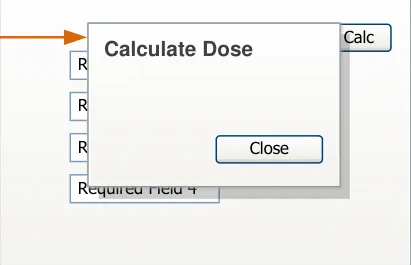
| Dose Calculate Dose equired Field 1 equired Field 2 equired Field 3 Close | Col2 | Col3 |
|---|---|---|
| equired Field 1 equired Field 2 equired Field 3 Dose Calculate Dose Close | quired Field 1 quired Field 2 quired Field 3 Dos Calculate Dose Close | quired Field 1 quired Field 2 quired Field 3 Dos Calculate Dose Close |
| e | e | e |
Figure 23: Accessing Small Sets of Fields
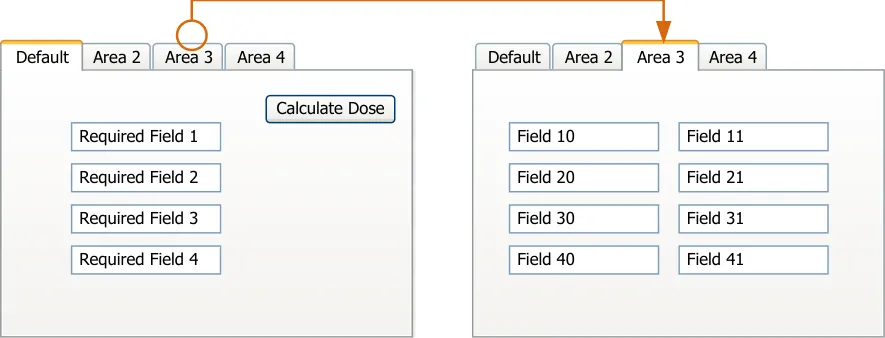
Figure 24: Using a Tab to Access a Large Set of Fields
Copyright ©2013 Health and Social Care Information Centre
Page 143
HSCIC Controlled Document
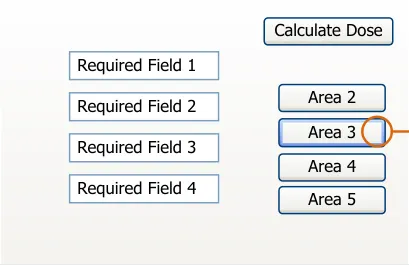
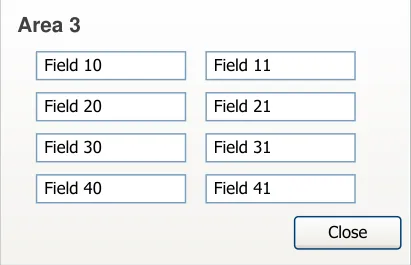
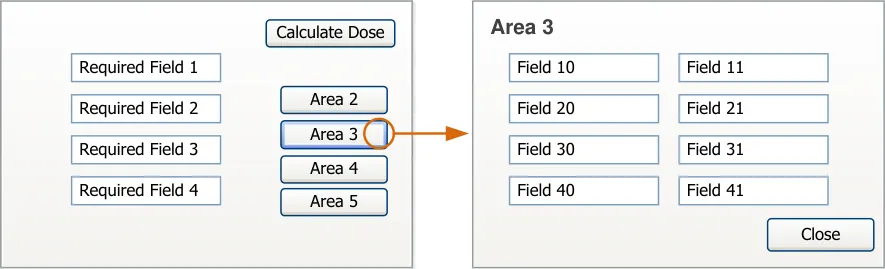
Figure 25: Using a Button to Access a Large Set of Fields
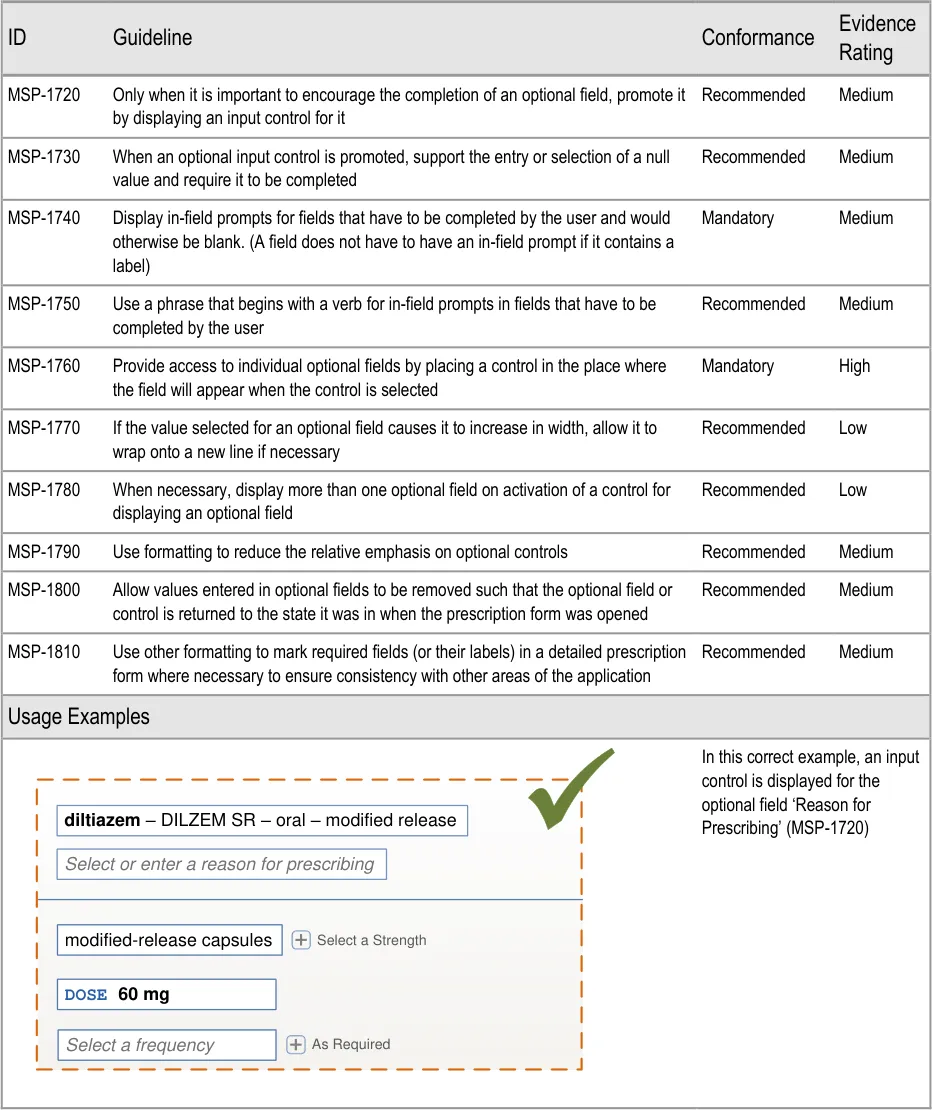
Page 144
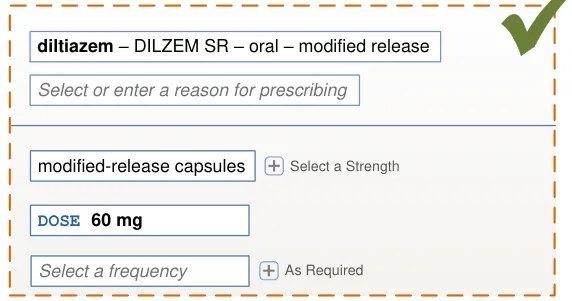
Copyright ©2013 Health and Social Care Information Centre
HSCIC Controlled Document
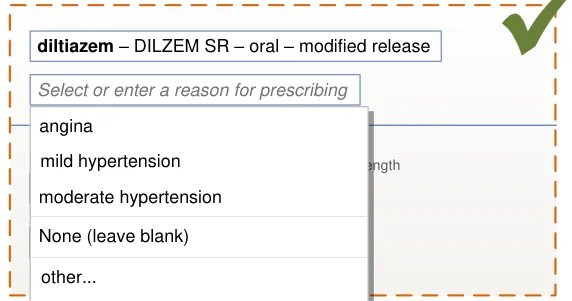
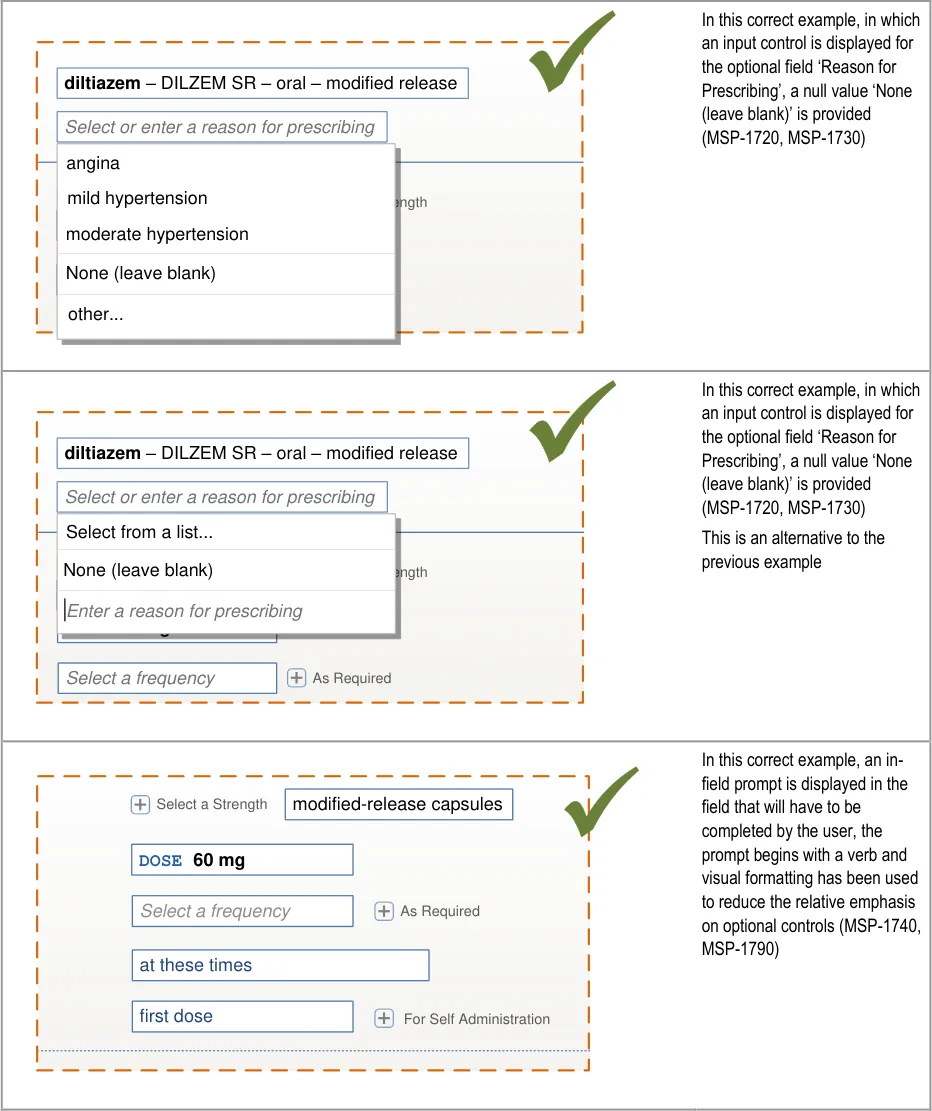
| diltiazem – DILZEM SR – oral – modified release Select or enter a reason for prescribing | Col2 | Col3 | Col4 |
|---|---|---|---|
| diltiazem– DILZEM SR – oral – modified release Select or enter a reason for prescribing | Select or enter a reason for prescribing | Select or enter a reason for prescribing | Select or enter a reason for prescribing |
| diltiazem– DILZEM SR – oral – modified release Select or enter a reason for prescribing | |||
| Select a Str modified-release capsules modified-release capsules mild hypertension moderate hypertension | Select a Str modified-release capsules modified-release capsules mild hypertension moderate hypertension | ength | |
DOSEDOSE 60 mgNone (leave blank) | |||
| As Required Select a frequency other… | As Required Select a frequency other… | As Required Select a frequency other… | |
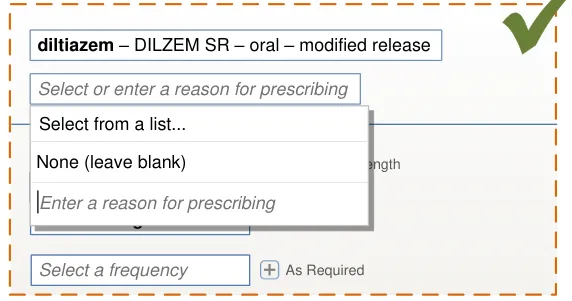
| Select or enter a reason for prescribing | Col2 |
|---|---|
| Select a Str modified-release capsules None (leave blank) | Select a Str modified-release capsules None (leave blank) |
DOSE 60 mgEnter a reason for prescribin | _ g_ |
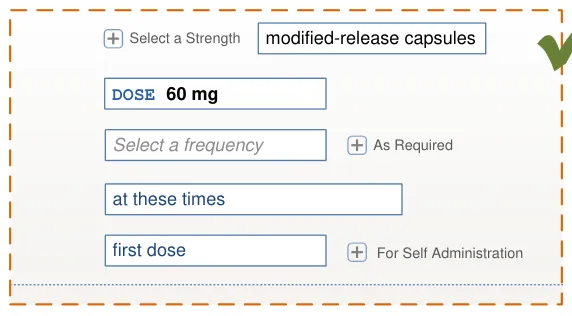
Page 145
Copyright ©2013 Health and Social Care Information Centre
HSCIC Controlled Document
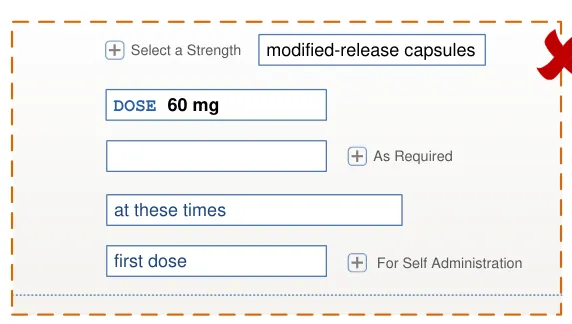
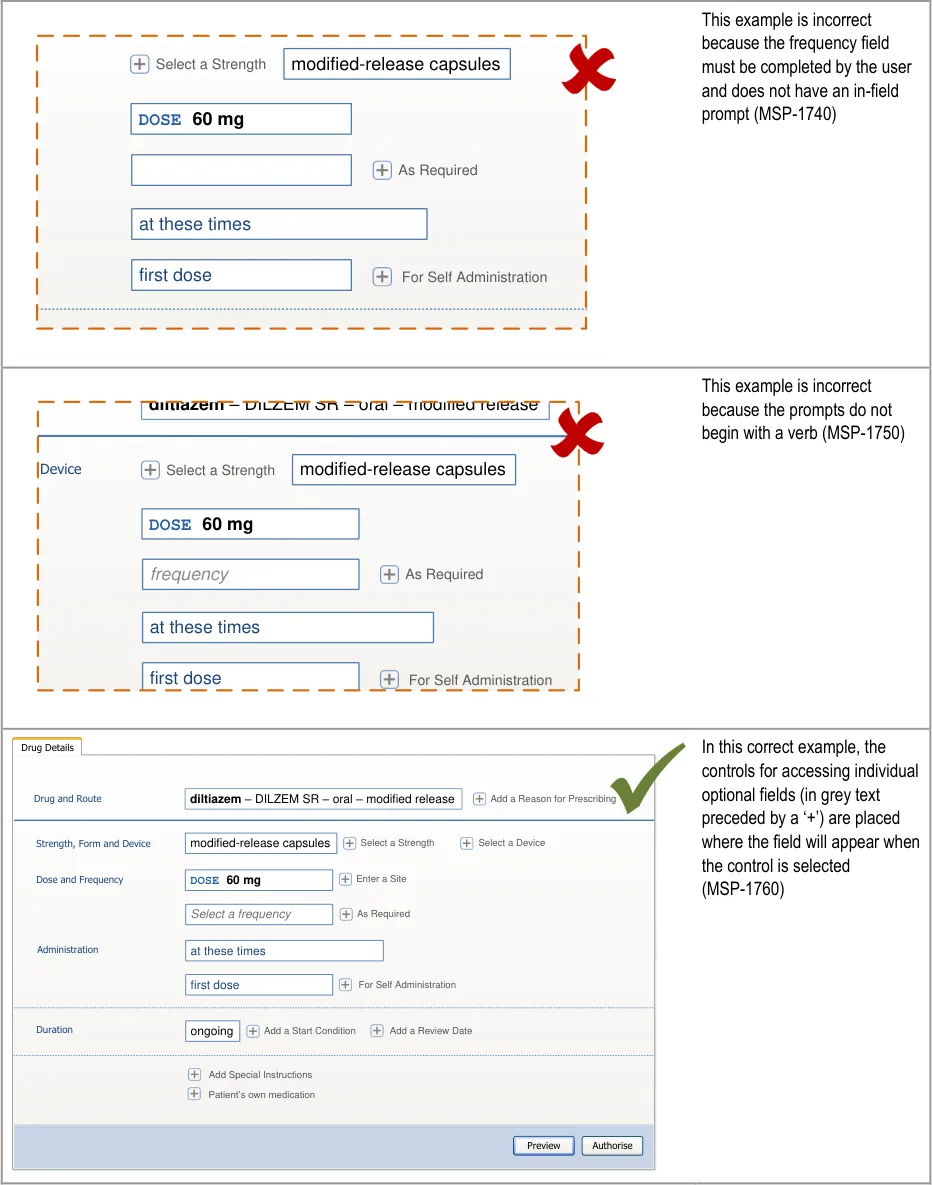
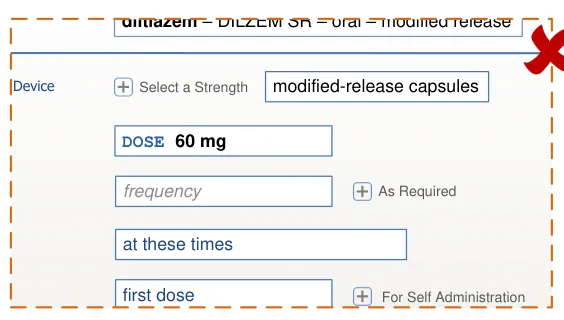
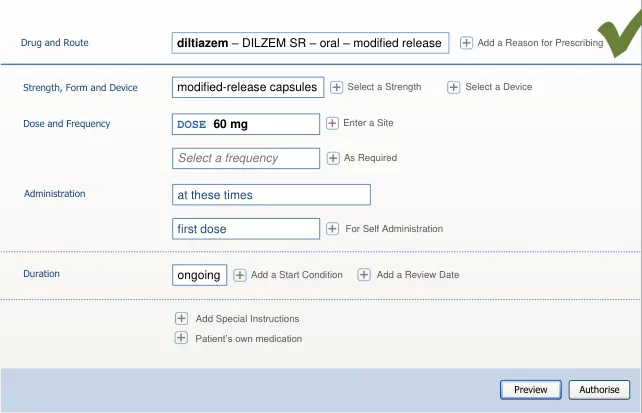
Page 146
Copyright ©2013 Health and Social Care Information Centre
HSCIC Controlled Document
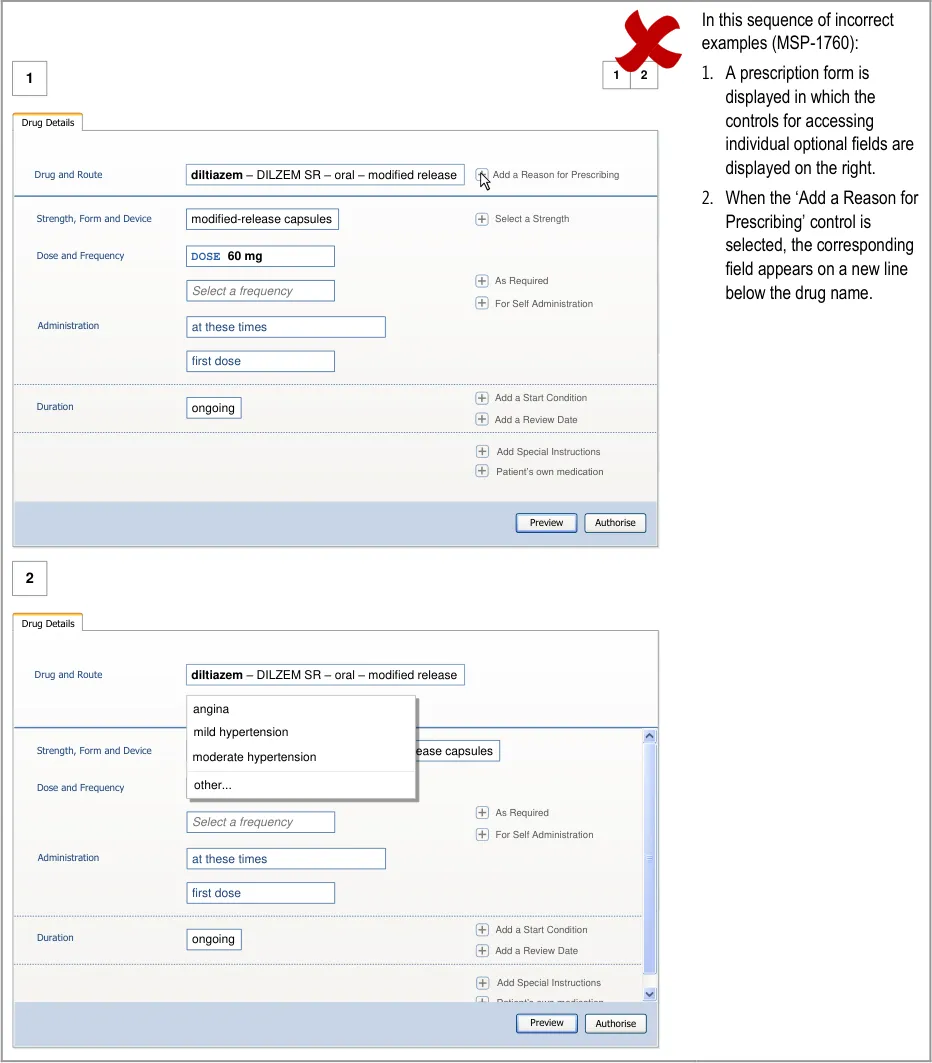
Page 147
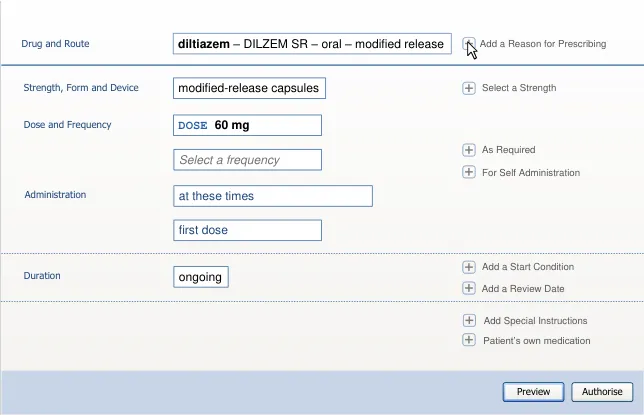
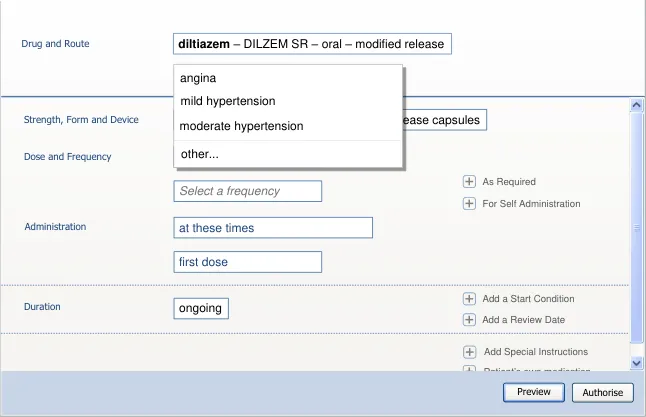
Copyright ©2013 Health and Social Care Information Centre
HSCIC Controlled Document
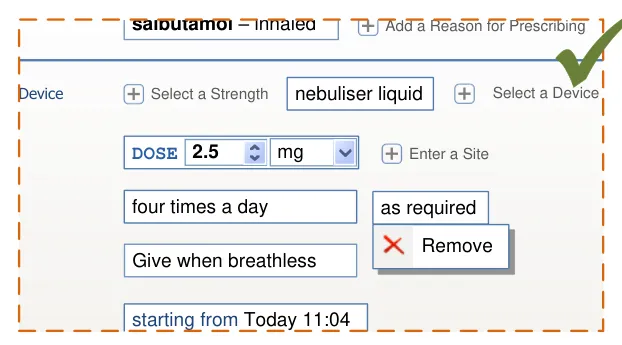
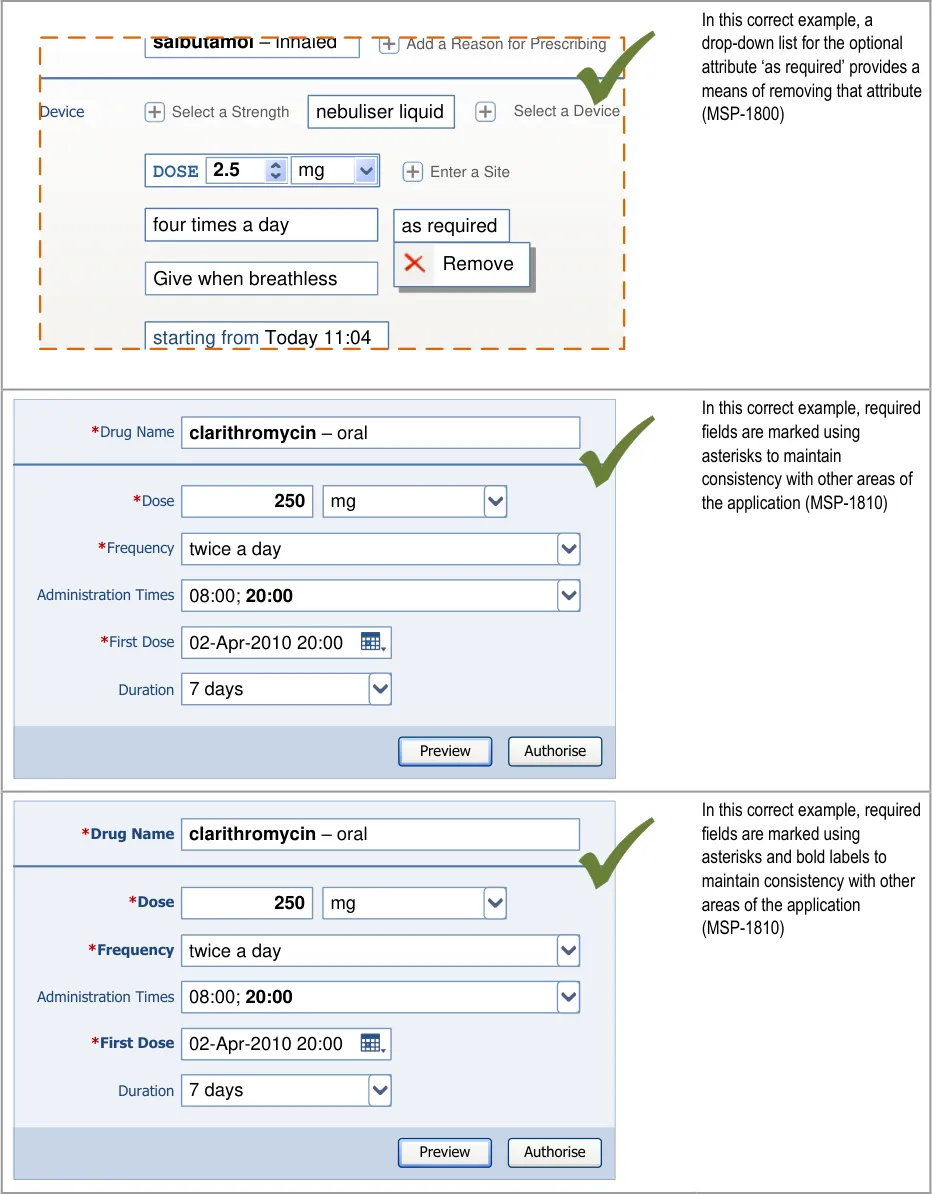
Page 148
Copyright ©2013 Health and Social Care Information Centre
HSCIC Controlled Document

Page 149
Copyright ©2013 Health and Social Care Information Centre
HSCIC Controlled Document
User Research:
All 14 participants in Study ID 69 (see APPENDIX B) preferred to avoid a prescription form in which the layout of fields is absolutely identical for all drugs. Fields in this design of a prescription form were enabled or disabled depending on the drug being prescribed.
The primary reasons they gave for their preference were:
They did not know where they had to enter information
They incorrectly tried to enter values in the wrong field
The process was, or appeared to be, longer
The disabled fields were a distraction
Guidance for cascading lists (section 6) and template prescriptions (section 7), dynamic layout of prescription forms (section 8.1) and required fields versus optional fields (MSP-1720, MSP-1790) are designed to focus attention on the fields that are relevant, thus avoiding the distraction caused by fields that do not need to (or cannot) be filled
Hazard Risk Analysis Summary:
From our Patient Safety Risk Assessment analyses, we identified a number of potential hazards, including the following key risks which are mitigated by the guidance:
Potential Hazards:
When optional attributes are specified unnecessarily,
the need for clarification may delay treatment
Important information is not included in the
prescription because only required fields were presented
Presentation of both required and optional input
controls slows the process of prescribing
Prescriber can’t work out why the prescription can’t be
authorised
The prescriber cannot tell which fields are required
and which are optional
Optional information is missed from a prescription
because the prescriber could not find the control for accessing optional fields or other areas of the detailed prescription
Mitigations:
The unnecessary completion of optional fields is discouraged by not
displaying them by default (see section 8) and requiring an additional selection before they are displayed (MSP-1760)
The definition of drug name and route before a detailed prescription
form can be displayed (see section 8) ensures only the appropriate (required) input fields are displayed
Controls for accessing optional fields (MSP-1760) must be
consistently placed and presented (see section 8.1)
Optional fields are not displayed by default (see section 8.1)
Prompts are displayed in required input controls until they are
populated with a value (MSP-1740)
In principle, the prescription form only shows required fields (see
section 8)
Optional fields are accessed by clicking on a different style of
control (MSP-1760)
Controls for accessing optional fields are displayed in a consistent
order (see section 8.3.1)
Controls should be provided for all areas of a detailed prescription
form such that there is no area that can only be accessed by selecting an item from a selection list (MSP-1620)
Controls for optional fields are displayed alongside required fields
(MSP-1630)
Controls for accessing optional fields are placed where the optional
field appears when it is displayed (see section 8.3.4)
Page 150
Copyright ©2013 Health and Social Care Information Centre
HSCIC Controlled Document
9 GUIDANCE DETAILS FOR INPUT CONTROLS
9.1 Introduction
This section contains guidance for the display of input controls and guidance for particular types of controls such as selection lists.
Figure 26 shows the full user interface prescribing process in which the steps covered in this
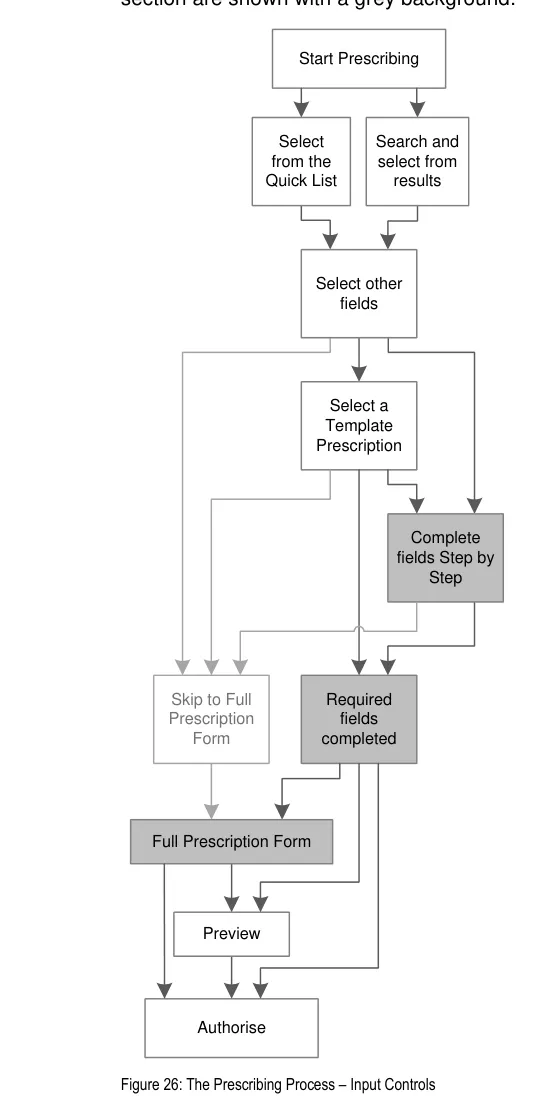
Page 151
Copyright ©2013 Health and Social Care Information Centre
HSCIC Controlled Document
Figure 27 is an extract from Figure 5 to illustrate the user interface prescribing steps that are covered in this section showing the step-by-step alternative to template prescriptions and the remaining steps for completing a prescription:
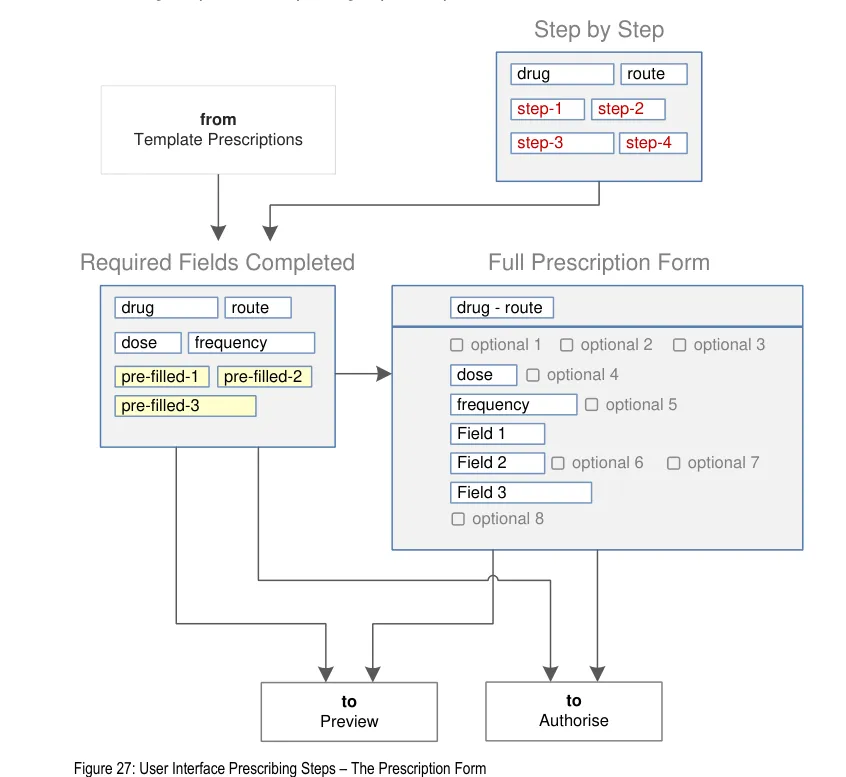
The contents of a prescription form depend on the type of medication being prescribed and this determines which attributes are required and thus which input controls will be displayed. The prescription form is thus dynamic.
There are three aspects of a prescription form that can be considered to be ‘dynamic’:
- The display of a set of input controls. The controls displayed will depend on the type of
medication being prescribed (see section 9.3.1)
- Input controls that may appear when a value is defined in another input control (see
section 9.3.1)
- Input controls that may be pre-filled depending on selections elsewhere in the form (see
section 9.3.5)
- Input controls whose dimensions may change as the form or field is completed (see
section 7.3.7)
Figure 28 and Figure 29 show detailed prescription forms for two different types of medication that have different sets of required fields.
Page 152
Copyright ©2013 Health and Social Care Information Centre
HSCIC Controlled Document
The oral — modified-release medication in Figure 28 requires a brand name and a dose:
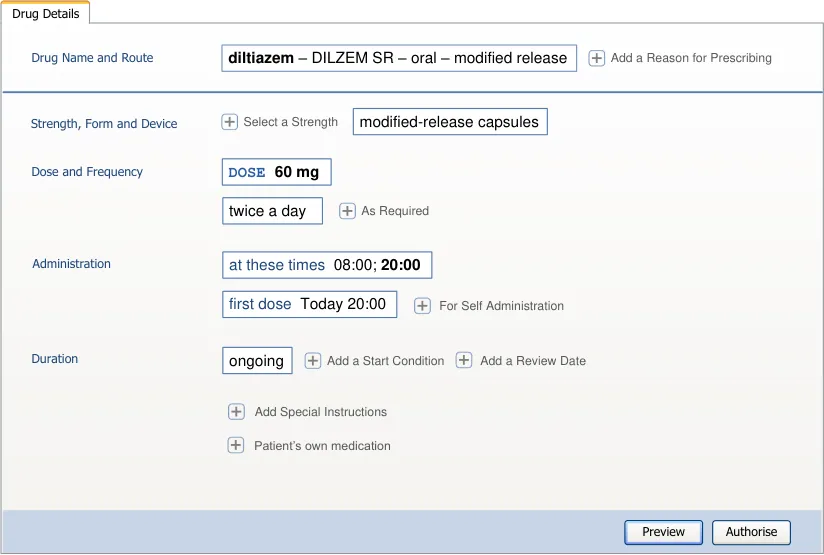
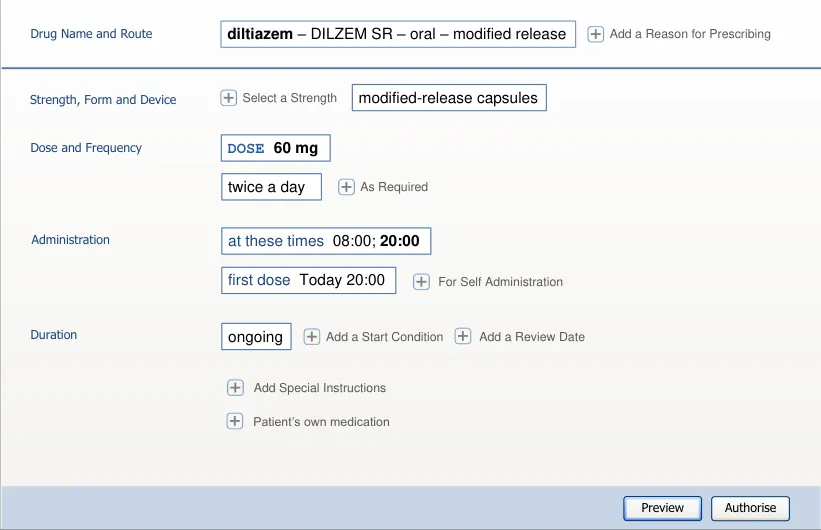
Figure 28: Detailed Prescription Showing a Set of Fields for an Oral — Modified-Release Medication
The topical medication in Figure 29 does not require a brand name but does require a method, a strength and site:
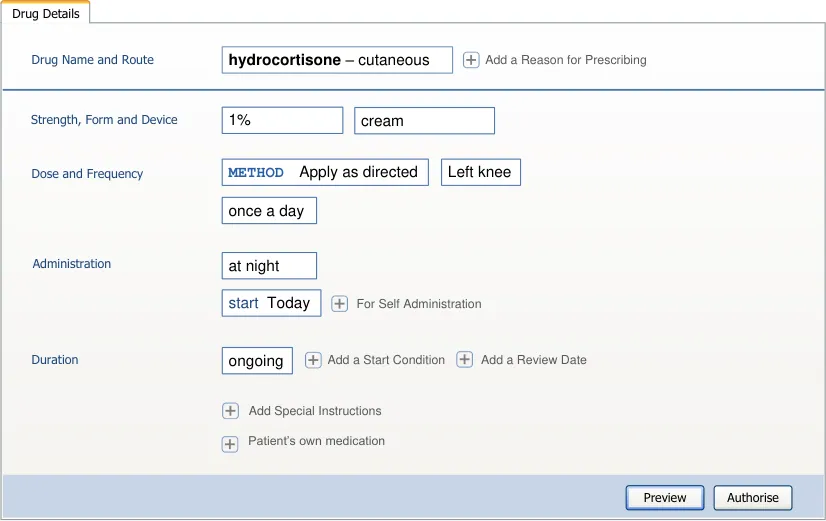
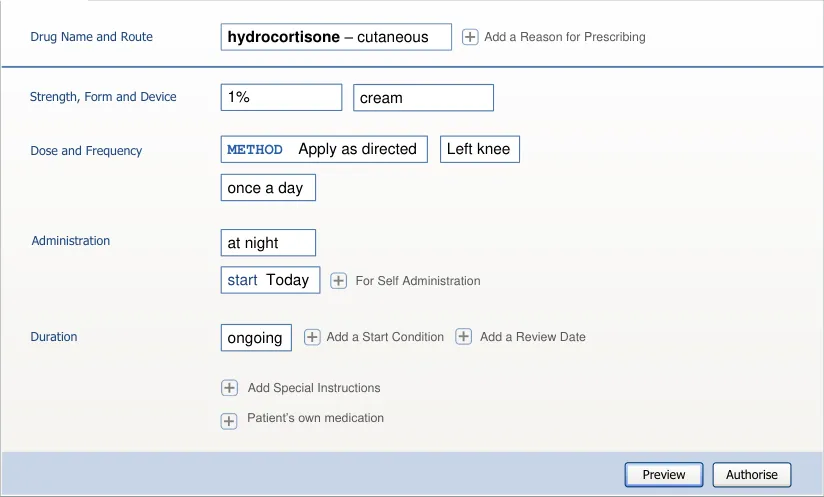
Figure 29: Detailed Prescription Showing a Set of Fields for a Topical Medication (Unlicensed Route)
Copyright ©2013 Health and Social Care Information Centre
Page 153
HSCIC Controlled Document
9.2 Principles
All guidance is informed by all of the principles for search and prescribe listed in section 2.1. The following are particularly relevant to this section:
- Maximise safety in the absence of decision support systems by designing for the reduction
of errors from invalid or inappropriate selections or entries:
Since options available in selection lists are dependent on values in other input fields,
the opportunity for inappropriate selections or invalid combinations is reduced
- Encourage simplicity of design by promoting user interface approaches that help to avoid
overly complex displays and interactions that require many controls:
Prescribing forms are initially presented with as few controls as possible and it is up to
the prescriber to progressively reveal the less frequently used options and controls associated with them
- Maximise flexibility and scalability of both the way that the prescribing process is
supported by the user interface and the dimensions of the spaces in which prescribing takes place:
The prescribing process is flexible so that it can support a short path through the
process and many potential different longer paths
Additional screens can be incorporated into a detailed prescription form so that many
sets of input controls can be included in a prescription if necessary
- Manage users expectations and improve their efficiency by providing a clear framework
with consistent logic for the placement of user interface elements and the interactions that they support:
In the absence of template prescriptions, the parts that might make up a template
prescription are simply revealed step by step
Input fields in a prescription form are placed using the same logic that is used to place
drug search results, cascading lists and template prescriptions
As far as possible, all input controls use the interaction model that is familiar from
selection list interaction model similar to that of drop-down lists, combo boxes, menus with submenus (see Windows User Experience Interaction Guidelines {R26} ) or column views (see Apple Human Interface Guidelines {R44} )
- Minimise the potential for important information to be hidden from view:
Prescription forms begin by presenting input controls for the minimum required
information and progressively reveal further input controls on demand
- Adhere to a user interface strategy that gives the impression of making progress within a
single space (which has all the necessary information immediately or readily available) and avoids the impression of needing to move between many different spaces:
The prescription allows most prescriptions to be completed within a small space whilst
providing access to a more detailed view at any point after the type of medication has been established
Page 154
Copyright ©2013 Health and Social Care Information Centre
HSCIC Controlled Document
Navigation to additional spaces is only necessary for more complex prescriptions,
detailed editing of administration schedules or for unusual attributes or combinations of attributes
9.3 Guidelines
Important
The usage examples in this section include examples of sets of fields, some of which are shown as required and some as optional. These examples are illustrative only and are not intended to provide guidance on which fields should be available for specific types of medication nor which fields should be required or optional.
9.3.1 Using Dynamic Controls
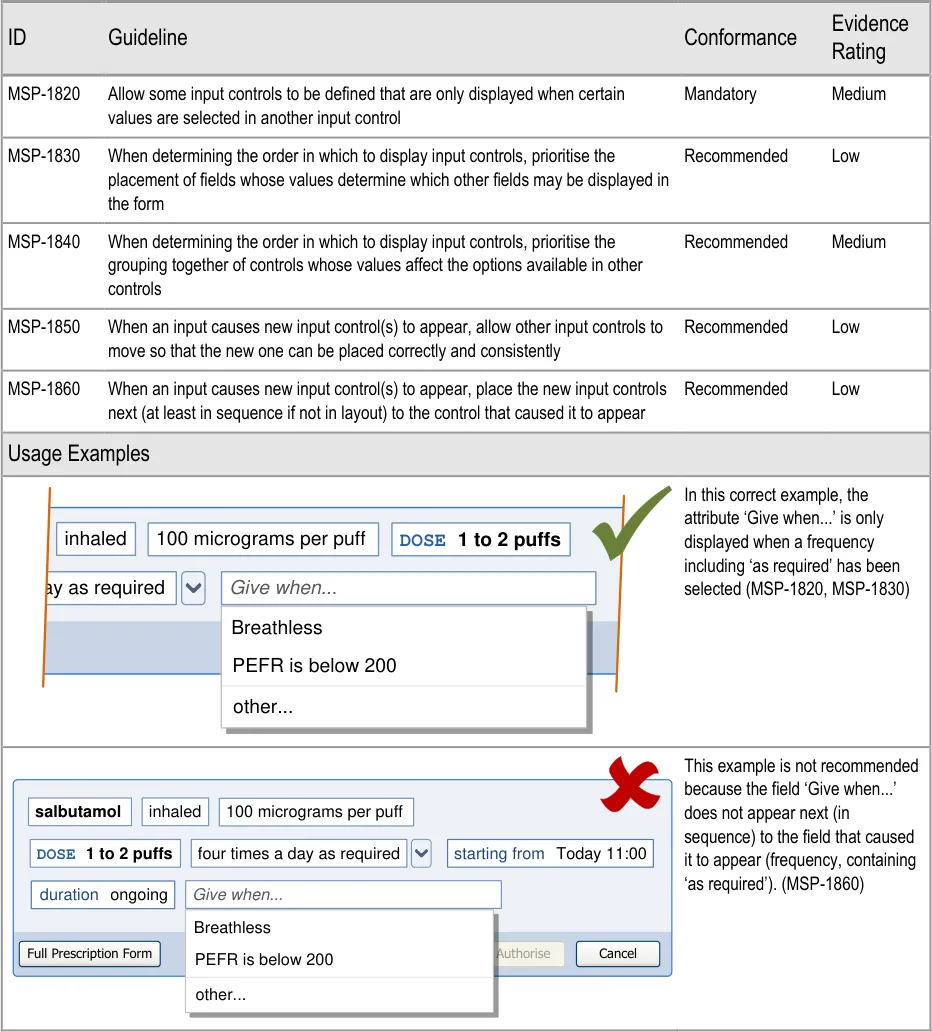
Page 155
Copyright ©2013 Health and Social Care Information Centre
HSCIC Controlled Document
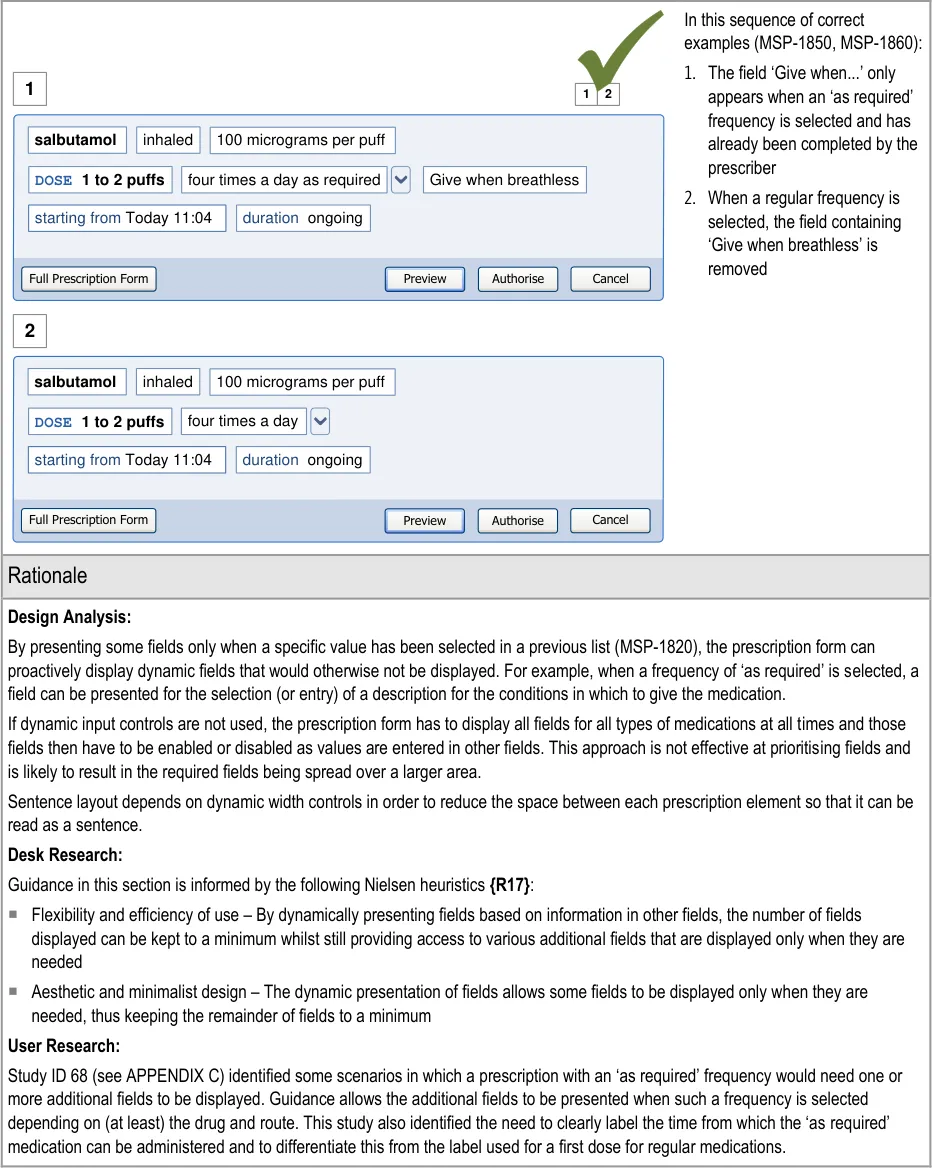
9.3.2 Presenting Selection Lists in Prescription forms
Selection lists can be used to speed up the entry of prescription information by presenting predefined sets of choices in a list that might otherwise have to be presented as a series of separate input controls. For example, when entering a dose, a selection list could contain a predefined list of dose values and units. Alternatively, it could present a free-text box for the dose amount and a selection list for the dose units. If the predefined sets of doses are appropriate, the former approach is faster and potentially safer than the latter approach of typing in the amount in digits and then selecting a unit (such as milligrams or grams).
Page 156
Copyright ©2013 Health and Social Care Information Centre
HSCIC Controlled Document
This section includes illustrations (such as those in Table 9) that show dose units (such as ‘mg’ and ‘g’) in lists that are not ordered alphabetically. The display of dose values in alphanumeric order can result in selection lists with options such as those in Figure 30. This illustration shows a high value dose (such as 1 g) listed next to a much lower value dose (such as 15 mg) and highlights the patient safety risks associated with lists ordered in this way. The research necessary to provide guidance for this area is not within the scope of this work so there is no guidance in this document for mitigating this risk.
DOSE 120 mg
DOSE 125 mg
DOSE 15 mg
DOSE 1 g
DOSE 240 mg
DOSE 250 mg
DOSE 30 mg
DOSE 500 mg
DOSE 60 mg
Figure 30: Example of a List of Dose Values in Alphanumeric Order
Table 9 illustrates a set of alternative input control styles for entering a dose. The table shows a progression from a simple set of separate input boxes through to a more sophisticated selection list with predefined values and a list item that includes a nested text entry box.
Style Visual Summary Description
1
2
3
Two text entry boxes
This approach, combined with form validation to check the combination of the dose value and the dose unit, may be preferred when the selection of appropriate dose units is high risk. Form validation and confirmation from the user may be safer in this context than a pre-populated selection list.
This approach is not recommended in the absence of sophisticated form validation dependent on a knowledgebase that performs extensive checks on the values entered.
A text entry box combined with a selection list
A text entry box for a dose may be necessary when it is not appropriate or safe to display predefined dose values in a list. The dose entered will need to be validated by the system and/or confirmed by the user.
A spin control and a predefined dose unit
This approach may be appropriate for drugs with a narrow range of valid doses.
Page 157
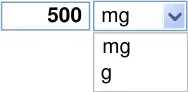
Copyright ©2013 Health and Social Care Information Centre
HSCIC Controlled Document
Style Visual Summary Description
4
5
A selection list containing predefined sets of values
When it is possible to define the dose values that are commonly used and are appropriate for this drug, a pre-populated list can be effectively used to improve efficiency and require additional effort to define unusual dose values.
Risks are reduced when it is possible to combine this approach with validation that checks the combination of prescription values and that those values are appropriate for the patient.
A selection list containing predefined sets of values including a list item that combines a text entry box with a predefined value.
This approach combines style 2 with style 4 but with predefined dose units. It thus encourages selection rather than text entry whilst allowing both so that any dose value can be entered.
| DOSE | Col2 |
|---|---|
DOSE 500 mg DOSE 1 g | DOSE 500 mg DOSE 1 g |
| other… | other… |
| DOSE | Col2 |
|---|---|
DOSE 500 mg DOSE 1 g | DOSE 500 mg DOSE 1 g |
**DOSE **mg | **DOSE **mg |
Table 9: Alternative Input Controls for Entering a Dose
Whilst each of these styles may be appropriate in specific circumstances, guidance promotes the use of controls such as styles 4 and 5. It is recommended to use these styles wherever possible to improve efficiency by allowing more than one value to be defined with a single selection and to help limit choices to predefined values and valid combinations. Styles 1, 2 and 3 need to be combined with form validation to check that values entered in the dose and dose unit fields are valid for the drug and for the values entered for other attributes.
The use of controls such as styles 4 and 5 depends on the availability of predefined dose values. In most cases, a dose value is expected to be selected as part of a template prescription and has thus been predefined along with the other attributes in the template prescription. If a selection list containing predefined doses is displayed independently of other attributes (as part of a step by step process, see section 7.3.6), it can be pre-filled based on the drug name and attributes selected in cascading lists. However, if a dose selection list is displayed after values have been entered for attributes such as strength and frequency, it may no longer be valid to display those values. See section 9.3.4 for guidance on inter-related fields and see the rationale in that section for the associated hazards.
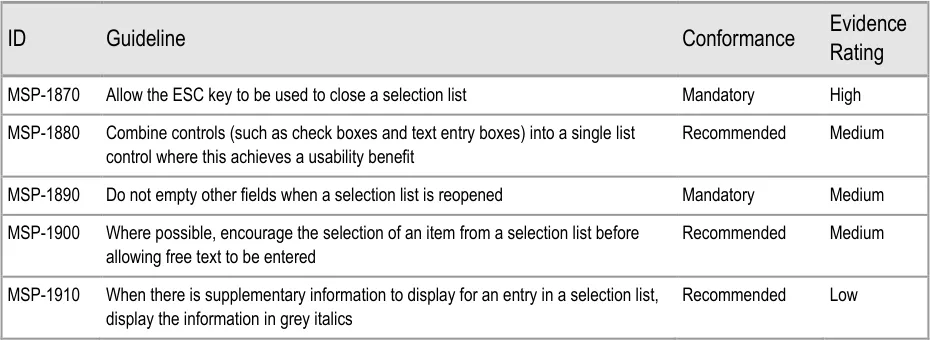
Page 158
Copyright ©2013 Health and Social Care Information Centre
HSCIC Controlled Document
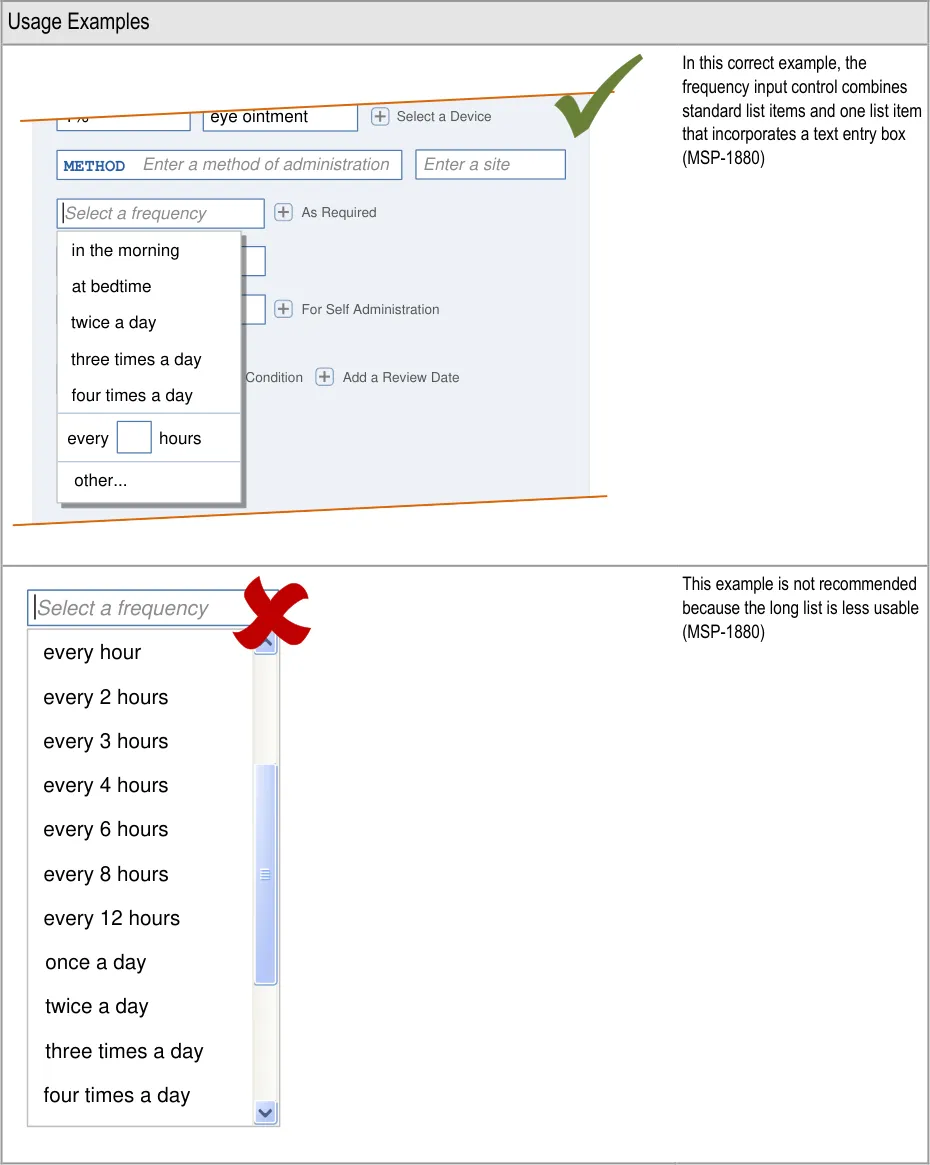
Page 159
| s | a |
|---|---|

Copyright ©2013 Health and Social Care Information Centre
HSCIC Controlled Document
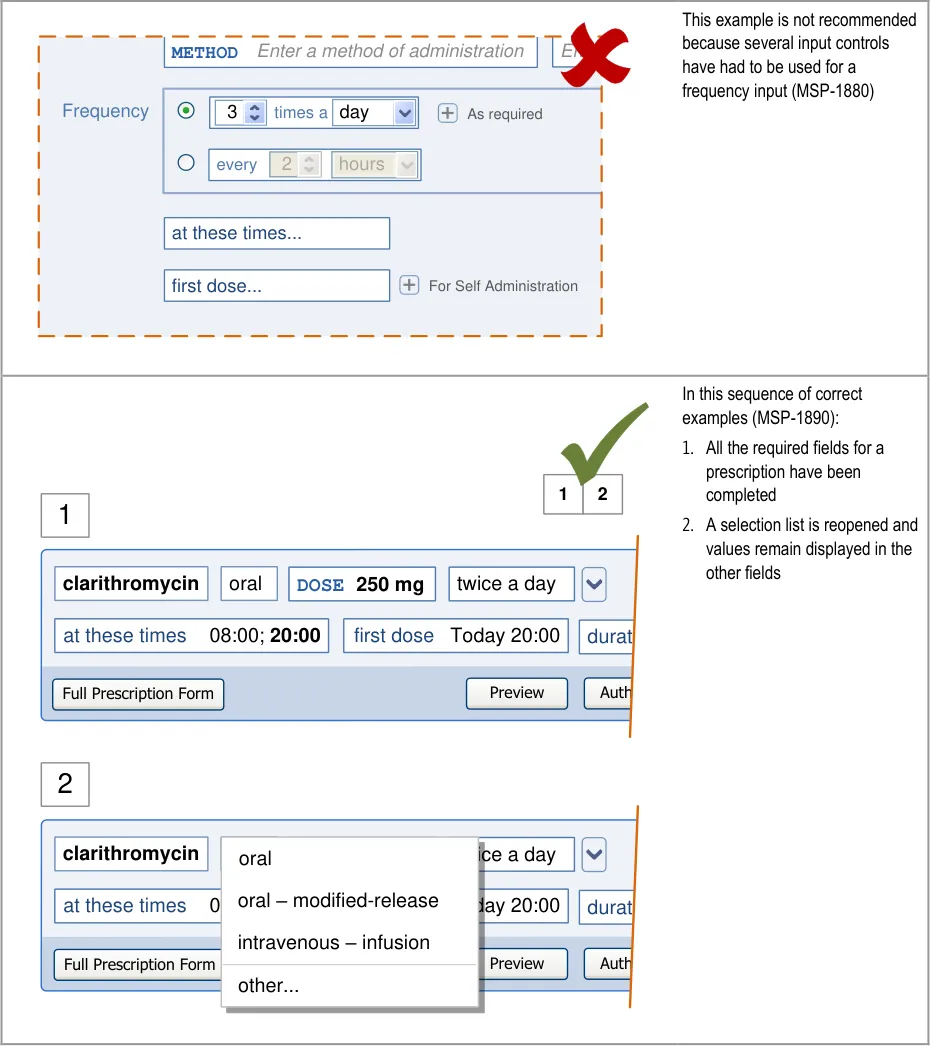
| Col1 | Col2 | Col3 | Col4 | Col5 |
|---|---|---|---|---|
| first dose… at these times… METHODEnter a method of administration Enter For Self Administration Frequency 3 day times a 2 hours every As required | first dose… at these times… METHODEnter a method of administration Enter For Self Administration Frequency 3 day times a 2 hours every As required | Enter | ||
| first dose… at these times… METHODEnter a method of administration Enter For Self Administration Frequency 3 day times a 2 hours every As required | first dose… at these times… METHODEnter a method of administration Enter For Self Administration Frequency 3 day times a 2 hours every As required | Enter | ||
| first dose… at these times… METHODEnter a method of administration Enter For Self Administration Frequency 3 day times a 2 hours every As required | 3 day times a 2 hours every As required | 3 day times a 2 hours every As required |
Page 160
Copyright ©2013 Health and Social Care Information Centre
HSCIC Controlled Document
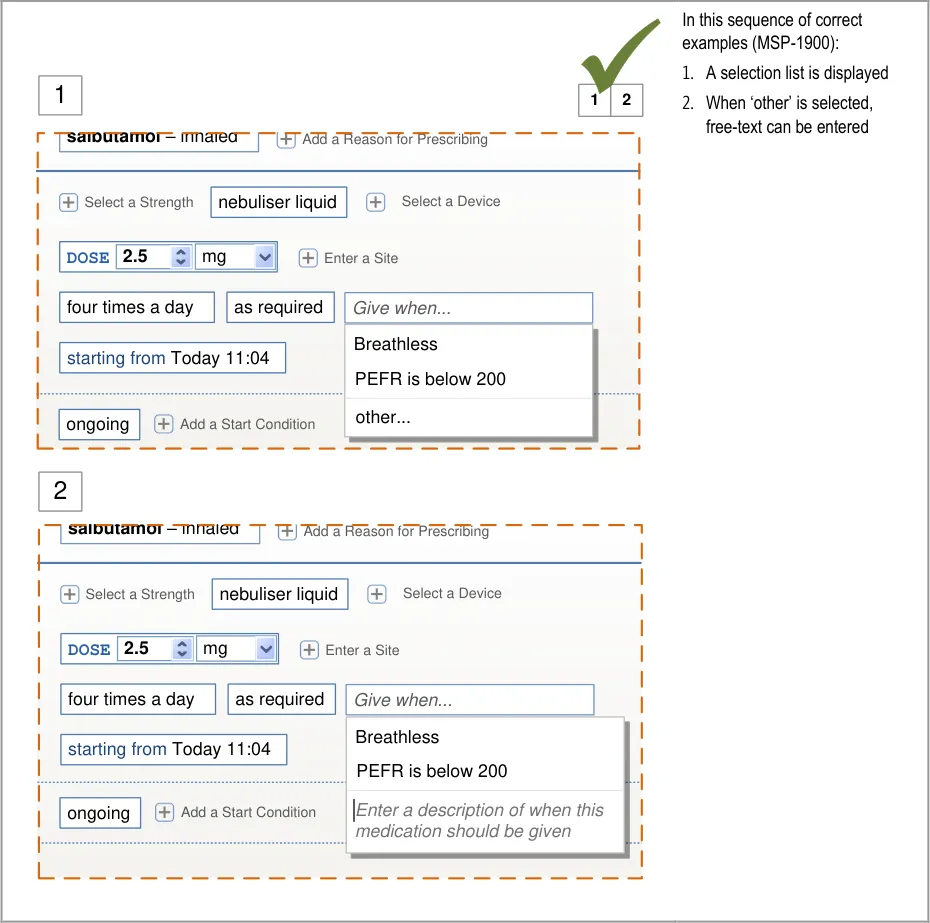
Page 161
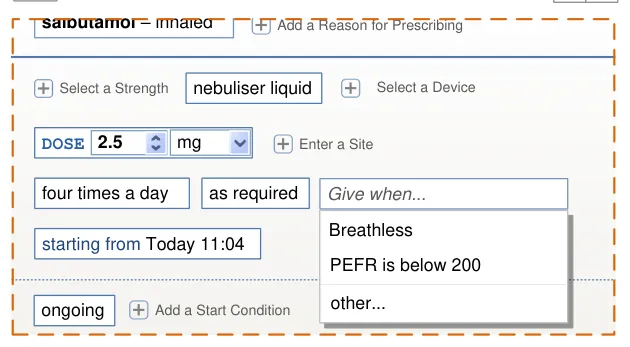
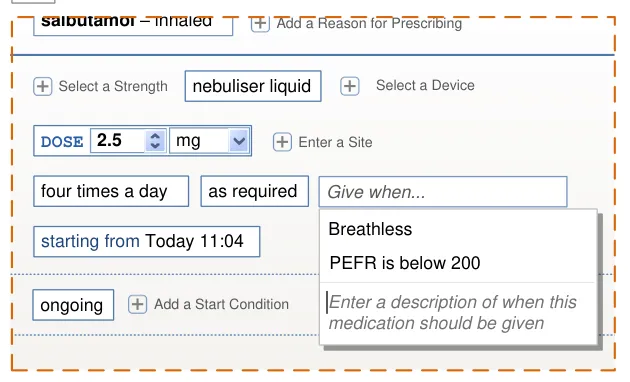
| salbutamol – inhaled Add a Reason for Prescribing | Col2 | Col3 |
|---|---|---|
| Select a Strength Enter a Site nebuliser liquid Select a Device DOSE 2.5mg starting fromToday 11:04 four times a day as required Give when… Breathless PEFR is below 200 | Select a Strength Enter a Site nebuliser liquid Select a Device DOSE 2.5mg starting fromToday 11:04 four times a day as required Give when… Breathless PEFR is below 200 | Select a Strength Enter a Site nebuliser liquid Select a Device DOSE 2.5mg starting fromToday 11:04 four times a day as required Give when… Breathless PEFR is below 200 |
| Select a Strength Enter a Site nebuliser liquid Select a Device DOSE 2.5mg starting fromToday 11:04 four times a day as required Give when… Breathless PEFR is below 200 | Give when… | Give when… |
| Select a Strength Enter a Site nebuliser liquid Select a Device DOSE 2.5mg starting fromToday 11:04 four times a day as required Give when… Breathless PEFR is below 200 | Breathless PEFR is below 200 | Breathless PEFR is below 200 |
| ongoing Add a Start Condition | ||
| ongoing Add a Start Condition | Enter a description of when this medication should be given | Enter a description of when this medication should be given |
Copyright ©2013 Health and Social Care Information Centre
HSCIC Controlled Document
| Col1 | In this sequence of correct examples (MSP-1900): 1. A selection list is displayed 1 1 2 2. When ‘other’ is selected, salbutamol – inhaled Add a Reason for Prescribing free-text can be entered This is an alternative to the previous example. Select a Strength nebuliser liquid Select a Device DOSE 2.5 mg Enter a Site four times a day as required Give when… Breathless starting from Today 11:04 PEFR is below 200 other… ongoing Add a Start Condition 2 salbutamol – inhaled Add a Reason for Prescribing Select a Strength nebuliser liquid Select a Device DOSE 2.5 mg Enter a Site four times a day as required Give when… Enter a description of when this starting from Today 11:04 medication should be given ongoing Add a Start Condition |
|---|---|
This example is not recommended because free-text must be entered and there is no opportunity to make a selection from a list (MSP-1900) Authorise inhaled DOSE 1 to 2 puffs100 micrograms per puff day as required When to give this as required medication Enter a description of when this medication should be given | |
In this correct example, supplementary information is included in the list and has been displayed in grey italics (MSP-1910) Frequency ration twice a day ongoing Add an Additional On first dose Today 20:00 at these times 08:00;20:00 Add a Review Date Add a Start Condition 08:00; 20:00 10:00; 22:00 Edit administration times… Standard times Non-standard times METHODApply as directed Left knee |
Page 162
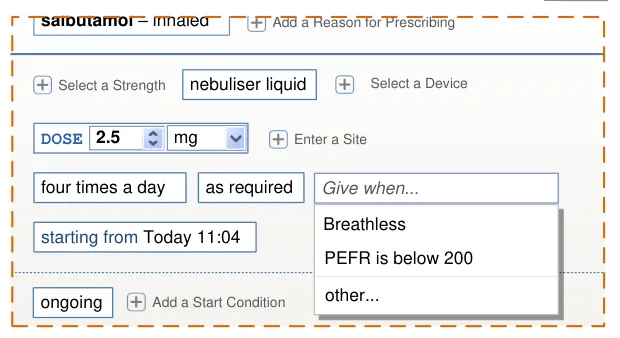
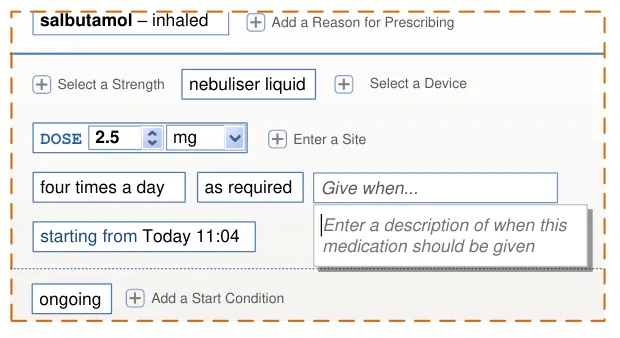
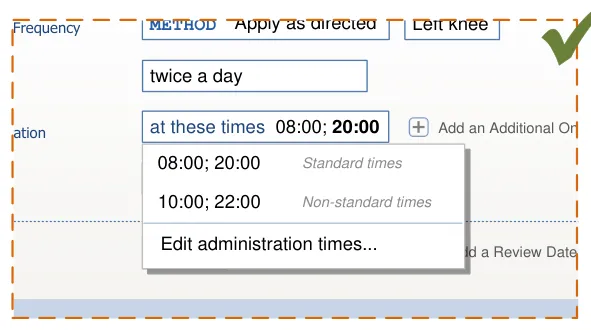
Copyright ©2013 Health and Social Care Information Centre
HSCIC Controlled Document
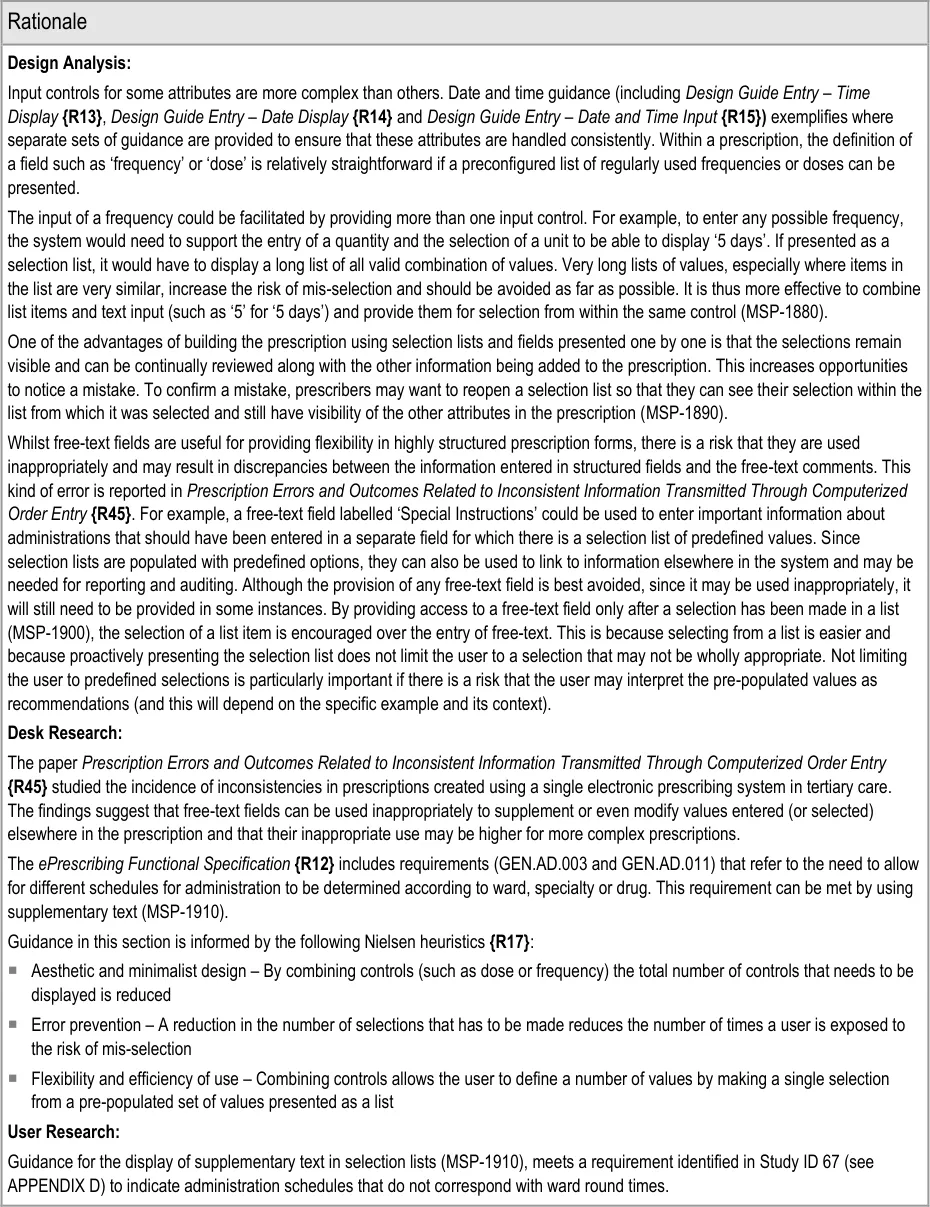
Page 163
Copyright ©2013 Health and Social Care Information Centre
HSCIC Controlled Document
Hazard Risk Analysis Summary:
From our Patient Safety Risk Assessment analyses, we identified a number of potential hazards, including the following key risks, some of which are mitigated by the design and one that is not mitigated by guidance
Potential Hazards:
A selection list in the prescribing area may obscure
important information in a list of current medications
Important information about a prescription is not carried
forward into other medications views because it was entered into a free-text field instead of a structured field
A prescription is not wholly reviewed because the
information is displayed in different formats, split across many different controls
Individual administration times have to be defined by
the prescriber and result in non-standard times
A large dose value is mis-selected because it is
displayed adjacent to the intended small dose value in a selection list ordered alphanumerically
Mitigations:
Selection lists can collapse once a selection has been made if
necessary to preserve visibility of other information (see section 6.3.2)
MSP-1900 recommends that,wherever possible, drop-down lists
are presented before free-text can be entered
Guidance recommends that the number of different types of
controls are minimised, which reduces the different formats used to display it (see section 8.1)
Selection lists are used to combine values (such as those in a
template prescription) and display them a format similar to that displayed in a medication line (see section 7.3.3)
MSP-1880 recommends combining controls into a single control
MSP-1910 recommends the use of grey italic text for
supplementary information and this could be used to indicate when an administration schedule is non-standard
This risk is not mitigated by guidance
9.3.3 Using Selection Lists to Prioritise
When a selection list is used to enter values for a prescription, more common values can be placed at the top of the list so that they are easier to find. This process of placing such values at the top of the list is referred as ‘prioritisation’ and this section provides guidance for prioritising selection lists that may be presented in any part of the prescribing process.
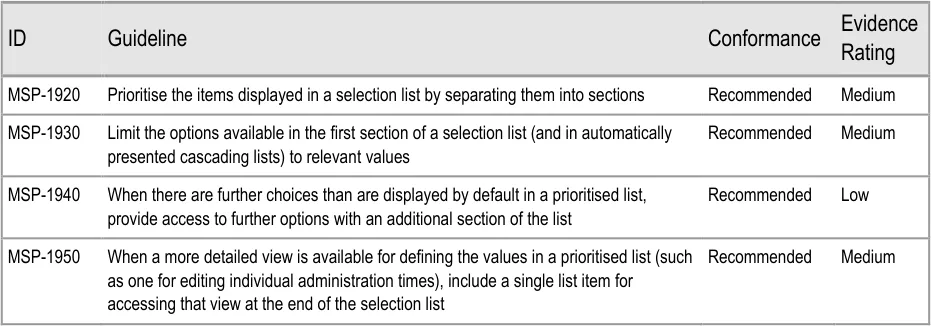
Page 164
Copyright ©2013 Health and Social Care Information Centre
HSCIC Controlled Document
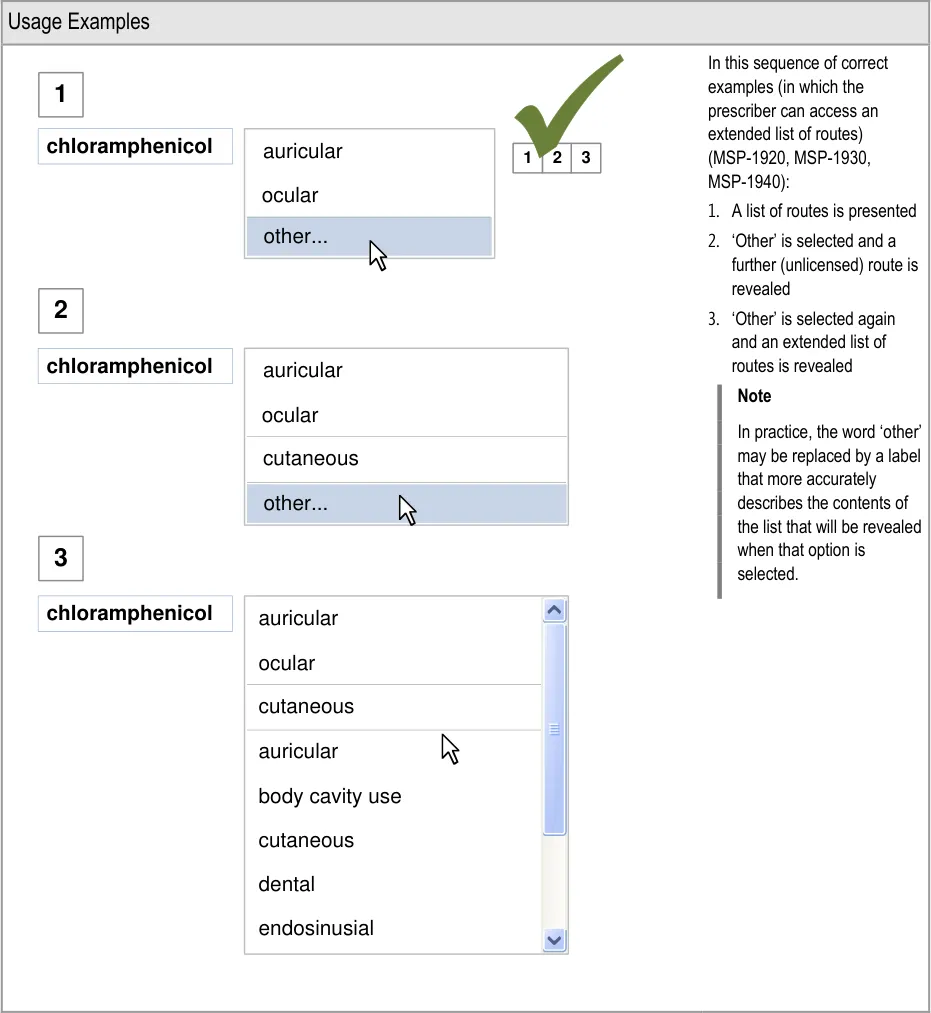
Page 165

Copyright ©2013 Health and Social Care Information Centre
HSCIC Controlled Document
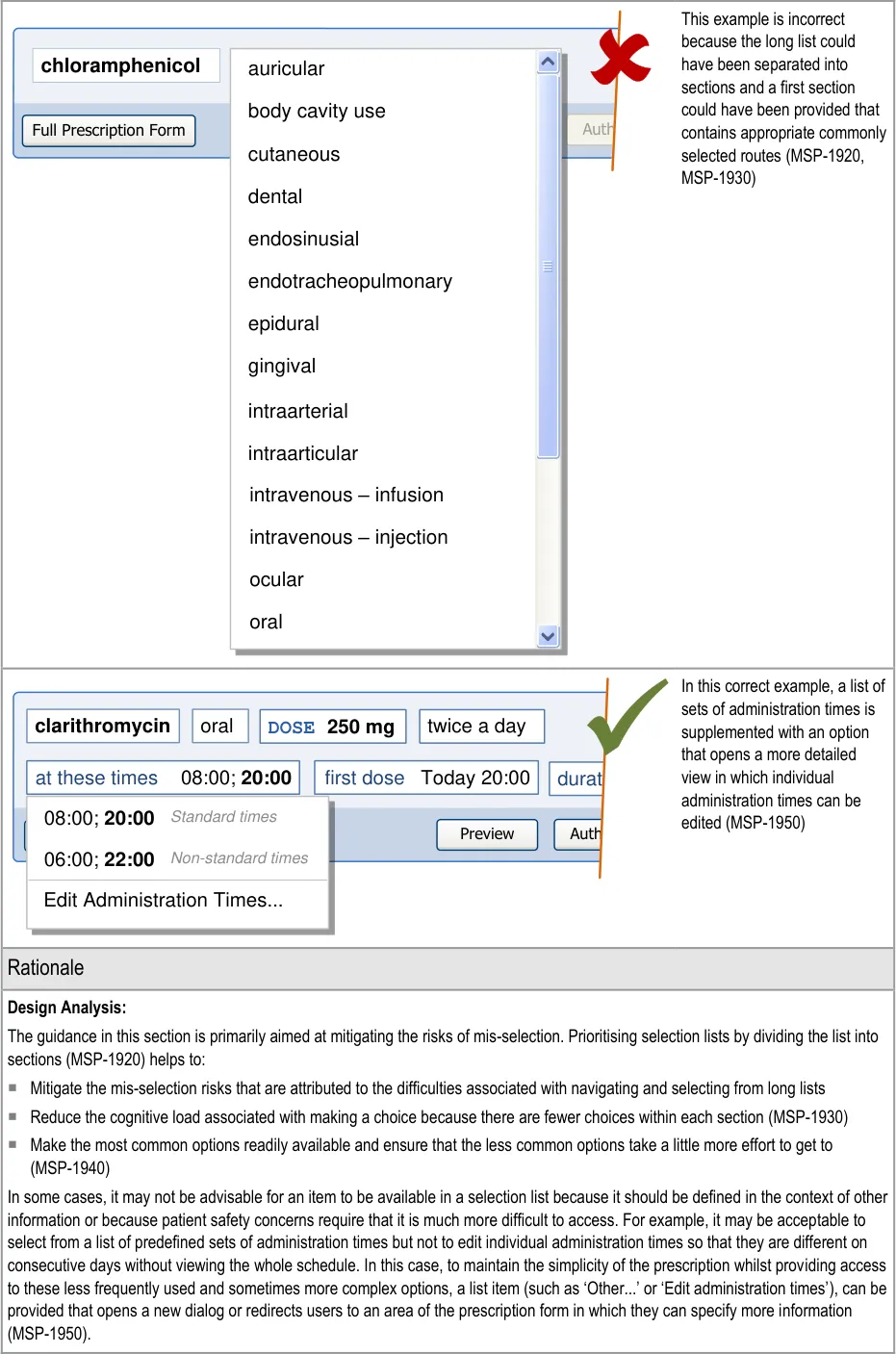

Page 166
Copyright ©2013 Health and Social Care Information Centre
HSCIC Controlled Document
Desk Research:
The use of sections in a selection list and the hiding of options that can be considered to be more ‘advanced’ help to break the information into chunks. The use of ‘chunking’ and the principle of reducing load on short-term and working memory are described in Shneiderman’s Strategies for effective human-computer interaction {R18} .
MSP-1940 allows the prioritisation of routes that are normally prescribed whilst still allowing routes not normally associated with the drug to be selected. This meets a requirement (GEN.OS.050) in the ePrescribing Functional Specification {R12} to support prescribing drugs using routes that are not normally associated with them. The prioritisation of routes can also be used as part of a mechanism that meets the requirement (GEN.OS.062). The requirement is to be able to prioritise specific routes of administration for patients that have reduced or unusual requirements but to still provide access to other routes (with reminders or alerts).
Guidance in this section is informed by the following Nielsen heuristics {R17} :
Flexibility and efficiency of use – Selection lists can be prioritised so that the most likely (or most appropriate) values appear
towards the top, thus reducing the need for the complete list to be reviewed
User control and freedom – Even though lists are prioritised, other options are available by making selections from the list that
reveal further choices
User Research:
Findings from Study ID 67 (see APPENDIX D) suggest that the ability to change the dose units (for example, from milligrams to grams) introduces the risk that an incorrect unit (and therefore an incorrect dose) can be easily selected. Selection lists can be used to limit the choices based on other values selected (MSP-1930) such that the dose units could be set to milligrams if appropriate and either ‘locked’, so that it cannot be changed, or displayed as the only value in the prioritised section of a selection list. An option such as ‘other’ can be provided to display an input control for changing the dose units.
Hazard Risk Analysis Summary:
From our Patient Safety Risk Assessment analyses, we identified a number of potential hazards, including the following key risks which are mitigated by the guidance:
Potential Hazards:
An antibiotic is prescribed
without an end date
Mitigations:
Appropriate pre-filling of fields based on the drug name and route (see section 9.3.5)
Prioritising options in selection lists (MSP-1920)
A list item is mis-selected Prioritising of selection lists to promote the most likely (or most appropriate) selection targets
to the top of the list (MSP-1920)
Restricting options available in selection lists so that some selections are more difficult to
access than others (MSP-1930)
9.3.4 Presenting Selection Lists for Inter-Related Fields
This section includes guidance for the placement of fields with dynamic selection lists that may contain different list items depending on selections made in other fields. It also includes guidance for the behaviour of fields when a value is selected in a related field or a value is selected that affects other fields.
Entering a value into a field may also cause a related field to be pre-filled. See section 9.3.5 for guidance on pre-filling.
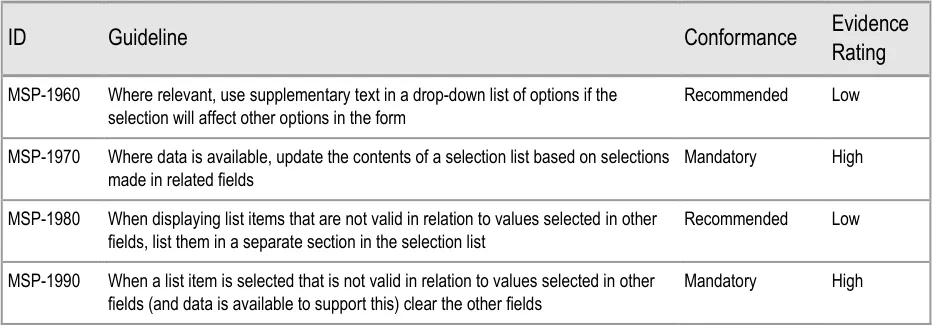
Page 167
Copyright ©2013 Health and Social Care Information Centre
HSCIC Controlled Document
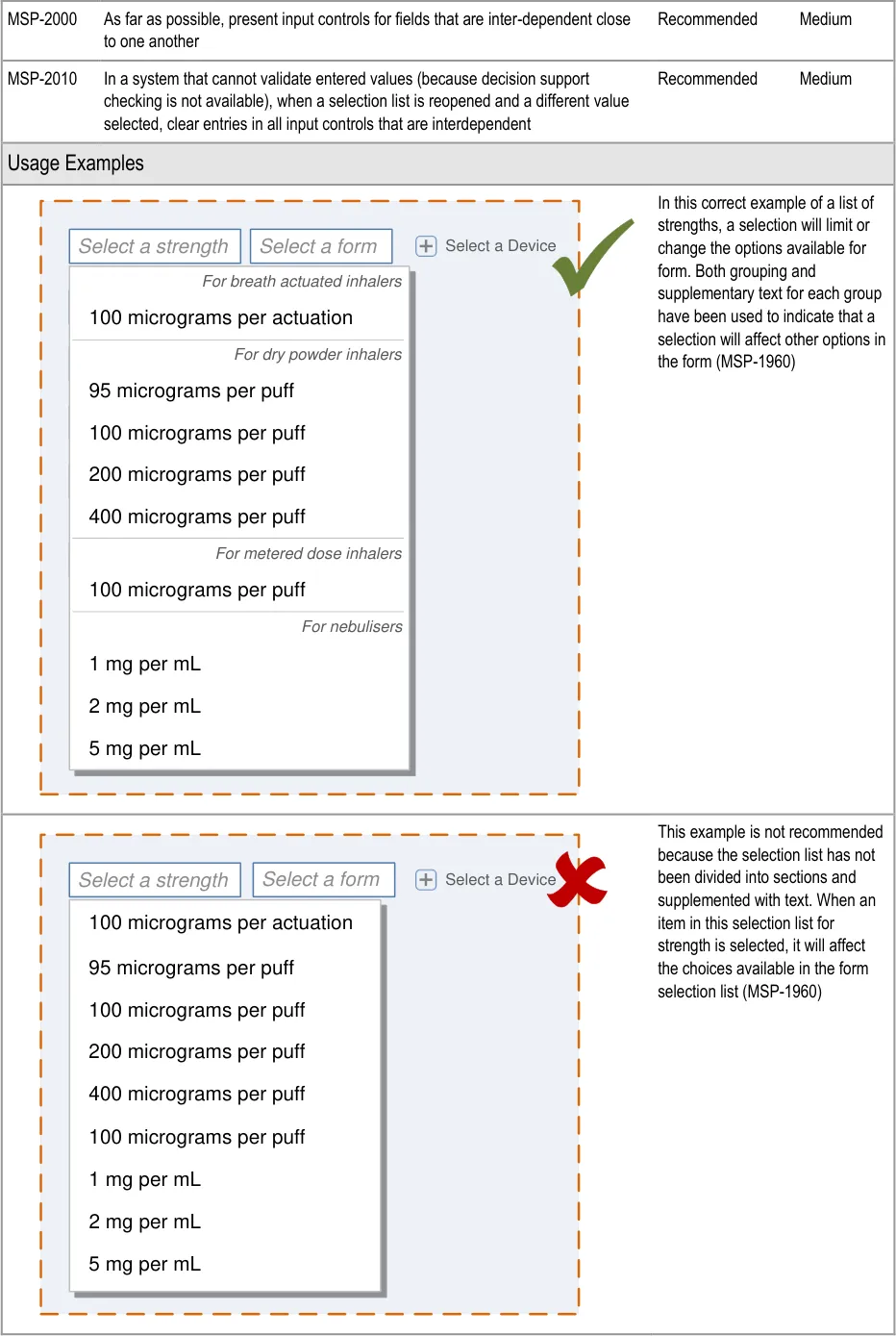
Page 168
| Select a strength | Select a form |
|---|---|
| 100 micrograms per actuation 1 mg per mL 2 mg per mL 5 mg per mL 100 micrograms per puff 100 micrograms per puff 200 micrograms per puff 400 micrograms per puff 95 micrograms per puff | 100 micrograms per actuation 1 mg per mL 2 mg per mL 5 mg per mL 100 micrograms per puff 100 micrograms per puff 200 micrograms per puff 400 micrograms per puff 95 micrograms per puff |
Copyright ©2013 Health and Social Care Information Centre
HSCIC Controlled Document
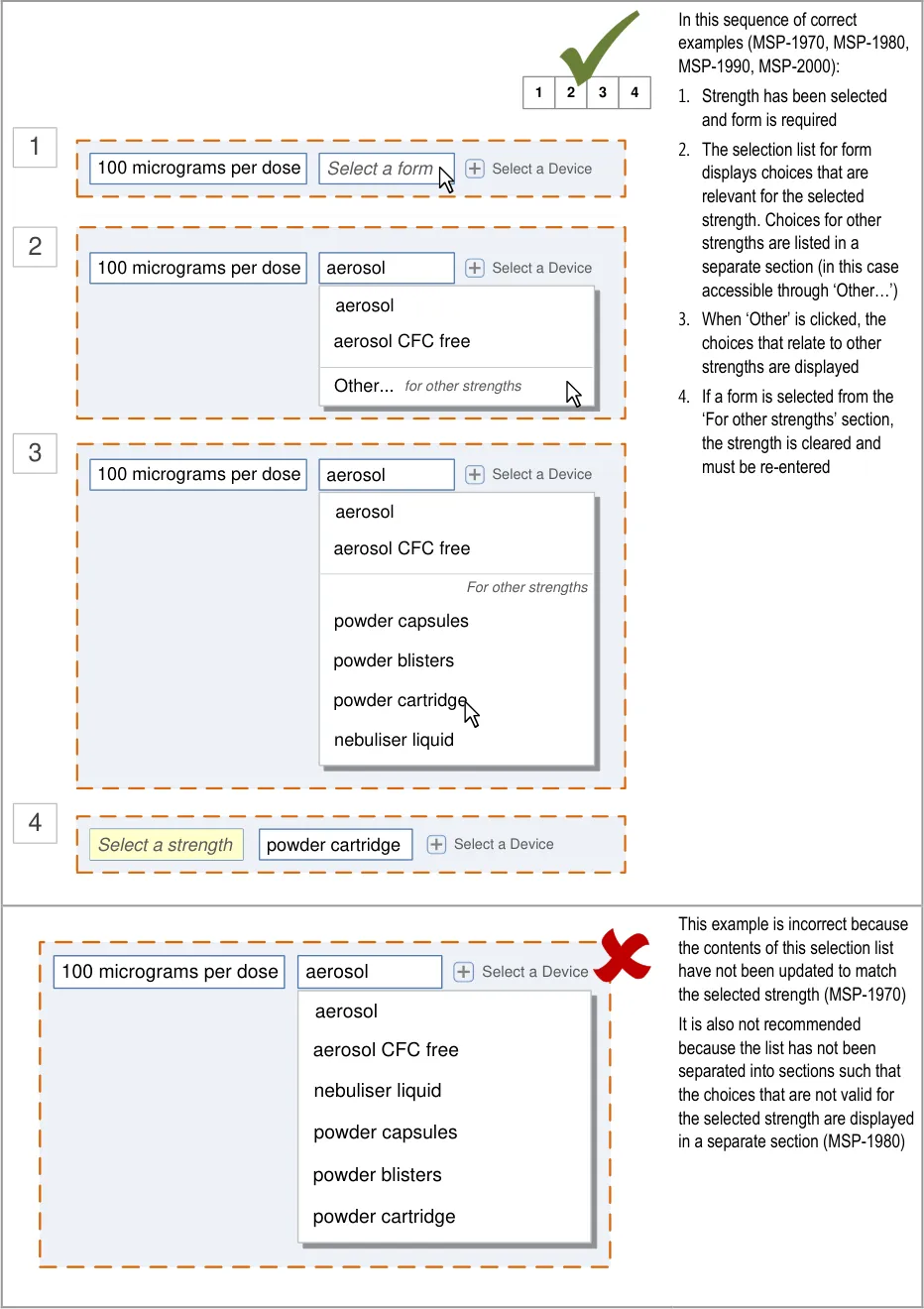
Page 169
Copyright ©2013 Health and Social Care Information Centre
HSCIC Controlled Document
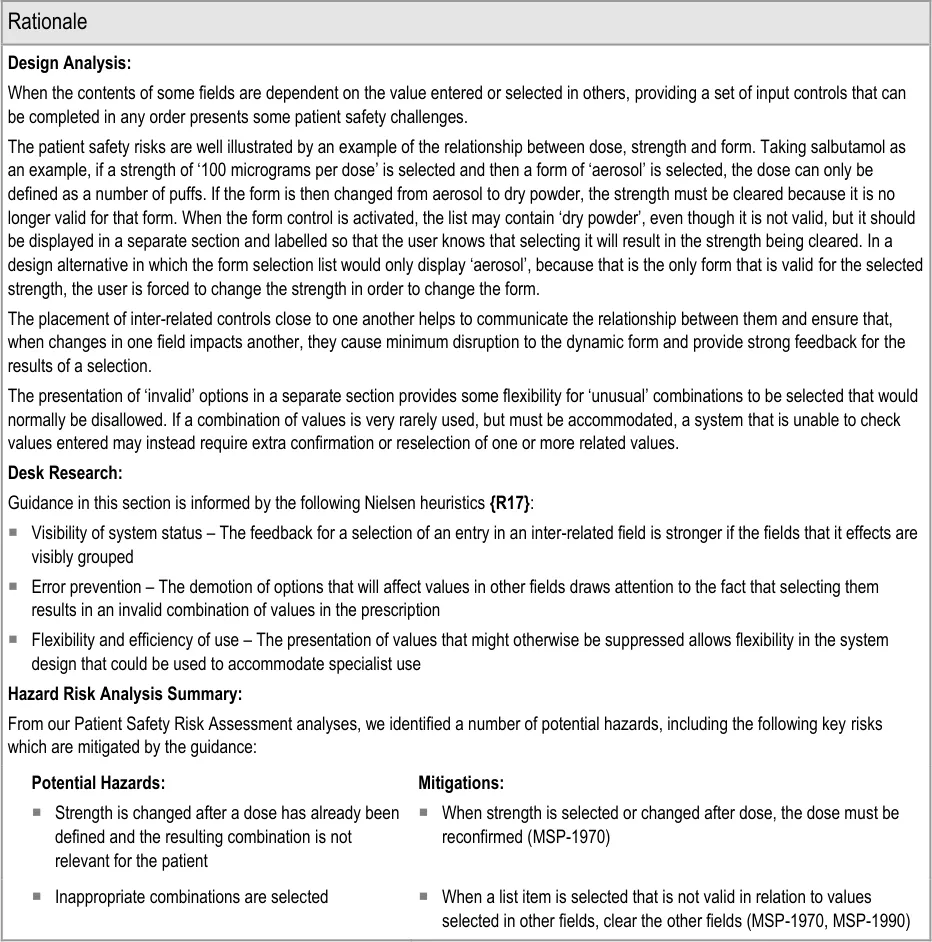
9.3.5 Pre-Filling Input Controls
This section contains guidance for presenting field that already contain a value and pre-filling fields when values are defined in other fields.
Pre-filling input controls is most likely when fields are inter-related such that a value in one causes the other to be pre-filled. See section 9.3.4 for guidance on inter-related fields.
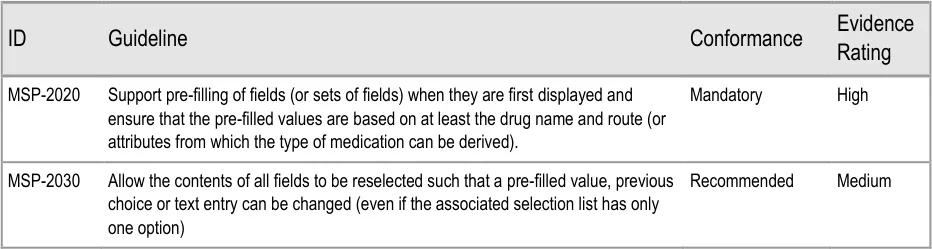
Page 170
Copyright ©2013 Health and Social Care Information Centre
HSCIC Controlled Document
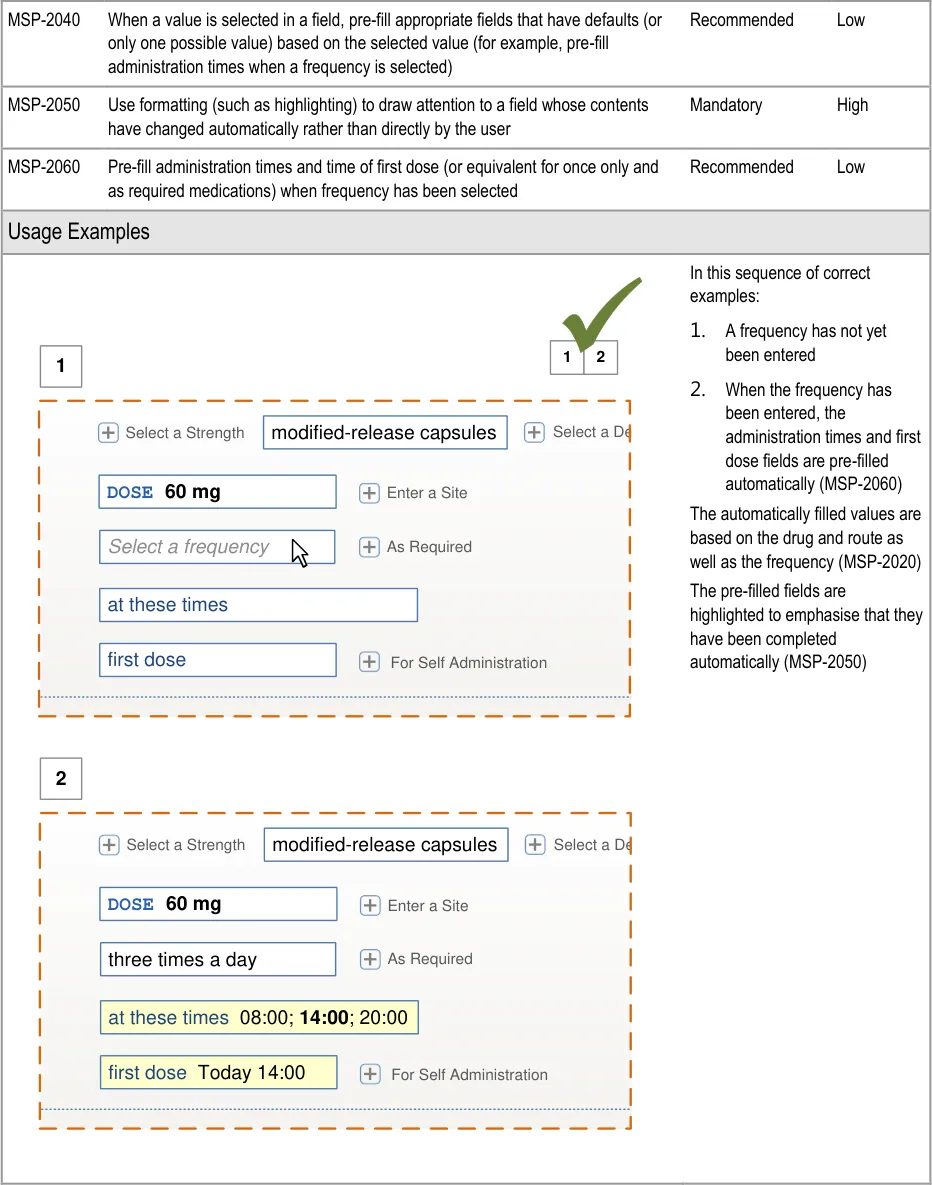
Page 171
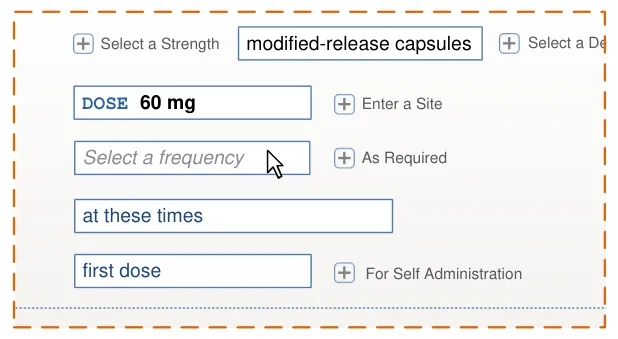
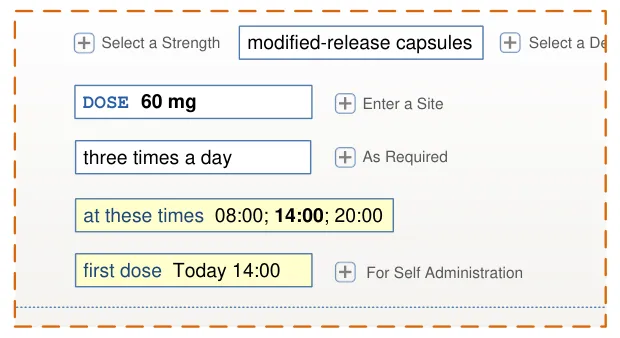
Copyright ©2013 Health and Social Care Information Centre
HSCIC Controlled Document
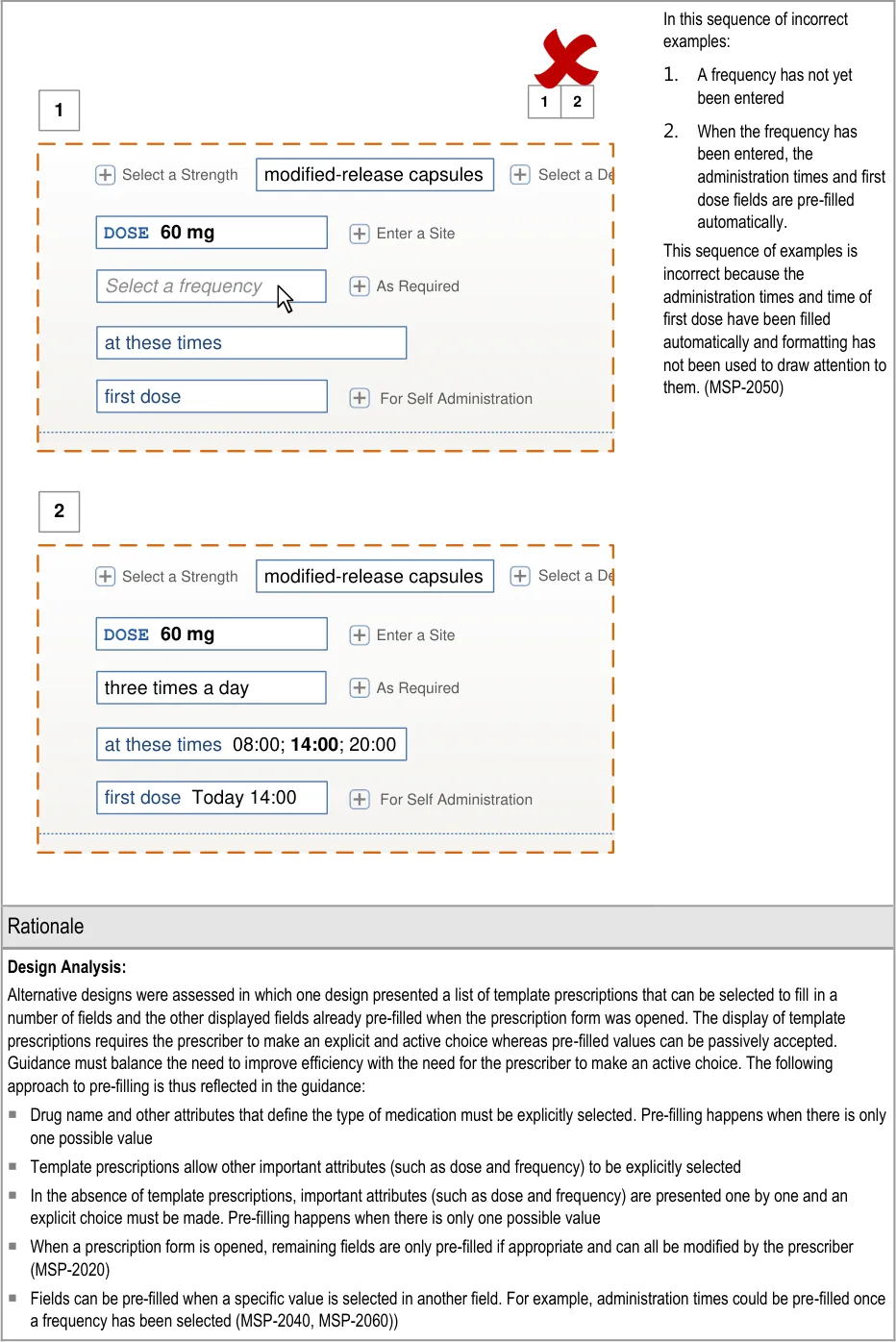
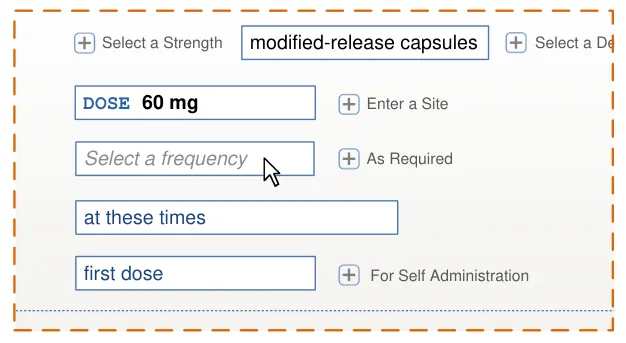
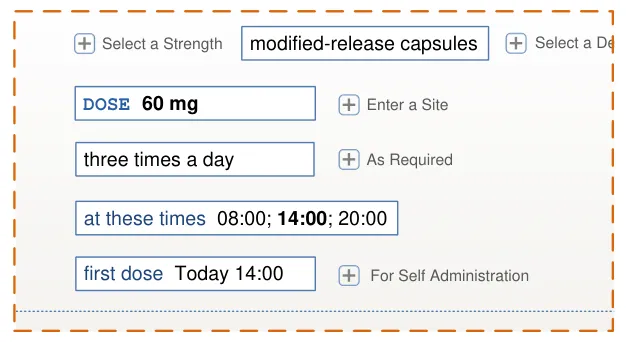
Page 172
Copyright ©2013 Health and Social Care Information Centre
HSCIC Controlled Document
See also section 7.3.6 for guidance on pre-filling when presenting fields step by step and section 9.3.6 for guidance on the pre-filling of specific input controls.
Desk Research:
The pre-filling of fields such as administration times (MSP-2020), reflects the GEN.OS.052 requirement in the ePrescribing Functional Specification {R12} to provide the ability to define that specific medications should be routinely scheduled for administration at certain times of day and to allow the system to default to these values.
Guidance in this section is informed by the following Nielsen heuristic {R17} :
Flexibility and efficiency of use – Efficiency is improved by pre-filling appropriate fields (such as administration times
User Research:
Two designs were assessed in Study ID 46 (see APPENDIX E), one of which used pre-filling and the other used template prescriptions. The study recommended the use of active selection (template prescriptions) rather than passive pre-filling.
Hazard Risk Analysis Summary:
From our Patient Safety Risk Assessment analyses, we identified a number of potential hazards, including the following key risks which are mitigated by the guidance:
Potential Hazards:
A default value is defined that is inappropriate for the
selected drug and or other values in the prescription
A prescription is authorised with a value that was not the
intended value because it had been automatically updated when a value was defined in another field
Mitigations:
Pre-filled values must be appropriate for the drug and route at
least and preferably also reflect other values defined in the prescription (MSP-2020)
Guidance requires the use of formatting to draw attention to a
field whose contents have changed automatically (MSP-2050)
The contents of all fields can be changed such that a pre-filled
value can be changed (see section 7.3.6)
An antibiotic is prescribed without an end date Appropriate pre-filling of fields based on the drug name and
route (MSP-2020).
Individual administration times have to be defined by the
prescriber and result in non-standard times
9.3.6 Presenting Input Controls
Pre-filling administration times when the frequency is defined
(MSP-2060)
Providing a selection list of (common) administration schedules
(see section 9.3.6)
Restricting the definition of individual administration event times
to a more detailed view (see section 9.3.6)
Where appropriate, pre-fill one or more fields when a selection is
made in a related field (see section 7.3.6).
This section includes guidance relating to the display of specific input controls such as those for dose and administration times.
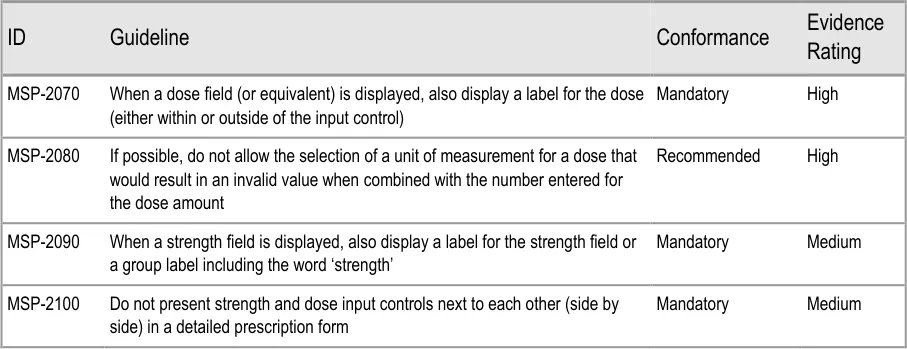
Page 173
Copyright ©2013 Health and Social Care Information Centre
HSCIC Controlled Document
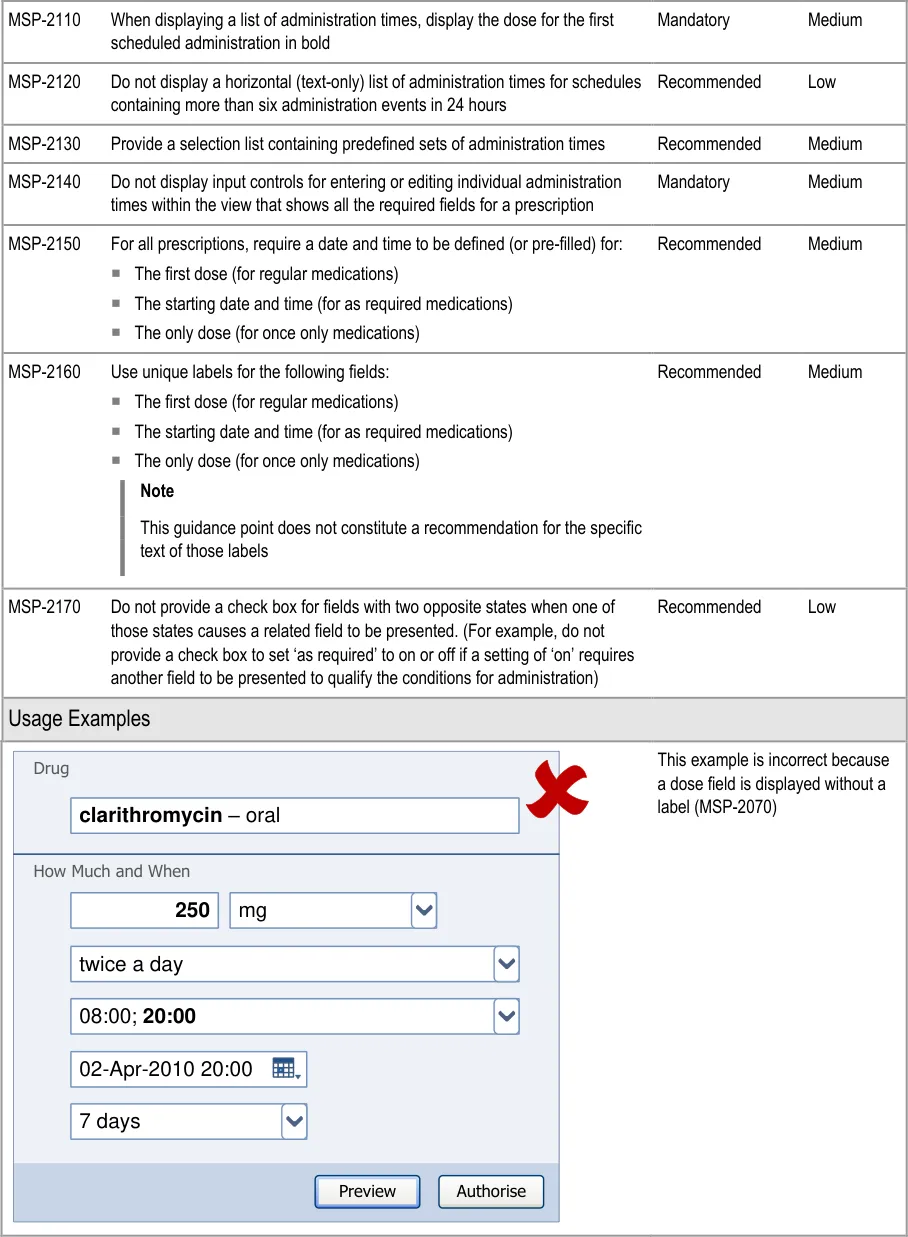
Page 174
Copyright ©2013 Health and Social Care Information Centre
HSCIC Controlled Document
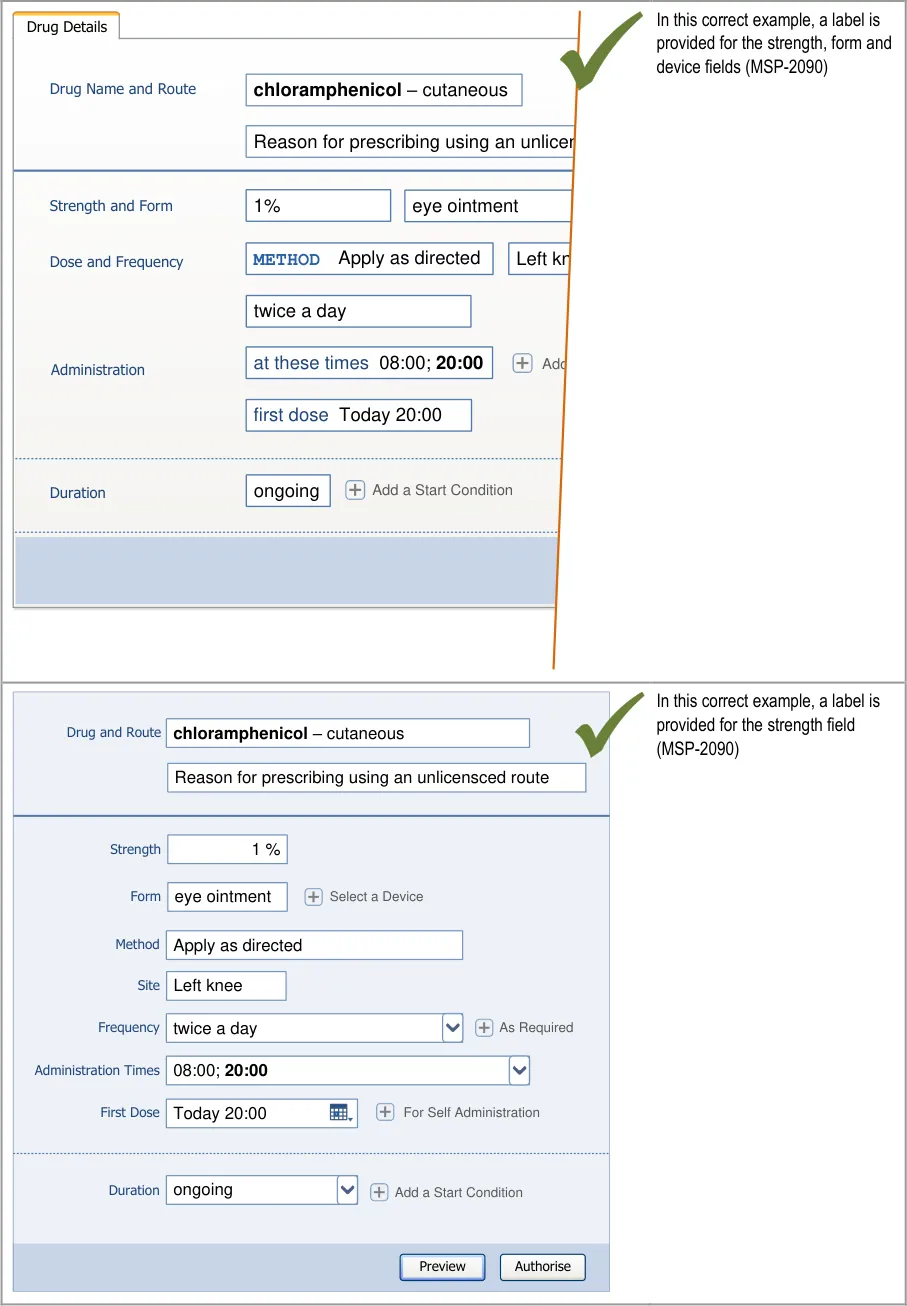
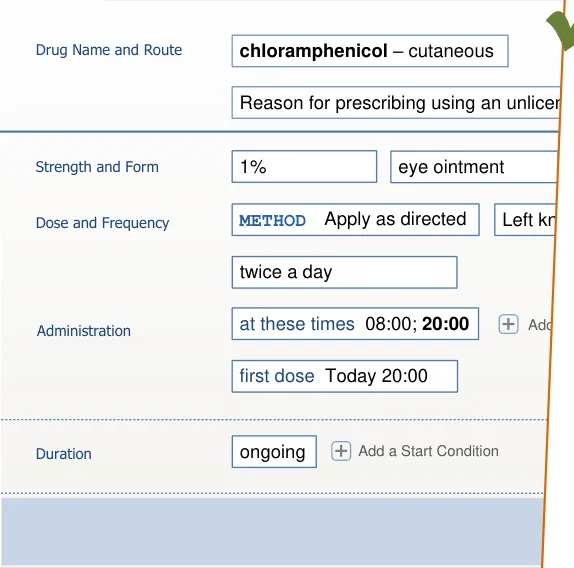
Page 175
Copyright ©2013 Health and Social Care Information Centre
HSCIC Controlled Document
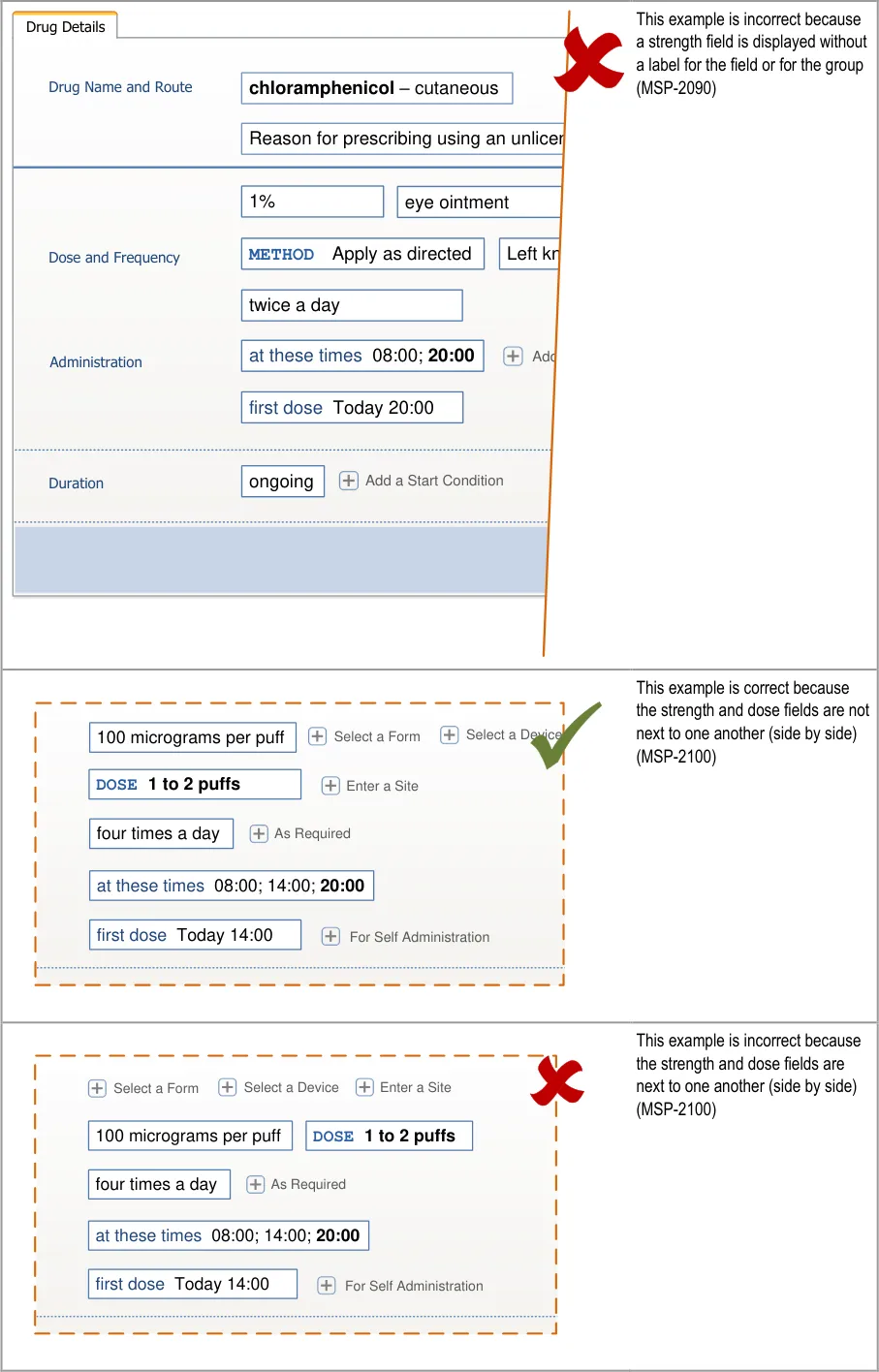
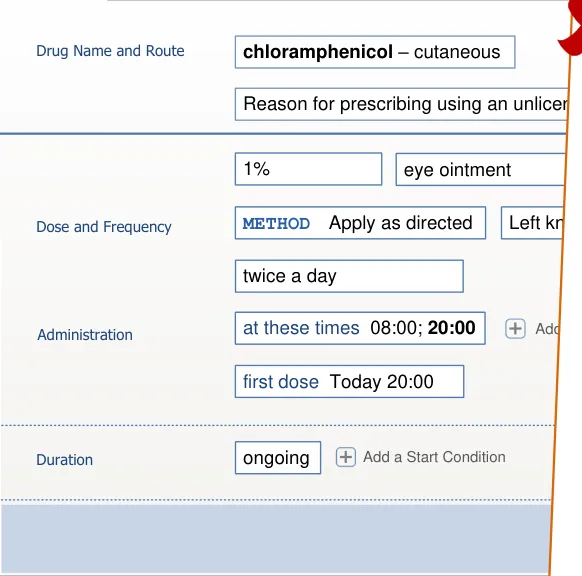
Page 176
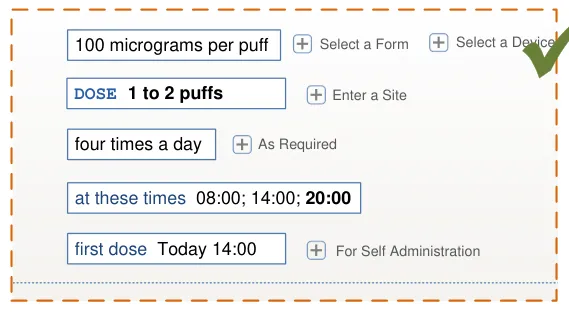
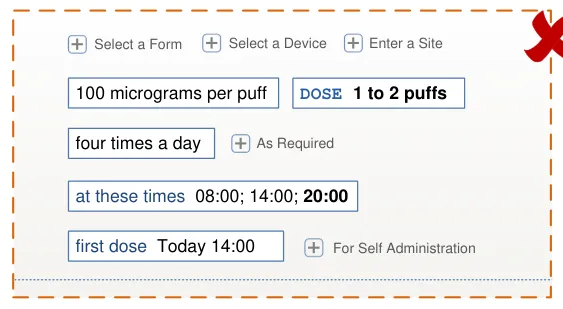
Copyright ©2013 Health and Social Care Information Centre
HSCIC Controlled Document
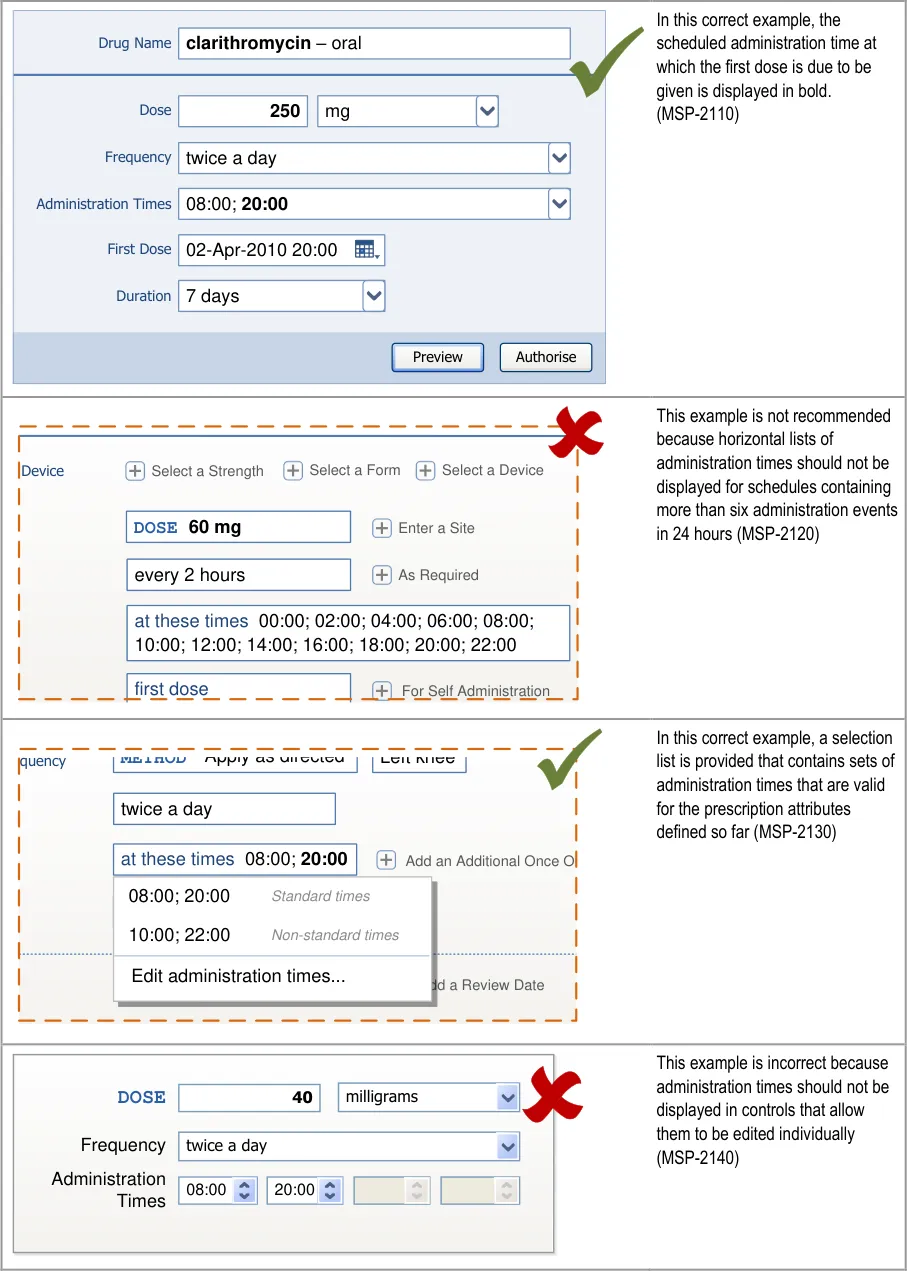
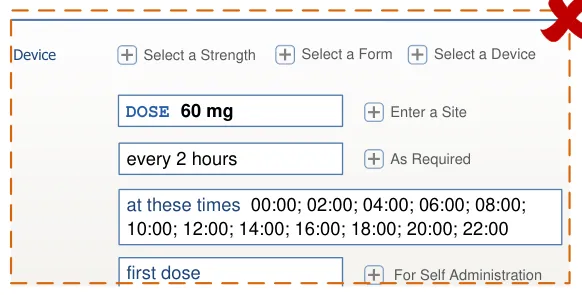
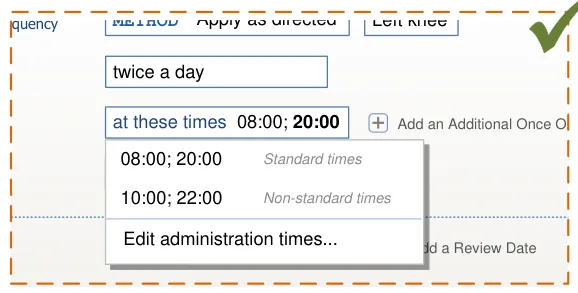
Page 177
| ni | s |
|---|---|
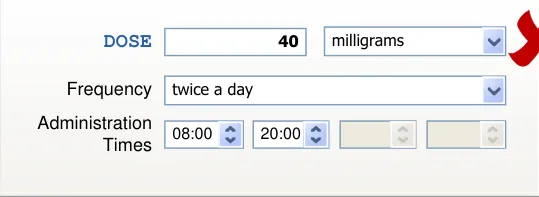
Copyright ©2013 Health and Social Care Information Centre
HSCIC Controlled Document
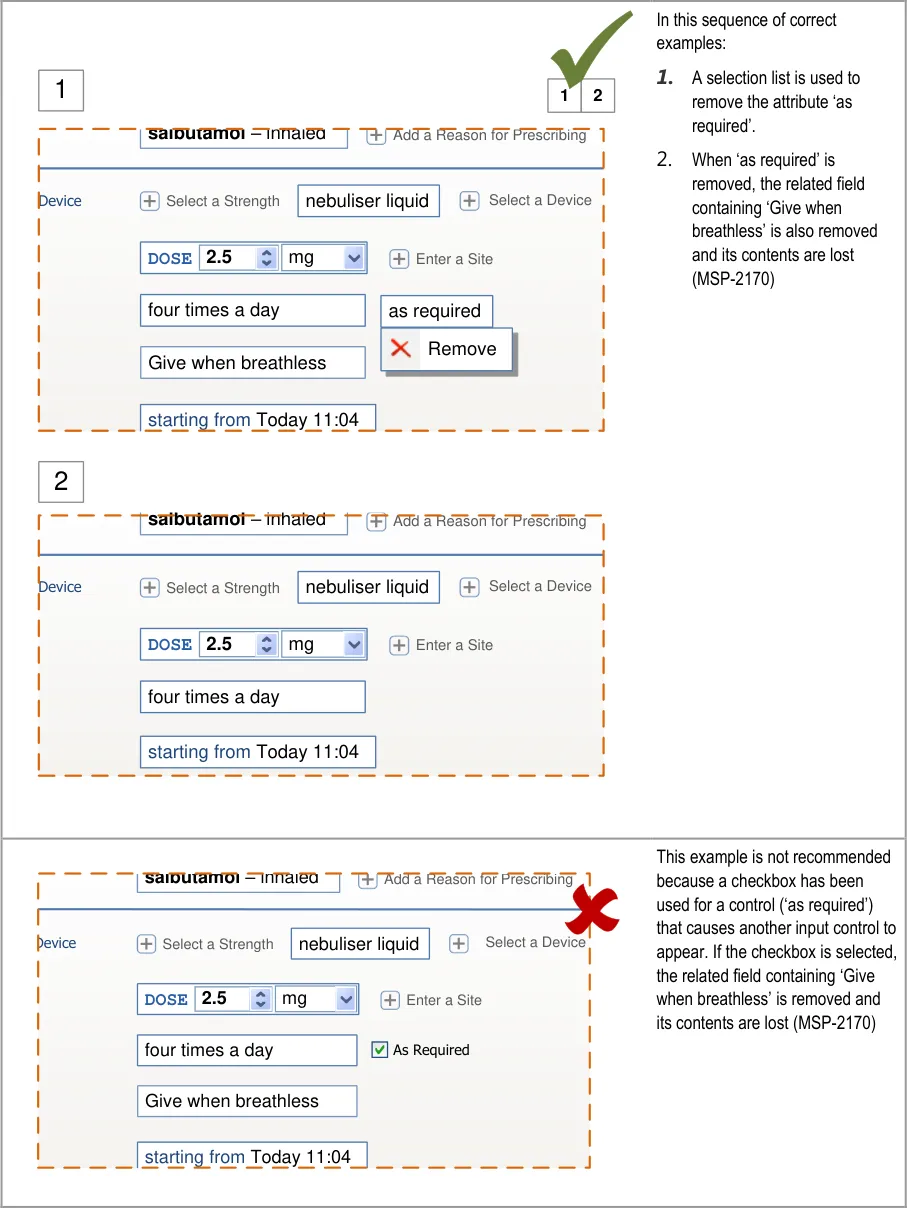
Page 178
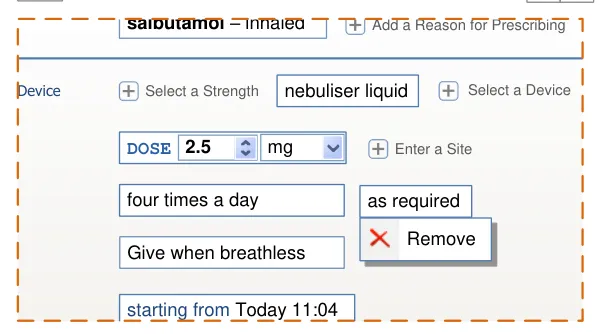
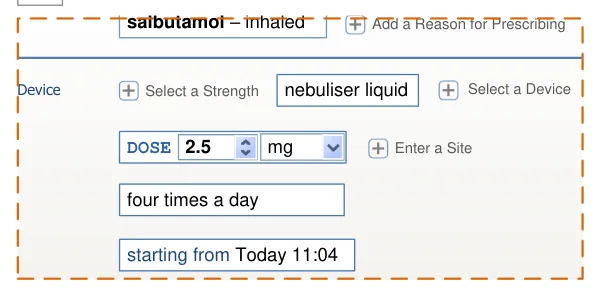
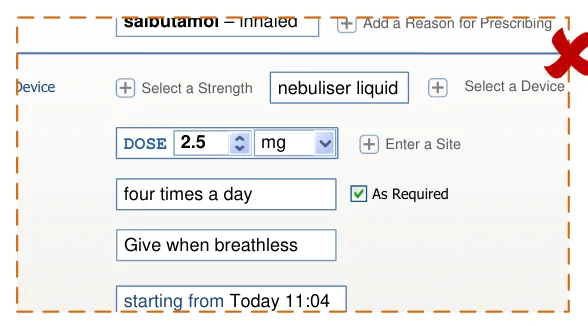
Copyright ©2013 Health and Social Care Information Centre
HSCIC Controlled Document
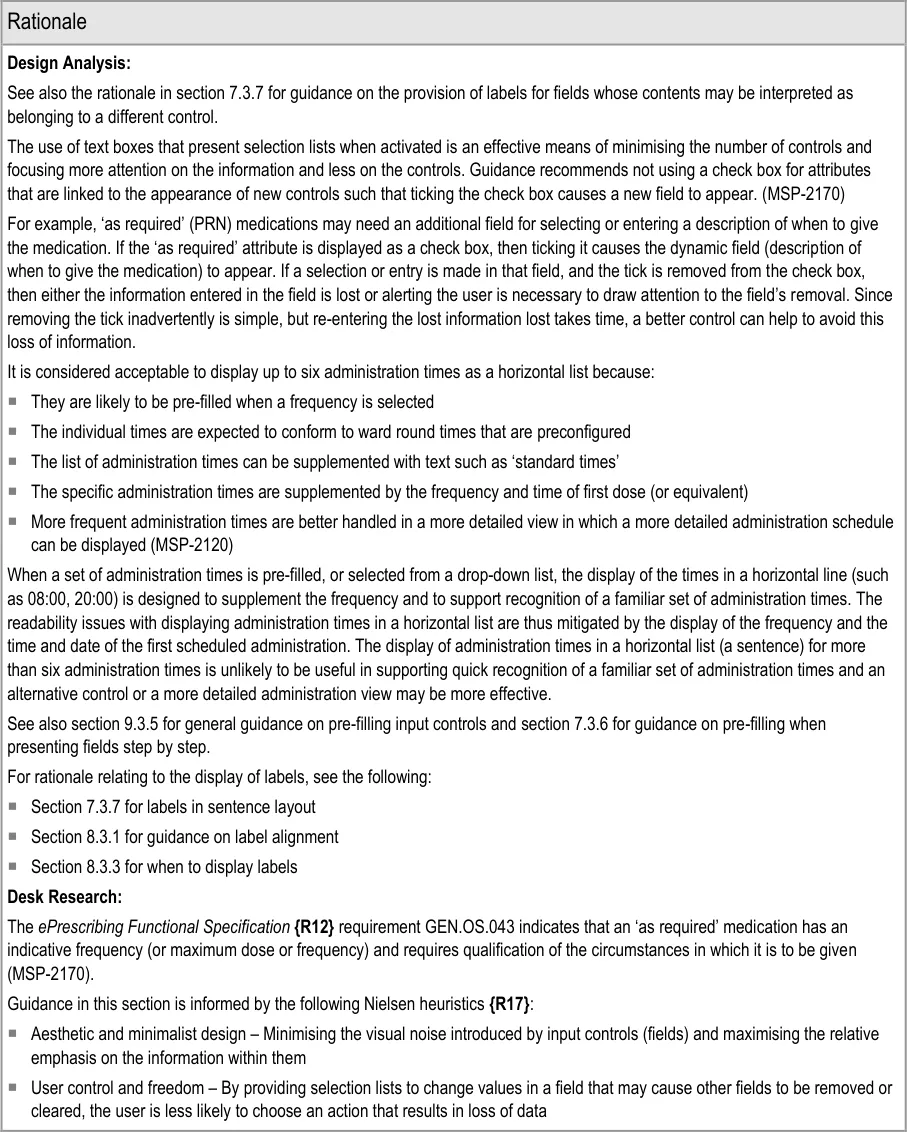
Page 179
Copyright ©2013 Health and Social Care Information Centre
HSCIC Controlled Document
Hazard Risk Analysis Summary:
From our Patient Safety Risk Assessment analyses, we identified a number of potential hazards, including the following key risks, some of which are mitigated and some partially mitigated by the guidance:
Potential Hazards:
An inappropriate administration
schedule is defined as a result of an individual administration time being edited inappropriately
A medication is started later than
intended because the prescriber does not notice that the first scheduled dose is too far into the future
The label ‘start date’ is incorrectly
interpreted causing an inappropriate administration schedule
Individual administration times have
to be defined by the prescriber and result in non-standard times
An inappropriate value is defined as
a default
An input control for a dose is
displayed adjacent to an input control for a strength and causes the dose value to be interpreted as the strength or vice versa
Mitigations:
Providing a selection list of (common) administration schedules (MSP-2130)
Not recommended to allow individual administration times to be edited only in the
context of a view that displays a detailed administration schedule (MSP-2140)
The first scheduled dose is displayed in bold within the list of administration times
(MSP-2110)
When there is more than one dose, the first dose date and time is displayed in a
separate field (in addition to the administration times) (MSP-2150)
Guidance recommends that the label for this field is different for regular, as
required and once only medications to clarify the meaning of the date and time (MSP-2160)
Pre-filling administration times when the frequency is defined (see section 9.3.5)
Providing a selection list of (common) administration schedules (MSP-2130)
Restricting the definition of individual administration event times to a more
detailed view (MSP-2140)
Where appropriate, pre-fill one or more fields when a selection is made in a
related field (see section 7.3.6)
This risk is not mitigated by the guidance . The definition of appropriate default
values is a local system configuration issue and is thus outside of the scope of this design guidance
Dose and strength can be entered by selecting a template prescription (see
section 7.3.4) or by selecting values for individual fields that are presented in sequence (see section 7.3.6). Thus they only appear adjacent after they have already been completed
In sentence layout (when dose and strength are most likely to appear adjacent),
guidance recommends that labels are incorporated into fields, so the dose label immediately precedes the dose value (see section 7.3.7)
Guidance recommends that labels are used for all fields whose contents could be
interpreted as belonging to a different control (see section 7.3.7)
The dose field is always labelled (MSP-2070)
Strength and dose fields must not be placed adjacent in detailed prescription
forms (MSP-2100) and strength fields must be accompanied by a label that uses the word ‘strength’ for the individual field or the group containing the strength field (MSP-2090)
Page 180
Copyright ©2013 Health and Social Care Information Centre
HSCIC Controlled Document
10 GUIDANCE DETAILS FOR PREVIEW AND AUTHORISE
10.1 Introduction
Once a prescriber has completed entering prescription details, a preview of the prescription in a more familiar format (such as that displayed in a Current Medications View) allows the prescriber to review his or her entry before authorising. This section provides some guidance relating to previews and the placement of controls for authorising prescriptions.
Figure 31 shows the full user interface prescribing process in which the steps covered in this
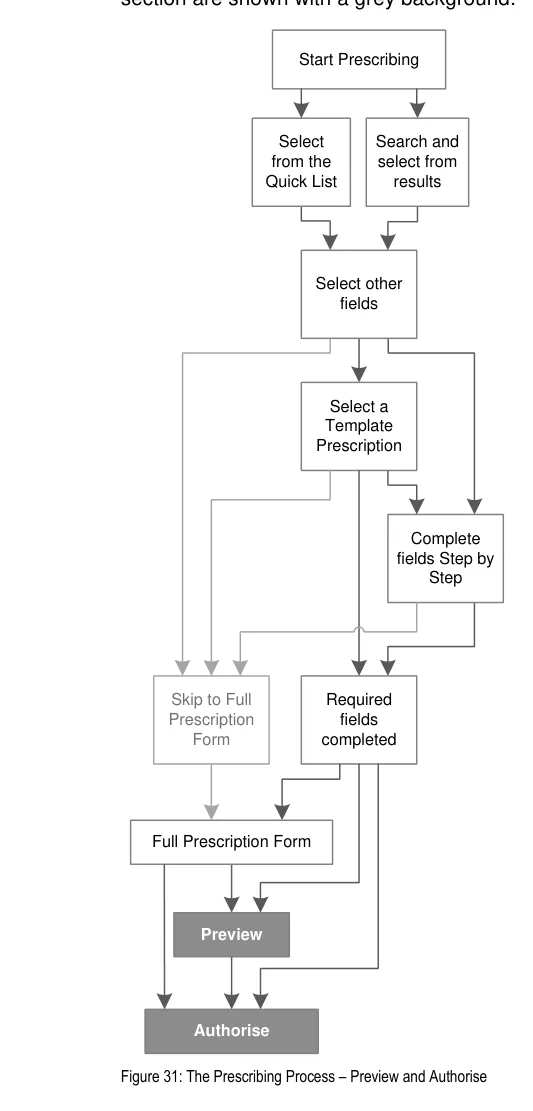
Page 181
Copyright ©2013 Health and Social Care Information Centre
HSCIC Controlled Document
Figure 32 is an extract from Figure 31 to illustrate the user interface prescribing steps covered in this section showing the preview and authorise steps and the links to and from them:
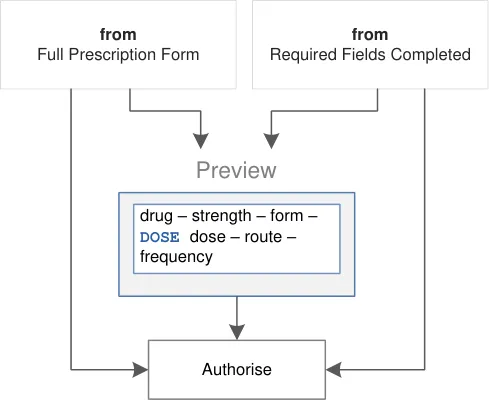
Figure 32: User Interface Prescribing Steps–- Preview and Authorise
10.2 Principles
All guidance is informed by all of the principles for search and prescribe listed in section 2.1. The following are particularly relevant to this section:
- Mitigate the risks of mis-selection and misinterpretation:
Appropriate setting of focus can help avoid mis-selection of a control such as ‘Authorise’.
- Maximise safety in the absence of decision support systems by designing for the reduction
of errors from invalid or inappropriate selections or entries:
The preview is always available so that prescribers have access to the full prescription in a format that is both more condensed and familiar from other medications views
- Maximise scalability such that the prescribing process can be modified to accommodate
additional information, steps or shortcuts:
The preview can be extended in a system that can save completed prescriptions before authorisation such that they can then be reviewed and authorised as a group
- Minimise the potential for important information to be hidden from view:
A preview can become a required step when more detailed prescriptions are defined in which the input controls are distributed across more than one screen
Page 182
Copyright ©2013 Health and Social Care Information Centre
HSCIC Controlled Document
10.3 Guidelines
10.3.1 Providing a Preview
This section includes guidance for how to provide and display a preview of all information defined within a prescription, before final authorisation of the prescription.
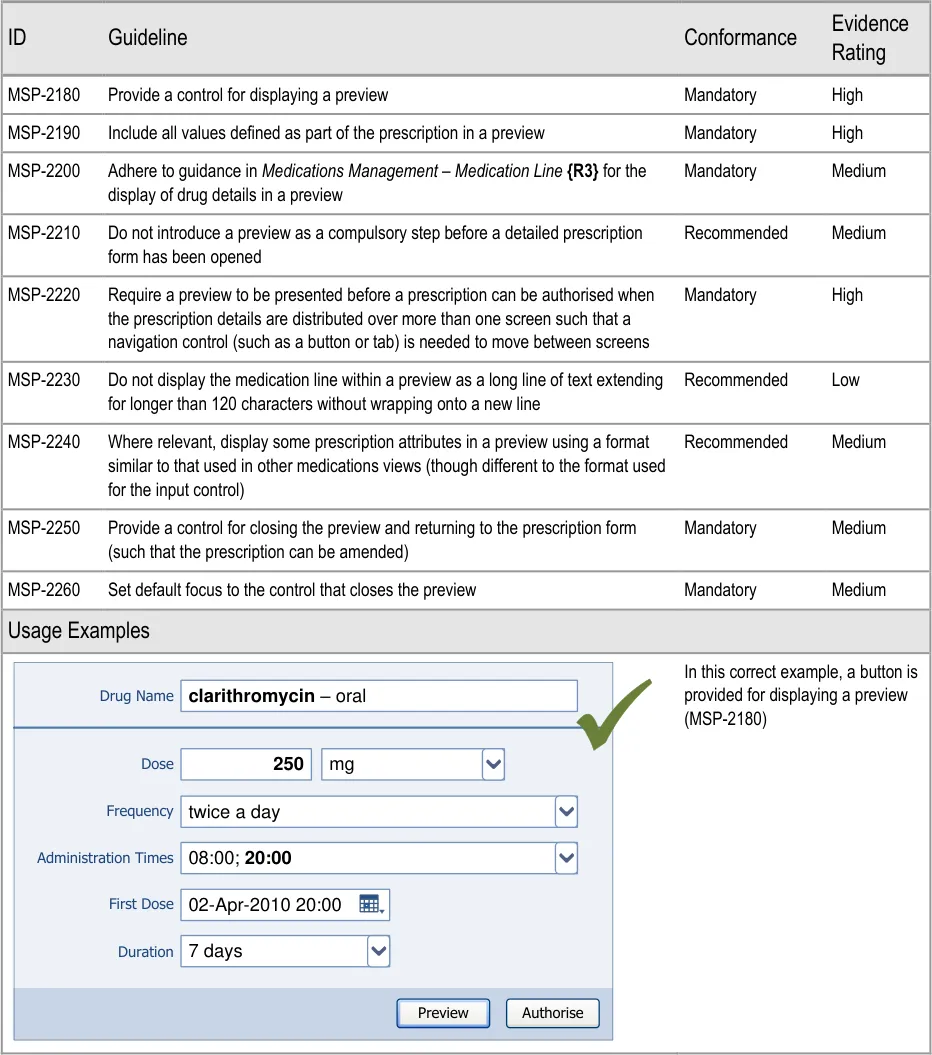
Page 183
Copyright ©2013 Health and Social Care Information Centre
HSCIC Controlled Document
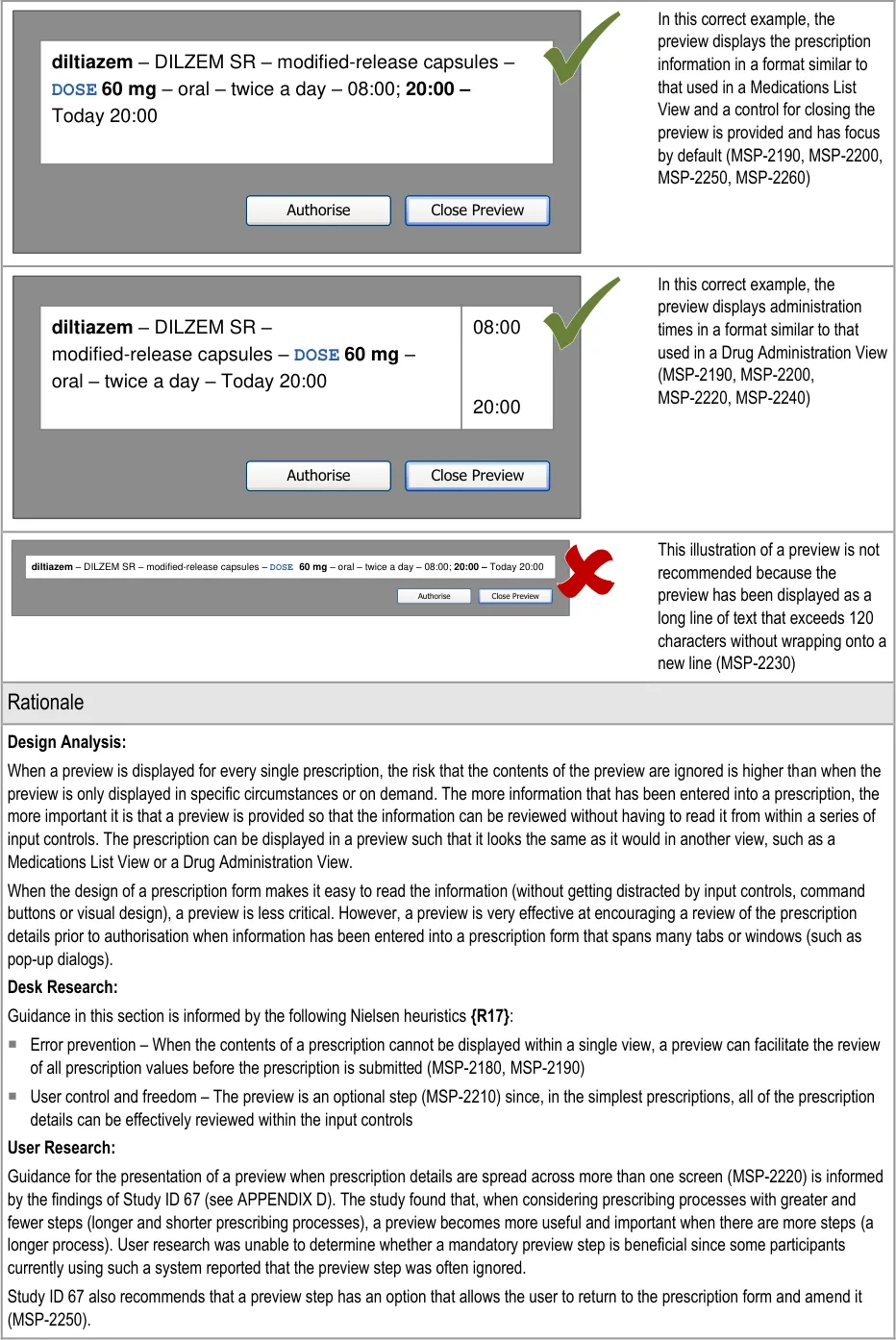
Page 184
Copyright ©2013 Health and Social Care Information Centre
HSCIC Controlled Document
Hazard Risk Analysis Summary:
From our Patient Safety Risk Assessment analyses, we identified a number of potential hazards, including the following key risks which are mitigated by the guidance:
Potential Hazards:
A prescription is authorised with unintended values that
were not visible from the page from which it was authorised
A prescription is authorised by activating a control in
error
Mitigations:
Require a preview when the prescription values cannot be seen in
a single screen (regardless of whether the view has a scroll bar) (MSP-2220)
By default, focus is set to the control that closes the preview
(MSP-2260)
10.3.2 Presenting Controls for Authorising a Prescription
This section includes guidance for the placement and focus of command buttons used to preview and authorise a prescription.
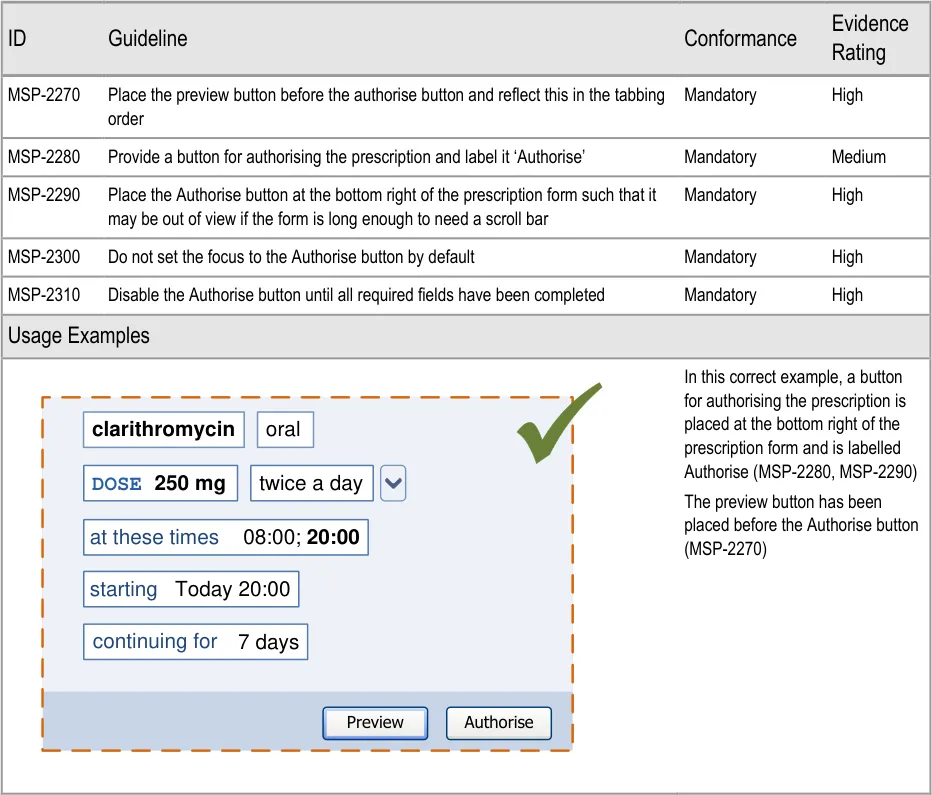
Page 185
Copyright ©2013 Health and Social Care Information Centre
HSCIC Controlled Document

| Col1 | Col2 |
|---|---|
| clarithromycin oral 08:00;20:00 Today 20:00 DOSE 250 mgtwice a day 7 days at these times starting continuing for | Authorise |
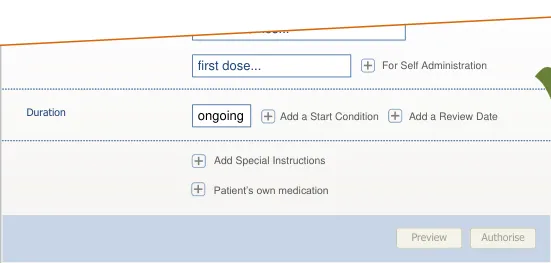
| Col1 | This example is incorrect because the preview button is placed after clarithromycin oral the Authorise button (MSP-2270) DOSE 250 mg twice a day at these times 08:00; 20:00 starting Today 20:00 continuing for 7 days Authorise Preview |
|---|---|
This example is incorrect because the Authorise button has not been placed at the bottom right of the prescription form such that it may be out of view if the form is long enough to need a scroll bar (MSP-2290) clarithromycin oral 08:00;20:00 Today 20:00 DOSE 250 mgtwice a day 7 days Authorise at these times starting continuing for | |
In this correct example, the ‘Preview’ button has focus by default (MSP-2300) Cancel Authorise Today 20:00 twice a day 7 days Preview duration | |
This example is incorrect because the Authorise button has focus by default (MSP-2300) Cancel Authorise Today 20:00 twice a day 7 days Preview duration | |
In this correct example, the Authorise button is placed at the bottom right and has been disabled because some required fields have not yet been completed (MSP-2290, MSP-2310) Duration Administration Authorise Preview Add Special Instructions Patient’s own medication Add a Review Date Add a Start Condition For Self Administration first dose… at these times… ongoing |
Page 186
Copyright ©2013 Health and Social Care Information Centre
HSCIC Controlled Document
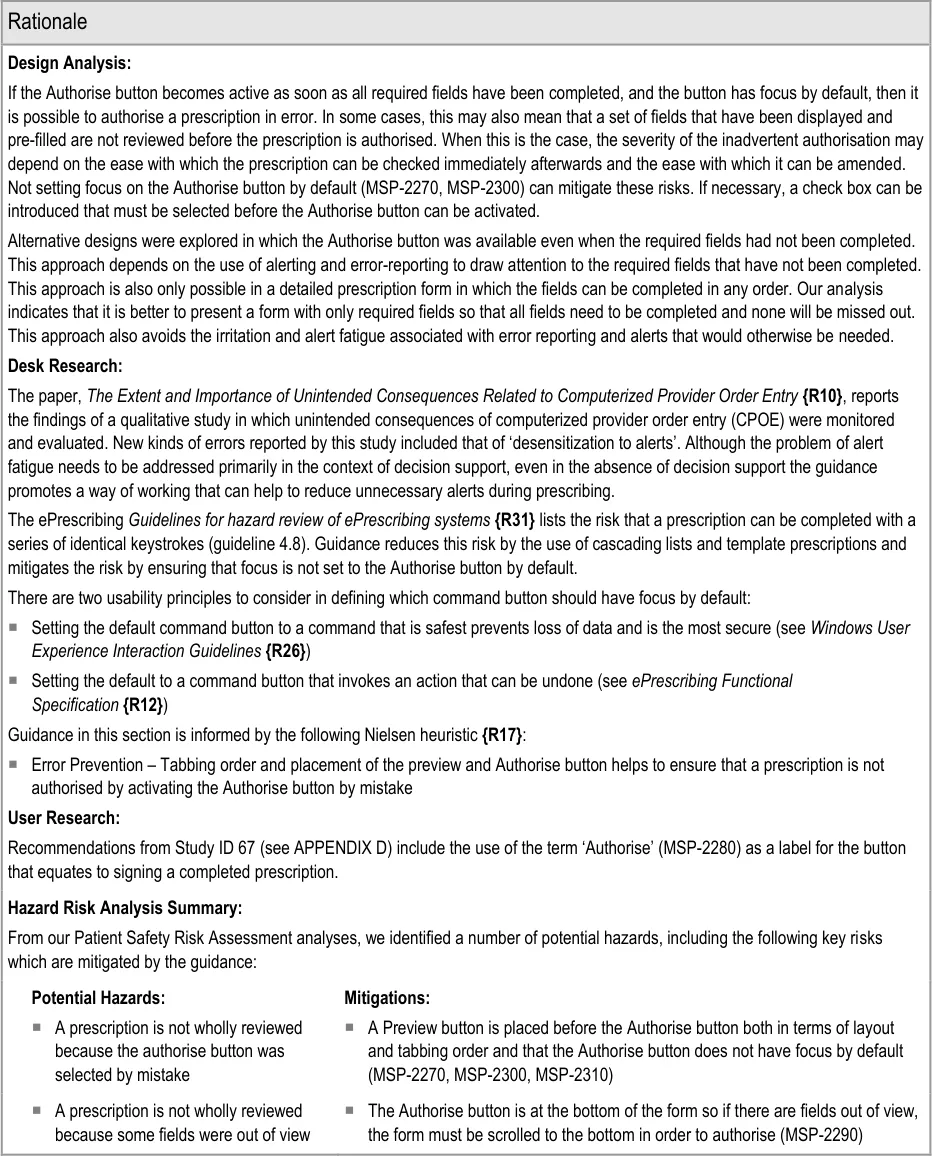
Page 187
Copyright ©2013 Health and Social Care Information Centre
HSCIC Controlled Document
11 DOCUMENT INFORMATION
11.1 Terms and Abbreviations
ACBS Advisory Committee on Borderline Substances
BNF British National Formulary
CATR Clinical Authority to Release
CDER Center for Drug Evaluation and Research
Co-Drugs Combination Drugs
CSG Clinical Safety Group
CUI Common User Interface
dm+d Dictionary of Medicines and Devices
FDA US Food and Drug Administration
HDU High Dependency Unit
INR International Normalized Ratio
ISMP Institute for Safe Medication Practices
ISV Independent Software Vendor
IUD Intrauterine Devices
KLM-GOMS Keyboard-Level Model — Goals, Objects, Methods and Selection
NHS National Health Service
NHS CFH NHS Connecting for Health
NPfIT National Programme for Information Technology
NPSA National Patient Safety Agency
OTC Over the Counter
PGD Patient Group Direction
POD Patient’s Own Drugs
PRN ‘As required’ medication
TFN Trade Family Name
TPN Total Parenteral Nutrition
TTO To Take Out
VDT Visual Display Terminal
VTM Virtual Therapeutic Moiety
W3C World-Wide Web Consortium
WHO World Health Organization
Table 10: Terms and Abbreviations
Copyright ©2013 Health and Social Care Information Centre
Page 188
HSCIC Controlled Document
11.2 Definitions
Authorise Equivalent to signing a prescription
The Authority The organisation implementing the NHS National Programme for IT (currently NHS Connecting for Health).
Brand name Proprietary drug name for a product (as used by the brand originator)
Conformance In the guidance tables, indicates the extent to which you should follow the guideline when defining your UI implementation. There are two levels:
Mandatory - An implementation should follow the guideline
Recommended - An implementation is advised to follow the guideline
Current best practice Current best practice is used rather than best practice, as over time best practice guidance may change or be
revised due to changes to products, changes in technology, or simply the additional field deployment experience that comes over time.
Evidence Rating In the guidance tables, summarises the strength of the research defining the guideline and the extent to which it mitigates patient safety hazards. There are three ratings (with example factors used to determine the appropriate rating):
Low:
Does not mitigate specific patient safety hazards
User research findings unclear and with few participants
Unreferenced usability principles indicate the design is not significantly better than alternatives
Medium:
Mitigates specific patient safety hazards
User research findings clear but with few participants
References old authoritative guidance (for example, from National Patient Safety Agency (NPSA),
Institute for Safe Medication Practices (ISMP) or World Health Organization (WHO)) that is potentially soon to be superseded
Referenced usability principles indicate the design is significantly better than alternatives
High:
Mitigates specific patient safety hazards
User research findings clear and with a significant number of participants
References recent authoritative guidance (for example, from NPSA, ISMP or WHO)
Referenced usability principles indicate the design is significantly better than alternatives
Generic drug name The chemical or approved name of a product as opposed to the proprietary name often used by the brand originator
NHS Entity Within this document, defined as a single NHS organisation or group that is operated within a single technical infrastructure environment by a defined group of IT administrators.
Template prescriptions
Table 11: Definitions
Predefined and partially completed prescriptions that allow several attributes to be defined with a single selection from a list
Page 189
Copyright ©2013 Health and Social Care Information Centre
HSCIC Controlled Document
11.3 Nomenclature
This section shows how to interpret the different styles used in this document to denote various types of information.
11.3.1 Body Text
Code Monospace
Script
Other markup languages
Interface dialog names Bold
Field names
Controls
Folder names Title Case
File names
Table 12: Body Text Styles
11.3.2 Cross References
Current document – sections Section number only
Current document – figures/tables Caption number only
Other project documents Italics and possibly a footnote
Publicly available documents Italics with a footnote
External Web-based content Italics and a hyperlinked footnote
Table 13: Cross Reference Styles
11.4 References
R1. NHS CUI Programme – Medications Management – Medications List – User Interface Design Guidance
R2. NHS CUI Programme – Medications Management – Drug Administration – User Interface Design Guidance
R3. NHS CUI Programme – Medications Management – Medication Line – User Interface Design Guidance
R4. NHS NPfIT – dm+d Implementation Guide (Secondary Care): http://www.connectingforhealth.nhs.uk/systemsandservices/eprescribing/refdocs/dmd_guidance. doc
R5. NHS – dictionary of medicines + devices: http://www.dmd.nhs.uk/
R6. NHS NPSA – The fourth report from the Patient Safety Observatory – PSO/4 – Safety in doses: medication safety incidents in the NHS: http://www.npsa.nhs.uk/nrls/alerts-and-directives/directives-guidance/safety-in-doses/
Copyright ©2013 Health and Social Care Information Centre
1.0.0.0
4.0.0.0
2.0.0.0
29-May-2009
Release 2.3
2007-08
Page 190
HSCIC Controlled Document
R7. Cohen M R (Ed) – Medication Errors – Causes, Prevention, and Risk Management – Jones and Bartlett Publishers
R8. Kohn L, Corrigan J, Donaldson M – To Err is Human – Building a Safer Health System – Washington, DC: National Academy Press, 2000
2004
2000
R9. Wachter R M – Understanding Patient Safety – The McGraw-Hill Companies, Inc, 2008 2008
R10. Ash JS, Sittig DF, Poon EG, Guappone K, Campbell E, Dykstra RH – JAMA – The Extent and Importance of Unintended Consequences Related to Computerized Provider Order Entry –Vol 14, No. 4, p415
R11. Koppel R, Metlay JP, Cohen A, Abaluck B, Localio AR, Kimmel SE, Strom BL – Role of Computerized Physician Order Entry Systems in Facilitating Medication Errors – JAMA – Vol 293, No. 10, p1197
R12. NHS NPfIT – ePrescribing Functional Specification: http://www.connectingforhealth.nhs.uk/newsroom/news-stories/eprescfunctspec
July / August 2007
09-Mar-2005
1.0
R13. NHS CUI Programme – Design Guide Entry – Time Display 4.0.0.0
R14. NHS CUI Programme – Design Guide Entry – Date Display 4.0.0.0
R15. NHS CUI Programme – Design Guide Entry – Date and Time Input 3.0.0.0
R16. British National Formulary: http://www.bnf.org/bnf/
R17. Nielsen, J – Ten Usability Heuristics: http://www.useit.com/papers/heuristic/heuristic_list.html
R18. Shneiderman, B and Reading, MA – Designing the user interface: Strategies for effective humancomputer interaction – Addison-Wesley Publishing
R19. British Standards Institute – BS EN ISO 9241-12: 1999 Ergonomic requirements for office work with visual display terminals (VDTs) – Part 12: Presentation of information
R20. NHS NPfIT – Guidelines for the Design and Presentation of Medication Elements Required in Electronic Prescribing or Medication Ordering Systems – NPfIT-EP-DB-0003.01
R21. ISMP – ISMP Medication Safety Alert! – It’s Time for Standards to Improve Safety with Electronic Communication of Medication Orders – Draft Guidelines for Safe Electronic Communication of Medication Orders: http://www.ismp.org/Newsletters/acutecare/articles/20030220.asp
58 (September 2009)
1994
Third Edition,1998
1999
2005
20-Feb-2003
R22. NHS CUI Programme – Design Guide Entry – Patient Banner 4.0.0.0
R23. The Joint Commission – National Patient Safety Goals – NPSG.03.03.01 – Look-alike/soundalike drugs: http://www.jointcommission.org/AccreditationPrograms/BehavioralHealthCare/Standards/09_FA Qs/NPSG/Medication_safety/NPSG.03.03.01/look_alike_sound_alike_drugs.htm
R24. NHS CFH – The Use of Tall Man Lettering to Minimise Selection Errors of Medicine Names in Computer Prescribing and Dispensing Systems – Loughborough University Enterprises Ltd: http://www.connectingforhealth.nhs.uk/systemsandservices/eprescribing/refdocs/tallman.pdf
R25. W3C – Web Content Accessibility Guidelines – W3C Recommendation 5-May-1999: http://www.w3.org/TR/WAI-WEBCONTENT/
R26. Microsoft – Windows User Experience Interaction Guidelines – Guidelines, Controls, Command Buttons: http://msdn.microsoft.com/en-us/library/aa511453.aspx#defaults
R27. Card SK, Moran TP, Newell A – The Keystroke-Level Model for User Performance Time with Interactive Systems – Palo Alto Research Center
Copyright ©2013 Health and Social Care Information Centre
Dec-2009
July 2009
1.0
2009
1980
Page 191
HSCIC Controlled Document
R28. ISMP – List of Confused Drug Names: http://www.ismp.org/tools/confuseddrugnames.pdf
R29. The Joint Commission International – WHO Collaborating Centre for Patient Safety Releases – Nine Life-Saving Patient Safety Solutions: http://www.ccforpatientsafety.org/patient-safety-solutions/
R30. US FDA Center for Drug Evaluation and Research – Name Differentiation Project: http://www.fda.gov/Drugs/DrugSafety/MedicationErrors/ucm164587.htm
R31. NHS CFH – Guidelines for hazard review of ePrescribing systems: http://www.connectingforhealth.nhs.uk/systemsandservices/eprescribing/hazard_framework.pdf
R32. Bates DW – Using information technology to reduce rates of medication errors in hospitals – BMJ 2000; 320:788-91
R33. Dean B, Schachter M, Vincent C, Barber N – Prescribing errors in hospital inpatients: their incidence and clinical significance – Quality Healthcare – 2002:11:340-344
R34. Cooper A, Reimann R, Cronin, D – About Face 3: The Essentials of Interaction Design – Wiley Publishing Inc – 2007
R35. Johnson J – GUI Bloopers: Don’ts and Do’s for Software Developers and Web Designers – Morgan Kaufmann Publishers – 2000
R36. Dean B, Schachter M, Vincent C, Barber N – Causes of prescribing errors in hospital inpatients: a prospective study –The Lancet – Vol 359
2009
May 2001
1.0
2000
2002
2007
2000
20-Apr-2002
R37. Reason J – Human Error –Cambridge 1990
R38. Bates DW, Teich JM, Lee J, Seger D, Kuperman GJ, Ma’Luff N, Boyle D, Leape L – The Impact of Computerized Physician Order Entry on Medication Error Prevention –JAMIA – 1999;6:313321
R39. Bates DW, Leape LL, Cullen DJ, Laird N, Petersen LA, Teich JM, Burdick E, Hickey M, Kleefield S, Shea B, Vander Vliet M, Seger DL – Effect of Computerised Physician Order Entry and a Team Intervention on Prevention of Serious Medication Errors –JAMA – 1998;280:1311-1316
R40. Penzo M – Label Placement in Forms –UX Matters: http://www.uxmatters.com/mt/archives/2006/07/label-placement-in-forms.php
R41. Miller S, Jarrett C – Should I use a drop-down? Four steps for choosing form elements on the Web: http://www.formsthatwork.com/files/Articles/dropdown.pdf
R42. Jarrett C – Label Placement in Forms – What’s Best? –British Computer Society Conference on Human-Computer Interaction – Proceedings of the 22 [nd] British CHI Group Annual Conference on HCI 2008: People and Computers XXII: Culture, Creativity, Interaction – Volume 2, pp229-30
1999
1998
12-Jul-2006
2001
Sept-2008
R43. Tufte E, Cheshire, CT – The Visual Display of Quantitative Information – Graphics Press, 2001 Second Edition 2001
R44. Apple Inc – Apple Human Interface Guidelines June 2008
R45. Singh H, Mani S, Espadas D, Petersen N, Franklin V, Petersen LA – Prescription Errors and Outcomes Related to Inconsistent Information Transmitted Through Computerized Order Entry – Arch Intern Med– Vol 169, No.10, p982-989
Table 14: References
Copyright ©2013 Health and Social Care Information Centre
25-May-2009
Page 192
HSCIC Controlled Document
APPENDIX A USABILITY PRINCIPLES
The following usability principles have been applied through this guidance document. They are well-recognised principles within the user experience domain.
A.1 Nielsen’s Usability Heuristics
See Usability Engineering {R17} for more information on these principles:
-
Visibility of system status
-
Match between system and the real world
-
User control and freedom
-
Consistency and standards
-
Error prevention
-
Recognition rather than recall
-
Flexibility and efficiency of use
-
Aesthetic and minimalist design
-
Help users recognise, diagnose, and recover from errors
-
Help and documentation
A.2 Shneiderman’s Eight Golden Rules of Interface Design
See Designing the User Interface – Strategies for Effective Human-Computer Interaction {R18} for more information on these principles:
-
Strive for consistency
-
Enable frequent users to use shortcuts
-
Offer informative feedback
-
Design dialogs to yield closure
-
Offer error prevention and simple error handling
-
Permit easy reversal of actions
-
Support internal locus of control
-
Reduce short-term memory load
A.3 ISO 9241: Presentation of Information
See Ergonomic requirements for office work with visual display terminals (VDTs) – Part 12: Presentation of information {R19} for more information on these principles:
-
Clarity (the information content is conveyed quickly and accurately)
-
Discriminability (the displayed information can be distinguished accurately)
-
Conciseness (users are given only the information necessary to accomplish the task)
Page 193
Copyright ©2013 Health and Social Care Information Centre
HSCIC Controlled Document
- Consistency (the same information is presented in the same way throughout the
application, according to the user’s expectation)
-
Detectability (the user’s attention is directed towards information required)
-
Legibility (information is easy to read)
-
Comprehensibility (meaning is clearly understandable, unambiguous, interpretable and
recognisable)
Page 194
Copyright ©2013 Health and Social Care Information Centre
HSCIC Controlled Document
APPENDIX B STUDY ID 69: EXECUTIVE SUMMARY
B.1 Abstract
The UK National Health Service (NHS) Common User Interface (CUI) programme is a partnership between Microsoft [®] and NHS Connecting for Health (NHS CFH), which is part the NHS National Programme for Information Technology (NPfIT).
As part of CUI, the Clinical Applications and Patient Safety (CAPS) project has the goal of ensuring that software applications used by the NHS enhance patient safety. To achieve this, CAPS provides software developers with user interface design guidelines derived through a user-centric development process that includes explicit patient-safety evaluations.
This summary describes key findings from user research carried out in April 2009 by the CUI CAPS team on course definition in Medications Search and Prescribe. These findings are a subset from a larger internal report prepared for the CUI CAPS Search and Prescribe team.
Purpose:
To gain clinical feedback on design concepts for prescribing medications in electronic systems.
Method:
Interviews: structured interviews with 14 Health Care Professionals (HCPs) eliciting HCP preferences and qualitative feedback on design alternatives.
Key Results:
Based on clinician preference and rationale:
- Form layout and prescribing pane orientation should not (as yet) be mandated by the CUI,
as there was no clear preference or concrete safety risks elicited for the contrasting designs shown
-
Fields on the full form should be grouped by ‘field type’ rather than ‘mandatory-ness’
-
Seeing the medications list while prescribing is favourable but not essential
-
A field strategy like ‘dynamic mandatory’ was supported, as opposed to a display whereby
all possible fields are displayed and then the mandatory fields varied based on the drug type
- An authorisation ‘safety catch’ cannot be mandated without further evidence
B.2 Research Objectives
To gather HCP preferences and qualitative feedback on, and to identify possible patient safety hazards with, CUI course definition designs.
B.3 Research Design
Structured one hour interviews carried out in person. Using three common prescribing tasks participants were taken through:
-
Wireframe design alternatives for each design area
-
An interactive prototype for one of the tasks
Page 195
Copyright ©2013 Health and Social Care Information Centre
HSCIC Controlled Document
Participants were then asked for preferences based on patient safety criteria. Other qualitative feedback was elicited covering:
-
Rationale for preference
-
Design fit with current and best practice
-
Design understandability
-
Any potential hazards resulting from the designs
Design alternatives were order-balanced per task (in that, they were presented in differing orders to different participants to try and minimise an order effect), and all designs were shown as a full prescribing sequence, beginning and ending in the Medication List View.
Detailed notes from the interviews were qualitatively analysed using thematic coding.
B.4 Results
B.4.1 Participant Description
14 participants were interviewed in 12 sessions. Each had either volunteered through the NHS CFH Event Management System (EMS) signup or had been recruited by an HCP who had volunteered. 7 out of 14 respondents had previously taken part in CUI clinical engagement for other work areas. Table 5 shows a summary of the participants’ profiles:
402 Doctor FY1 Teaching Hospital A Yes eTTAs
403 Doctor
Doctor
FY1
FY1
Teaching Hospital A Yes
Yes
eTTAs
eTTAs
404 Doctor Surgery ST1 Teaching Hospital B Yes eTTAs
405 Doctor Endocrine and General Medicine
FY1 Teaching Hospital C Yes PICS
406 Doctor Endocrine FY2 Teaching Hospital C Yes PICS
407 Doctor
Doctor
408 Clinical Pharmacologist
Acute Medicine
Acute Medicine
FY1
ST2
Teaching Hospital C Yes
Yes
PICS
PICS
ePrescribing Consultant Teaching Hospital C Yes PICS
409 Pharmacist Oncology Teaching Hospital D No CIS Healthcare ChemoCare [®]
410 Pharmacist Paediatrics and Women’s Services
411 Pharmacist Oncology and Haematology
Teaching Hospital D No No
Principle Teaching Hospital D Independent CIS Healthcare ChemoCare, Cerner Millennium [® ] LC1, Local databases and spreadsheets
Teaching Hospital D No CIS Healthcare ChemoCare
412 Pharmacy technician
Oncology and Haematology
413 Pharmacist Renal Teaching Hospital D No Local databases and spreadsheets
Table 15: Interview Participants
Page 196
Copyright ©2013 Health and Social Care Information Centre
HSCIC Controlled Document
All participants were clinical staff who prescribe as part of their role, or monitor prescribing and are aware of related medication safety issues. All participants were from acute secondary care. Eight participants were junior doctors (who carry out the majority of inpatient prescribing). The participants were from four different trusts and nine participants were from trusts in London.
13 out of 14 participants had used some kind of electronic system for prescribing medications, though only those in sessions 405—409, 411 and 412 could be said to have used ‘proper’ ePrescribing systems. The majority had ‘medium’ computer experience as they had to use computers as part of their clinical work. Several had ‘High’ computer experience, which includes items such as being familiar with spreadsheet calculation functions and having an understanding of databases.
B.4.2 Design Areas
Bullet text in italics represents researcher recommendations or comments in order to distinguish them from user feedback.
Drug Search
- As the drug search field gets focus automatically, its in-field prompt is never shown thus
causing confusion to some users as to where to start:
Therefore, the drug search prompt should remain even when the field is in focus (if technology allows)
Route Selection
- One participant felt it was not clear enough that the prescriber was selecting an unlicensed
route, and that additional actions might be required (such as a justification):
If in scope for CUI, consider how this could be made more obvious and what additional actions might be necessary
- It was felt that some routes were likely to be unfamiliar to many clinicians:
If in scope for CUI, consider how ‘very uncommon’ routes might be de-prioritised
Templates
- One participant felt that in some instances you might want to apply default values even if
you have not selected a template prescription (for example, saline strength of 0.9%):
Consider the arguments for use of defaults even off-template
Prescribing Pane Orientation
- There was no clear preference or concrete safety risks elicited for either orientation
(horizontal or vertical box):
Therefore, continue to allow for both approaches: horizontal or vertical orientation
Authorising
- Opinion was divided as to whether a ‘safety-catch’ was necessary or would be effective to
prevent prescribers from accidentally selecting ‘Authorise’ before having reviewed the whole prescription:
Do not mandate an extra ‘safety-catch’ step without harder evidence to its effectiveness at improving the safety of authorising
Consider other ways to improve chances of reviewing before authorising
Page 197
Copyright ©2013 Health and Social Care Information Centre
HSCIC Controlled Document
New Prescription Building Up
- 6 of 12 participants were slightly unclear or felt others might be unclear about the status of
the prescription building up (that is, it might be perceived as prescribed when it has not yet been authorised):
Consider how the ‘not yet prescribed’ status could be made clearer
Prescription Status
- All five participants asked agreed that a prescription status of ‘Started’ was ambiguous (as
has been seen in previous CUI user feedback):
Discuss prescription status options with the ePrescribing team, and ensure examples given in guidance do not include the potentially ambiguous ‘Started’
Medications List
- Having the Medications List visible while prescribing was seen as favourable but not
necessarily essential:
Continue to allow the Medications List to be simultaneously viewable while prescribing
but not that this is mandatory in all cases
It raises questions about:
i. Where the prescription building up is displayed if the Medications List is grouped or sorted so that the new prescription would not appear at the top during prescribing
ii. Whether there are any limits on interaction with the Medications List after a
prescription has started to be written
Access to More Options (Quick Prescribe)
- One participant did not initially notice the ‘More Options’ button (though had it not been
missing from many of the designs this error might have been more frequent):
Explore different positioning of the access to ‘More Options’ to ensure it is considered by prescribers before authorising
Adding a ‘Stat’
- All participants were unsure how to ‘add a stat’. Numerous requirements were elicited:
Assuming ‘adding a stat’ is out of scope for this CUI release, ensure that example designs are not mistakenly interpreted as providing guidance on adding a stat
Field Strategy
- Participants supported the ‘dynamic mandatory’ approach to presenting fields on the form
compared to the ‘set fields per page’ approach
- However, it is likely that there are other approaches to presenting fields that are
acceptable but not exactly like the CUI ‘dynamic mandatory’ one:
In the absence of more detailed evidence, continue to use a field strategy that:
Promotes the mandatory fields
Demotes or hides the inapplicable fields
Page 198
Copyright ©2013 Health and Social Care Information Centre
HSCIC Controlled Document
Does not require the user to choose which template they require UNLESS they are specifying some additional information (for example, a complex schedule)
Does not promote fields that are optional but may mislead the prescriber (for example, presenting an optional strength field before a mandatory dose field)
Reduces the need to navigate when reviewing the prescription before authorisation
Field Layout (Quick Prescribe)
- There was no clear overall preference or conclusive safety rationale given for either of the
three layouts (in the absence of any hard data on the actual safety or performance):
Therefore, there is no user feedback evidence to mandate a particular layout. Though certain ‘good’ layout principles might be described
Field Grouping (Full Form)
- All seven participants who commented on the grouping of fields on the full form preferred
fields grouped by ‘field type’ (for example, dose and frequency) rather than by whether they were mandatory or not:
Therefore continue to group fields (on the full form) by ‘field type’ rather than by ‘mandatory-ness’
- There was no specific feedback on the actual grouping taxonomy to use
Field Layout (Full Form)
- Though a more linear, vertical field layout was generally preferred, feedback was not
conclusive (and was not based on actual usage of the form):
Also given the other factors that would influence form layout in a real application (inline error markers, decision support, application conventions on layout, ‘reviewability’ of the resulting prescription, and so on), the CUI should not mandate an exact form layout
Access to More Options (Full Form)
- All seven participants asked would prefer ‘More Options’ to open inline rather than opening
a new page. However, one participant felt this addition would have to be balanced against the need to be able to ‘review’ the page before authorising
Therefore, expand options inline, though there may be exceptions when accessing large ‘extra options’ such as administration scheduling. However, it should be considered what happens once optional data has been added
Administration Times
- As has been seen in previous user feedback, several participants suggested that arranging
administration times vertically would be preferable to a horizontal arrangement
Duration
- In relation to infusions, one participant was confused by the use of the label ‘continuing’ for
the duration field:
Therefore use ‘duration’ as opposed to ‘continuing’
Consider the potential confusion between ‘duration’ and ‘dose duration’
Page 199
Copyright ©2013 Health and Social Care Information Centre
HSCIC Controlled Document
Infusions
- Three participants were confused by the lack of clear field labels for the ‘rate’ field:
Therefore consider which fields must have explicit labels or prompts
Copyright ©2013 Health and Social Care Information Centre
Page 200
HSCIC Controlled Document
APPENDIX C STUDY ID 68: EXECUTIVE SUMMARY
C.1 Abstract
The UK National Health Service (NHS) Common User Interface (CUI) programme is a partnership between Microsoft® and NHS Connecting for Health (NHS CFH), which is part the NHS National Programme for Information Technology (NPfIT).
As part of CUI, the Clinical Applications and Patient Safety (CAPS) project has the goal of ensuring that software applications used by the NHS enhance patient safety. To achieve this, CAPS provides software developers with user interface design guidelines derived through a user-centric development process that includes explicit patient-safety evaluations.
This summary describes key findings from user research carried out in November 2008 by the CUI CAPS team on Course Definition (part of the Search and Prescribe work). These findings are a subset of those in a larger internal report prepared for the CUI CAPS Search and Prescribe team.
Purpose:
To further understand existing hazards and requirements relating to medication course definition.
Method:
Interviews: structured interviews with 14 Healthcare Professionals (HCPs) using paper drug charts and existing CUI designs as a stimulus for discussion.
Requirements analysis: requirements relating to course definition identified from the existing NHS CFH ePrescribing requirements documents.
C.2 Research Objectives
To further understand existing hazards and requirements relating to medication course definition focusing on the areas of:
-
Scheduling and ‘time’ attributes
-
Conditions
C.3 Research Design
Interviews were structured, lasted 30—60 minutes and carried out in person, with one to three participants per interview. Participants were shown existing paper drug charts and old CUI course definition designs to help elicit risks and uncover further requirements.
Detailed notes from the interviews were qualitatively analysed using thematic coding.
The NHS CFH ePrescribing requirements were searched for a set of keywords relating to course definition. Once a requirement was flagged, relevance to CUI scope was assessed and the requirement categorised. The output was a spreadsheet of ePrescribing requirements that can be filtered by category relating to course definition thus aiding later analysis and retrieval.
Page 201
Copyright ©2013 Health and Social Care Information Centre
HSCIC Controlled Document
C.4 Results
C.4.1 Participant Description
14 participants were interviewed in 7 sessions. Each participant had either volunteered through the NHS CFH Event Management System (EMS) signup or had been recruited by an HCP who had volunteered. Table 15: Interview Participants Shows a summary of the participants’ profiles:
374 Pharmacist ENT? No PCIS Medium
360 EPR Pharmacist
EPR Nurse
EPR Nurse
Senior
Senior
Senior
All deal with ePrescribing and eMAR aspect of system
Customised i.CM (full ePrescribing and eMAR)
No
Yes
Yes
High
Medium
Medium
361 Pharmacist? Senior Yes Electronic TTOs Yes Medium
362 Doctor? F1 Yes Electronic TTOs No High
363 Doctor
Doctor
364 Doctor
Nurse Practitioner
Nurse Practitioner
365 Nurse Practitioner
Nurse Practitioner
Nurse Practitioner
Table 16: Interview Participants
?
?
Emergency
Emergency
Emergency
Emergency
Emergency
Emergency
F1
F1
ST3
Senior
Senior
Senior
Senior
Senior
Yes
Yes
Yes
PGD
PGD
PGD
PGD
PGD
Electronic TTOs
Electronic TTOs
Electronic TTOs
No
No
No
No
Seen several systems
No
No
No
No
No
No
No
Yes
High
Medium
Medium
Medium
Medium
Medium
Medium
High
All interview participants were clinical staff, either prescribers and/or pharmacists. All participants were from acute secondary care and from three different trusts with diverse geographical locations.
Two interview participants had used electronic prescribing before and five others had used an electronic TTO system with very basic prescribing functionality. The majority had medium or high computer experience, where high experience includes items such as being familiar with spreadsheet calculation functions and having an understanding of databases.
C.4.2 Hazards
Table 17 lists and describes the hazards identified:
1 Cannot specify prescription-specific logic as all orders are treated the same (for example, cannot do different mandatory fields for as-required prescriptions)
2 Cannot specify medication-order-specific logic as medications are treated as just another kind of order (for example, cannot do Adverse Drug Reaction (ADR) checking on medications)
3 Delay in first dose as the doctor is not communicating new (or changed) prescriptions
Page 202
Copyright ©2013 Health and Social Care Information Centre
HSCIC Controlled Document
4 Additional
Instructions
5 Additional
Instructions
If the prescriber (or verifier) relies on the administerer reading the relevant knowledge support, instead of highlighting it to them by recording notes in ‘additional instructions’, then the administerer may not attend to these instructions
If, during prescribing, the prescriber does not have access to the same knowledge support as the administer has, then the prescriber may add information in ‘additional instructions’ that is contradicted by this knowledge support thereby confusing the administerer
6 Attributes Prescribers may be confused by the difference between ‘strength’ and ‘dose’ at the point of course definition
7 Attributes Presenting non-mandatory fields by default may be: distracting, confusing, unnecessarily filled in
8 Attributes Due to the large number of potential optional fields that could be displayed on the course definition form, those that are chosen to be displayed (either by default or on demand) may be suboptimal in some circumstances (for example, how do you choose which optional fields get displayed or are accessible?)
9 Conditions Administration conditions not documented or not ‘formalised’ in a system may be missed, misinterpreted, or cannot take advantage of system functions (for example, done through free text, ‘additional instructions’ or given verbally)
10 Have Sight Of If the prescriber is not prompted to consider previous prescriptions for the patient for the same medication or class (especially reasons for discontinuation) they may prescribe suboptimally
11 Have Sight Of,
Schedule
12 Have Sight Of,
Schedule
If prescribers only see the medications and administration schedule for the day of prescribing (or a few days around it) before, during or after prescribing, they may not be aware of all the patient’s current medications. Administration views in systems are likely to show a few days by default (though should provide access to the other current medications)
If, during prescribing, prescribers do not have access to current (and past?) medication details, including their schedule, they may not have the necessary information to accurately complete the prescription
13 PRN PRN has indication recorded rather than the symptom as the condition for giving (for example, asthma not wheeze)
14 PRN PRN prescription does not record he conditions under which it was given (currently poorly documented on paper)
15 PRN As most people know what the PRN will be for, being forced to record the reason is unnecessary (unlikely to be a view shared by pharmacists)
16 PRN Clinicians may expect PRN to have an indication of maximum dose in 24 hours, maximum frequency, and/or minimum interval. A course definition label for ‘frequency’ associated with PRN may be misinterpreted as one of these rather than as an indicative frequency
17 PRN Though it may be theoretically correct for a PRN to always have an indicative frequency, prescribers may not want to specify one as long as the eventual administration schedule conforms to the minimum and/or maximum restrictions (that is, the schedule that results from the administerer administering the PRN) For some medications, an indicative frequency might seem odd (for example, nappy rash cream ‘apply as required’)
18 PRN A start date and time for PRN is likely to be confusing as the start date and time usually refers to the first intended administration (which is not known with a PRN) (though it could be changed to ‘valid from’ for PRN?)
Page 203
Copyright ©2013 Health and Social Care Information Centre
HSCIC Controlled Document
19 PRN Prescribers may feel they have to provide maximum and/or minimum restrictions on PRN administration if they do not realise that these are provided by the system (if indeed they are, though they should be according to the CUI Drug Administration guidance)
20 Record Some medications administered in some contexts (for example, entonox or lignocaine in ED) may be written up as part of the documentation of care and not duplicated into the medication’s record
21 Record A patient may self administer in A&E and this is not being recorded or is not recorded in the medications record (perhaps as it is deemed to be irrelevant to the presenting complaint)
22 Review and/or
Stop Date
23 Review and/or
Stop Date
24 Review and/or
Stop Date
25 Review and/or
Stop Date
26 Review and/or
Stop Date
‘Review’ and/or ‘stop’ date is missed as it has a ‘point’ value and is not followed up. That is, it is not ‘sticky’ or persistent over time if it is not completed (for example, if the review date falls on a weekend)
No review criteria specified at time of prescribing makes it hard to subsequently review
Medications stopped rather than reviewed
The term ‘review’ is interpreted in different ways (for example, ‘review after 2 days of 7 day course’ versus ‘to be followed by a review at end of 7 days’, for example ‘let’s see how they get on after 5 days’ versus ‘hard stop after 5 days’). Therefore potential confusion about what it means to schedule ‘a review’
Implied requirement to be able to schedule a review during a course as well as at the end of one
27 Schedule Scheduling information has to be inferred from chart graphical mark-up ‘hieroglyphics’ which may be non-standard. Some staff may use more ‘certain’ mark-up than others (for example, blocking out days not to administer is a pretty clear mark-up)
28 Schedule Scheduling and frequency information ‘trapped’ in graphical section of paper chart rather than conveyed in prescription text on the left-hand side of a paper chart can be missed when transcribing for discharge, (and at other times too)
29 Schedule The prescriber schedules administration at a suboptimal time for that medication (for example, breaking ward conventions to administer warfarin at 18:00 or simvastatin in the morning rather than at night)
30 Schedule Not clear that the administration time has been changed from standard times when done by crossing out usual time on paper
31 Schedule Medications that do not have an obvious default schedule (for example, ‘bd’ and ‘tds’) are ‘automatically’ scheduled to times that are either unexpected by the prescriber or do not take into account all the relevant factors. ‘od’ and ‘qds’ are more obvious as ‘od’ is likely to be scheduled at 08:00 or a medication-specific default time and ‘qds’ will fill the usual four drug-round slots
32 Schedule Self administered drugs may not be administered according to a schedule that was suggested to the patient at the time of prescribing. Therefore if the system ‘schedules’ the administration according to this suggestion, and then does not require the actual times to be recorded, the administration record may be misleading
33 Schedule If the scheduling (either automatic or manual) does not take account of local ward conventions beyond ‘normal’ drug rounds (such as IV rounds at slightly different times to non-IV rounds), certain medications will systematically be administered ‘too early’ or ‘too late’ (according to the system’s schedule)
Page 204
Copyright ©2013 Health and Social Care Information Centre
HSCIC Controlled Document
34 Schedule,
Conditions
35 Schedule, Dose
Interval
36 Schedule, Dose
Interval
37 Schedule, Dose
Interval
38 Schedule, Dose
Interval
39 Schedule, Dose
Interval
40 Schedule, Dose
Interval
41 Schedule, Dose
Interval, Once Only
42 Schedule,
Duration
43 Schedule, Have
Sight Of
44 Schedule, Once
Only
45 Schedule, Once
Only
46 Schedule, Once
Only
Non-time dependant conditions scheduled with spurious time specificness and/or and incorrect time (for example, with food in evening, pre-meds) This might be solved by having a long time tolerance administration, plus a conditional ‘IF’, if it cannot have formalised conditions
Double administration as the first dose was given in A&E, but was not recorded on the inpatient chart, then another dose given on admission to the ward. This is solved if all administrations are recorded and A&E and ward have interoperable medication record
Dose administered in A&E and to maintain the dose interval the prescriber therefore schedules the next dose at a non-drug round time. Then, on admission to the ward, nurses get another prescriber to alter the time of administration to be more convenient to drug rounds, which may then break the dose interval with the first dose given in A&E
Breaking strict dose intervals due to set round times or administration non-compliance with strict dose interval schedule (for example, antibiotic prescribing) has historically never been administered ‘correctly’ at exact time intervals
System does not alert users if they are trying to schedule doses of the same medication (including those in other prescriptions) within a minimum dose interval (especially for ‘stat’ followed by regular schedule)
Prescriber has become used to accepted practice of scheduling certain medications (for example, antibiotics) at standard drug round times, rather than at recommended dose intervals. Another hazard is that prescribers may not realise that in some contexts (for example, serious infection in ITU) they must prescribe at strict dose intervals or they mistakenly do not use the strict dose interval frequency option
Prescribers may need to schedule administration such that it breaks a minimum interval. They should probably be forced to record a reason (from CUI Drug Administration Feedback Study ID 40)
Breaking of dose interval as the ‘stat’ dose is ‘too quickly’ followed by the first regular dose
Duration is calculated as calendar days (either by system or by user) rather than days of doses (for example, if the first dose of a five day course is given at night, this is not a whole day of treatment so the patient needs to continue onto the sixth day of treatment)
If prescribers do not see the administration schedule represented graphically before authorising a prescription (as on the paper drug chart), they may not notice a scheduling error or suboptimal scheduling as the textual expression of the frequency and schedule is less familiar (and perhaps more open to error) (for example, that the first dose is not due for a longer time than they intended, such as on the next day)
‘Double’ administration of ‘first’ dose as ‘stat’ and the first regular dose both given at same time (especially if ‘stat’ is added automatically by the system?)
Delay in first dose until the next day as the default schedule is for a time that has already passed that day (so is scheduled for the next day) and no ‘stat’ created for today (known cause of death from a long delay in the first administration of meningitis medication)
Delay in first dose until the next round as it was not scheduled ‘due’ until the next round that day and no ‘stat’ was created for now
Page 205
Copyright ©2013 Health and Social Care Information Centre
HSCIC Controlled Document
47 Schedule, Once
Only
48 Schedule, Once
Only
49 Schedule, Once
Only
50 Schedule, Once
Only, Time Tolerance
51 Schedule,
Review and/or Stop Date
52 Schedule,
Supply
Prescribing a ‘stat’ followed by a regular schedule may subsequently give a false impression of when that medication started if ‘separated’ from each other on the chart (that is, medication line identity question)
If prescribers have to prescribe a regular medication, started with a ‘stat’, as separate prescriptions in two unlinked steps they may:
Forget to do one of the steps (probably by being distracted in between)
Make a mistake when scheduling them together
Not have the correct total duration for that medication (for example, total duration = stat plus four days minus one dose of regular medication)
Correct urgency of a once only prescription is not communicated. Either because of a spurious urgency by treating all once only prescriptions as ‘stat’ (causing unnecessary disruption) or a genuinely urgent once only is not administered on time (could be a problem for other types as well, for example, once a day medication?)
Correct degree of time-specificness of a ‘stat’ is not communicated. Either because of a spurious specificness by specifying a time when it does not really matter or by being administered outside of a correct narrow time tolerance (could be a problem for other types as well, for example, once a day medication?)
Antibiotic issues: often continued inappropriately as they do not have a stop date (or accurate stop date), prescribed inappropriately as a wrong indication and so on
Delay in ‘stat’ and/or first dose due to supply issues (for example, the prescriber did not know that the product was not in the ward stock)
53 Start Date CUI design: course ‘Start’ is ambiguous as to whether it means prescription date or intended first dose date and/or time. All that the Wales chart says is: ‘Time to be given’ for its once only prescriptions. We could try: ‘first dose’, ‘first administration’, ‘Start on’.
54 Start Date CUI Design: The ‘Approx’ flag on start date and time is confusing. It might imply it is a non-specific way to alter the administration time tolerance (and it might not be). It might also imply that if it is not checked then the start date and/or time has a very low time tolerance (which it might not do). It might also imply that all administration events for this prescription are affected by this control (which they might not be).
55 Supply Prescribers are often unaware of patients not getting medications due to supply issues
56 Therapeutic
Intent
57 Therapeutic
Intent
58 Therapeutic
Intent
Prescribers may not know the exact reason for prescribing as they are just following the consultant’s orders (and they may have not provided the rationale). Also, they may be prescribing some time after the consultant requested the prescription.
If the therapeutic intent and/or rationale for treatment is not recorded by the prescriber, subsequent clinicians may not be able to review the prescription as effectively as the prescriber (especially after discharge or for antibiotics)
A clinician’s answer for ‘reason’ could be described in multiple ways, which may miss out key information for a subsequent reviewer or decision support trying to act on it (for example, ‘animal bite’ versus ‘laceration’ versus ‘infected wound’, where the fact it is an animal that caused the injury is the important factor, and ‘for infection’ versus ‘based on microbiology reports’, where the authoritative recommendation is important)
Page 206
Copyright ©2013 Health and Social Care Information Centre
HSCIC Controlled Document
59 Therapeutic
Intent
Treatment goals may not be perceived to be ‘necessary’ for some medications in some contexts (for example, PDG medications in ED)
60 Variation Nurses changing heparin dose based on results (is this allowed?)
61 Variation Warfarin prescription unclear as to whether it is to continue each day as it is prescribed as a separate prescription for every day without a clear indication of the ‘overall’ course duration
62 Variation If a medication line identity is such that prescribed variations in dose, frequency and so on (either during a day or over days) are displayed as separate medication lines, there is a chance that:
The lines become separated and disassociated
It becomes harder for the user (and system?) to perform operations aggregating the lines
For example, working out ‘how much drug X the patient is getting?’ or ‘how long have they been getting drug X for?’
63 Variation If a medication varies either during a day or over days, there is a chance that the variations will get mixed up either at the time of prescribing or of administration (for example, prescribing the dose intended for 22:00 at 8:00 and vice versa)
64 Variation Prescribers may desire a templated prescription that defines a schedule of varying doses over several days, which cannot be supported by the template UI (for example, ‘10 mg 1 day, 10 mg 1 day, 5 mg 1 day, then as per INR value’)
65 Attributes Basic dropdowns may not be the most appropriate input mechanism for a field (for example, an ISV may have a very large number of possible frequencies or some fields will require ‘other’ options to access unlicensed routes) (partially from CUI Search and Prescribe user feedback 2006)
66 Schedule Some workflows may have the schedule set by the administerer rather than the prescriber (from CUI Search and Prescribe user feedback 2006)
67 Attributes Different contexts may require different default settings for attributes (for example, the Emergency Department may default its medication frequency to ‘stat’ (or its equivalent)
68 Attributes Form design: the user may accidentally scroll a dropdown and be unaware that they have changed one of the values on the form
69 Attributes After a template has populated a form, the prescriber may make alterations to some fields that imply other fields should be checked and/or changed (for example, if changing route what should happen to a prefilled dose?)
Table 17: Hazards Identified
Page 207
Copyright ©2013 Health and Social Care Information Centre
HSCIC Controlled Document
APPENDIX D STUDY ID 67: EXECUTIVE SUMMARY
D.1 Abstract
The UK National Health Service (NHS) Common User Interface (CUI) programme is a partnership between Microsoft® and NHS Connecting for Health (NHS CFH), which is part the NHS National Programme for Information Technology (NPfIT).
As part of CUI, the Clinical Applications and Patient Safety (CAPS) project has the goal of ensuring that software applications used by the NHS enhance patient safety. To achieve this, CAPS provides software developers with user interface design guidelines derived through a user-centric development process that includes explicit patient-safety evaluations.
This summary describes key findings from user research carried out in January 2009 by the CUI CAPS team on defining a medication’s course (part of the Search and Prescribe work). These findings are a subset of those in a larger internal report prepared for the CUI CAPS Search and Prescribe team.
Purpose:
To gain clinical feedback on design concepts for defining a medication’s course in electronic systems.
Method:
Interviews: structured interviews with 16 Healthcare Professionals (HCPs) eliciting HCP preferences and qualitative feedback on design alternatives.
Workshops: two workshops with six HCPs per workshop, eliciting HCP preferences and qualitative feedback on the same design alternatives as used in interview.
Key Results:
Based on clinician preference and rationale:
- First dose, the administration schedule and any extra system or user-defined attributes
should be clearly visible to the prescriber before authorising the prescription
- Participant opinion and perception of risk was divided on whether a mandatory preview step
would be safer than not having one, though the arguments against having one were made on efficiency rather than safety grounds
- The horizontal administration schedule format was disliked compared to a vertical or
‘calendar-style’ format
- Even with a ‘mandatory only’ model of displaying fields on the main prescribing form, some
optional fields may also need to be displayed on the main form either for all prescriptions or on a per case basis
D.2 Research Objectives
To gather HCP design preferences, qualitative feedback and possible patient safety hazards of CUI drug search designs focusing on the areas of:
- Information and workflow required before prescription authorisation (also known as ‘the
Preview’)
- Overall design of the course definition form (that is, dealing with mandatory versus optional
attributes)
Page 208
Copyright ©2013 Health and Social Care Information Centre
HSCIC Controlled Document
D.3 Research Design
Interviews were structured, lasted one hour and carried out in person. Participants were taken through wireframe design alternatives for each area of investigation and asked for preference based on patient safety criteria. Other qualitative feedback was elicited covering:
-
Rationale for preference
-
Design fit with current and best practice
-
Design understandability
-
Any potential hazards resulting from the designs
Workshops lasted 2.5 hours and were similar to the interviews except that they focused on qualitative feedback and involved group discussion.
Detailed notes from the interviews and workshops were qualitatively analysed using thematic coding.
D.4 Results
D.4.1 Participant Description
Interviews
Sixteen participants were interviewed in thirteen sessions. Each participant had either volunteered through the NHS CFH EMS signup or had been recruited by an HCP who had volunteered. Four out of sixteen participants had previously taken part in CUI clinical engagement for other work areas. Table 5 shows a summary of the participants’ profiles:
374 Pharmacist ENT? No PCIS Medium
375 Pharmacist and Analyst
Systems? ? PCIS High
376 Pharmacist Various? No PCIS Medium
377 Pharmacist Medication Safety Senior Yes eTTOs – McKesson Medium/High
378 Pharmacist Care of Elderly? Yes eTTOs – McKesson Med
379 Doctor Endocrine F1 Yes eTTOs – McKesson High
381 Pharmacist? Lead No eTTOs and seen various?
382 Doctor Stroke Consultant Yes PICCS Medium/High
383 Doctor Care of Elderly SpR Yes PICCS?
384 Doctor
Doctor
385 Doctor
Doctor
386 Doctor
Pharmacist
Table 18: Interview Participants
Acute Medicine ST2
FY2
Respiratory and Transplant
Renal
Systems
Consultant
Consultant
Consultant
Consultant
Yes PICCS?
Yes PICCS Medium
Yes PICCS High
Page 209
Copyright ©2013 Health and Social Care Information Centre
HSCIC Controlled Document
All interview participants were clinical staff, either prescribers and/or pharmacists. All participants were from acute secondary care, from three different trusts with diverse geographical locations.
12 interview participants had used electronic prescribing before, and the remaining 4 had used an electronic To Take Out (TTO) system with very basic prescribing functionality. The majority had medium or high computer experience, where high experience includes items such as being familiar with spreadsheet calculation functions and having an understanding of databases.
Workshops
12 participants were interviewed in 2 workshops (sessions 387 and 388). Each participant had volunteered through the NHS CFH Event Management System (EMS) signup. All 12 participants had previously taken part in CUI clinical engagement. Table 19 shows a summary of the participants’ profiles:
387a Pharmacist Systems? ? JAC High
387b Doctor Paediatrics Consultant Yes Trust Developed Medium/High
387c Midwife and Patient Safety Officer
Midwifery Senior Yes No Medium/High
387d Pharmacist? Senior Yes Lorenzo, JAC, Ascribe [®] High
387e Doctor General Practice GP Yes Vision High
387f Pharmacist? Senior? Cerner Millennium [®] Medium/High
388a Pharmacist Systems Senior? Cerner, Lorenzo High
388b Pharmacist Medication Safety Senior? eTTO Medium/High
388c Nurse Mental Health Senior? No High
388d Nurse? Senior? eTTO?
388e Pharmacist Medication Safety Senior? JAC, eTTO Medium
388f Pharmacist Systems Senior? JAC Medium/High
Table 19: Workshop Participants
The majority of participants were clinical staff, either prescribers and/or pharmacists. 11 participants were from secondary care, from a number of different trusts with diverse geographical locations.
Eight workshop participants had used full electronic prescribing systems before and only two had never used any kind of electronic prescribing. The majority had medium or high computer experience, where high experience includes items such as being familiar with spreadsheet calculation functions and having an understanding of databases.
Page 210
Copyright ©2013 Health and Social Care Information Centre
HSCIC Controlled Document
D.4.2 Design Areas
Information Required Before Authorisation
- Analysis of participant’s responses concluded that, as well as the ‘main’ drug details, before
authorising a prescription prescribers should see:
The time of the first dose
A representation of the schedule defined
‘Type’ was not seen as necessary.
- A principle implied from responses was that prescribers should be able to review anything
defined by the prescriber or system before authorisation
Format of Information Before Authorisation
- ‘Structured’ previews were preferred (where the drug name, drug details, first dose and
scheduled were all distinct by virtue of their positioning and formatting or labels) rather than a single string of text as a ‘sentence’
- Consideration should be given to how to provide consistency of representation so that the
format of the prescription before authorisation is not only clear but familiar and consistent with other representations in the application
Workflow – Should There Be a Mandatory Confirmation Step?
- Participants were divided on whether a mandatory confirmation step would be safer. Some
felt that an extra step would be ignored anyway and merely served to increase the number of user actions to prescribe. Others felt that an extra step would remind some prescribers to check the prescription and that seeing the information in a different format to that entered would provide additional safety
- With this difference of opinion, it would be highly desirable to gain real usage data on the
efficacy of having an extra mandatory step on the accuracy of prescribing (or other similar processes such as ecommerce)
- Whether a preview step is used or not, throughout the process the prescriber must be clear
as to the state of the prescription (that is, has it been prescribed or not?)
Administration Schedule Format
- The horizontal format (administration times in a sentence) was negatively commented on by
all participants
- Where shown, a vertical format, or ‘calendar’ format was thought to be more familiar and
easier to read than the horizontal format
- Whatever the format, the prescription frequency should have a clear relationship with the
schedule
- There is a risk that a ‘normal’ day’s schedule may mislead about the first dose (as this will
often not be the normal first dose of the day)
Page 211
Copyright ©2013 Health and Social Care Information Centre
HSCIC Controlled Document
Field Layout
- Though participants provided some feedback on the different layouts, user experience
rationale should be applied here. For example:
Is it necessary for the fields to be easily scannable in these forms?
How consistent does the form layout need to be with other forms in the application?
What space will be available in the application to present the form?
Mandatory Versus Optional Fields Model
- Participants felt that some optional fields might need to be ‘always’ displayed so as to
remind the prescriber to consider them (for example, a ‘Special Instructions’ field)
- Participants pointed out that for certain medications there may be local policy that would
recommend use of some fields even if they are not mandatory (for example, ‘reason’ when prescribing antibiotics):
Therefore guidance should allow for non-mandatory ‘recommended’ fields to be included with mandatory fields on the form
- Though the model of ‘demoting’ optional attributes by placing them on a different form was
generally supported (with the exceptions noted above), some participants felt that a ‘consistency’ model would be better. That is, that the attributes always retain a consistent placement for all medications, rather than moving depending on whether they are mandatory or not:
If guidance recommends not using such a ‘consistency’ model, then it should provide clear rationale as to why not
Issues with Start/First Dose
- Several participants were keen to have a clear option to ‘add a stat’ as this is problem in
current practice (and suggested that the system might even suggest adding a stat if the first dose is a long time in the future):
Adding a stat may have an effect on the label for ‘first dose’ and the subsequent schedule times
-
Making whether the date was ‘Today’ was seen as useful
-
As has been seen in previous feedback, ‘Approx’ was seen as confusing
Duration/End
- Analysis of participant responses suggests that duration should generally have a default
value of ‘ongoing’ (for inpatients), unless an exception to this default such as for antibiotics:
Therefore duration should be displayed on the main form and/or in a preview as a system defined value
- Participants identified risks concerning:
What a specific duration means. In that if the prescription is given a duration of ‘5 days’ but the patient only receives two doses during this time, has the duration been completed?
Whether the system should automatically stop a prescription if the duration is based on a condition (for example, if based on measurement parameters) and how this is communicated to the prescriber
Page 212
Copyright ©2013 Health and Social Care Information Centre
HSCIC Controlled Document
Product (Form, Strength, Brand)
- On balance, if strength is not mandatory it should be made less prominent during course
definition (that is, not be displayed on a ‘main’ form) due to potential confusion with dose (several participants were confused between the two)
- Though out of scope for this CUI work, participant feedback implies the need for a default
for many prescriptions to a strength of ‘pharmacist’s choice’ or ‘dispenser to specify’
-
Brand should not be displayed unless mandatory
-
Participants raised the use case where a prescription is made up of multiple strength
products to achieve a dose (for example, ‘with 6 mg of warfarin’)
Special Instructions
- Analysis of participant feedback suggests that it may be necessary to consider display of a
special instructions field on the ‘main’ prescribing form
- However, it should be clear to prescribers what should and should not be included in a
‘Special Instructions’ field (as it may facilitate the unstructured recording of information that should be structured)
- The relationship with knowledge support should also be considered
Miscellaneous
- Participants supported the idea of prescribing while the medications list was visible, though
several improvements to the design shown were suggested
- Several participants felt that the field for selecting ‘form’ should come before that for
choosing ‘strength’, as they felt form usually determined strength
- Seven issues were raised with the current design of the medications list or information
required per medication
Page 213
Copyright ©2013 Health and Social Care Information Centre
HSCIC Controlled Document
APPENDIX E STUDY ID 46: EXECUTIVE SUMMARY
E.1 Abstract
The UK National Health Service (NHS) Common User Interface (CUI) programme is a partnership between Microsoft® and NHS Connecting for Health (NHS CFH), which is part the NHS National Programme for Information Technology (NPfIT).
As part of CUI, the Clinical Applications and Patient Safety (CAPS) project has the goal of ensuring that software applications used by the NHS enhance patient safety. To achieve this, CAPS provides software developers with user interface design guidelines derived through a user-centric development process that includes explicit patient-safety evaluations.
This summary describes key findings from user research carried out in October 2008 by the CUI CAPS team on drug search (part of the Search and Prescribe work). These findings are a subset of those in a larger internal report prepared for the CUI CAPS Search and Prescribe team.
Purpose:
To gain clinical feedback on design concepts for drug search in electronic systems.
Method:
Interviews: structured interviews with 14 Healthcare Professionals (HCPs) eliciting HCP preferences and qualitative feedback on design alternatives.
Survey: online survey with 48 HCPs using open and closed questions.
Key Results:
Based on clinician preference and rationale:
-
Templating should be used rather than default values
-
A tabular template layout should be used
-
The number of templates presented to the user should be cut down by a prior selection of
route
- Generic versus branded designs require some improvements
E.2 Research Objectives
To gather HCP design preferences, qualitative feedback and possible patient safety hazards of CUI drug search designs focusing on the areas of:
-
Template prescriptions
-
Generic versus branded issues
-
General usability issues
Page 214
Copyright ©2013 Health and Social Care Information Centre
HSCIC Controlled Document
E.3 Research Design
Interviews were structured, lasted one hour and carried out in person. Participants were taken through wireframe design alternatives for each area of investigation and asked for preference based on patient safety criteria. Other qualitative feedback was elicited covering:
-
Rationale for preference
-
Design fit with current and best practice
-
Design understandability
-
Any potential hazards resulting from the designs.
The online survey used open and closed questions, generally took 20—40 minutes for respondents to complete and focused only the template prescription issues. As with the interviews, respondents were shown design alternatives and asked for preferences and rationale based on patient safety criteria.
Detailed notes from the interviews were qualitatively analysed using thematic coding.
E.4 Results
E.4.1 Participant Description
Interviews
14 participants were interviewed in 11 sessions. Each participant had either volunteered through the NHS CFH Event Management System (EMS) signup or had been recruited by an HCP who had volunteered. 8 out of 14 participants had previously taken part in CUI clinical engagement for other work areas. Table 5 shows a summary of the participants’ profiles:
342 Pharmacy Technician
Pharmacist
343 Pharmacist and Governance
Pharmacist
Pharmacist
?
Cancer Services
?
Renal
Cancer Services
?
Senior
Senior
?
?
Drug history
Independent
Supplementary
Independent
?
Discharge
Discharge
Discharge
Discharge
Chemotherapy System
No
No
Yes
No
No
344 Nurse Analyst? Senior Limited PCIS Yes
345 Nurse Analyst Diabetes Senior Limited PCIS Yes
346 Doctor Paediatrics Consultant Yes PCIS Yes
347 Pharmacist Paediatrics Consultant Independent PCIS No
348 Pharmacist and System Manager
? Senior Independent PCIS Yes
349 Doctor Psychiatry SpR Yes JAC, HIS Yes
350 Doctor Psychiatry Consultant Yes No Yes
351 Nurse Oncology Senior Limited No No
352 Doctor SpR Elderly care Yes Discharge Yes
Table 20: Interview Participants
Copyright ©2013 Health and Social Care Information Centre
Page 215
HSCIC Controlled Document
All interview participants were clinical staff and were from five different trusts with diverse geographical locations.
Seven interview participants had used electronic prescribing before and a further five had used an electronic To Take Out (TTO) system with very basic prescribing functionality.
Online Survey
Survey respondents had either volunteered through the NHS CFH EMS signup or had previously participated in a CUI clinical engagement. Responses were anonymous. Table 21 shows a summary of the respondents’ job roles:
Community Nurse 1
Other Nurse 2
Junior Doctor 4
Consultant (Medical) 9
Surgeon 1
Anaesthetist 2
Pharmacist 23
Healthcare Scientist 1
Pharmacy Technicians 2
Healthcare Informatician 1
Healthcare Manager 1
Change Agent 1
Table 21: Online Survey Respondents
The total number of respondents was 48. 70% of respondents described themselves as patient facing and 48% had never used an ePrescribing system before.
E.4.2 Design Areas
Defaults and Templates
- When comparing defaulting values versus template prescriptions:
60% preferred templating
14% preferred defaulting
Other respondents answered: ‘no preference’ (10%), ‘it depends’ (8%) or ‘none are safe’(8%)
- Though disadvantages were raised with both approaches, on balance the rationale given by
interview participants and survey respondents suggested that templates were the safer and more scalable solution:
For example, when compared with defaulting, templates forced a choice (rather than unconscious acceptance) and the presence of alternatives prompted (though did not ensure) thinking
- If a template approach were to be used, consideration would have to be given as to
whether the order of presentation was by ‘commoness’ or by having the ‘lowest’ first
Page 216
Copyright ©2013 Health and Social Care Information Centre
HSCIC Controlled Document
- A number of other issues were raised with the approach of suggesting values to prescribers
including how to:
Handle ‘non-normal’ groups (such as renal insufficient and paediatric patients)
Encourage prescribers to consider whether templates are really appropriate for their patient
Ensure full knowledge support is not ignored
Prevent mis-selection if the list of templates changes over time
Convey what the template is appropriate for and then whether this indication changes the overall prescribing UI workflow
Handle different ‘commonness’ in different clinical contexts
Convey trust by provenance
Ensure templates are easy to compare
Ensure there is a clear path if prescribers do not want a template
Template Layout
- When comparing possible layouts, the clear preference in the survey and interviews was for
the tabular layout as this:
Allowed comparison of each attribute
Had dose as the first attribute
Did not repeat attributes previously selected
- Criticism of the tabular layout was that it discouraged ‘reading the prescription as a
recognisable entity’
- Though a tabular layout was deemed superior in this feedback, consideration should be
given to its increased requirements for space
Drug Name in Template
- Though preference was slight, the majority of interview participants and survey respondents
said they would prefer not to have the drug name repeated in the template, as long as it was clear elsewhere (such as from a still visible previous selection):
There are other factors that would argue against the name redisplay such as the additional space taken up and distraction when comparing different templates
Access to Templates
- Before they could see the template prescriptions, design alternatives covered whether
prescribers should have to select:
a. Just the drug
b. Drug and route
c. Drug, route and form
Each additional selection would cut down the number of templates that would be displayed.
- Preferences from the survey are likely to have been distorted by the use of a controlled
drug example, as controlled drugs require mandatory specification of the form
Page 217
Copyright ©2013 Health and Social Care Information Centre
HSCIC Controlled Document
- Based on the rationale given for preference, restriction of the visible templates by a
selection in addition to drug seems the safer approach:
Participants felt that route was appropriate for this selection as it is almost always known
- The NHS CFH ePrescribing team have also specified that mandatory recording of form for
each prescription will not be necessary for every prescription under their ‘modified marker’ scheme:
Previous CUI user feedback suggested that mandatory recording of form would be unpopular with secondary care clinicians
Do Not Want a Template?
- Interview participant preference and rationale suggested that there should be an explicit
option to not choose a template presented at the same time as the templates. Though it may need to be made distinct from the templates to ensure it is not mistaken for one
- Consideration should also be given to:
Retaining the prescriber’s existing selections
A prompt if the system can tell if the templates are not appropriate for the patient
Modified Release
- Participants suggested that the modified release filter be up-front so that prescribers were
not shown templates which mixed modified and non-modified release medications:
Also that there could be more explicit differentiation such as ‘Immediate release’
- Participants also raised issues around the clarification of exactly how fast the release was:
4, 12, or 24 hours
Generic Versus Branded – Morphine
- Form definition before brand is problematic for morphine as some brands are only available
as specific forms
- The heading ‘Generic’ was seen as very confusing for branded templates
Generic Versus Branded – Tylex
-
Participants had difficulty with all four design alternatives
-
Recommendations resulting from the issues raised:
When switching from a brand to a generic name, the exact equivalent to the brand should be clear (either by only showing it or by marking it up)
Consider how to prescribe co-drugs as separate entities
Mitigate the issue of combination drug contents in search being obscured after selection
Improve encouragement of generic prescribing, perhaps by defaulting selection to the generic option
Page 218
Copyright ©2013 Health and Social Care Information Centre
HSCIC Controlled Document
APPENDIX F STUDY ID 37: EXECUTIVE SUMMARY
F.1 Abstract
The UK National Health Service (NHS) Common User Interface (CUI) programme is a partnership between Microsoft® and NHS Connecting for Health (NHS CFH), which is part the NHS National Programme for Information Technology (NPfIT).
As part of CUI, the Clinical Applications and Patient Safety (CAPS) project has the goal of ensuring that software applications used by the NHS enhance patient safety. To achieve this, CAPS provides software developers with user interface design guidelines derived through a user-centric development process that includes explicit patient-safety evaluations.
This summary describes key findings from user research carried out in July 2008 by the CUI CAPS team on searching for drugs to prescribe. These findings are a subset of those in a larger internal report prepared for the CUI CAPS Search and Prescribe team.
Purpose:
To gain clinical feedback on design concepts for searching for drugs to prescribe in electronic systems.
Method:
Interviews: structured interviews with 15 Healthcare Professionals (HCPs) eliciting HCP preferences and qualitative feedback on design alternatives.
Key Results:
Based on clinician preference and rationale:
-
The current method of searching for brands is inappropriate
-
The ‘Commonly Prescribed’ grouping was well received though questions remain about
where this is ‘common’ to
-
There are several suggestions for improving aspects of the search interaction
-
The number of characters to trigger results display is still unclear. Current preferences are
based on speculation of possible error, which might be clarified either with real data or more robust experimentation
F.2 Research Objectives
To gather HCP design preferences, qualitative feedback and possible patient safety hazards of CUI course definition designs focusing on the areas of:
-
Character trigger level
-
Generic versus brand search
F.3 Research Design
Interviews were structured, lasted on average one hour and carried out in person. Using a variety of prescribing tasks, participants were taken through:
-
An interactive prototype for drug searching
-
Static wireframes for some aspects of design
Page 219
Copyright ©2013 Health and Social Care Information Centre
HSCIC Controlled Document
Participants were then asked for preferences based on patient safety criteria. Other qualitative feedback was elicited covering:
-
Rationale for preference
-
Design fit with current and best practice
-
Design understandability
-
Any potential hazards resulting from the designs.
Design alternatives were order balanced per task.
Detailed notes from the interviews were qualitatively analysed using thematic coding.
F.4 Results
F.4.1 Participant Description
15 participants were interviewed in 11 sessions. Each had either volunteered through the NHS CFH Event Management System (EMS) signup or had been recruited by an HCP who had volunteered. 4 out of 15 respondents had previously taken part in CUI clinical engagement for other work areas. Table 5 shows a summary of the participants’ profiles:
280 Pharmacist
Nurse Analyst
Systems
?
Senior
? Junior
Yes
No (but trains doctors)
PCIS
?
High
Medium
281 Doctor Diabetes and Endocrinology
SpR Yes PCIS Medium
282 Doctor Paediatrics Consultant Yes PCIS Medium
284 Nurse Analyst? ? Yes (trains doctors) PCIS Medium
285 Pharmacist and Analyst
Systems? Yes (manages system) PCIS High
286 Nurse Critical Care Senior Yes PICCS Medium
287 Doctor
Doctor
Pharmacist
Intensive Care
Anaesthetics
Systems
Consultant
Consultant
Consultant
Yes
Yes
Yes
PICCS
PICCS
PICCS
Medium
Medium
High
288 Doctor Elderly Medicine SpR No - Medium
289 Pharmacist Paediatric Oncology
Senior Yes Chemotherapy one
Medium
Medium
Medium
290 Nurse
Pharmacist
Nephrology
Nephrology
?
Senior
A little
Yes
Proton
Proton
291 Doctor Paediatrics Associate Specialist
Table 22: Interview Participants
No - Medium
All participants were clinical staff who prescribe as part of their role, or are involved with prescribing and are aware of related medication safety issues. All participants were from acute secondary care. The participants were from a number of different trusts, with diverse geographical locations.
12 out of 15 participants had used some kind of electronic search to find drugs for prescribing. The majority had medium computer experience as they had to use computers as part of their clinical
Page 220
Copyright ©2013 Health and Social Care Information Centre
HSCIC Controlled Document
work. High experience includes items such as being familiar with spreadsheet calculation functions and having an understanding of databases.
F.4.2 Design Areas
Advantages of Current System Drug Search
-
Find a medication through generic or brand name, or local synonym
-
Results filtered based on context (for example, filtered to those generally used in current
specialty)
- Indication matched to drug selected at start of prescribing process as part of decision
support check
‘Commonly Prescribed’ Grouping
-
Participants were supportive of the feature
-
Questions were raised about to whom the results were ‘common’. That is, if it meant
‘commonly prescribed in this trust’ is the set of commonly prescribed medications across all contexts in that trust a small enough set to be useful?
- While some participants suggested ‘commoness’ could be per context (for example, per
specialty), this would pose problems for people working cross-speciality such as junior doctors at night
- Some degree of banner blindness observed as four participants did not initially see the
group
Co-Drug Search
- All participants struggled to find co-drugs as missing hyphens were not tolerated by the
search
Naming Issues
- Due to the search matching on the first word in a term, participants struggled to find results
such as ‘yellow soft paraffin’ and ‘aspirin + paracetamol’ because their search key was not at the start of the term
- Brands which have the first few letters the same as the generic drug are likely to be
promoted, as both would be returned by searches on the first few characters
Insulin
- Participants described insulin prescribing as a difficult problem, with the implication that
certain drugs such as insulin and heparin may require special handling in the search (for example, using ‘insulin’ to return a set of related insulins)
Generic and Brand Search
- All participants felt the current design was incorrect. That is, if you search using a brand,
they felt having to re-enter the generic name in order to prescribe the generic drug was too time-consuming
- Suggested solutions were split between:
Returning both brand and generic names if searching on a brand name (four sessions)
Directly diverting the prescriber to the generic name if searching on a brand name, apart from where branded prescribing is mandatory (four sessions)
Page 221
Copyright ©2013 Health and Social Care Information Centre
HSCIC Controlled Document
Co-Drugs
-
All participants liked and understood the idea of displaying the ingredients of co-drugs
-
Of 11 participants asked, 9 were confused by the co-drug search and felt it was problematic
(consequently, this feature has been removed from CUI designs)
Quick List
- The majority of participants felt the Quick List would be useful, though all assumed it would
be a list customised to their clinical context (team, department or specialty) rather than a trust-wide list
- From their explanations of why it would be useful, participants confirmed that for many
clinical contexts, or individuals, the number of medications used is small (at least for those that are commonly prescribed)
- Participants raised concerns about mis-selection if the list slowly changed, and also
questioned how the Quick List was different to the ‘common matches’ at the top of the search results
Character Trigger
- After performing a number of prescribing tasks on the prototype using two and four
character triggers, participant preference for a character trigger level was very mixed. Preferences were dependant on which risk participants saw as the more serious:
Not finding a drug due to an incorrect character being typed (potential issue with four characters)
Mis-selecting from a longer list of results (potential issue with two characters)
- Some participants felt four characters relied too much on correct spelling of drug names
and might increase the use of free-text prescriptions (which would be dangerous), also that mis-selection error was still possible on four characters
- Some participants felt two characters would continue to allow clinicians to not learn the
correct spelling of drug names (a bad thing) and encourage longer results lists, which might lead to longer reading times and mis-selection
- One participant was confused as to why results were not appearing (confirming the utility of
the ‘type X characters’ hint)
Page 222
Copyright ©2013 Health and Social Care Information Centre
HSCIC Controlled Document
REVISION AND SIGNOFF SHEET
Change Record
10-Jun-2009 Sarah Parker 3.0.0.1 Initial draft for review/discussion. Version set to v3 to correct v1 numbering wrongly set at previous Baseline.
15-Jun-2009 Sarah Parker 3.0.0.2 Amendments following CRS
29-Jun-2009 Sarah Parker 3.0.0.3 Release 6A guidance added
22-Jul-2009 Sarah Parker 3.0.0.4 Draft for copyedit
29-Jul-2009 Mick Harney 3.0.0.5 Preliminary copyedit
31-Jul-09 Sarah Parker 3.0.0.6 Revisions following copyedit
03-Aug-2009 Manuela Perr 3.0.1.0 Raised to Working Baseline
10-Aug-2009 Mick Harney 3.0.1.1 Went through comments and changes left from 3.0.0.6. Added bookmarks.
04-Sep-2009 Sarah Parker 3.0.1.2 Amendments following CRS
21-Sep-2009 Manuela Perr 3.1.0.0 Raised to Baseline Candidate
28-Sep-2009 Sarah Parker 3.1.0.1 Updated references and made amendments following review
01-Oct-2009 Mick Harney 3.1.0.2 Copyedit of updated and amended version
02-Oct-2009 Sarah Parker 3.1.0.3 Revisions following copyedit
02-Oct-2009 Mick Harney 3.2.0.0 Raised to Baseline Candidate #2
15-Oct-2009 Sarah Parker 3.2.0.1 Revisions following verification comments
15-Oct-2009 Mick Harney 3.3.0.0 Raised to Baseline Candidate #3
28-Oct-2009 Mick Harney 4.0.0.0 Raised to Baseline
Document Status has the following meaning:
- Drafts 0.0.0.X - Draft document reviewed by the Microsoft CUI Project team and the
Authority designate for the appropriate Project. The document is liable to change.
- Working Baseline 0.0.X.0 - The document has reached the end of the review phase and
may only have minor changes. The document will be submitted to the Authority CUI Project team for wider review by stakeholders, ensuring buy-in and to assist in communication.
- Baseline Candidate 0.X.0.0 - The document has reached the end of the review phase and
it is ready to be frozen on formal agreement between the Authority and the Company
- Baseline X.0.0.0 - The document has been formally agreed between the Authority and the
Company
Note that minor updates or corrections to a document may lead to multiple versions at a particular status.
Open Issues Summary
None
Page 223
Copyright ©2013 Health and Social Care Information Centre
HSCIC Controlled Document
Audience
The audience for this document includes:
- Authority CUI Manager / Project Sponsor . Overall project manager and sponsor for the
NHS CUI project within the Authority
- Authority Clinical Applications and Patient Safety Project Project Manager.
Responsible for ongoing management and administration of the Project
- The Authority Project Team . Responsible for jointly agreeing with the Company NHS CUI
Project Team the approach defined in this document and any necessary redefinition of the Clinical Applications and Patient Safety Project strategy that results from the document or approach agreed
- Company NHS CUI Team . Responsible for agreeing with the Authority Project Team the
approach defined in this document, including any necessary redefinition of the Clinical Applications and Patient Safety Project strategy that results from the document or approach agreed
Reviewers
Mike Carey Workstream Lead
Tim Chearman UX Architect
Peter Johnson Clinical Architect
Frank Cross Clinical Advisor
Priya Shah Clinical Advisor
Ann Slee Clinical Lead for e-Prescribing
Beverley Scott Clinical Safety Advisor
Lindsey Butler Clinical Safety Advisor
Distribution
Mike Carey Workstream Lead
Tim Chearman UX Architect
Peter Johnson Clinical Architect
Frank Cross Clinical Advisor
Priya Shah Clinical Advisor
Ann Slee Clinical Lead for e-Prescribing
Beverley Scott Clinical Safety Advisor
Lindsey Butler Clinical Safety Advisor
Page 224
Copyright ©2013 Health and Social Care Information Centre
HSCIC Controlled Document
Document Properties
Document Title Medications Management – Search and Prescribe User Interface Design Guidance
Author Clinical Applications and Patient Safety Project
Restrictions RESTRICTED – COMMERCIAL; MICROSOFT COMMERCIAL; Access restricted to: NHS CUI Project Team, Microsoft NHS Account Team
Creation Date 22 May 2009
Last Updated 23 June 2015
Copyright:
You may re-use this information (excluding logos) free of charge in any format or medium, under the terms of the Open Government Licence. To view this licence, visit nationalarchives.gov.uk/doc/open-government-licence or email psi@nationalarchives.gsi.gov.uk.
Page 225
Copyright ©2013 Health and Social Care Information Centre